Overview of Device Management with BizMobile Go!
The only minimum requirement for device management with BizMobile Go! is device registration (enrollment).
After you create the information for the devices you want to manage in the admin console, you can register (enroll) the actual devices to start basic device management.
Basic management means collecting device information using MDM and issuing commands such as lock/wipe in an emergency.
To manage more than the basics, add what you want to manage for each purpose.
In general, devices used for business can be grouped by the organization they belong to or by how they are used, and BizMobile Go! implements this grouping feature as a Template. Simply by adding what you want to manage to a template, you can easily strengthen and extend device management.
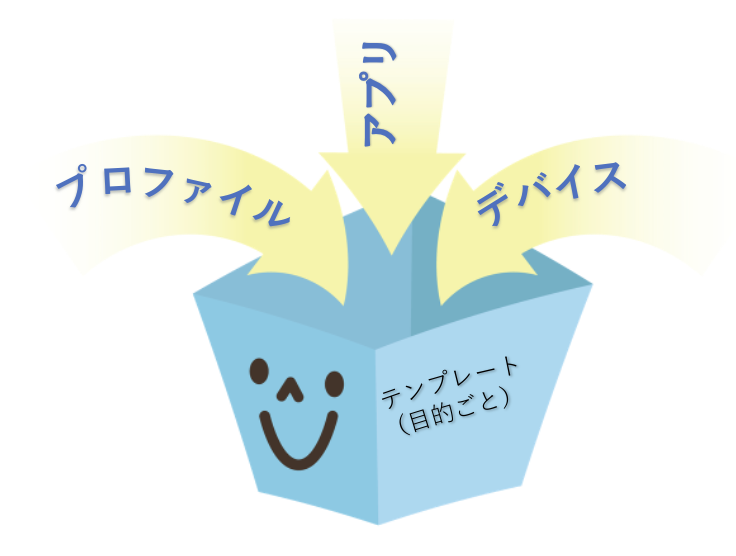
Device management in BizMobile Go! consists of the Template feature, which groups this setting information, and sync processing, which automatically reflects (applies) the configured information to devices.
When you create a template (group) by organization or by use, register devices, and then register the setting information for managing those devices, you can manage all the devices registered in the template with the same setting information.
Management information consists of device usage restrictions configured in profiles, apps you want to install, and so on. A template can also be thought of as a container that collects these items to be set on devices. It also represents what a device looks like after the collected items have been applied, so just by looking at a template's settings you can easily picture the device's configuration state.
You can prepare the information to be set on devices before device registration (enrollment), or add or delete it after device registration (enrollment), both through intuitive operations.
If you prepared the setting information before device registration (enrollment), it is automatically reflected (applied) to the device when the device registration (enrollment) operation is completed.
This process is sync processing.
Sync processing is a major feature of BizMobile Go! that is expected to significantly shorten device setup (kitting) time.
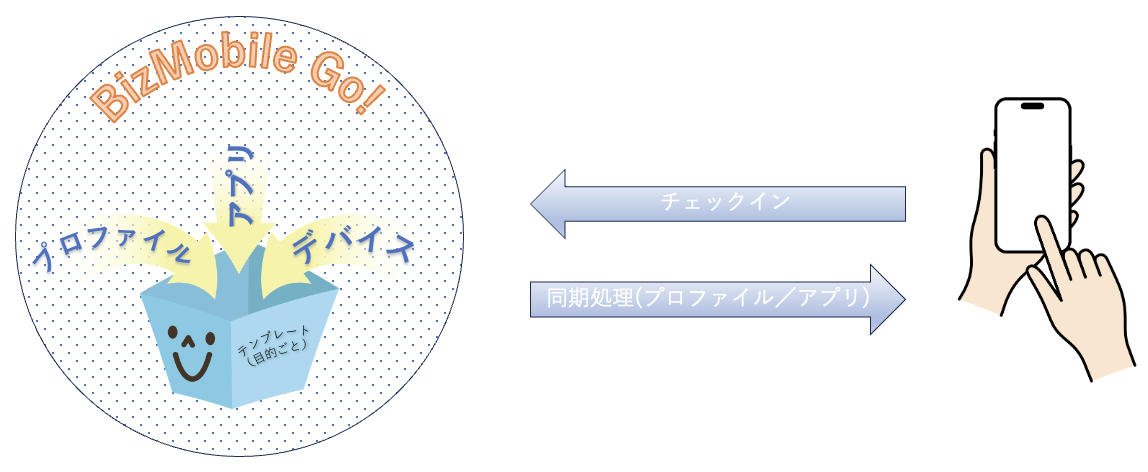
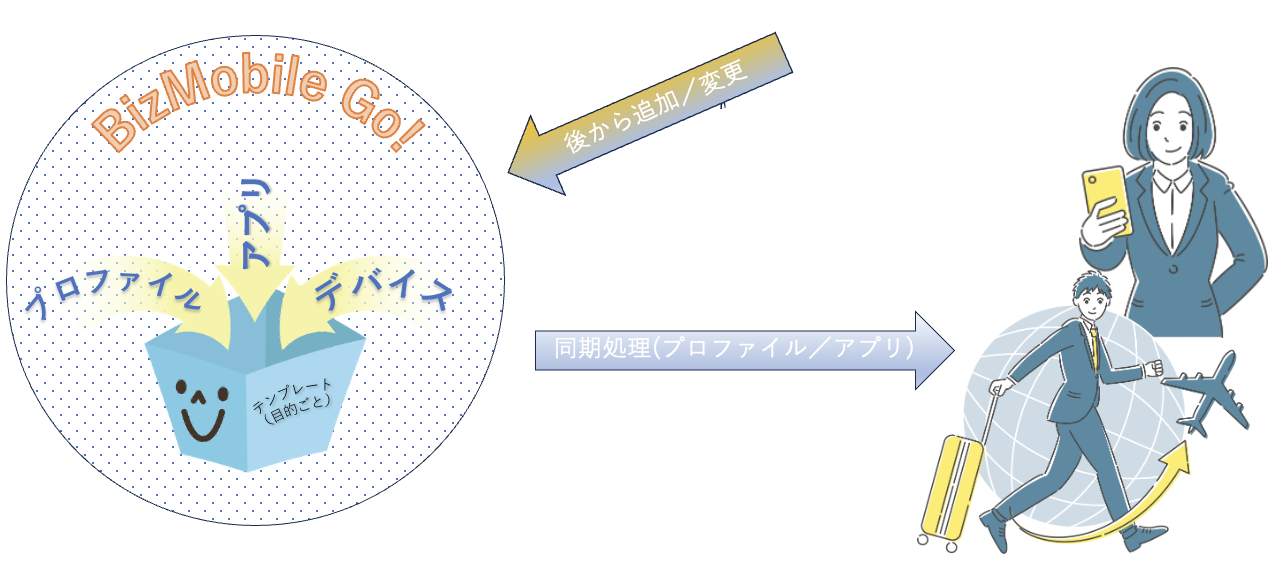
If you add or change setting information, or delete setting information you added, after device registration (enrollment), the changes can also be reflected automatically on the device by subsequent sync processing. This process is also sync processing. You can also run sync processing manually for specific devices. Whether you follow the procedure before or after registering (enrolling) the device, a major feature of BizMobile Go! sync processing is that you can reflect setting information on devices through intuitive operations and check the results.
Use the standard Deployment Flow to prepare in advance what you want to manage with BizMobile Go!.
The Deployment Flow is a combination of features for each purpose, so you can also use it to check the procedure you need when adding or changing management features later.
Typical BizMobile Go! Management Terms
Enrollment
Enrollment is the final registration step for making a device manageable in BizMobile Go!.
Enrollment is an operation performed on the device. Depending on the situation, it is expressed as "enroll," "enrolled," "enrollment complete," and so on.
When enrollment is complete, the device can be managed in BizMobile Go!.
Profile
A profile is a feature that applies static settings to devices, such as restricting the use of features not needed for work or, conversely, enabling features used for work.
Typical examples of restricting use include prohibiting users from installing apps on the device, allowing only specific apps and prohibiting all others, and restricting Wi-Fi connections.
Examples of enabling use include configuring the Wi-Fi to connect to, configuring a VPN, and enabling Single App Mode.
What can be configured in a profile differs by OS, and some features can be configured only by using a profile. By installing the profiles you create on devices from BizMobile Go!, you can reduce or eliminate configuration work on individual devices.
The profiles you create are installed on devices by sync processing.
See Features You Can Configure with Profiles for the features and their descriptions.
Template
A template can also be described as a group of devices, and is created for each organization or use.
A template is the core of the feature that manages static information, bringing together the grouped devices and the information to be set on those devices.
In a template you create, register everything you want to install on devices: profiles with passcode policies, restrictions, Wi-Fi, and so on, apps, and PDFs.
When you register devices in the same template as well, the grouping by template is complete.
Once the grouping by template is complete, leave the rest to sync processing.
Sync processing is responsible for reflecting (installing, uninstalling) what is set in the template, such as profiles and apps, on the devices registered in the same template. You can check the results on the devices through subsequent sync processing.
A BizMobile Go! template is both a container that collects what you set on devices and an image of the devices after the collected items have been set, so just by looking at a template's settings you can easily check the configuration state at that point, both before and after configuration.
Sync Processing
Sync processing is a feature that reflects (installs, uninstalls) the setting information gathered in a template on devices, and that continuously monitors devices and automatically makes necessary corrections so that the device state after the settings are applied is maintained.
It is also called sync or the sync feature, and is the core of BizMobile Go! dynamic management.
Typical processing includes collecting information from devices and installing and uninstalling items such as apps and profile settings on devices.
Whether installation or uninstallation is needed is determined automatically by the server from the information collected from the device and the information set in the template, and the necessary commands are sent automatically.
Sync processing targets devices whose registration (enrollment) is complete.
Sync processing consists of three steps.
Step 1: Collect information and send commands
Information such as installed apps and setting values is collected from the device.
Also, when emergency operations such as lock or wipe are performed, commands (instructions) are sent to the device at this stage.
For devices that use only basic MDM management features, that is, checking device information and executing only commands such as lock and wipe in an emergency, only Step 1 of sync processing runs.
Devices that are not registered in a template and are not managed through app management or profiles are automatically targeted.
Step 2: Compare information
The information collected from the device is compared with the template settings, and any excess or shortage is identified from differences in apps, profile settings, and so on.
Devices registered in a template are targeted.
Step 3: Reflect differences
For devices where a difference was found in Step 2 between the information collected from the device and the template settings, the differences are installed or uninstalled.
These three steps make up one cycle of sync processing.
When an administrator adds, changes, or deletes setting information in a template, the process goes through Step 1 and Step 2, determines that the changes need to be reflected (installed, uninstalled) on the device, and prepares to perform Step 3.
Reflecting differences on devices in Step 3 is basically done by the automatic sync processing that the management server runs once a day.
Normally, installation and uninstallation on the device are performed in the first sync processing (one cycle) after a difference occurs.
The results of installation and uninstallation can be checked in the second and subsequent sync processing (second and subsequent cycles).
You can also run the sync operation that reflects differences or checks the results manually from the admin console, without waiting for the server's automatic sync processing.
However, immediately after you configure settings that require downloading or installing apps, performing a manual sync operation from the admin console may not immediately produce the intended result. This is because it takes time for the settings to be applied inside the device and the processing has not yet finished.
For this reason, when performing the second and subsequent syncs manually, do not run them back to back; leave some time between them.
Commands such as lock and wipe in an emergency are requested from the admin console, so they are executed immediately, regardless of the server's automatic sync processing.
Sync Status and Sync Status Values
Sync status is synonymous with the progress of sync processing, and sync processing in progress is represented by a sync status value for each phase.
The devices managed by sync status are those whose registration (enrollment) is complete.
The basic sync status is Synchronized, which indicates that the information set in the template and the information collected from the device match completely.
When information set in the template is added, deleted, or changed from the Synchronized state, the sync status automatically changes to Sync in Progress.
After that, you can check the progress of the server's sync processing by sync status until the device is Synchronized.
The progress of sync processing is represented by a total of 6 sync status values: 5 normal statuses, ranging from the state where the setting information registered in the template needs to be reflected on the device but sync processing has not yet started, to the state where the setting information registered in the template and the information collected from the device match completely, plus 1 status indicating that device management is not working correctly because communication between the device and the management server was lost.
See Types of Sync Status for the types and detailed descriptions.
A device can reach Synchronized with a minimum of two sync processing runs.
However, the sync state may not reach (or cannot reach) Synchronized due to external factors such as the internet connection, the state of the internal network, and processing time inside the device. It also does not reach Synchronized if the setting information contains errors.
If a device does not reach Synchronized after a certain period of time, you can find a solution by checking the cause from the sync status and logs in the admin console.
Conclusion
Use the standard Deployment Flow to get started with BizMobile Go!.
The Deployment Flow is a combination of features for each purpose, so you can also use it to check the procedure you need when adding or changing management features later.