Check the Dashboard
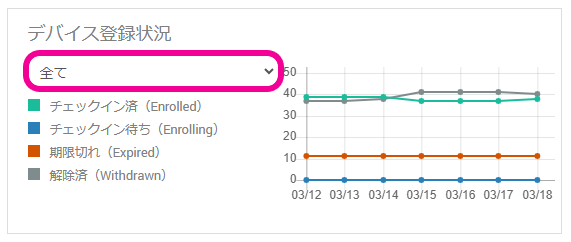
The first screen that opens after you log in to BizMobile Go! is called the Dashboard.
This screen displays buttons for accessing various features, as well as information showing the device management status.
Daily device management starts from this screen.
Top menu buttons

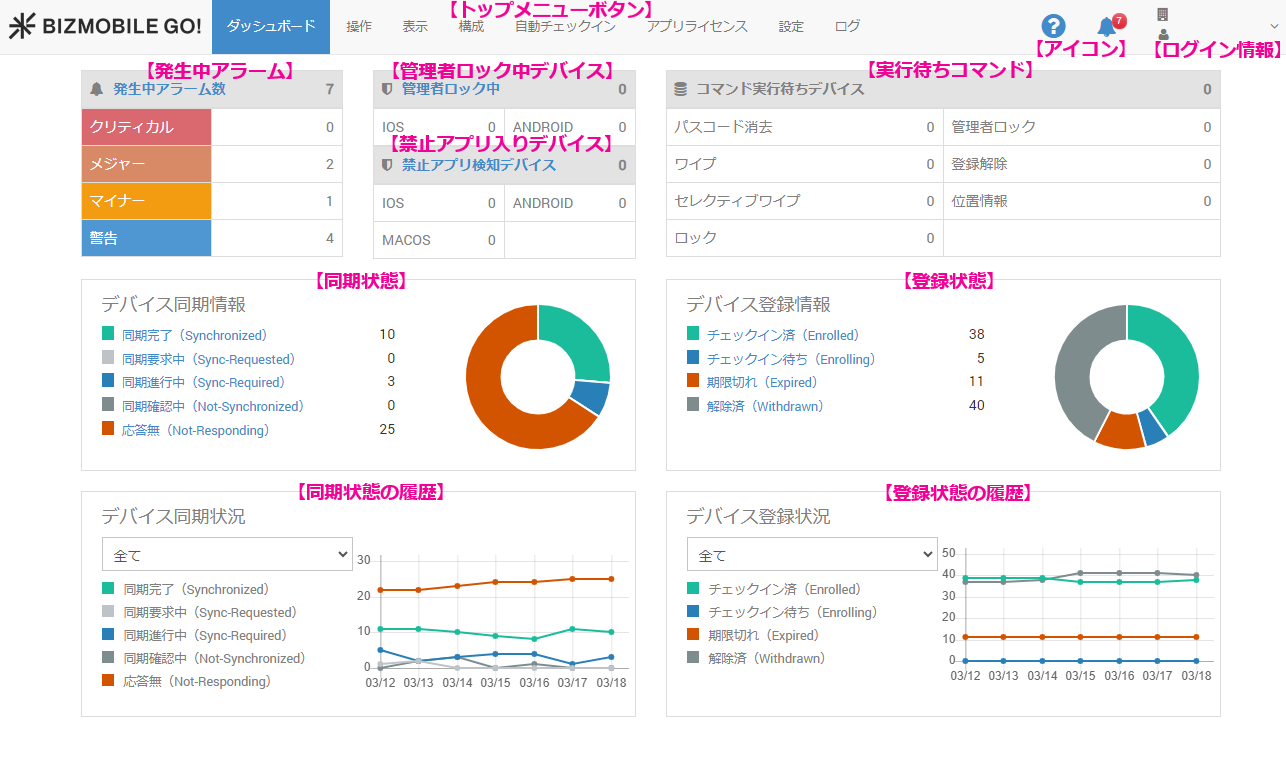
- DASHBOARD: Displays the Dashboard
- CONTROL: Operates devices remotely
- VIEW: Displays a list of devices that match conditions
- CONFIG: A group of features to create, edit, and delete the device management configuration
- AUTO ENROLLMENT: Configures and manages features such as ADE (formerly DEP) for iOS and Zero-touch for Android
- APP LICENSES: Displays applications that require licenses, such as VPP apps
- SETTING: Configures settings related to the unit and operators
- LOG: A group of features to check alarms and logs from the system
Icons
| Icon | Description |
|---|---|
 | Goes to the BizMobile Go! operation manual (this manual). |
 | Opens the Alarm screen. If alarms have occurred, the number is shown as a badge. Click it to jump to the alarm list screen. |
 | Opens the Operator Information screen. |
 | Logs out of BizMobile Go!. |
Information displayed on the Dashboard
The information is updated automatically every few tens of seconds.
Items showing the management status
Click the text Active Alarms, Locked by Administrator, or Devices with Banned Apps to jump to the corresponding page.

Pie chart showing the sync status
Displays the sync status of devices. Click text such as Synchronized above the pie chart, or a colored part of the pie chart, to jump to the device list page for that status.
Description of each sync status
| Status | Description |
|---|---|
| Synchronized | The managed device and the template information match This status means that the information assigned to the template (apps, profiles, and so on) matches the information on the managed device. |
| Sync-Requested | Waiting for a response from the managed device after a "Sync" This is the status from when a push is sent to the target device until the device responds, after you manually select a device and run "Sync" or "Sync All Devices", or click "Save & Sync" on a create or edit screen. As soon as the device responds, the status changes automatically to "Not-Synchronized" or "Synchronized". If the command from the server is a profile installation and the device is locked, the device cannot run the command, so the status changes to "Sync-Required". |
| Sync-Required | The template information was changed on the management site and no longer matches the managed device The MDM server determined that the device needs to be synced and scheduled a sync for the next automatic sync process. The MDM server determines that a device needs to be synced after the following operations. - A device was registered in a template - An "app", "profile", or the like was added to or removed from the template in which the device is registered - An "app", "profile", or the like in the same template as the device was edited - The device was switched from its template to another template After the push is sent by automatic sync, the status changes automatically to "Not-Synchronized" or "Synchronized" as soon as the device responds. Whether the status changes to "Not-Synchronized" or "Synchronized" when the device is unlocked depends on the OS version. If the command from the server is a profile installation and the device is locked, the device cannot run the command, so the status remains "Sync-Required". |
| Not-Synchronized | Sync is in progress, but the information does not yet match the template This indicates that a sync was started manually or automatically and the necessary commands were sent from the server to the device. At this point, however, it cannot be determined whether the device processed the received commands correctly, so the latest state must be retrieved from the device to check the result. In this status, the server recognizes that it must confirm, at the next automatic information collection, that the commands from the server were processed correctly. If the status does not change from "Not-Synchronized" to "Synchronized" no matter how many times you run a sync, you can check the reason in "Sync Status" in the Device Detail. |
| Not-Responding | No response from the managed device for 3 days or more (by default) This is the status when a device has not accessed the server even after the access grace period has passed. You need to resolve the cause on the device side, such as the device being powered off or being somewhere it cannot connect to the internet. The access grace period is set to 3 days by default. If extending the grace period can resolve the issue, you can change it on the settings screen (SETTING > Unit Detail > General > Duration Change of "Not Responding"). |
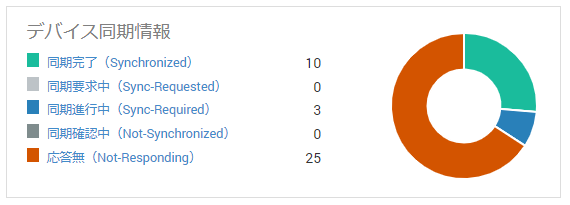
Line chart showing the daily history of sync status
Displays the daily sync status for the past 7 days. Click text such as Synchronized to show or hide the status of the corresponding devices on the graph.
If you use Organization, you can display information for each Organization from the drop-down list.
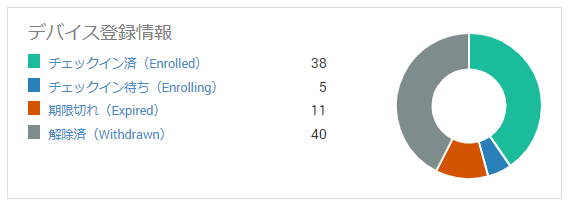
Pie chart showing the enrollment status
Displays the enrollment status of devices. Click text such as Enrolled above the pie chart, or a colored part of the pie chart, to jump to the device list page for that status.
| Status | Description |
|---|---|
| Enrolled | Number of managed devices that have completed enrollment after the device was created |
| Enrolling | Number of managed devices that have not completed enrollment after the device was created |
| Expired | Number of managed devices whose enrollment expiration date passed after the device was created |
| Withdrawn | Number of managed devices that were withdrawn after being enrolled |
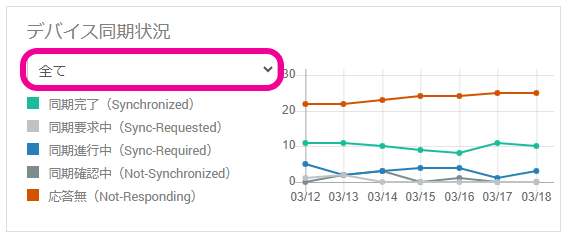
Line chart showing the daily history of enrollment status
Displays the daily enrollment status for the past 7 days. Click text such as Enrolled to show or hide the status of the corresponding devices on the graph.
If you use Organization, you can display information for each Organization from the drop-down list.