Apps are not distributed even though EMM settings are enabled
The conditions for distributing EMM apps are as follows. Check that the conditions are met.
・EMM is enabled in the unit (procedure: Enable Android EMM)
・A user is assigned to the device
・The maximum number of devices that can be assigned to one user is 10
If the number of devices assigned to one user exceeds 10, follow the procedure below.
- Change the device and user assignments so that the number of devices assigned to each user is 10 or fewer
- Run a sync on the device
- In
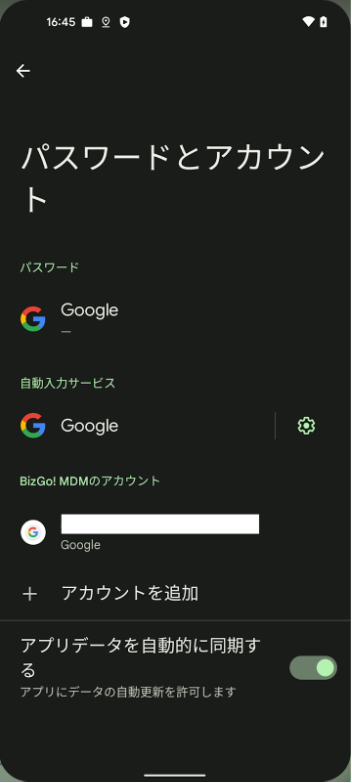
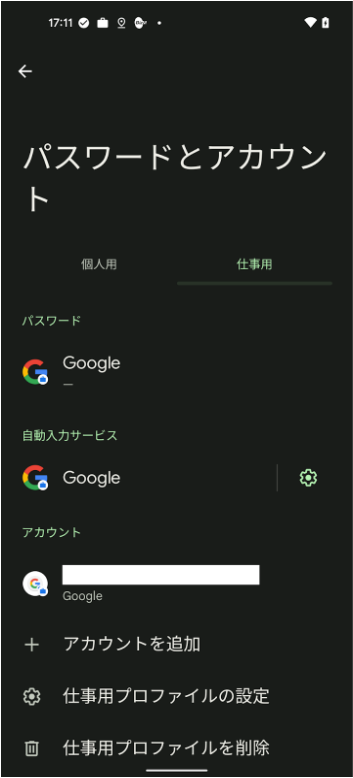
Accountsin the device settings, confirm that the managed account has been removed - Wait about 1 hour
- In
Accountsin the device settings, confirm that a managed account different from the one in #3 is displayed - Wait for the EMM app to be distributed
How to check the settings on the device (when EMM is enabled with a Managed Google Play account)
|
|
|
| ||
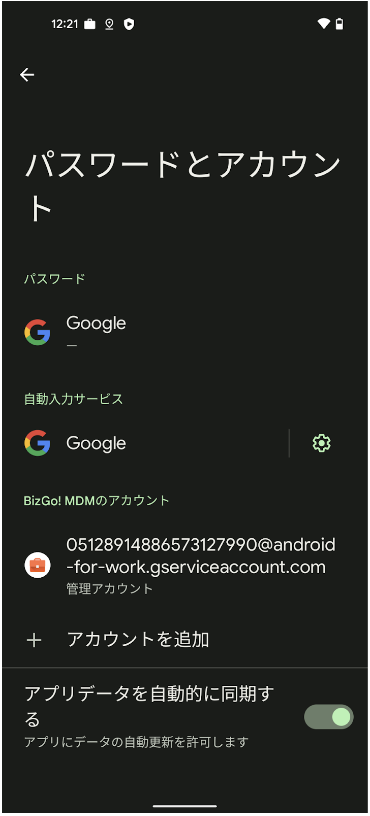
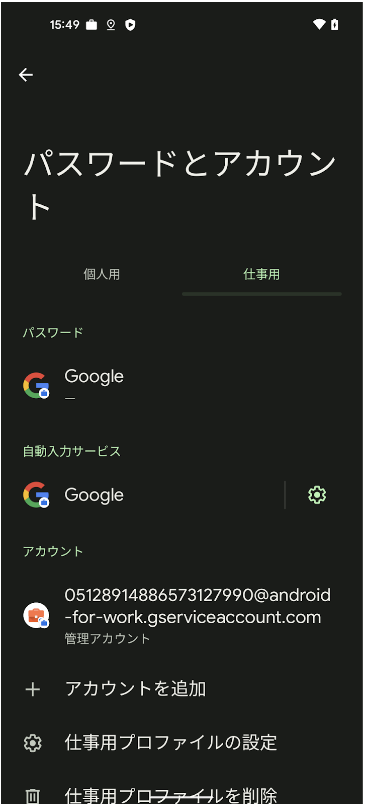
How to check the settings on the device (when EMM is enabled with a Google account (such as a company's former G Suite account))
|
|
|
|
| |
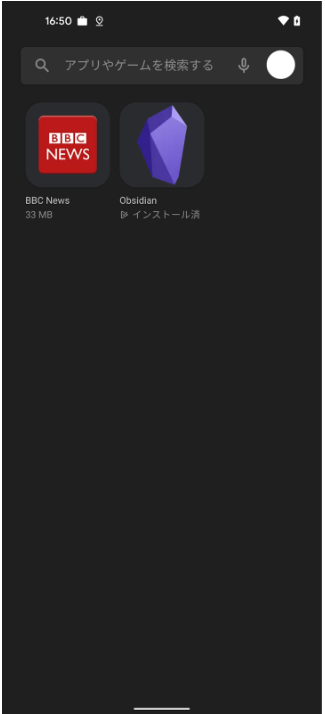
If the issue is not resolved, try the following.
・Restart the device
・Withdraw from MDM and then enroll again
・Erase the device
Last updated: November 30, 2022