Android EMM
We recommend integrating with Android EMM.
By integrating Android EMM with BizMobile Go!, you can remotely install and uninstall Google Play Store apps and in-house apps, configure app settings, and configure policies without requiring any user operation on the device.
Using Android EMM lets you manage Android devices with a consistent configuration.
You can also configure app settings from the EMM screen.
What you can do with EMM integration
- Silently install and uninstall store apps and in-house apps on devices without any user operation
- Configure app settings (use together with a profile)
- Set the information managed by BizMobile Go! authentication as credentials for each device (use together with a profile)
- Show only the apps registered in BizMobile Go! in the Google Play Store app (use together with the profile
RestrictionspolicyProhibit use of Google Play Store with non-EMM accounts) - Use in-app purchases of store apps (when using a Google Workspace account)
On Device Owner devices, only in-house apps can be silently installed and uninstalled even if EMM integration is not set up.
However, by integrating with EMM, you can support all management modes and app types and manage Android devices with a more consistent configuration, including app settings.
Requirements and limitations for using EMM
- Android agent app Ver 2.0 or later is required (EMM cannot be used with Ver 1.8.5 or earlier)
- You must assign devices to users
- The maximum number of devices that can be assigned to one user is 10
EMM integration is required to silently install and uninstall apps.
If a device is not assigned to a user, apps are not silently installed or uninstalled.
If more than 10 devices are assigned to one user, the behavior is undefined. Operation is not guaranteed in this case, so stay within the limit.
How to register EMM (enable)
If you need integration to use Google Workspace features, such as using Google Workspace (formerly G Suite) email or in-app purchases, register EMM using a Google Workspace account. If you do not need integration with Google Workspace, register EMM using a Managed Google Play account. Follow the procedure below that suits your use case.
- Register EMM using a Managed Google Play account
- Register EMM using a Google Workspace administrator account
Register EMM using a Managed Google Play account
This applies if your company does not use Google Workspace (formerly G Suite), or uses Google Workspace but does not use Google Workspace features on devices.
What you can do with EMM integration
- Silently install and uninstall store apps and in-house apps on devices without any user operation
- Configure store app settings (use together with a profile)
- Set the information managed by BizMobile Go! authentication as credentials for each device (use together with profile authentication)
- Show only the apps registered in BizMobile Go! in the Google Play Store app (use together with the profile
RestrictionspolicyProhibit use of Google Play Store with non-EMM accounts)
The following EMM registration procedure uses a Gmail address. The Gmail address is registered as the EMM administrator account, so do not use one that you use personally or for work. Create a new one for EMM administration.
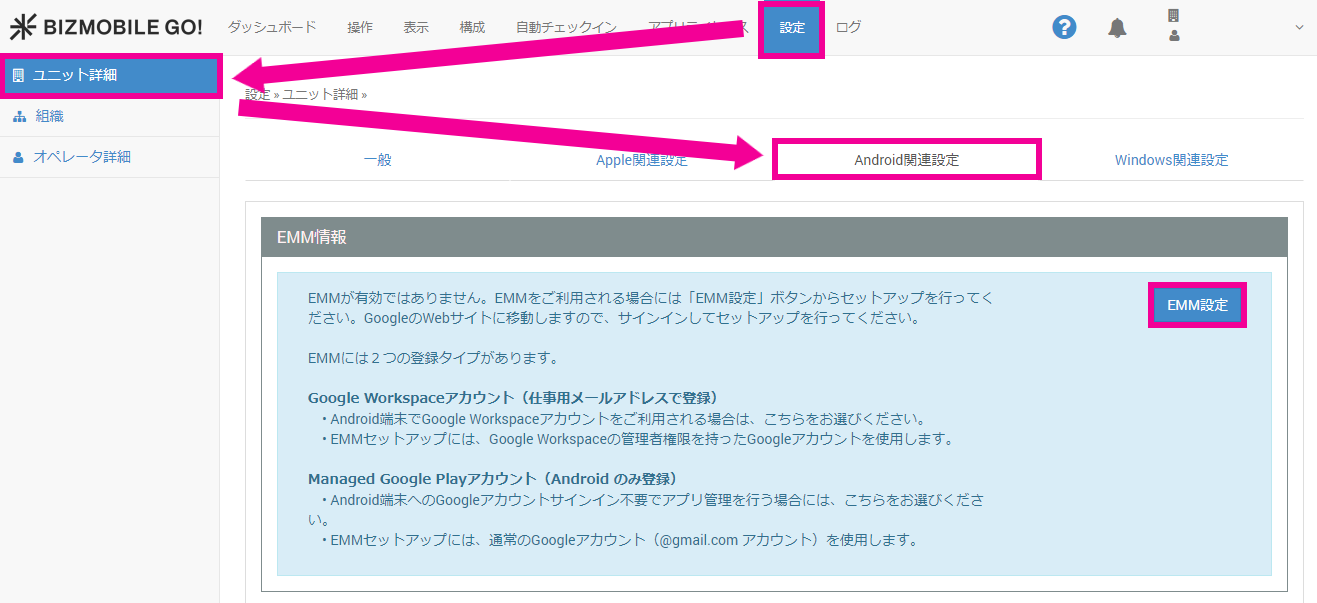
- Click SETTING → Unit Detail →
Androidtab → [EMM Settings].
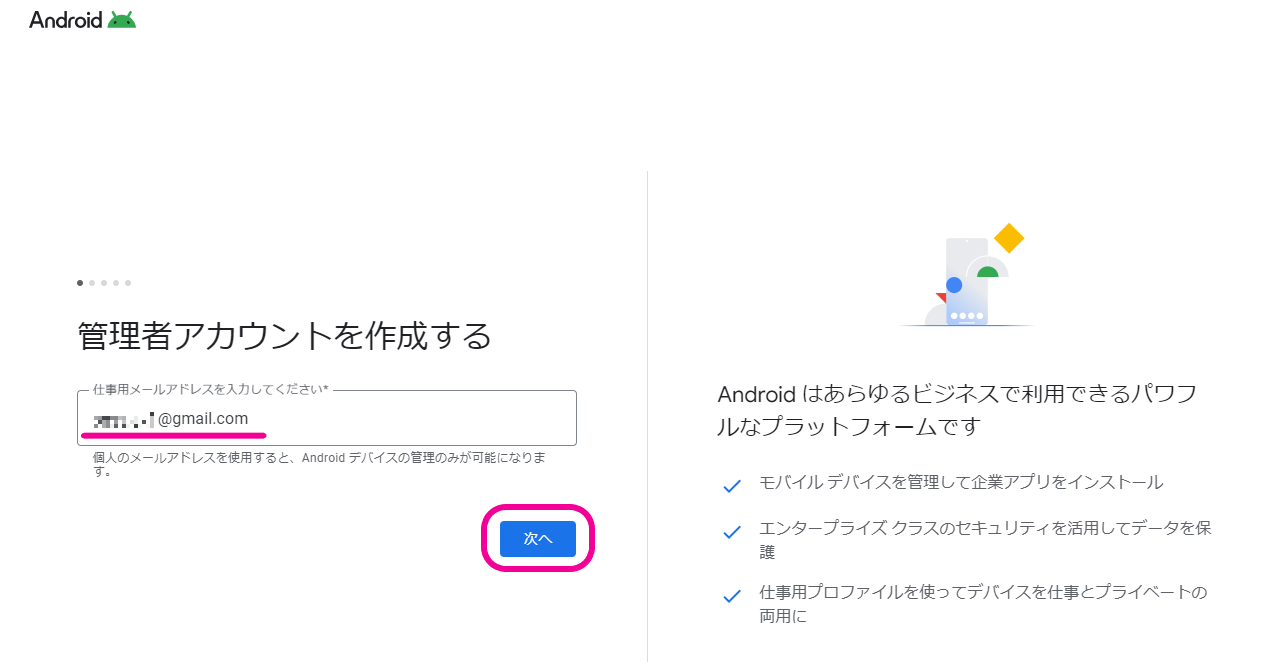
- Enter the email address you prepared and click
Next.
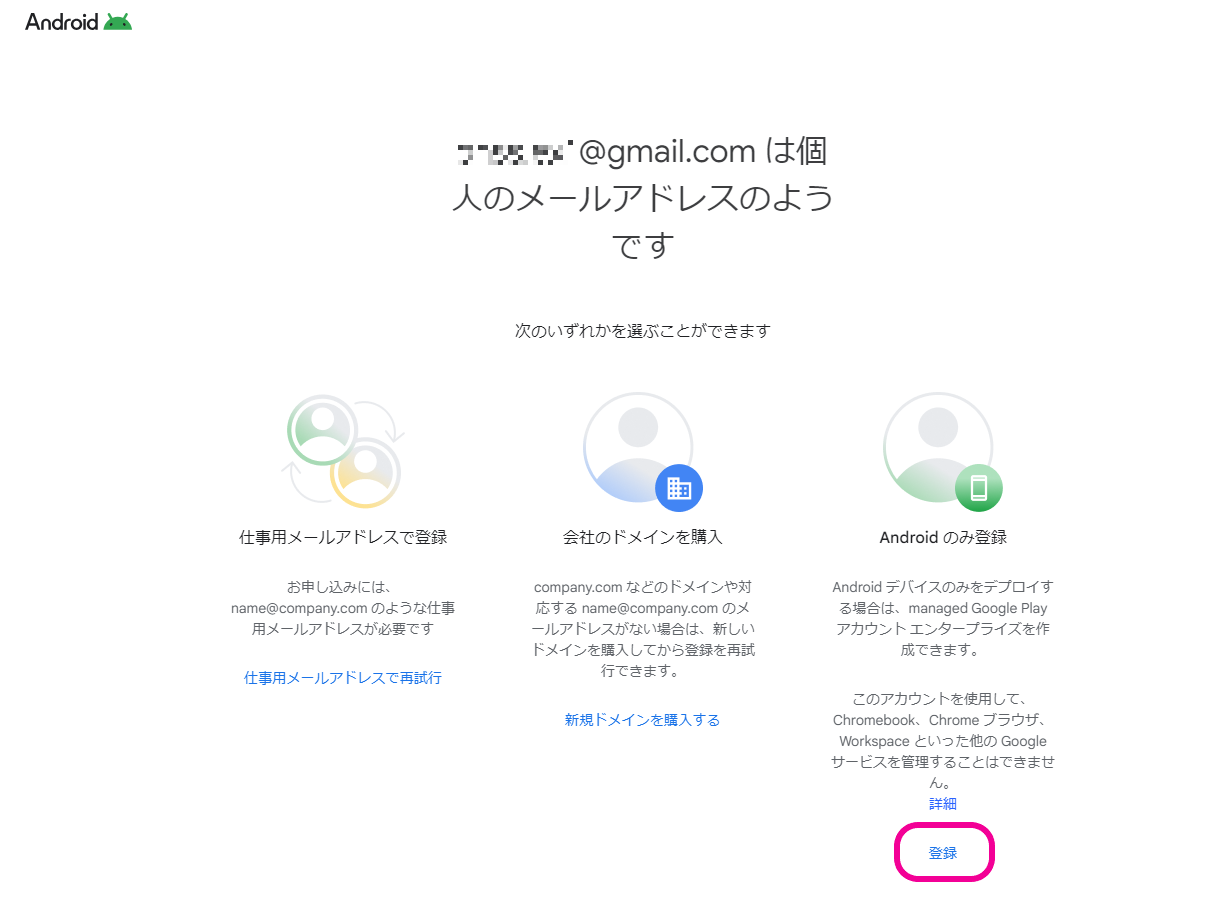
- Click
Registerat the lower right of the screen.
- Click
Get startedto begin the setup.
Make sure you are signed in with the Google account to be used for EMM integration.
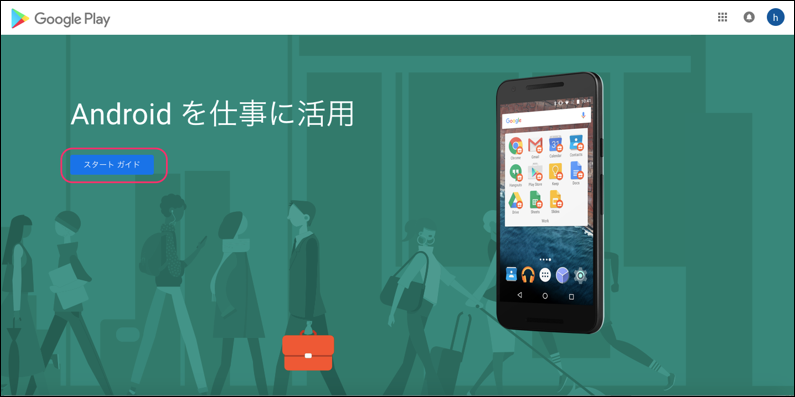
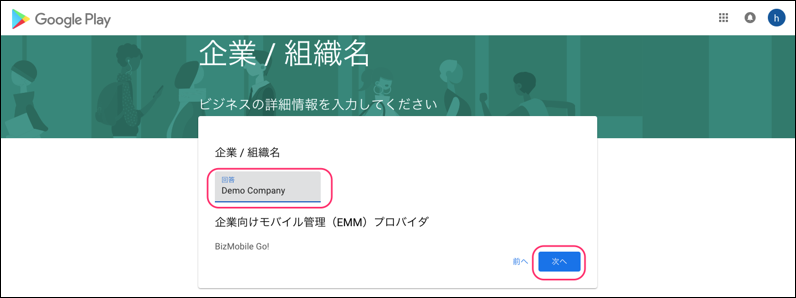
- Enter your company/organization name and click [Next].
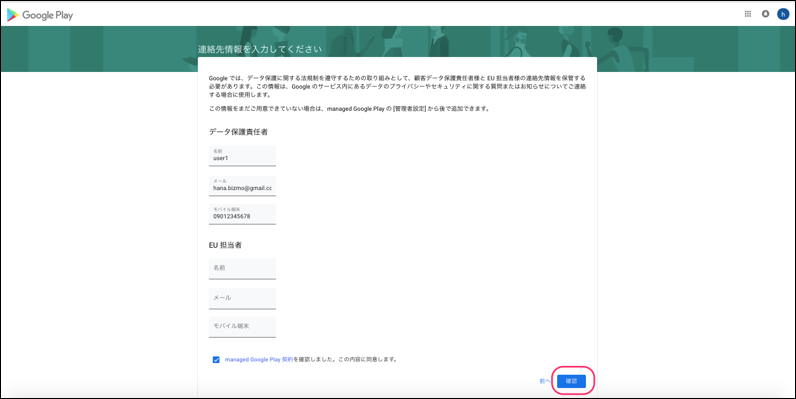
- Enter your contact information, review the Managed Google Play agreement, select the checkbox, and click [Confirm]. Note: You do not need to fill in the EU representative field.
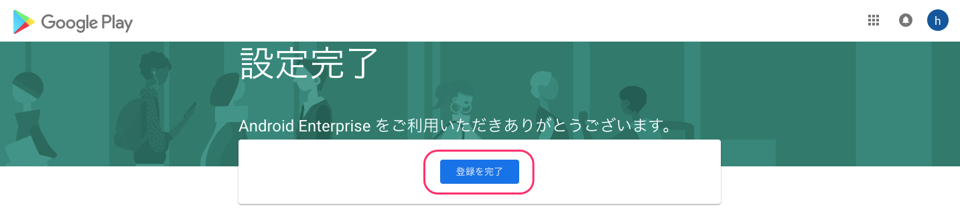
- Click [Complete Registration].
- The setup is complete when
Android EMM updated successfullyappears andEMM Account TypeshowsManaged Google Play Account.
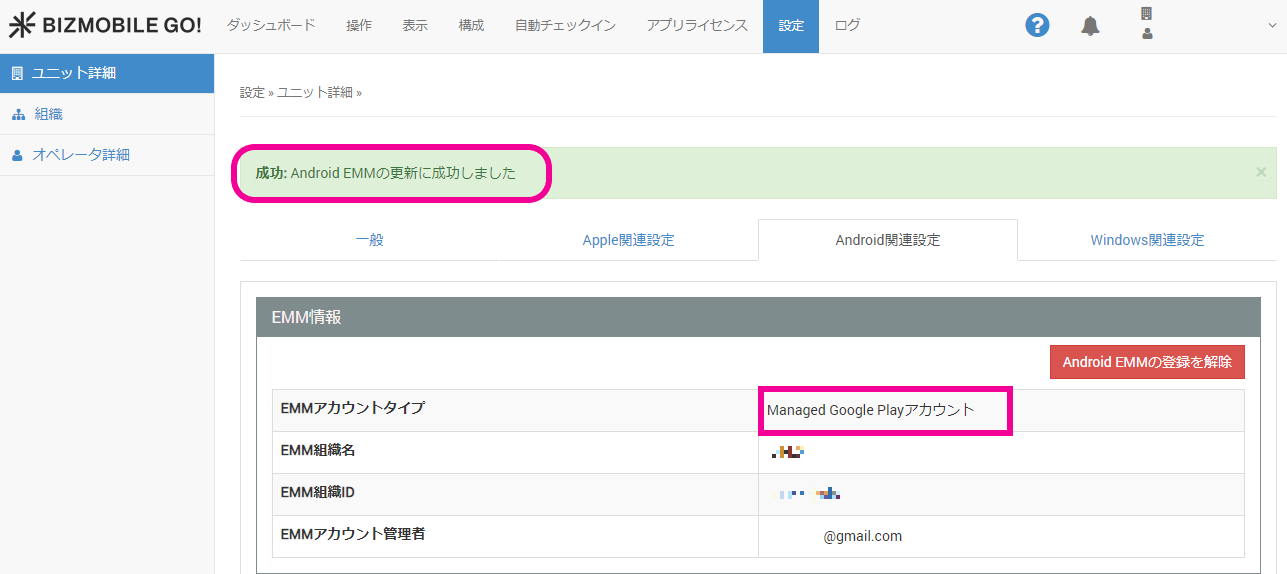
This completes the procedure for registering with a Managed Google Play account.
Register EMM using a Google Workspace administrator account
This applies if you use Google Workspace features such as Google Workspace (formerly G Suite) email, or if you use in-app purchases.
What you can do with EMM integration
- Silently install and uninstall store apps and in-house apps on devices without any user operation
- Configure store app settings (use together with a profile)
- Set the information managed by BizMobile Go! authentication as credentials for each device (use together with profile authentication)
- Show only the apps registered in BizMobile Go! in the Google Play Store app (use together with the profile
RestrictionspolicyProhibit use of Google Play Store with non-EMM accounts) - Use in-app purchases of store apps (when using a Google Workspace account)
The following EMM registration procedure uses a Google Workspace administrator account.
Note: In the User Information of the device user that you associate with Device Information, you must register the device user's Google Workspace account to enable the integration.
- Click SETTING → Unit Detail →
Androidtab → [EMM Settings].
- Enter your Google Workspace account and click
Next.
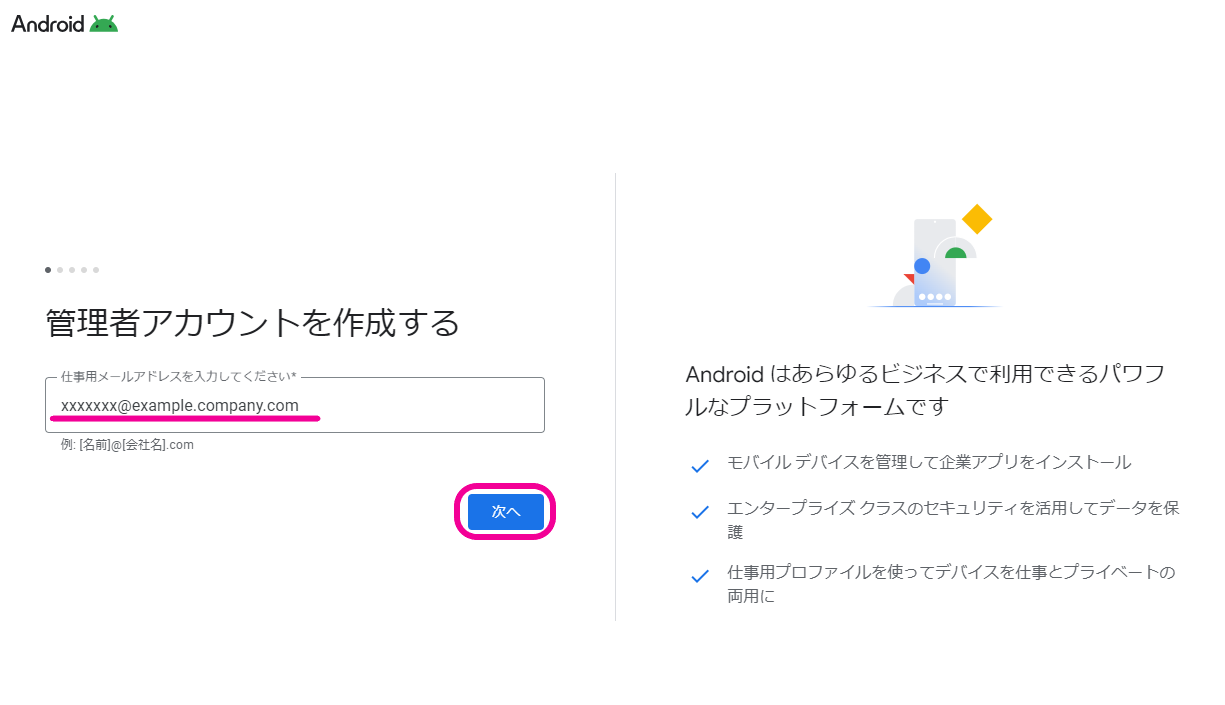
- Click
Go to Admin console.
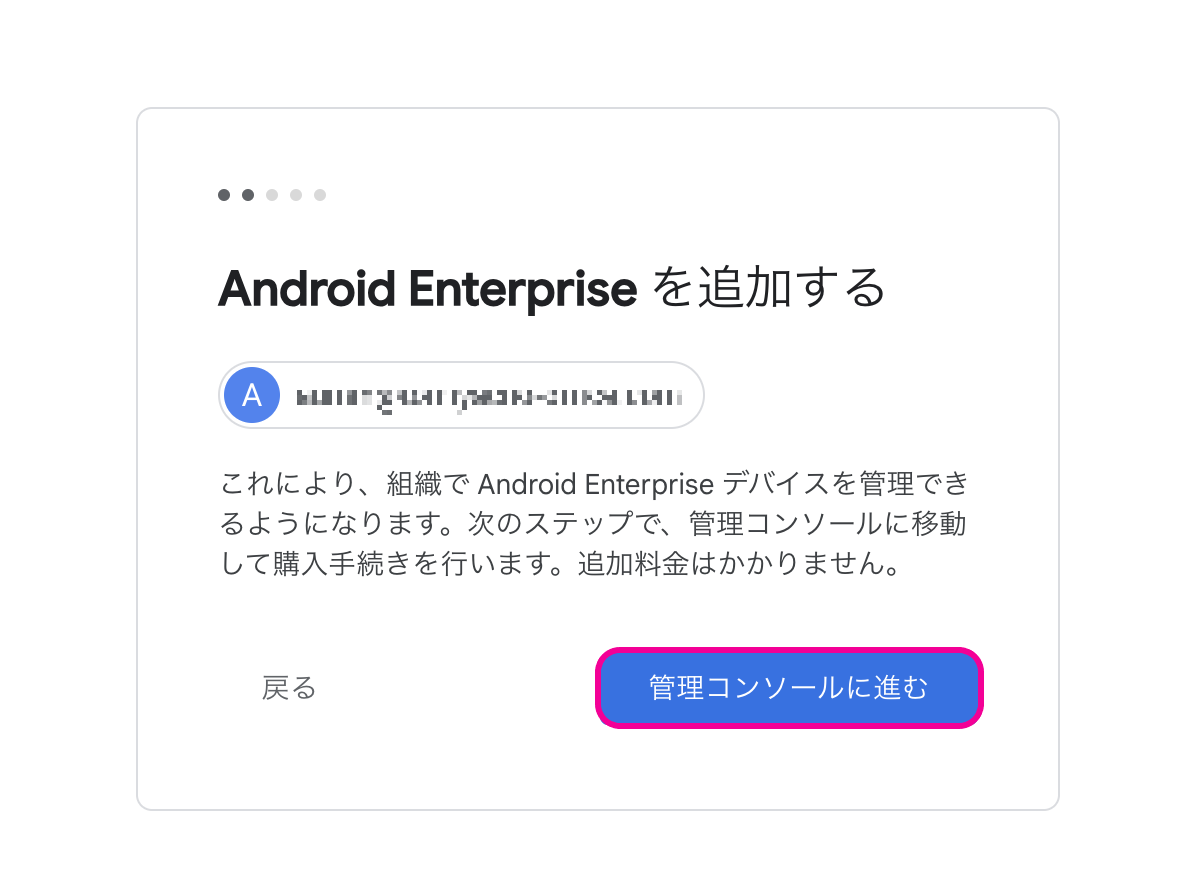
- Confirm that the plan is
Freeand clickPurchase.
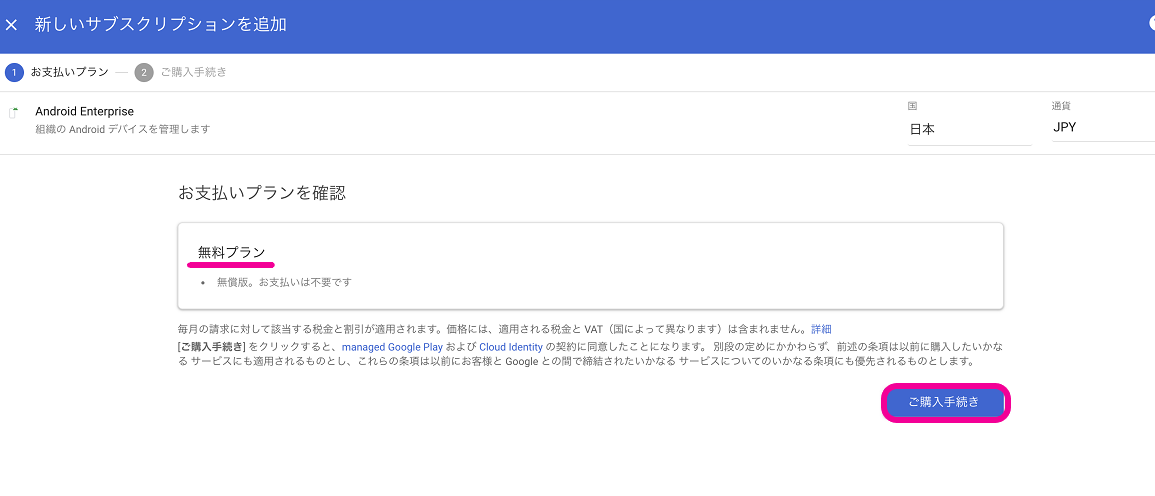
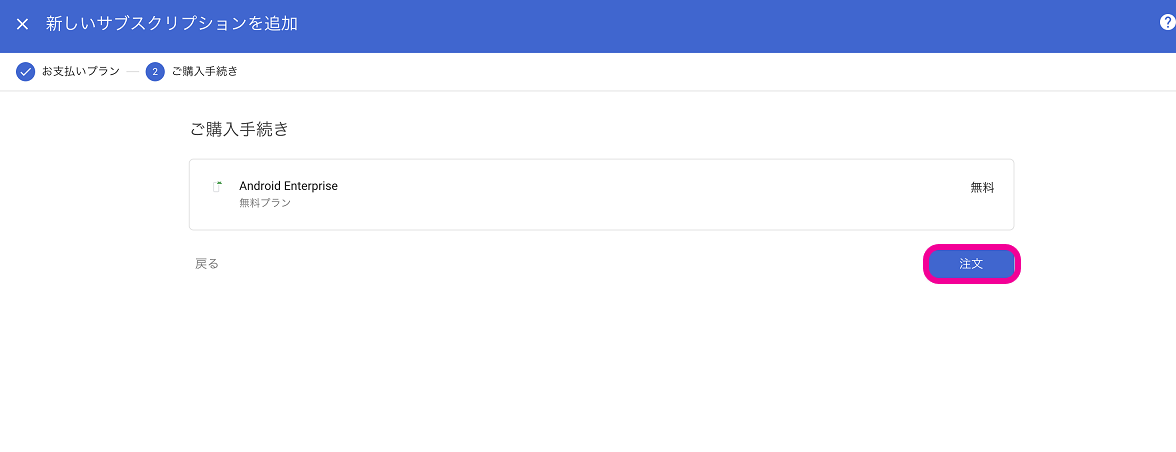
- Click
Order.
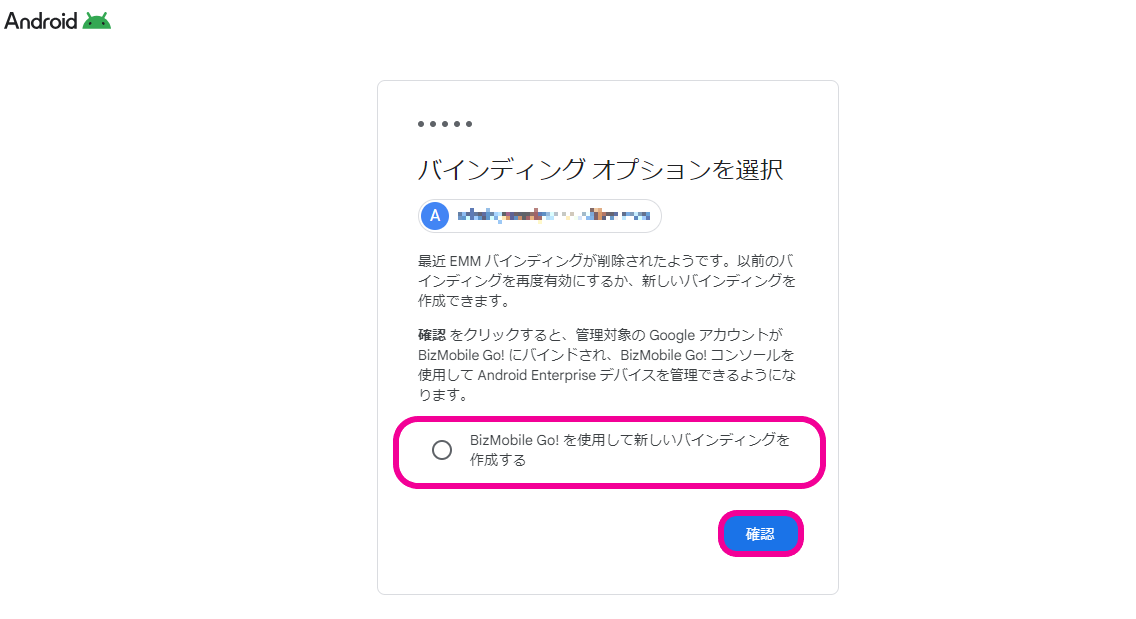
- Select
Create a new binding using BizMobile Go!and clickConfirm.
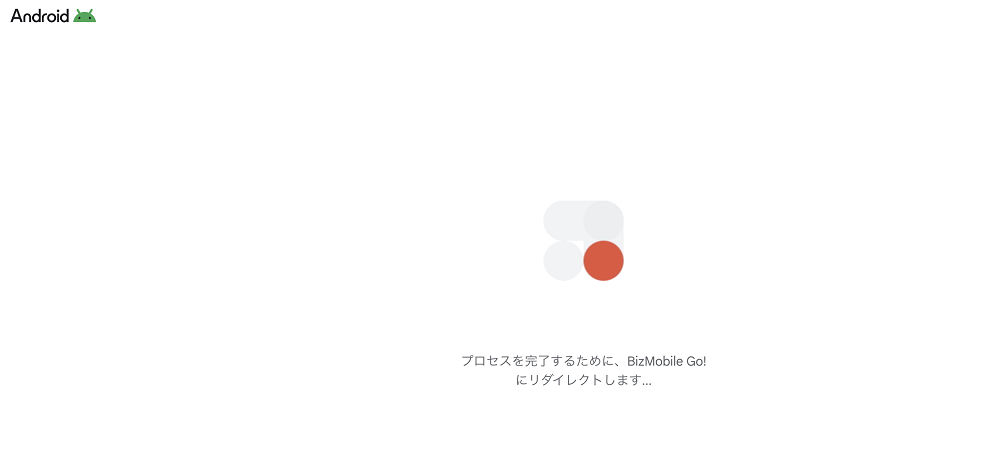
- Wait until the screen changes.
- The setup is complete when
Android EMM updated successfullyappears andEMM Account TypeshowsGoogle Account.
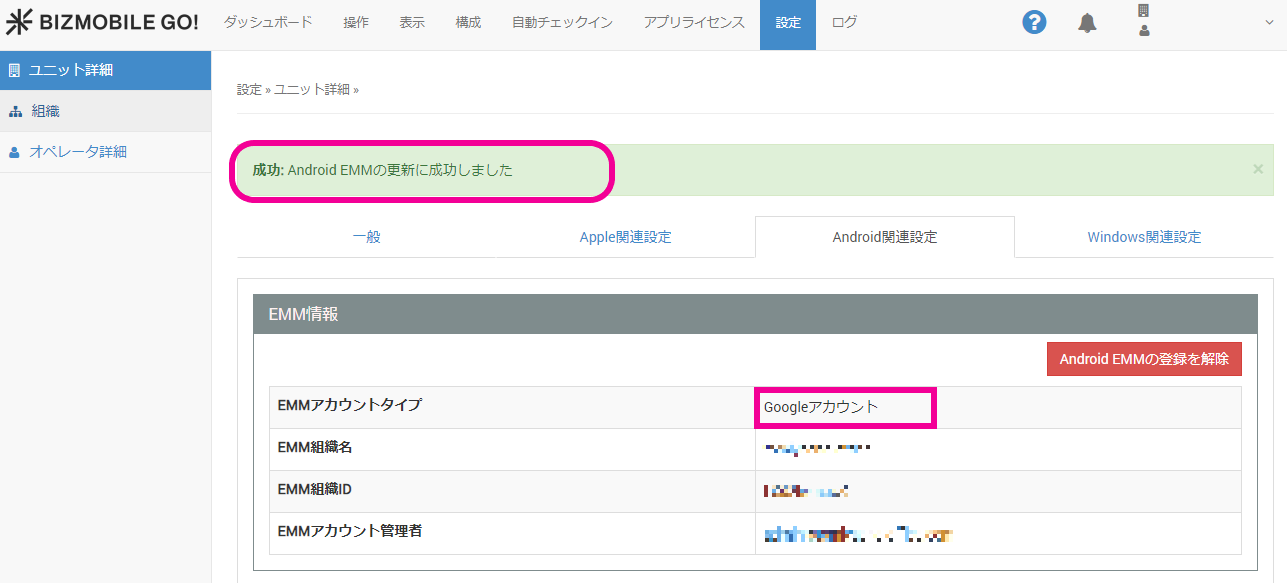
This completes the procedure for registering with a Google Workspace administrator account.
How to unregister Android EMM
To unregister EMM, follow the procedure below.
Note: If you register again, a new EMM Organization ID is generated. If you use private apps in the Google Play Store, you must provide the new EMM Organization ID to the app provider.
(Example: For BizGo! Browser, the provider is BIZMOBILE.)
- Click SETTING → Unit Detail →
Androidtab → [Unregister Android EMM].
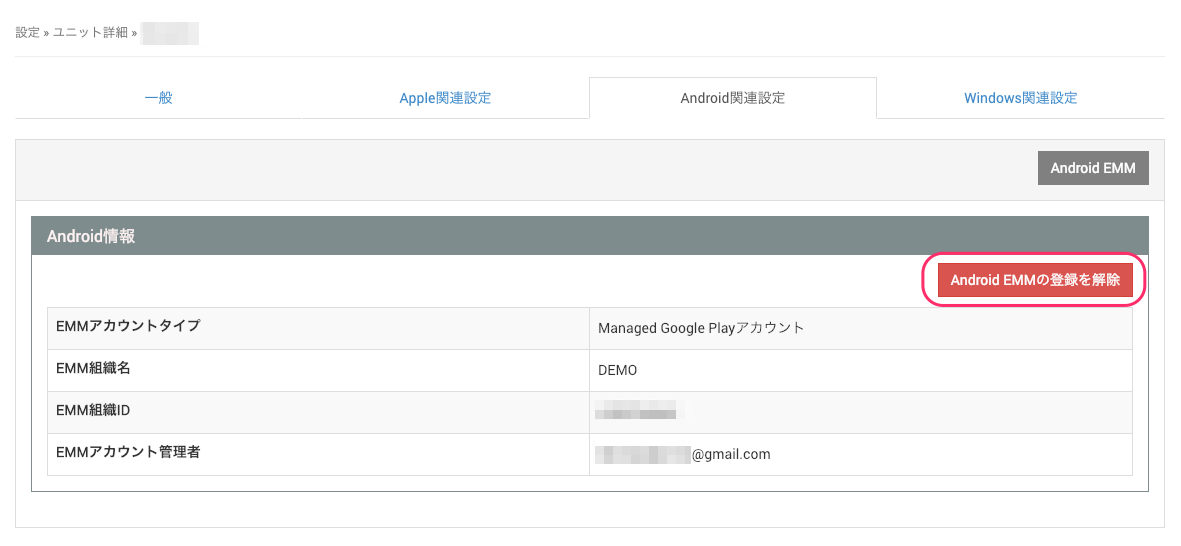
- A confirmation message appears. Review it, and if everything is correct, click [OK].
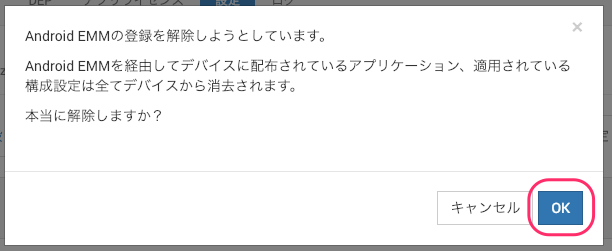
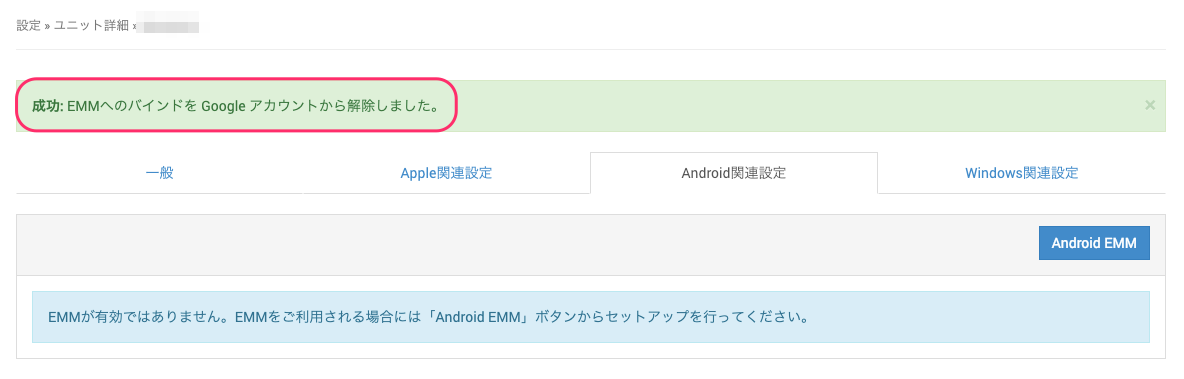
- Unregistration is complete when
The EMM binding was removed from the Google account.appears.