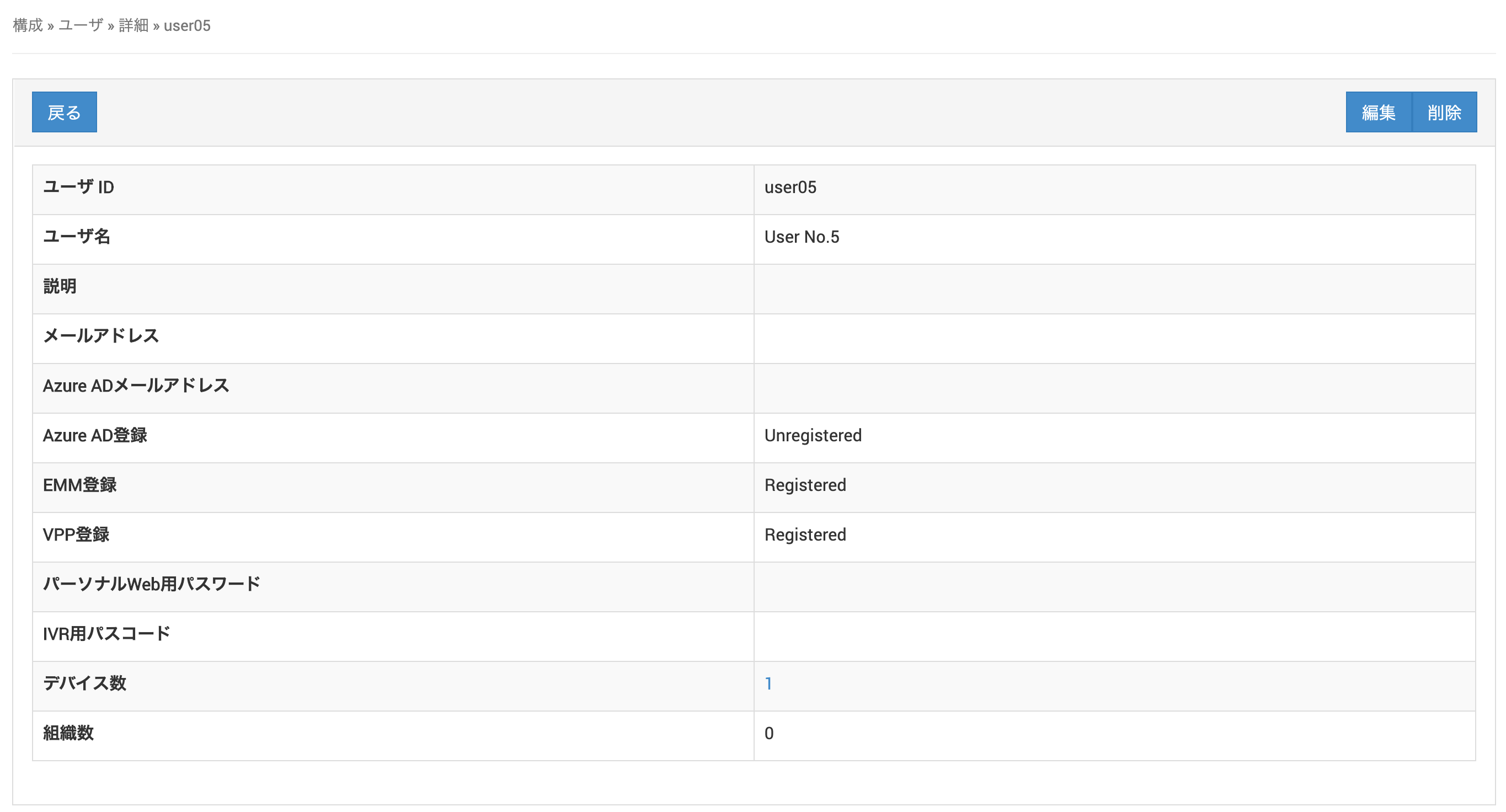
Create User Information
Create information about the users who use devices.
User information is required if you use the Organization feature or the Android EMM feature.
What you can do with user information
-
Manage devices by organization by linking
Organization,User, andDevice -
Together with Android EMM, install Google Play Store apps without any action by the device user
- On the CONFIG → User screen, click Create.
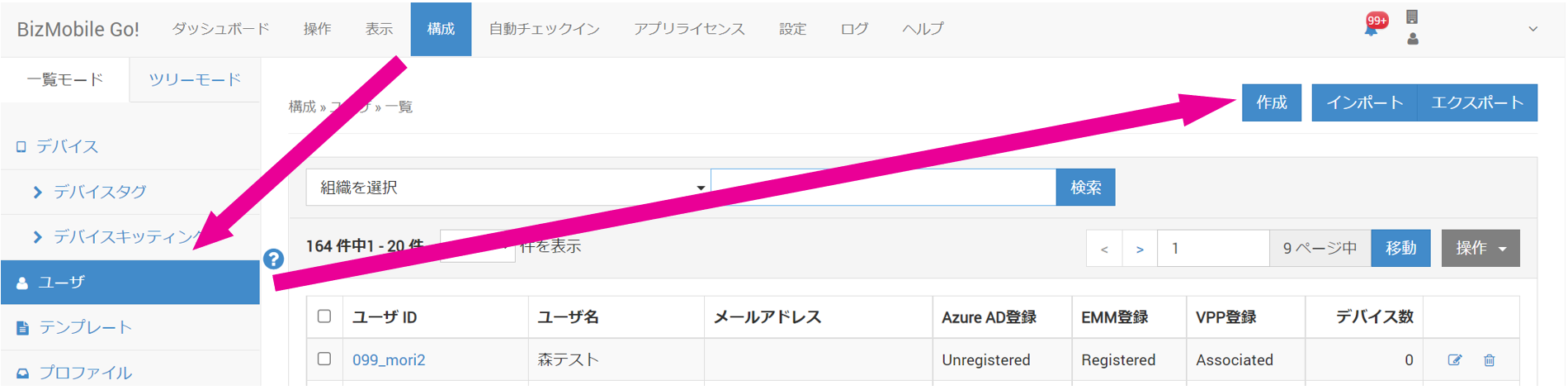
- Enter the required information on the user information entry screen.
Input fields (★ indicates a required field)
| User information | Description |
|---|---|
| User ID★ | An ID that uniquely identifies the user This field is required if you use Organization or Android EMM. |
| User Name | The user's name or similar |
| Description | Any information |
| Email Address | The user's email address This field is required only if you set up EMM by using a Google Workspace administrator account. - Required - Enter the device user's Google Workspace account (it must match the account used to sign in on the device) Note: Entry is optional in an EMM setup that uses a Managed Google Play account. |
| Password for Personal Web (Option: displayed only when the personal service is enabled) | Specify the password for logging in to Personal Web when you use the personal service. If you do not use Personal Web, leave it blank. For the personal service, see Personal. |
| Device | Select the device that this user uses. If the device has not been created, leave this field blank, and register the device after you create it. |
| Organization | Select the organization to which the user belongs. If the organization has not been created, leave this field blank, and register the organization after you create it. |
- Click Save.
When registration is complete, the user list screen appears with the following message at the top.