Per-App Settings (Distribute Configuration to Apps)
For apps that support configuration settings, BizMobile Go! can distribute the configuration.
This applies to store apps and in-house apps distributed from BizMobile Go!.
What you can do with per-app settings
- Set configuration that an app requires, or that finely controls how the app behaves
- Set information used to authenticate the device
Requirements and limitations for per-app settings
- Whether or not you use EMM, the app must support configuration settings
- If you use EMM, enter the package name of a supported app and the configurable items are displayed automatically
- If you do not use EMM, the input format is limited to
JSON format.
For the information that can be configured, contact the app provider (developer).
Create per-app settings
App configuration is set in a profile.
By assigning the profile you create to the same template as the app to be configured, you can distribute it to all devices assigned (registered) to that template.
Note: If you have already created a profile, start from the ③ Application Configuration payload (step 3).
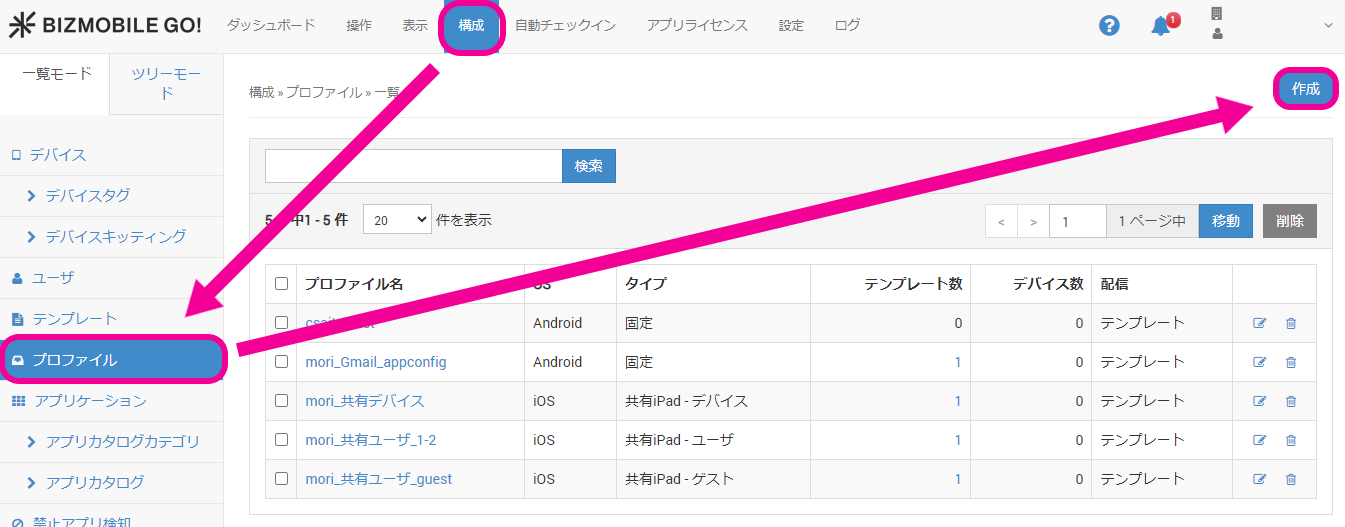
- Click [Create] under CONFIG → Profiles.
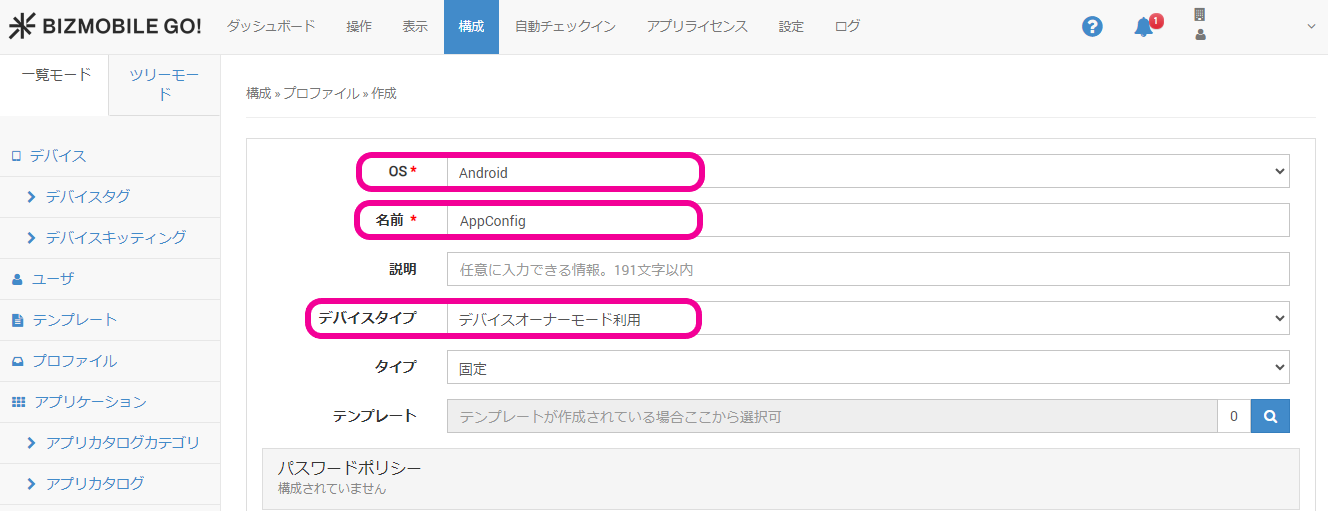
- In the profile information screen that opens, enter the OS, name, device type, and other required information.
For details on the settings, see Profiles for Android.
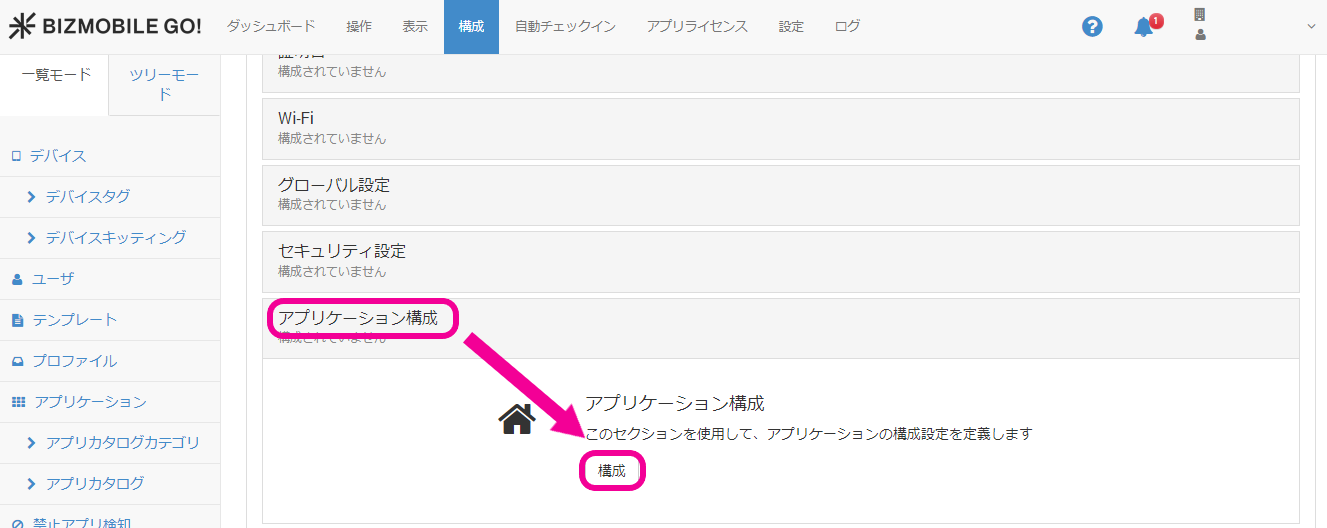
- Click [Configure] for the
Application Configurationpayload.
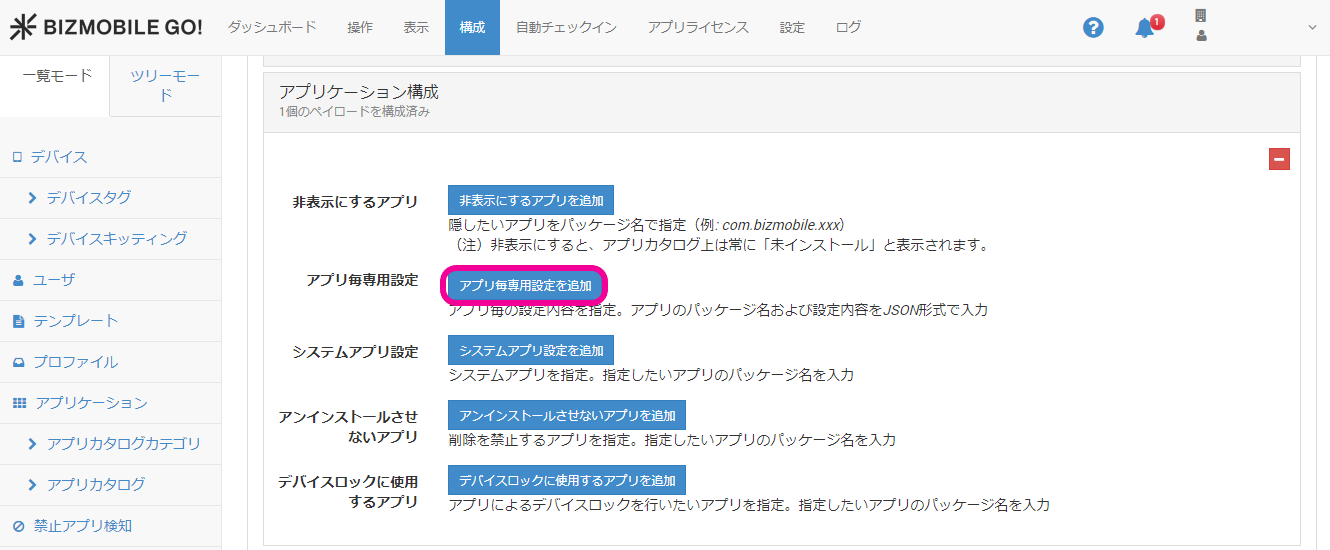
- Click [Add Per App Settings].
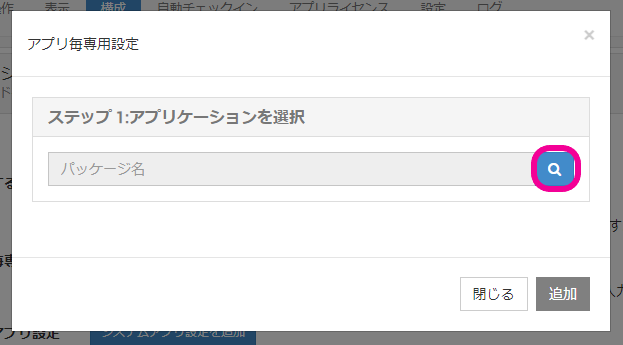
- [Step 1: Select Application]: Click the magnifying glass icon.
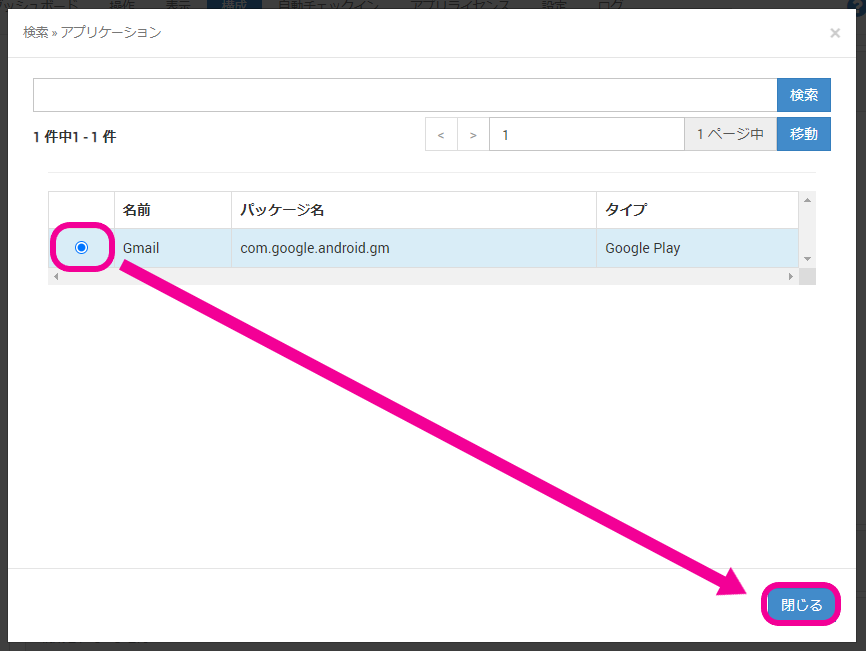
- Select the required app and click [Close].
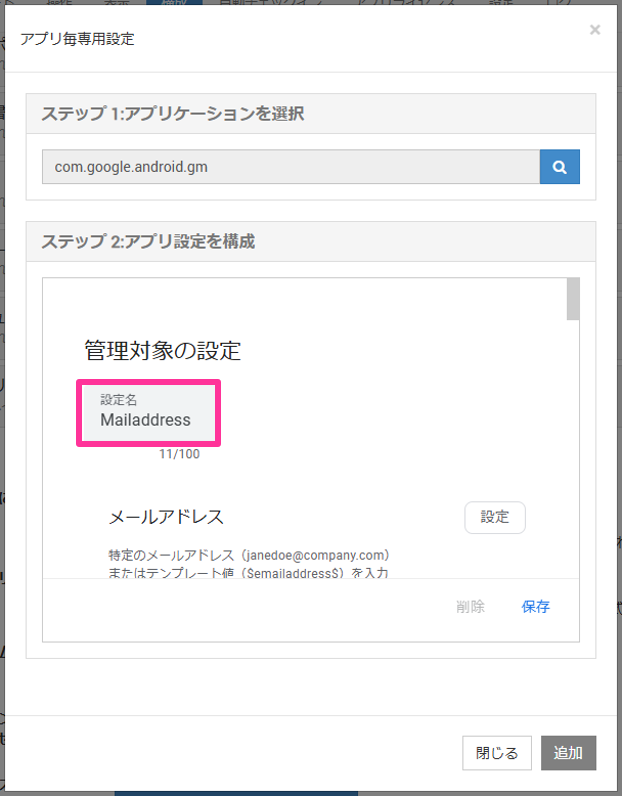
- [Step 2: Configure App Settings]: Register a [Configuration Name].
The following image shows an example when EMM is used.
If you do not use EMM, there is no [Configuration Name] to register, so go to step 9.
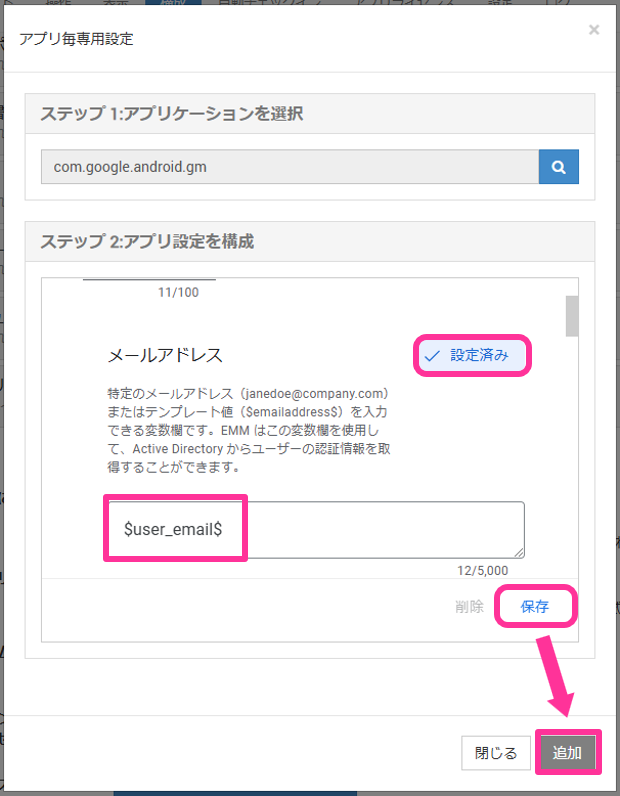
- [Step 2: Configure App Settings]: Find the item you want to set for the app.
When you find the item, click [Settings] and enter a value.
The following image shows an example when EMM is used.
You can also use information managed by BizMobile Go! to authenticate the device (= the user).
Select the information to use for authentication from the list predefined in BizMobile Go! below. If you enter a variable from the list enclosed in $ signs, a device-specific value is set automatically.
(Example: $user_email$)
Values you can enter
| Variable | Substituted value |
| device_identifier | The device's Identifier |
| device_id | A device ID that is unique in the system (included in the URL of the device detail screen) |
| device_did | A device UID that is unique in the system (cannot be checked in the admin console) |
| device_name | The device's Name on Device (a value obtained from the device) |
| device_display_name | The device's Name |
| user_email | The Email Address of the User assigned to the device |
| user_username | The Username of the User assigned to the device |
| unit_unitid | Unit ID |
When you use information managed by BizMobile Go! to apply a different setting to each device, you cannot mix variables and fixed values in a setting. Enter only a variable.
Correct example: $user_email$
Incorrect example: $user_usename$@bizmobile.co.jp
Variable settings are available only when EMM is used.
Confirm that the setting is reflected, and then click [Save] and [Add].
-
[Configure app settings without EMM, or in-house app]: Specify the settings in JSON format.
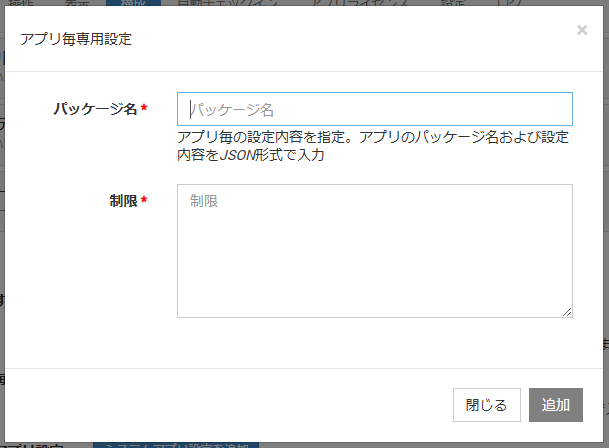
The information you can specify in JSON depends on the app's specifications, so check with the provider (developer) (JSON format sample). -
Confirm that the setting is reflected, and then click [Save].
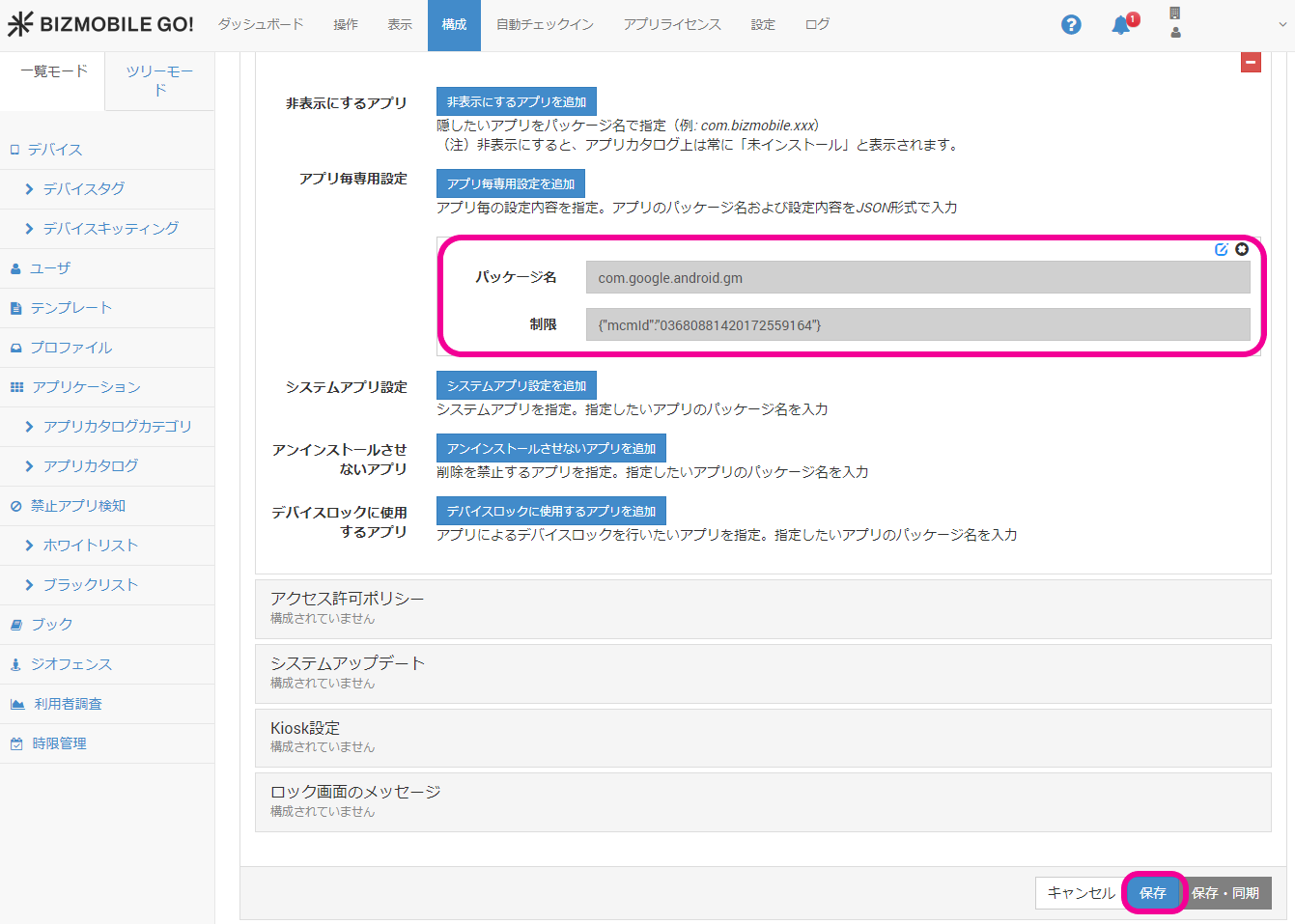
Assign the profile you created above to the required template to distribute the application configuration.