List Screens
When you open a function under CONFIG, its list screen appears first.
- You can select the number of items displayed per page: 20 (default), 50, or 100.
- On list screens, click a column header to sort in ascending or descending order.
- Some fields can be used as search targets to narrow down the list with the search function (→
Search function). - Sort: Columns that you can sort by clicking the column header
- Search: Fields that you can search in the search field (★ indicates an exact match)
Device List Screen (List Mode and Tree Mode)
| Item | Notes | Sort | Search |
|---|---|---|---|
| Identifier | (Click to display the detail screen) | Yes | Yes |
| Name | Yes | Yes | |
| OS | Yes | Yes | |
| Product | Yes | Yes | |
| Management Mode | |||
| Phone Number | Yes | Yes | |
| User | (Click to display the detail screen) | Yes | Yes |
| Template | (Click to display the detail screen) | Yes | Yes |
| Enrollment Status | You can search with the following keywords: enrolled: Enrolled / waiting to enroll: Enrolling / expired: Expired / released: Withdrawn | Yes★ | |
| Sync Status | You can search with the following keywords: Synchronized: sync completed / Sync-Required: sync requested by the server / Sync-Requested: sync in progress / Not-Synchronized: checking sync / Not-Responding: no response | Yes | |
| Serial Number (Target: iOS/macOS/Windows (product serial number)) | (Not displayed in the list, but searchable) | Yes | |
| Description | (Not displayed in the list, but searchable) | Yes | |
| IMEI | (Not displayed in the list, but searchable) | Yes | |
| MEID | (Not displayed in the list, but searchable) | Yes | |
| Name on Device | (Not displayed in the list, but searchable) | Yes | |
| UDID | (Not displayed in the list, but searchable) | Yes | |
| ICCID | (Not displayed in the list, but searchable) | Yes |
Device Tag List Screen (List Mode Only)
| Item | Notes | Sort | Search |
|---|---|---|---|
| Device Tag Name | (Click to display the detail screen) | Yes | Yes |
| Device | (Click the number to go to the list of assigned devices) |
User List Screen (List Mode and Tree Mode)
| Item | Notes | Sort | Search |
|---|---|---|---|
| User ID | (Click to display the detail screen) | Yes | Yes |
| User Name | Yes | Yes | |
| Email Address | Yes | Yes | |
| Azure AD Registration | (Displayed only for units where Windows Store settings are complete) | Yes | Yes |
| EMM Registration | (Displayed only for units where Android EMM settings are complete) | Yes | Yes |
| VPP Registration | (Displayed only for units where VPP settings are complete) | Yes | Yes |
| Number of Devices | (Click the number to go to the list of assigned devices) | ||
| Description | (Not displayed in the list, but searchable) | Yes |
Template List Screen (List Mode Only)
| Item | Notes | Sort | Search |
|---|---|---|---|
| Name | (Click to display the detail screen) | Yes | Yes |
| OS | Yes | Yes | |
| Number of Applications | (Click the number to go to the list of applied applications) | ||
| Number of Profiles | (Click the number to go to the list of applied profiles) | ||
| Number of Devices | (Click the number to go to the list of applied devices) | ||
| Number of Books | (Click the number to go to the list of applied books) | ||
| Banned Type | |||
| Banned List | (Click the number to go to the list of applied books) | ||
| Description | (Not displayed in the list, but searchable) | Yes |
Profile List Screen (List Mode Only)
| Item | Notes | Sort | Search |
|---|---|---|---|
| Profile Name | (Click to display the detail screen) | Yes | Yes |
| OS | Yes | Yes | |
| Number of Templates | (Click the number to go to the list of applied templates) | ||
| Number of Devices | (Click the number to go to the list of applied devices) | ||
| Distribution | |||
| Type | iOS: Static (Provisioning) / Static (Configuration) / Custom Android: Static / Custom Windows: Static / Custom macOS: Static (Configuration) | ||
| Description | (Not displayed in the list, but searchable) | Yes |
Application List Screen (List Mode Only)
| Item | Notes | Sort | Search |
|---|---|---|---|
| Name | (Click to display the detail screen) | Yes | Yes |
| Identifier | Yes | Yes | |
| Type | You can search with the following keywords: App Store/Google Play Store app: store / In-house app: inhouse | Yes | Yes |
| OS | Yes | Yes | |
| Version | In-house apps only | Yes | |
| Number of Templates | (Click the number to go to the list of applied templates) | ||
| Description | (Not displayed in the list, but searchable) | Yes |
Banned Apps (Whitelist/Blacklist) List Screen (List Mode Only)
| Item | Notes | Sort | Search |
|---|---|---|---|
| Name | (Click to display the detail screen) | Yes | Yes |
| OS | Yes | Yes | |
| Number of Templates | (Click the number to go to the list of applied templates) |
Banned Books List Screen (List Mode Only)
| Item | Notes | Sort | Search |
|---|---|---|---|
| Title | (Click to display the detail screen) | Yes | Yes |
| Author | Yes | Yes | |
| Version | Yes | Yes | |
| Kind | Yes | Yes | |
| Number of Templates | (Click the number to go to the list of applied templates) | ||
| Created | Yes | ||
| Updated | Yes | ||
| Description | (Not displayed in the list, but searchable) | Yes |
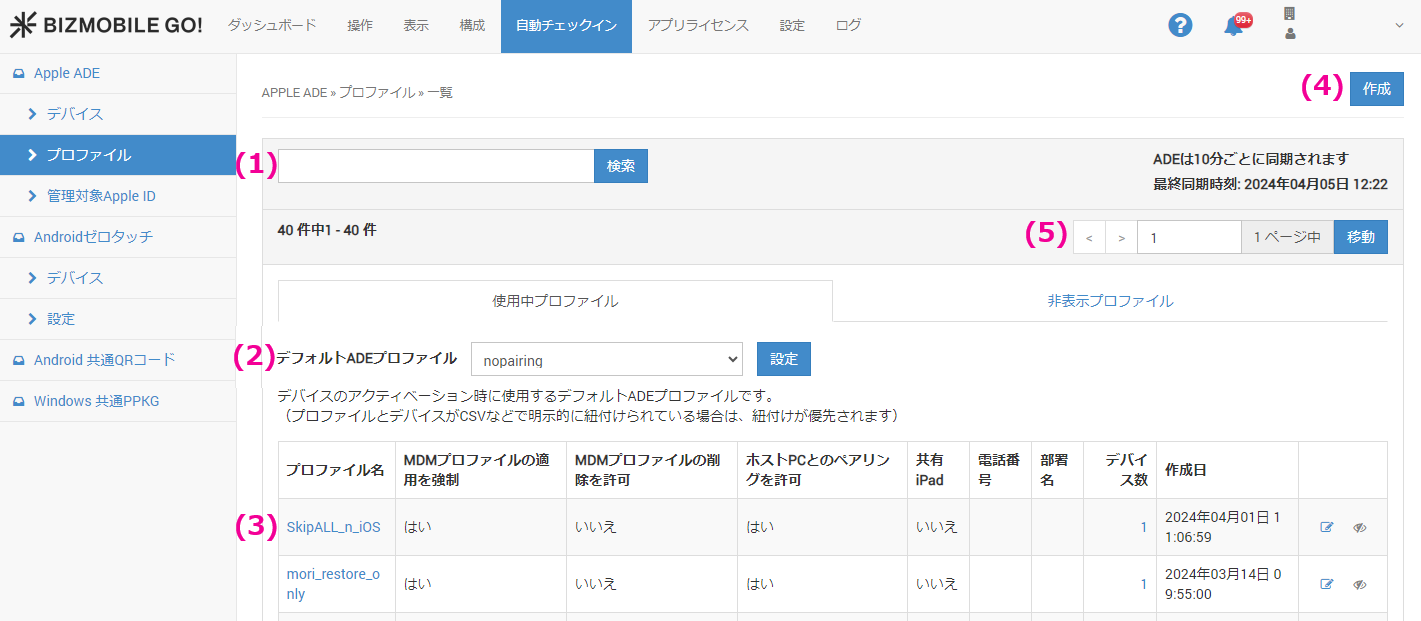
ADE Profile List Screen
| Item | Notes |
|---|---|
| (1) Search function | You can search by profile name, phone number, or department name. |
| (2) Default ADE Profile | The default ADE profile used when a device is activated. (If a profile and a device are explicitly linked, for example by CSV, the link takes priority.) |
| (3) ADE profile list screen | A list of the ADE profiles that have been created. Click a profile name to display its details. |
| (4) Create ADE profile | A button to create a new ADE profile. |
| (5) Page navigation | Page navigation appears when the list spans multiple pages. Click a page to select it, or enter a page number directly to move to it. |