Create a Whitelist or Blacklist
This feature detects installation of apps that are not allowed and notifies you with an alarm. It cannot prohibit use of the detected apps (Delete or Disable the app).
To prohibit use of an app, prohibit installation of the app in a profile.
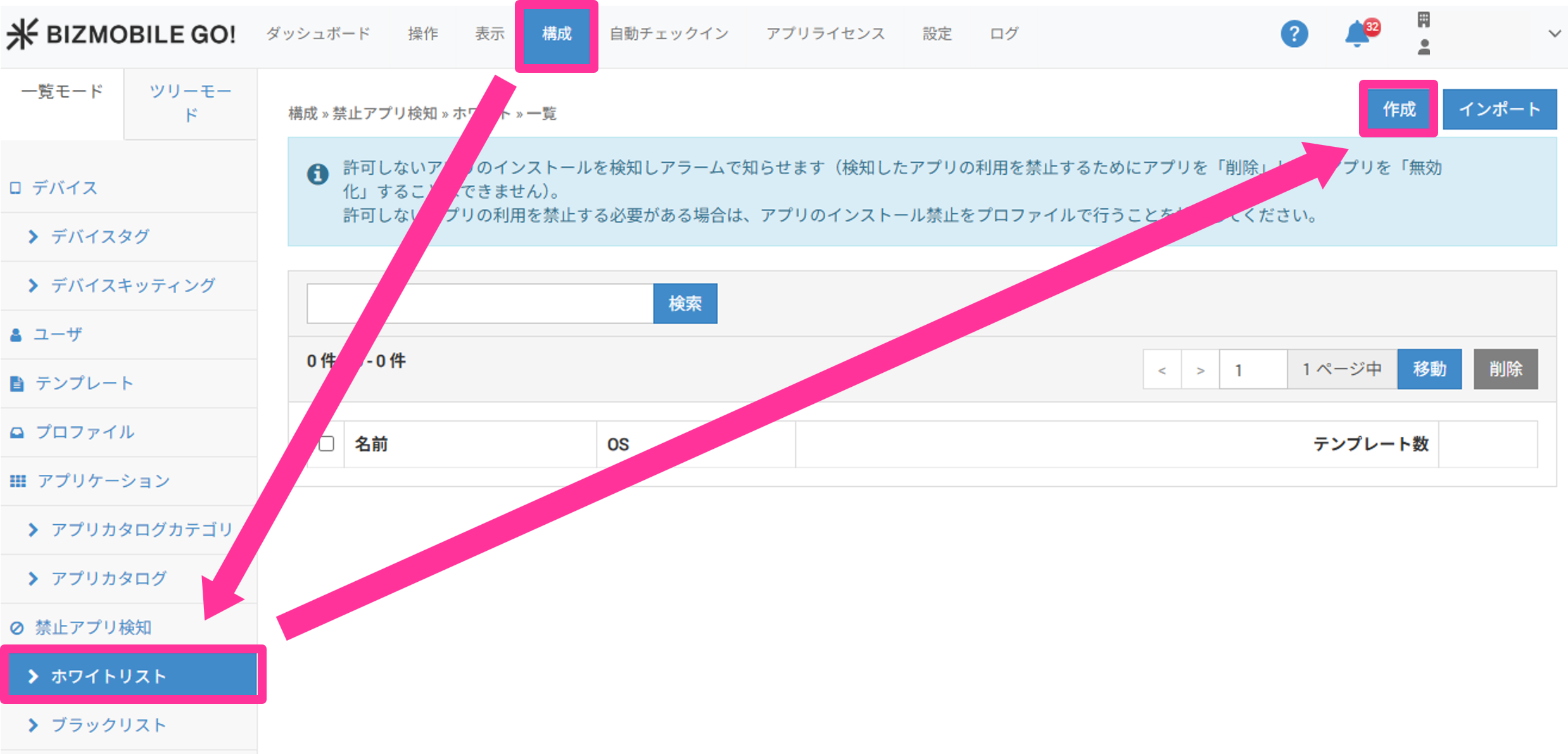
- Click CONFIG → Banned Apps → Whitelist (or Blacklist), and then click Create.
- Enter the required information on the list creation screen that appears.
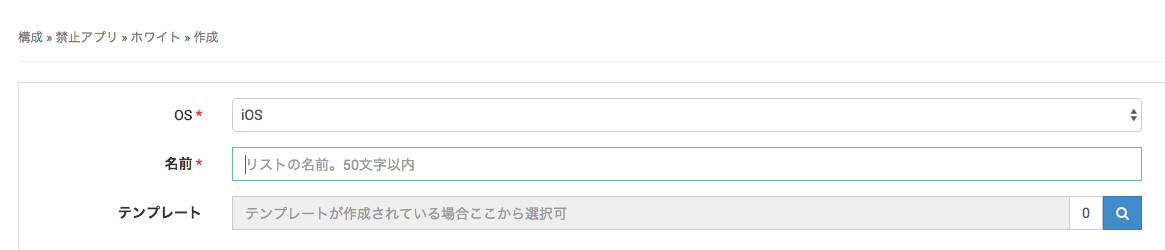
(Items marked with ★ are required.)
| Input field | |
|---|---|
Name ★ | Name of the blacklist or whitelist. Up to 50 characters (Japanese or alphanumeric) |
OS ★ | Select the OS. |
Template | Select the template to which you want to apply this list. (You can also specify the banned type on the template side and select a list that has already been created.) |
Name ★ | Name of the application |
Type | Select either AppStore or in-house app. |
Application Name | (AppStore only) Search by application name, or enter the 9-digit application ID. Application ID: Get the ID from the link URL that you can copy by right-clicking the icon of the target application in the App Store (the value between id and ?. In the example below, it is 123456789.) Example: https://itunes.apple.com/jp/app/sample.jp-bizmobile/id123456789?mt=8 |
Identifier | (For AppStore) Filled in automatically from the application name or AppStore ID information. (For in-house apps) Enter the identifier of the in-house app. |
- To create the application list, click Create, enter the application information, and click Save.
- For iOS
- For Android
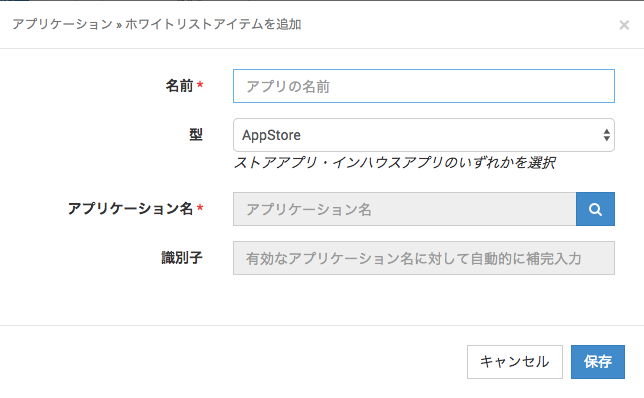
(Items marked with ★ are required.)
| Input field | |
|---|---|
Name ★ | Name of the application |
Type | Select either AppStore or in-house app. |
Application Name | (AppStore only) Search by application name, or enter the 9-digit application ID. Application ID: Get the ID from the link URL that you can copy by right-clicking the icon of the target application in the App Store (the value between id and ?. In the example below, it is 123456789.) Example: https://itunes.apple.com/jp/app/sample.jp-bizmobile/id123456789?mt=8 |
Identifier | (For AppStore) Filled in automatically from the application name or AppStore ID information. (For in-house apps) Enter the identifier of the in-house app. |
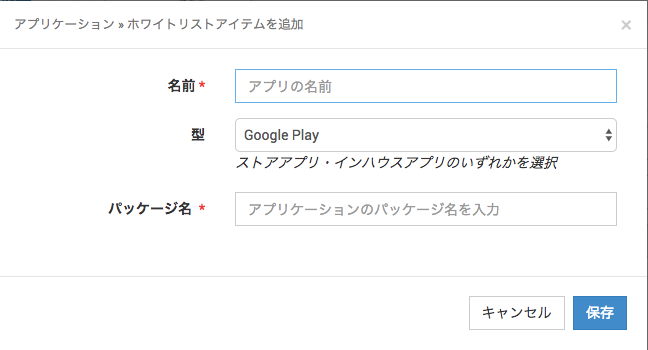
(Items marked with ★ are required.)
| Input field | |
|---|---|
Name ★ | Name of the application |
Type | Select either Google Play or in-house app. |
Package Name ★ | (For Google Play) Enter the package name on the Google Play Store. Package name: Enter the package name obtained from the URL shown when you open the app on the Google Play Store in a browser. (The value between id= and &. In the example below, it is com.google.android.apps.maps.) Example: https://play.google.com/store/apps/details?id=com.google.android.apps.maps&hl=en (For in-house apps) Enter the package name of the in-house app. |
- To discard what you entered, click Cancel. To register what you entered, click Save.
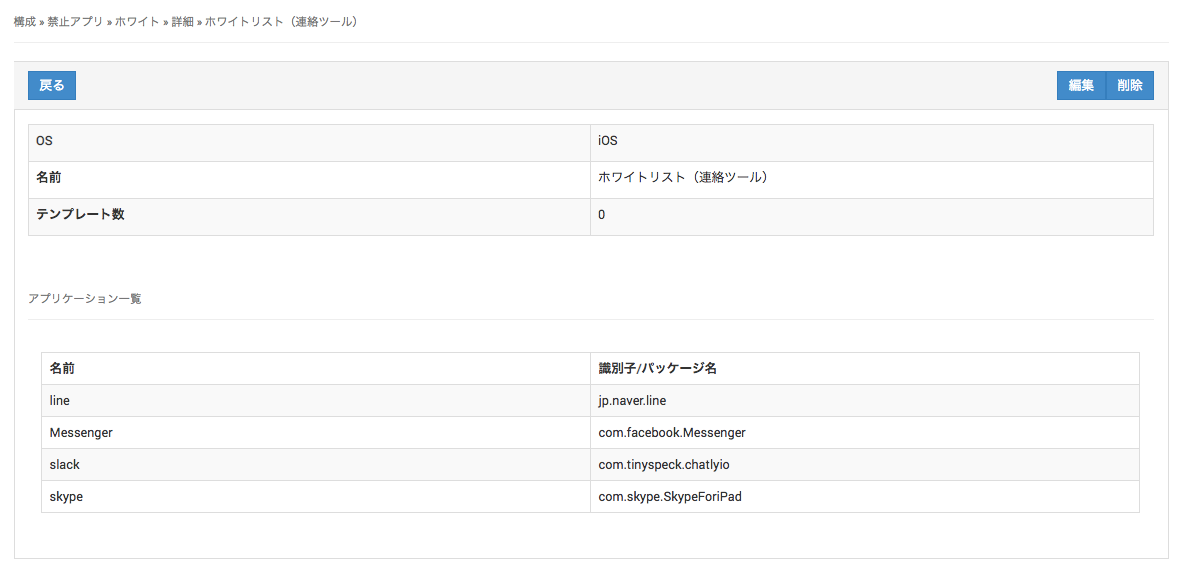
When the whitelist (or blacklist) is created, the following is displayed at the top of the screen.

The list name is a link. Click it to open the whitelist (or blacklist) details page.