iOS
The screenshots in this manual show the Japanese version of each screen.

Set a device as supervised by using Apple Configurator

This page explains how to use Apple Configurator, a Mac app, to enable only the supervised setting.

warning

To register a device in ADE by using Apple Configurator, see Register devices in Apple Business (formerly ABM) (convert to ADE (formerly DEP) devices).

info

With Apple Configurator for iPhone, you cannot set a device as supervised without registering it in Apple Business.

warning

Setting a device as supervised erases the device, so all installed applications, content, and settings are deleted.

Supervised setup procedure​

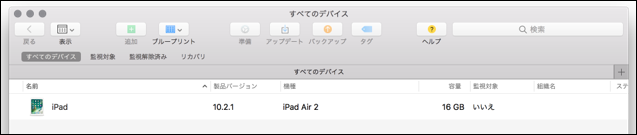
  1. Start Apple Configurator, and connect the device to set up as supervised to the Mac via USB. When you connect the device, it appears on the Apple Configurator screen.

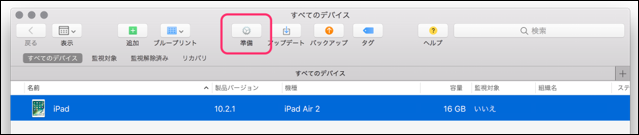
  1. Select the device and click [Prepare].

  1. The setup wizard opens.

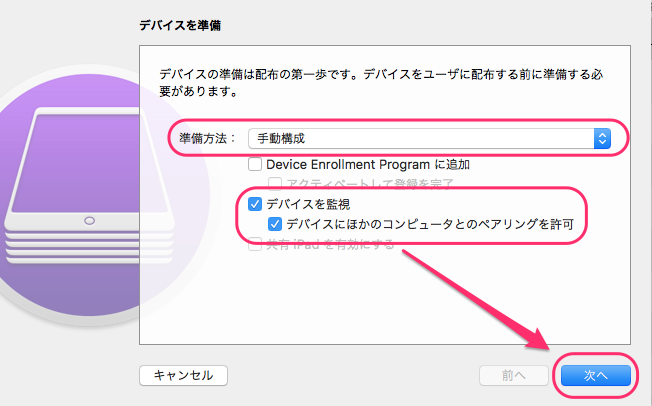
    For Prepare with, select Manual Configuration.
    Select the Supervise devices and Allow devices to pair with other computers check boxes, and click [Next].

    Note: These are the items that make the device supervised.

    Caution
    If you clear the Allow devices to pair with other computers check box, this device can connect only to the Mac it is currently connected to.

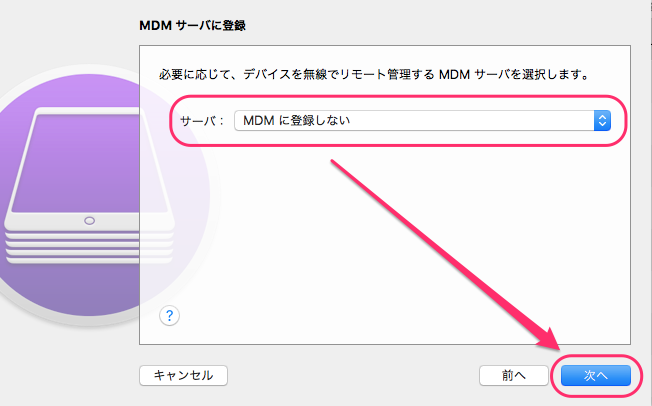
  1. For Server, select Do not enroll in Device Management and click [Next].

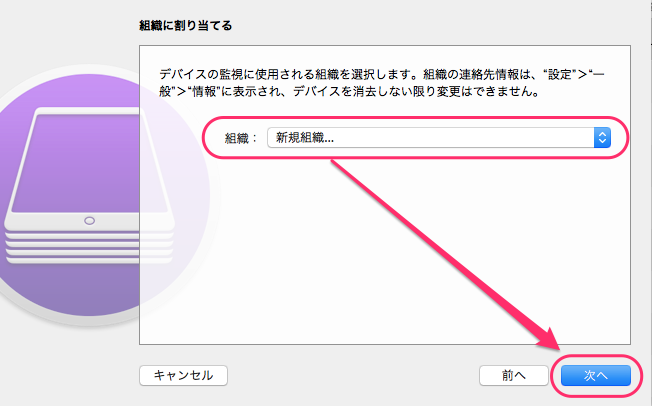
  1. For Organization, select Create a new organization and click [Next].
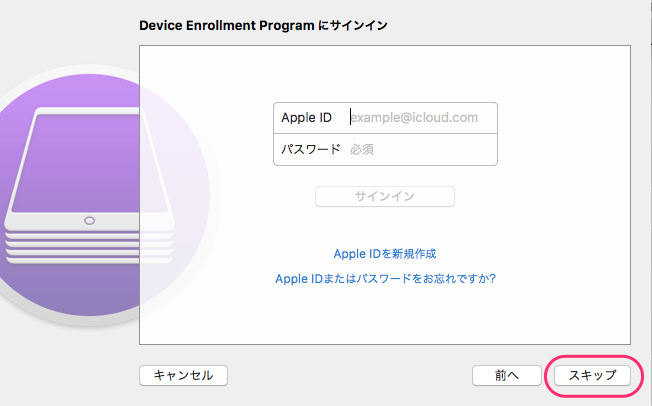
  1. For Sign in to Device Enrollment Program, click [Skip].

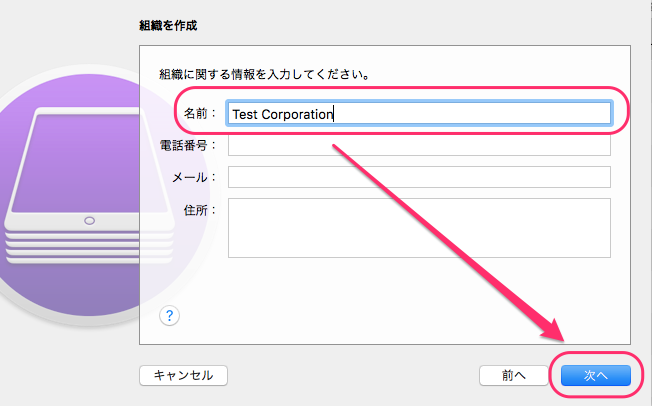
  1. In the Name field, enter the name of the organization that will use the device (for example, the company name), and click [Next].

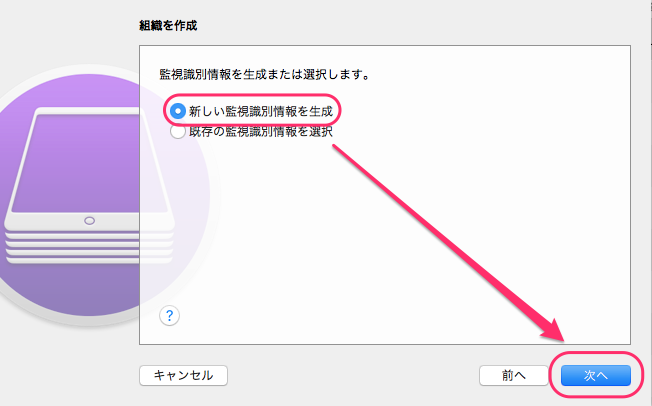
  1. Select Generate a new supervision identity and click [Next].

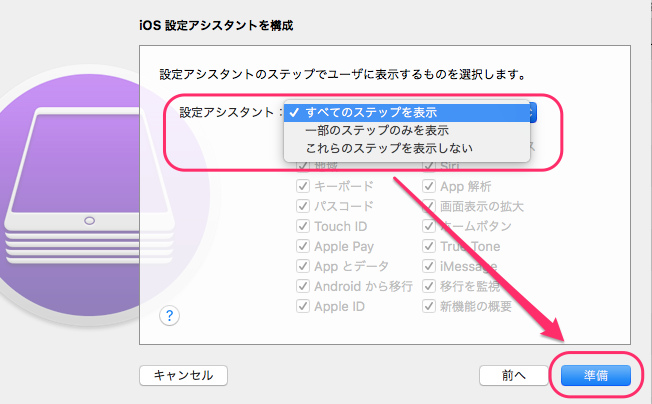
  1. Select a Setup Assistant option and click [Prepare].

    • Show all steps:
      Displays all of the device setup menus after the device is erased
    • Show only some steps:
      Displays only the setup menus you select
    • Don't show these steps:
      Skips all of the device setup menus

  1. Preparation for setup starts.

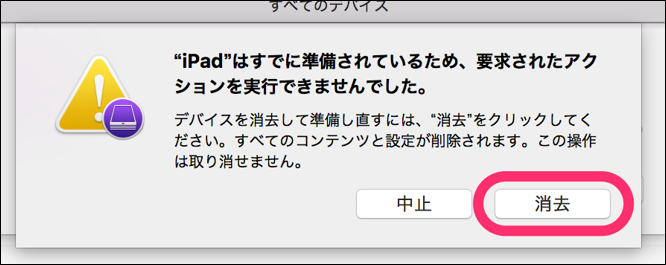
    If the dialog The requested action could not be performed because XX is already prepared. appears, click [Erase].

    The device starts to be erased.
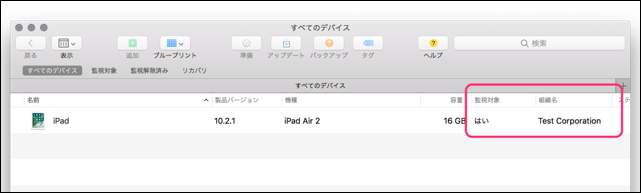
  1. When the device finishes erasing, it is displayed in Apple Configurator as follows.

    - Supervised: Yes
    - Organization name: The organization name you set in step 9.

    The device setup menus are displayed as you set in step 9, so complete the setup on the device.
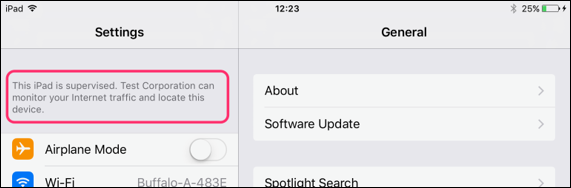
  1. On the device that has finished setup, open Settings.

    Confirm that This iPad is supervised and managed by XX (organization name) is displayed.
    Note: This organization name is the one you set in step 9.

    This completes the supervised setup.