The screenshots in this manual show the Japanese version of each screen.

Register Devices in Apple Business (Make Devices ADE (formerly DEP) Devices)

DEP has been renamed ADE (Automated Device Enrollment).
If the devices have already been registered in Apple Business (formerly Apple Business Manager) by the carrier (telecommunications provider) or reseller you purchased them from, they are already ADE devices and this procedure is not necessary.
Skip this procedure and go to the next one, Import ADE (formerly DEP) Devices from Apple Business into BizMobile Go!.

If the devices have not been registered in Apple Business, you can register them as ADE devices by using Apple Configurator on a Mac, iPhone, or iPad.
Register the devices by following Register devices in Apple Business using Apple Configurator below.

warning

A device registered for ADE with Apple Configurator has a 30-day grace period during which the ADE registration can be removed from the device itself.
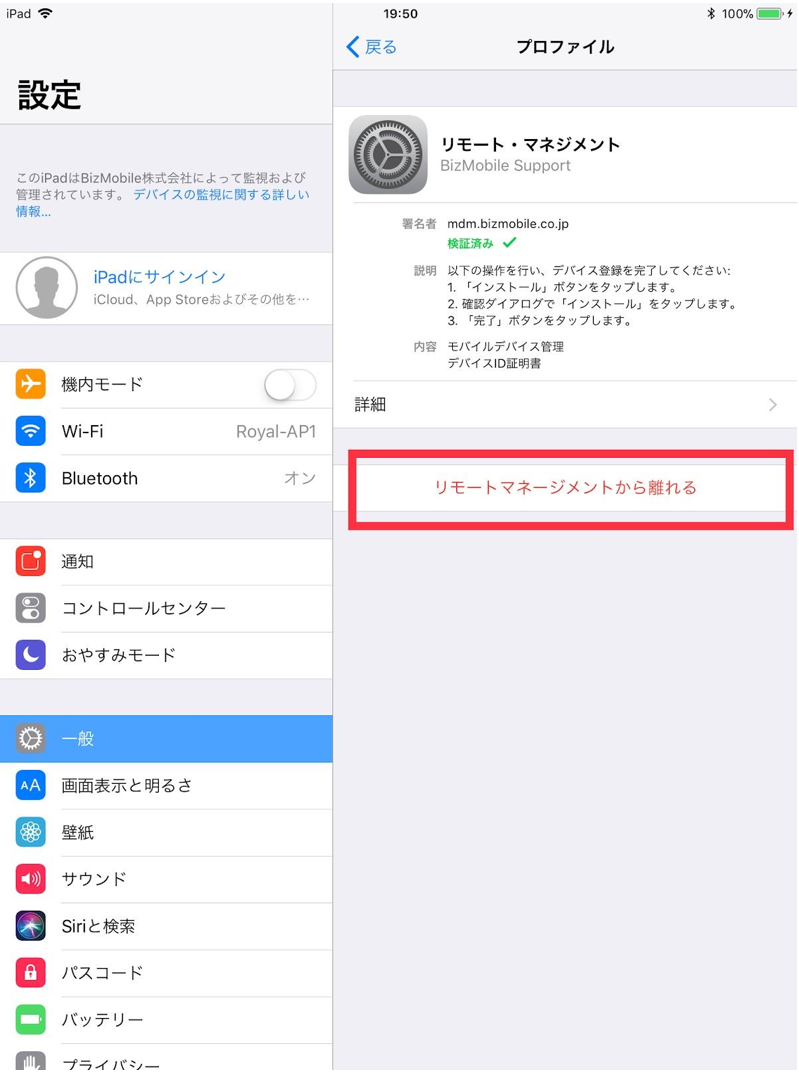
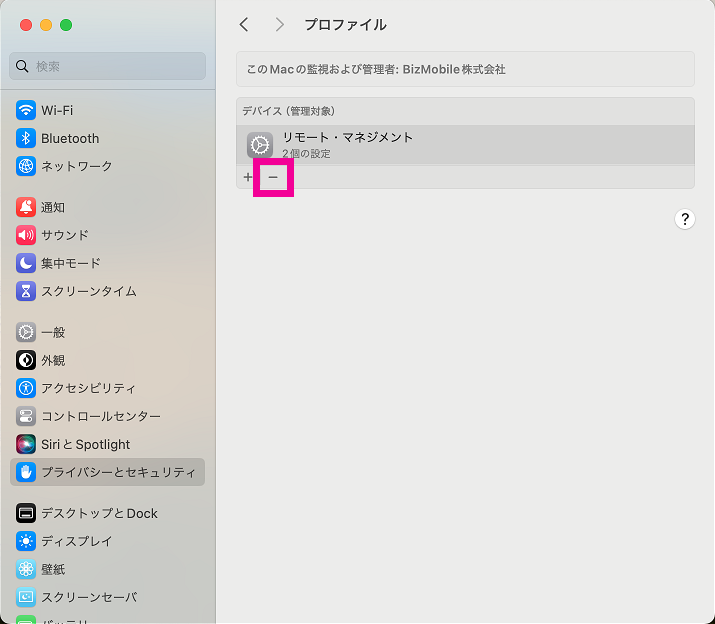
During the 30-day grace period, Leave Remote Management is displayed in the MDM profile in the device's Settings app, and This iPhone (or iPad) is managed remotely is displayed on the Lock Screen.

You can leave remote management from the Remote Management screen in the device's Settings app. When you do, the device is erased and the ADE registration (the registration in Apple Business) is also removed.
Note: Unless you do this, the ADE registration is not removed even if you wipe the device or erase it on the device, just as with a regular ADE device.
Register devices in Apple Business using Apple Configurator​

Register iOS / iPadOS devices (using Apple Configurator for Mac)​

  • System requirements
    Host: Mac (macOS 10.11.0 or later)
    Target: iPhone or iPad (iOS 16 or later)
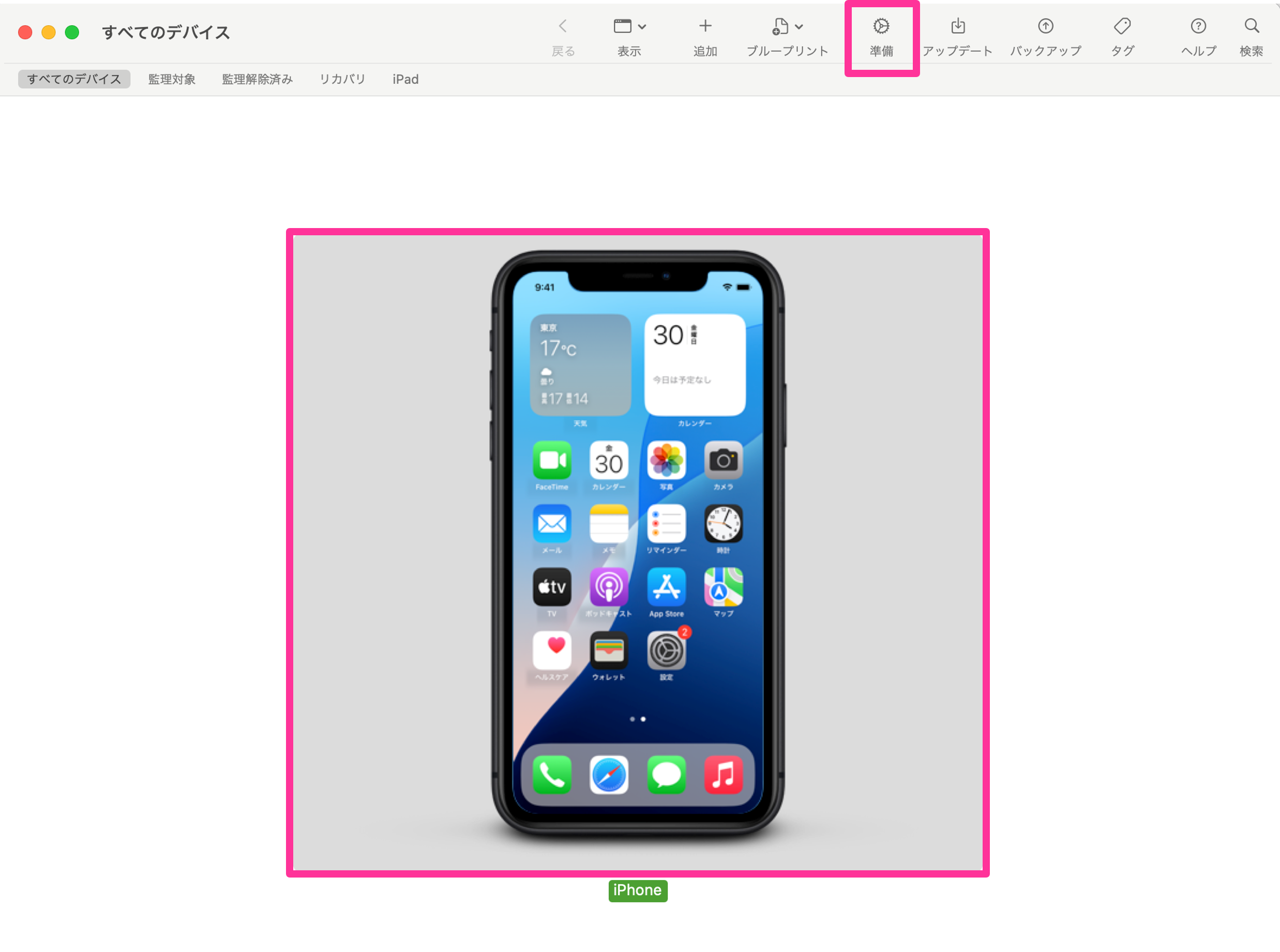
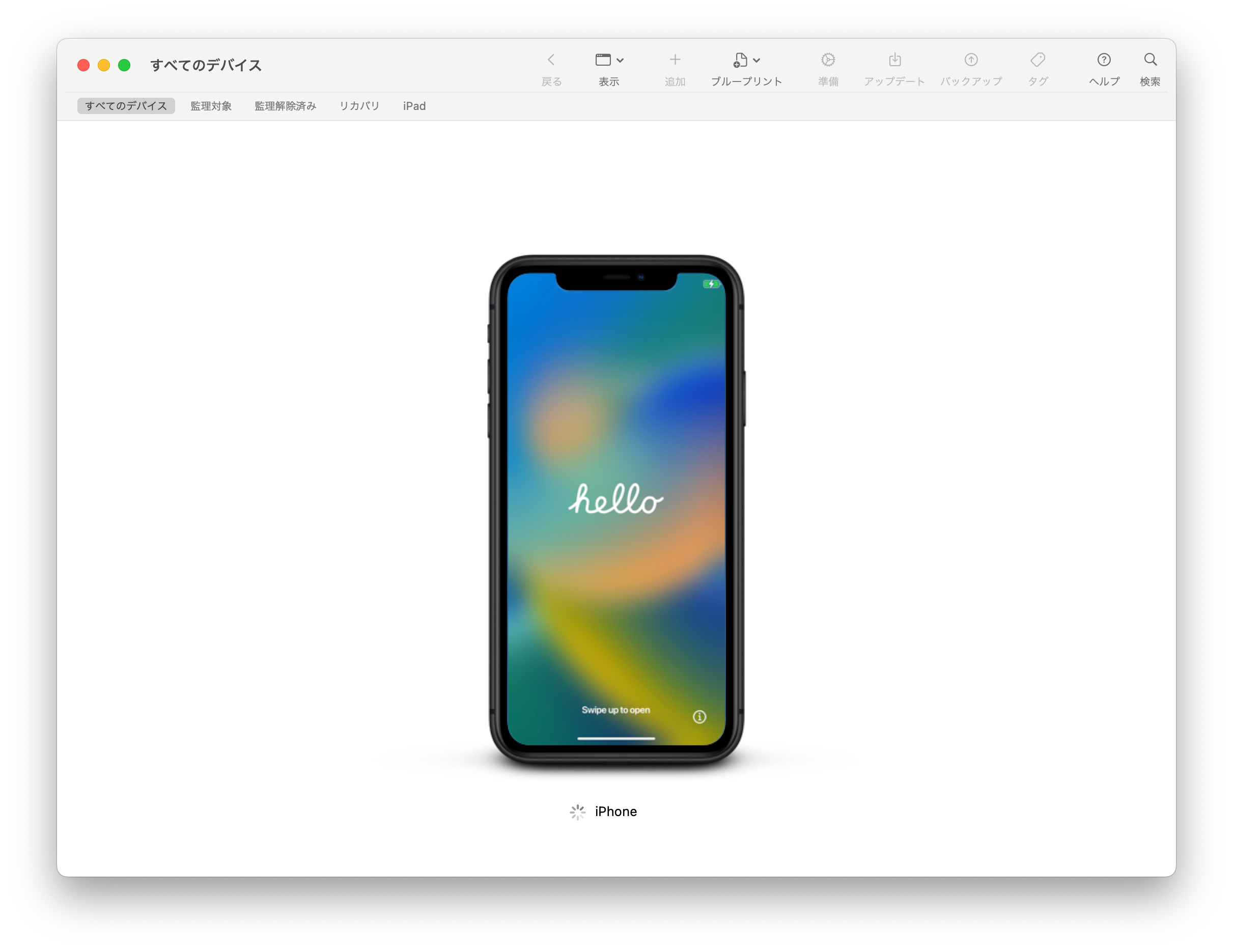
  1. Connect the Mac and the iOS 11 or later device with a USB cable, start Apple Configurator 2, select the device, and click Prepare.
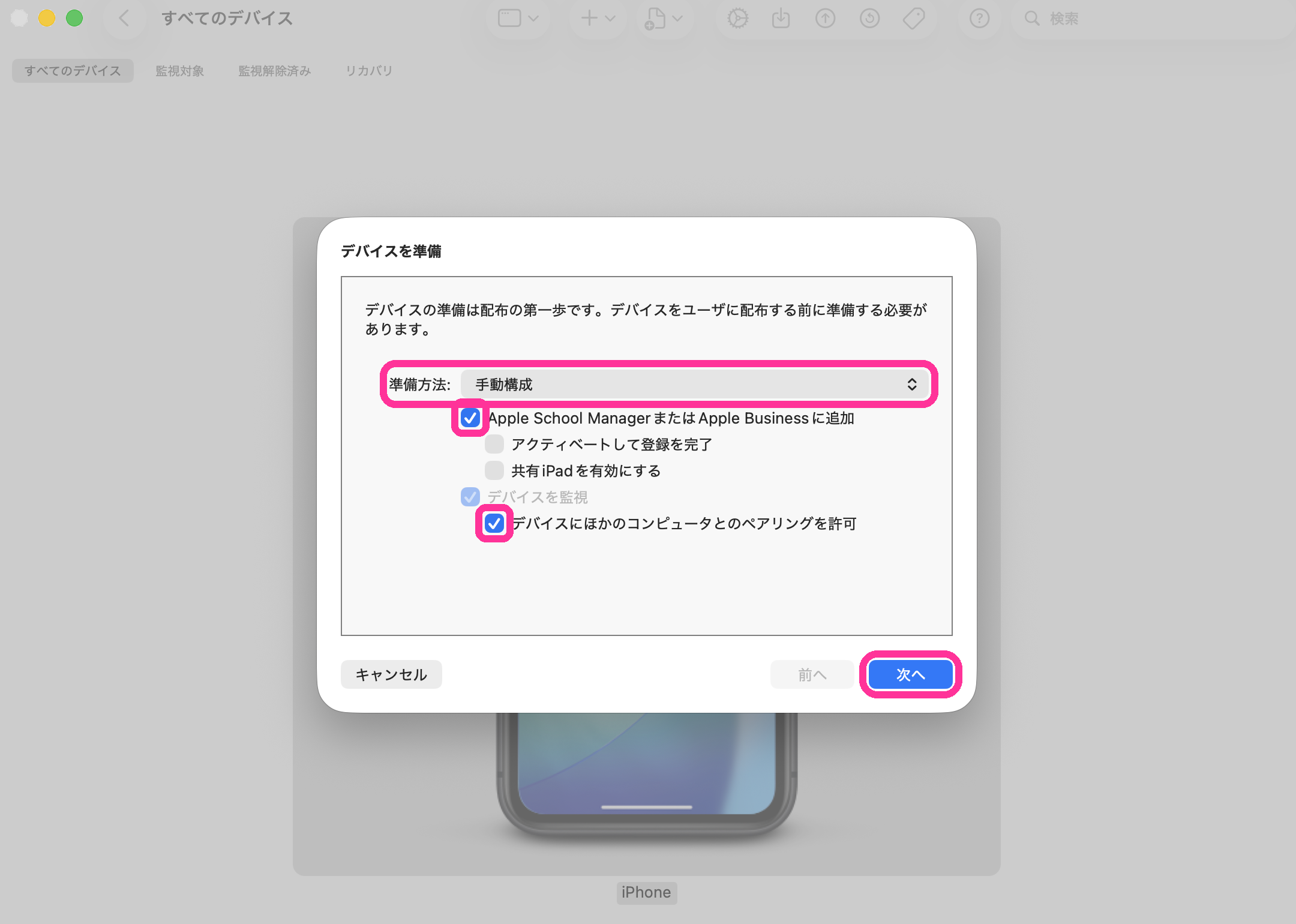
  1. Select Manual Configuration, and select Add to Apple School Manager or Apple Business and Allow devices to pair with other computers. Clear Activate and complete enrollment, and click Next.
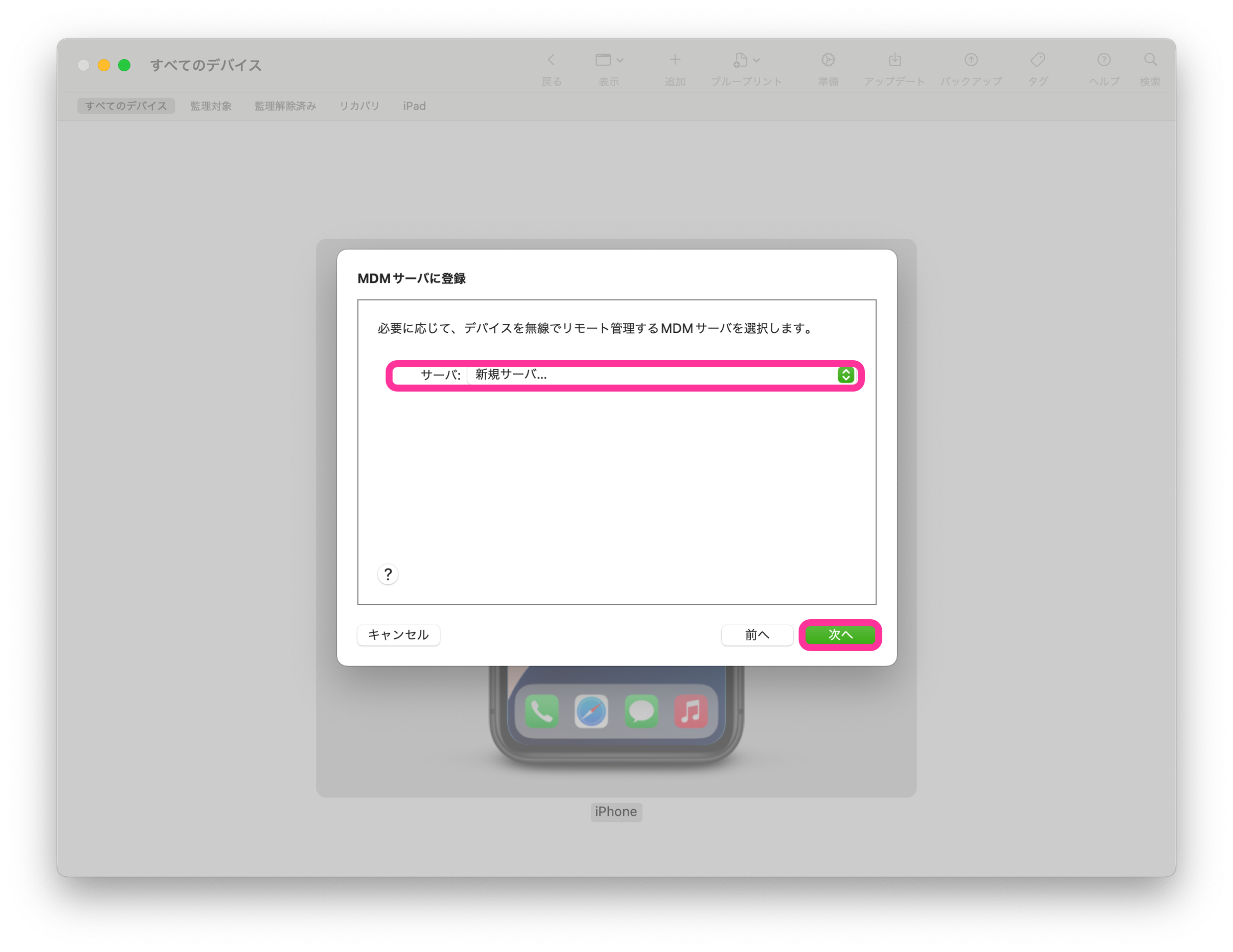
  1. Select New Server… and click Next.
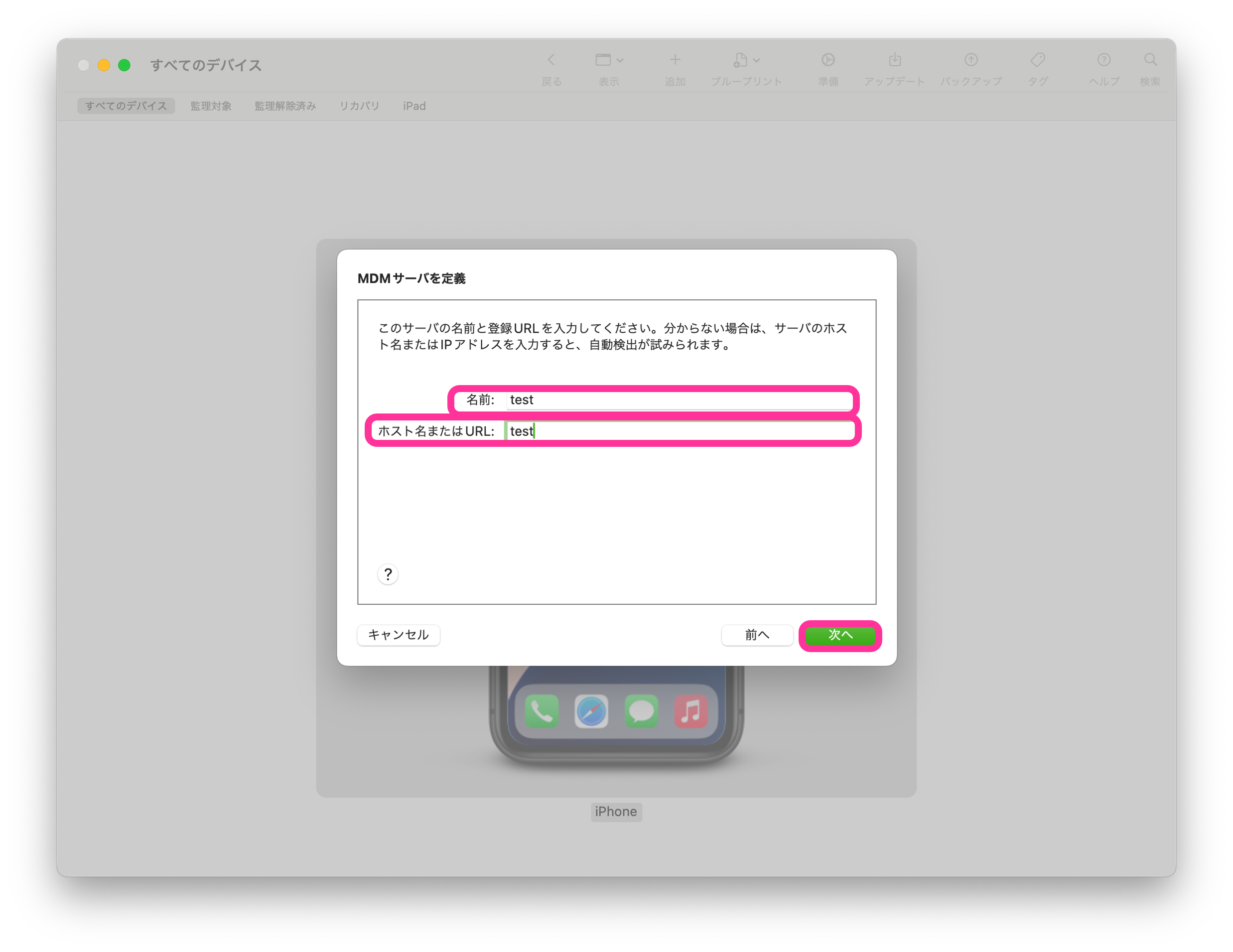
  1. Enter a value of one or more characters and click Next.
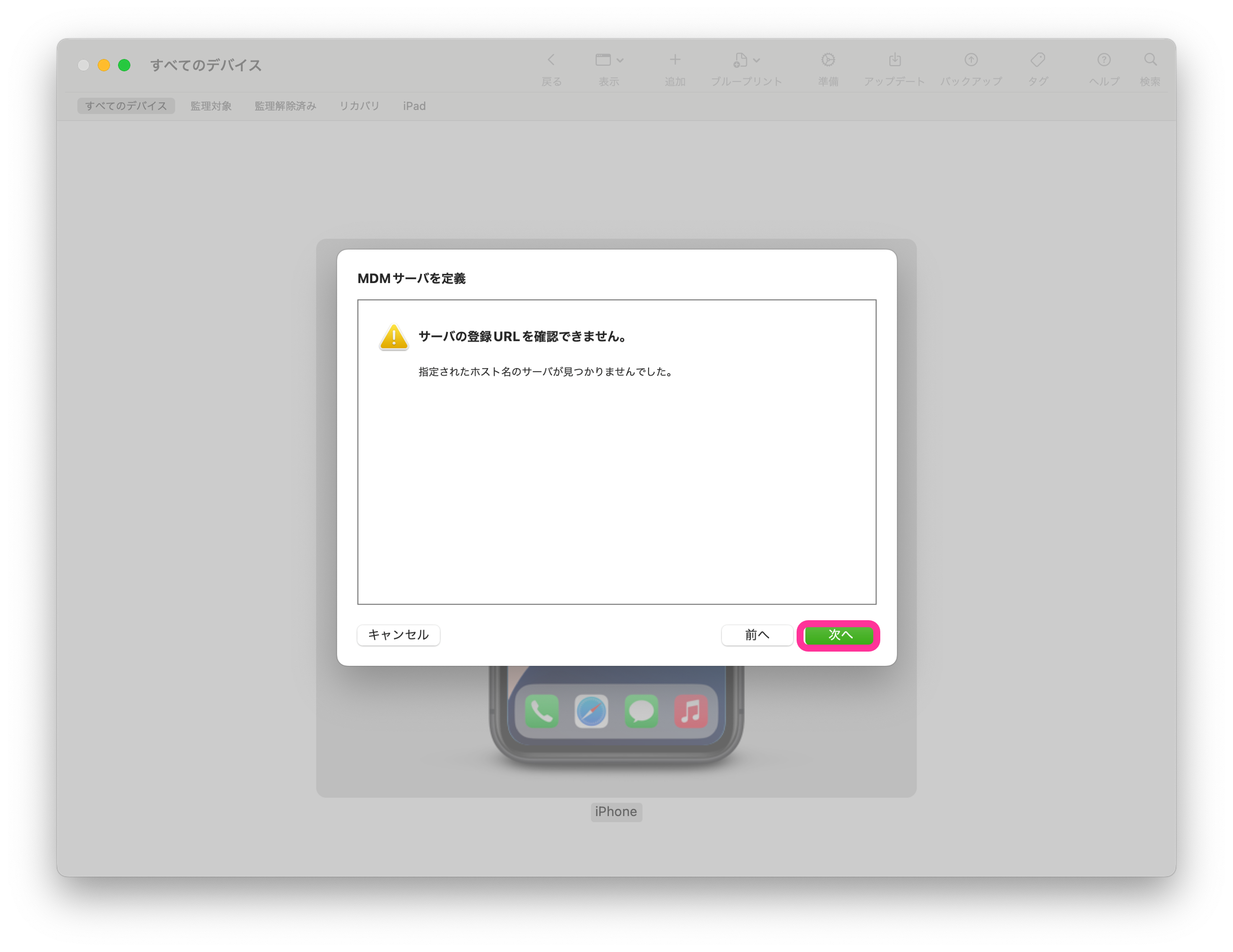
  1. A server with the specified hostname could not be found is displayed. Click Next anyway.
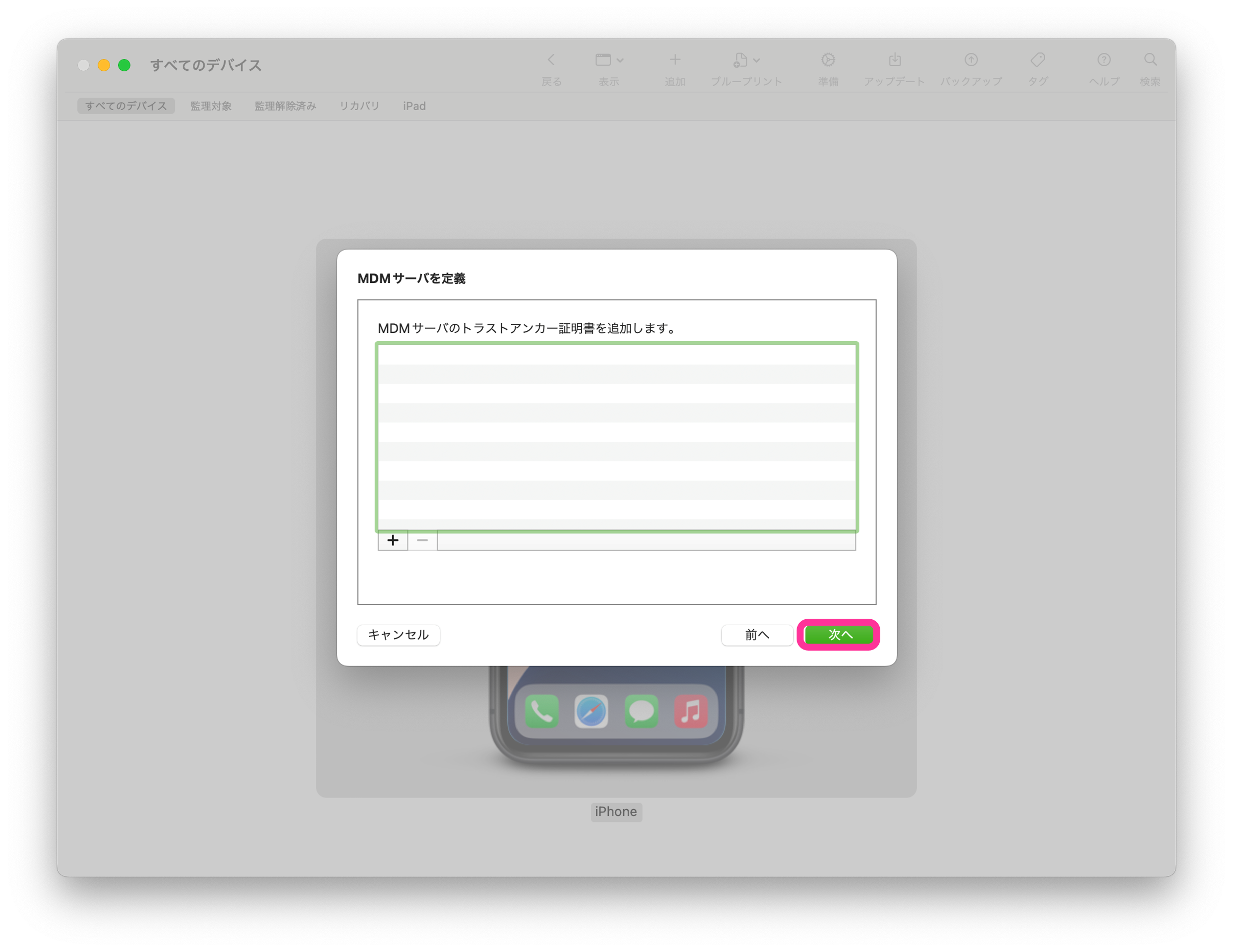
  1. Do not add anything, and click Next.
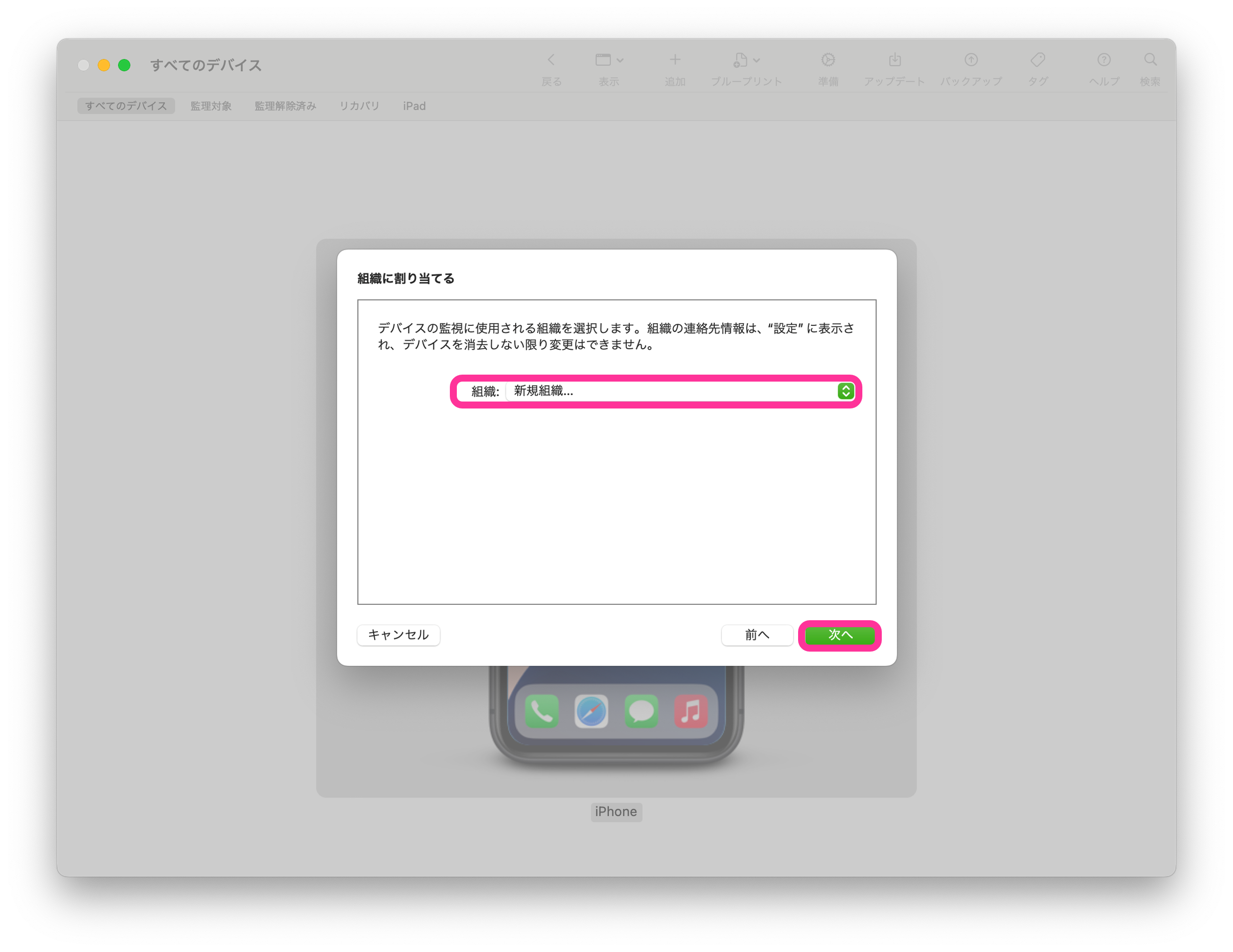
  1. Select New Organization… and click Next.
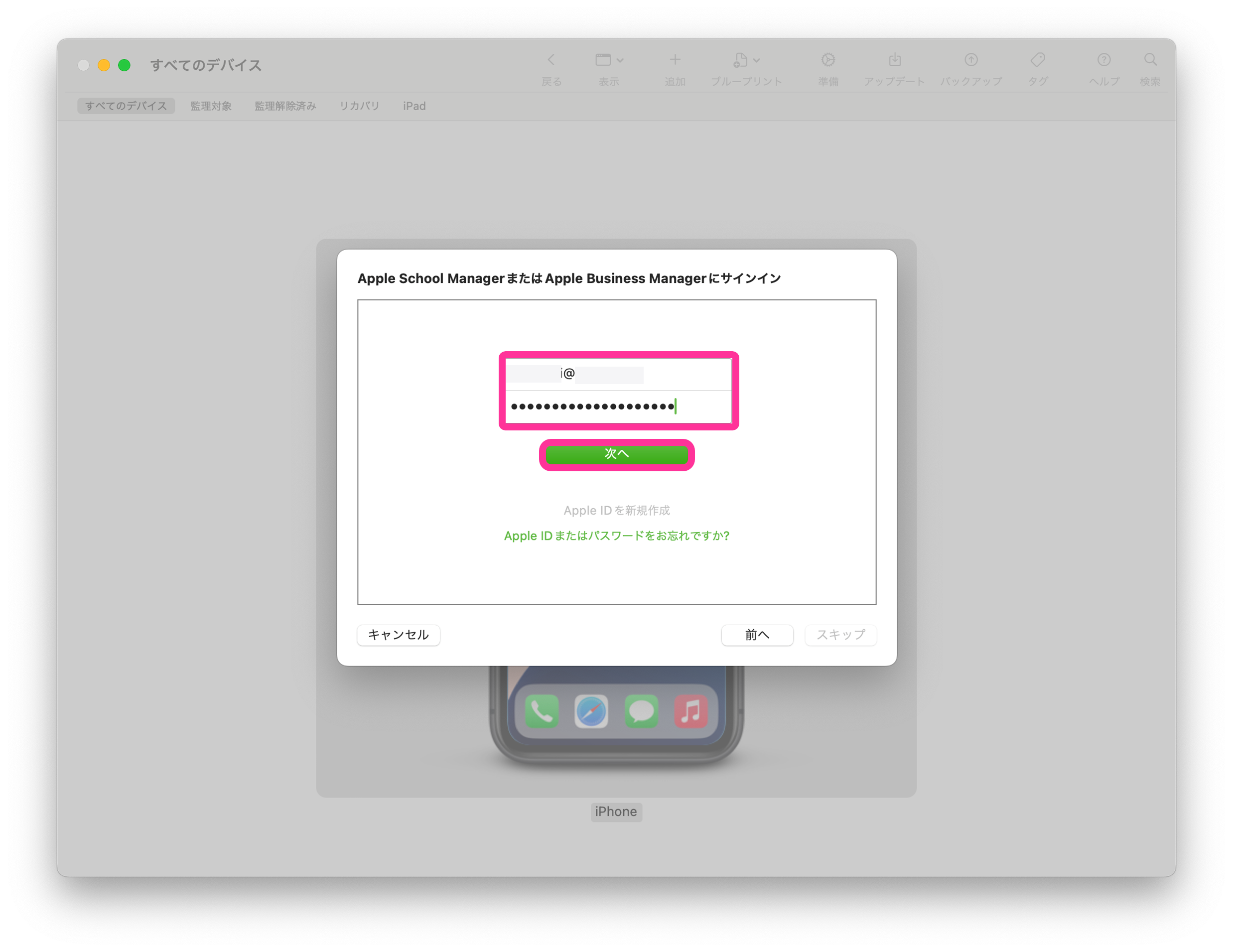
  1. Enter the Apple ID and password of an Apple Business account (one that has permission to manage device enrollment), and click Next.
    Note: Two-factor authentication is required.
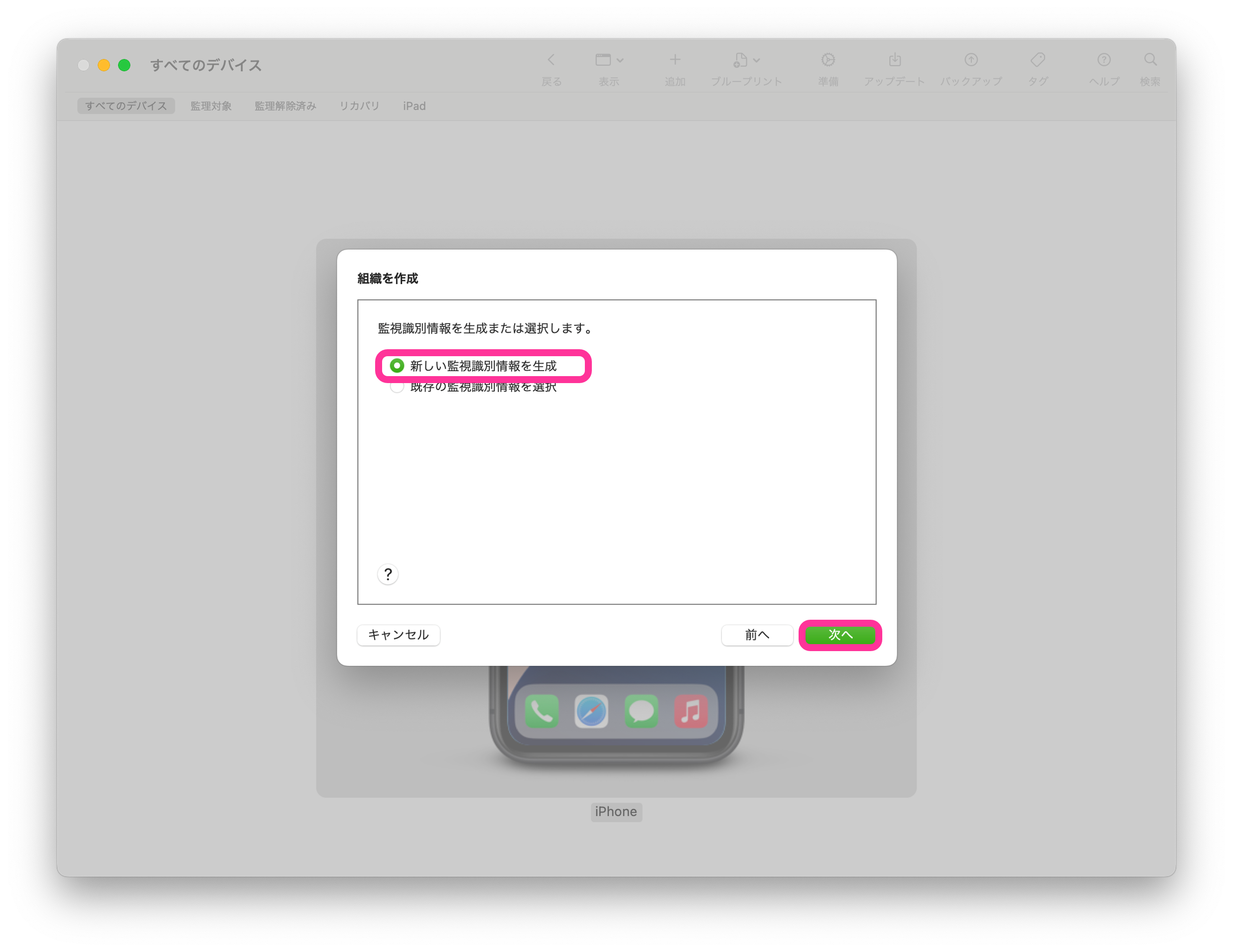
  1. Select Generate a new supervision identity and click Next.
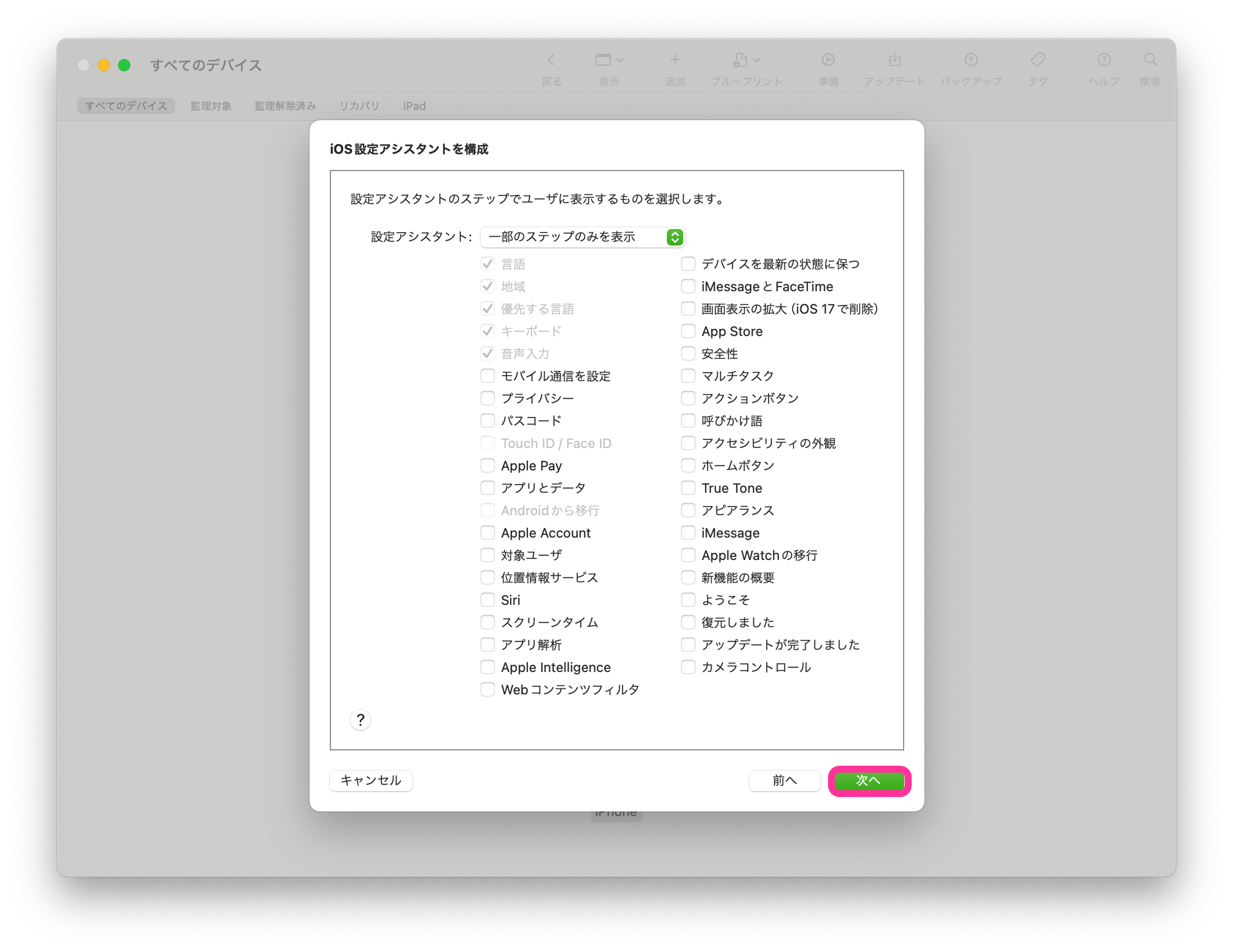
  1. Click Next. The settings configured here are not applied to the device activation. (The settings of the ADE profile selected in the BizMobile Go! admin console are applied.)
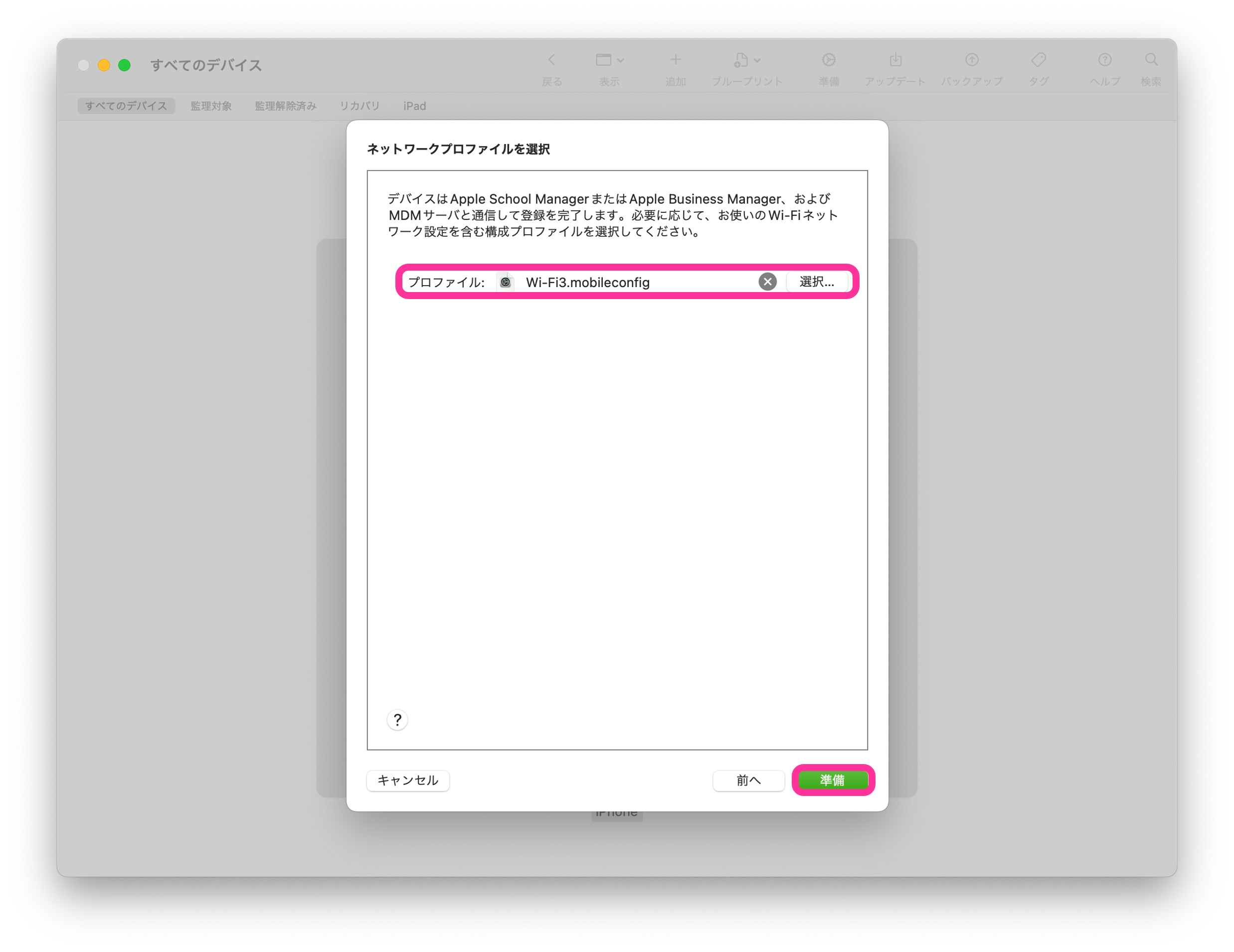
  1. Select a configuration profile that contains the Wi-Fi information the device can connect to, and click Prepare.
    To create a Wi-Fi configuration profile, select the Wi-Fi payload in step 3 of Create configuration profiles in the Apple manual below.
    https://support.apple.com/en-us/guide/apple-configurator-mac/pmd85719196/mac
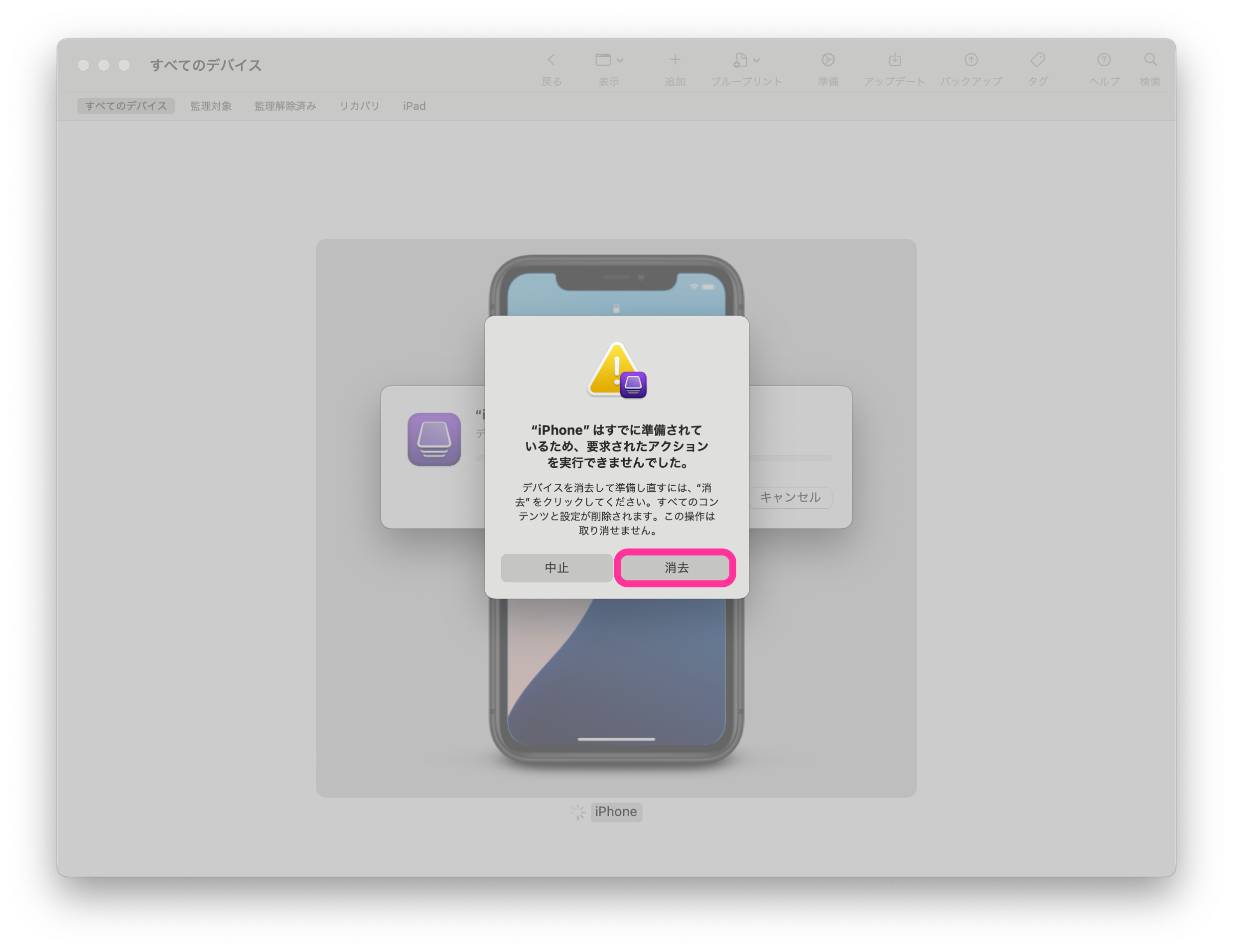
  1. If the device has already been activated, click Erase. The device is erased.
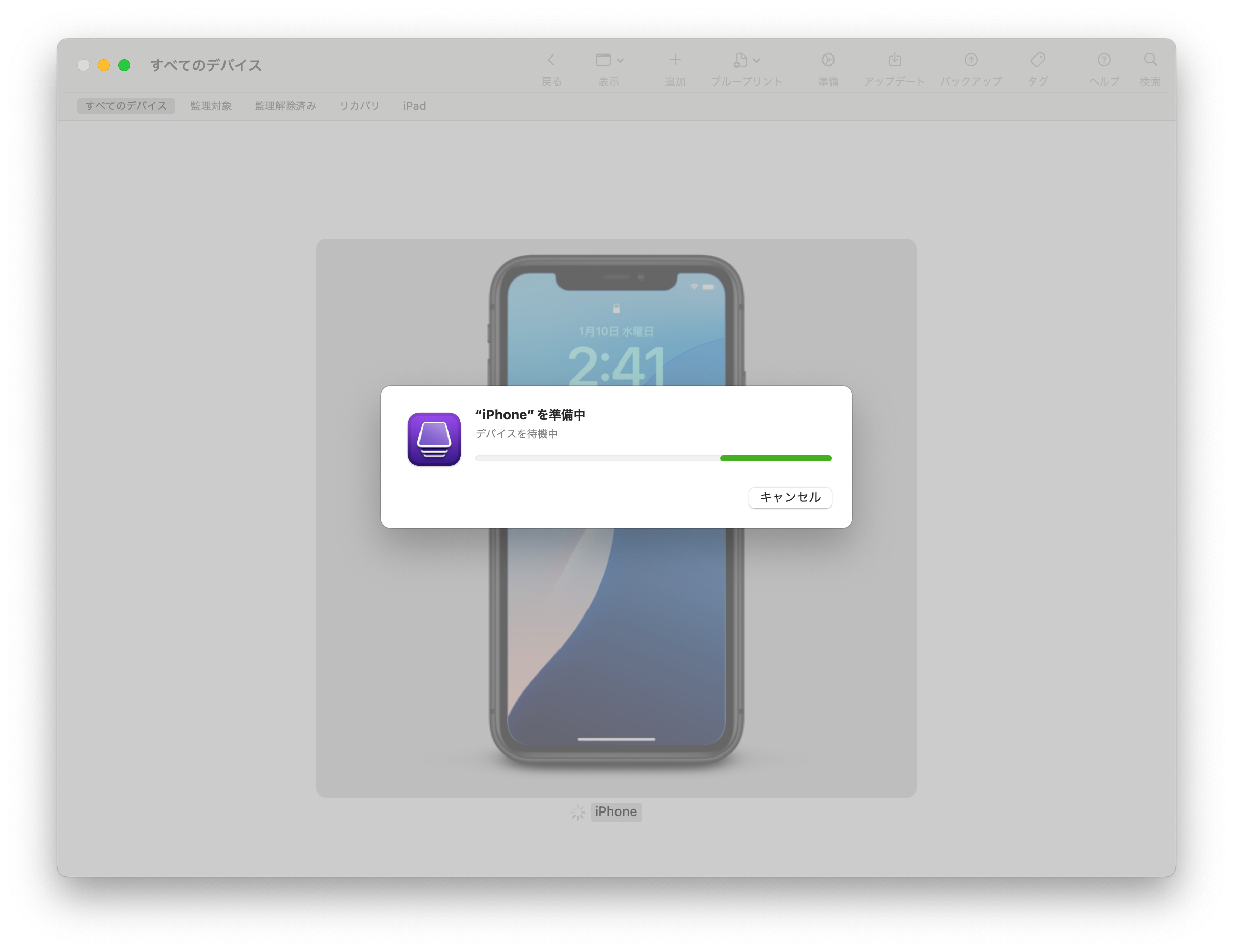
  1. The Preparing "iPhone" window is displayed and ADE registration starts. Keep the device connected to the Mac with the USB cable and wait.
  1. When the Preparing "iPhone" window disappears, the work with Apple Configurator 2 is complete. You can disconnect the USB cable between the device and the Mac.

Register iOS / iPadOS devices (using Apple Configurator for iPhone/iPad)​

  • System requirements
    Host: iPhone (iOS 16 or later) or iPad (iPadOS 16 or later)
    Target: iPhone or iPad (iOS 16 or later)
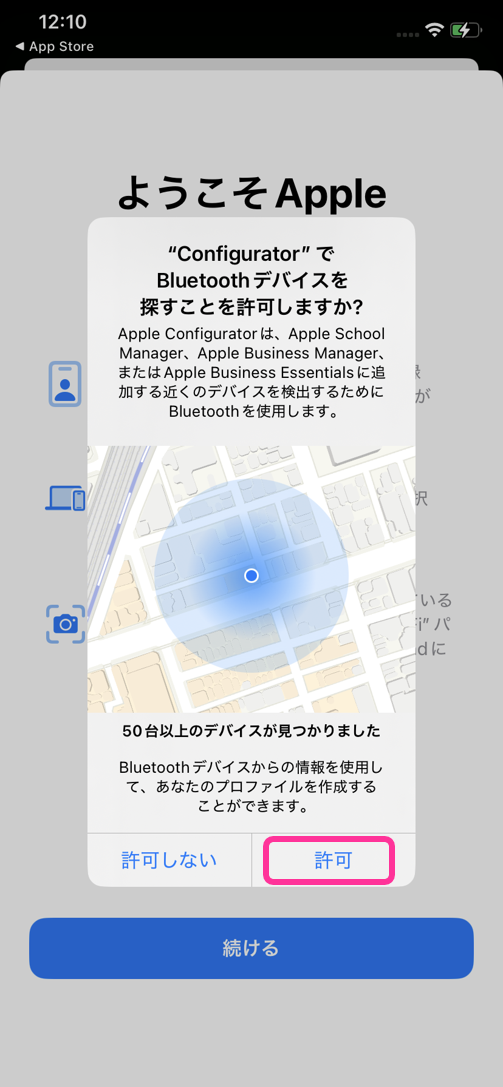
  1. Start Apple Configurator on the iPhone, and tap Allow in the pop-up that asks for permission to use Bluetooth.
Host (Apple Configurator)Target
 
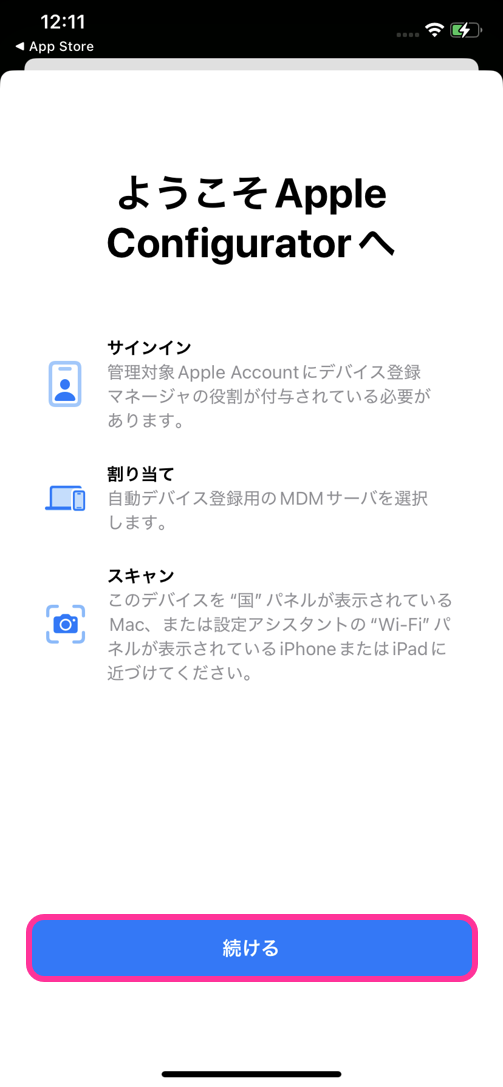
  1. Tap Continue.
 
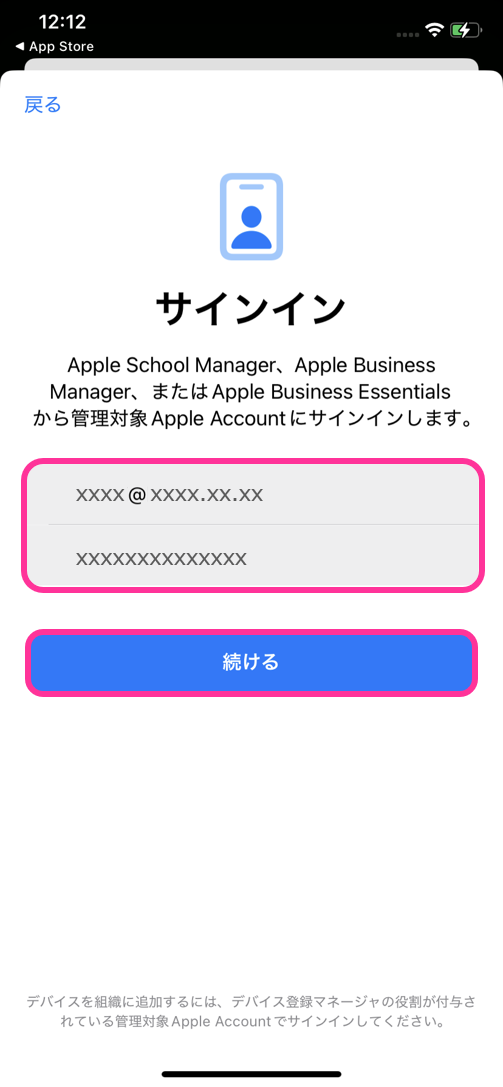
  1. Enter the Apple ID and password of an Apple Business account (one that has permission to manage device enrollment), and tap Continue.
 
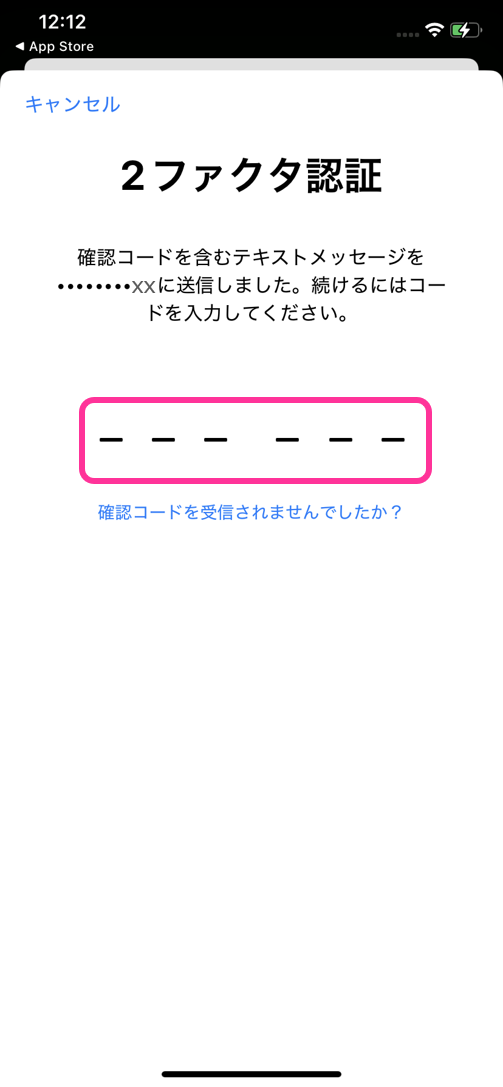
  1. The two-factor authentication screen is displayed. Enter the code that was sent to you.
 
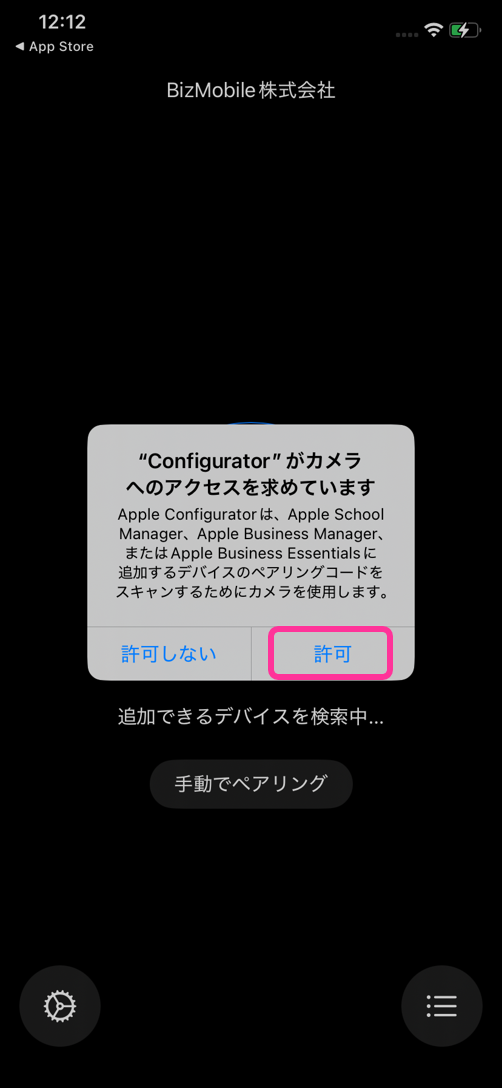
  1. Tap Allow in the pop-up that asks for permission to use the camera.
 
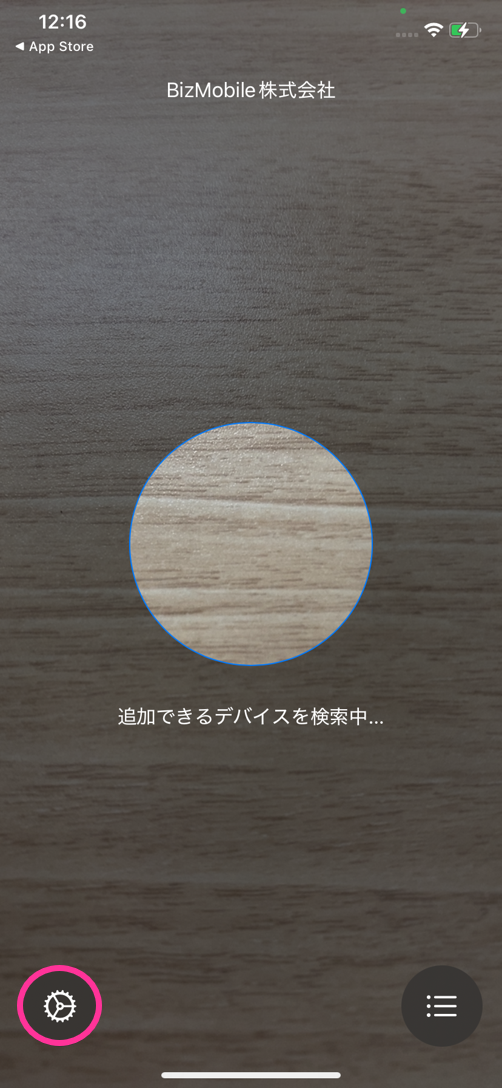
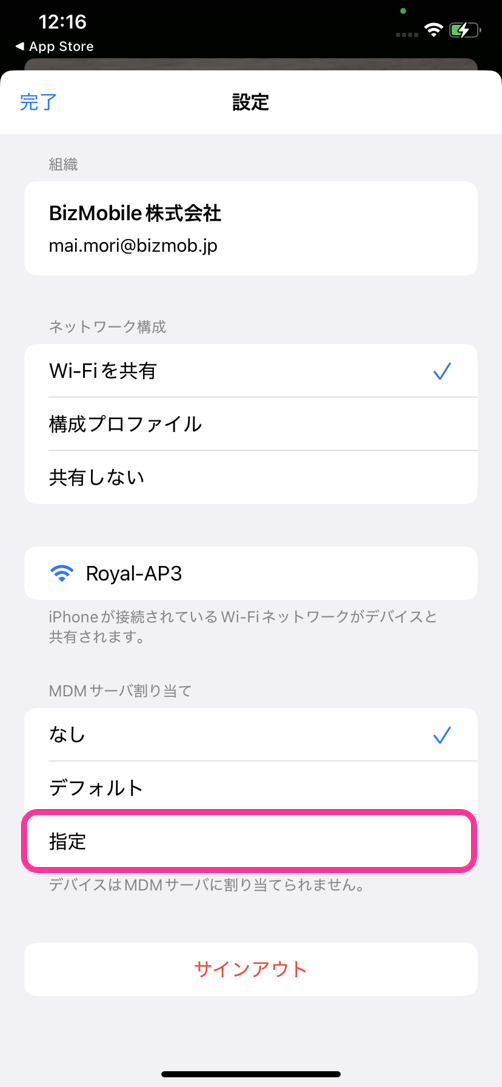
  1. To assign an MDM server, tap the settings icon at the lower left of the screen.
    If you do not assign one now, you can also set it later in the Apple Business console, so proceed to step 10.
 
  1. Under Assign MDM Server, tap Set.
 
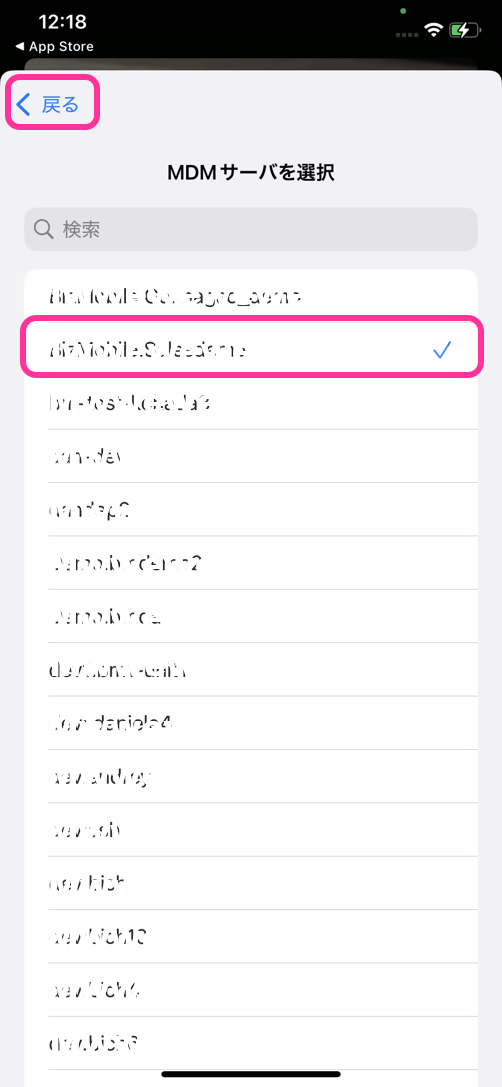
  1. Select the MDM server linked to the unit, and tap Back.
 
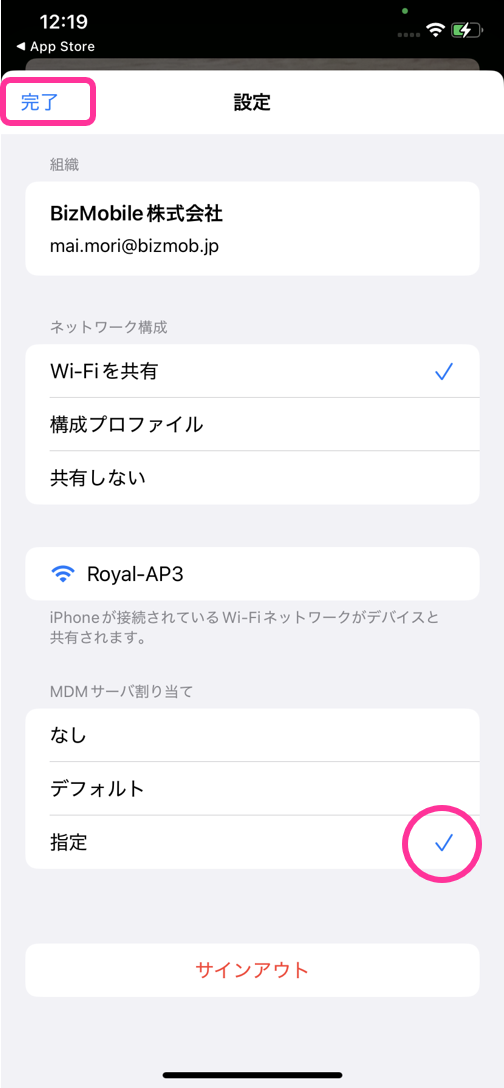
  1. Confirm that Set is selected, and tap Done.
 
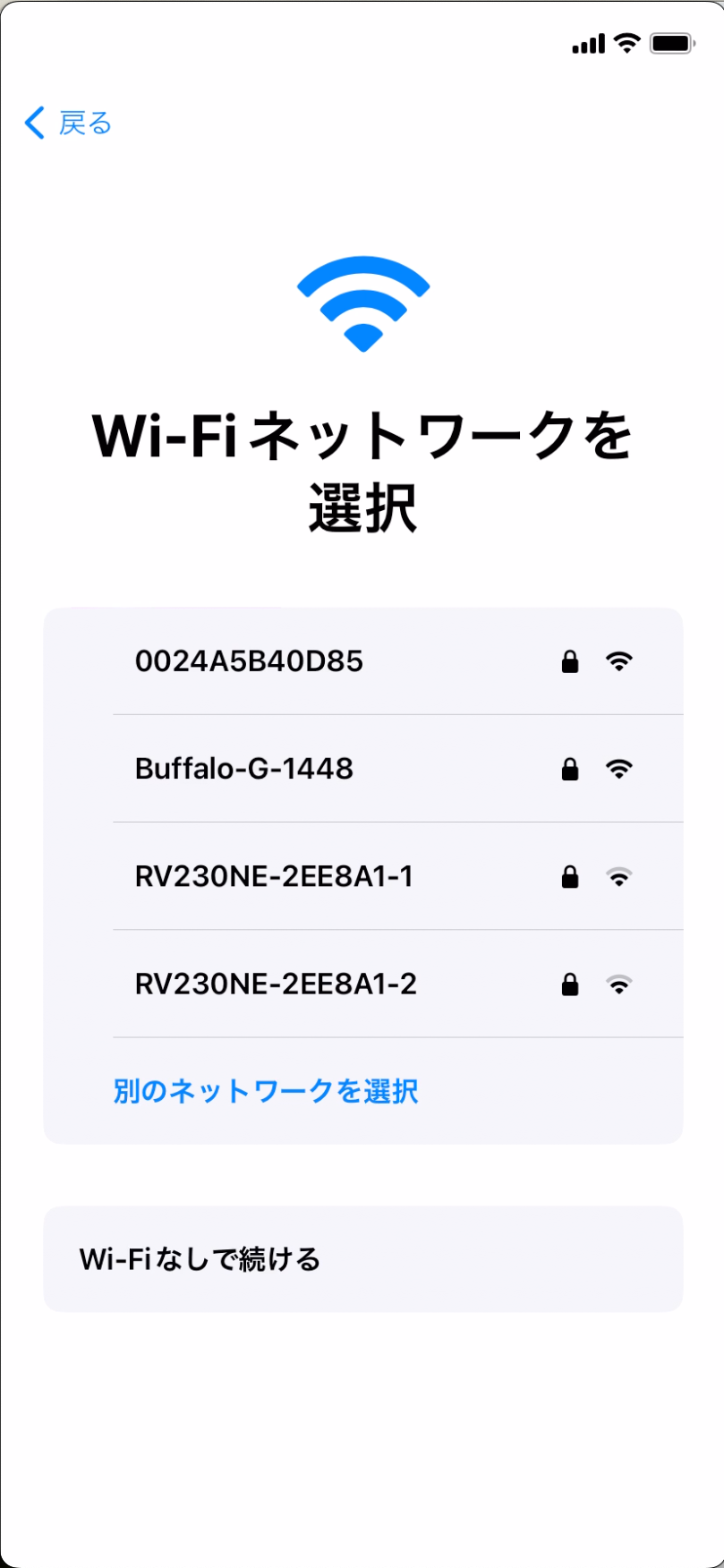
  1. Start the device to be registered for ADE, and display the Choose a Wi-Fi Network screen.
    Note: Do not connect to Wi-Fi.
 
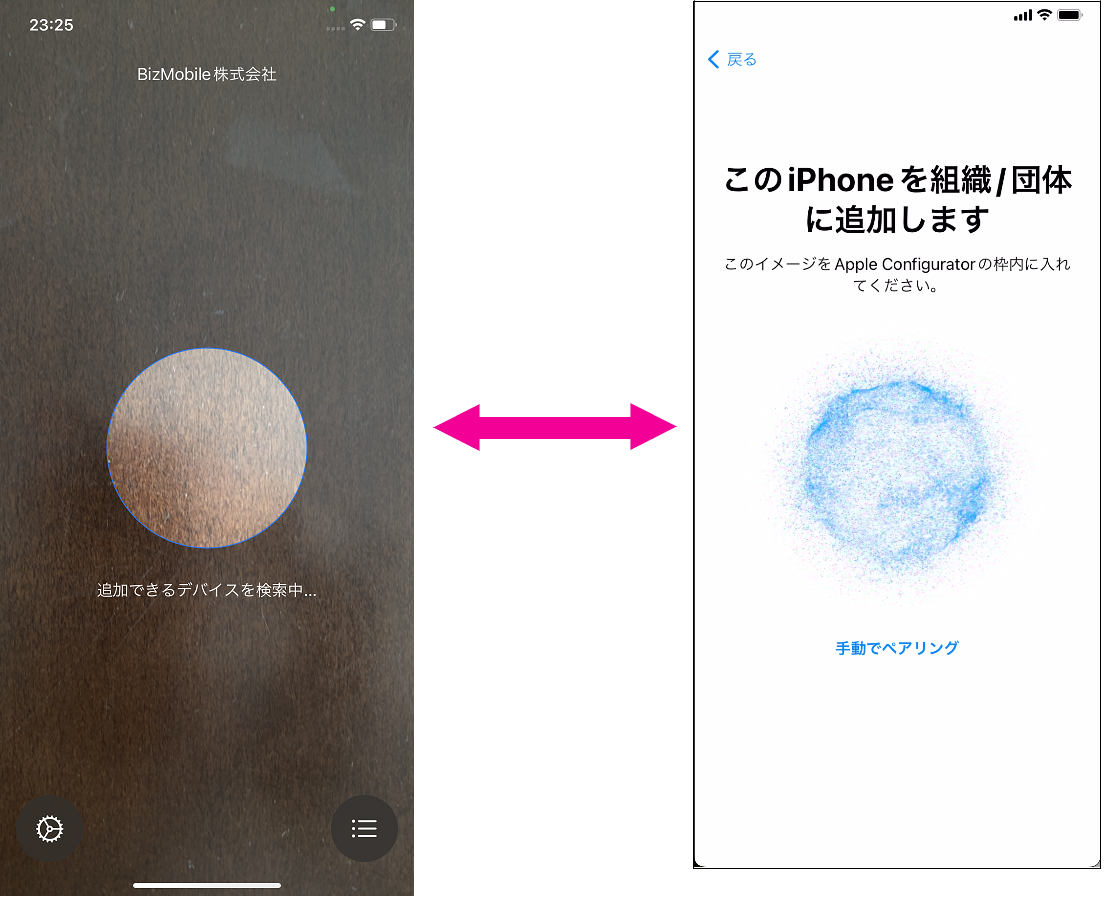
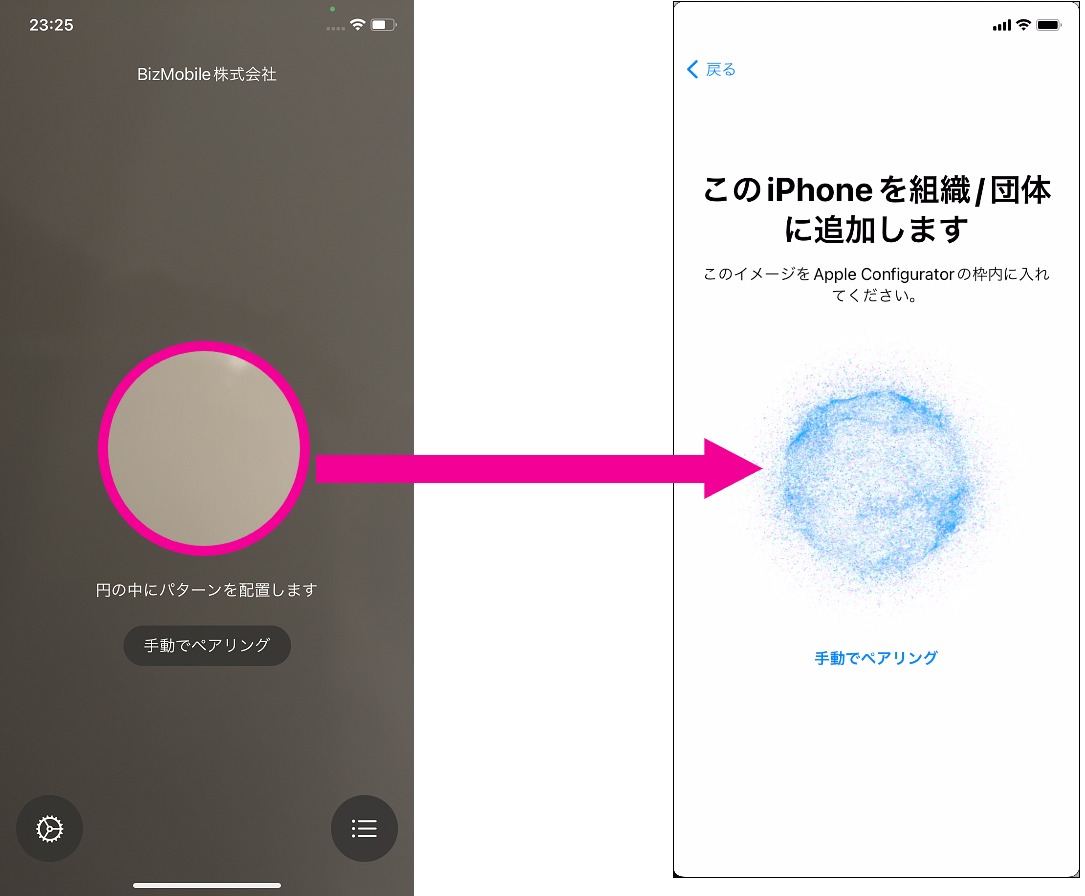
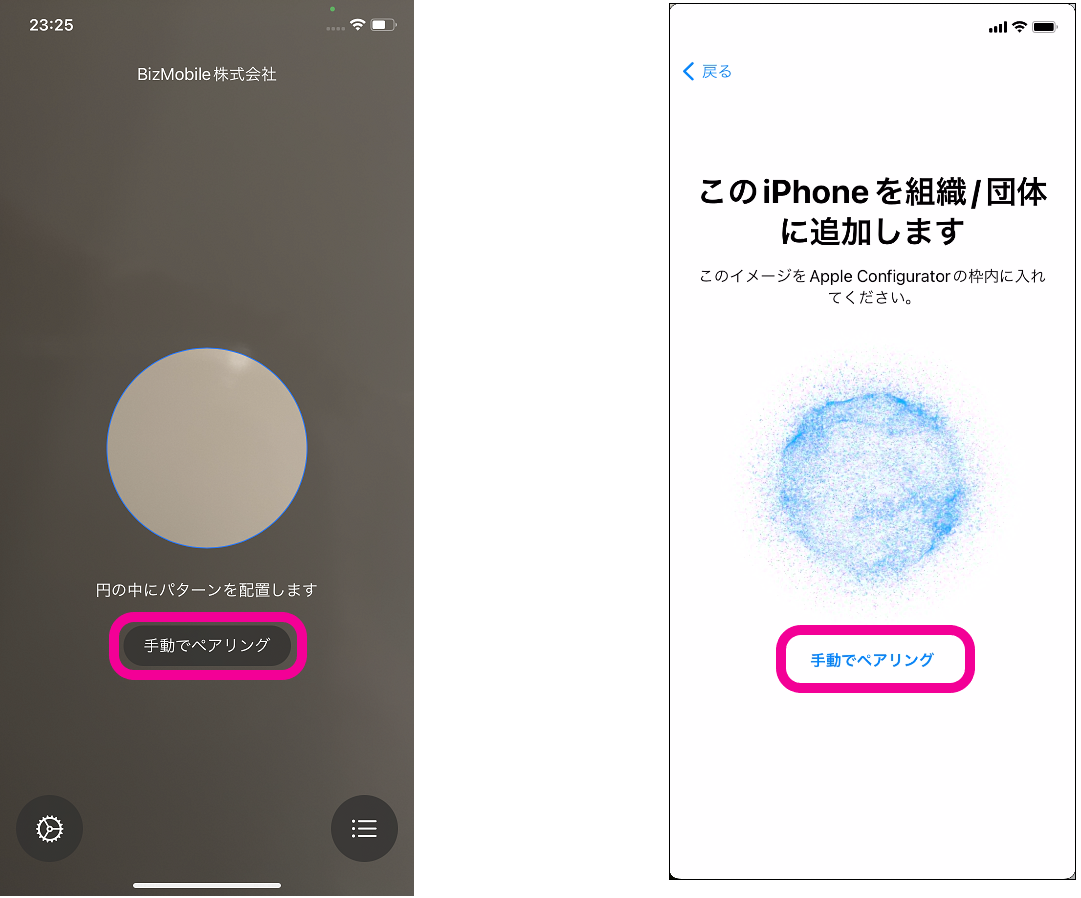
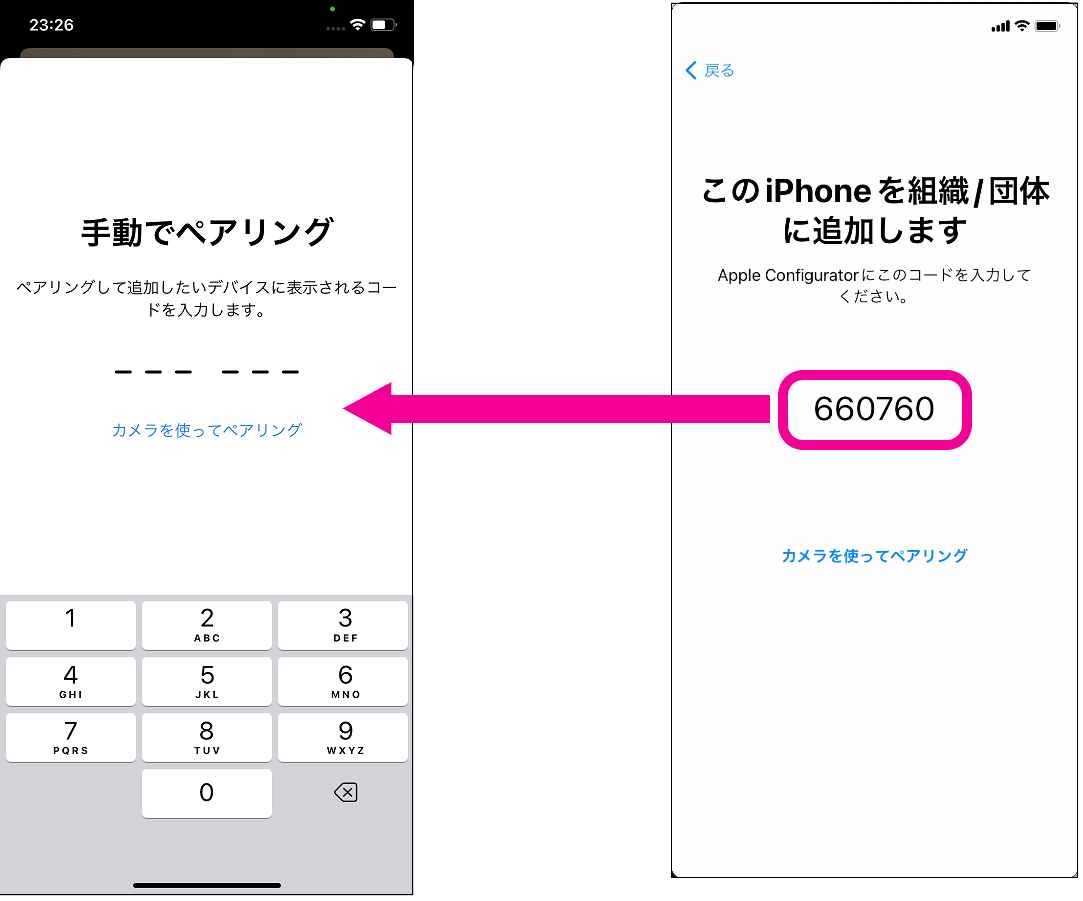
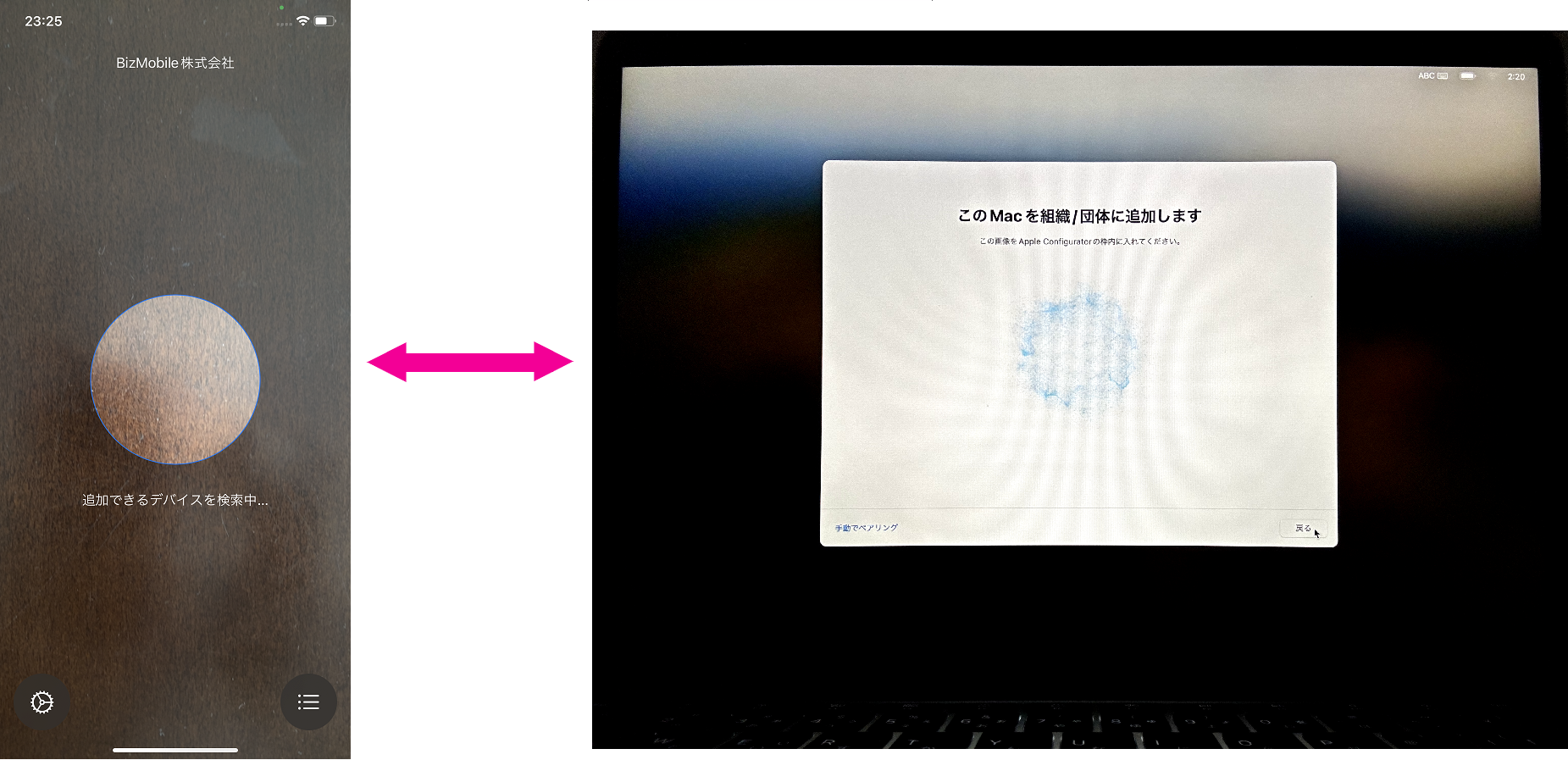
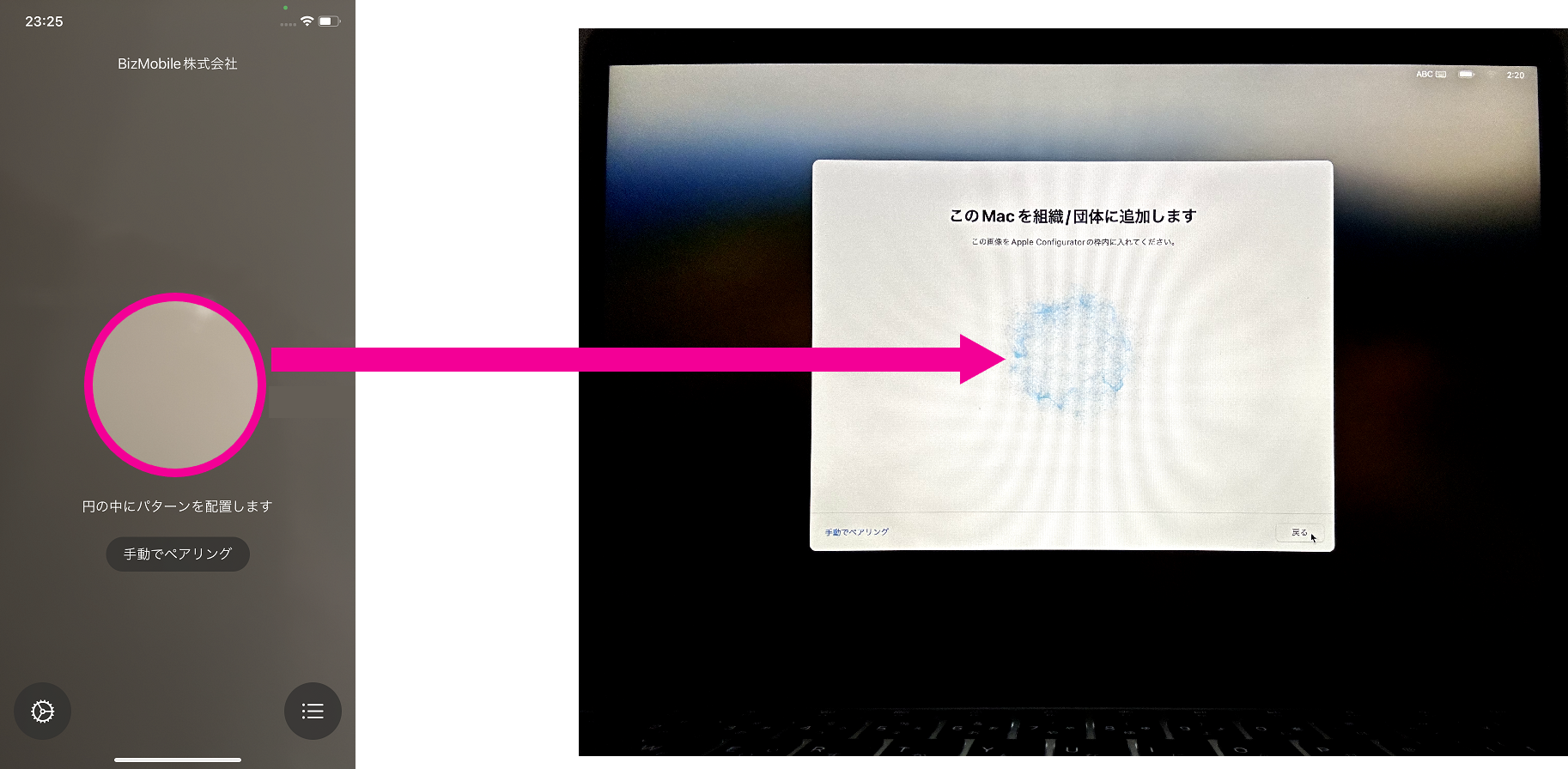
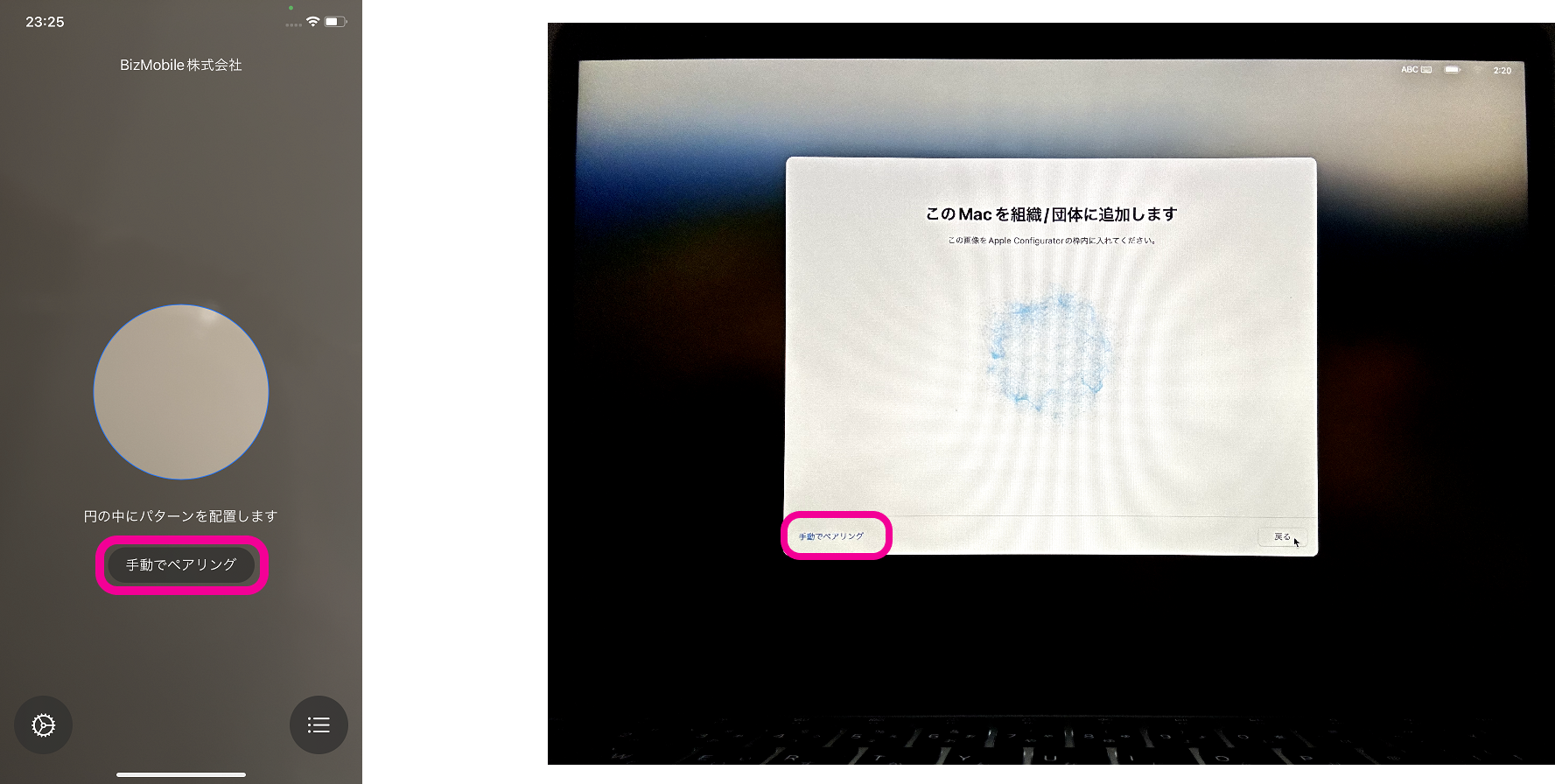
  1. Bring the device running Apple Configurator close to the device to be registered for ADE, and do one of the following.
    Operation 1
  • Scan the image displayed in Setup Assistant.
    Operation 2
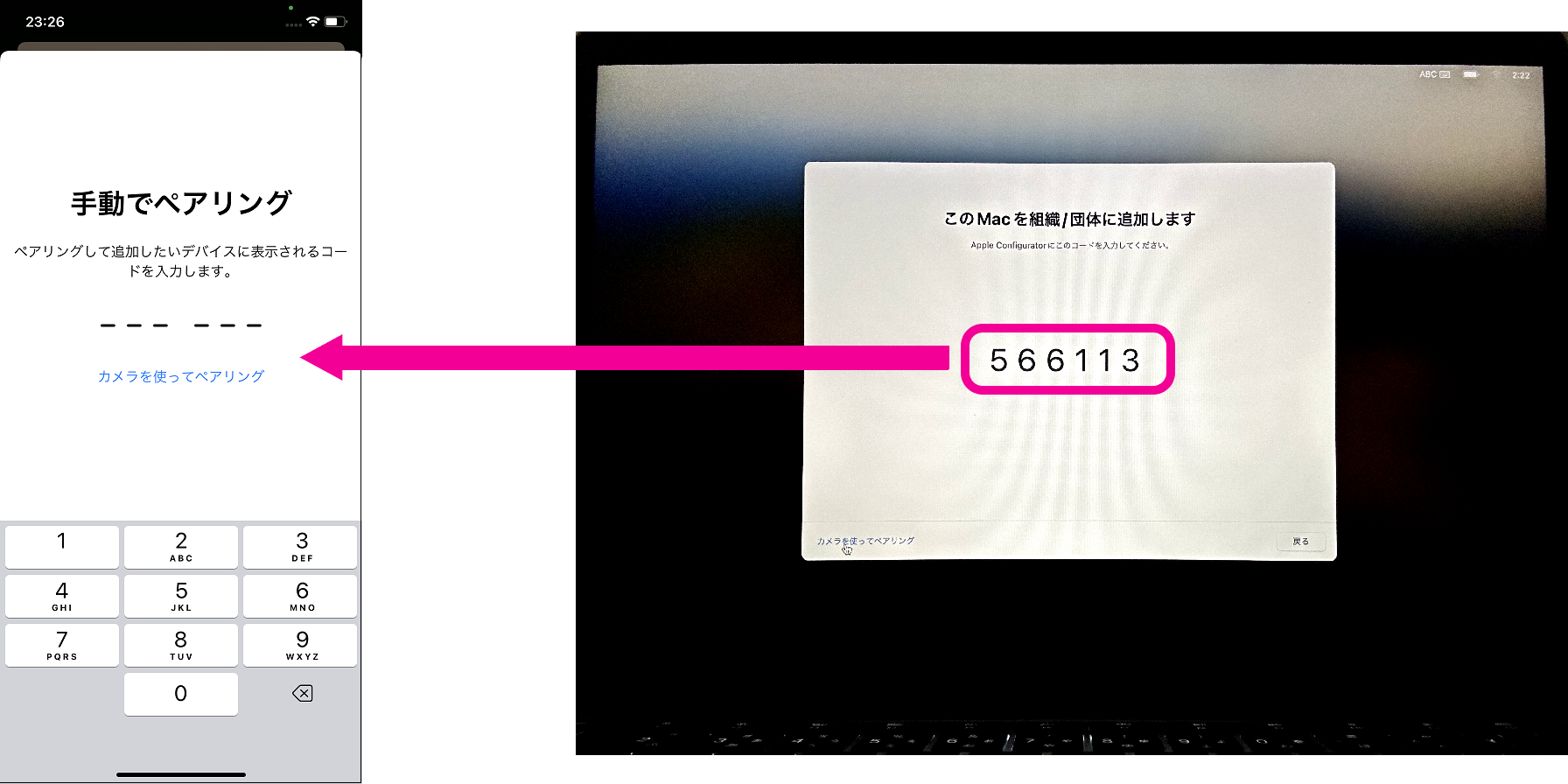
  • Tap Pair Manually displayed in Setup Assistant, and enter the code that is displayed.
  1. Processing starts, and the device is added to Apple Business.
 
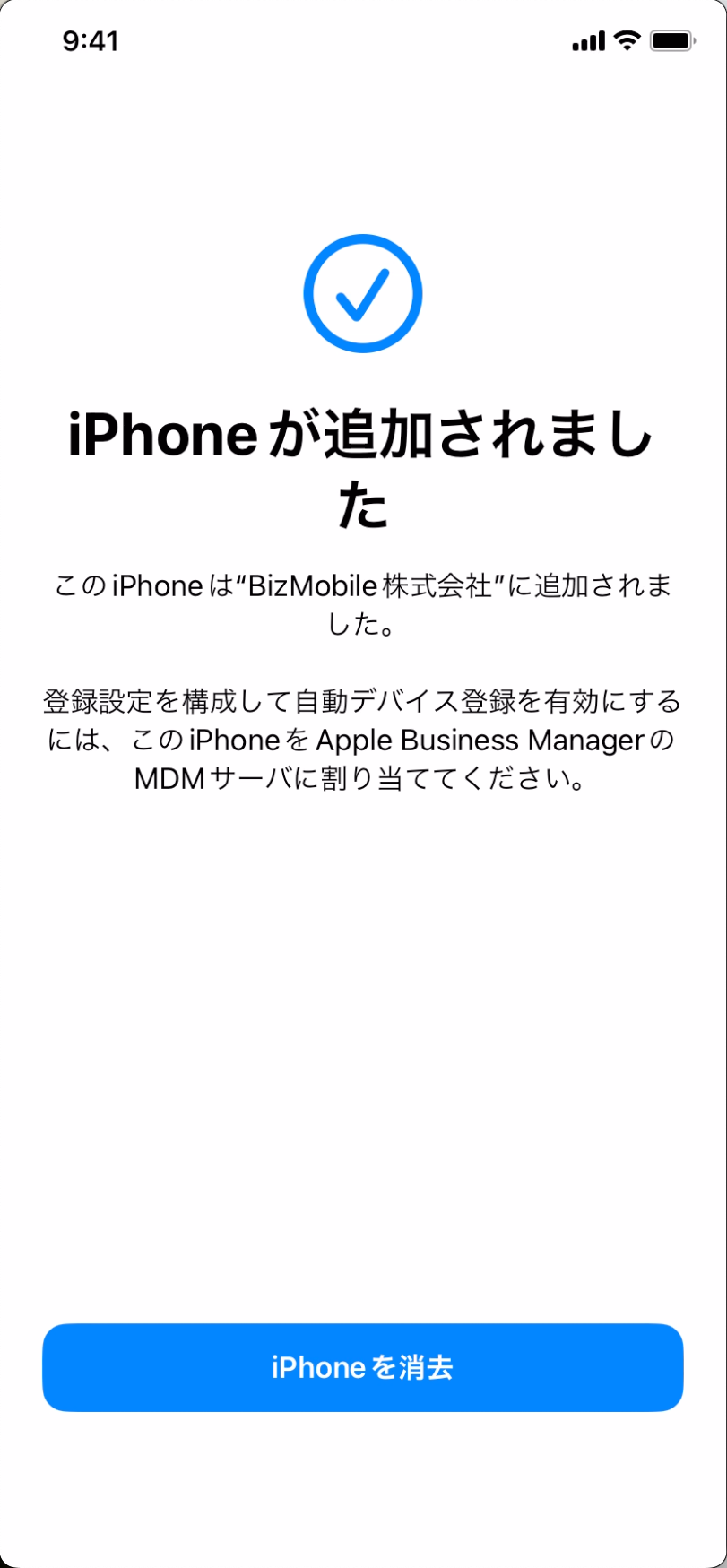
  1. When iPhone Added is displayed, the work with Apple Configurator is complete.
 

Register Mac devices (using Apple Configurator for iPhone)​

  • System requirements
    Host: iPhone (iOS 15 or later)
    Target: Mac (with Apple silicon or an Apple T2 Security Chip) (macOS 12.0.1 or later)
  1. Start Apple Configurator on the iPhone, and tap OK in the pop-up that asks for permission to use Bluetooth.
Host (Apple Configurator)Target
 
  1. Tap Continue.
 
  1. Enter the Apple ID and password of an Apple Business account (one that has permission to manage device enrollment), and tap Continue.
 
  1. The two-factor authentication screen is displayed. Enter the code that was sent to you.
 
  1. Tap Allow in the pop-up that asks for permission to use the camera.
 
  1. To assign an MDM server, tap the settings icon at the lower left of the screen.
    If you do not assign one now, you can also set it later in the Apple Business console, so proceed to step 10.
 
  1. Under Assign MDM Server, tap Set.
 
  1. Select the MDM server linked to the unit, and tap Back.
 
  1. Confirm that Set is selected, and tap Done.
 
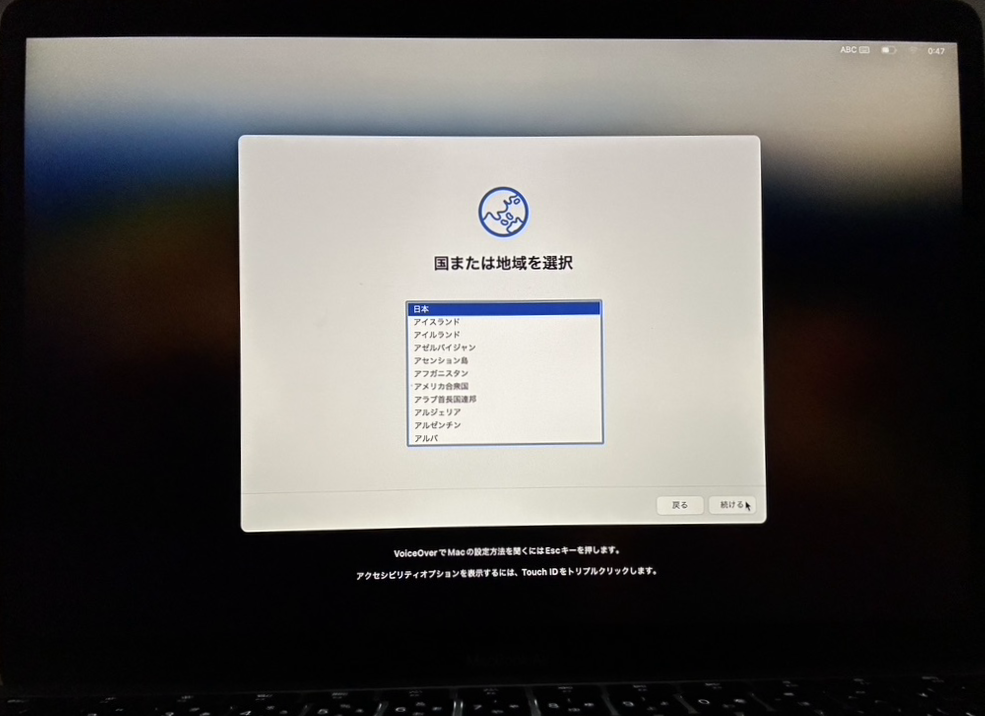
  1. Start the Mac in its factory default state, and display the Select Your Country or Region screen.
 
  1. Bring the device running Apple Configurator close to the device to be registered for ADE, and do one of the following.
  • Operation 1: Scan the image displayed in Setup Assistant.
  • Operation 2: Tap Pair Manually displayed in Setup Assistant, and enter the code that is displayed.

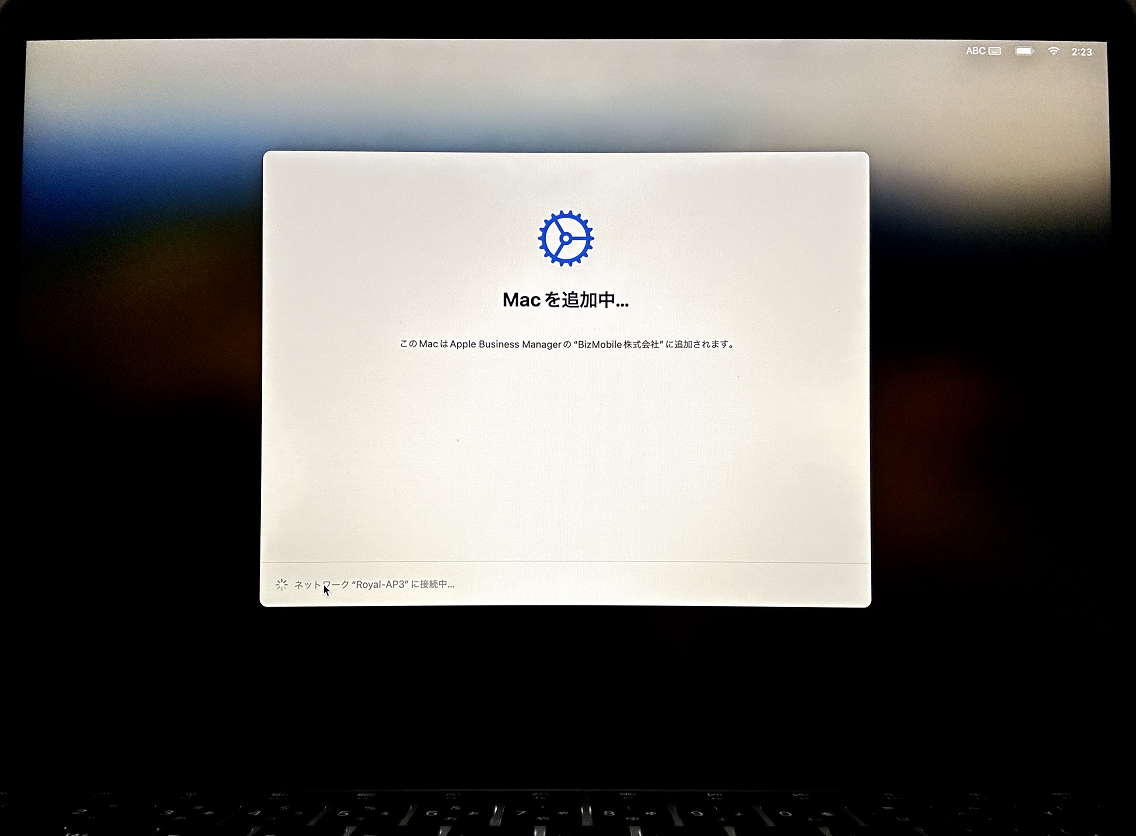
  1. Processing starts, and the device is added to Apple Business.
 
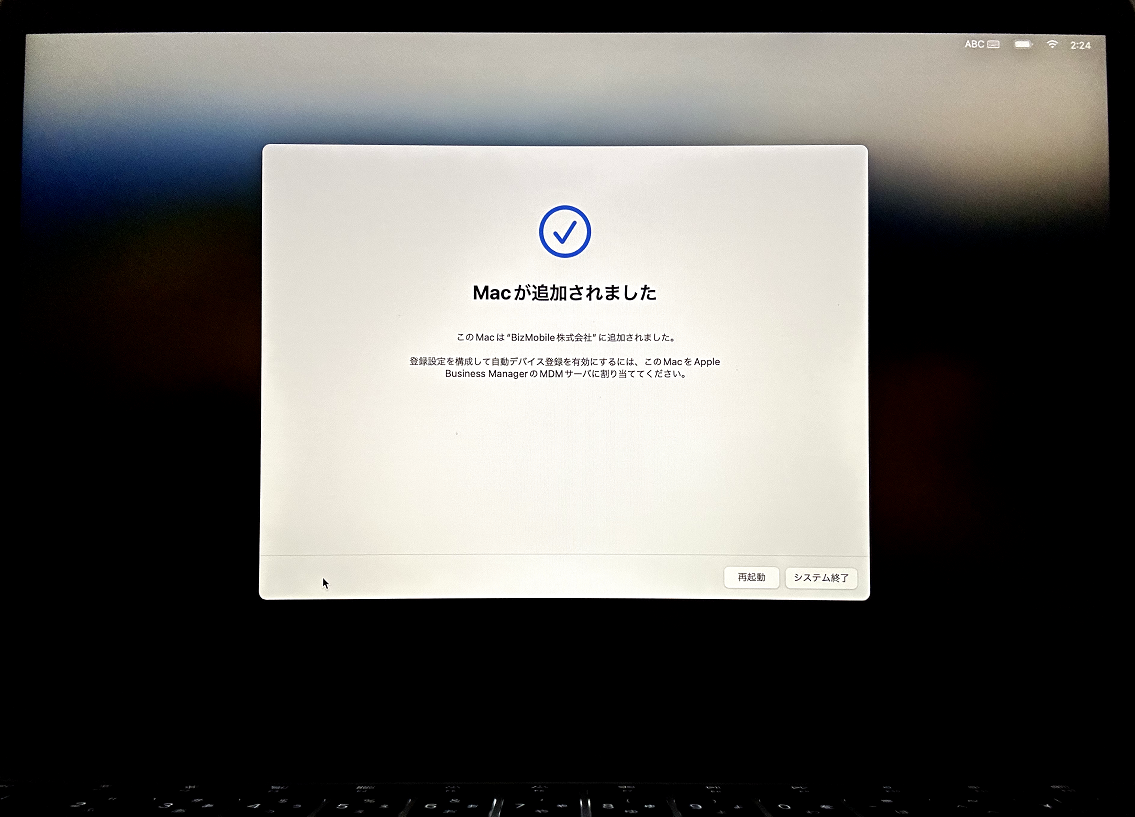
  1. When Mac Added is displayed, the work with Apple Configurator is complete.
 

This completes device registration in Apple Business.

As the next step, to make the devices registered in Apple Business manageable in BizMobile Go!, you must assign them to BizMobile Go!. (Completing the registration in Apple Business alone does not allow you to manage them in BizMobile Go!.)

For how to assign devices registered in Apple Business to BizMobile Go!, see Import ADE (formerly DEP) Devices from Apple Business into BizMobile Go! in the deployment flow.