Creating Information with a CSV File (Banned App Detection Target List)
You can register banned apps by using a CSV file (a comma-separated text file) in the specified format.
You can create the CSV file with a text editor, spreadsheet software, or similar tools.
CSV File Specifications
- The first row of the CSV file contains the header names. Create it according to the format specification.
- Header names contain no spaces.
- The contents of the CSV file are case-sensitive.
CSV File Format
Header name | Description |
|---|---|
application_name | Specify the name of the app. |
application_identifier | Specify the identifier (or package name) of the app. |
<CSV file sample>
Example settings for registering three apps in the Banned App List
application_name,application_identifier
SampleApp1,jp.co.example.application1
SampleApp2,jp.co.example.application2
SampleApp3,jp.co.example.application3
Uploading a CSV File (Banned Apps)
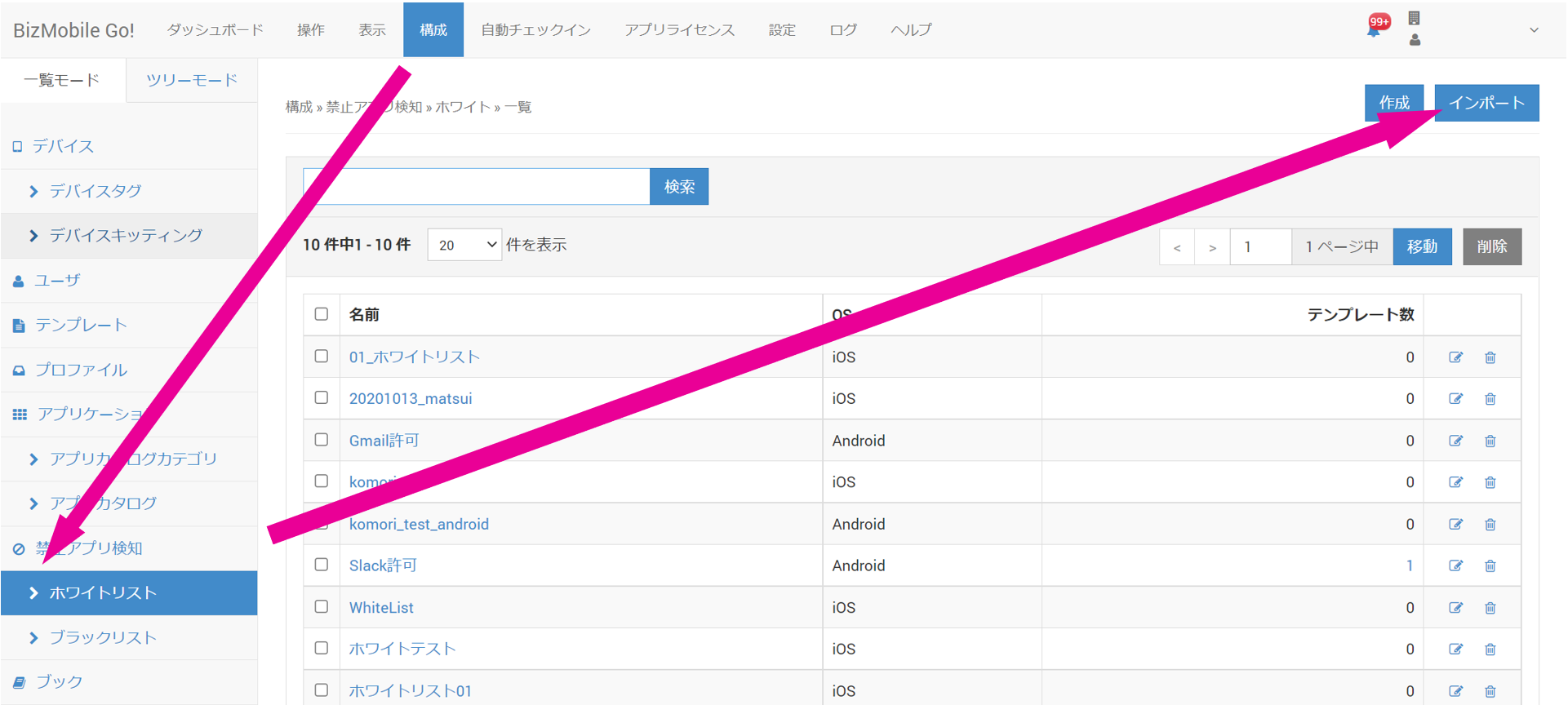
- Click CONFIG → Banned Apps → Whitelist (or Blacklist), and then click Import.
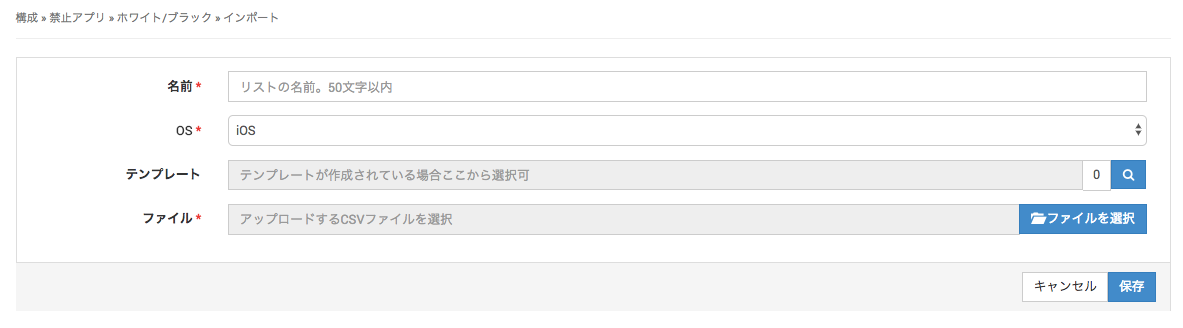
- Enter the required information in the input screen that opens.
(Items marked with ★ are required.)
| Field | Description |
|---|---|
Name ★ | The name of the blacklist or whitelist. Up to 50 characters, using Japanese characters and alphanumeric characters. |
OS ★ | Select the OS. |
Template | Select the template to which you want to apply this list. (You can also specify the banned type from the template side and select a list that has already been created.) |
File ★ | Specify the CSV file you created. |
- To discard the entered information, click Cancel. To register with the entered information, click Save.
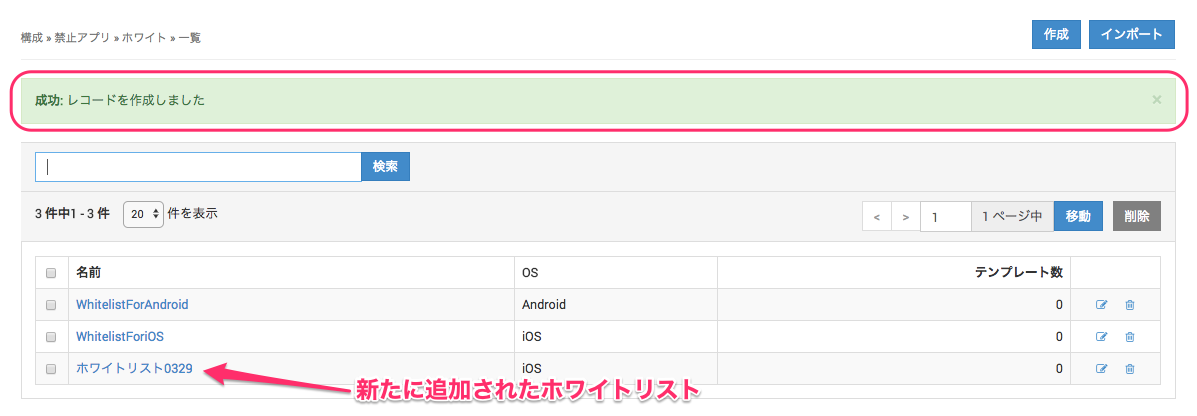
- The list is created when the new whitelist (or blacklist) is added to the list.