Create Information with a CSV File (Settings)
You can configure and change settings such as Geofence / Location, device replacement information, Personal, and app display and detection in bulk by using a CSV file (comma-separated text file).
Create and upload a separate CSV file for each optional feature you want to configure. You cannot combine these settings with the CSV file for creating devices or with other optional features.
You can create the CSV file with a text editor, spreadsheet software, or similar tools.
See also Upload a CSV file (Settings Import) and Check import history.
CSV file specifications
- The first row of the CSV file contains the header item names. Create it as specified in the format.
- Header item names contain no spaces.
- The contents of the CSV file are case-sensitive.
Geofence / Location
| Header item name | Description |
|---|---|
| Identifier | Specify the identifier of the managed device whose location setting you want to change. |
| LocationOption | 1: Enable the location retrieval setting 0: Disable the location retrieval setting Note: Specify a single-byte number. |
CSV sample (Geofence / Location)
Identifier,LocationOption
Testdevice1,1
Testdevice2,1
Testdevice3,1
Device replacement information
| Header item name | Description |
|---|---|
| OldDevice | Specify the device identifier of the device being replaced. |
| NewDevice | The identifier for the new device. Specify a new identifier that is different from that of the device being replaced. Use up to 20 alphanumeric characters, ., -, and _. |
| NewDeviceOS | Specify the OS of the new device. |
| DeviceTags | Specify the name of the device tag to assign to the new device. |
| NewTemplate | Specify the template to assign to the new device. |
| RegistrationEmail | Specify the email address to use for enrollment on the new device. |
| User | Specify the user ID of the new device. |
| HandlingMethod | Specify the action to perform automatically on the device being replaced when the new device completes enrollment, from the following:EraseDevice: WipeSoftWipe: Selective wipeWithdrawDevice: WithdrawNoAction: NoneFor details on each action, see Control devices remotely. |
| Code | The passcode required for enrollment. If left blank, the Code of the device being replaced is carried over, but you can specify a new one if needed. |
| ExpirationDays | Specify the number of days until the enrollment deadline of the new device. If left blank, the date one week from now is set. Specify a number of days, not a date. The maximum value is 365. Wrong: 20141130 Correct: 10 (for 10 days from now) |
CSV sample (Device replacement information)
OldDevice,NewDevice,NewDeviceOS,DeviceTags,NewTemplate,RegistrationEmail,User,HandlingMethod,Code,ExpirationDays
ipadpro-1,ipadpro-2,ios,,,,,WithdrawDevice,,
Personal (only when the Personal service is enabled)
| Header item name | Description |
|---|---|
| UserName | User ID |
| Password | Password for Personal Web (single-byte alphanumeric characters) |
CSV sample (Personal)
UserName,Password
user0001,aaaa
user0002,bbbb
user0003,cccc
App display and detection
| Header item name | Description |
|---|---|
| Identifier | Device identifier |
| DetectBlacklisted | 1: Enable banned app detection 0: Disable banned app detection Note: Specify a single-byte number. |
| DisplayPersonalApps | 1: Enable display of unmanaged apps 0: Disable display of unmanaged apps Note: Specify a single-byte number. |
CSV sample (App display and detection)
Identifier,DetectBlacklisted,DisplayPersonalApps
"apple001",0,0
"apple002",1,1
"apple003",1,0
"google001",0,0
"google002",1,1
"google003",1,0
Upload a CSV file (Settings Import)
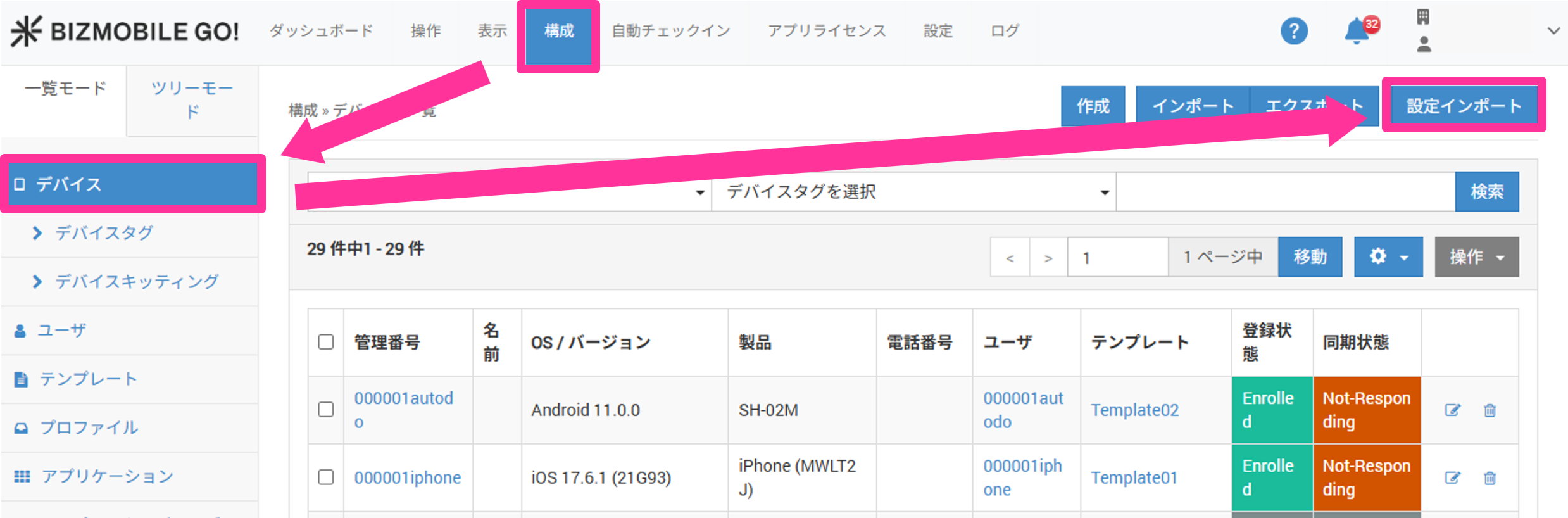
- Click Settings Import on the CONFIG → Device screen.
- On the tab for the item you want to import, drag and drop the CSV file, or click the area and specify the CSV file in the file selection screen that opens.
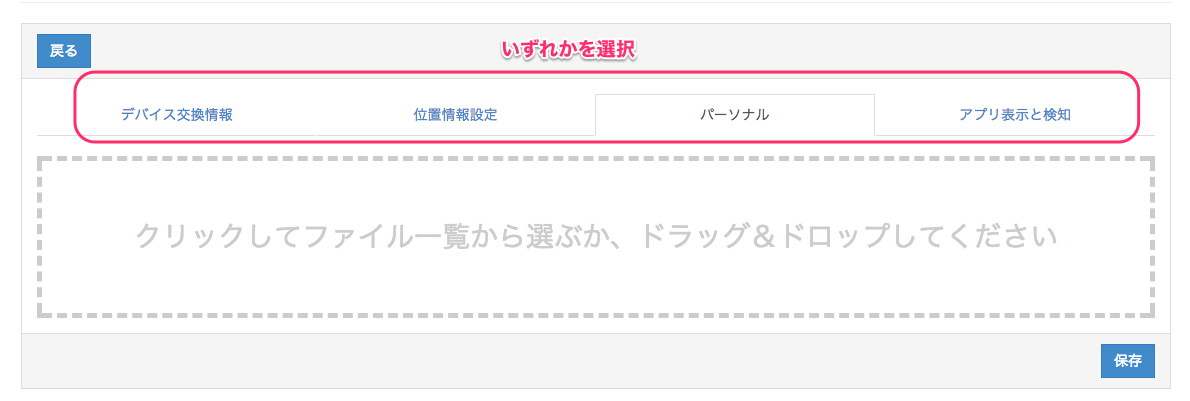
- Click Save.
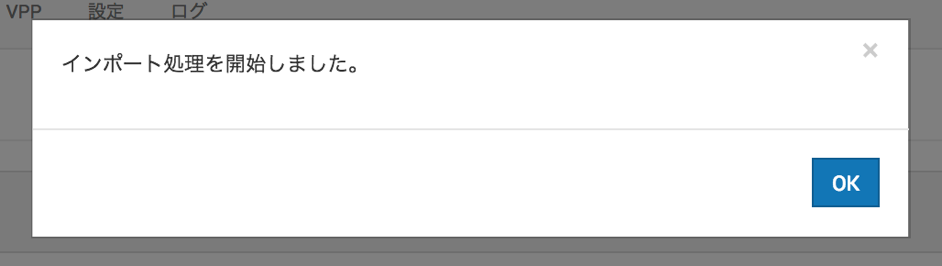
- When the following message appears, click OK.
- In the import history at the bottom of the screen, the import data you just created appears with
Status = PENDING. Wait a moment, and then click the browser's refresh button.
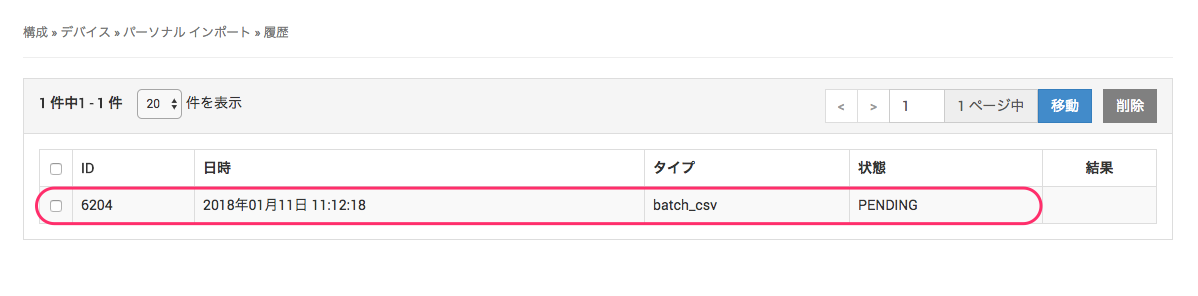
- After you refresh the browser, if the import is complete,
StatusisSUCCESS.
(If the status is PENDING, wait a moment and refresh the browser again.)
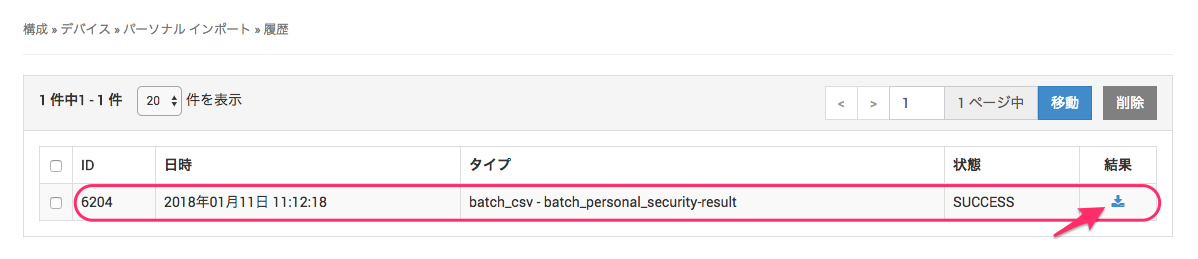
Click the icon underResultto download the import result as a CSV file. You can use it to check whether the data was registered correctly.
Check import history
Each import screen has an import history list where you can check the history and the results of imports.

(1) Click the icon to download a past import result again.
(2) You can choose to display 20 (default), 50, or 100 entries in the history list.
(3) If the history has multiple pages, you can move between pages.
(4) You can select the checkboxes in the history list to delete entries.