Create Information with a CSV File (Organization)
You can create and change organizations by using a CSV file (comma-separated text file) in the specified format.
You can create the CSV file with a text editor, spreadsheet software, or similar tools.
See also Upload a CSV file (Organization) and Check import history.
CSV file specifications
- The first row of the CSV file contains the header item names. Create it as specified in the format.
- Header item names contain no spaces.
- The contents of the CSV file are case-sensitive.
CSV file format
| Header item name | Description |
|---|---|
| OrganizationID | Organization ID: An ID that uniquely identifies the organization |
| Name | Organization Name: The name of the organization (the name displayed in the admin console) |
| ParentID | Parent Organization: The organization ID of the parent organization |
| OrderingNumber | Display order: The order in which the organization is displayed, relative to its parent organization |
CSV sample
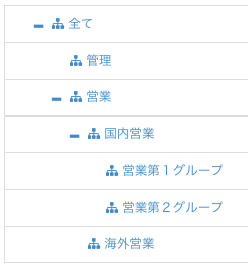
OrganizationID,Name,ParentID,OrderingNumber
BizMoo,Management,,0
BizMoo01,営業,,1
domestic01,営業第1グループ,sales01,2
sales01,国内営業,BizMoo01,2
sales02,海外営業,BizMoo01,2
domestic02,営業第2グループ,sales01,3
Using this CSV file produces the following organization structure.
Upload a CSV file (Organization)
- Click Import on the SETTING → Organization screen.

- On the tab for the item you want to import, drag and drop the CSV file, or click the area and specify the CSV file in the file selection screen that opens.
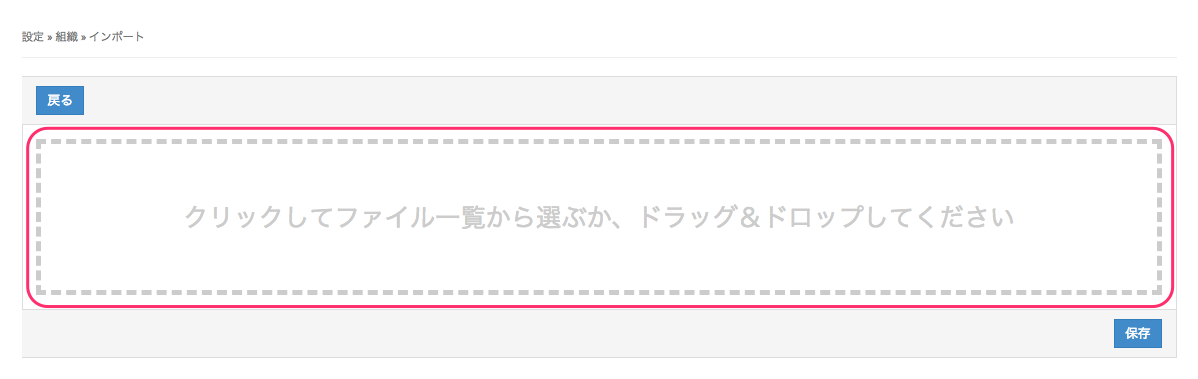
- Click Save.
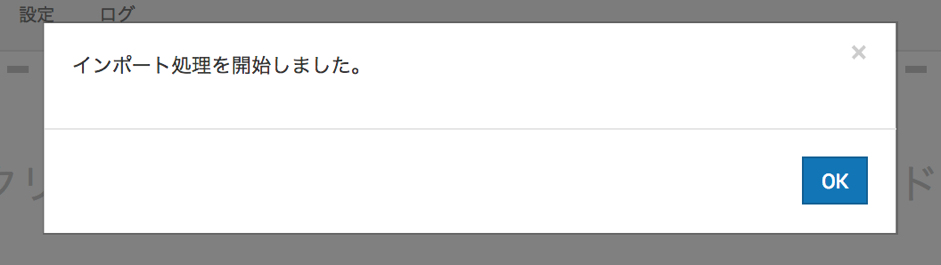
- When the following message appears, click OK.
- In the import history at the bottom of the screen, the import data you just created appears with
Status = PENDING. Wait a moment, and then click the browser's refresh button.
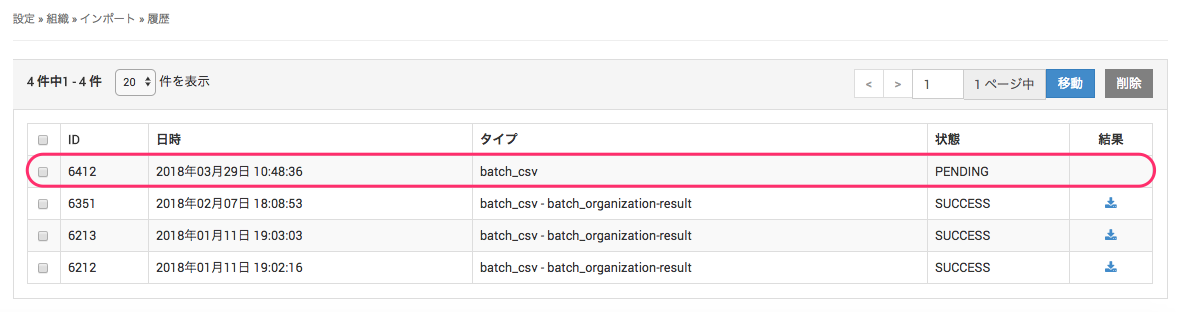
- After you refresh the browser, if the import is complete,
StatusisSUCCESS.
(If the status is PENDING, wait a moment and refresh the browser again.)
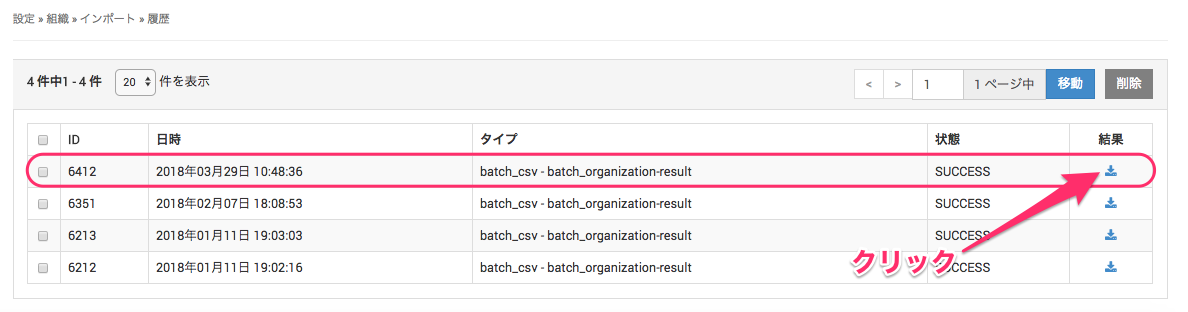
Click the icon underResultto download the import result as a CSV file. You can use it to check whether the data was registered correctly.
Check import history
Each import screen has an import history list where you can check the history and the results of imports.
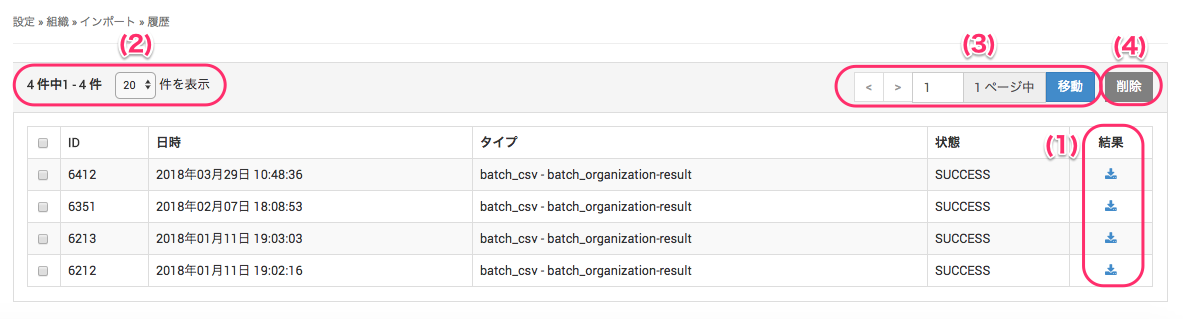
(1) Click the icon to download a past import result again.
(2) You can choose to display 20 (default), 50, or 100 entries in the history list.
(3) If the history has multiple pages, you can move between pages.
(4) You can select the checkboxes in the history list to delete entries.