Remotely Control Devices
▶︎ Related video (various remote controls)
You can remotely send instructions to devices, such as applying settings to a device, installing apps on a device, locking a device, and wiping a device.
Instructions are delivered as follows. First, the MDM server sends a push notification to the device. Next, the device that received the push notification accesses the MDM server. Then, in response to that access, the MDM server sends the instruction to the device.
The time until an instruction completes depends on the following conditions, so it may not complete immediately.
- Network connection status of the device (including when the device is powered off)
- Internet latency, because instructions travel over the internet
- Operating status of the Apple, Google, or Microsoft services, because instructions work together with those services
If an instruction does not complete, one of the above conditions is likely the cause. Check whether the device responded to the push notification from the MDM server by looking at theLast Accesstime in the device detail information in the admin console.
Types of remote control
| Type | Description | iOS / iPadOS | Android | Windows | macOS | tvOS | Shared iPad |
|---|---|---|---|---|---|---|---|
| Sync | Retrieves information from the managed device and applies the settings of the assigned template to the managed device. The server automatically syncs once a day (the sync time varies depending on system load and other factors), but you can also sync information manually as needed. For example, after you change registered information (devices, users, profiles, templates, applications), you can use this sync feature to apply the change to the target managed devices. | Yes | Yes | Yes | Yes | Yes | Yes*3 |
| Lock | Locks a managed device. If a passcode is set, the passcode must be entered to continue using the locked managed device. Unlike other OSs, to lock a macOS device, you must enter the passcode specified at the time of locking on the managed device to unlock it (for details, see Lock and Wipe a macOS Device). | Yes | Yes*1 | Yes | Yes*7 | Yes | |
| Restart | Restarts a managed device. Note: After a locked iOS device restarts, it does not connect to a Wi-Fi network. If you restart an iOS device that connects only through Wi-Fi, it cannot communicate with the BizMobile Go! server until the device is unlocked on the managed device, so be careful. | Yes 10.3- Supervised only | Yes 7.0- Device Owner only | Yes Home edition is not supported | Yes 11.0- | Yes | Yes |
| Wipe | Returns a managed device to its factory default state. When a device is wiped, the device status automatically changes to Withdrawn.Unlike other OSs, to wipe a macOS device, you must enter the PIN code specified at the time of the wipe on the managed device during activation after the device restarts (for details, see Lock and Wipe a macOS Device). | Yes*8 | Yes*6 Device Owner only | Yes | Yes*7 | Yes | Yes*8 |
| Selective Wipe | Deletes from a managed device all data distributed through BizMobile Go!, other than the device management profile installed at enrollment. Note: Items deleted: apps, books, profiles, and non-template profiles distributed from templates | Yes | Yes | Yes Also works offline | Yes | Yes | Yes |
| Clear Passcode | Clears the passcode of a managed device. Use this when the device user has forgotten the passcode, for example. On Android only, the administrator can specify a new passcode. If a passcode is required by a profile, a message requesting that the passcode be set again appears on the managed device after the passcode is cleared. | Yes | Yes*2 | *4 | |||
| Withdraw | Withdraws a managed device from BizMobile Go!. The withdrawn device is removed from management, and all data installed through BizMobile Go! is deleted. | Yes | Yes | Yes | Yes 11.0- | Yes*5 | |
| Admin Lock / Unlock | Applies a lock that only an administrator can release, so that the device user cannot operate the device. While the admin lock is on, location information can be retrieved even if the location permission on the device is off (standard service). | Yes 9.0- Supervised only | Yes 5.0- Device Owner only | Yes | |||
| Refresh eSIM Mobile Plan | Makes the device retrieve the eSIM again from the specified eSIM download server. Use this to re-retrieve an eSIM that has already been distributed with the same URL, or to switch to an eSIM from a different carrier. You must register the EID of the target device with the carrier in advance. | Yes*9 13.0- | Yes*9 |
*1 When a work profile is set and the device is running Android 5 or Android 6, the device itself is locked. For Android 7 or later, the work area is locked.
*2 Support varies depending on the profile type and the Android version.
*3 User profiles are not subject to sync management.
*4 Resetting or changing the password of a Managed Apple Account requires work on Apple Business (formerly Apple Business Manager).
For details, see the Apple Support page: https://support.apple.com/en-us/guide/apple-business-manager/axm385c83202/1/web/1
*5 When you need to set up the device again, we recommend performing a wipe instead of withdrawing.
*6 When a work profile is set, the device is not reset and only the work area is deleted.
*7 For macOS lock/wipe, you must specify a 6-digit PIN code in advance and enter it on the device.
*8 For iOS 11 or later, you can specify whether to retain the eSIM information.
*9 Refresh eSIM Mobile Plan can be run only individually from the device detail screen (running it for multiple devices at once from the CONTROL screen is not supported). To configure devices in bulk, use the eSIM Mobile Plan profile (iOS / Shared iPad - Device).
The CONTROL screen displays the common device list. For details on each item, see List Screens.
Remote control method 1: Steps from the CONTROL screen (you can perform the same remote control on multiple devices at once)
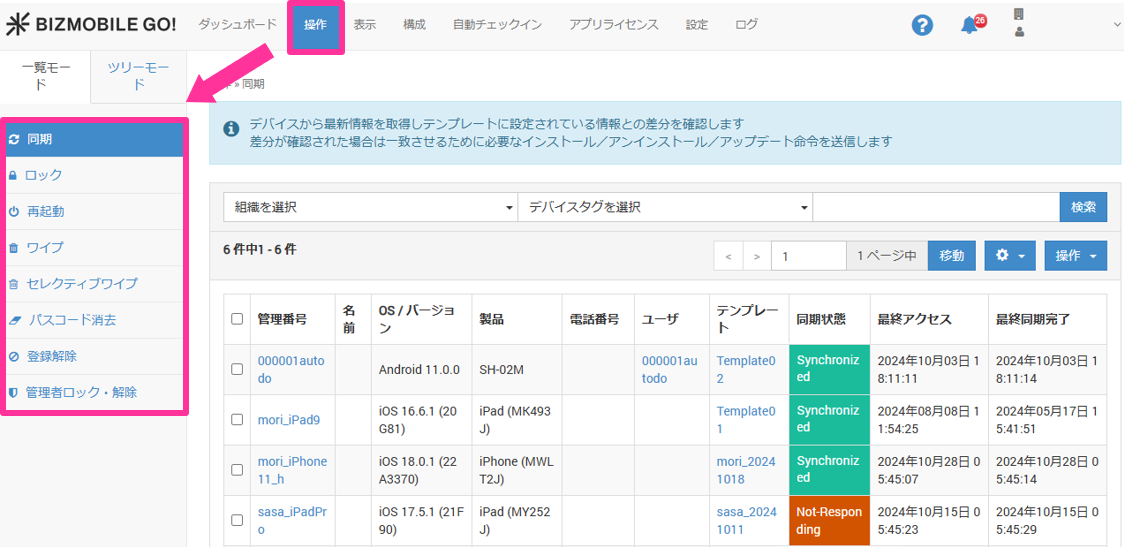
- On the CONTROL screen, select the operation menu you want to use.
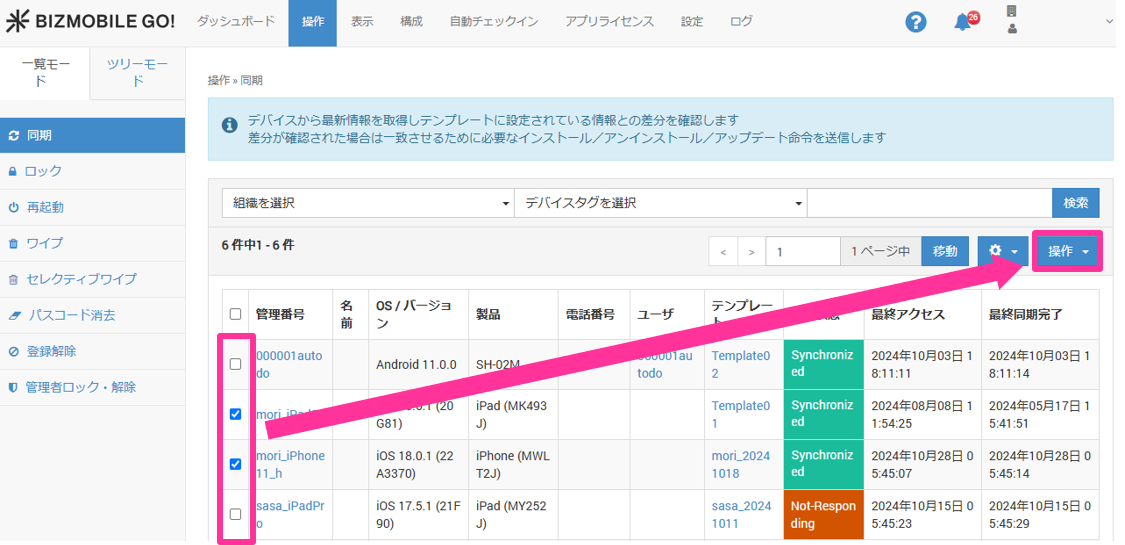
- Select the target managed devices in the list with the check boxes, and then click [Control] → [Execute].
- The following screen appears. Click [OK]. (
Syncchanges depending on the operation menu you selected.)

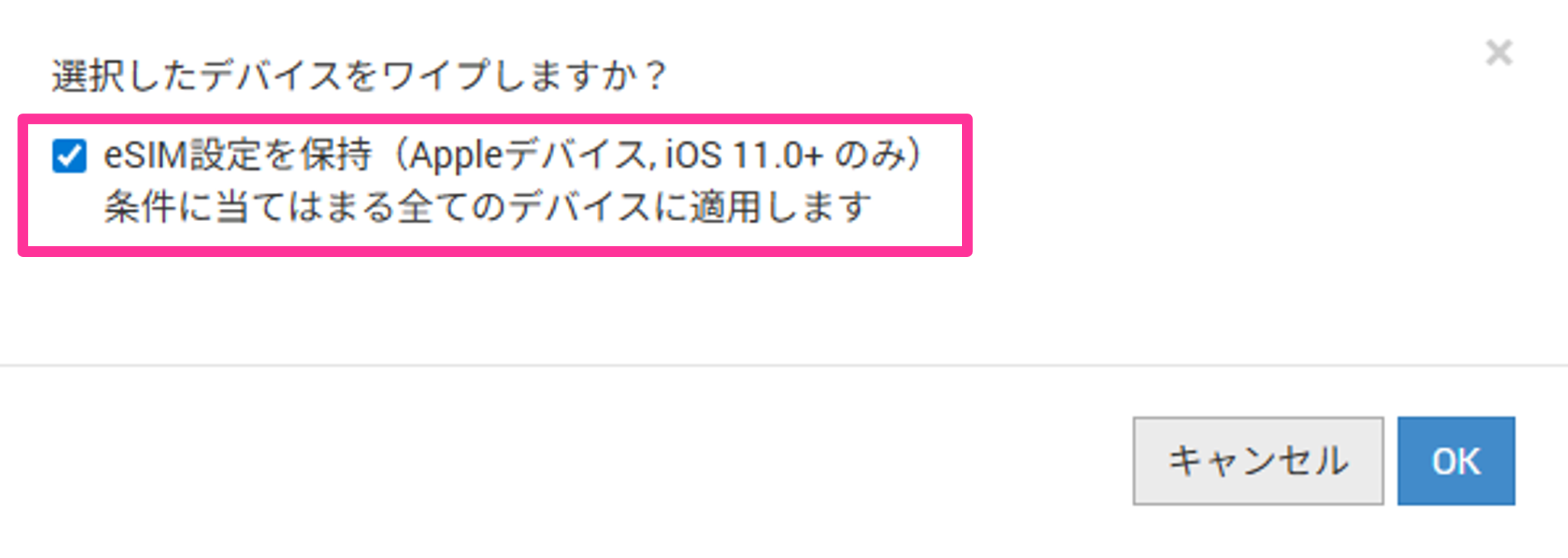
If the devices selected for the wipe include iOS devices, a screen appears asking whether to retain the eSIM settings.
To retain them, select the check box and click [OK].
The eSIM retention setting is available for devices running iOS 11 or later. A normal wipe is executed on all other devices.
Remote control method 2: Steps from the device detail screen (you can perform remote control on one selected device)
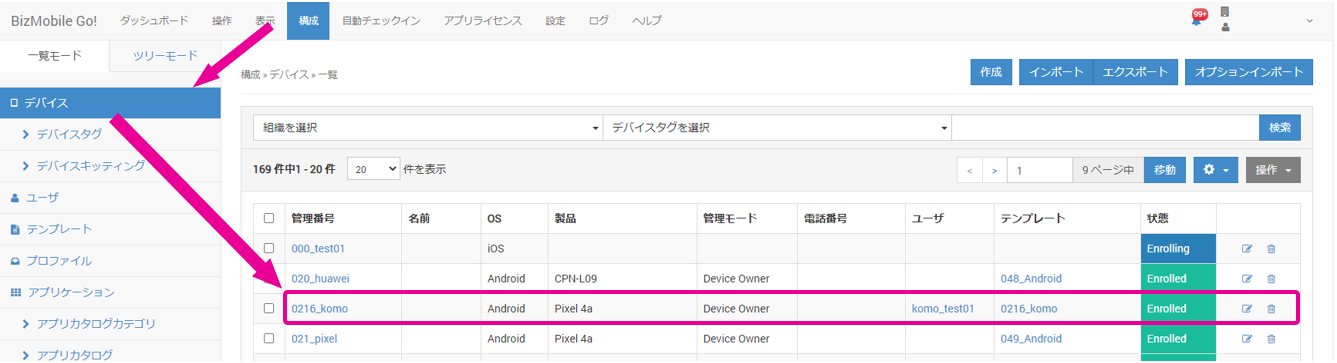
- On the CONFIG → Device screen, click the name of the device to which you want to send the instruction.
- Click [Command], and then select the operation menu you want to use.
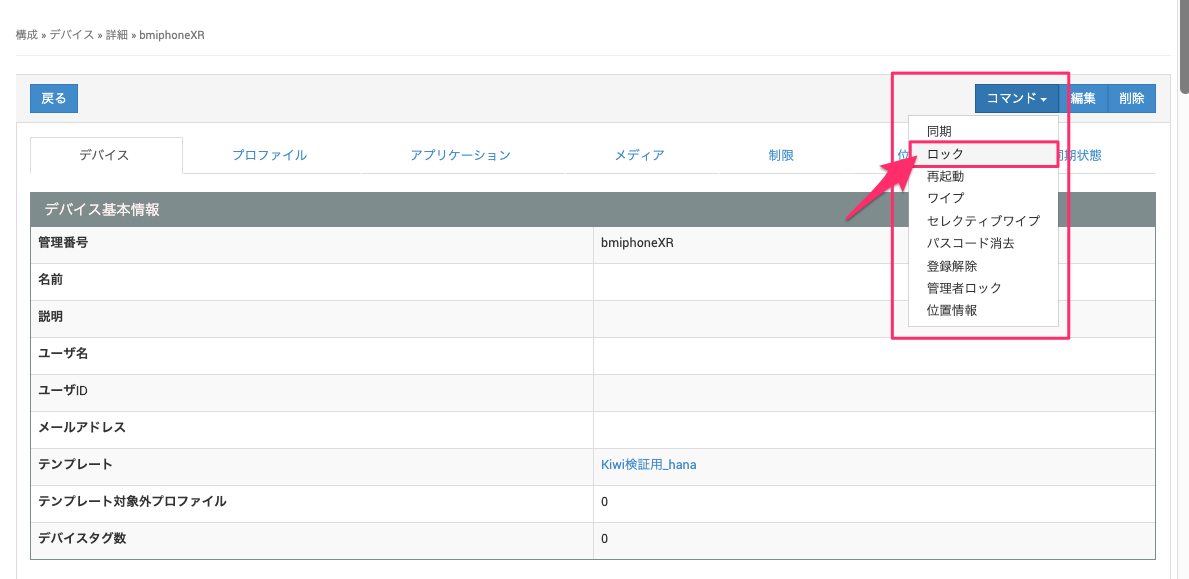
- The following screen appears. (
Lockchanges depending on the operation menu you selected.)
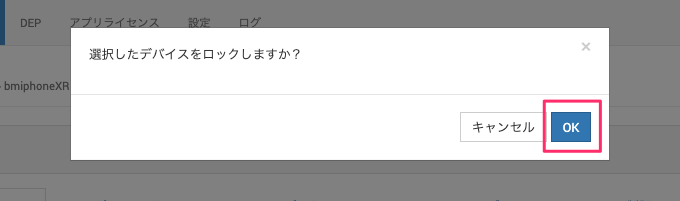
- Click [OK] to execute. A processing screen appears, and when the system completes processing, you return to the device detail screen.
- Click [Cancel] to cancel the operation.
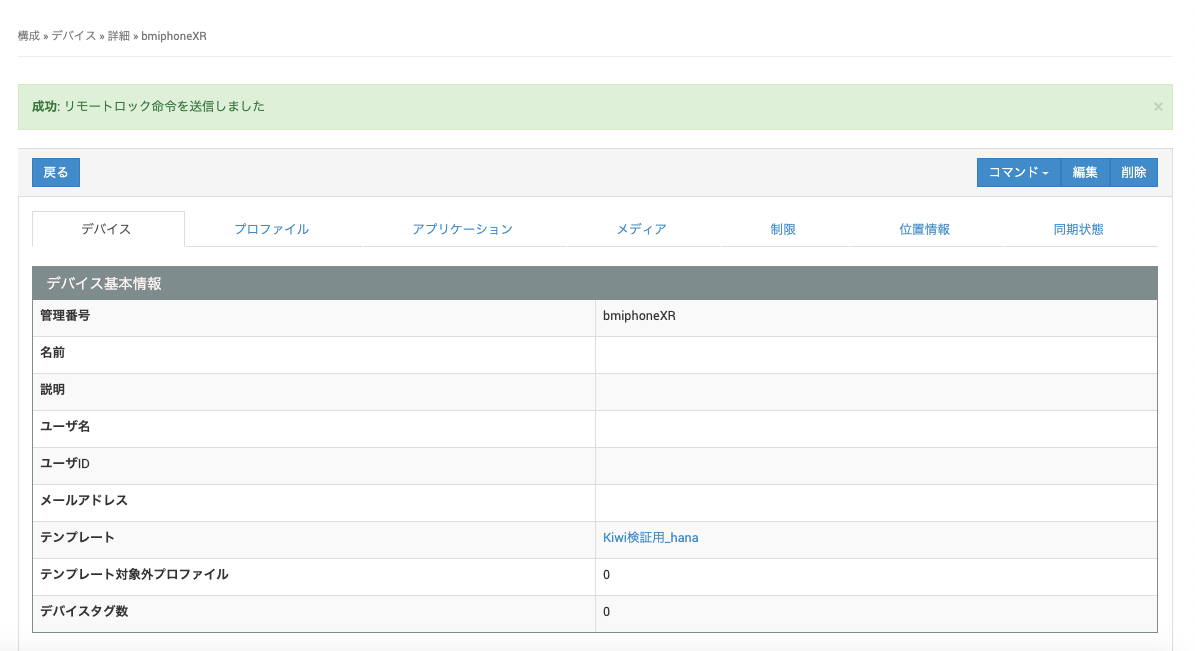
- When the operation is executed, a message appears at the top of the screen. (The message differs depending on the operation menu you selected.)
Run Refresh eSIM Mobile Plan
- On the CONFIG → Device screen, click the name of the target device.
- Click [Command] → [Refresh eSIM Mobile Plan].
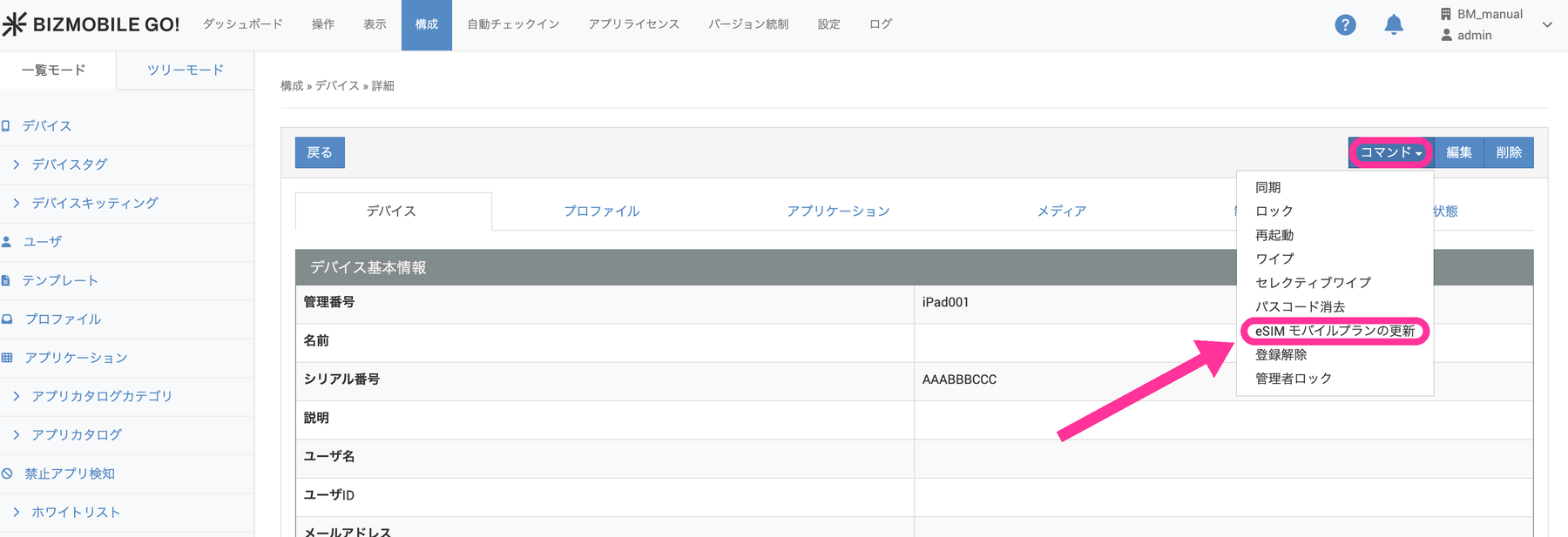
- Enter the URL in
eSIM Download Server, and then click [OK]. (Required field / up to 255 characters)
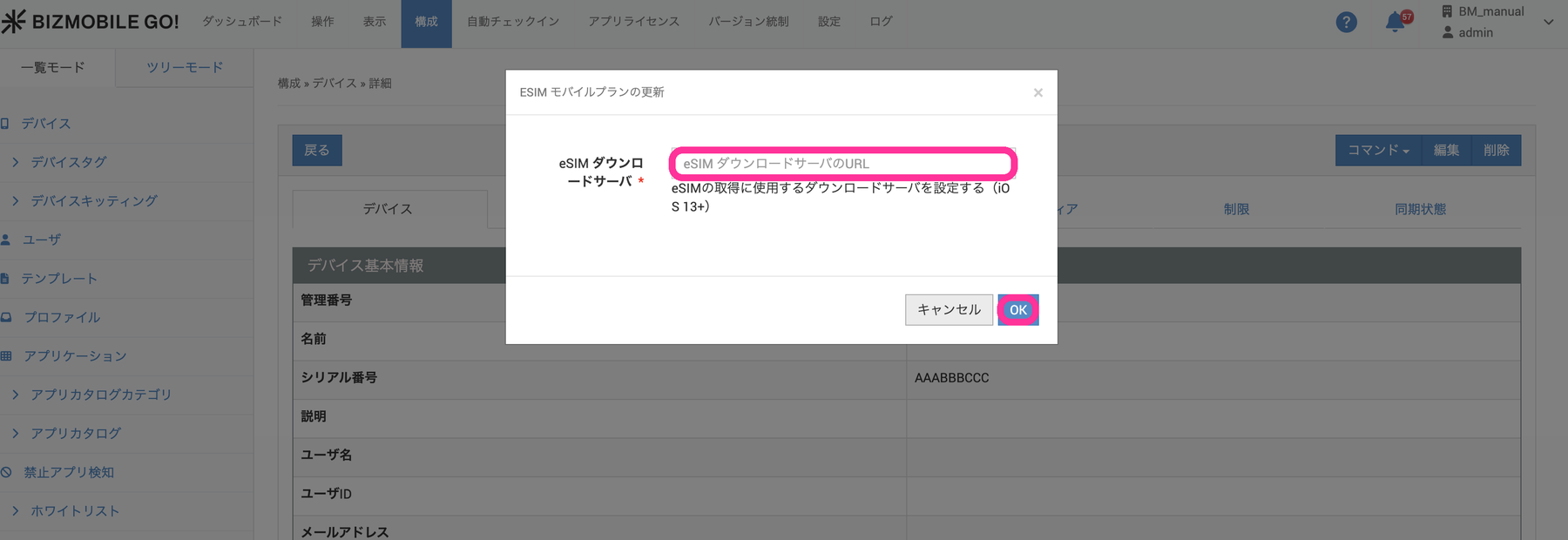
- If the instruction is sent successfully,
Success: The Refresh eSIM Mobile Plan instruction was sent.appears at the top of the screen.
If sending fails,Error: Failed to send the Refresh eSIM Mobile Plan instruction. Please try again.appears. Wait a while and try again.
The instruction result indicates only that the instruction was sent to the device. It does not indicate that the eSIM has been retrieved.
To check whether it was actually applied, check eSIM Download Server URL and eSIM Download Server URL Applied Date on the device detail screen, and Phone Number under SIM Information (detail screen).
How to check that an operation has been executed
After you execute a remote control, a message appears in the Log when the device responds.
- You can check whether the command has completed in the
Logmessages.
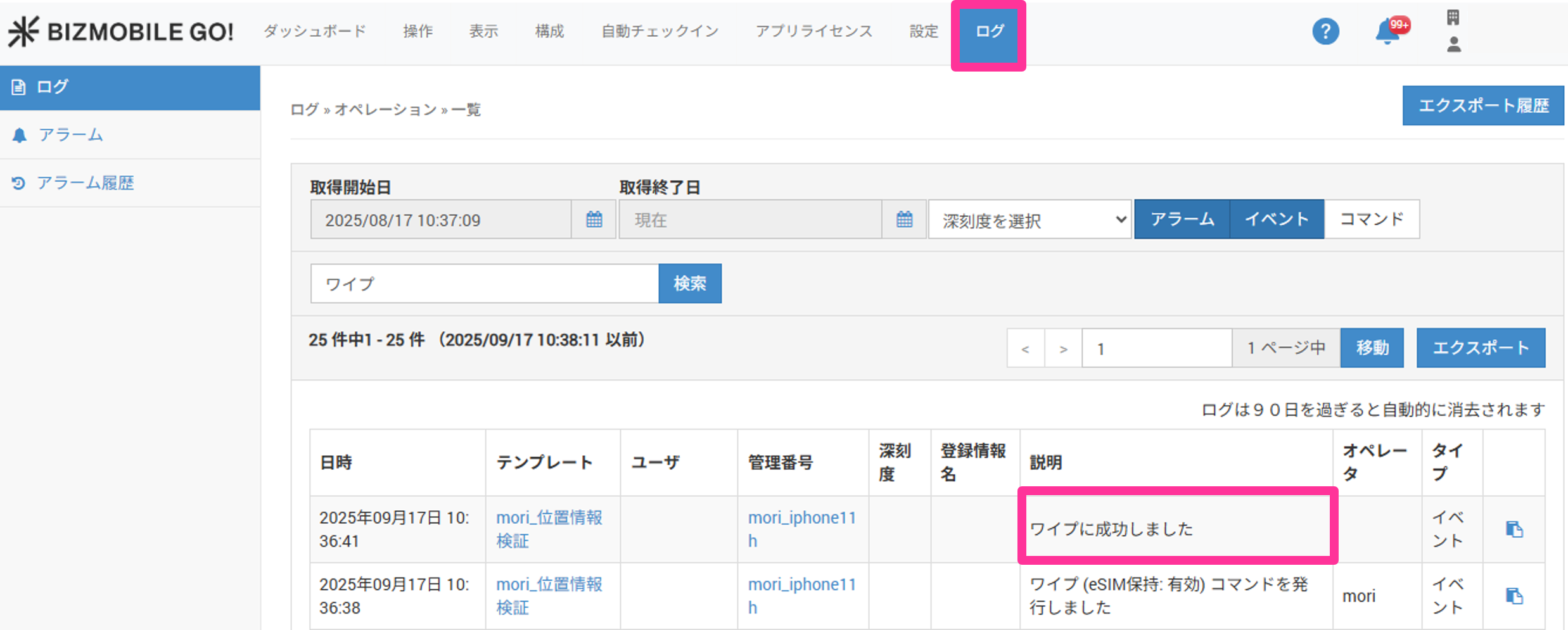
If you executed Refresh eSIM Mobile Plan, the URL of the eSIM download server that was sent is recorded in the Log.