Create a Managed Apple Account
Create a Managed Apple Account.
You do this in Apple Business (formerly Apple Business Manager).
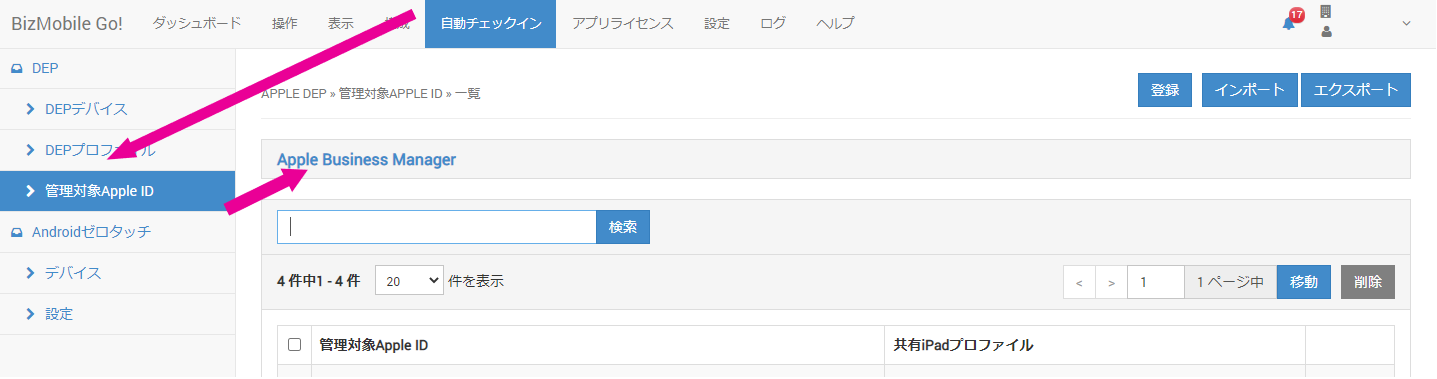
- In the admin console, you can open the Apple Business portal from AUTO ENROLLMENT > Managed Apple Accounts.
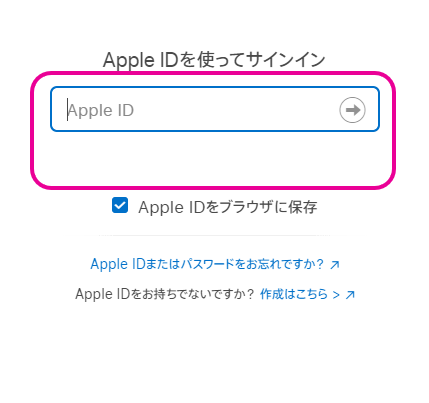
- Sign in with an account that has the Administrator or People Manager role.
- Click
AddunderUsers.
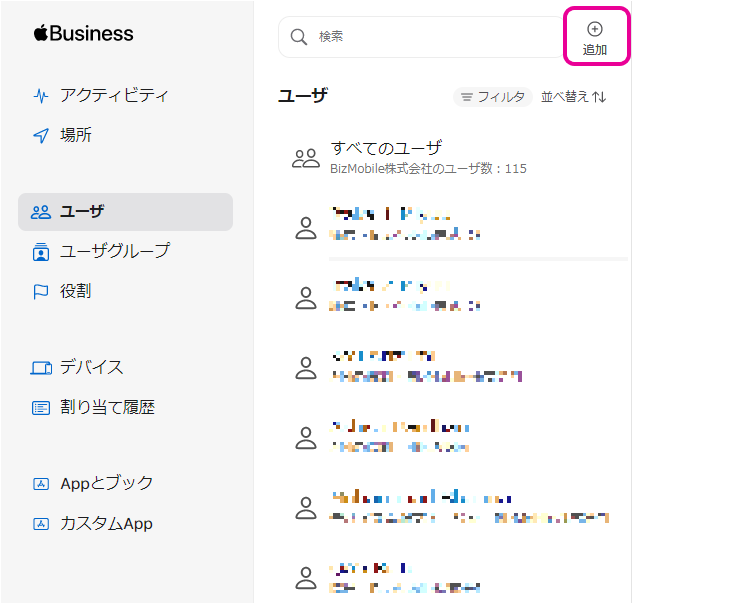
- The
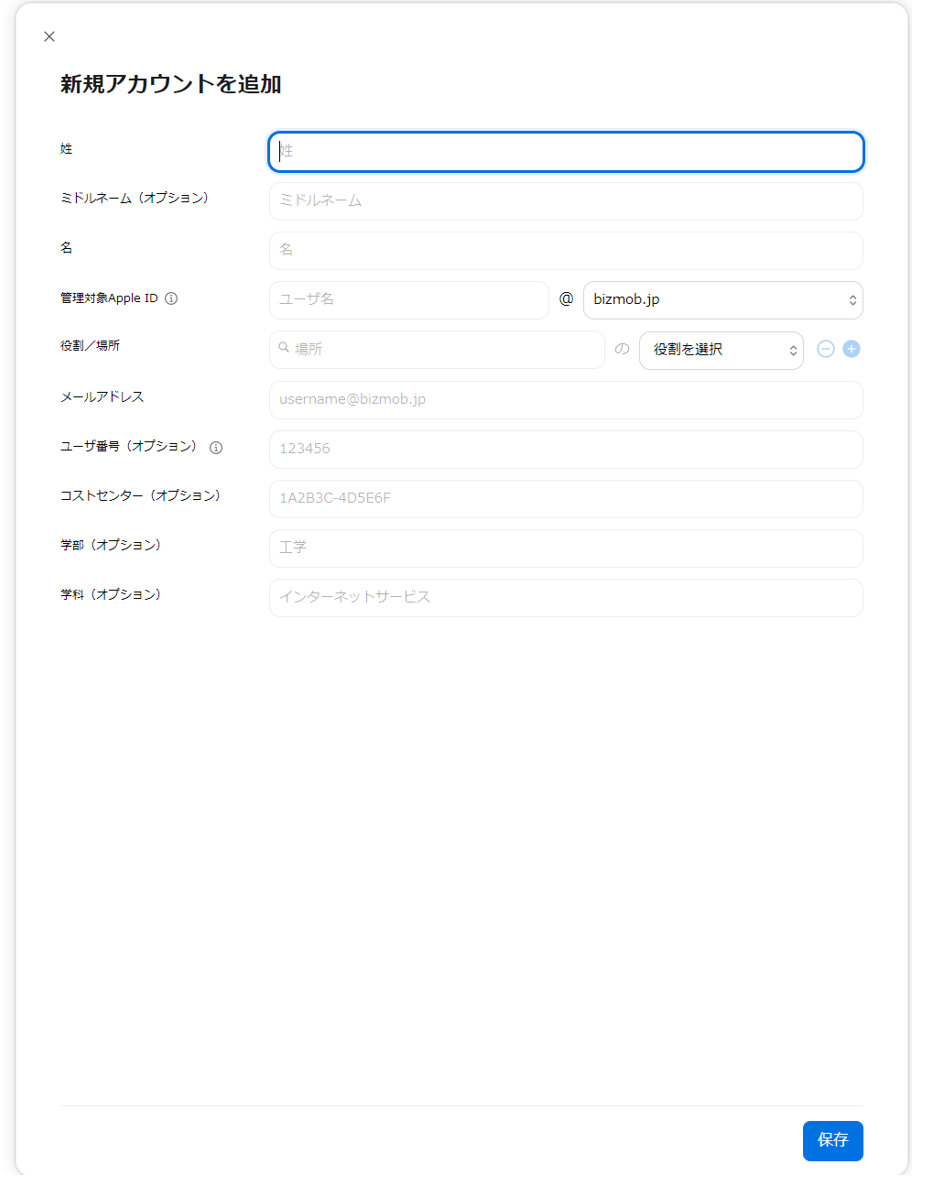
Add New Accountscreen opens. Enter the information and clickSave.
Input fields (★ indicates a required field)
Name ★ | Enter the name to register for the Managed Apple Account.
|
| Managed Apple Account ★ | Enter the user name used to sign in. Select the domain after @ from the pull-down menu. (The domains are managed in the Organization settings.) |
| Role/Organizational Unit ★ | Search for and enter an Organizational Unit, and select a Role.
https://support.apple.com/en-us/guide/apple-business-manager/axm97dd59159/1/web/1 |
| Email Address ★ | Set the email address to link to this Managed Apple Account. The sign-in information is sent to this address. |
| Person number (optional) | Enter any number. |
| Cost Center (optional) | Enter any information. |
| Division (optional) | Enter any information. |
| Department (optional) | Enter any information. |
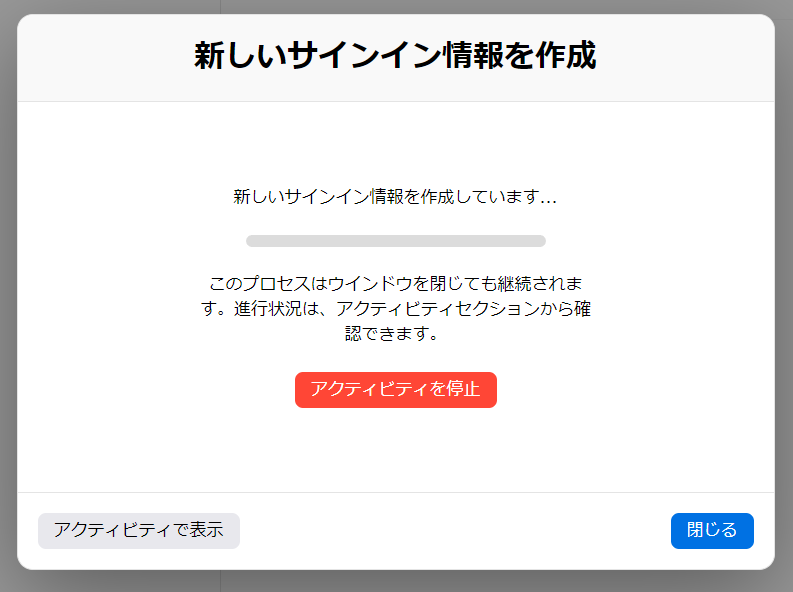
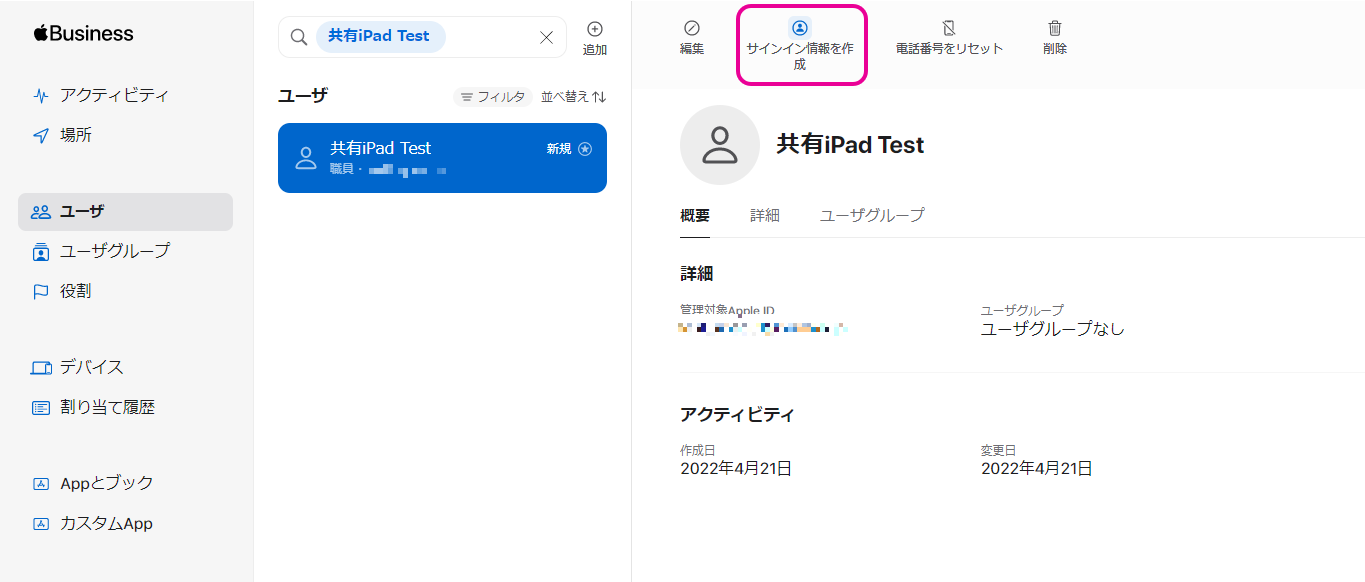
- When processing is complete, the following screen appears.
ClickCreate Sign-In.
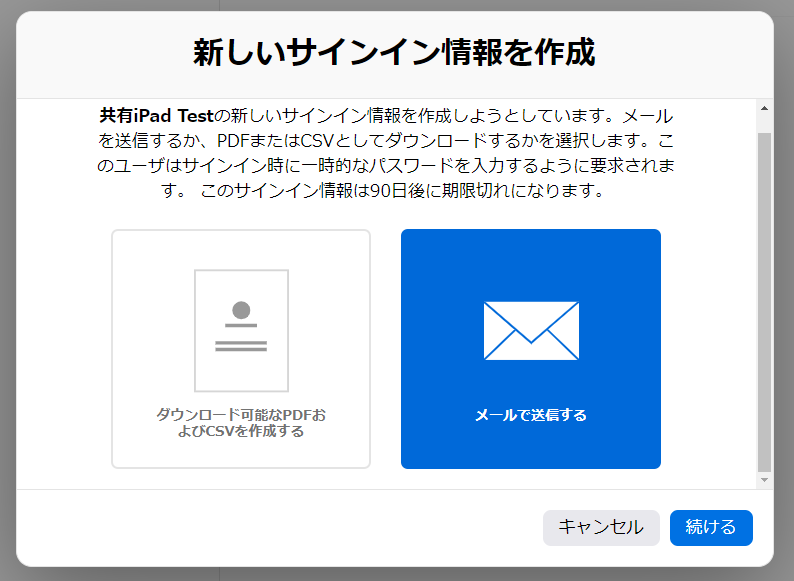
- Select how to create and send the sign-in information, and click
Continue.
If you select PDF or CSV, you must send the sign-in information to the user separately.
If you select email, the Managed Apple Account and the initial password are sent automatically to the email address you registered in step 4.
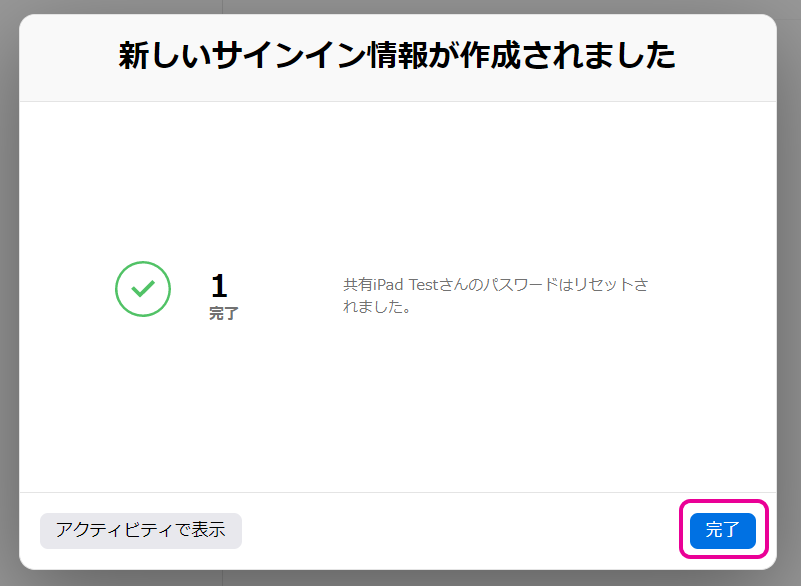
- When the
Createdscreen appears, clickDoneto close it.