Create a Common Provisioning Package for Windows Devices
Specify the conditions for automatically creating devices, and create a common provisioning package file (.ppkg) for devices.
Download the package to your devices, for example as an email attachment or from your own site, and use it to register (enroll) the devices.
A common provisioning package you created cannot be deleted while devices are being managed. To delete it, you must first delete all devices that were created using that common provisioning package.
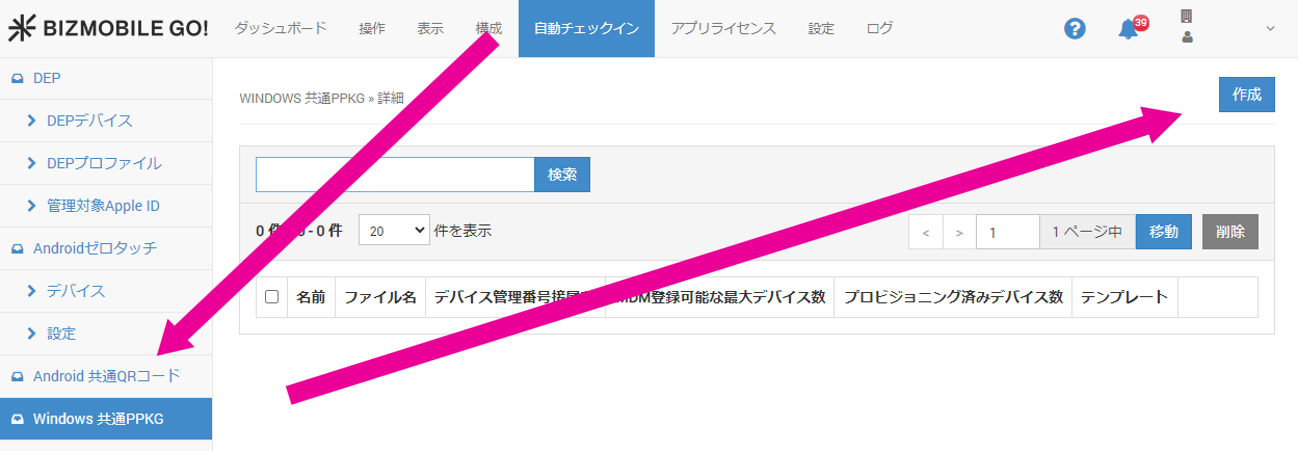
- In the admin console, click Create under AUTO ENROLLMENT → WINDOWS SHARED PPKG.
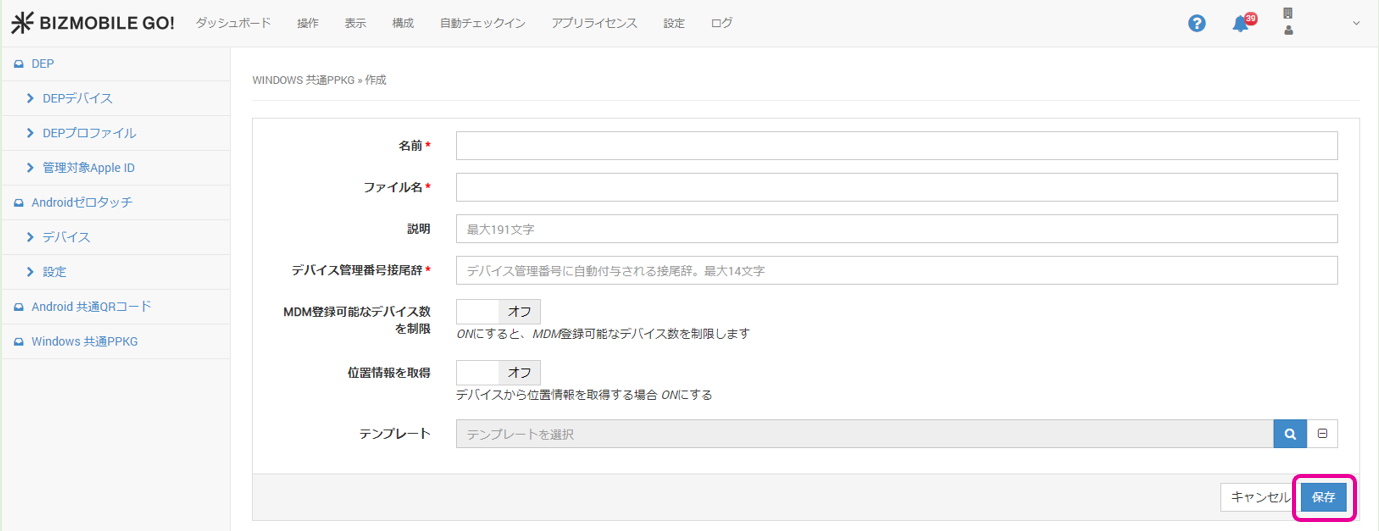
- Enter the required items on the screen that opens.
Input fields (fields marked with ★ are required)
| Name★ | Enter the name of the provisioning package to create. |
| File Name★ | Enter the file name of the provisioning package to create. |
| Description | You can add any description. |
| Device ID Suffix★ | A suffix that is automatically appended to the end of the device identifier when a device enrolls using this provisioning package. The identifier consists of a 6-digit number followed by the suffix. Numbers are assigned automatically in the order of enrollment and cannot be changed after enrollment. (Example) Identifier: 000001bizgodevice 000001 = automatically assigned number, bizgodevice = suffix |
| Limit the Number of Devices That Can Enroll in MDM | You can limit the number of devices that can enroll using this provisioning package. |
| Fetch Location | Turn this on if you want to get location information from the devices. |
| Template | You can select a template if one has been created. The template you select here is automatically assigned to devices that enroll using this provisioning package. |
- After entering the required information, click Save.
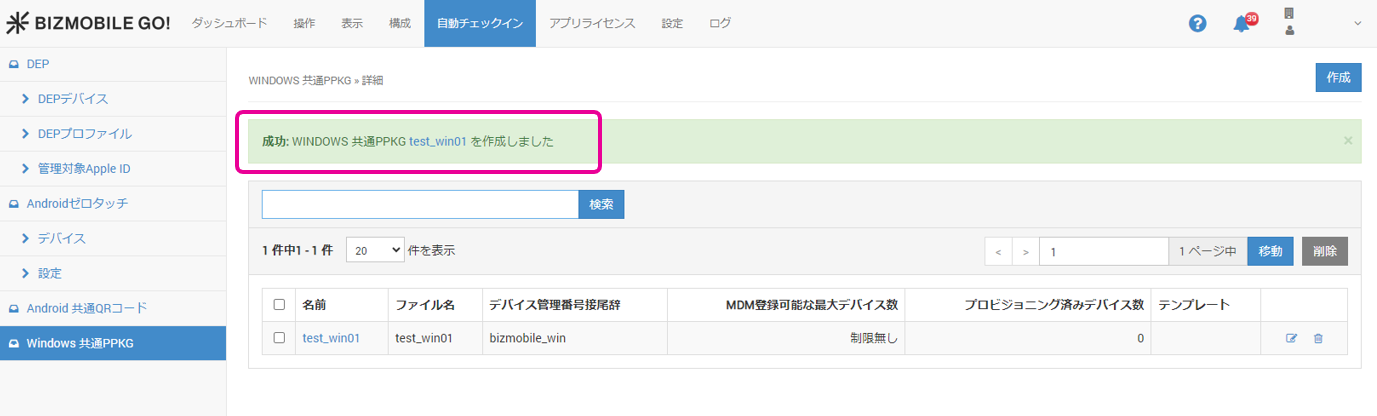
- If
Successis displayed, registration is complete.
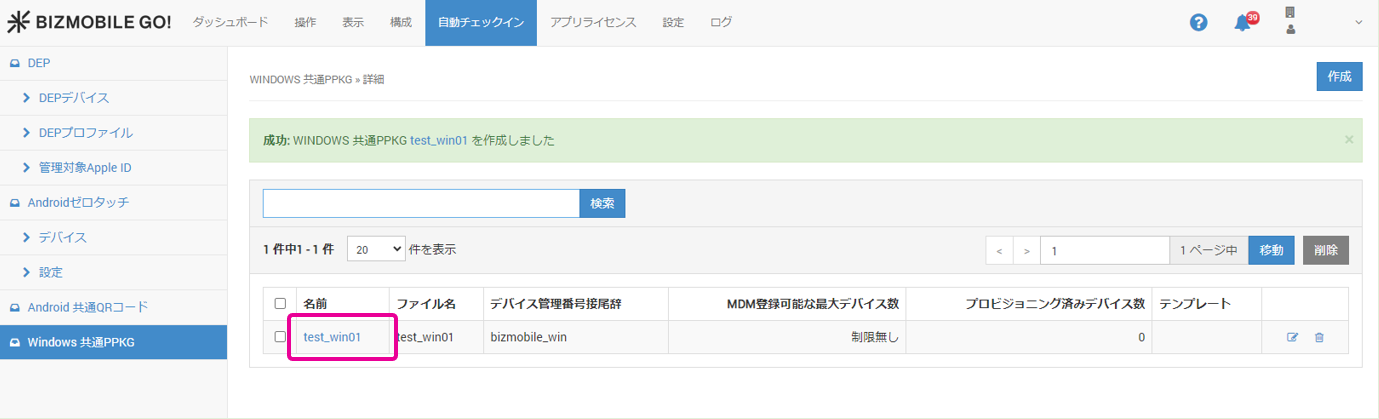
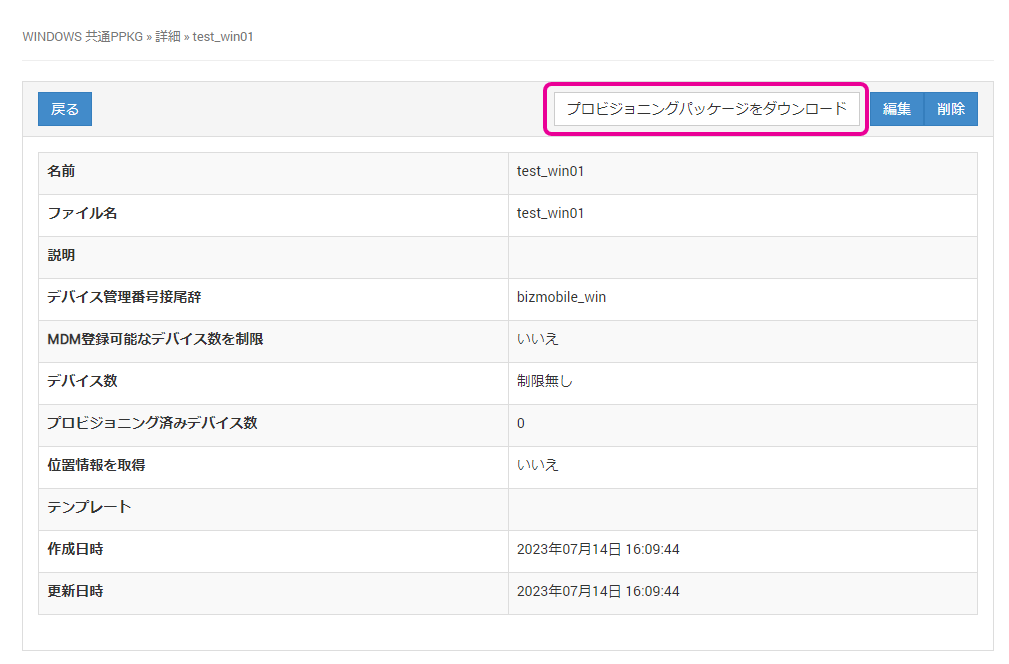
- In the admin console, click the name of the provisioning package you created under AUTO ENROLLMENT → WINDOWS SHARED PPKG to open the detail screen.
- On the screen that opens, download the file from
Download Provisioning Package.

Enroll with the common provisioning package for Windows devices
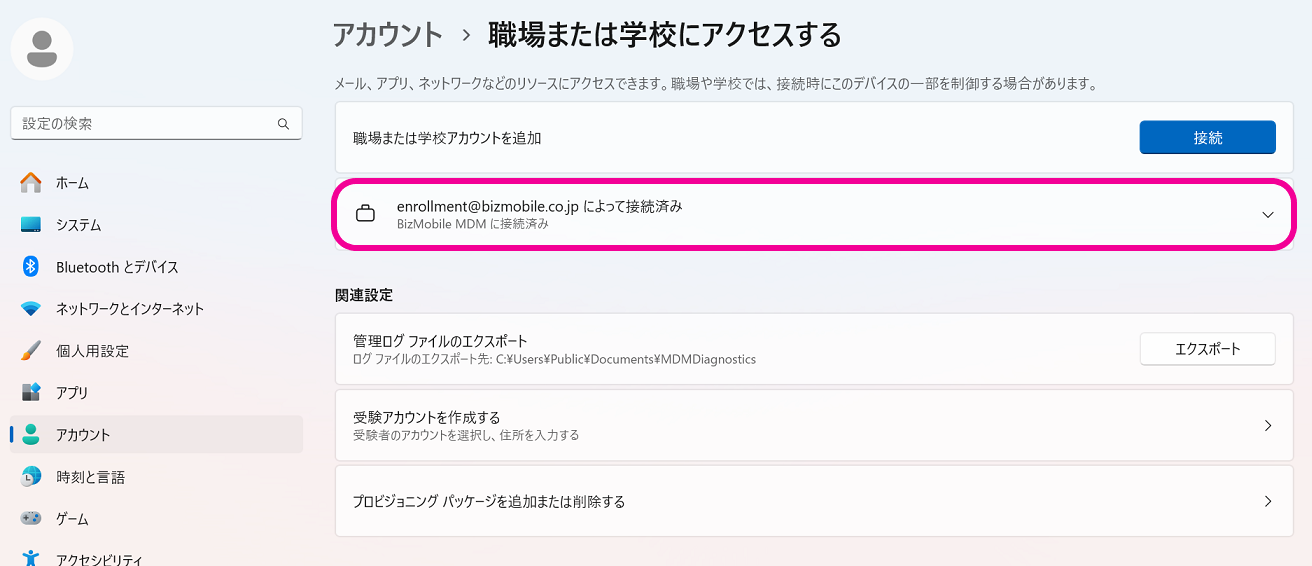
The final step in making a device manageable is to enroll it. When enrollment is complete, the device is registered in BizMobile Go! and can be managed.
To enroll, you must be logged in to the Windows device as a user with administrator privileges.
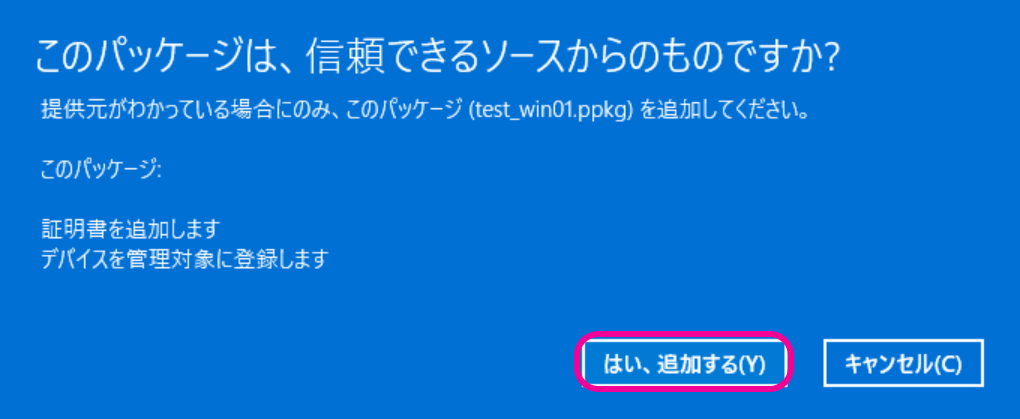
To register a device in MDM, simply run the downloaded common provisioning package on the device. This completes enrollment.
When enrollment is complete, device information is automatically generated according to the conditions set in the common provisioning package, and the device is registered in BizMobile Go!. At the same time, profiles, apps, and other content registered in advance to the device's template are distributed to the device, completing device setup (kitting) automatically.
| |
| |
|  |
|  |
Depending on the network conditions of the device setup environment, it may take some time for all the profiles, apps, and other content registered in the template to be installed on the device.