Android Zero-touch
What is Android zero-touch?
BizMobile Go! uses Google's zero-touch enrollment to automate Android device deployment and MDM enrollment.
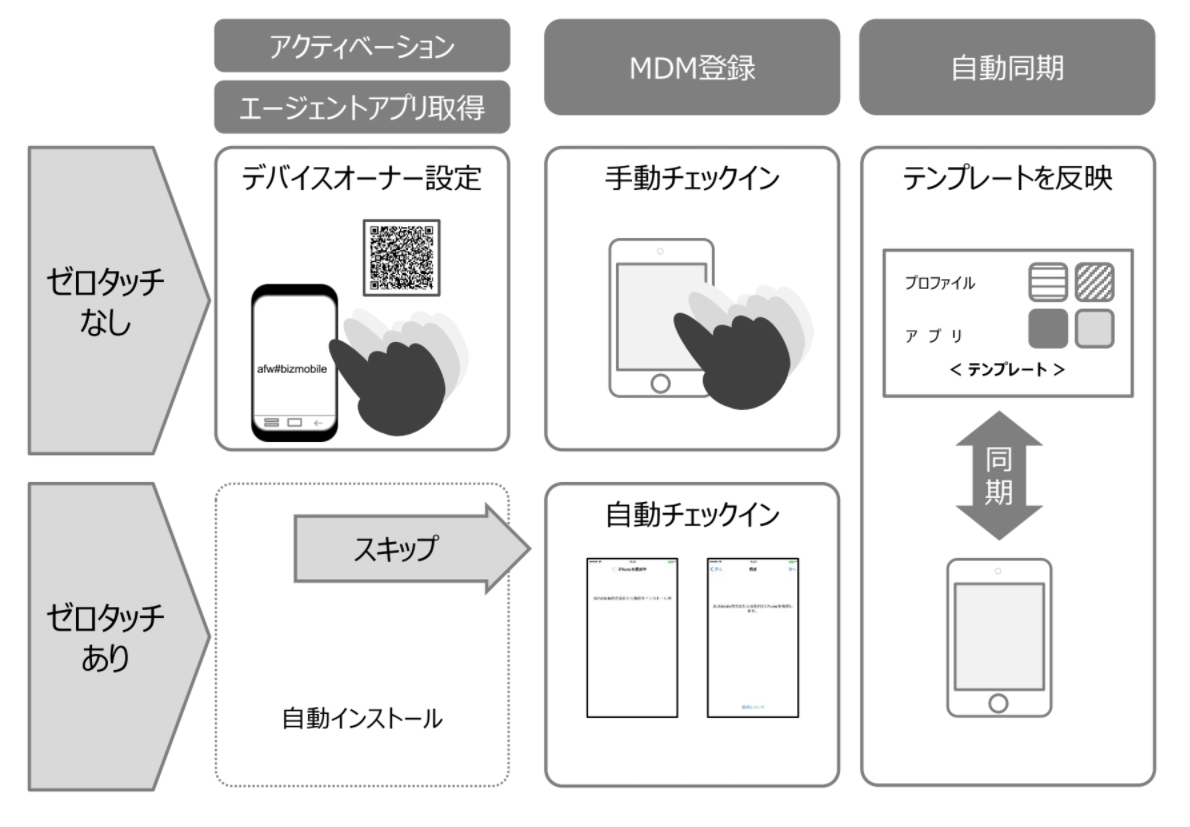
For details on Android zero-touch, see the following Google website.
https://support.google.com/work/android/answer/7514005?hl=en
Note: The URL is current as of October 27, 2021. The website operator may change the URL and content without notice.
The following are required to use Android zero-touch:
- Purchase zero-touch-compatible devices from a reseller designated by Google
- The reseller registers the devices in the zero-touch portal
- The reseller sets up your access to the zero-touch portal (first time only)
- Enable the Android EMM feature in BizMobile Go! (first time only)
Purchasing devices
Note: For resellers, see here.
Zero-touch is available only for devices purchased from a reseller. Contact each reseller for how to purchase devices.
Access to the zero-touch portal
To configure Android zero-touch, you need the zero-touch portal provided by Google.
If you do not yet have a Google Account that can sign in to the zero-touch portal, ask the reseller to set up access to the zero-touch portal when you purchase devices. You need one Google Account for this request.
Note: Do not use a personal Google Account for this. Use an account prepared by your organization. If you enabled EMM with a Managed Google Play account, you can also use that account.
To check whether you can access the zero-touch portal, open the following link.
Zero-touch portal
Enable zero-touch settings
1.In the admin console, select AUTO ENROLLMENT > Android Zero-touch.
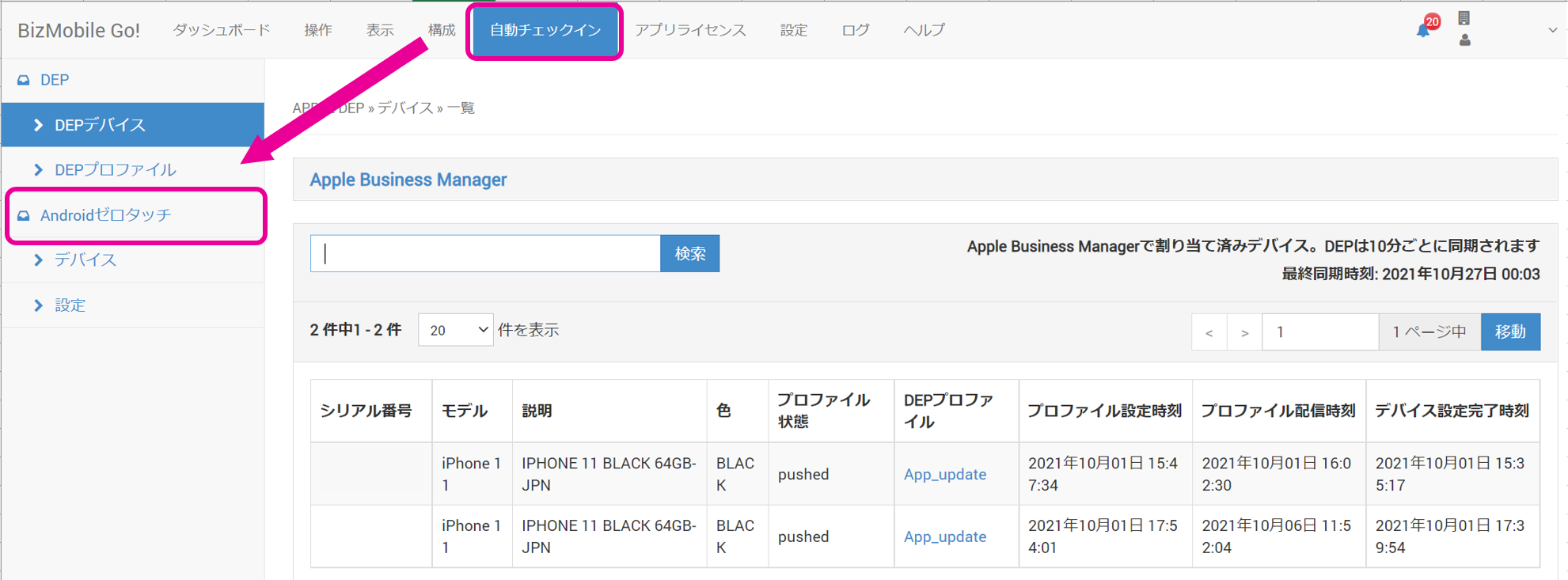
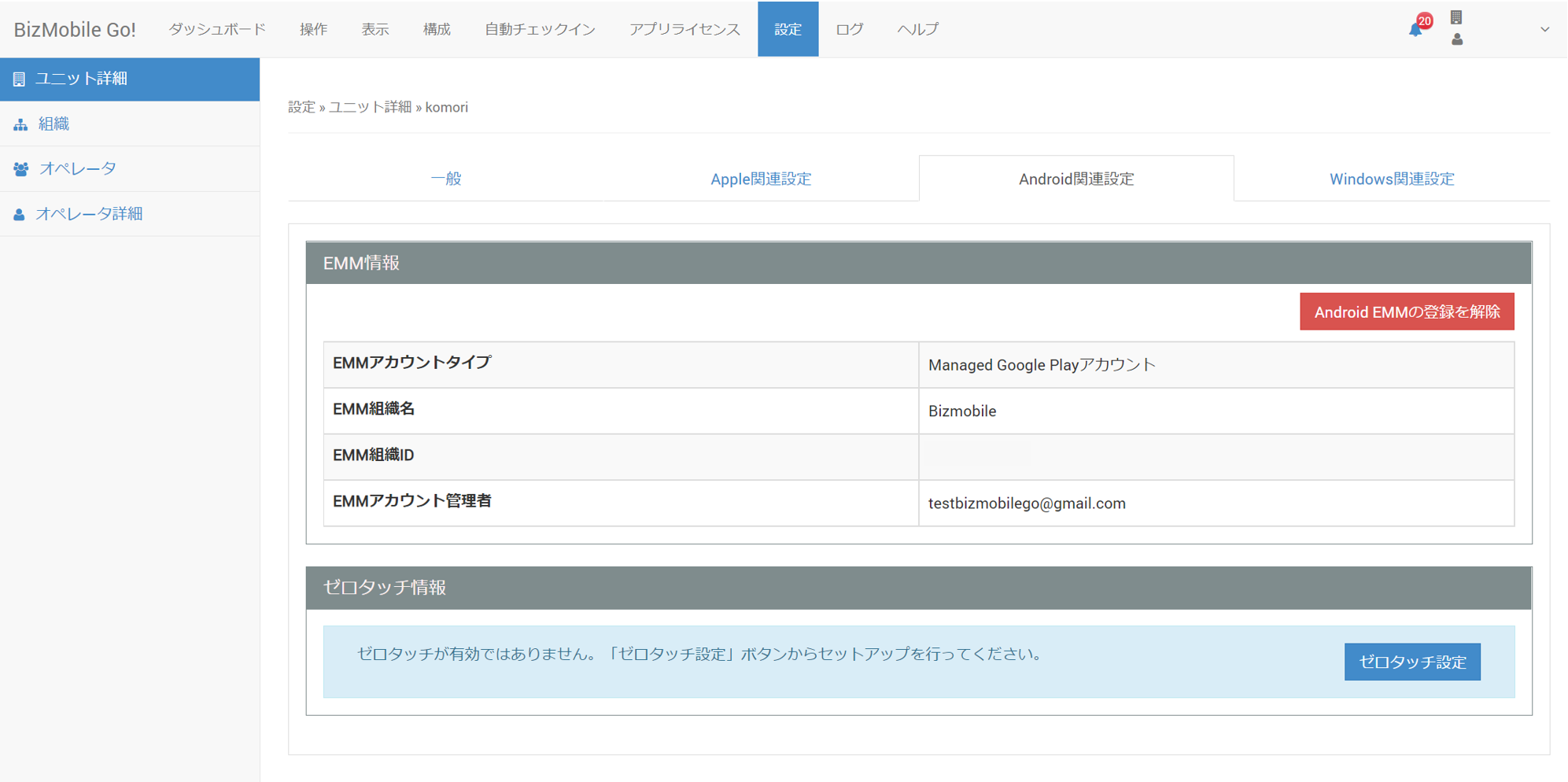
2.During the initial setup, the following message appears.
Click the [settings] link to continue.
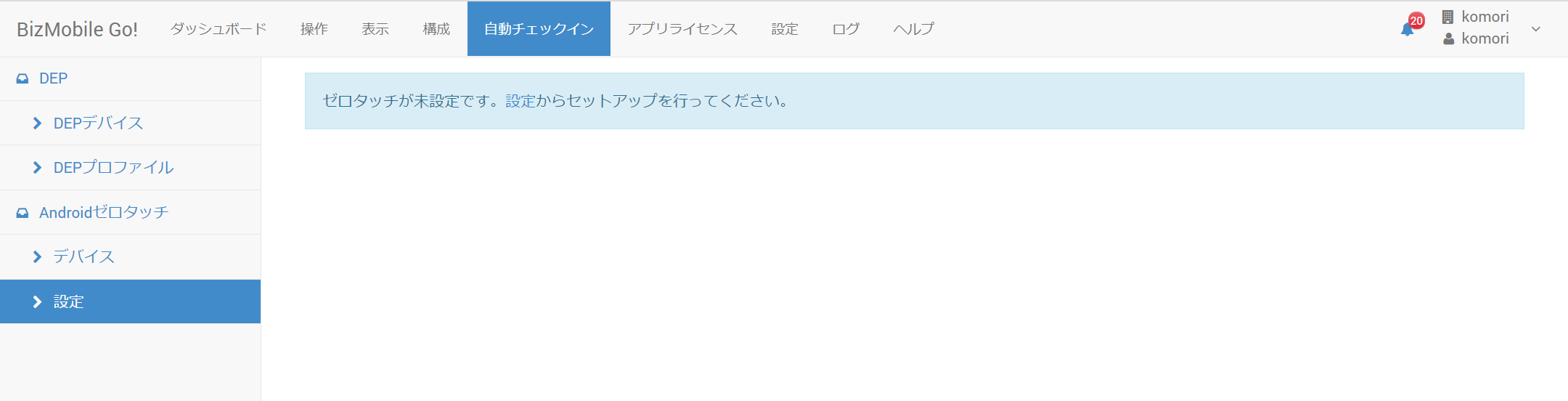
3.On the settings page that opens, register EMM and zero-touch on the Android tab.
For EMM settings, see Enable EMM above.
4.After enabling EMM, configure zero-touch.
Click [Zero-touch Configuration].
Select an account that can access the zero-touch portal, and on the next page click Continue to grant BizMobile Go! access to the Google Account.
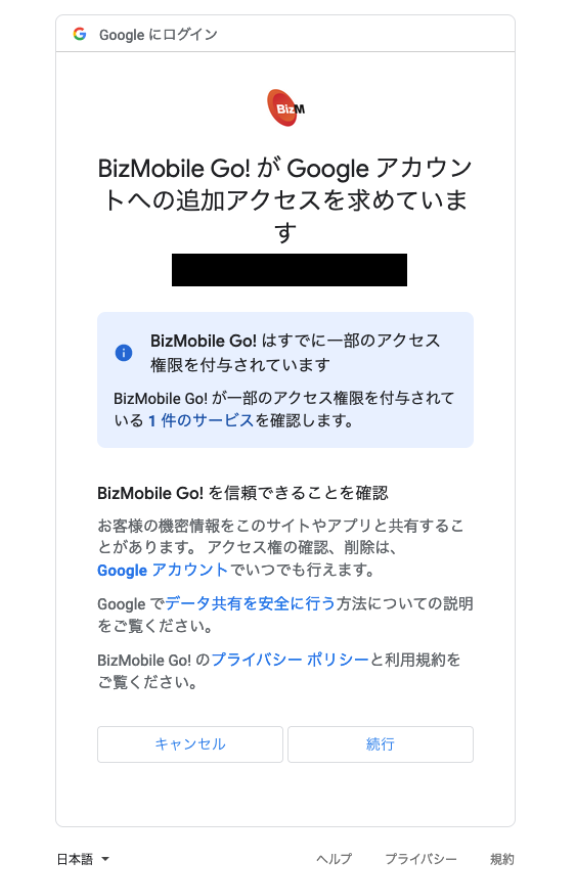
If your account cannot yet access the zero-touch portal, an error such as {"error_message": "Sorry, We are unable to proceed your request. Please try again later!"} appears.
In this case, use the browser's back button to return to the previous screen and click the Cancel button shown in the image above.
An error message appears, stating that zero-touch could not be enabled.
See "Access to the zero-touch portal" above and check whether your account can access the zero-touch portal.
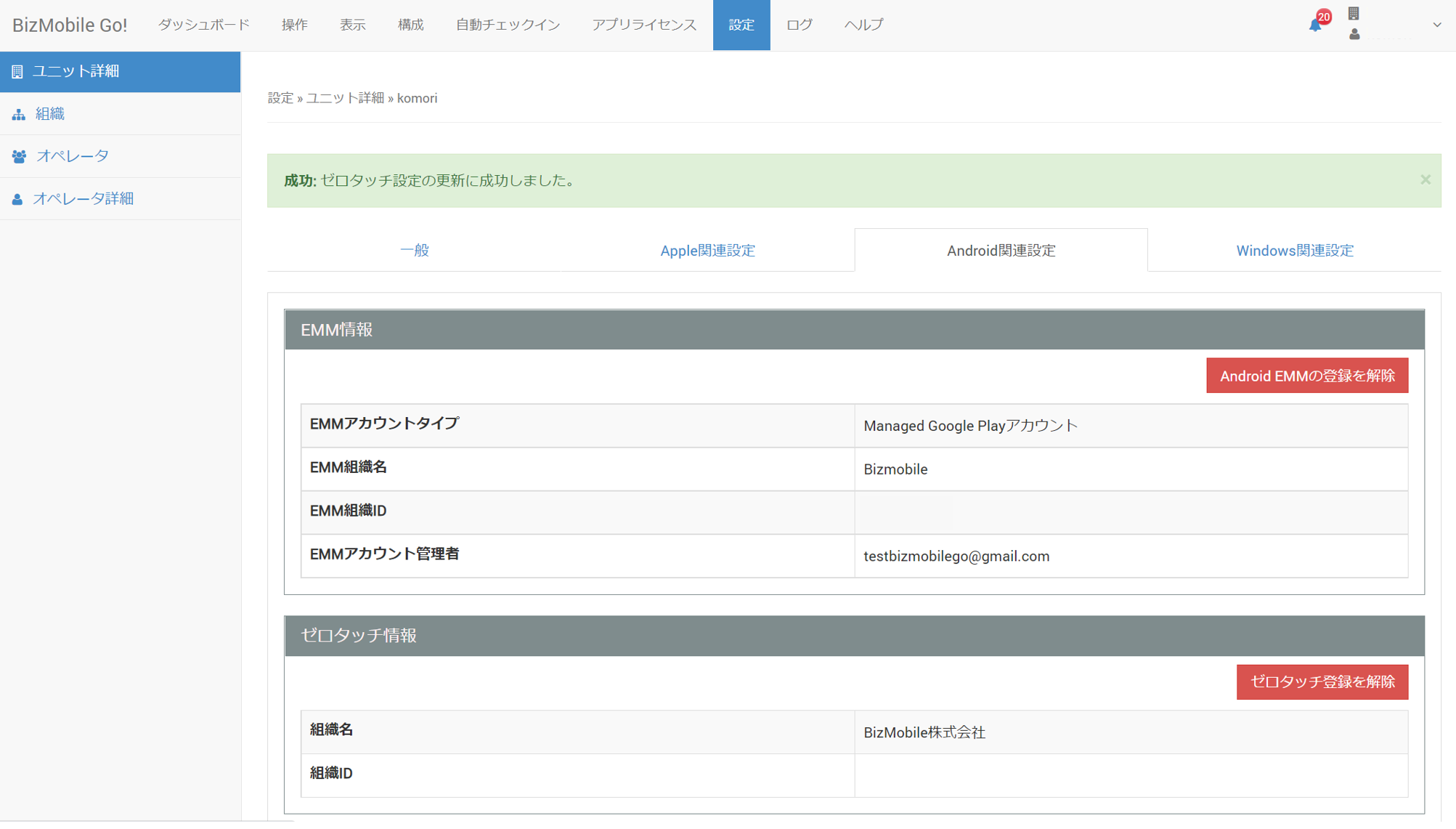
5.After you click Continue, you are returned to the admin console. If a success message appears, the setup is complete.
Settings in the zero-touch portal
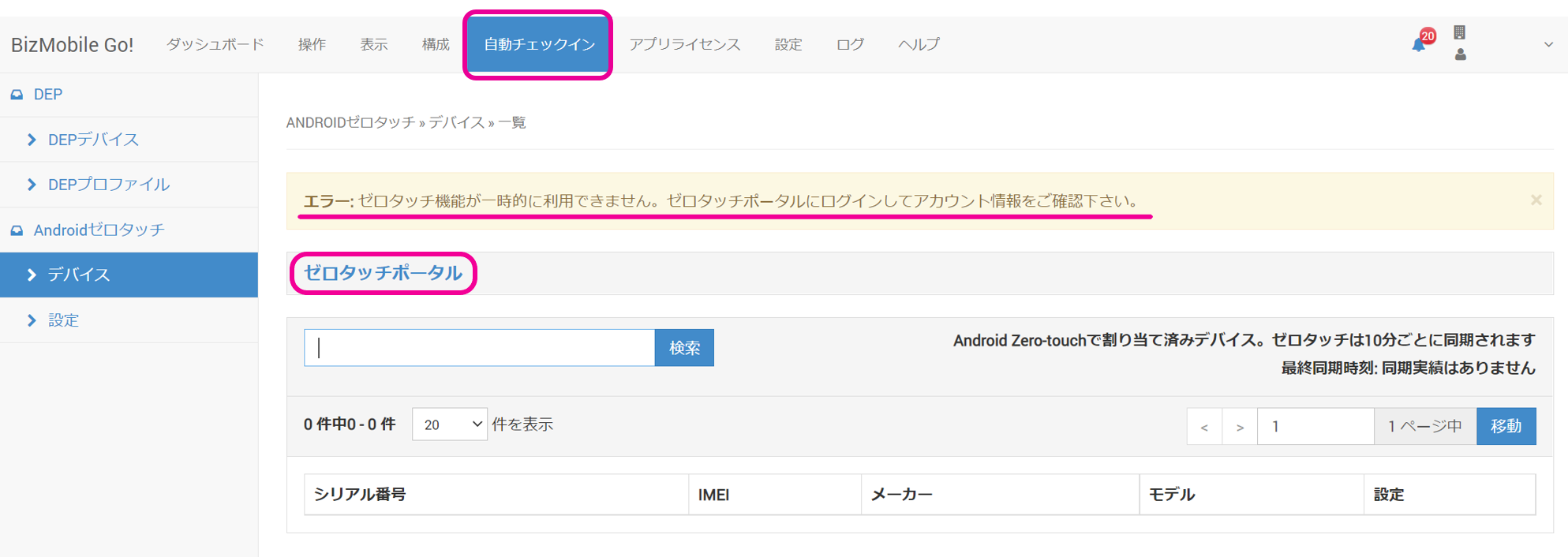
1.After you complete the settings on the Android tab, click AUTO ENROLLMENT in the menu.
The following message appears. Click [Zero-touch Portal].
2.Review and accept the terms of service.
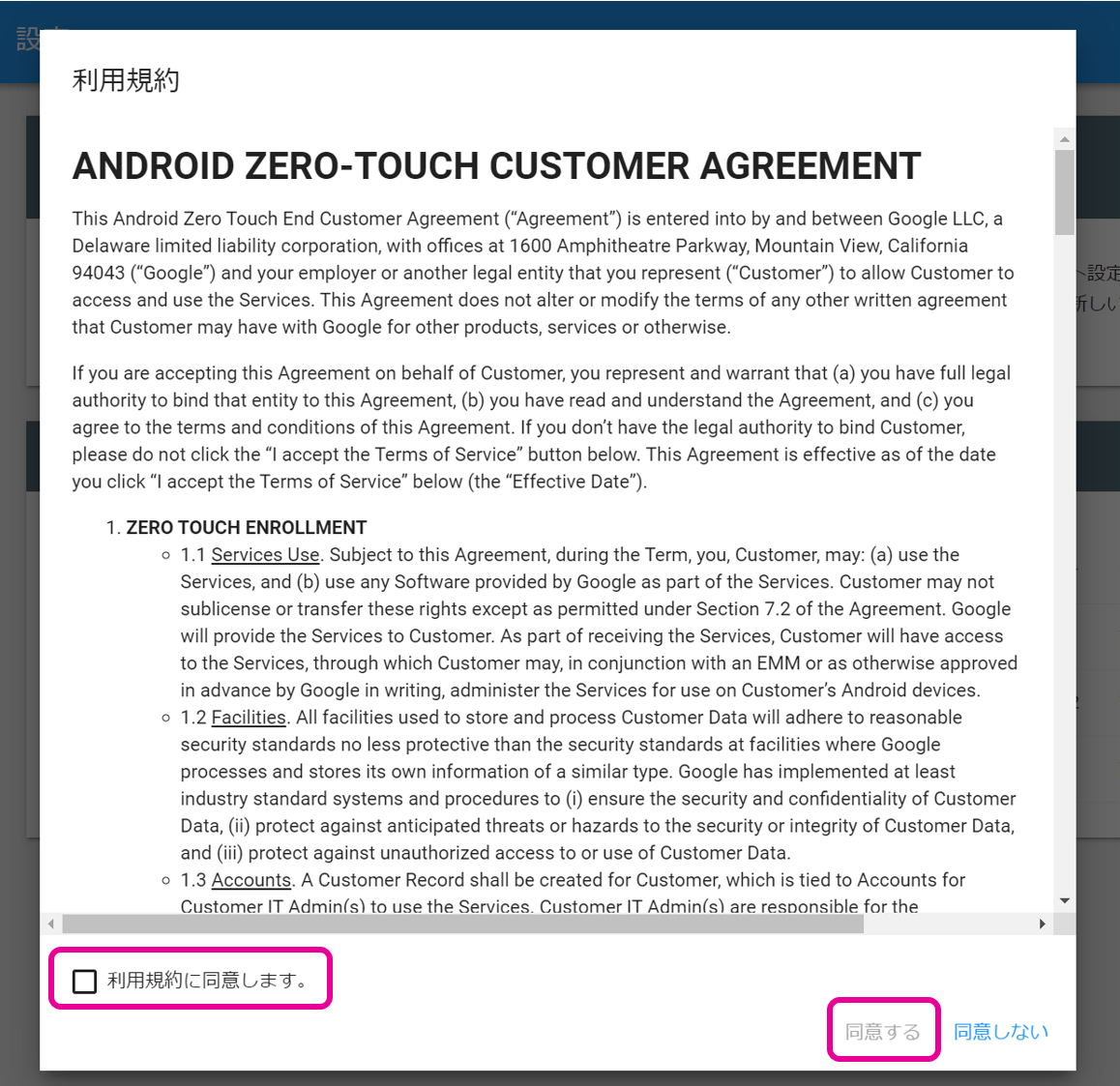
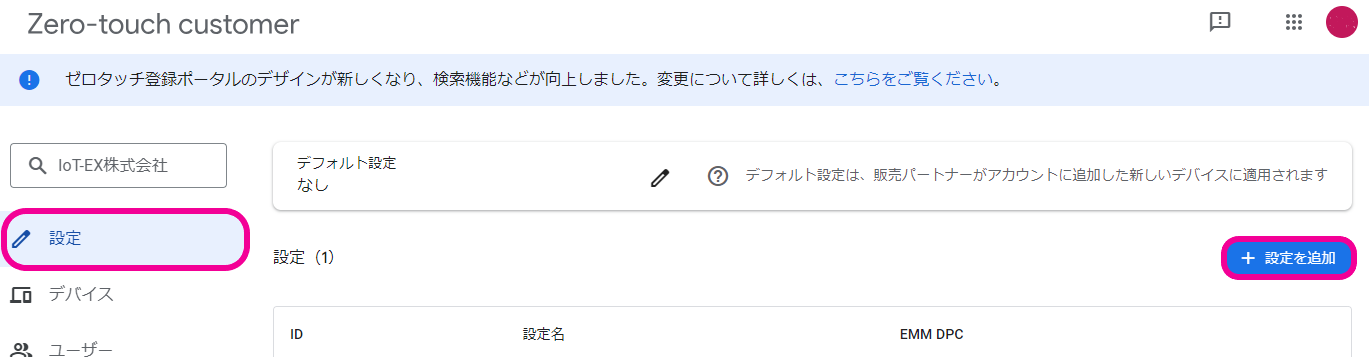
3.On the Configurations screen, click Add configuration.
4.On the screen that opens, enter the required information and click [Add].
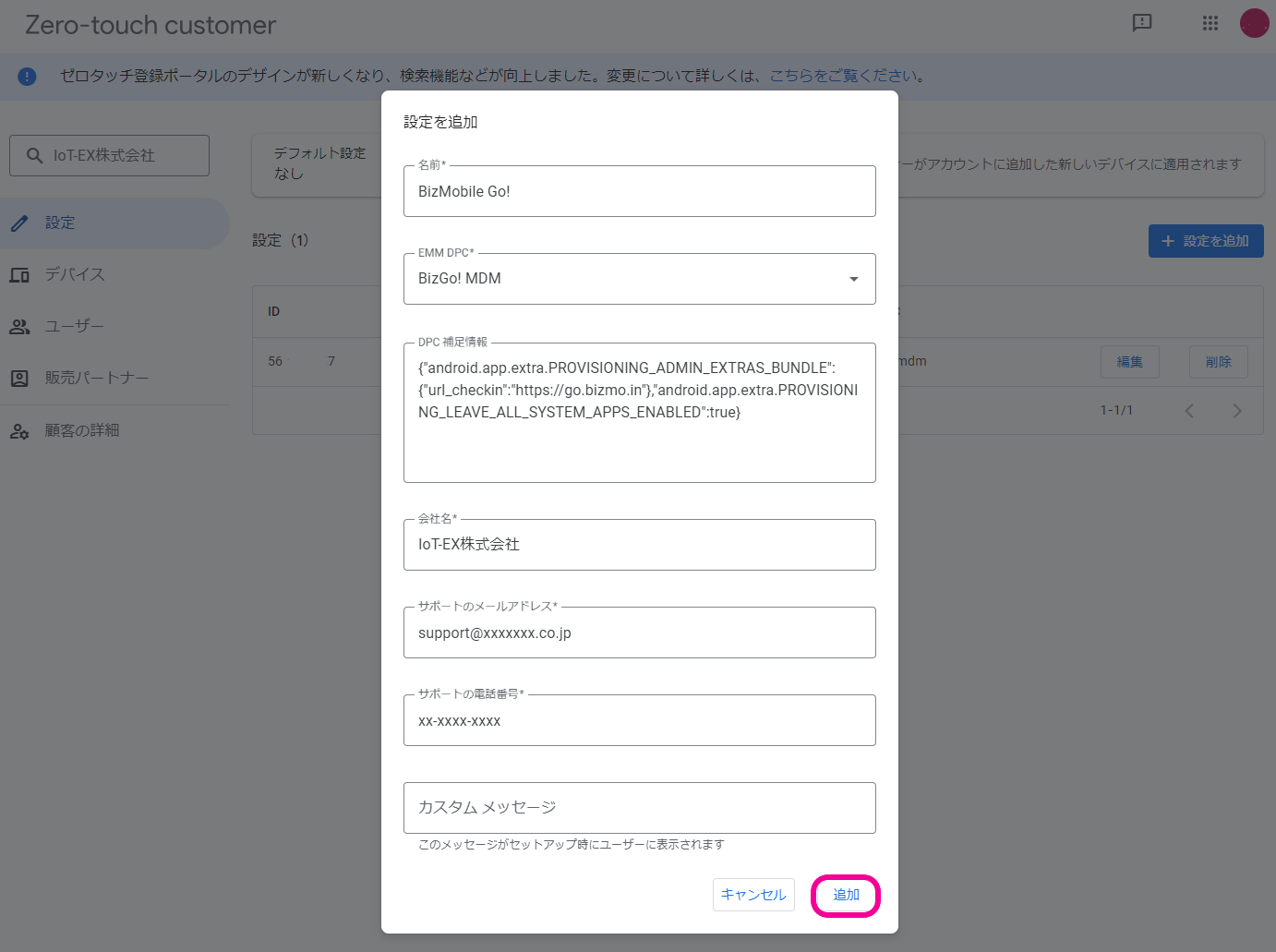
Input items
| Configuration name | Name of the configuration to add (example: BizMobile Go!) | ||
| EMM DPC | BizGo!MDM | ||
| DPC extras | For customers using the Tokyo region | Setting that shows all system apps and preinstalled apps | {"android.app.extra.PROVISIONING_ADMIN_EXTRAS_BUNDLE":{"url_checkin":"https://go.bizmo.in"\},"android.app.extra.PROVISIONING_LEAVE_ALL_SYSTEM_APPS_ENABLED":true\} |
| Setting that limits the system apps and preinstalled apps shown (shows only Phone, Google Play, and Settings) | {"android.app.extra.PROVISIONING_ADMIN_EXTRAS_BUNDLE":{"url_checkin":"https://go.bizmo.in"\}\} | ||
| For customers using the Singapore region | Setting that shows all system apps and preinstalled apps | {"android.app.extra.PROVISIONING_ADMIN_EXTRAS_BUNDLE":{"url_checkin":"https://as-go.bizmo.in"\},"android.app.extra.PROVISIONING_LEAVE_ALL_SYSTEM_APPS_ENABLED":true\} | |
| Setting that limits the system apps and preinstalled apps shown (shows only Phone, Google Play, and Settings) | {"android.app.extra.PROVISIONING_ADMIN_EXTRAS_BUNDLE":{"url_checkin":"https://as-go.bizmo.in"\}\} | ||
| Company name | Your company name | ||
| Support email address | Your email address | ||
| Support phone number | Your phone number | ||
| Custom message | Message to display on the device during setup | ||
You can check which region you are using from the URL of the admin console.
Tokyo region: https://mdm.bizmo.in/
Singapore region: https://as-mdm.bizmo.in/
This completes the basic settings in the zero-touch portal.
Next, to manage the devices registered in the portal with BizMobile Go!, assign those devices to BizMobile Go!. (A reseller registering devices in the zero-touch portal does not by itself make them manageable with BizMobile Go!.)
There are two ways to assign devices registered in the portal to BizMobile Go!: using automatic assignment, or signing in to the zero-touch portal and assigning devices manually.
If you set up automatic assignment, devices registered in the portal after the setup are automatically assigned to BizMobile Go!, and you no longer need to assign them manually (import them into BizMobile Go!).
Devices that the reseller had already registered in the zero-touch portal before you completed the zero-touch portal settings cannot be assigned automatically, so you must assign them manually. For all the steps required to use zero-touch, see the deployment flow.