Renew the ADE (formerly DEP) Token
Overview
DEP has been renamed ADE (Automated Device Enrollment).
You must renew the ADE token once a year. You can renew it at any time.
When the token expires, automatic device configuration is no longer available, so we recommend renewing it before it expires.
For the specific renewal procedure, see "Work in Apple Business (formerly Apple Business Manager)" in the second half of this page.
Requirements for Renewal
Always renew the ADE token with the token of the same "MDM server" that you are currently using.
In Apple Business, purchased devices are assigned and managed per "MDM server". An ADE token is linked to its "MDM server", so if you renew with the token of a different MDM server, automatic device configuration (ADE) is no longer available for the devices that were previously assigned.
You can check the MDM server to renew under ADE MDM Server Name in [SETTING] > [Unit Detail] > [Apple] in the admin console. Check it before you start the renewal.

Impact of Token Expiration
When an ADE token expires (ADE token invalidation), device assignment information can no longer be synchronized with Apple Business.
Specifically, this has the following impact:
- ADE devices cannot be newly enrolled or re-enrolled
Management of devices already enrolled in BizMobile Go! continues. Only the new enrollment and re-enrollment of devices that are about to be configured automatically is affected.
If the ADE token has expired, renew it with the following procedure.
Cases Where the Token Becomes Invalid for Reasons Other Than Expiration
Even within the validity period of the ADE token, the token may become invalid in the following cases, resulting in the same state as described in "Impact of Token Expiration".
The Token Was Registered by Mistake in Another MDM Environment
One ADE token cannot be used in multiple MDM environments at the same time.
Therefore, even within the validity period, if you register the same token in another MDM environment, the token on the BizMobile Go! side becomes invalid.
The Token of a Different "MDM Server" Was Registered by Mistake
If you create a new MDM server in Apple Business, or renew with the token of a different MDM server, this has the following impact.
- Automatic device configuration (ADE) is no longer available for the devices that were previously assigned
- The target devices cannot be newly enrolled or re-enrolled
To resolve this state, you must register again with the token of the MDM server you were originally using. Before renewing, always check ADE MDM Server Name.
In either case, see "Work in Apple Business (formerly Apple Business Manager)" for the renewal procedure.
Work in Apple Business (formerly Apple Business Manager)
If you are using a Windows PC, use Google Chrome or Microsoft Edge for this procedure.
Steps
| Operation | Image |
|---|---|
1. Click SETTING → Unit Detail → Apple, and check the MDM server to renew under ADE MDM Server Name. Then click "Apple ADE Token". | 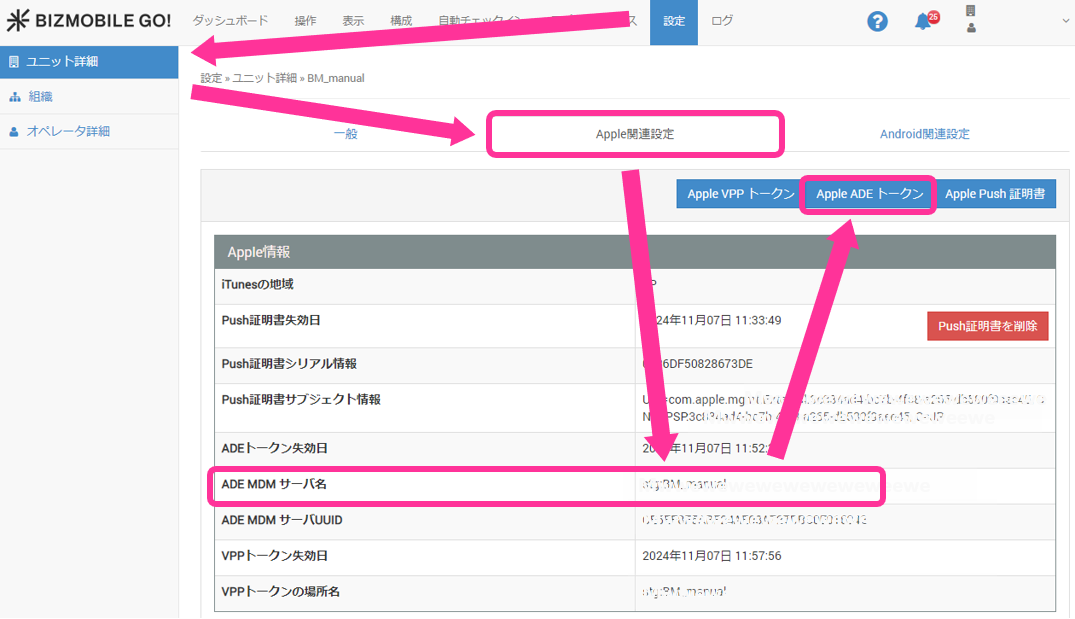 |
| 2. Click "Step 1: Download Certificate" to download the certificate file required to download the token. | 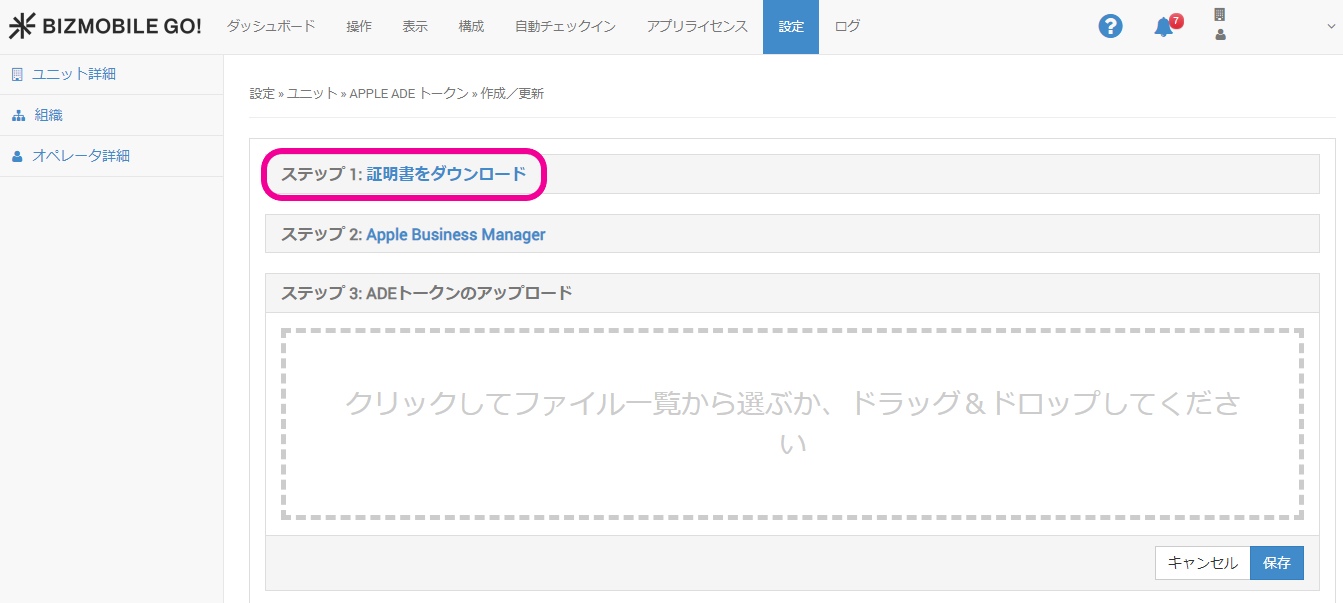 |
| 3. Step 2: Sign in to Apple Business (https://business.apple.com/login). | 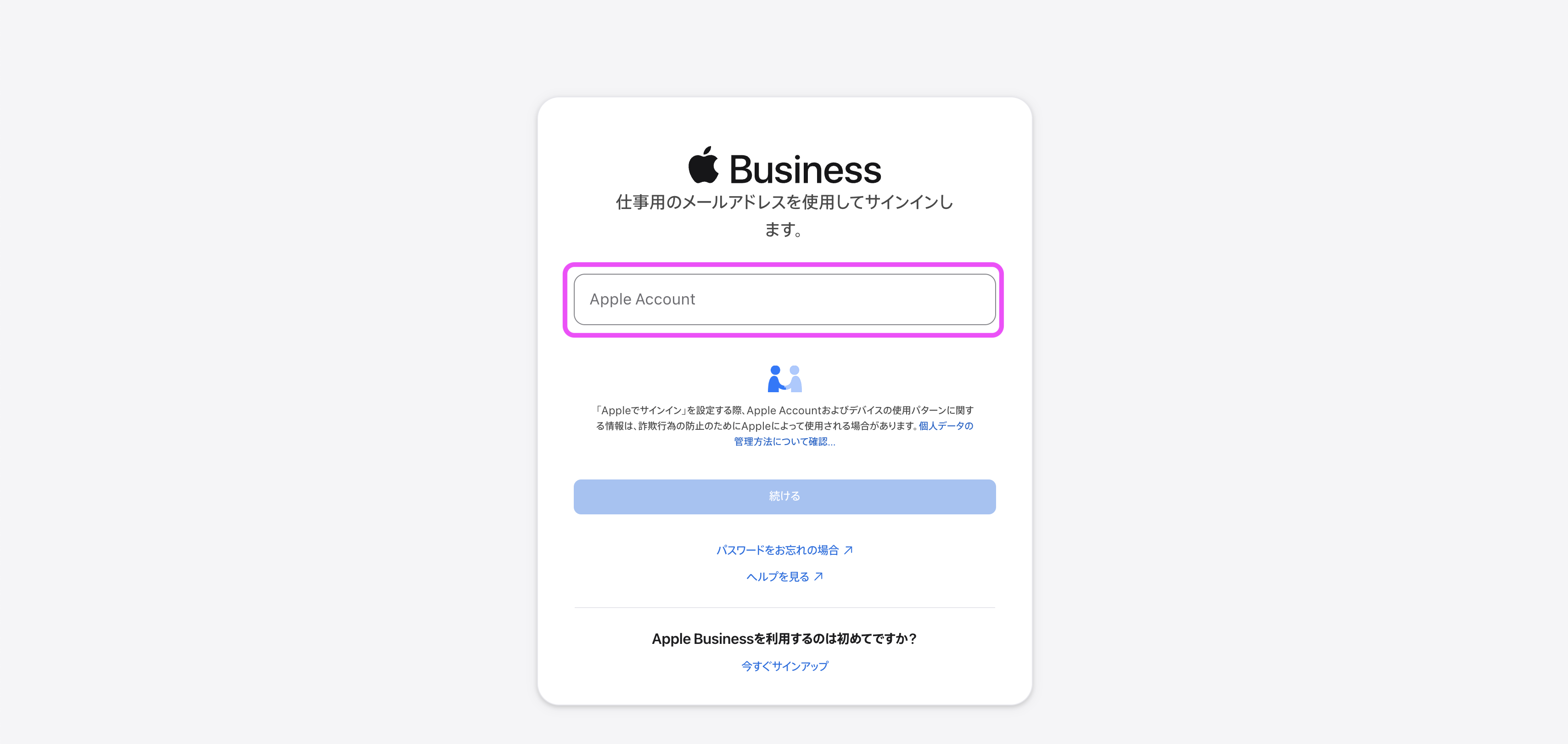 |
4. Click Devices at the top of the screen. | 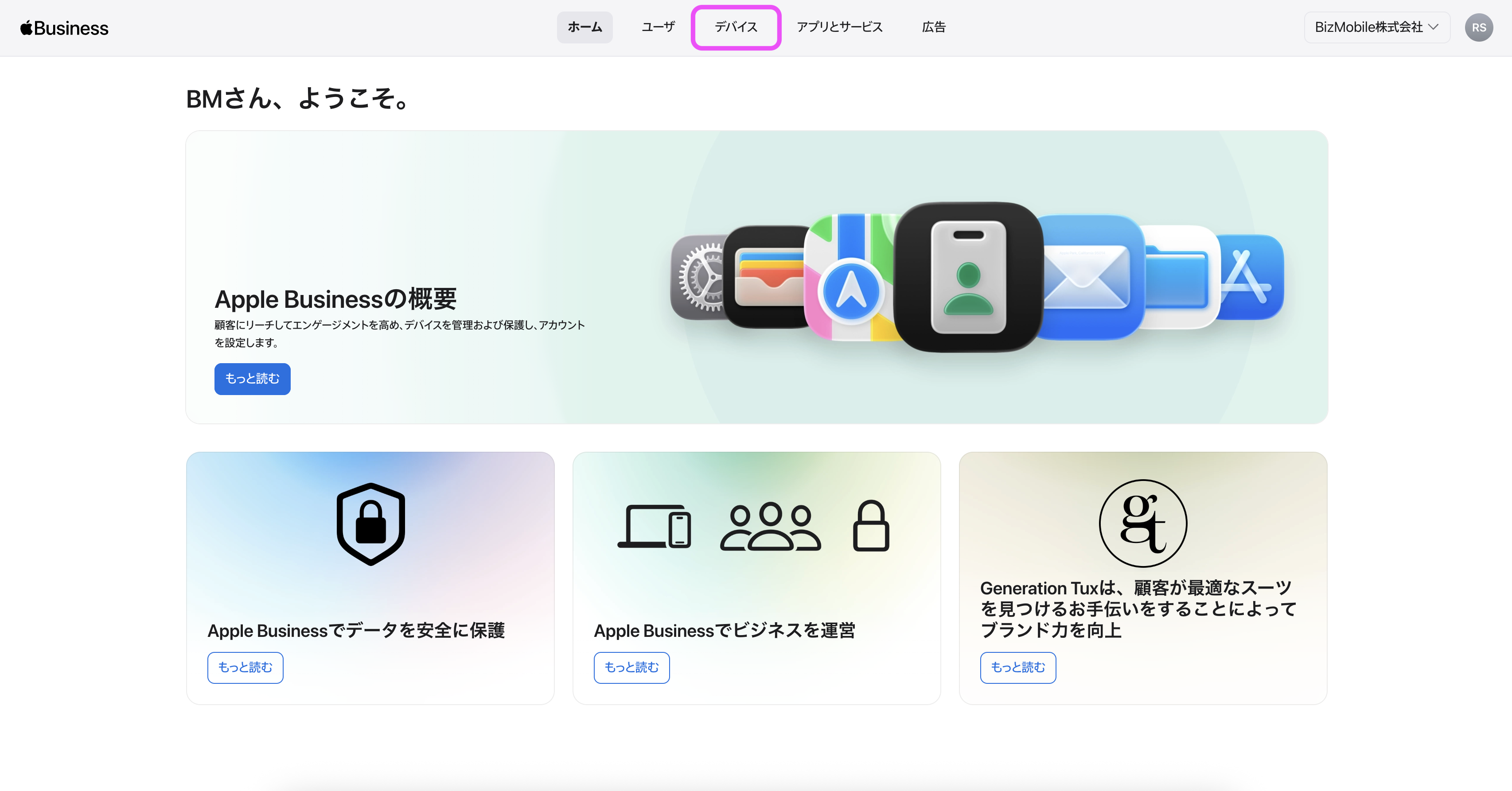 |
5. Click Management Services, and from the list of device management services that appears, click the one with the same server name you checked in step 1. | 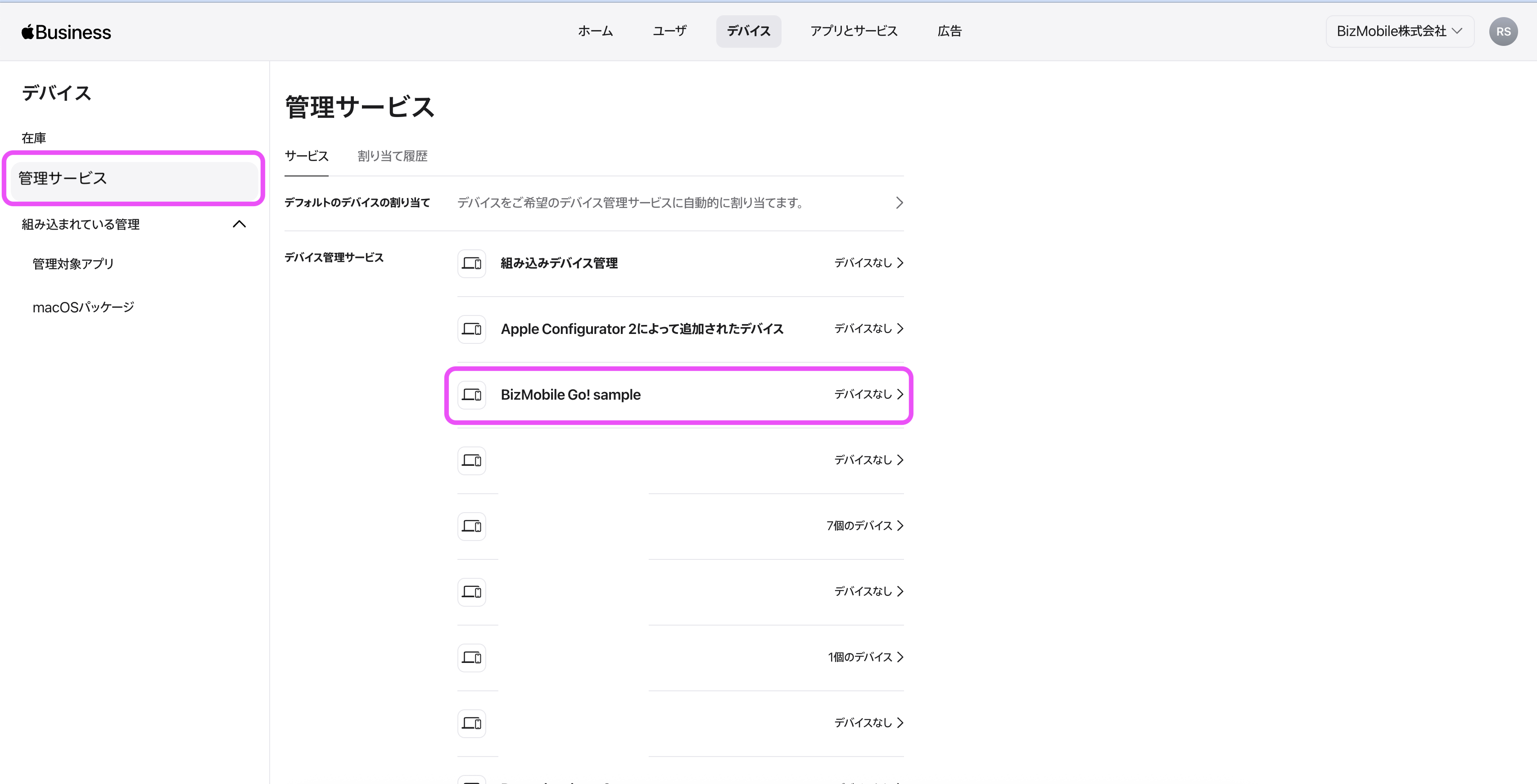 |
6. Click the three-dot icon .... | 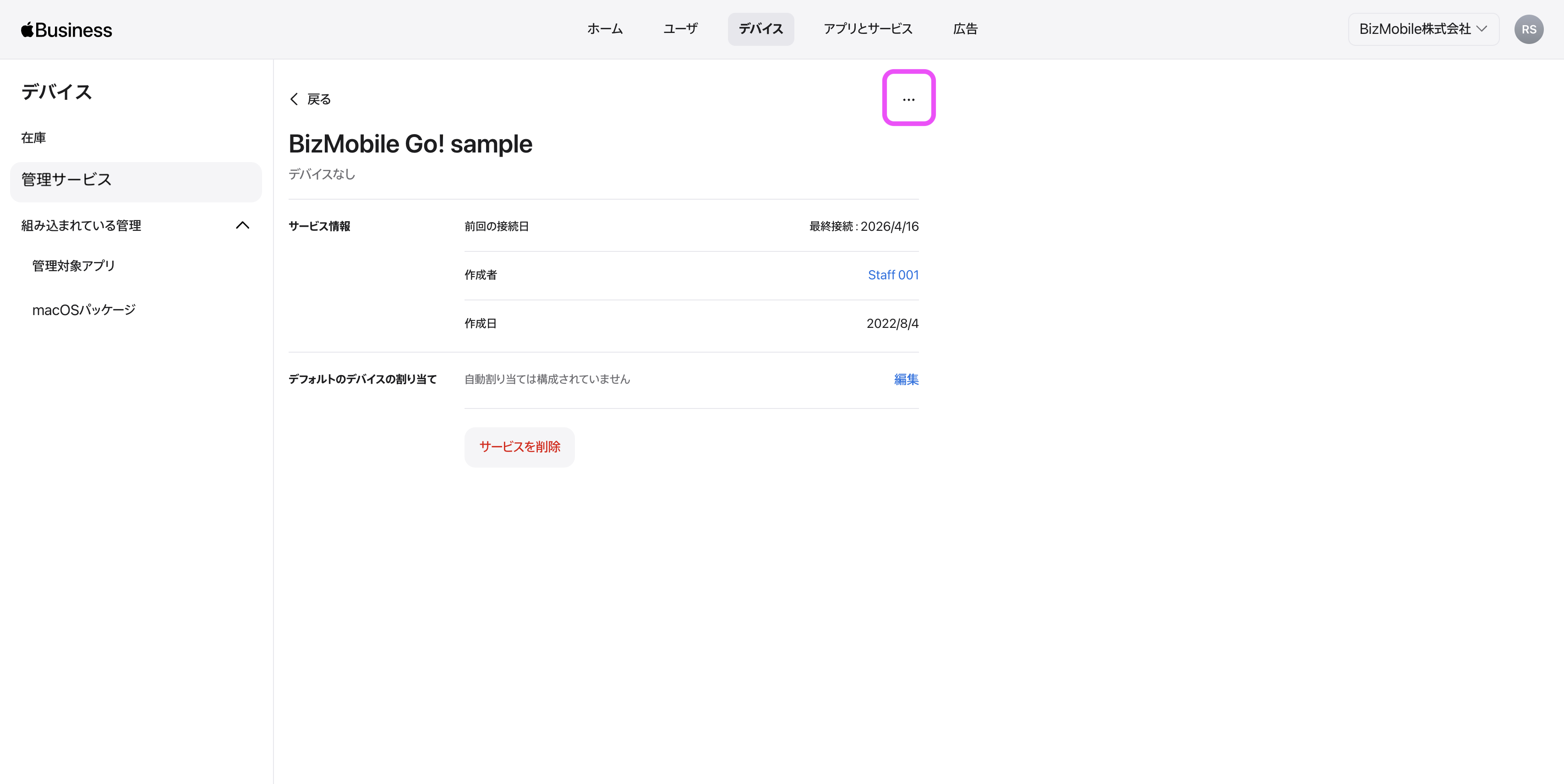 |
7. Click Edit. | 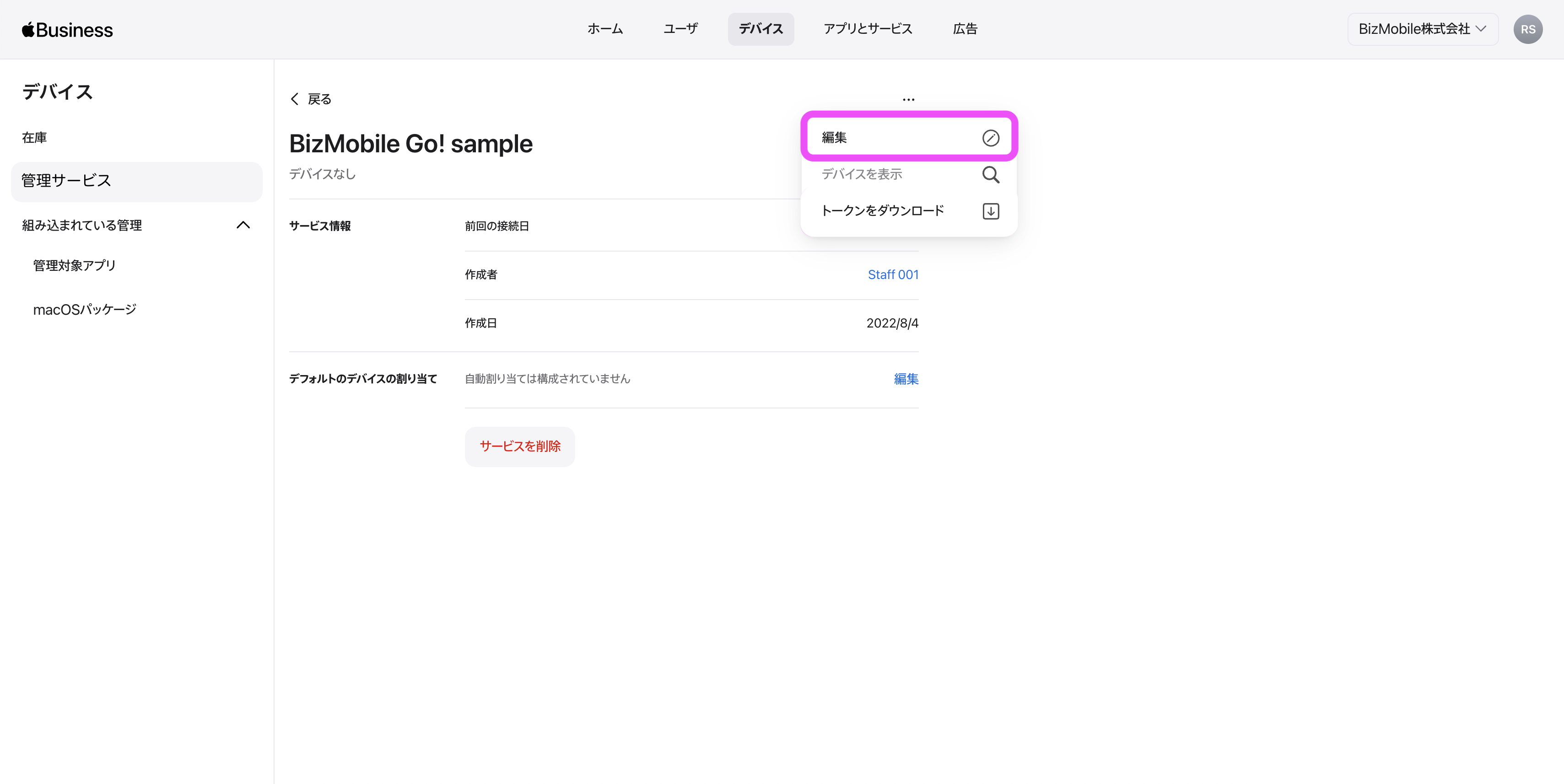 |
8. Upload the certificate file (extension .pem) you downloaded in step 2. | 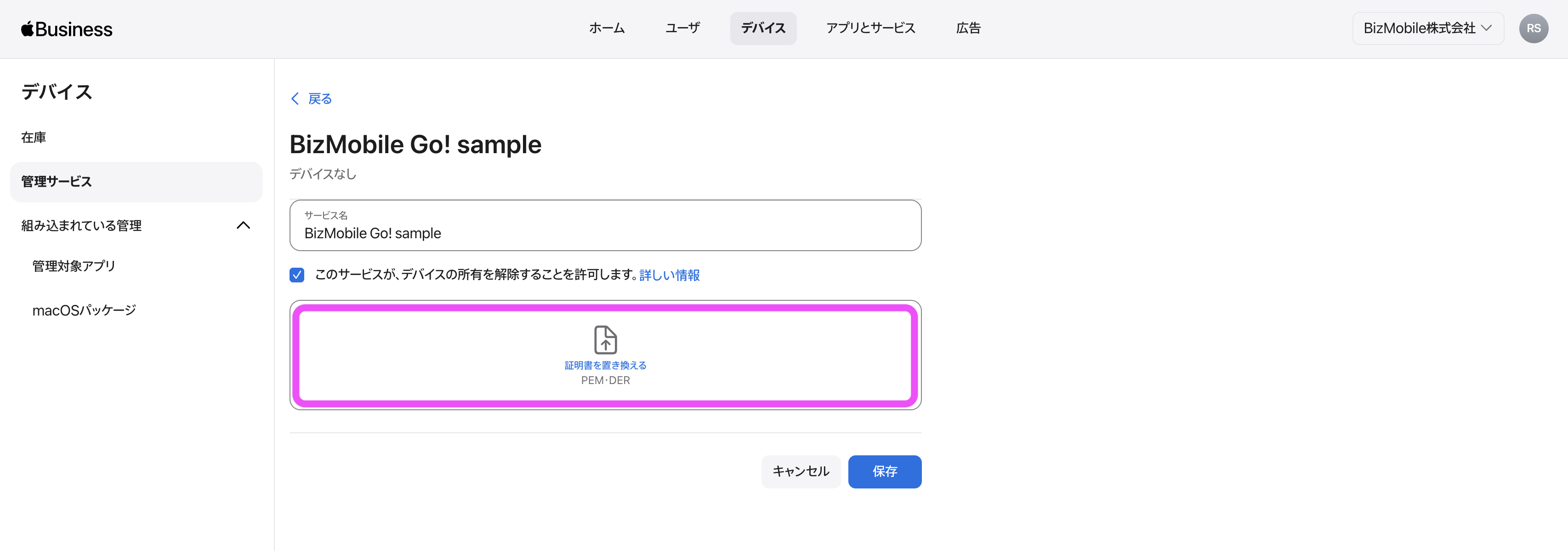 |
| 9. Click "Save". | 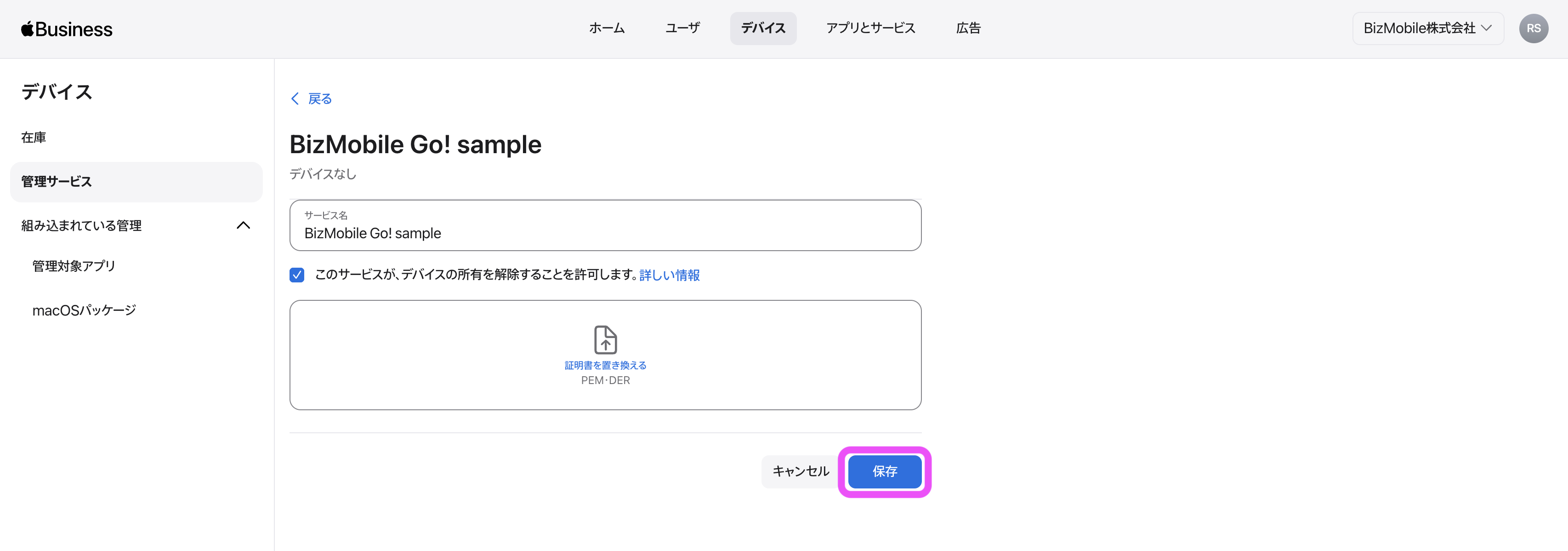 |
10. Click the three-dot icon ... from step 6 again, and then click Download Token. | 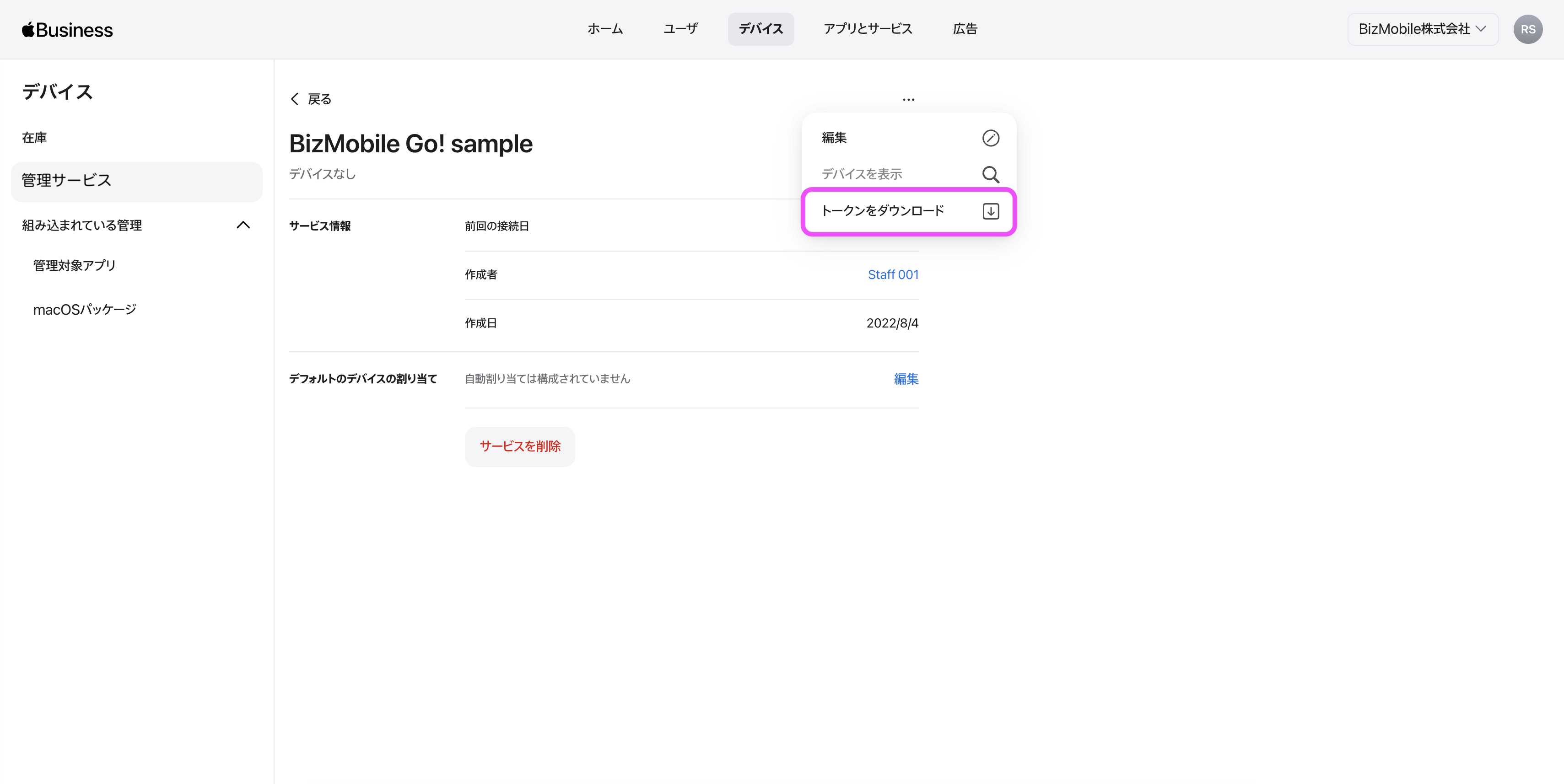 |
11. Click Download Token. The file is downloaded. | 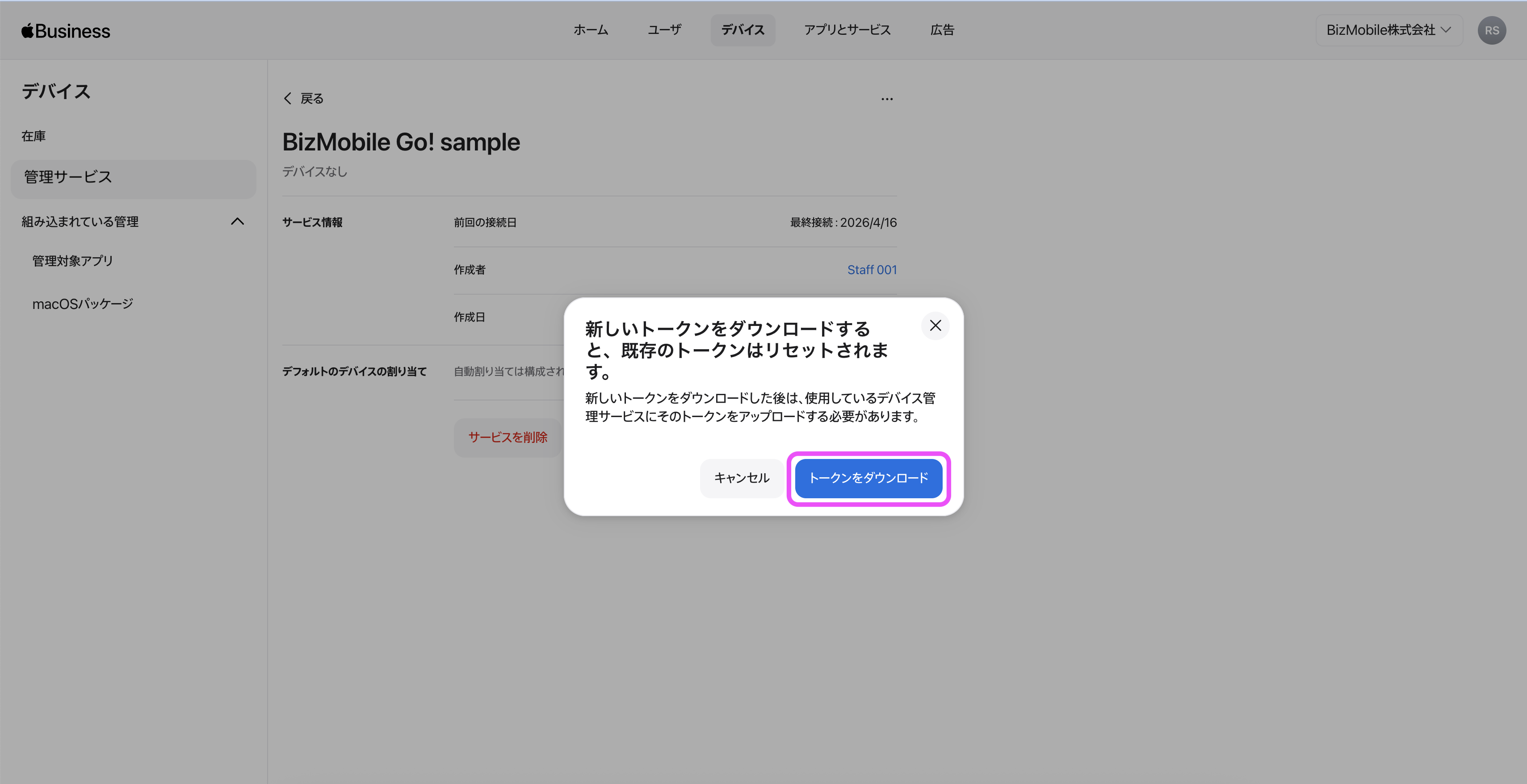 |
| 12. Return to the BizMobile Go! admin console and click SETTING → Unit Detail → Apple → Apple ADE Token. | 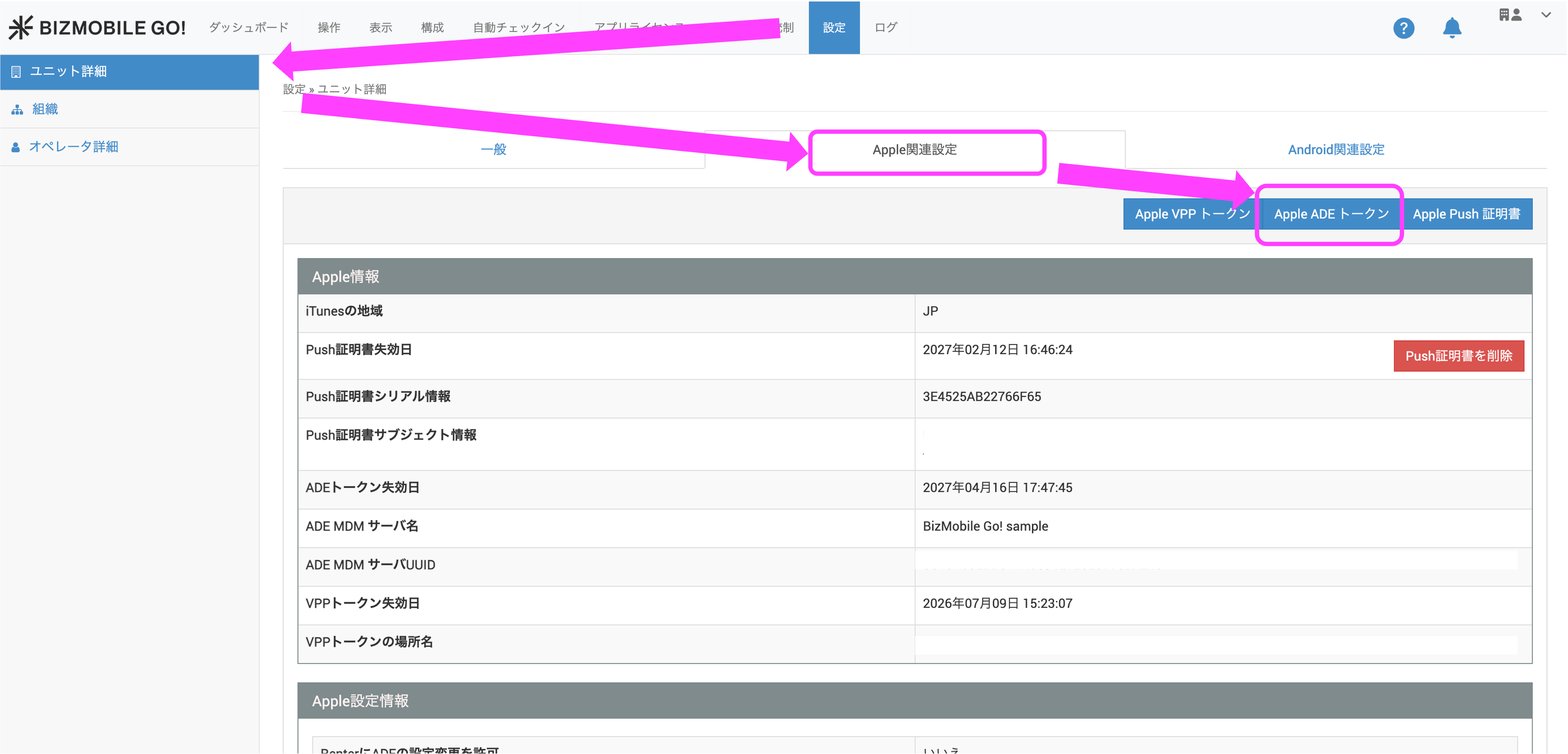 |
13. Upload the Apple ADE token you downloaded in step 11. Either click the CLICK HERE OR DROP FILE HERE area and select the file, or drag and drop the file onto the area. Then click Save. | 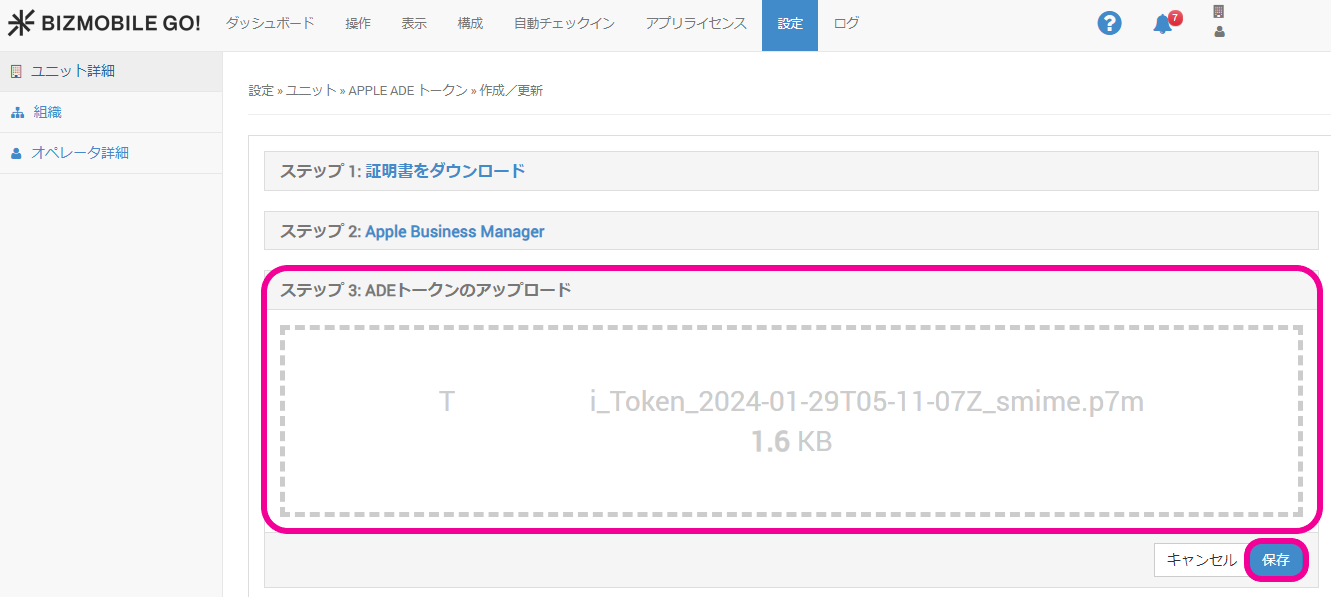 |
| 14. If the registration succeeded, the expiration date of the Apple ADE token is updated. | 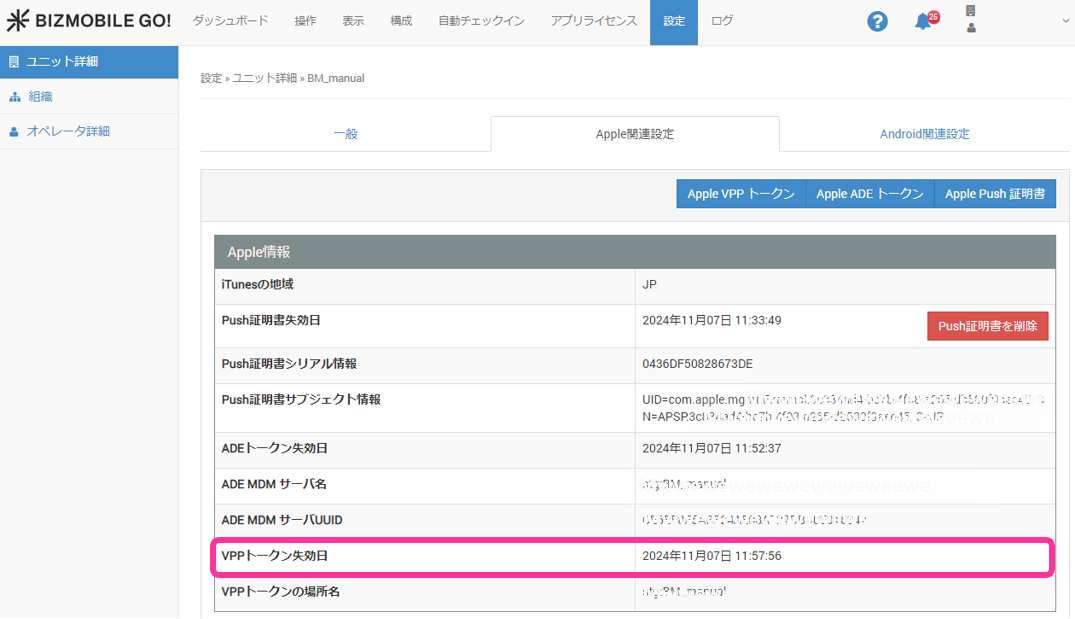 |