Create Windows Device Information (Individual)
Create the device information used for enrollment and subsequent management, one device at a time.
- Click Create on the CONFIG → Device screen.
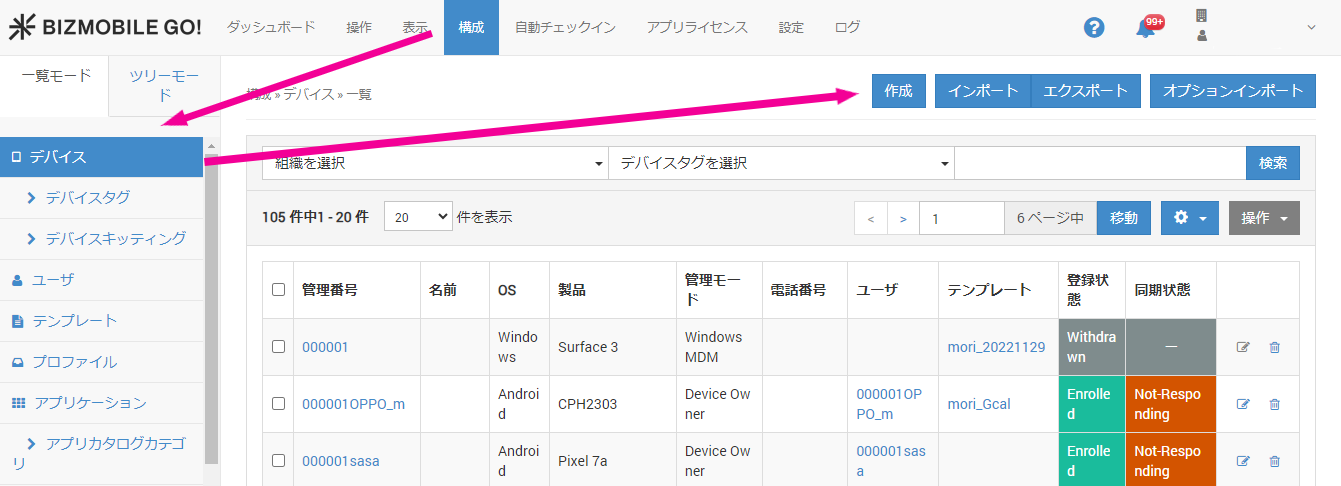
- Create the device information on the screen that opens.
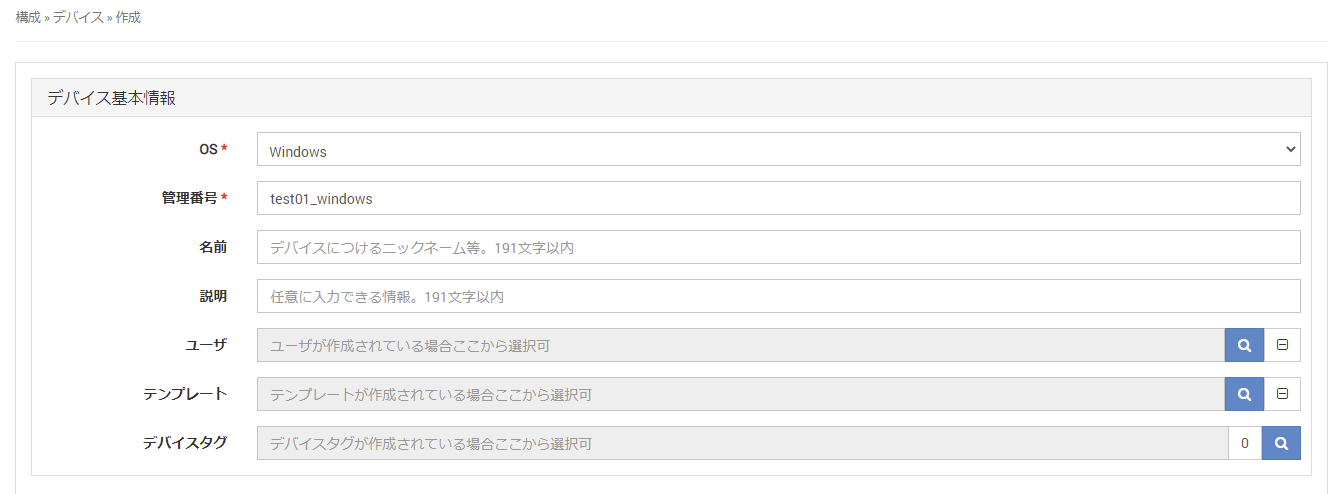
Input fields (fields marked with ★ are required)
| Basic Device Information | |
| OS★ | Select Windows. |
| Identifier★ | Enter an identifier that uniquely identifies the device. |
| Name | You can set a nickname or other name for the device. |
| Description | You can enter any information. |
| User | If users have been created, you can select one here. |
| Template | If templates have been created, you can select one here. |
| Device Tag | If device tags have been created, you can select one here. |
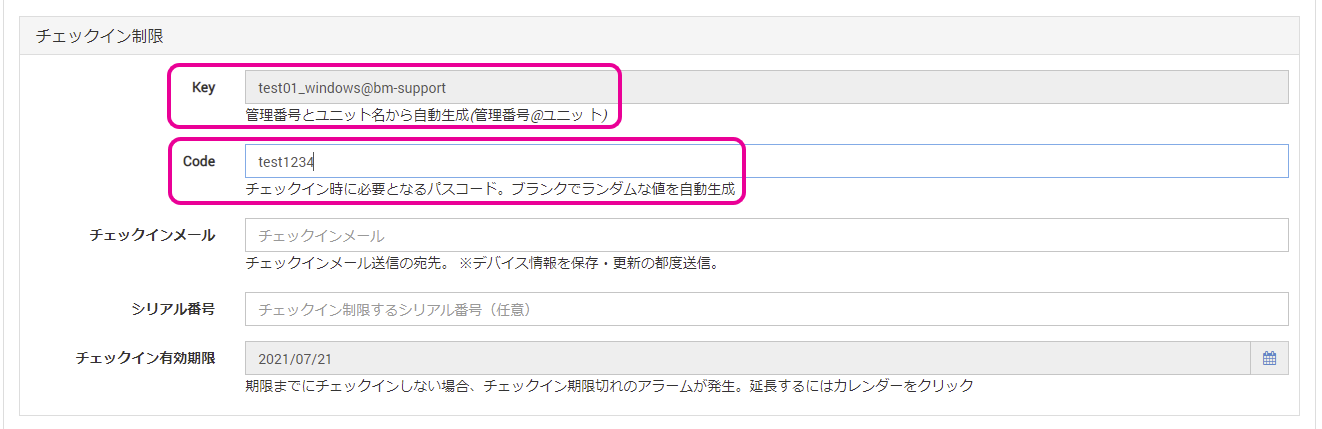
| Enrollment Restrictions | |
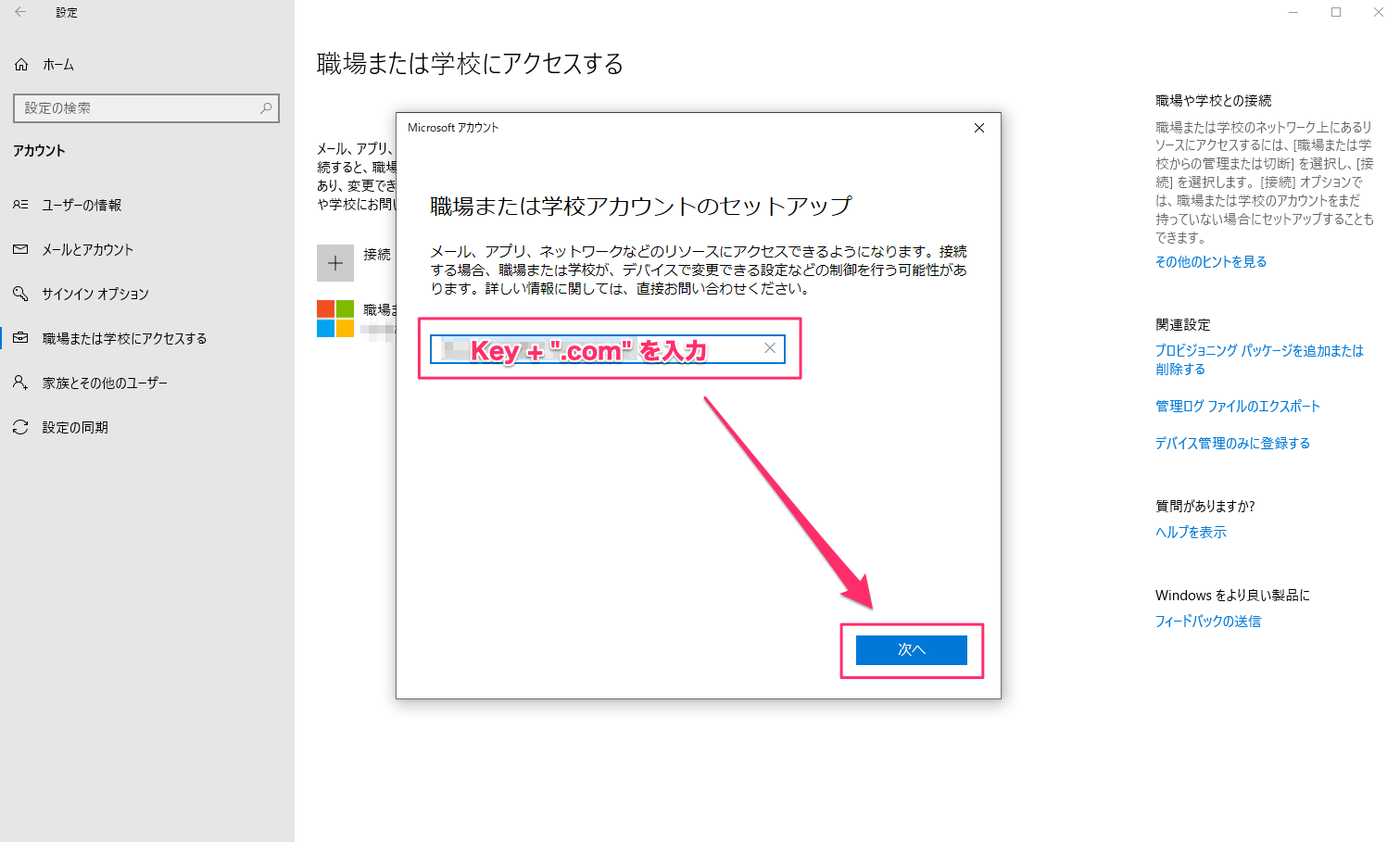
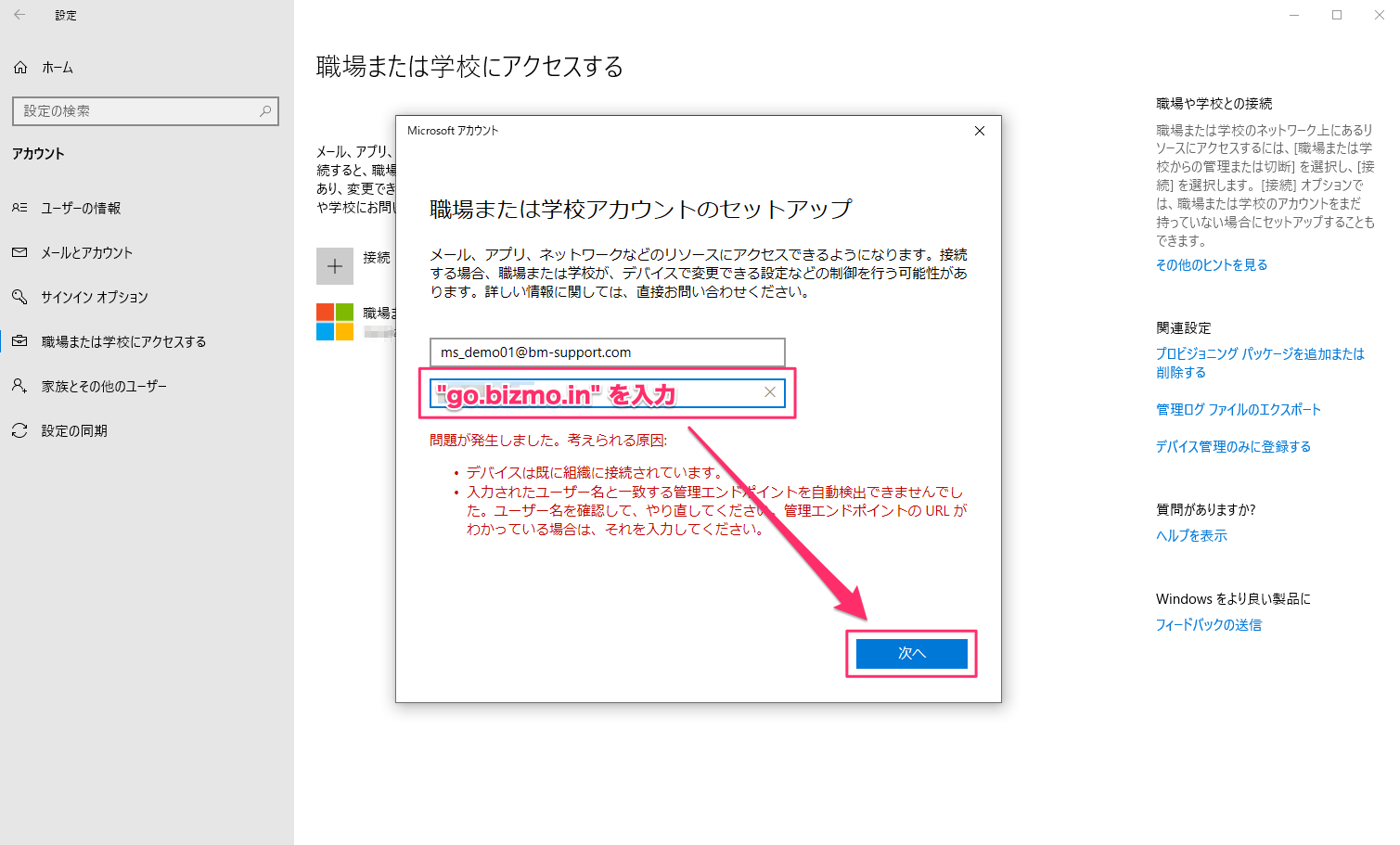
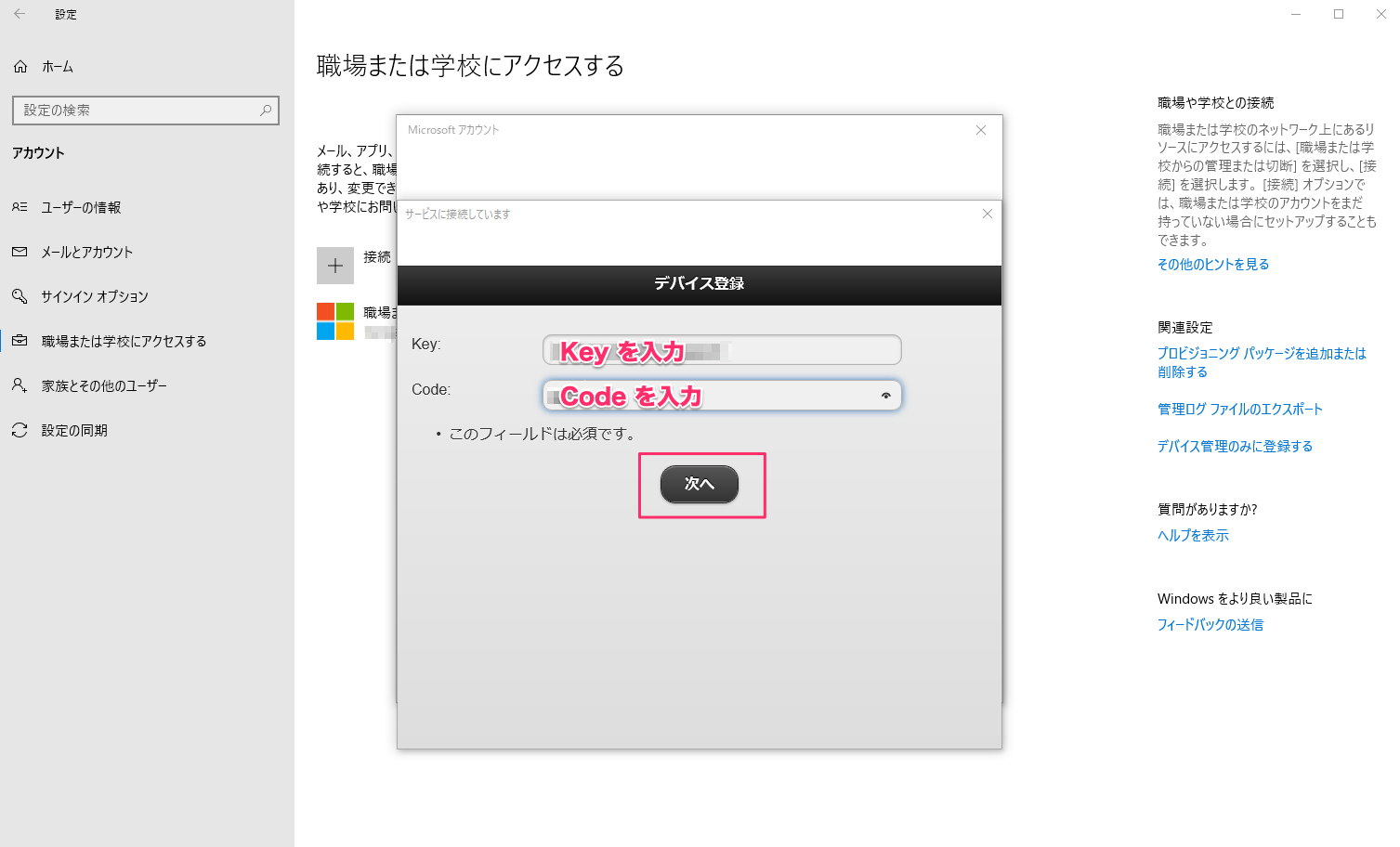
| Key | Automatically generated from the identifier and the unit name (format: identifier@unit). |
| Code | You can set any value. If you leave it blank, a random value is generated automatically. |
| Enrollment Email | Enter the address to send the enrollment email to. Note: If a recipient address is entered, an enrollment email is sent every time the device information is saved or updated. |
| Serial Number | Enter this to restrict device enrollment by hardware serial number. |
| Enrollment Expiration Date | Select the enrollment deadline. The default is one week from today. (On the SETTING screen, you can also configure the unit so that the expiration date is not checked.) |
- Make a note of the Key and Code displayed under Device Detail > Enrollment Restrictions in the admin console.
Enroll with an individual provisioning package for each Windows device
The final step in making a device manageable is to enroll it. When enrollment is complete, the device is registered in BizMobile Go! and can be managed.
To enroll, you must be logged in to the Windows device as a user with administrator privileges.
In this procedure, you download a provisioning package for enrollment from the individual device information you created in advance, and then enroll the device.
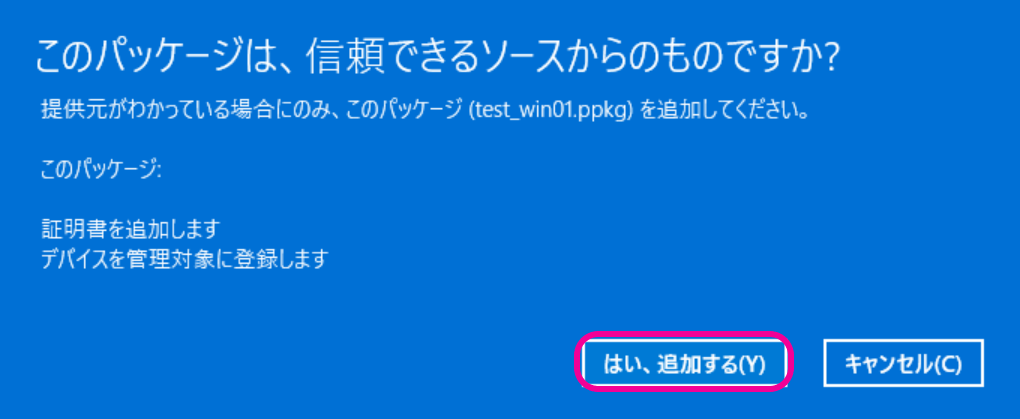
Simply running the downloaded provisioning package completes enrollment.
(This differs from the Common Provisioning Package for Devices, which automatically generates device information.)
When enrollment is complete, the device is registered in BizMobile Go!, and content such as profiles and apps registered in advance to the device's template is distributed to the device, completing device setup (kitting) automatically.
|
|
|
|
If a Provisioning failed error occurs when you run the .ppkg file, see What to do when the Provisioning failed error occurs. |
|
|
|


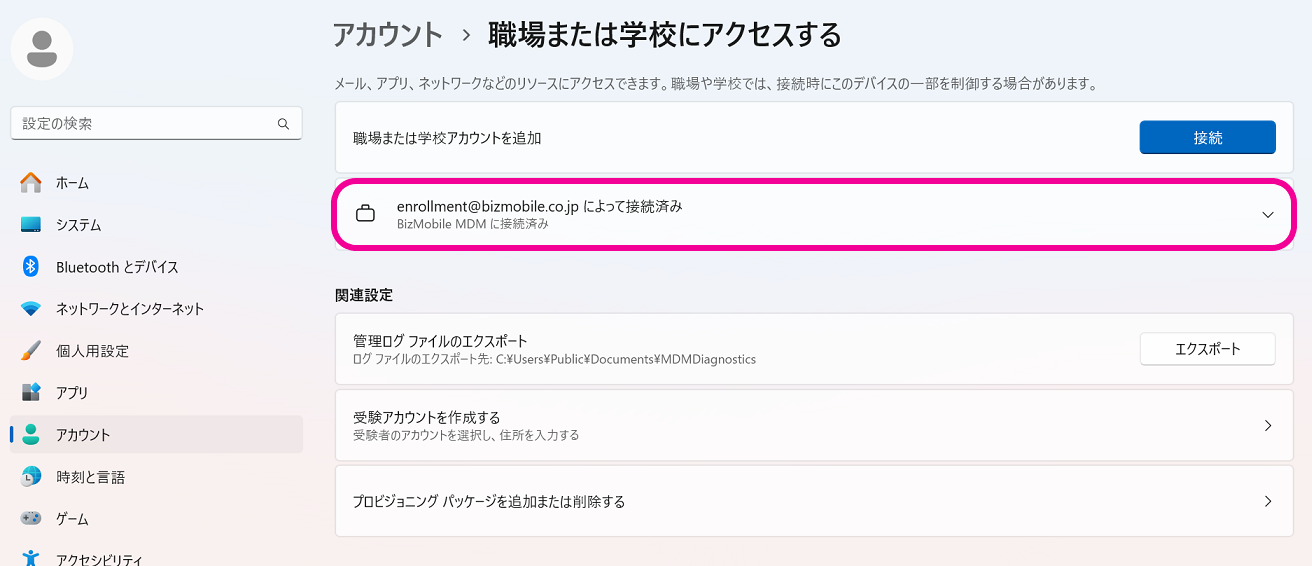
If you cannot complete enrollment with the procedure above, you can also enroll with the following procedure.
Depending on the network conditions of the device setup environment, it may take some time for all the profiles, apps, and other content registered in the template to be installed on the device.
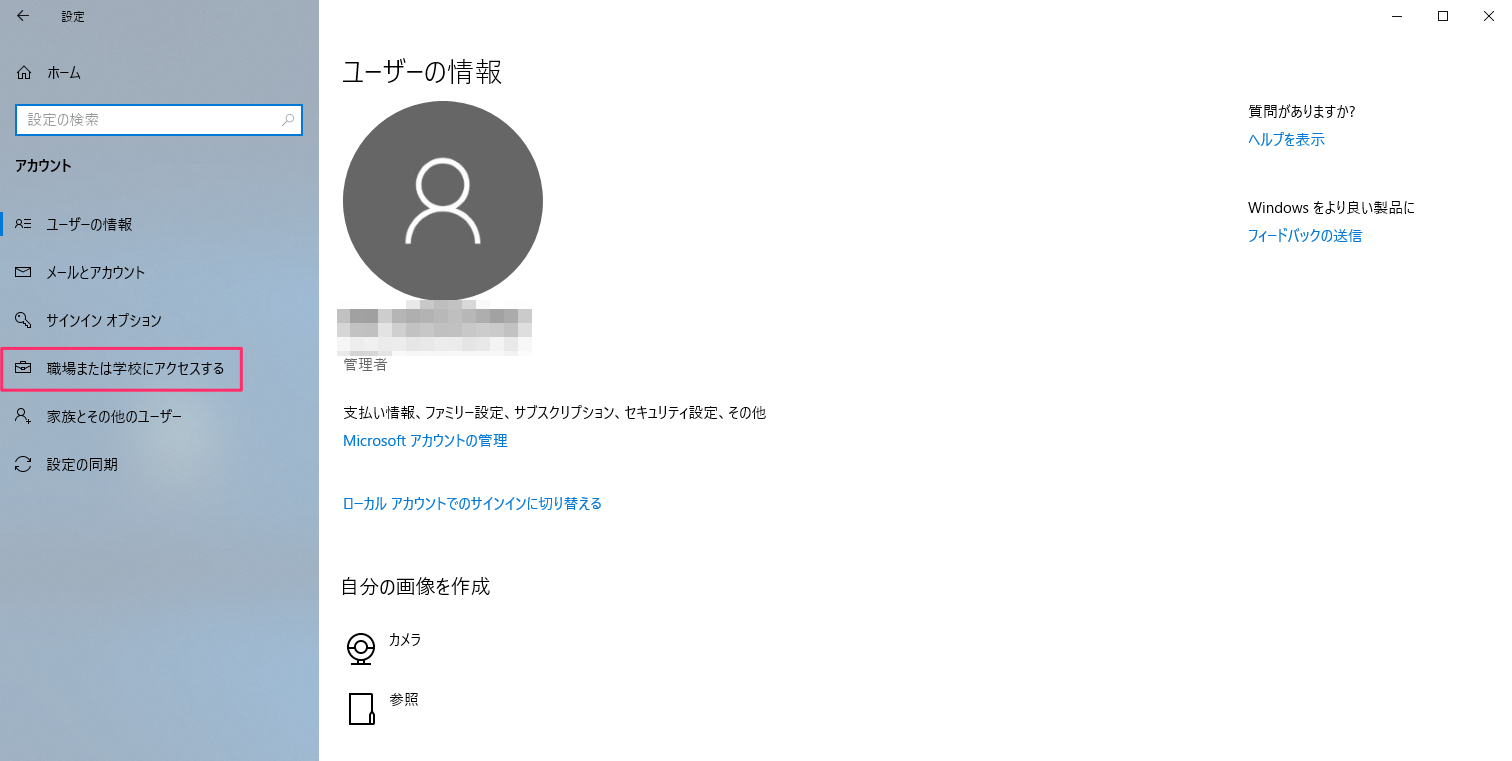
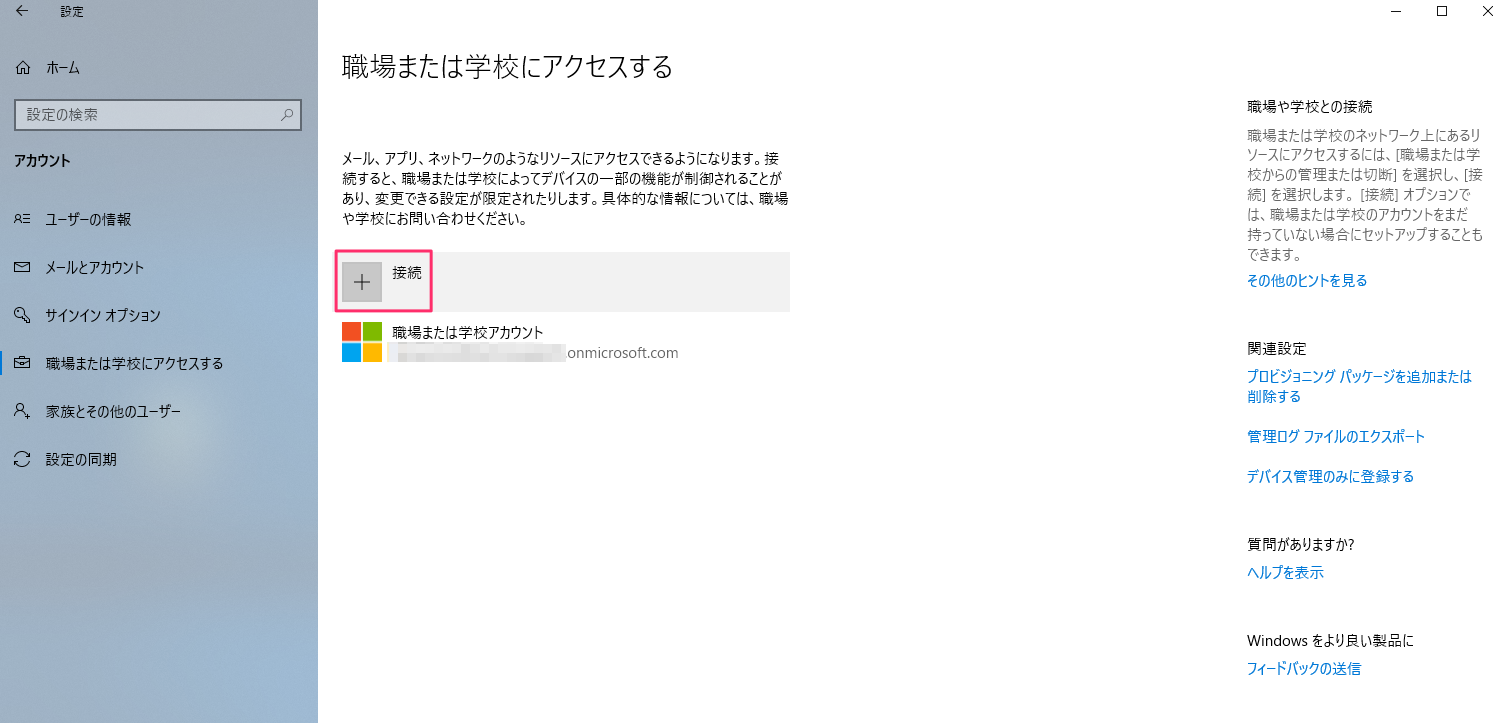
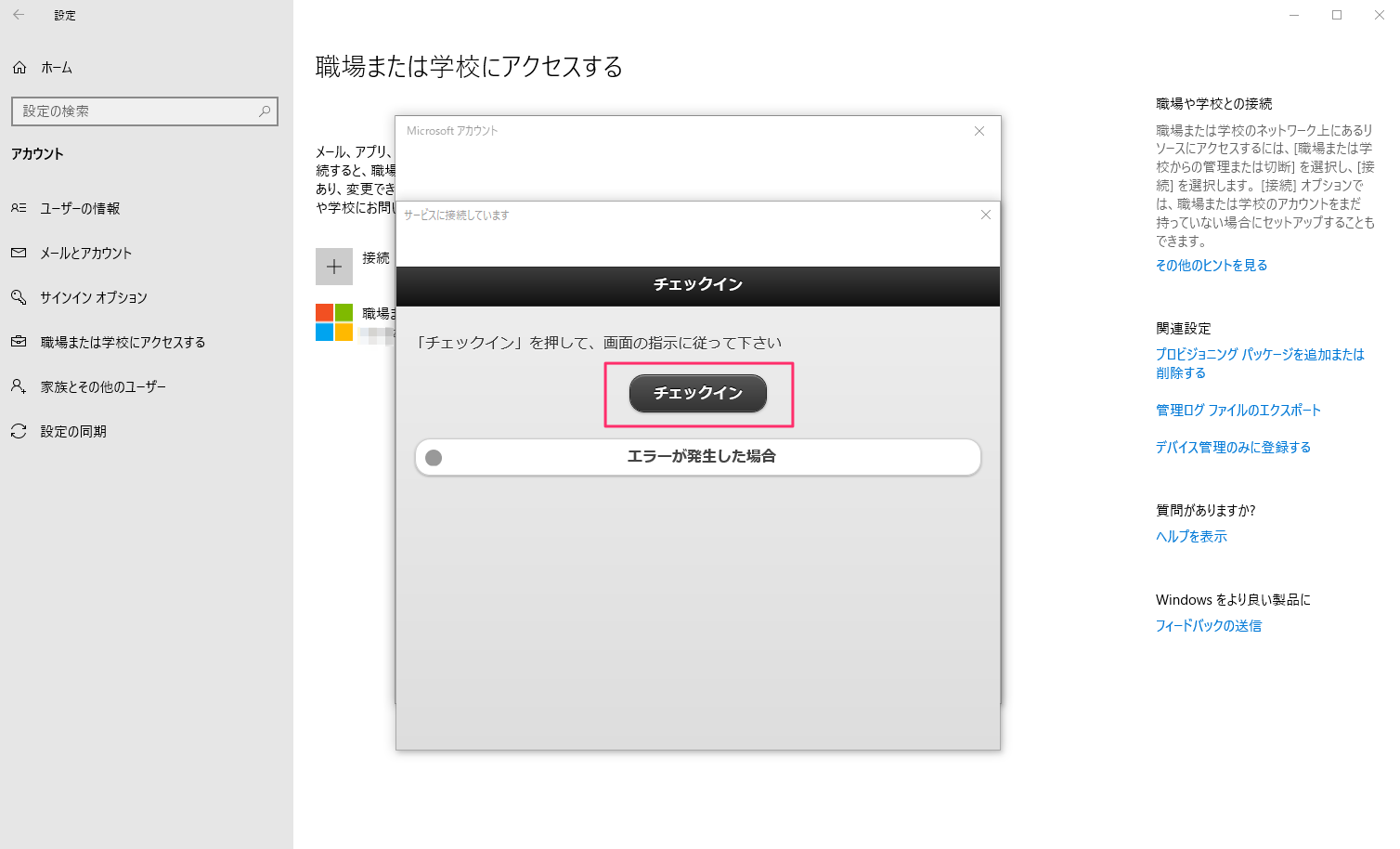
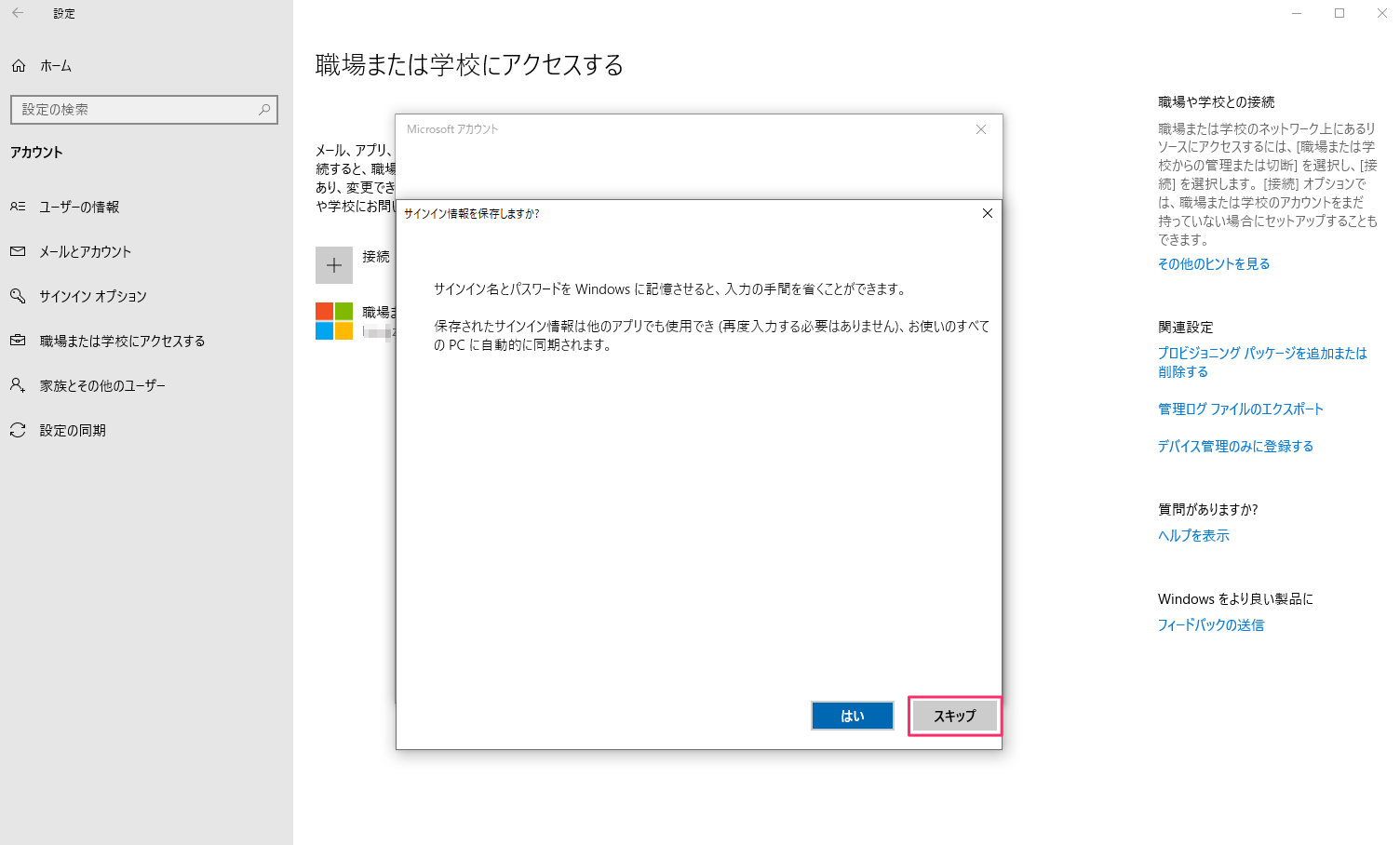
Enroll by entering authentication information
To enroll, you must be logged in to the Windows device as a user with administrator privileges.
Enroll from the device settings screen
|
|
|
|
|
|
|
|
|
|
|
|
|
|
|
|
|
|
|
|
| 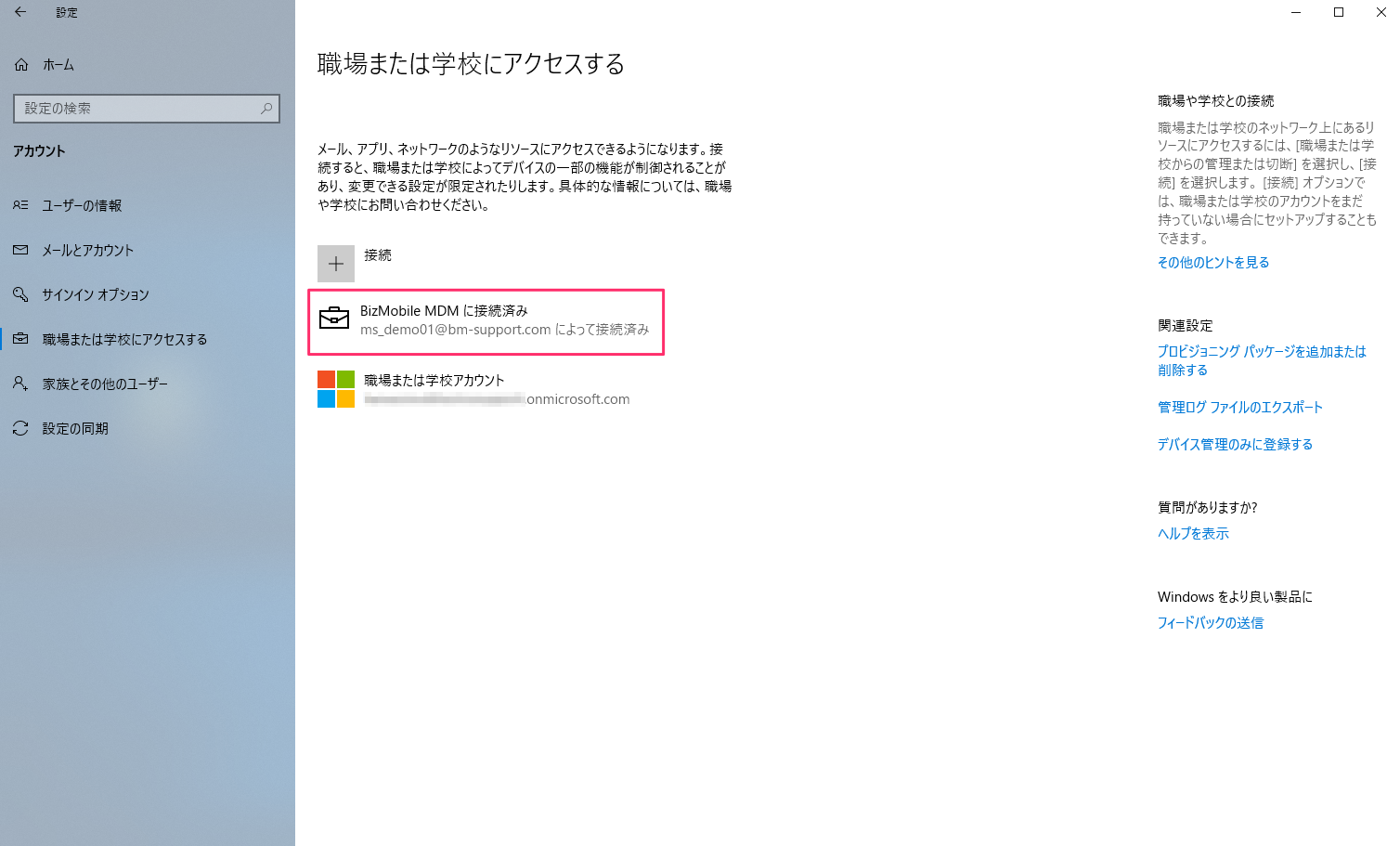 |
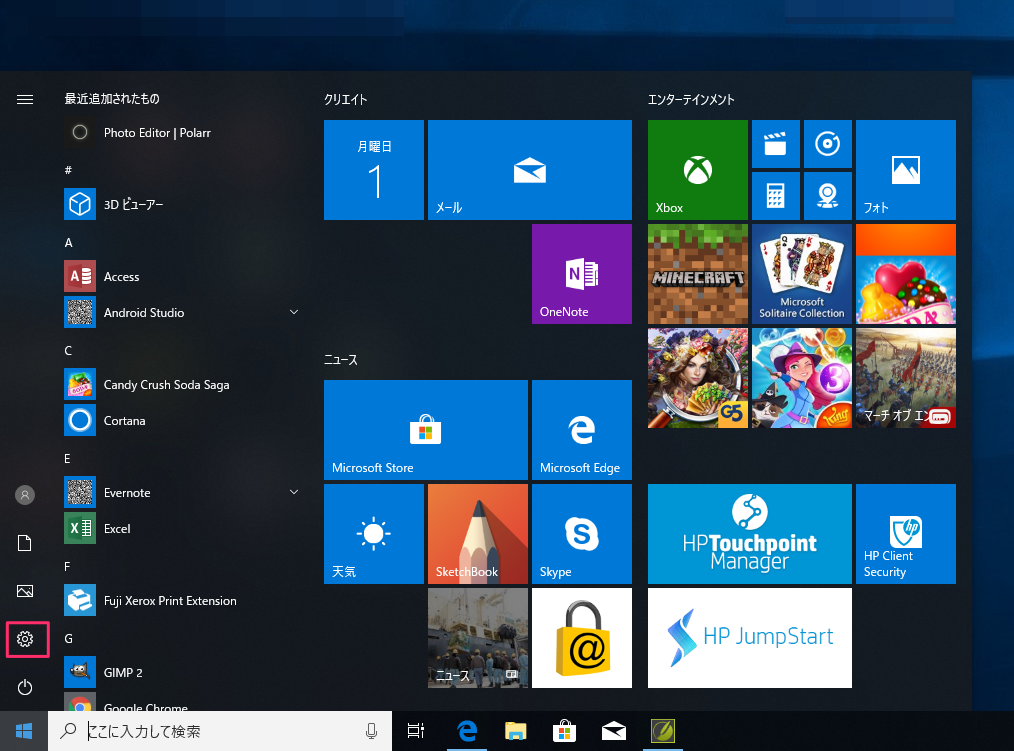
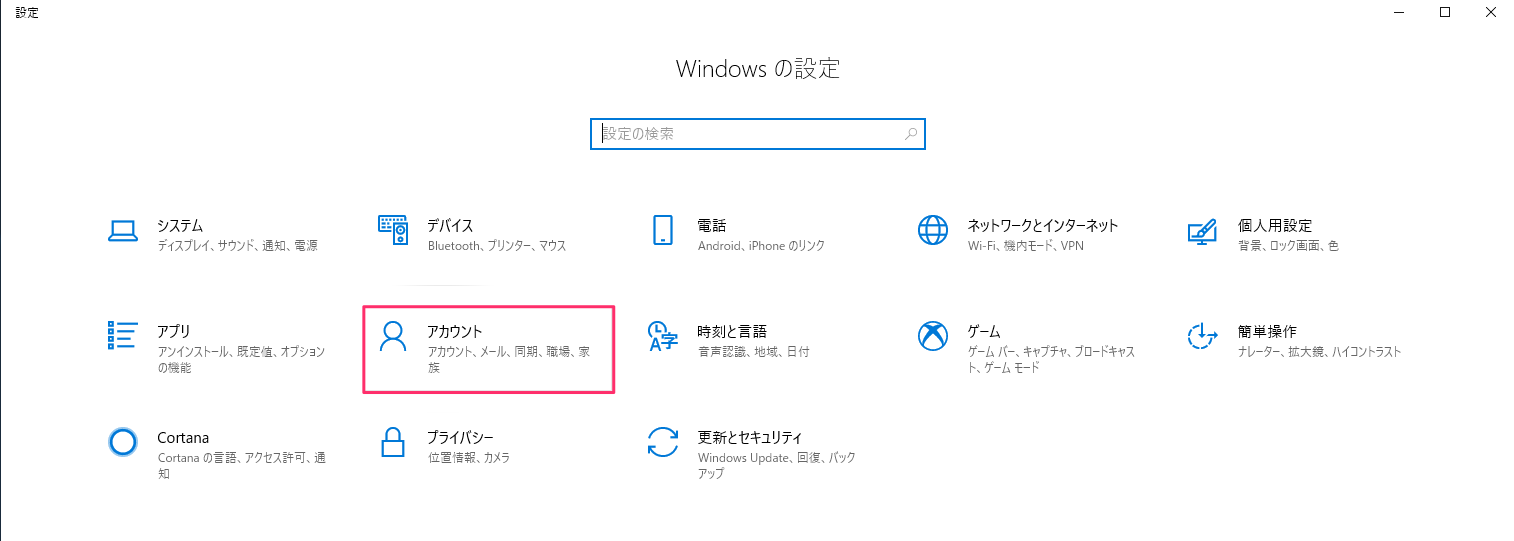
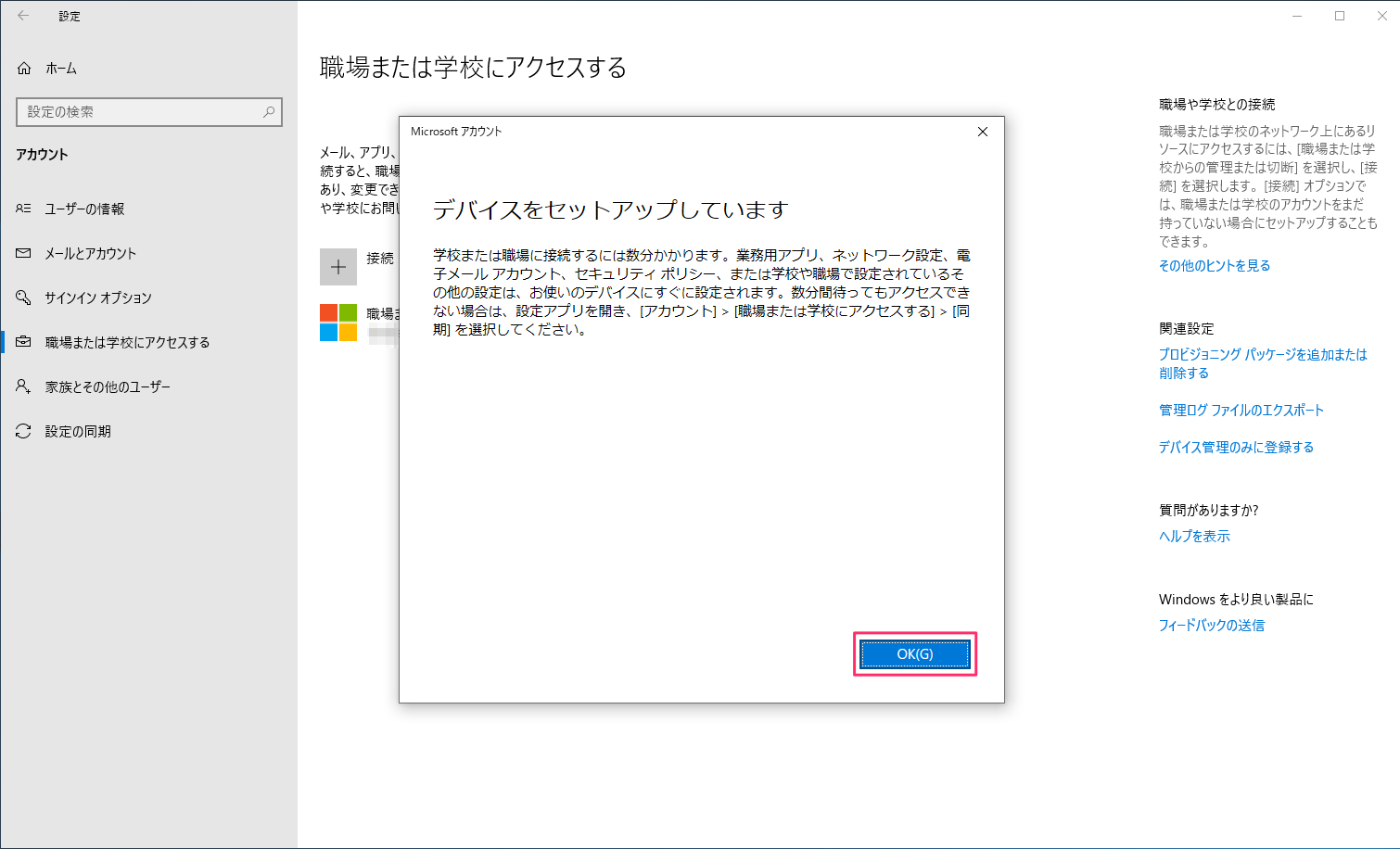
Depending on the network conditions of the device setup environment, it may take some time for all the profiles, apps, and other content registered in the template to be installed on the device.