Android Deployment Flow
Check the deployment pattern
Use the following chart to find the best device management mode and deployment pattern, based on how the devices were purchased, their current state, whether you can use zero-touch enrollment, and so on.
There are two management modes (Device Owner and Work Profile) and four deployment patterns.
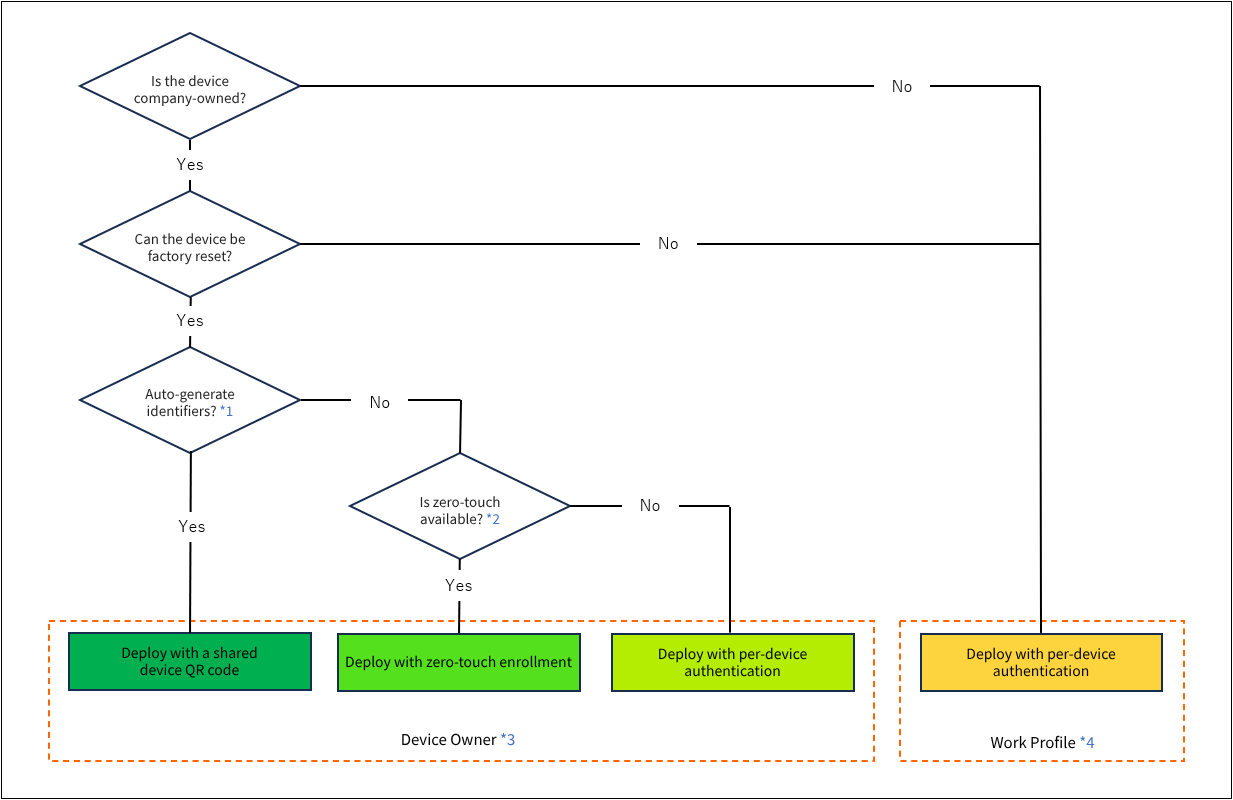
*1
With the automatic identifier generation feature, you do not need to prepare identifiers mapped one-to-one to your managed devices in advance. Device identifiers (normally 6-digit numbers) and users are generated and assigned automatically at check-in, making this feature well suited to managing a large number of devices.
In addition, simply scanning the shared QR code automatically completes everything from the Device Owner setup to check-in, which greatly reduces the workload during deployment.
Because devices are managed by identifier, you cannot change an identifier once check-in is complete and operation has started.
*2
Zero-touch enrollment is a Google feature that helps automate the deployment and MDM enrollment of Android devices.
For an overview of zero-touch enrollment and whether you can use it, see Zero-touch.
*3
You can use the entire device for business purposes.
The company has full control of the device, which allows broader management.
A device must be reset to be set up as a Device Owner.
*4
The device is divided into a personal area (user profile) and a work area (Work Profile). Business data and applications in the work area are under company management, while applications and data for other personal accounts are managed by the individual.
Deployment methods after you decide on a pattern
Device Owner
This mode lets you manage devices extensively and with strong controls.
-
Deployment flow using Android zero-touch enrollment
With zero-touch enrollment, you can automate the deployment and MDM enrollment of Android devices.
You must purchase zero-touch compatible devices from a reseller designated by Google. For details, see Android Zero-touch.
In BizMobile Go!, you prepare the device and user information in advance. In the device information, register the sameIMEIorserial numberthat you registered in the Zero-touch Portal.
Once this preparation is complete, simply activating the device automatically completes everything from the Device Owner setup to check-in to BizMobile Go!.
With zero-touch enrollment, you do not need to recreate the device information even if a device needs to be checked in again. -
Deployment flow using shared device QR code authentication
Shared device QR code authentication lets you automate part of MDM enrollment.
Set the conditions for automatically generating device and user information in BizMobile Go! in advance. To enroll a device in MDM, scan the shared QR code when you activate it. Everything from Device Owner setup to check-in to BizMobile Go! then completes automatically.
Device and user information is generated automatically when check-in is complete, so you do not need to prepare it in advance. -
Deployment flow using per-device authentication (Device Owner)
With this method, you prepare the device and user information in BizMobile Go! in advance. Each device is then enrolled in MDM (checked in) using the method you prepared for it, such as a QR code, a key/code, or a check-in email.
Work Profile
This management mode is used mainly for BYOD devices.
A work area, separate from the personal area, is created on the device so that it can be used safely for business.
-
Deployment flow using shared device QR code authentication (Work Profile)
Shared device QR code authentication lets you automate part of MDM enrollment.
Set the conditions for automatically generating device and user information in BizMobile Go! in advance. Device and user information is generated automatically when check-in is complete, so you do not need to prepare it in advance. -
Deployment flow using per-device authentication (Work Profile)
Prepare the device and user information in advance. Device authentication at check-in uses the individual device information you prepared (QR code, key/code, check-in email, and so on).
Frequently asked questions when setting up devices for the first time