Deployment Flow Using Common Provisioning Package Authentication for Windows Devices
This page explains the deployment method using a common provisioning package for people who are new to BizMobile Go!, are about to start preparing device setup (kitting), or are taking over management of devices already in operation.
Using a common provisioning package lets you automate part of MDM registration.
In advance, create a common provisioning package in BizMobile Go! that defines the conditions for automatically creating devices.
Download the common provisioning package to the devices, for example as an email attachment or from your own site. Simply running the downloaded package on a device completes MDM registration (enrollment) in BizMobile Go! automatically.
When enrollment succeeds, device information based on a 6-digit number is generated automatically, so you do not need to create individual management information for each device in advance.
This page explains, in order, the basic steps common to device management and the deployment method using a common provisioning package. You can also read only the parts that apply to you.
Use this page to find the procedures required for your use case.
The identifier cannot be changed after enrollment is complete.
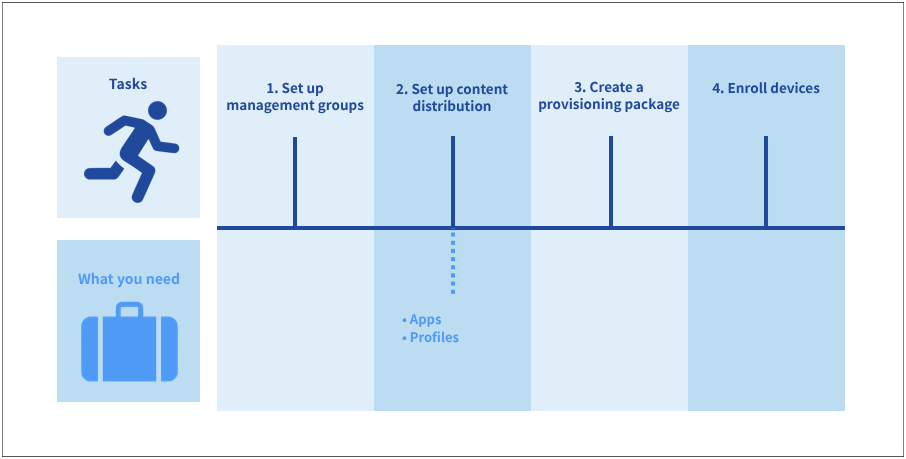
| Task and link to the manual | Where to work | Frequency | |||
|---|---|---|---|---|---|
BizMobile Go! admin console | Managed device | First time | As needed | ||
| 1. Set up management groups | 1) Create a template | Yes |
| Yes | Yes*1 |
2. Set up content distribution | 2) Register a profile | Yes |
| Yes | Yes*1 |
| 3) Register an app (in-house app) | Yes |
| Yes | Yes*1 | |
| 3. Create a provisioning package | 4) Create a common provisioning package for device registration | Yes |
| Yes | Yes*1 |
| 4. Enroll devices | 5) Enroll the device with the common provisioning package | Yes | Yes | Yes*2 | |
*1 When adding or changing a management group
*2 When adding a device