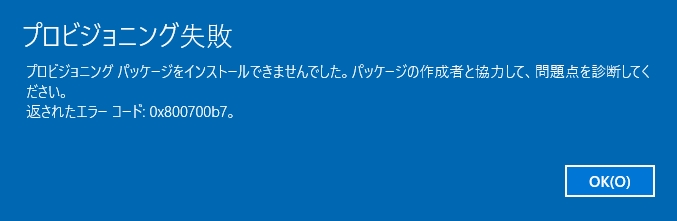
What to do when the Provisioning failed error (0x800700b7) occurs
If the Provisioning failed error (0x800700b7) appears on the device when you install a provisioning package, another provisioning package may already be installed on the device.
You cannot check in with a provisioning package on a device that already has a provisioning package installed.
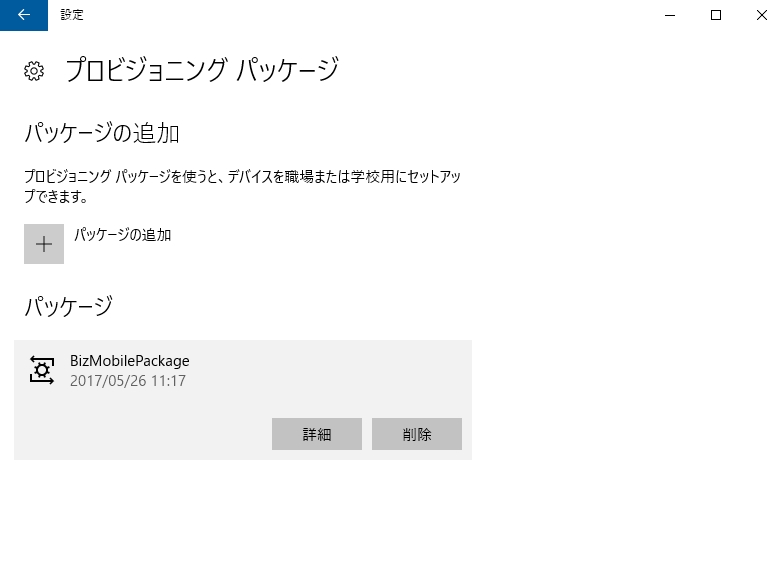
You need to remove the provisioning package from the device.
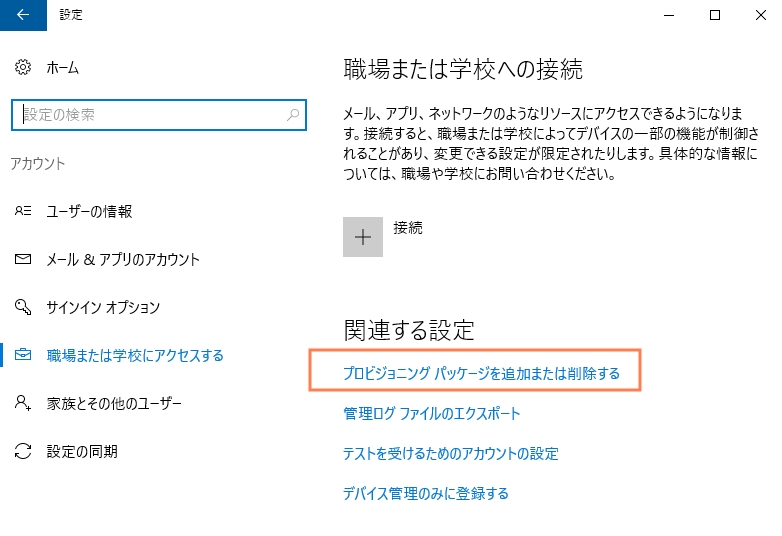
- On the device, click
Settings→Accounts→Access work or school→ [Add or remove a provisioning package].
- Remove the existing provisioning package shown under
Packages.
Then install your check-in provisioning package again.