Allow only required apps (Android)
This page explains how to prevent users from installing apps on the device and distribute only the required apps from the MDM.
On Android, apps can be distributed from the MDM by using EMM. Use a profile to prevent accounts other than the EMM account from being used in the Google Play Store app, which prevents users from installing apps on the device themselves.
In addition, register the apps to hide or disable so that only the required apps are displayed.
This consists of one preparation step and two alternative methods.
- Preparation
- A. Register apps to hide
- B. Register apps to disable
- Prohibit the use of the Google Play Store app with accounts other than the EMM account
Restrict the use of Google Play Store so that users cannot freely install apps on the device.
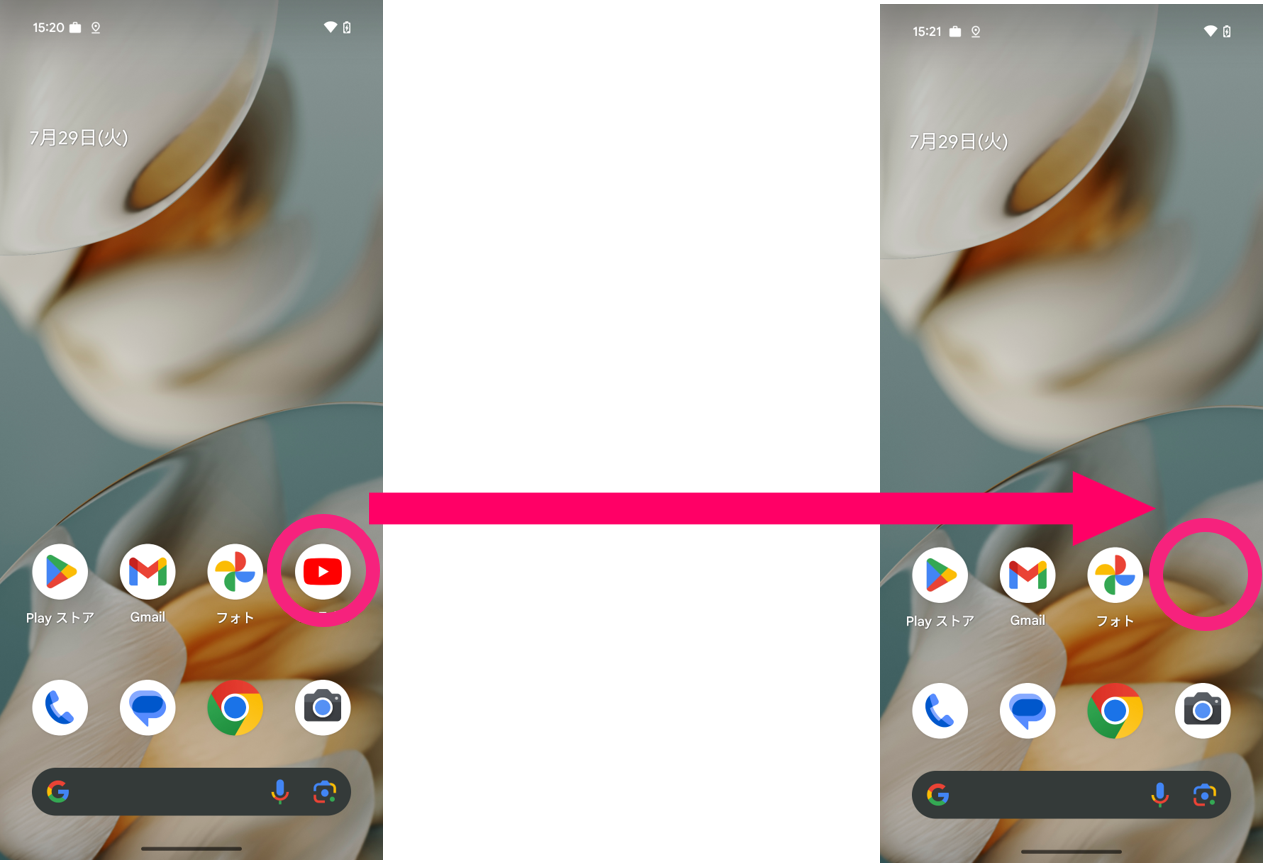
Check the package name of an installed app in the device details and register it to hide that app.
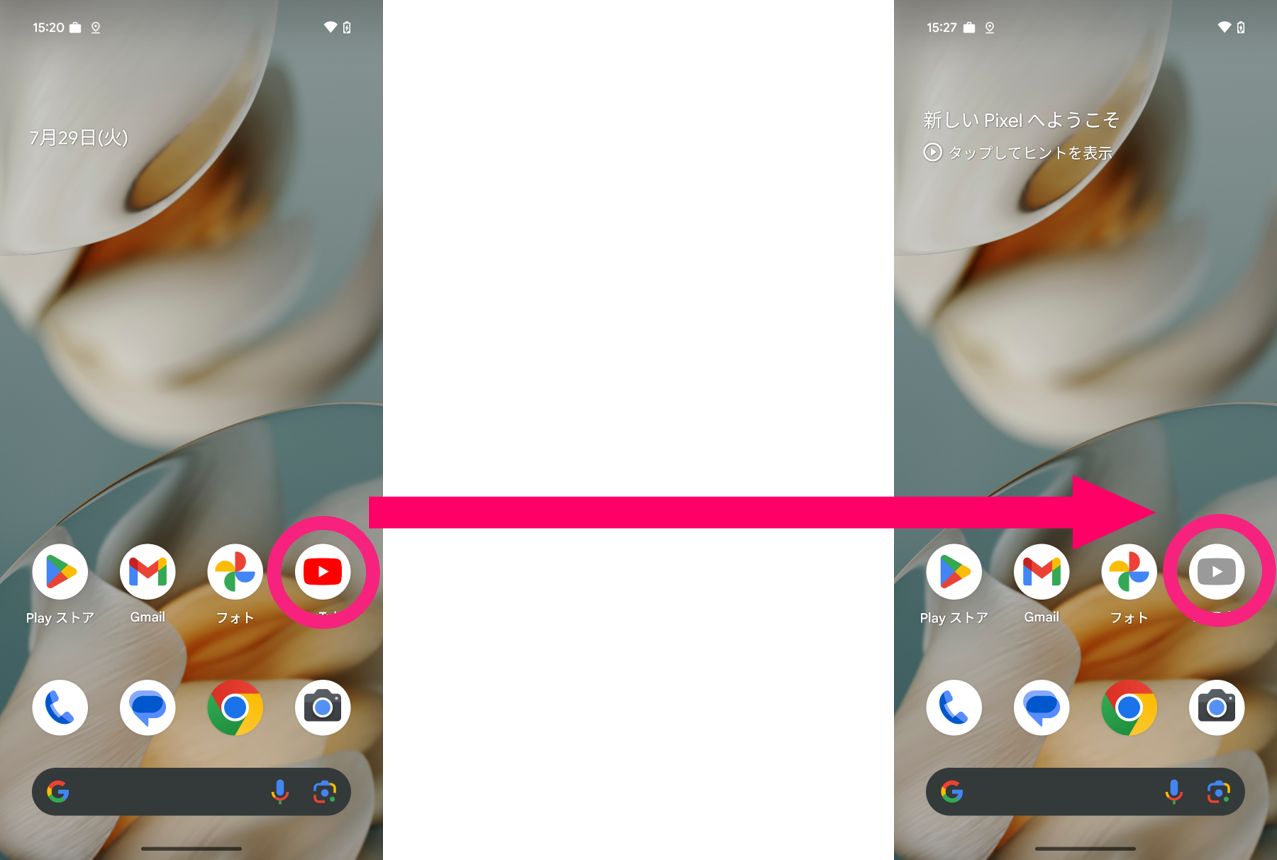
Check the package name of an installed app in the device details and register it to gray out that app and make it unusable.
This method is recommended when you control whether apps can be used by switching templates with Geofence or Time-based Management.
Preparation: Prohibit the use of Google Play Store with accounts other than the EMM account
-
Create a profile.
In CONFIG > Profile, clickCreate(1) to create a new profile, or click theedit icon(2) for an existing profile.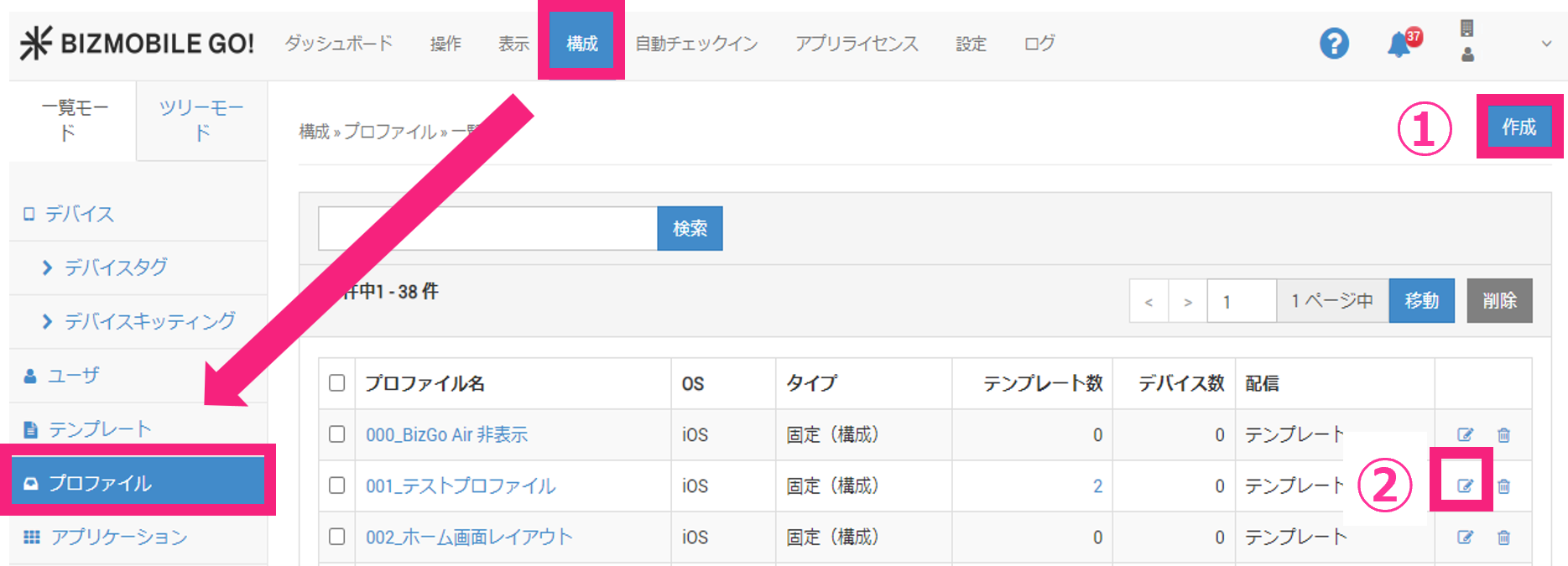
-
Select
AndroidforOS, enter aName, and select aDevice Type. If there is a template to apply, register it underTemplate.
Next, clickRestriction Policyto expand it, and then clickConfigure.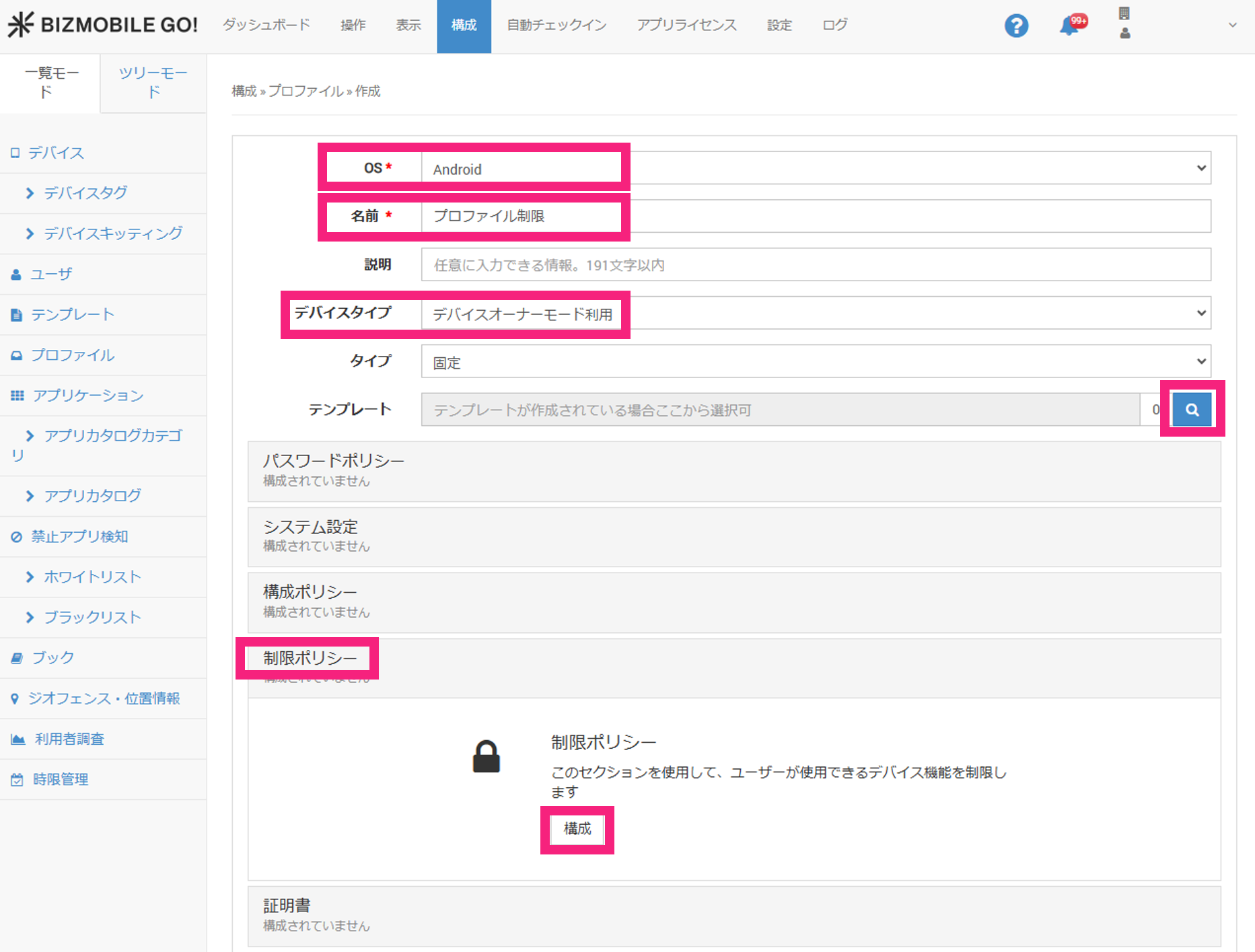
-
Select the
Restrict use of Google Play Storecheckbox and clickSave.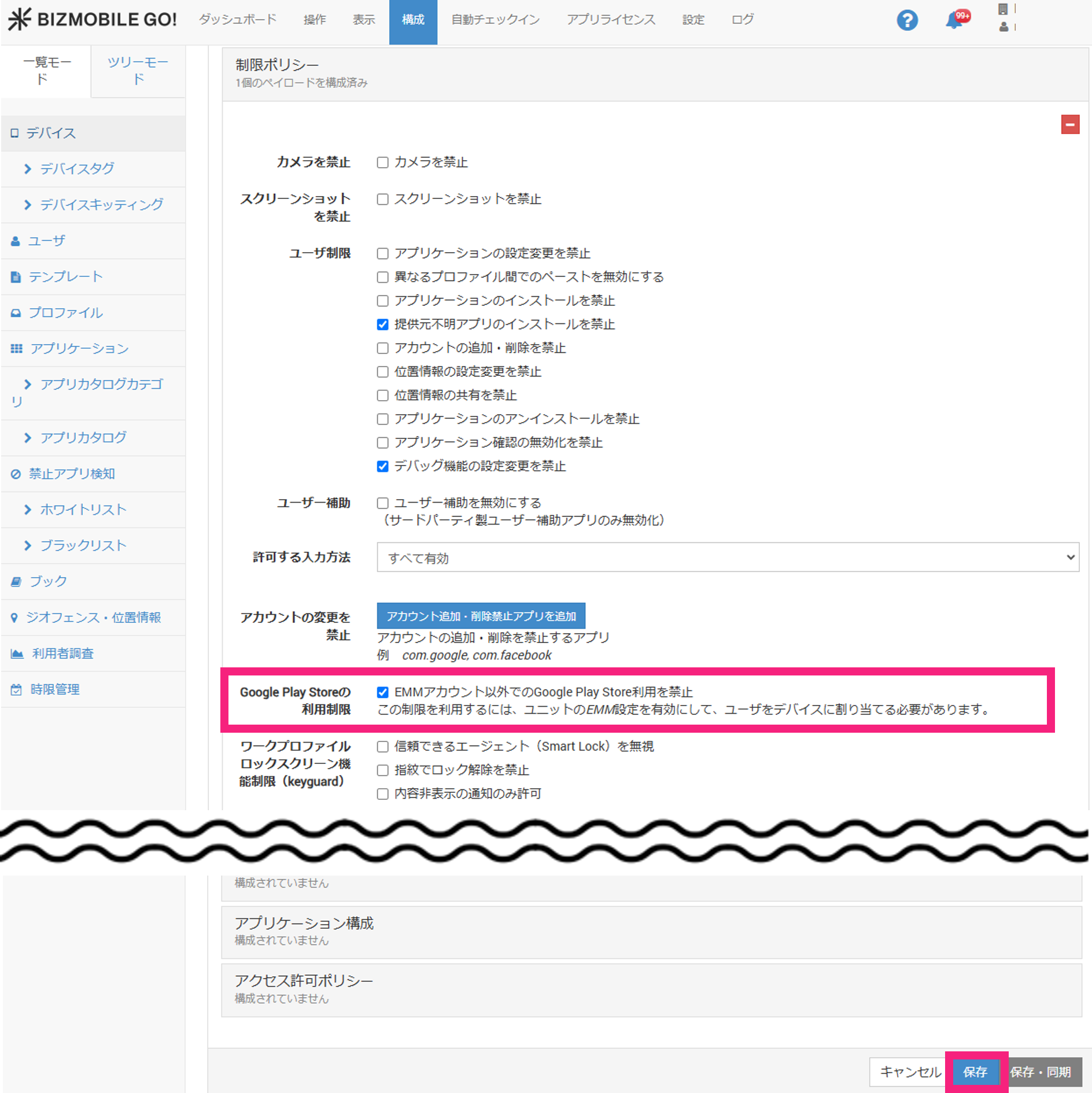
A. Register apps to hide
-
First, check the
Package Nameof the app to hide. In CONTROL > Sync, select the device whose app display you want to control from the device list.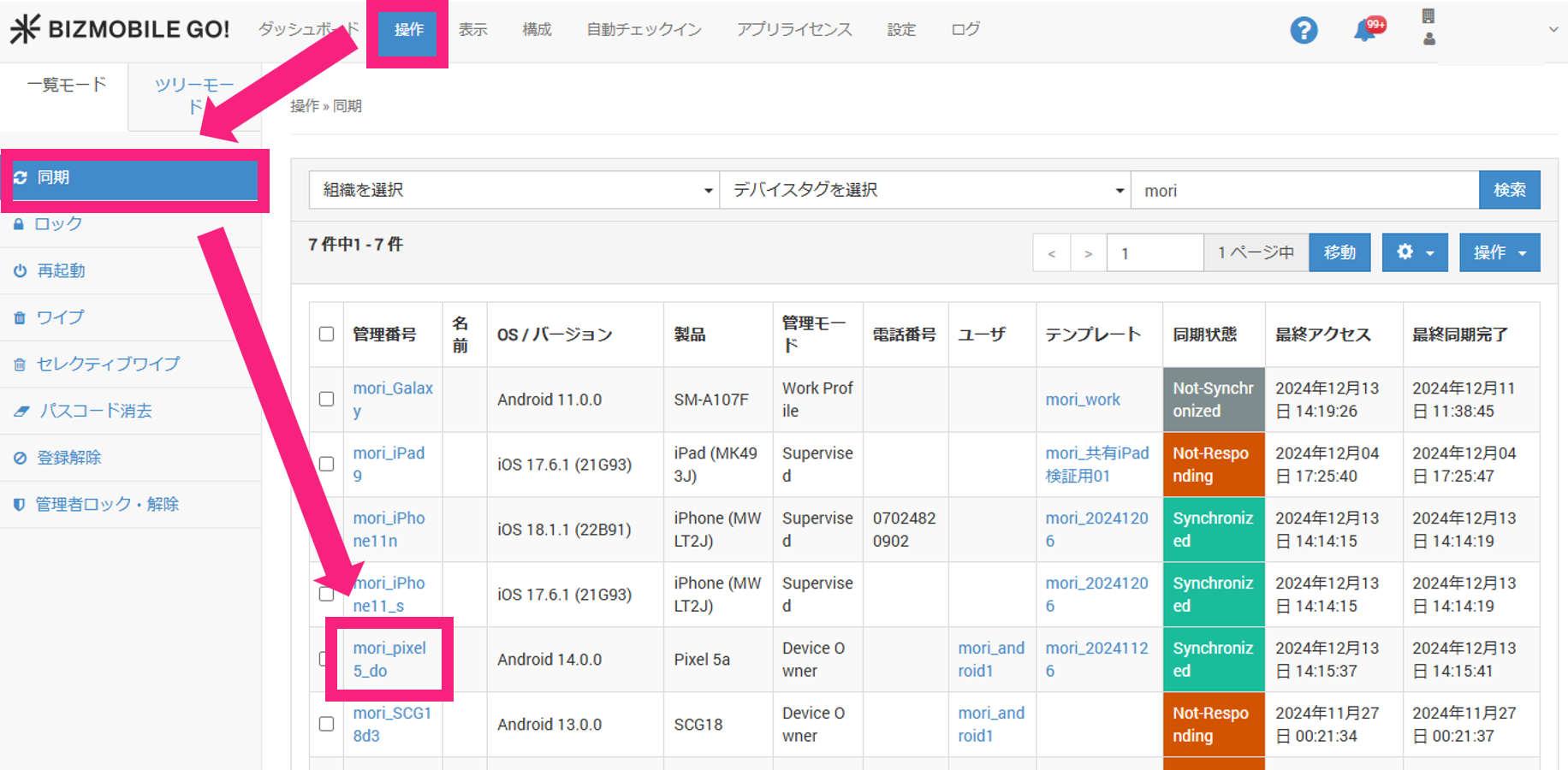
-
Click the
Applicationstab.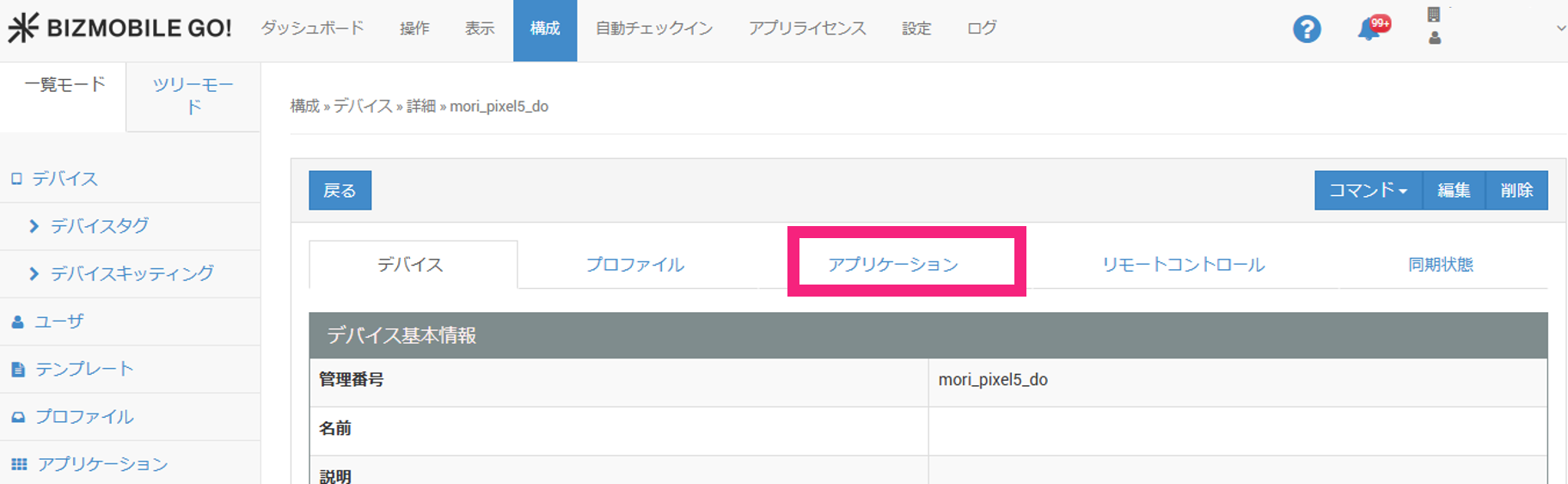
-
Turn
Show system appsON.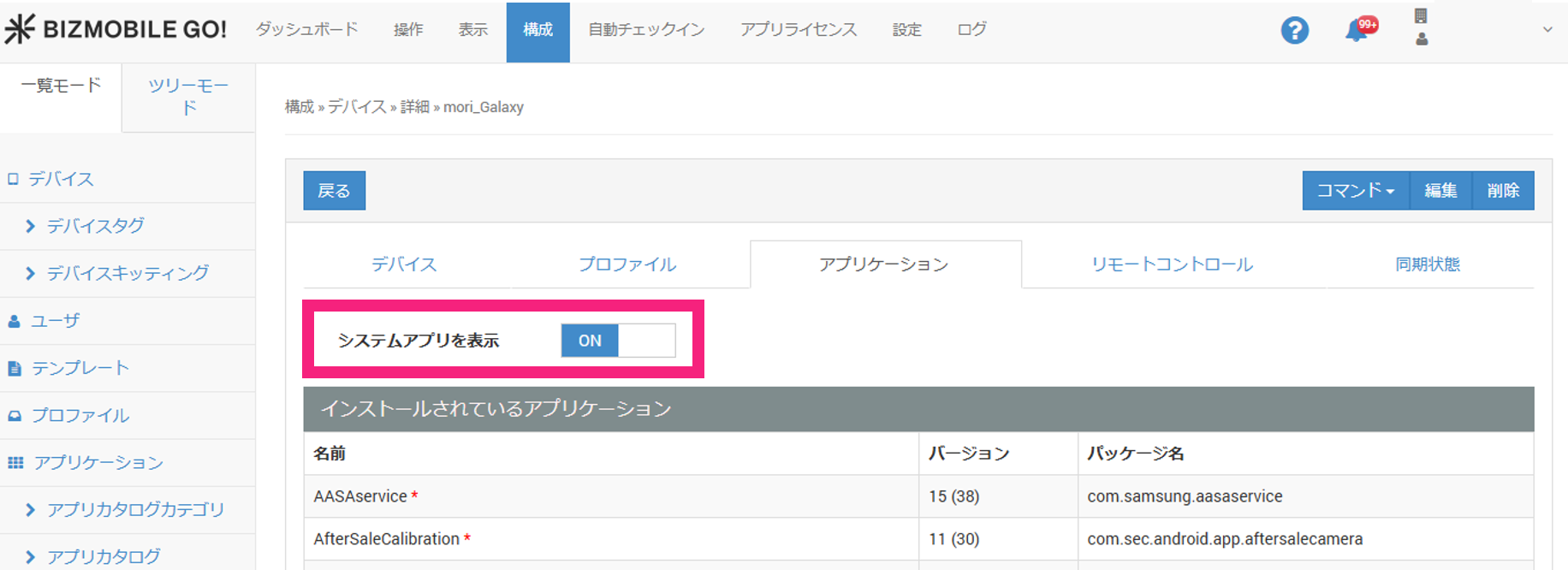
-
Copy the
Package Nameof the app to hide.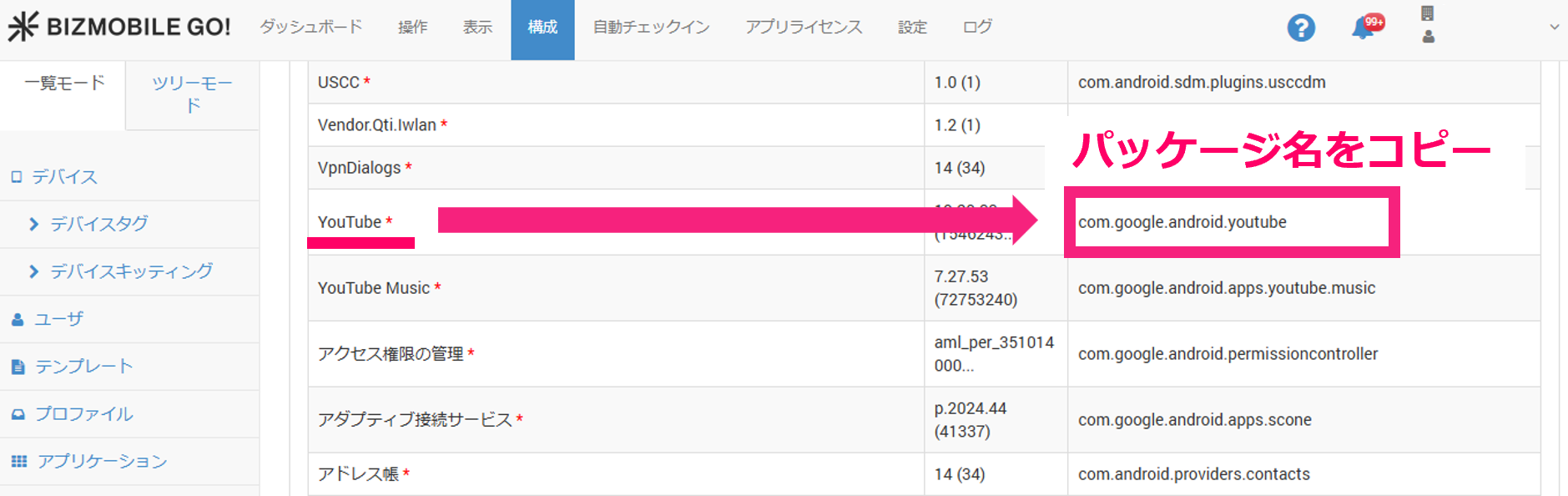
-
Click the
Devicetab.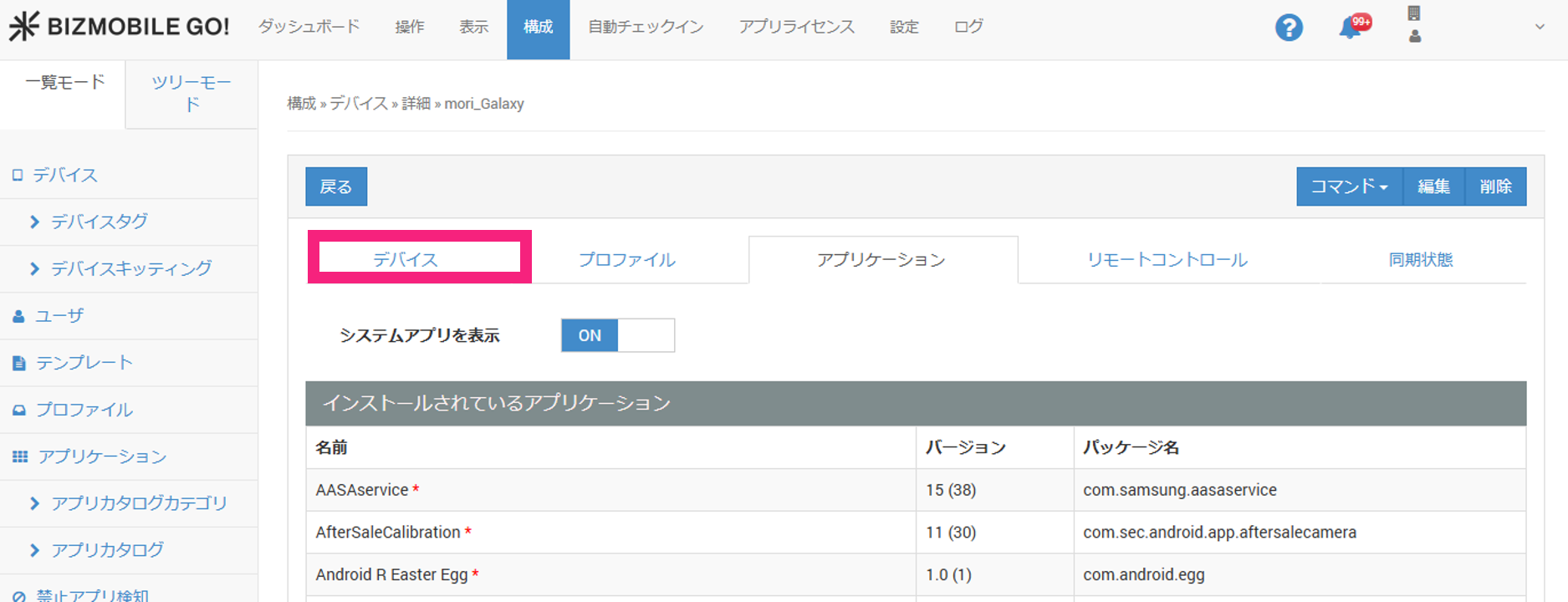
-
Click
Template.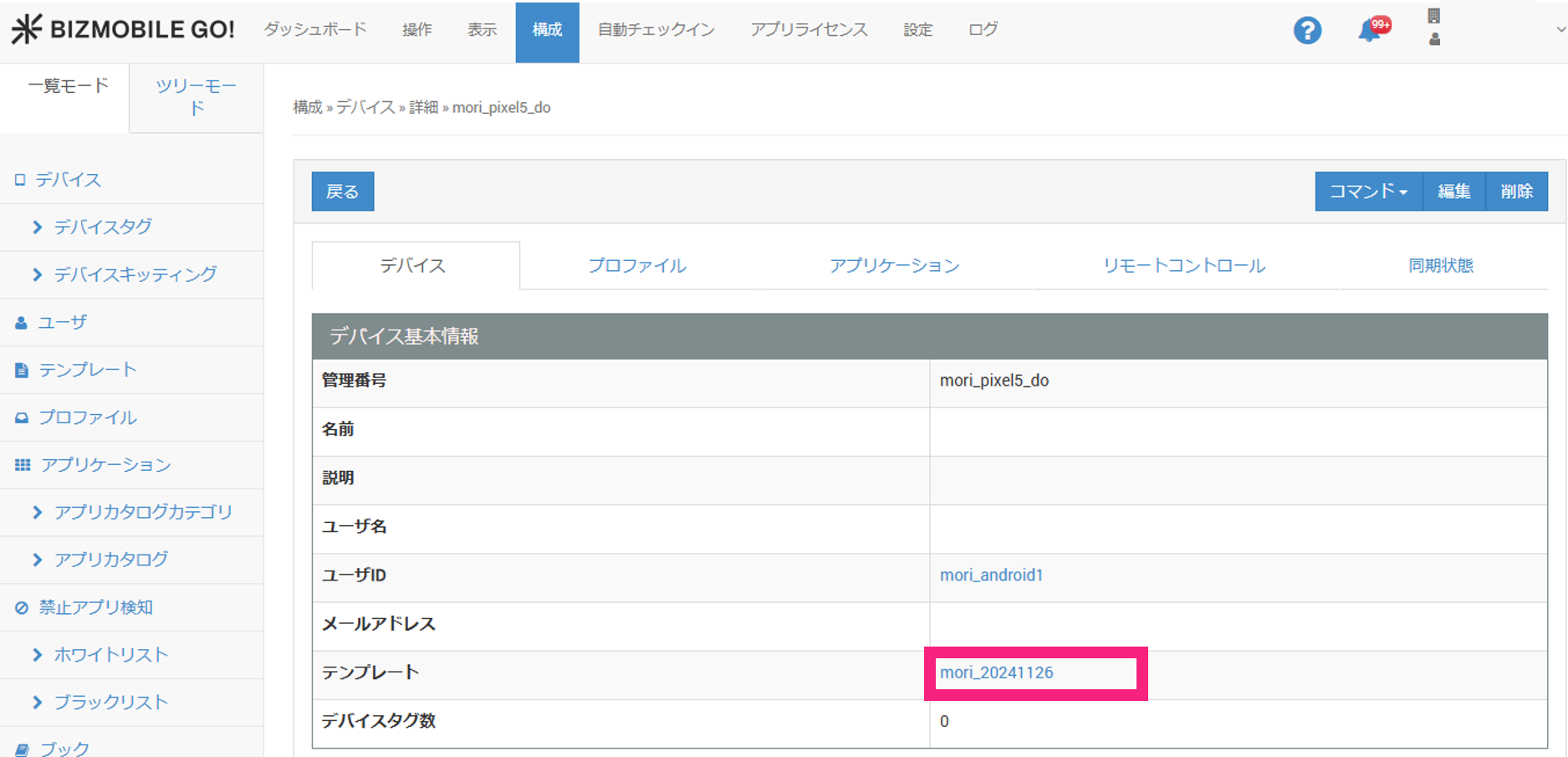
-
Click
Number of Profiles.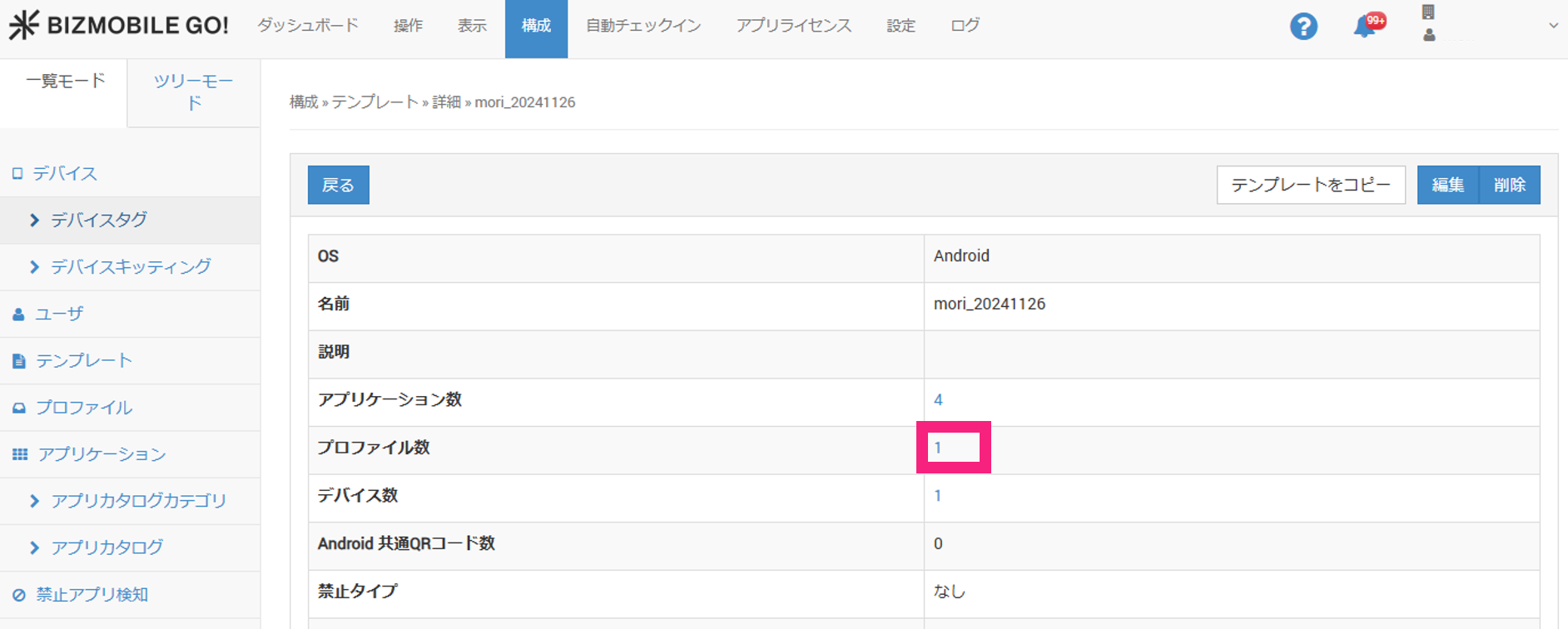
-
Click
Profile Name.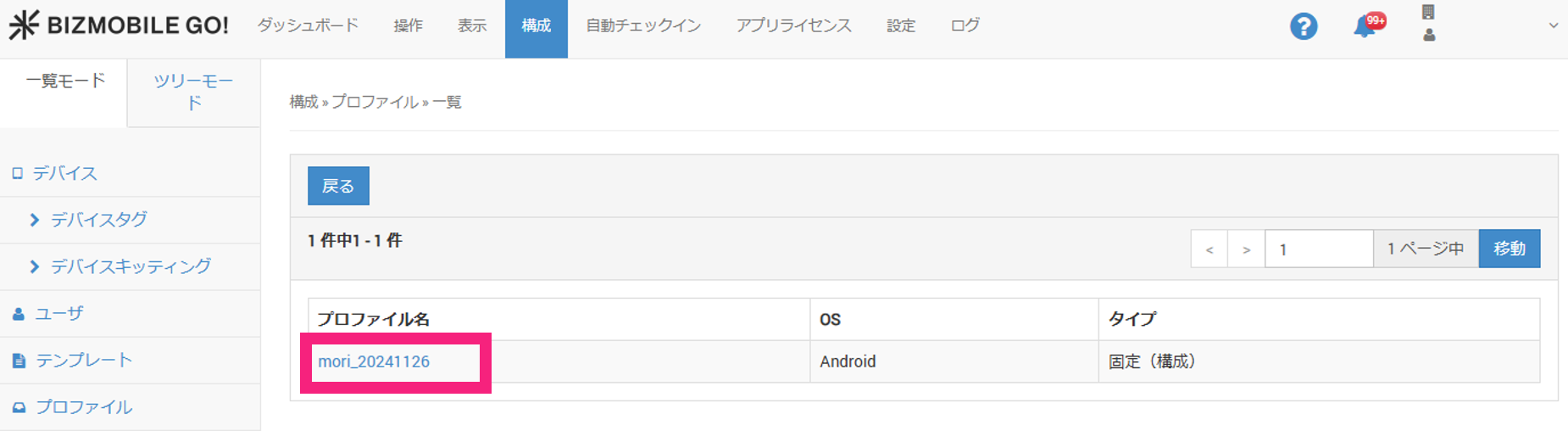
-
Click
Edit.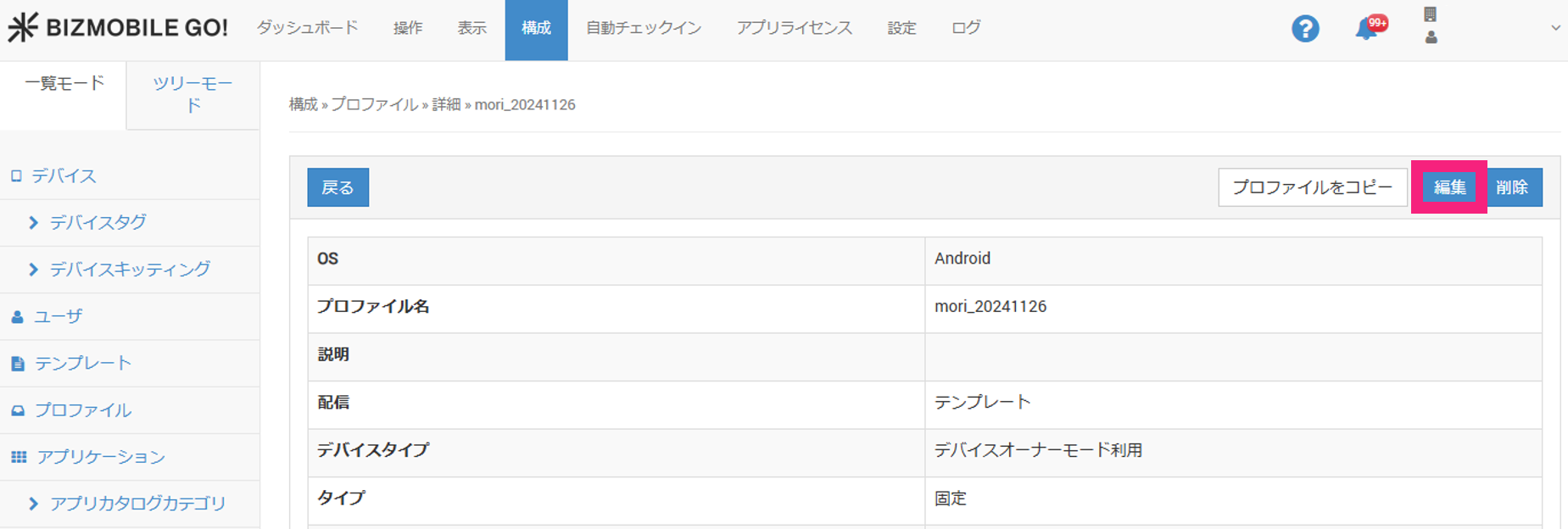
-
Click
Application Configuration.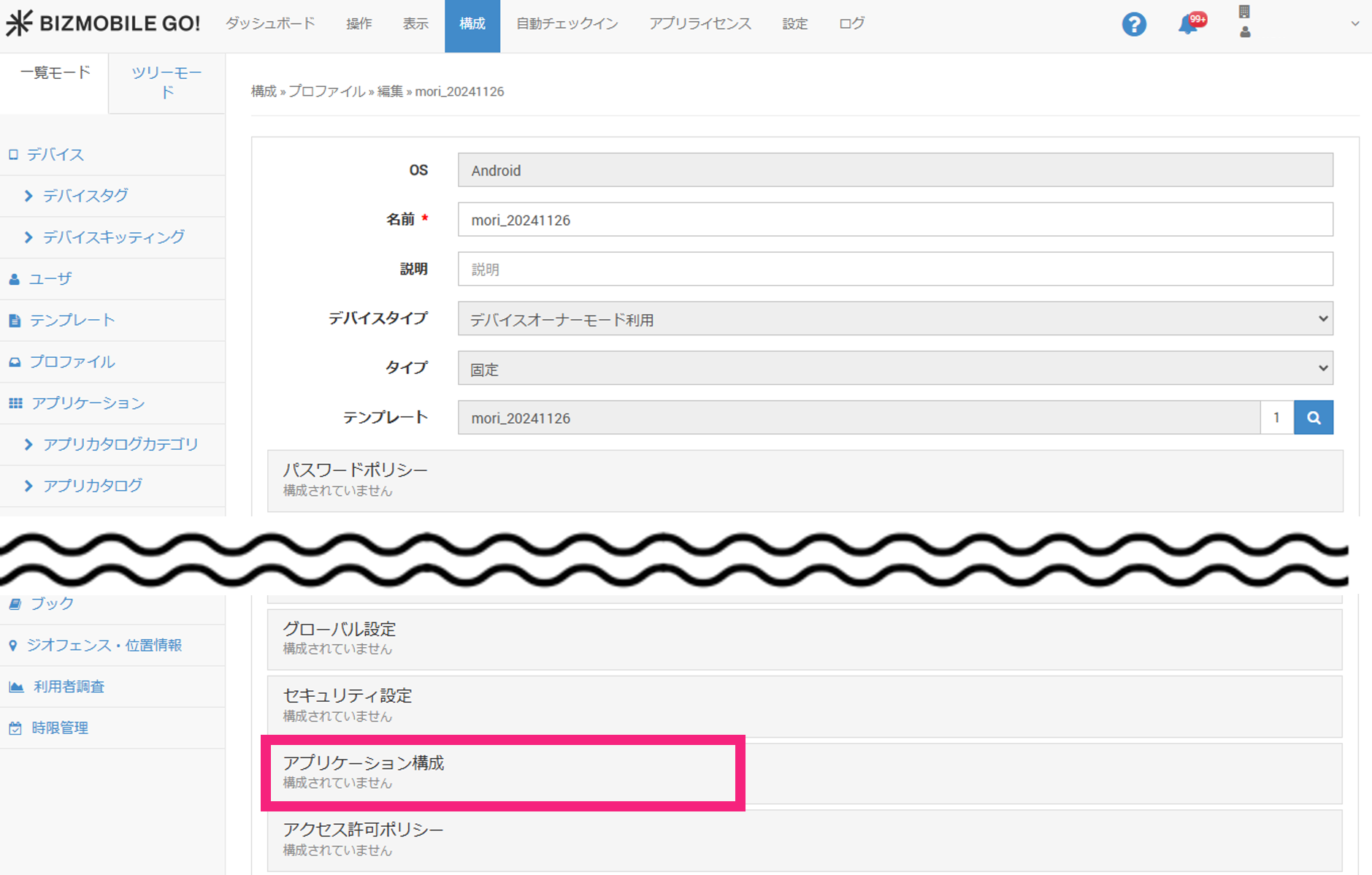
-
Click
Edit.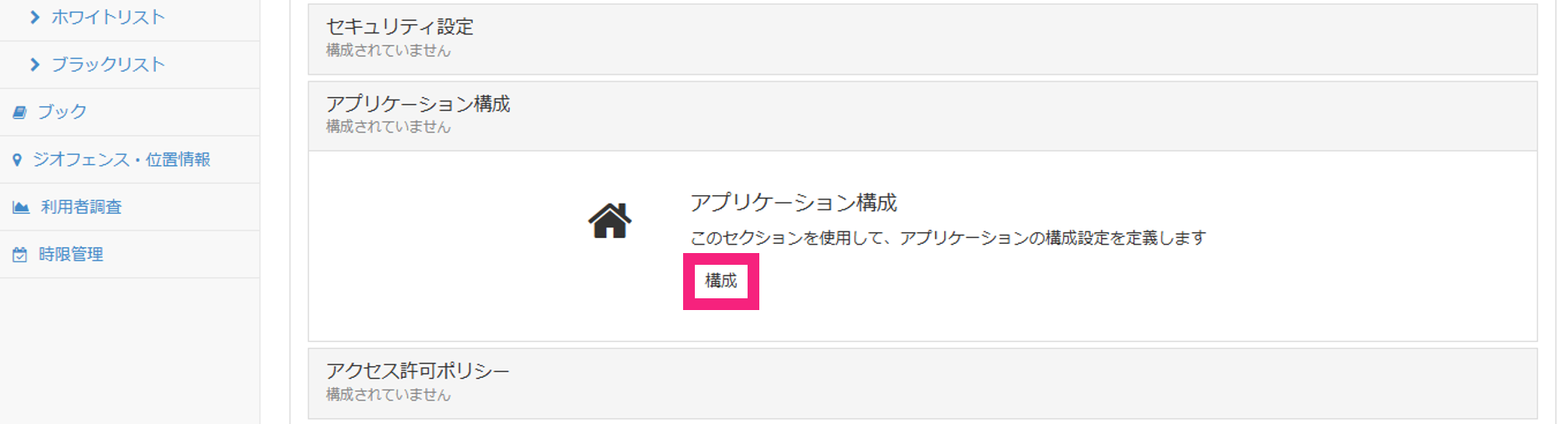
-
Click
Add App to Hide.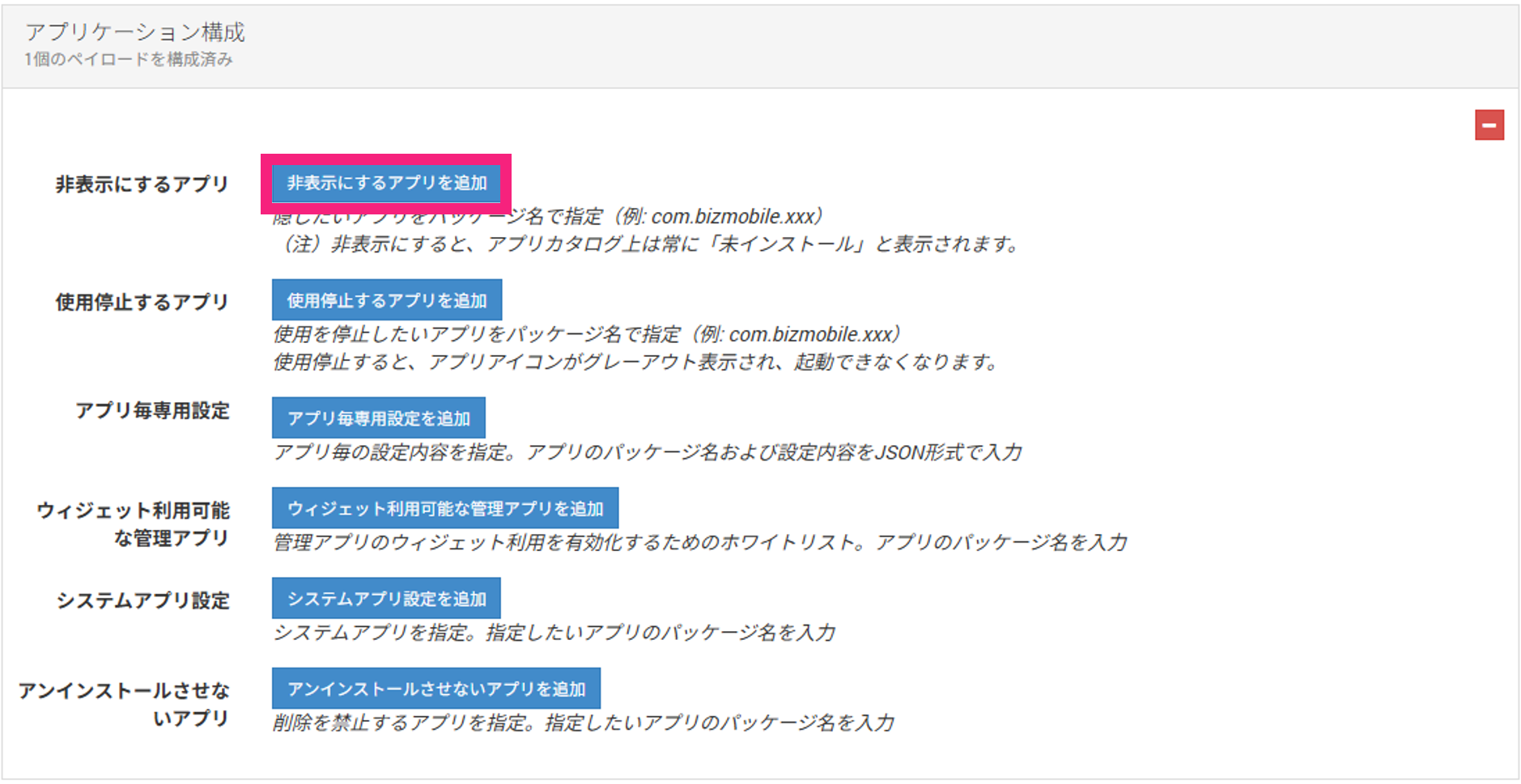
-
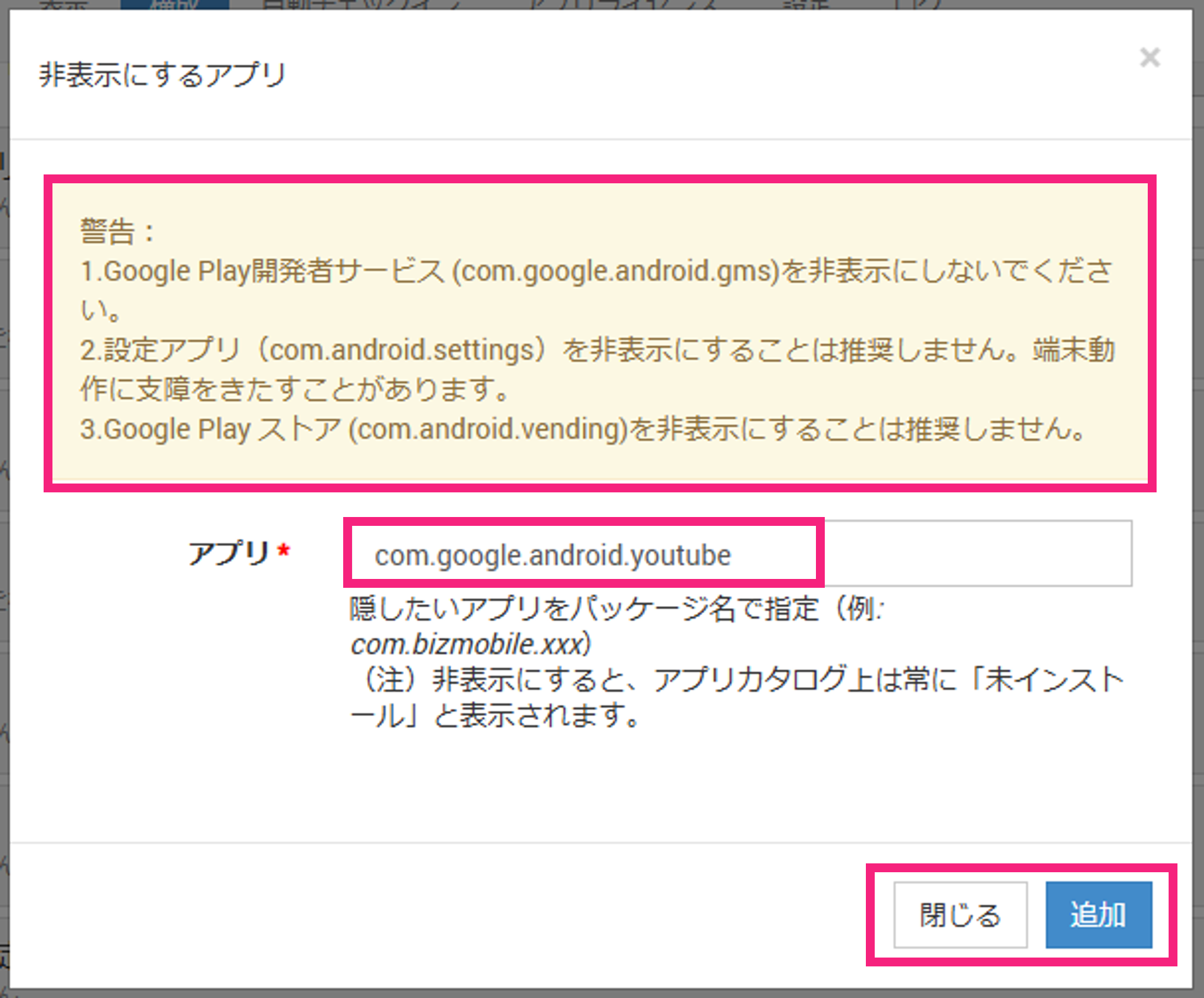
Read the warning, register the app's
Package Name, and then clickAdd→Close.Note: Depending on the device, hiding a system app may affect the operation of other apps. Before deploying to multiple devices, test on a test device first.
-
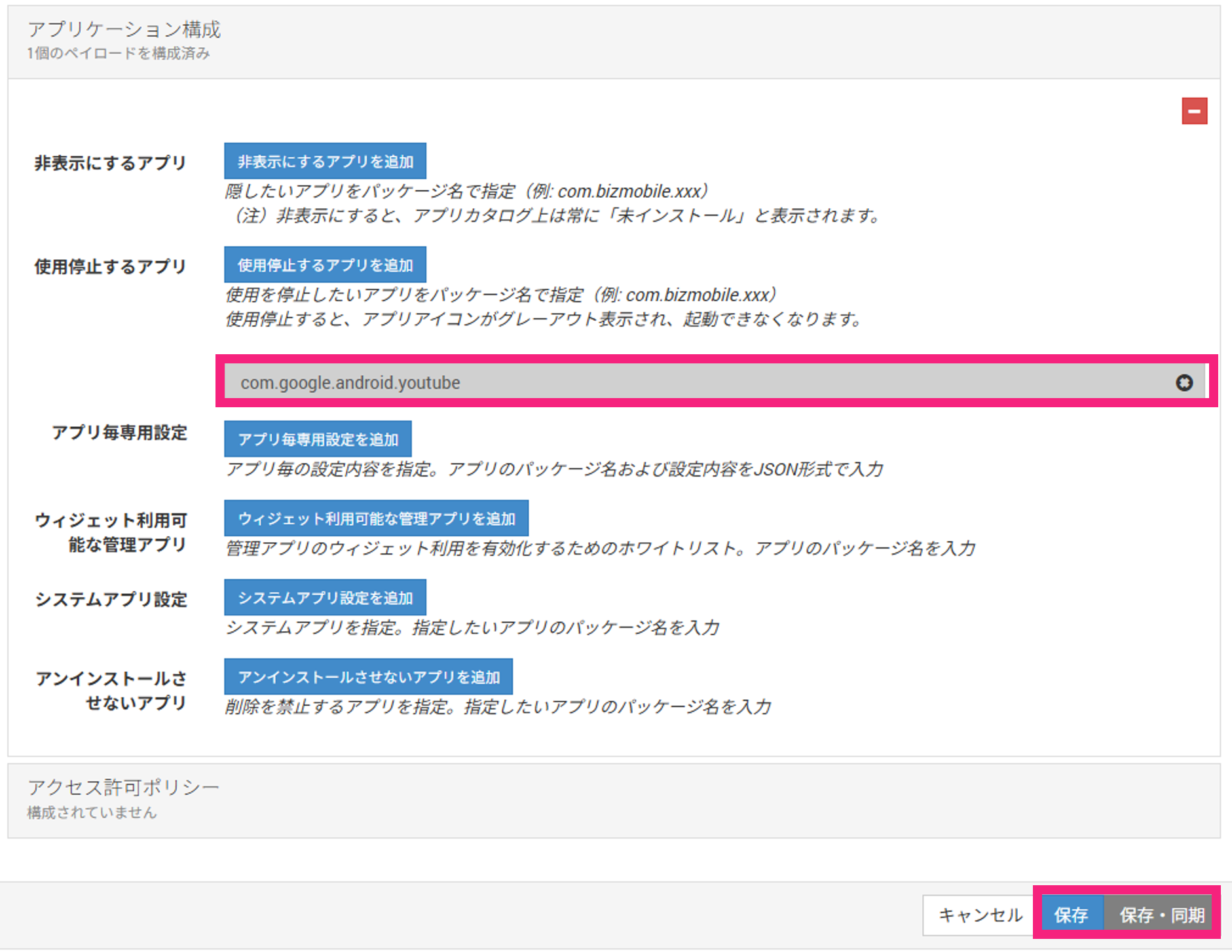
Confirm that the package name is displayed, and then click
SaveorSave & Sync.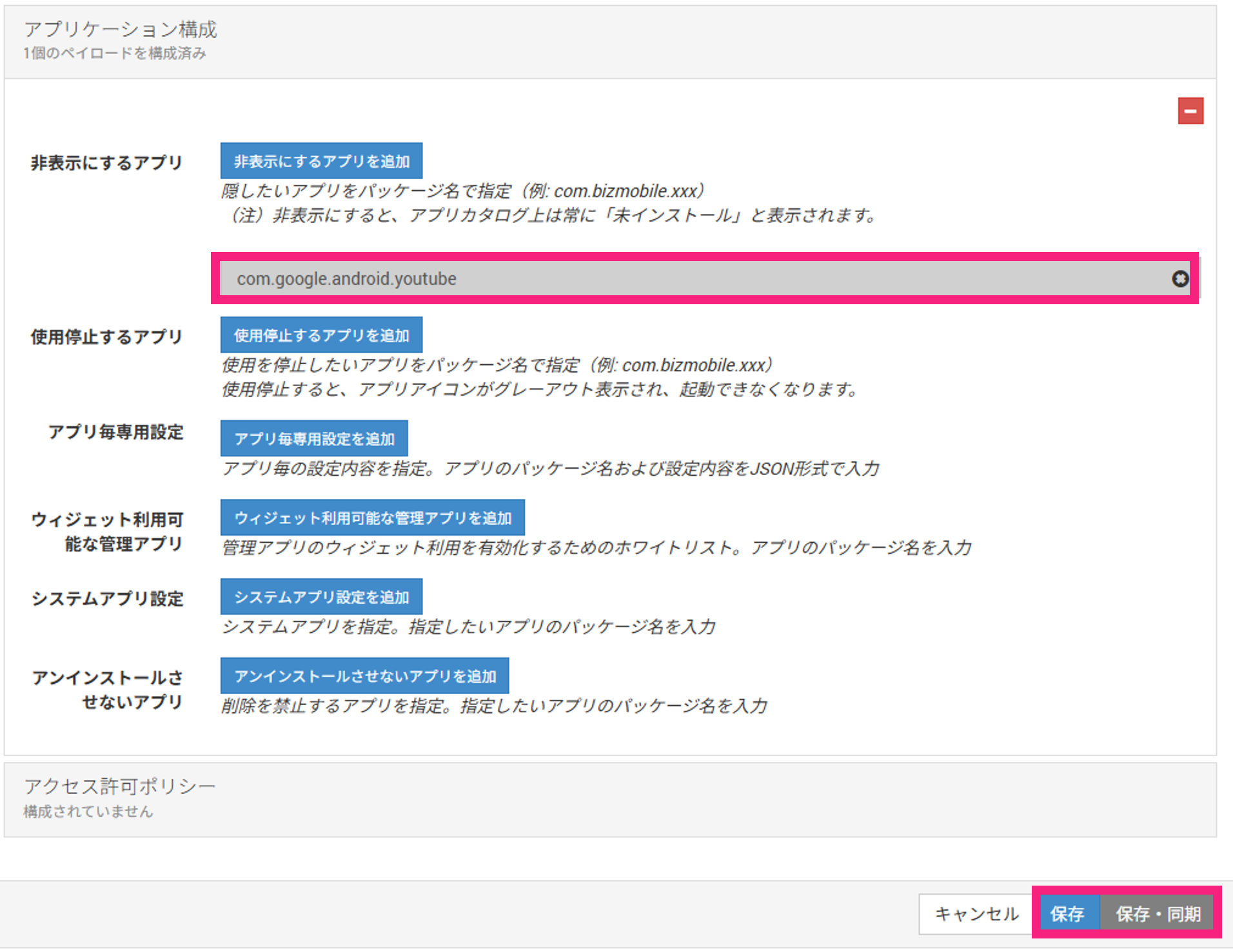
B. Register apps to disable
-
First, check the
Package Nameof the app to disable. In CONTROL > Sync, select the device whose app display you want to control from the device list. -
Click the
Applicationstab. -
Turn
Show system appsON. -
Copy the
Package Nameof the app to hide. -
Click the
Devicetab. -
Click
Template. -
Click
Number of Profiles. -
Click
Profile Name. -
Click
Edit. -
Click
Application Configuration. -
Click
Edit. -
Click
Add App to Disable.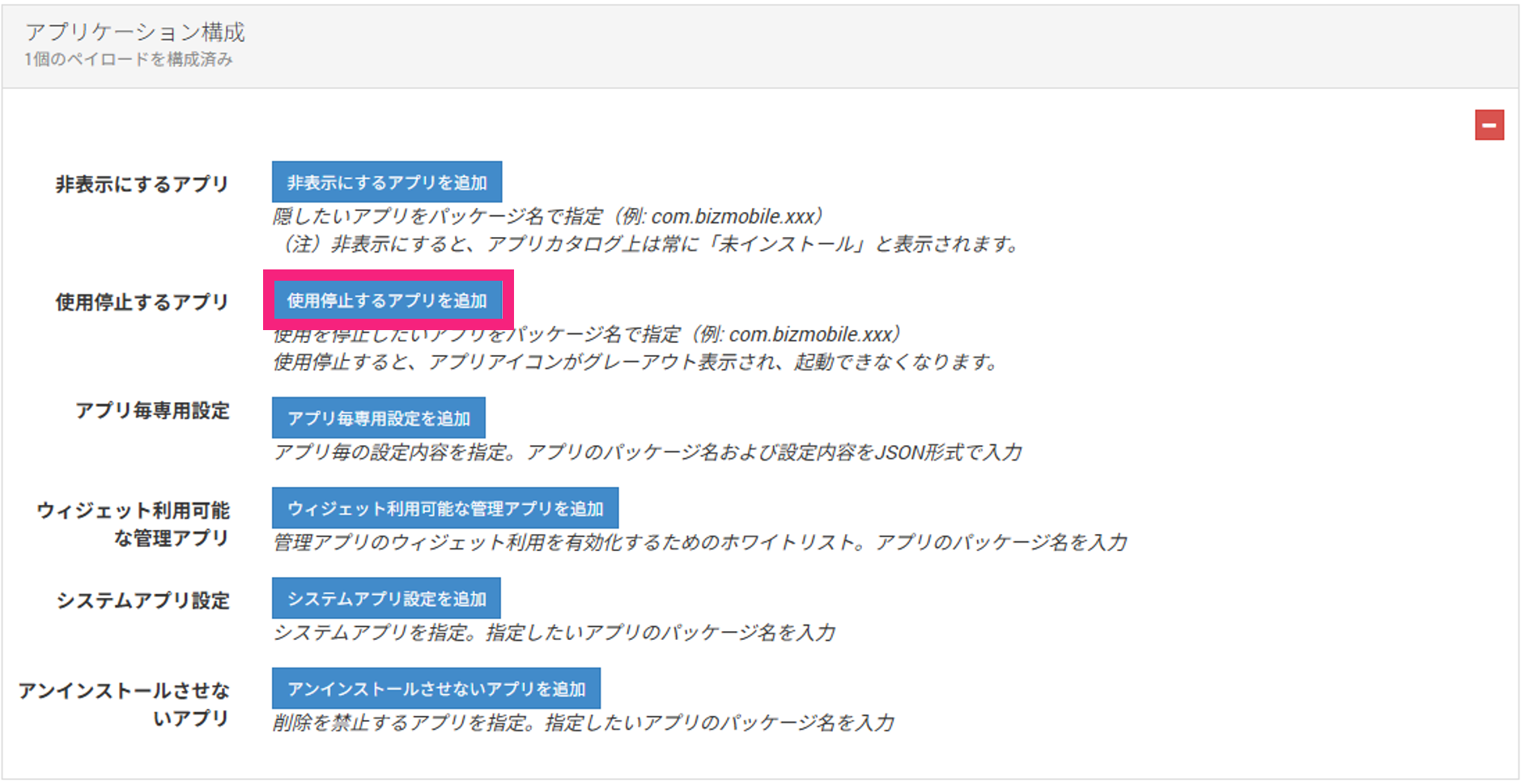
-
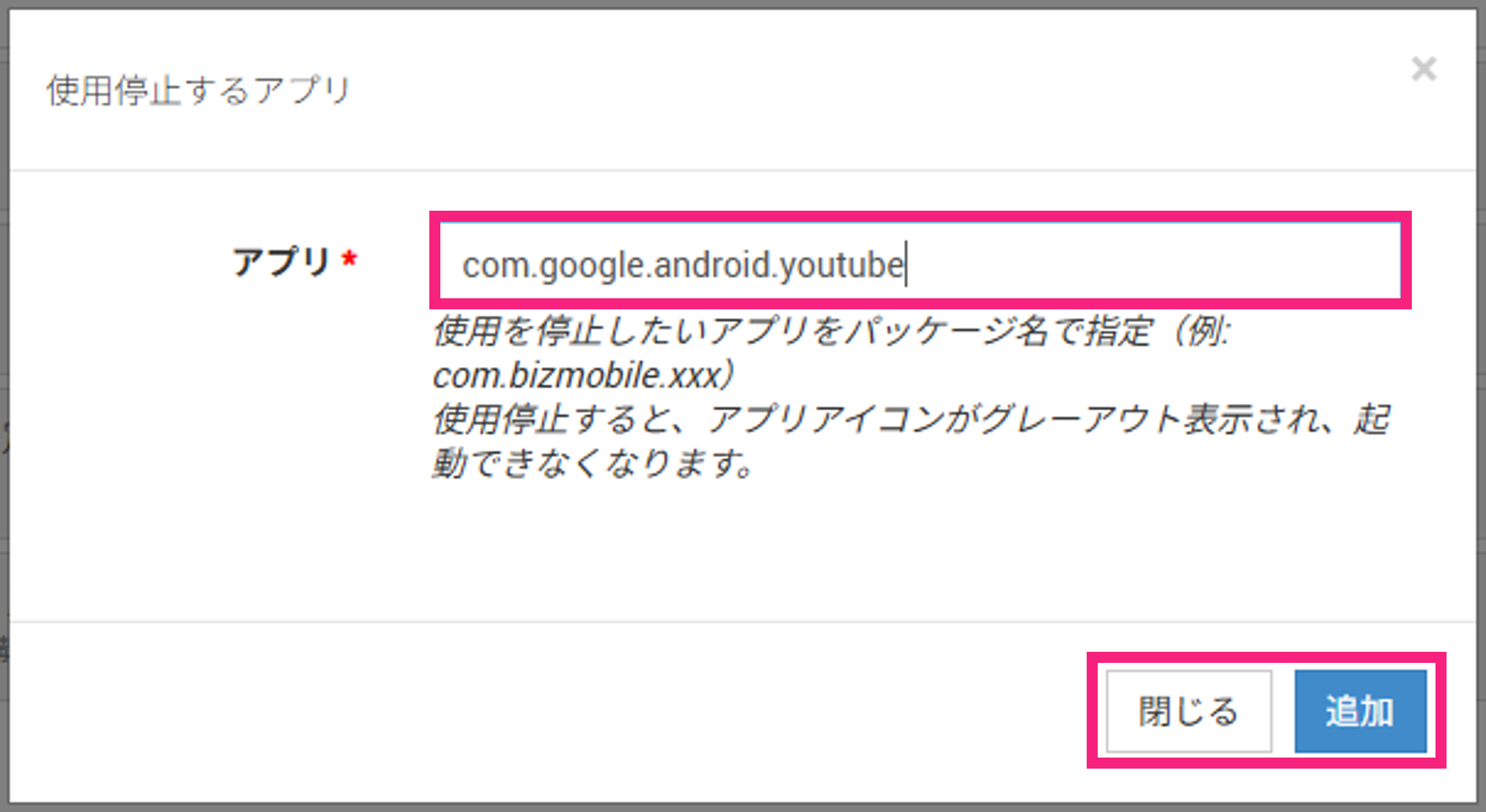
Read the warning, register the app's
Package Name, and then clickAdd→Close.Note: Depending on the device, hiding a system app may affect the operation of other apps. Before deploying to multiple devices, test on a test device first.
-
Confirm that the package name is displayed, and then click
SaveorSave & Sync.