Android
The screenshots in this manual show the Japanese version of each screen.

Set Up Kiosk Mode

Kiosk mode lets you display only specified apps on a device.
There are two types of Kiosk mode.

  • Multi App: Device Owner
    You can specify multiple apps to display on the home screen. To put the device into Multi App Kiosk mode, you also need to complete some steps on the device.
  • Single App: Android 9 or later, Device Owner only
    You can specify one app to display on the home screen. No steps on the device are required to put it into Single App Kiosk mode.

Multi App​

Device Owner

Settings in the admin console

  1. Click [Create] on the CONFIG → Profile screen.
 
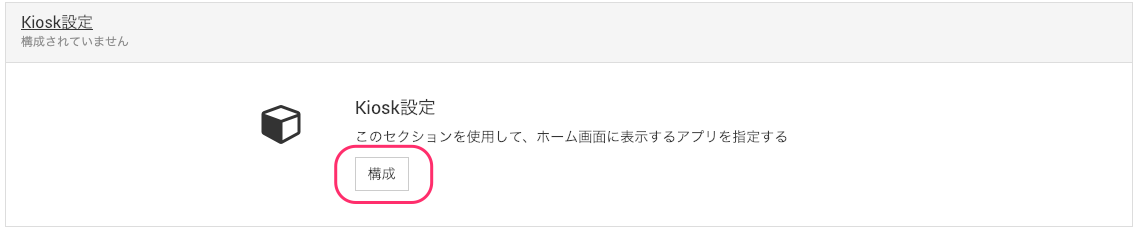
  1. On the profile creation screen, select Kiosk Settings and click [Configure].
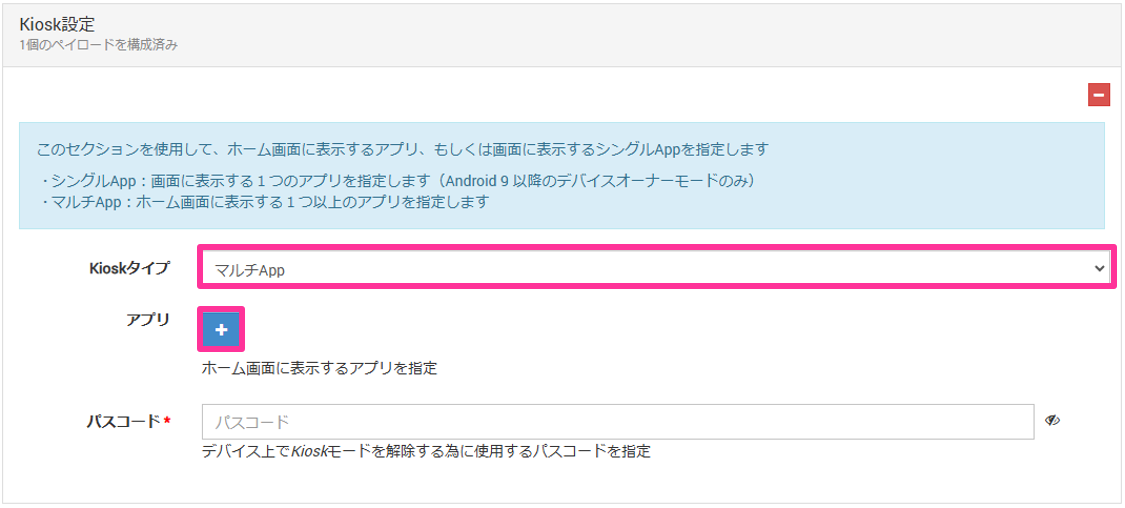
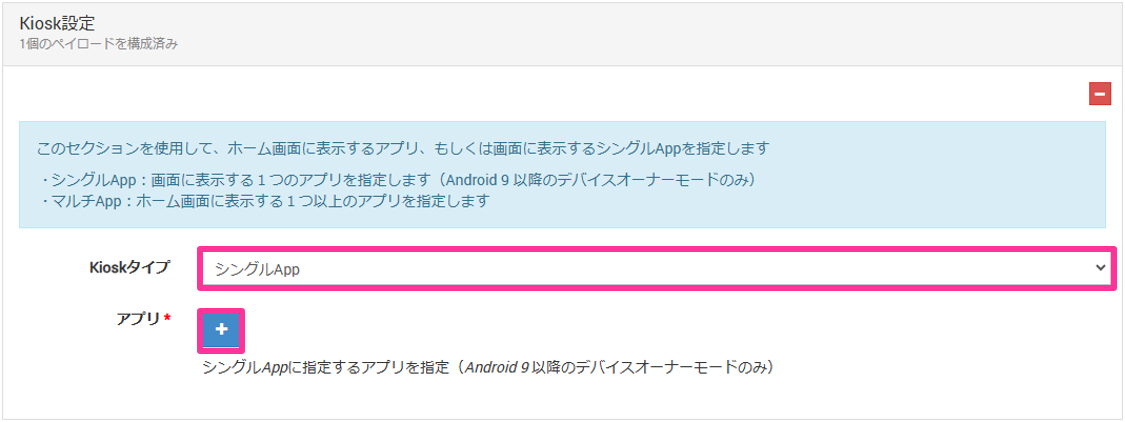
  1. Set Kiosk Type to Multi App.
    Under the app item, click and specify the apps to display on the home screen.
    Note: If you select an app that is not installed on the device, the app is not displayed.
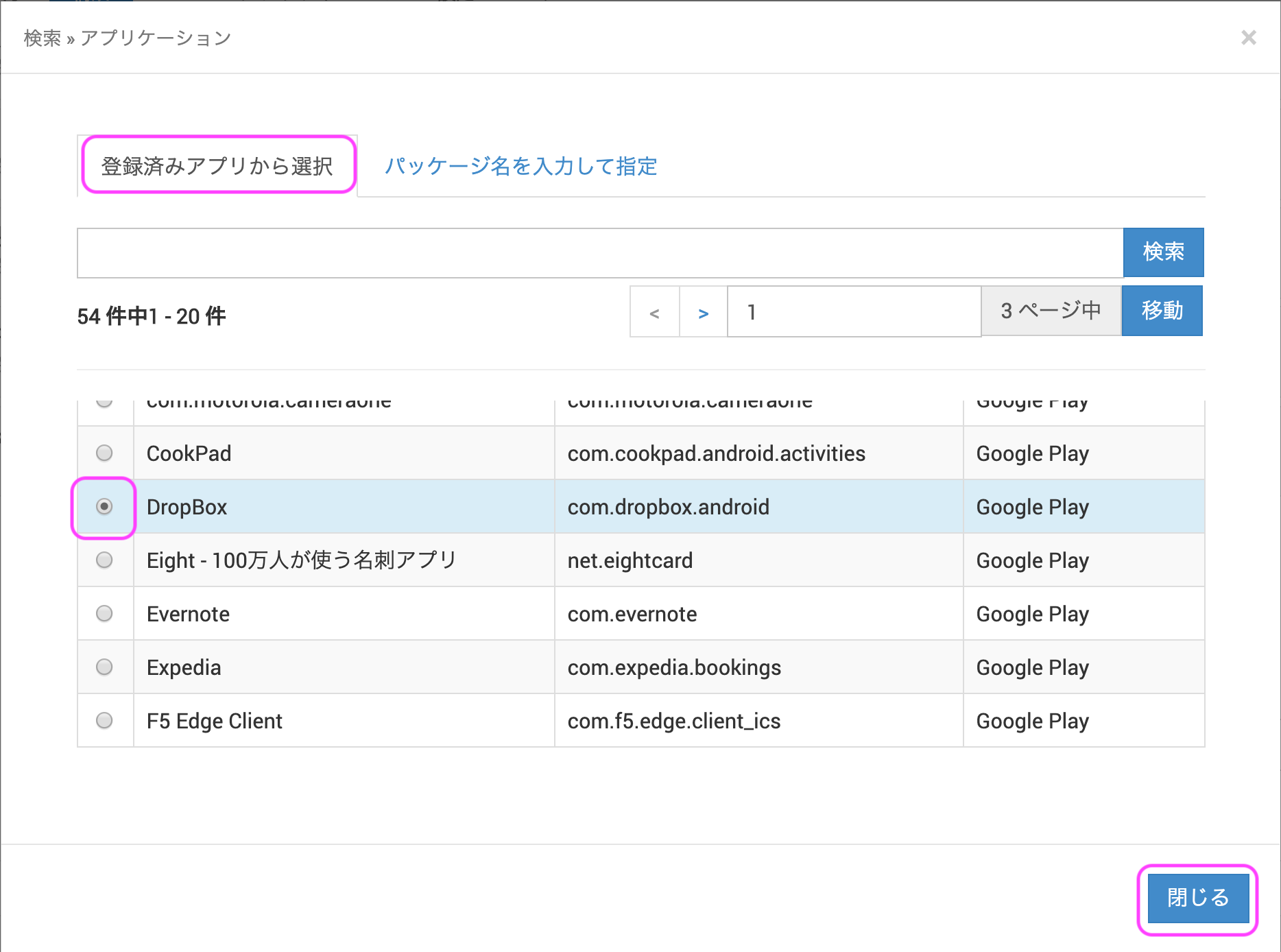
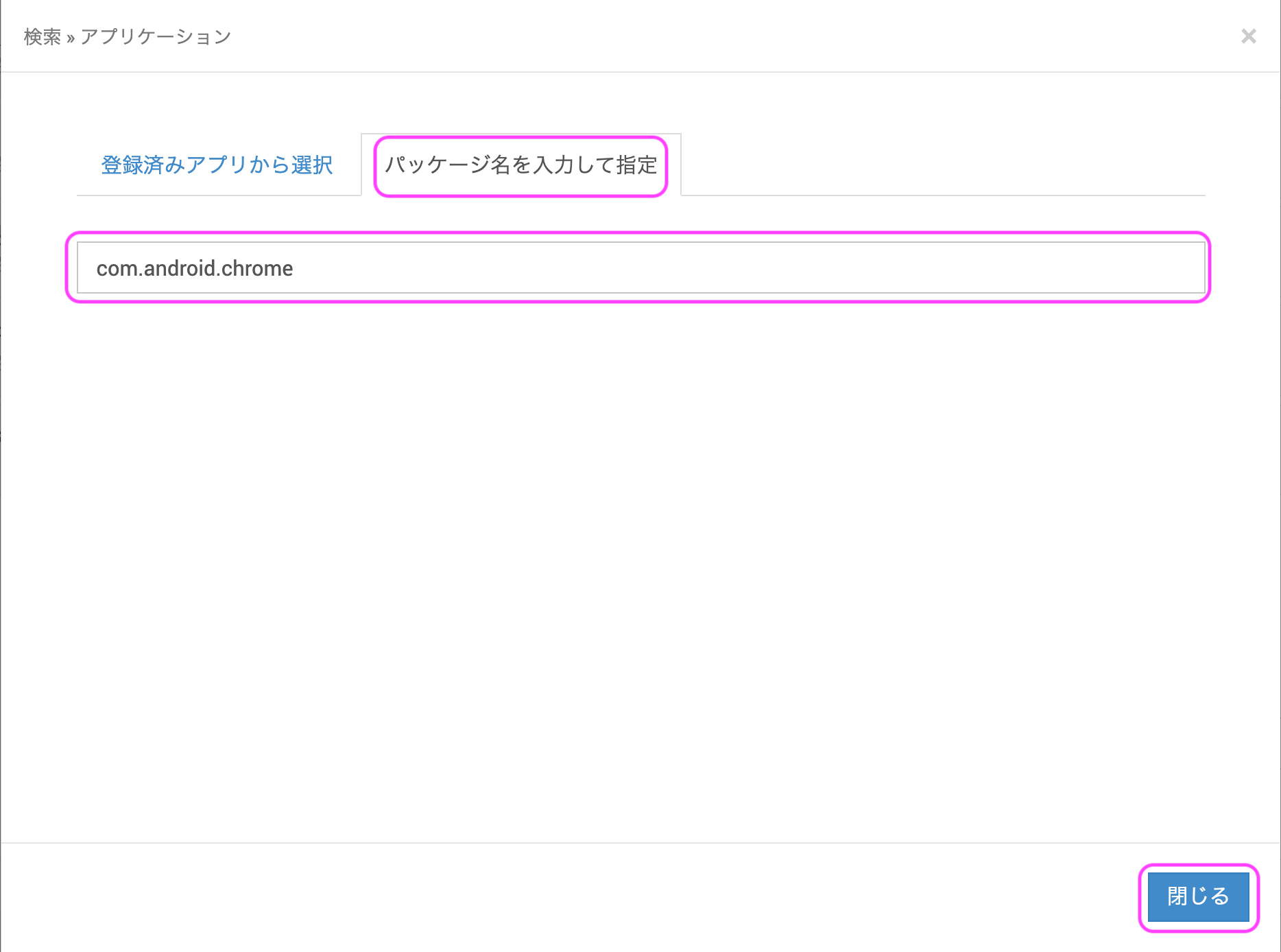
  1. Select the app to set for Multi App and click [Close].
    To specify an unregistered app, enter the package name of the app and click [Close].

    To display multiple apps, repeat steps 3 and 4.

- Selecting from registered apps

- Specifying by entering a package name
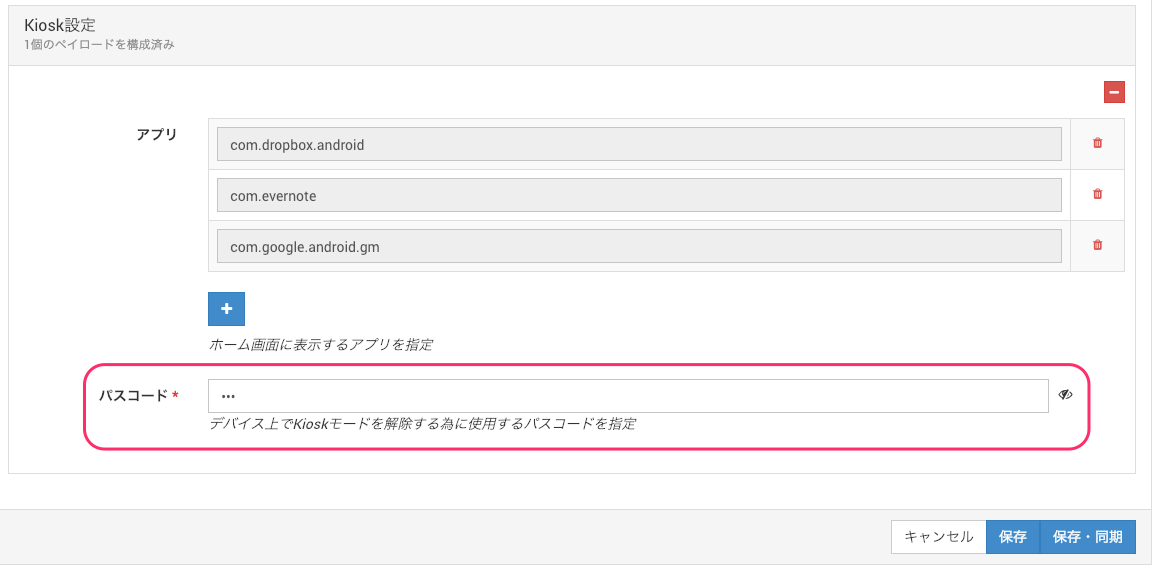
  1. After you finish specifying the apps, set a passcode.
    The passcode set here is used to exit Kiosk mode on the device.
    When the device user needs to exit, give them the passcode and have them enter it to return to the normal screen.

Steps on the device

The screenshots show a Nexus 5 running Android 6.0.
The display may differ depending on the model and OS.

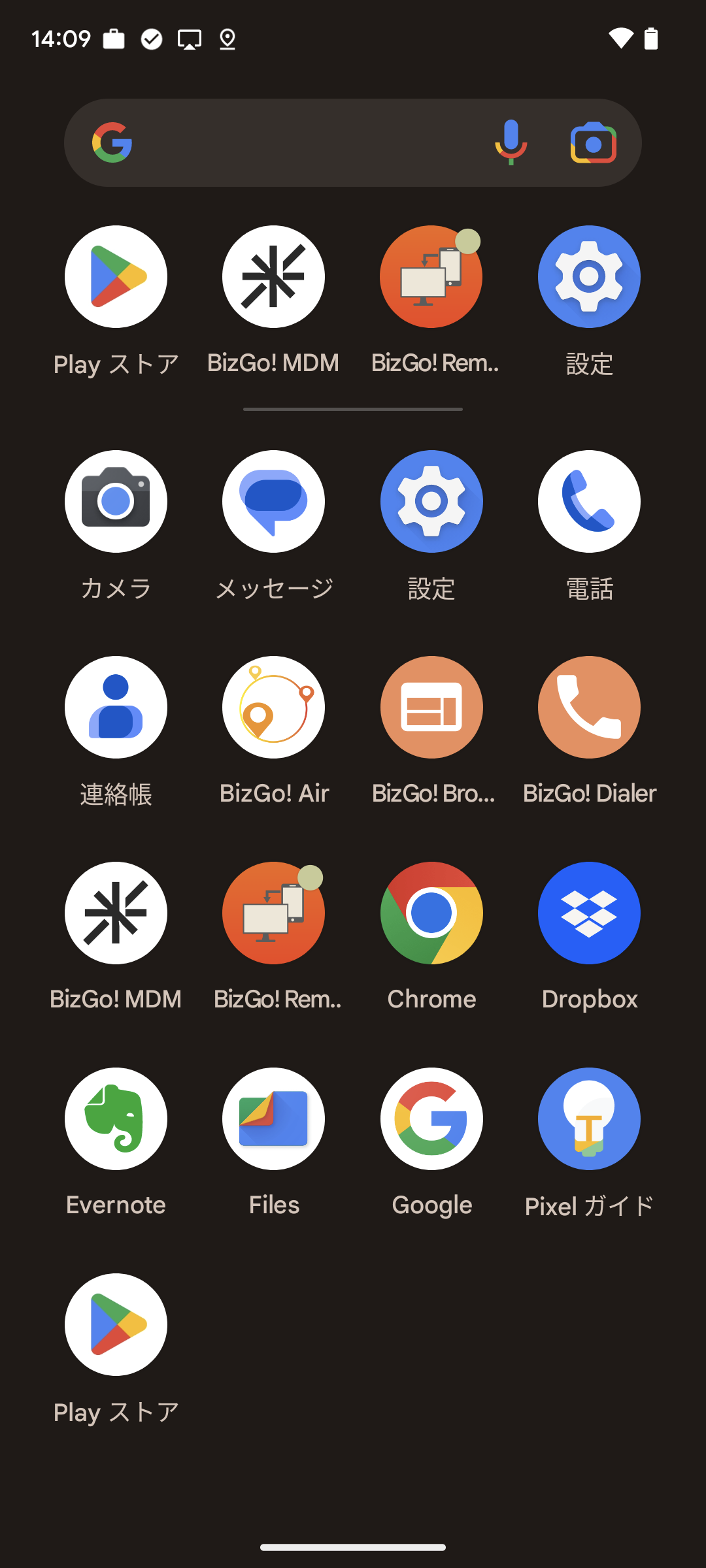
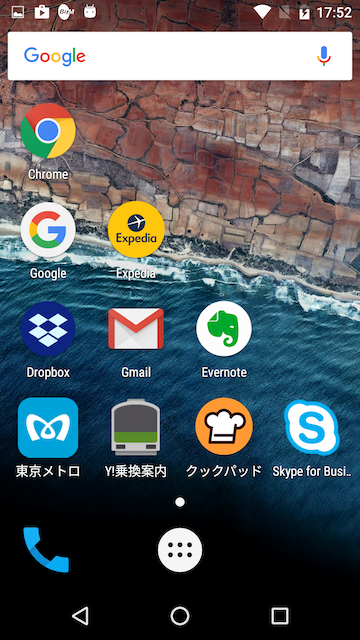
  1. This is the normal screen before the Kiosk mode settings are applied.
    Note: After a profile with Kiosk mode settings is distributed to the device, you must complete the setup on the device.
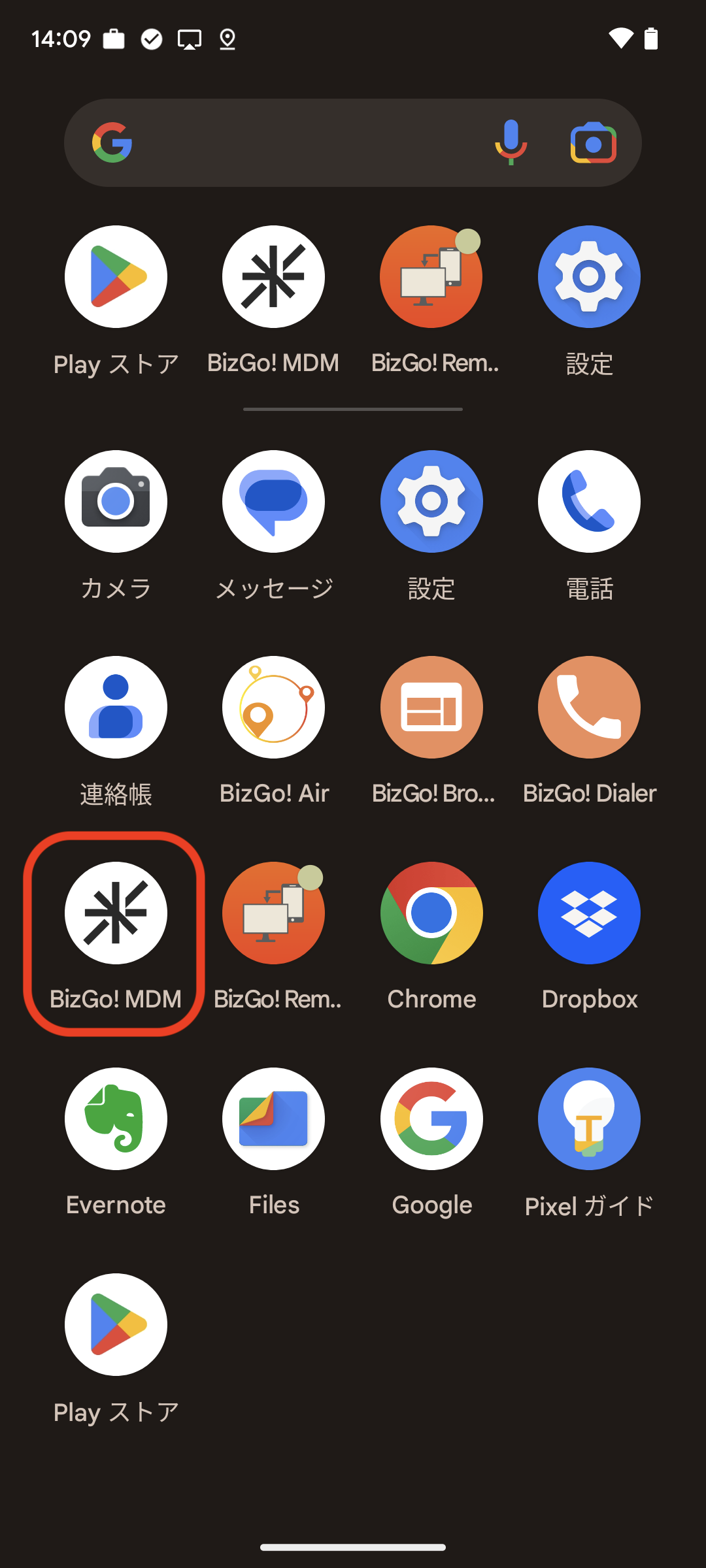
  1. Tap the BizGo! MDM agent app.
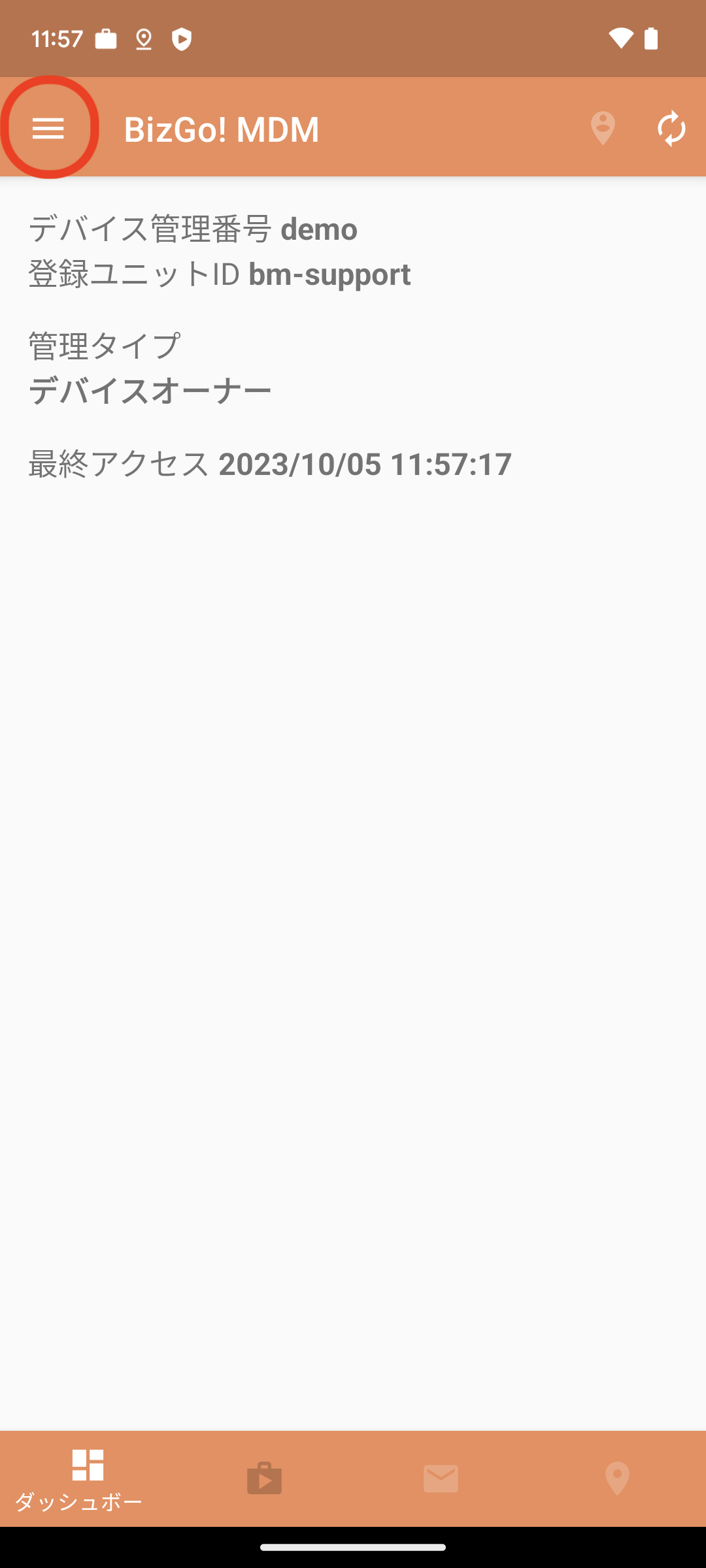
  1. Tap the menu at the upper left of the dashboard.
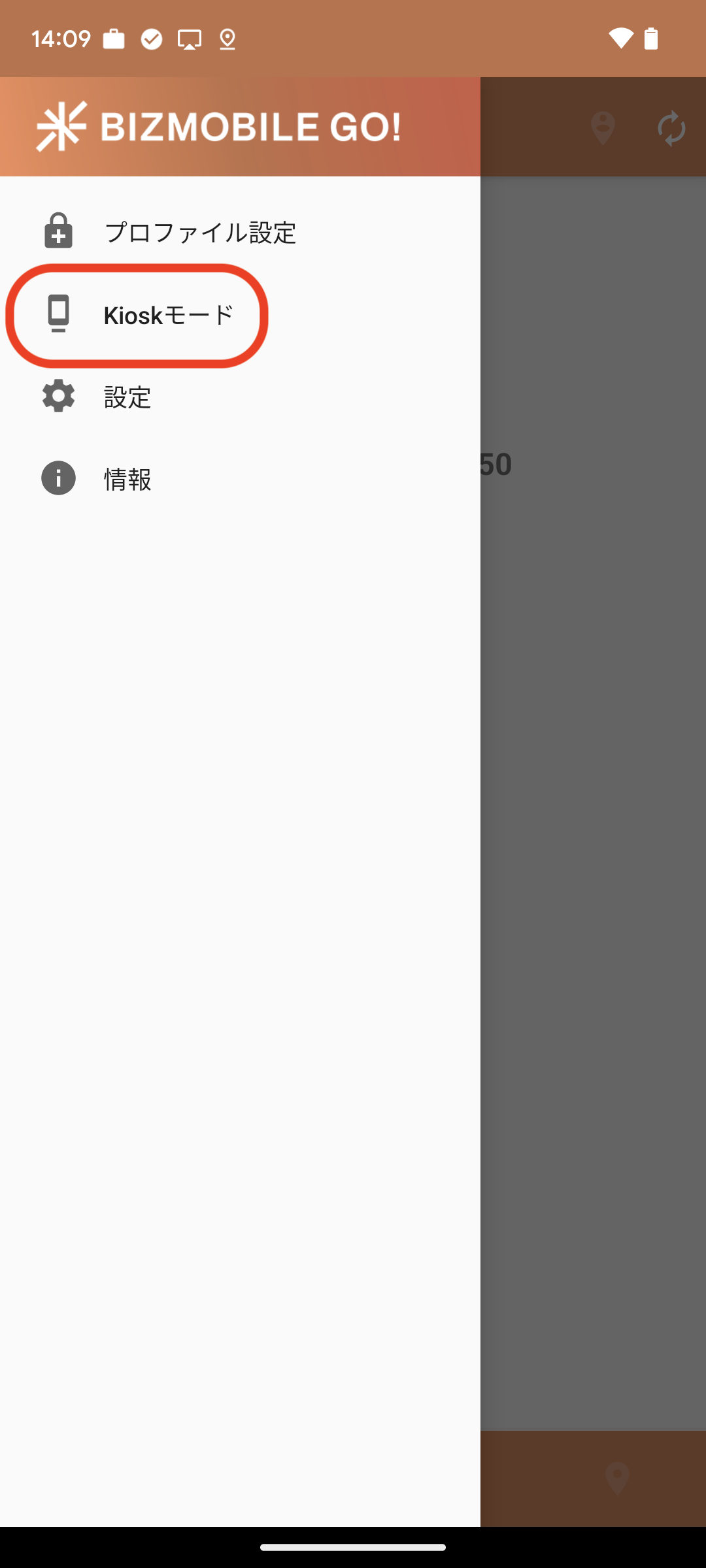
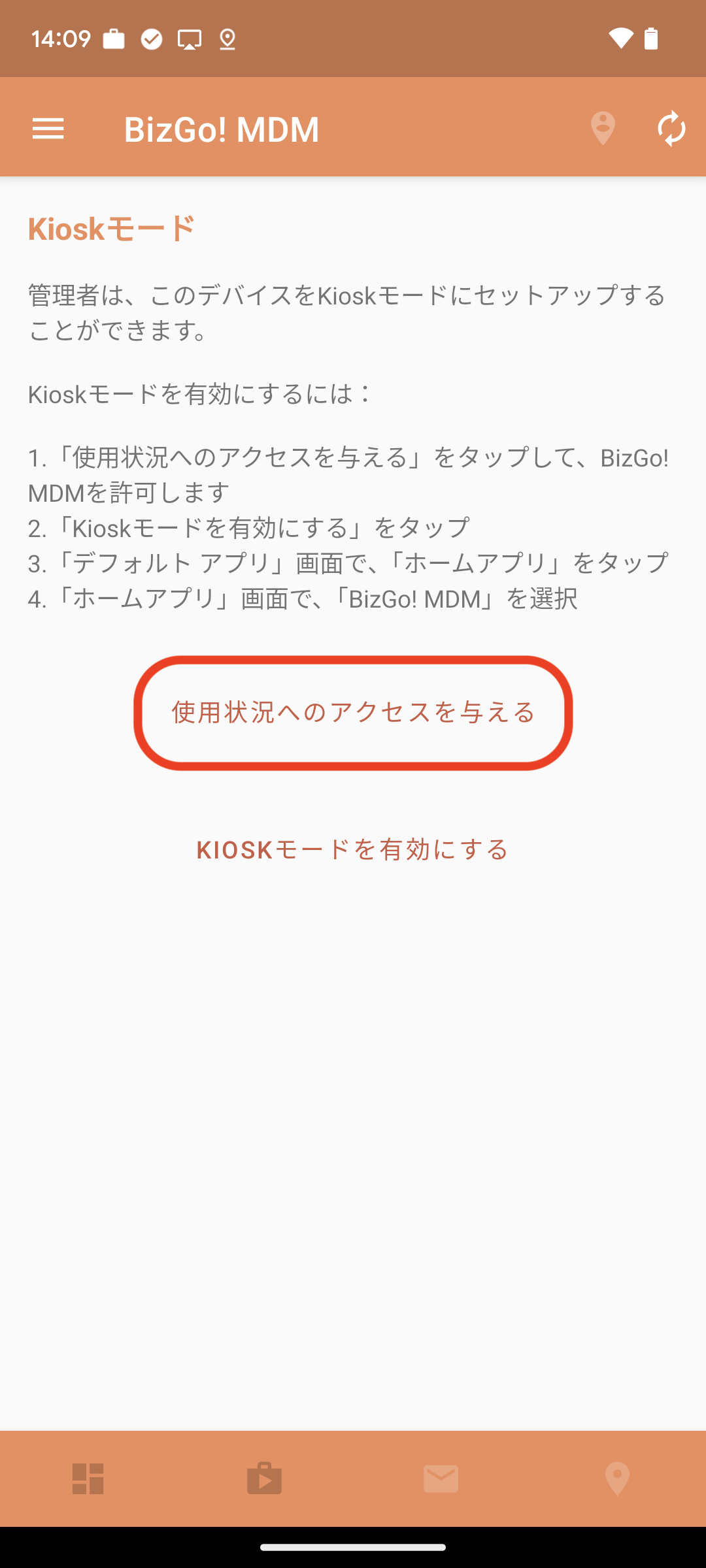
  1. Tap Kiosk mode.
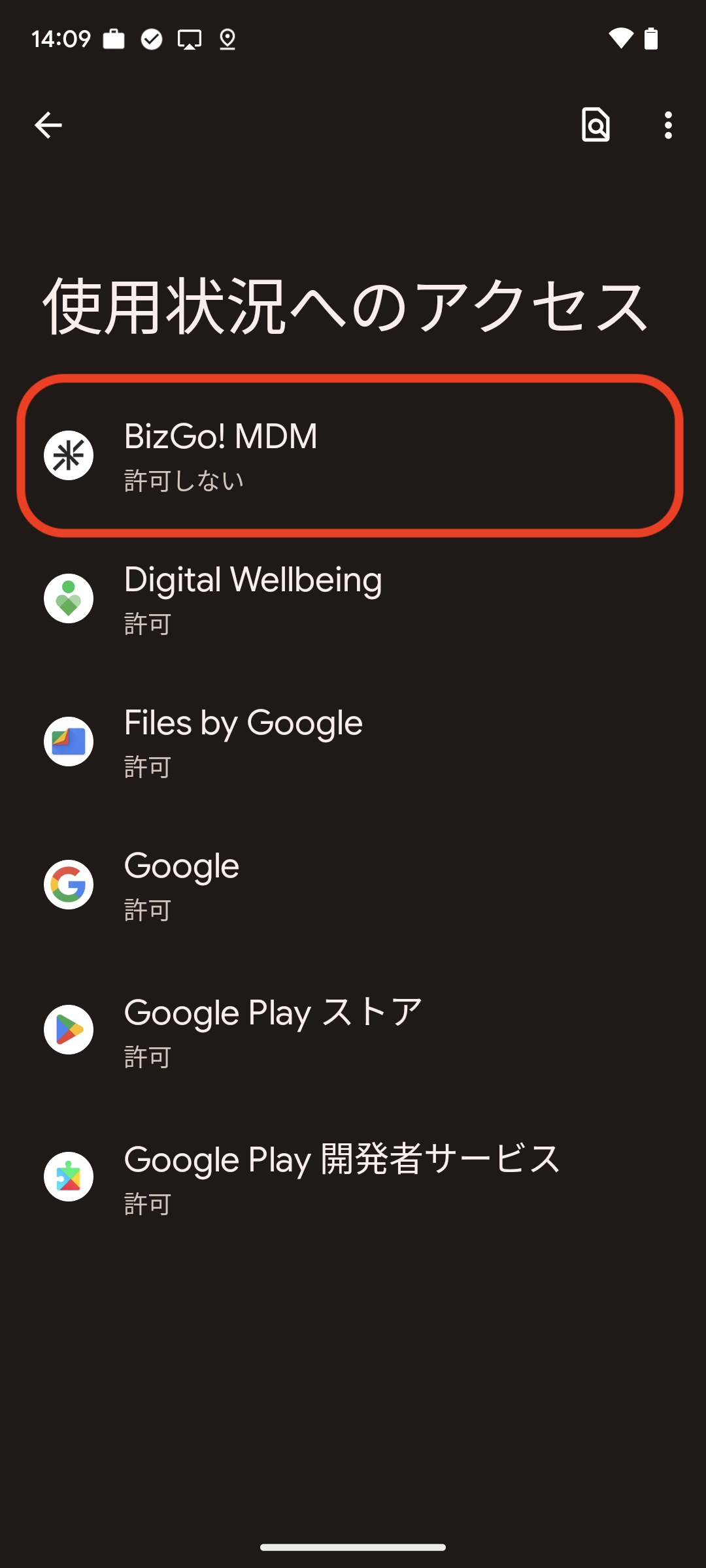
  1. Tap Grant usage access.
  1. Tap BizGo! MDM.
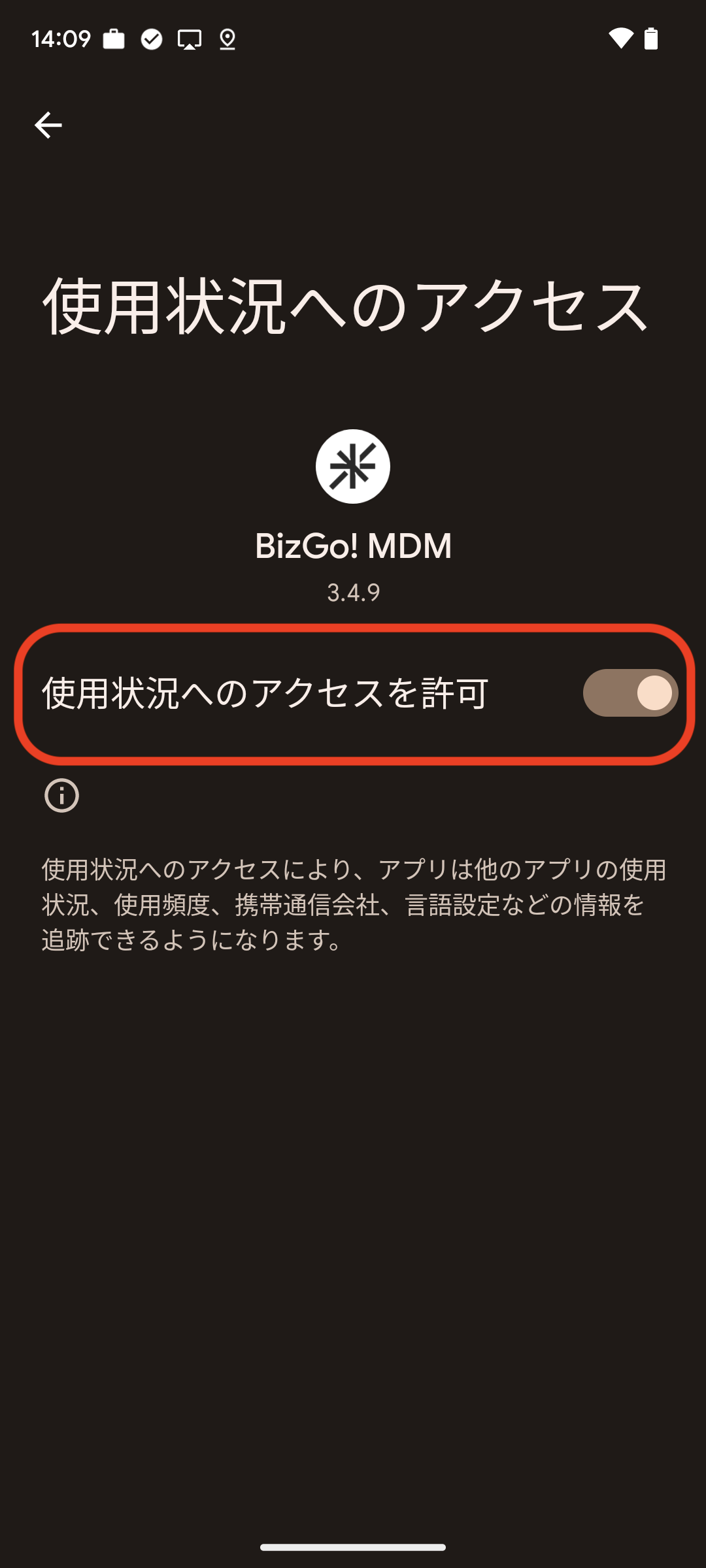
  1. Allow usage access.
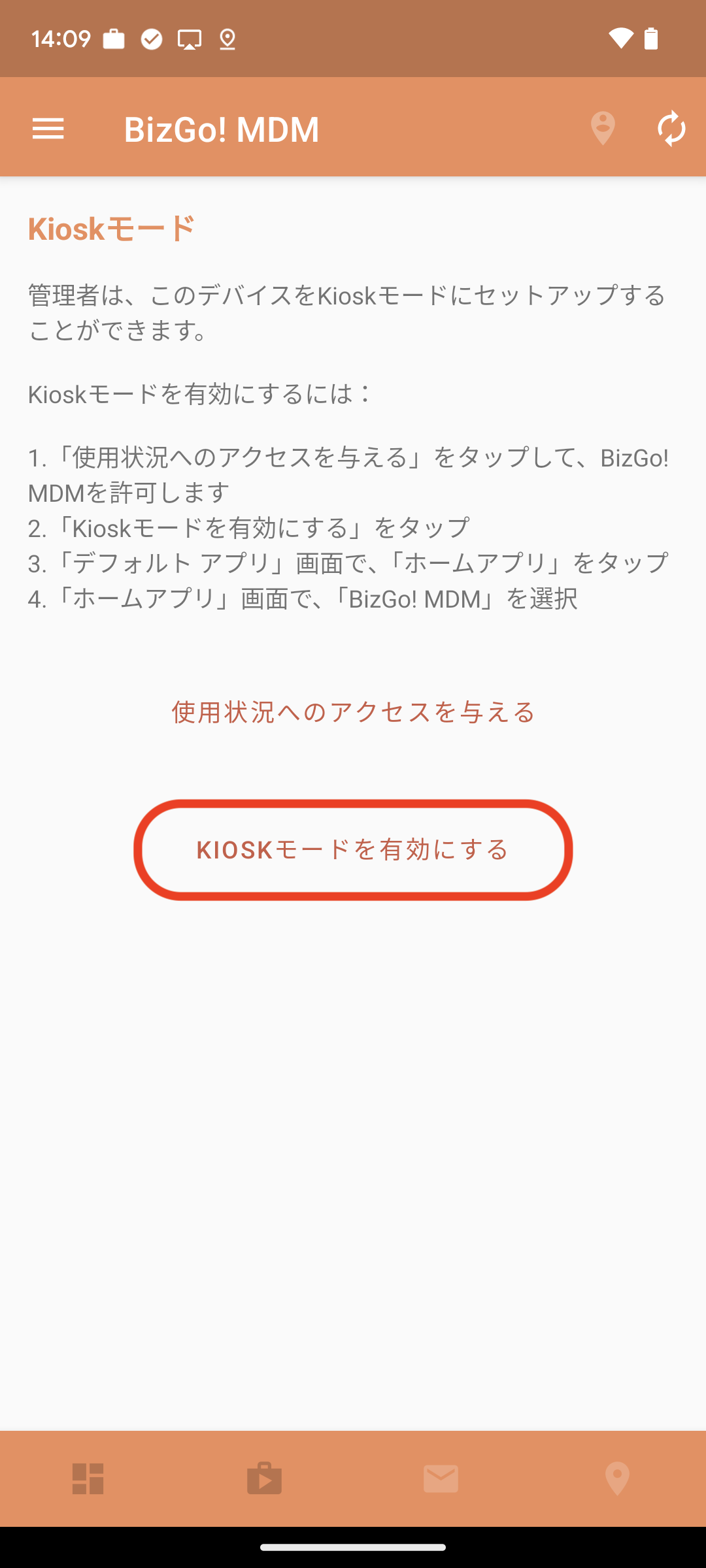
  1. Tap Enable Kiosk mode.
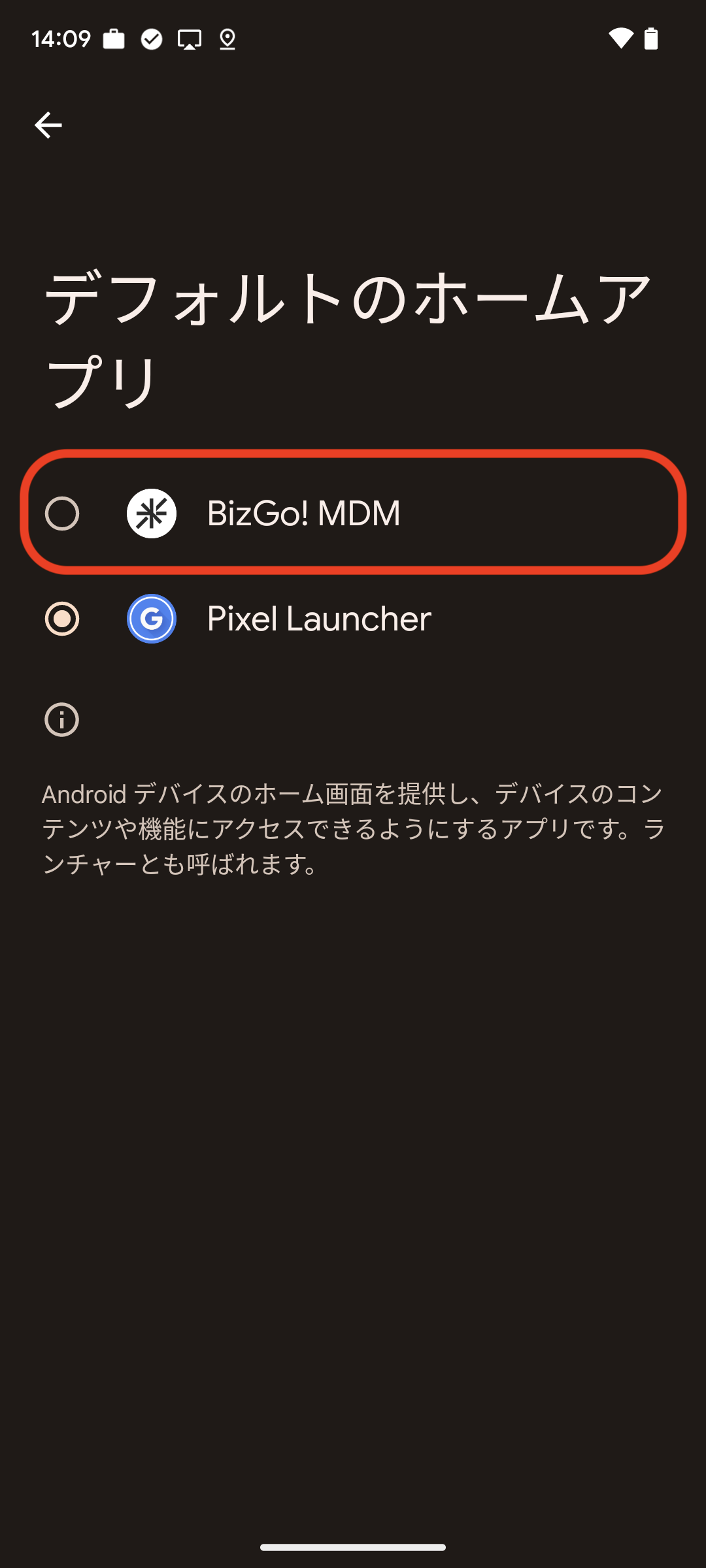
  1. Set BizGo! MDM as the home app and return to the home screen.
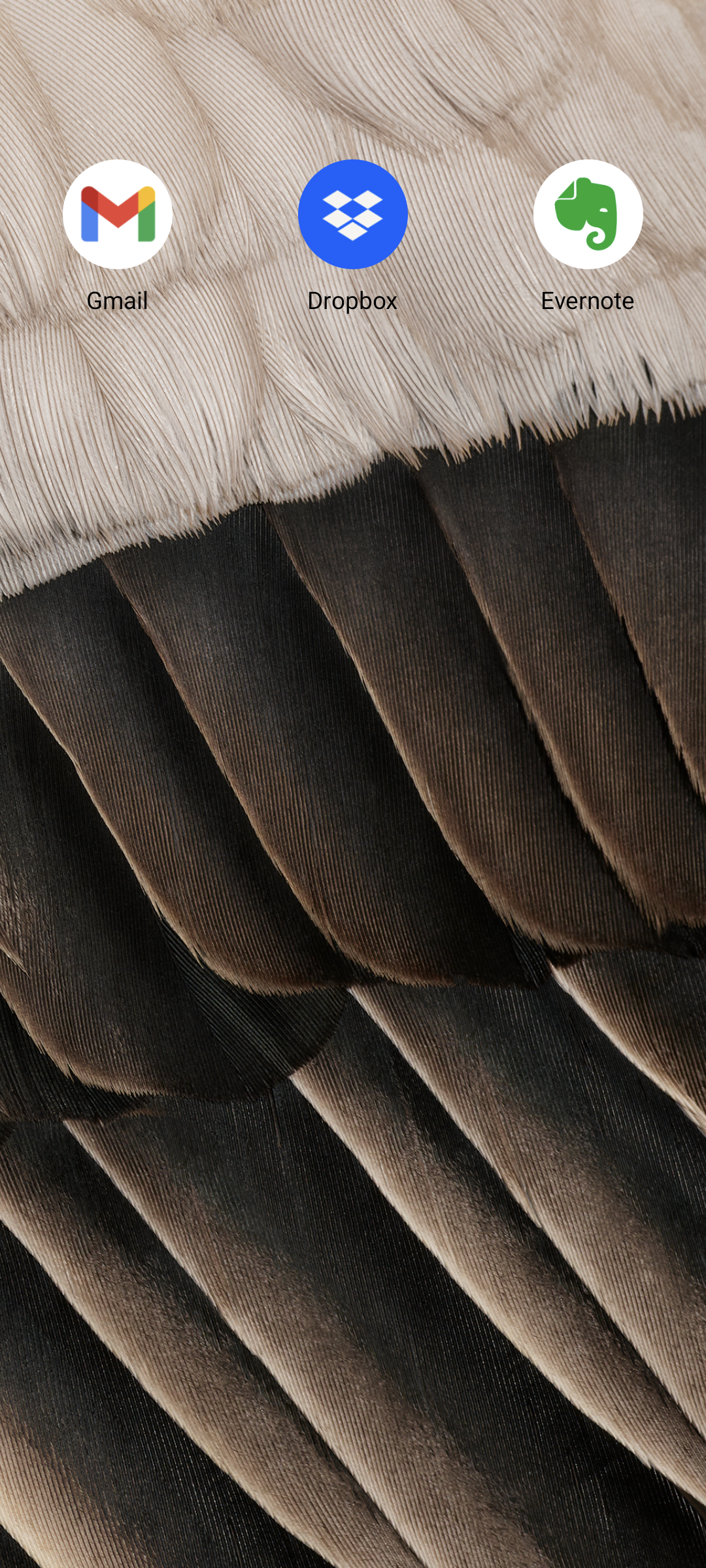
  1. Kiosk mode setup is now complete.
    Only the apps specified in the profile are displayed, and no other apps can be used.

How to exit Kiosk mode

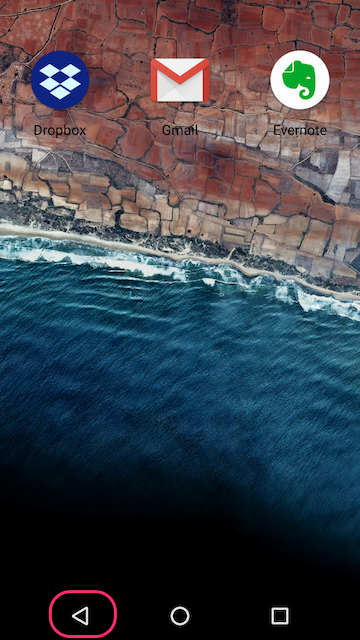
  1. Tap the Back button several times.
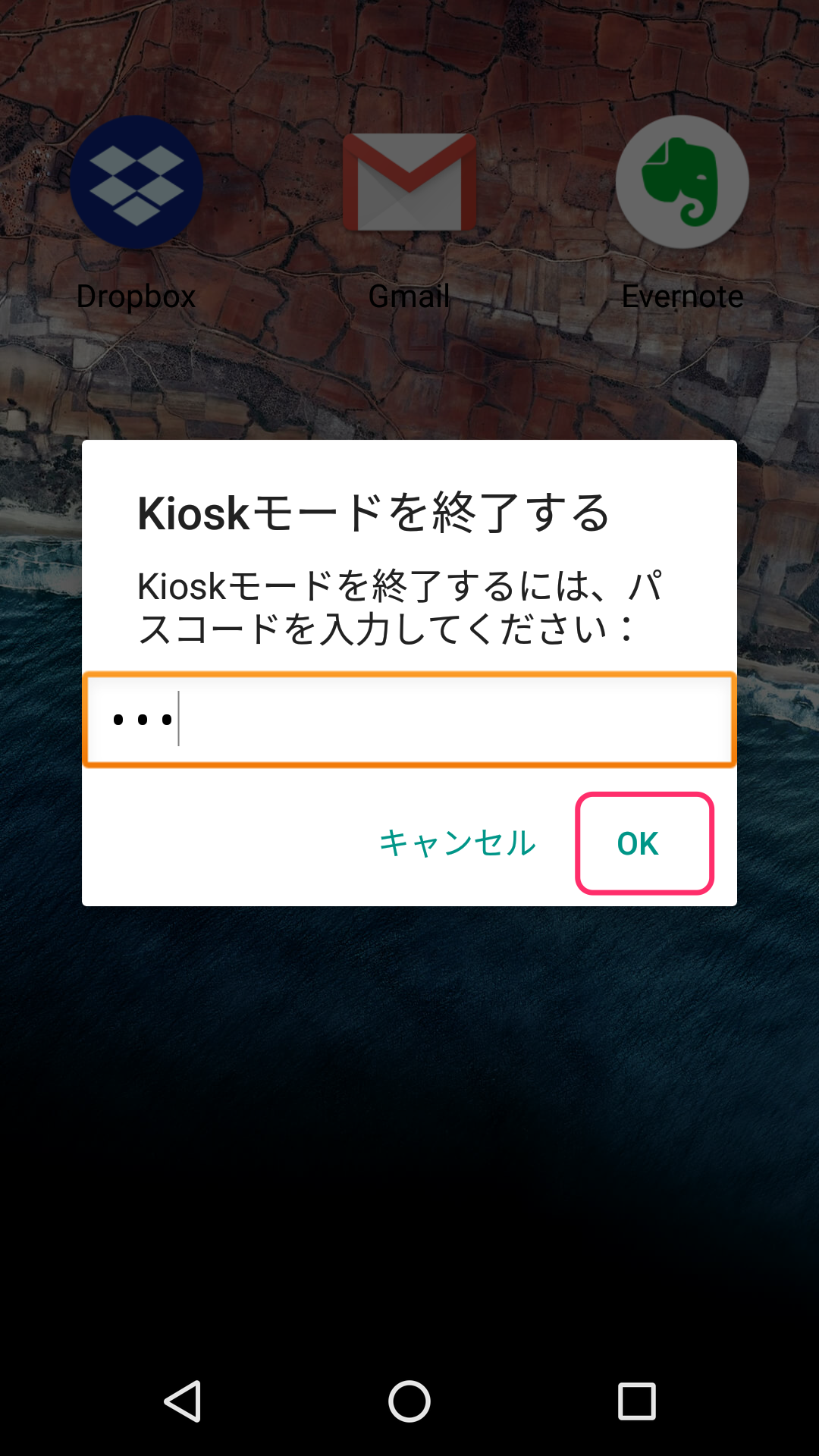
  1. Enter the passcode to exit Kiosk mode.
    Note: Device users should ask the administrator for the passcode.
  1. The device returns to the normal screen from before Kiosk mode was applied.

Single App​

Device Owner, Android 9.0 or later

Settings in the admin console

  1. Click [Create] on the CONFIG → Profile screen.
 
  1. On the profile creation screen, select Kiosk Settings and click [Configure].
  1. Under the app item, click and specify the app to display on the home screen.
    Note: If you select an app that is not installed on the device, the app is not displayed.
  1. Select the app to set for Single App and click [Close].
    To specify an unregistered app, enter the package name of the app and click [Close].

- Selecting from registered apps

- Specifying by entering a package name