Control access to websites (Android)
This page explains how to control access to websites by using Per App Settings in a profile.
Android profiles do not have a setting equivalent to the iOS Content Filter. On Android, you control access to websites (content filtering) with Per App Settings for the Chrome app.
Enabling EMM is required to use Per App Settings.
The following describes the setup for Google Chrome. You configure the Chrome app by using a feature called Per App Settings.
Combine the following two settings to allow access to only the required pages.
Setting 1: Register * (asterisk), which means all URLs, as the sites that are not allowed
Setting 2: Register the URLs to allow access to as the sites that are allowed

Allow access to only the required websites
-
To use Per App Settings, the
Chromeapp must be assigned to the template. First, register theChromeapp from Google Play Store.Note: This step is required to bring Chrome under management, even if the Chrome app is already installed on the device.
Note: Performing this step does not result in two Chrome apps.
Select CONFIG > Applications and click
Create.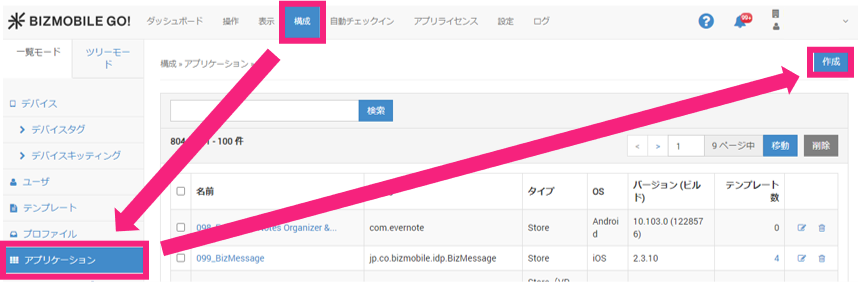
-
Select
AndroidforOS, and click the magnifying glass icon to the right ofPackage Name.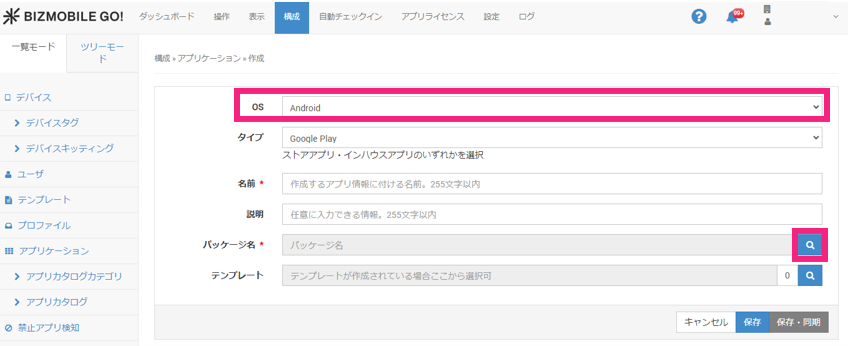
-
Search for
chromein the search box, and clickGoogle Chromein the results.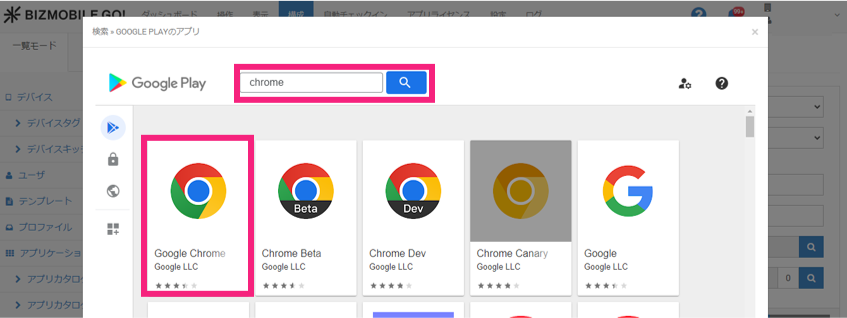
-
Click
Select.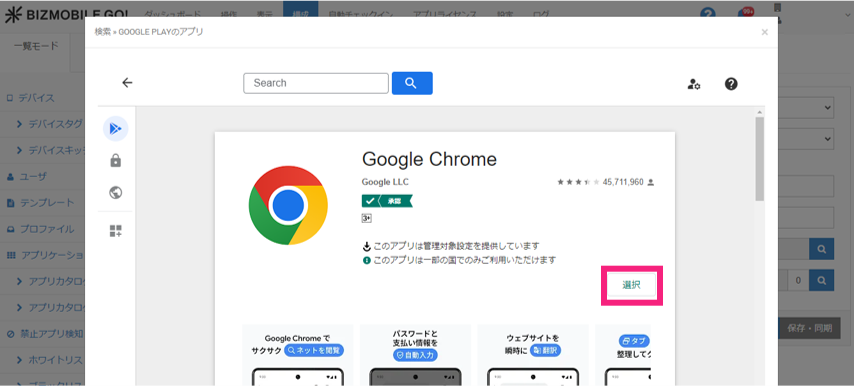
-
Confirm that
Package Namehas been entered, assign the app to a template, and clickSave.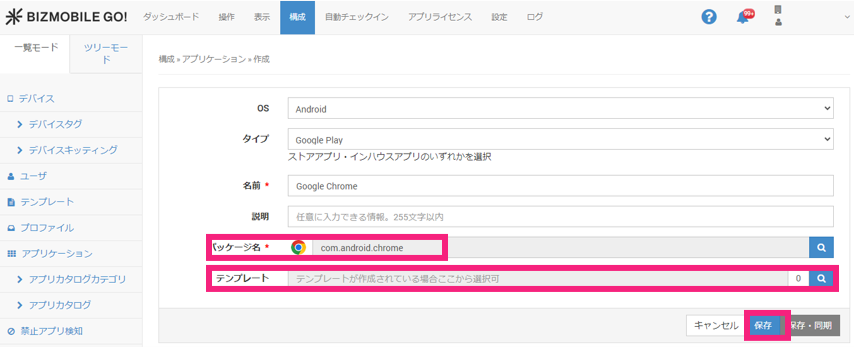
-
Next, create a profile.
In CONFIG > Profile, click
Create(1) to create a new profile, or click theedit icon(2) for an existing profile.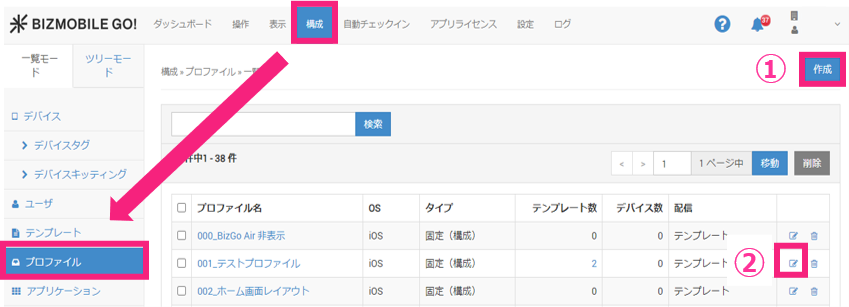
-
Click
Application Configurationto expand it, and then clickConfigure.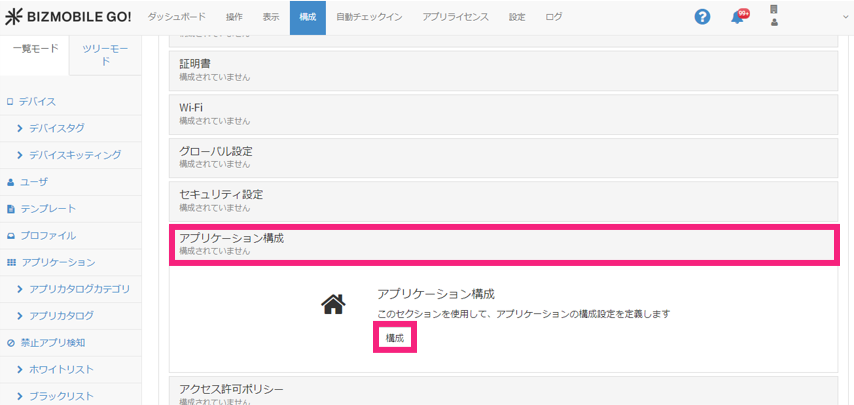
-
Click
Add Per App Settings.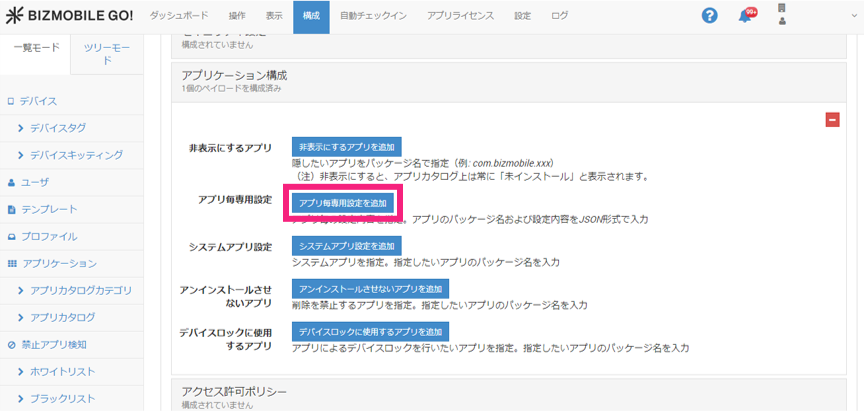
-
Click the magnifying glass icon.
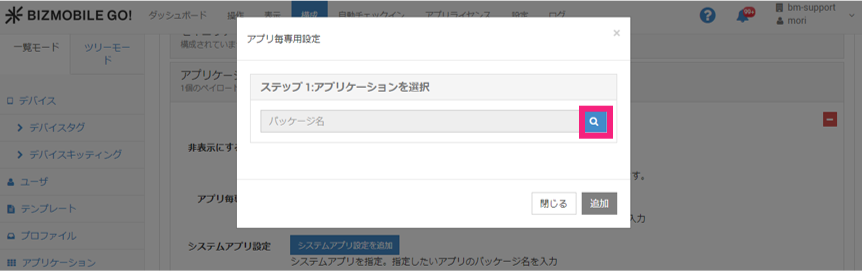
-
Search for
Chrome, select its checkbox, and clickClose.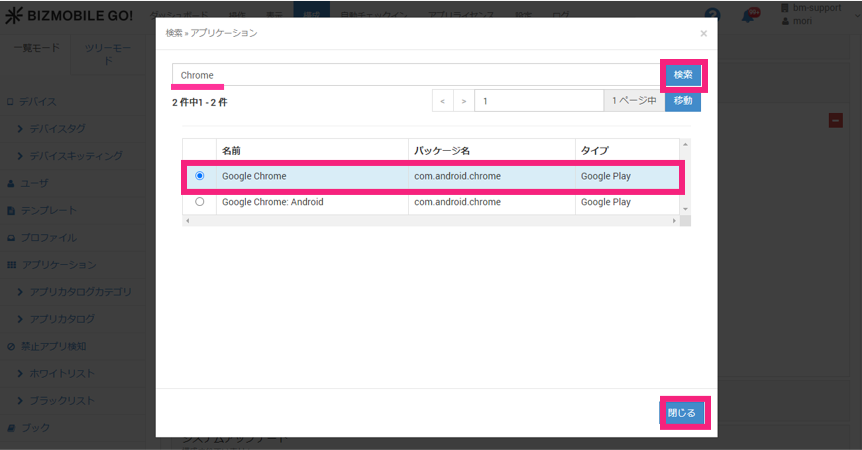
-
The
Per App Settingsscreen appears. Enter aSetting Name.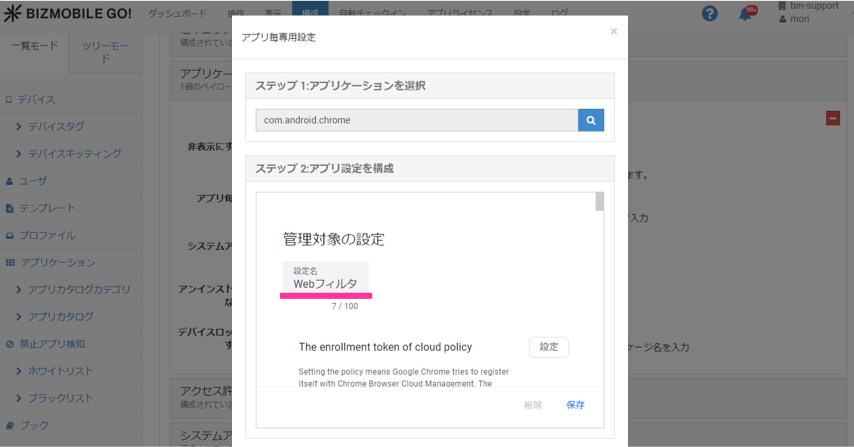
-
Next, find the
Block access to a list of URLsitem and click theConfigurebutton next to it.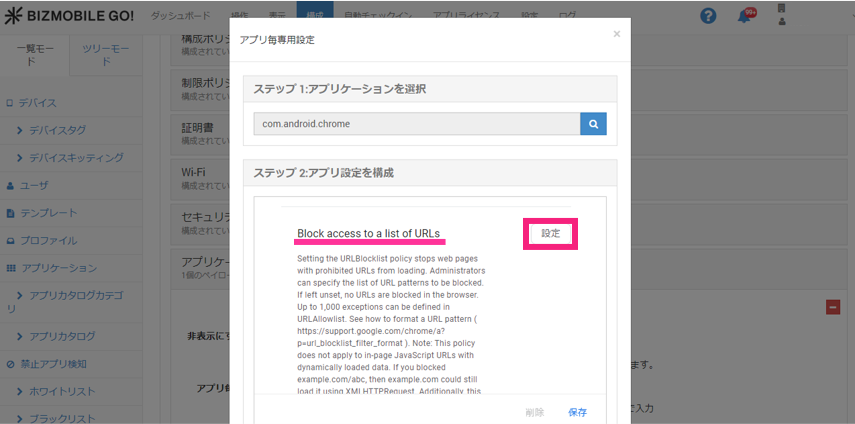
-
The button changes to
Configured, and an input field appears below the item. Copy and enter the following setting value.Setting value
["\*"]Note: Enter all characters in half-width. Include the [](brackets) as well.
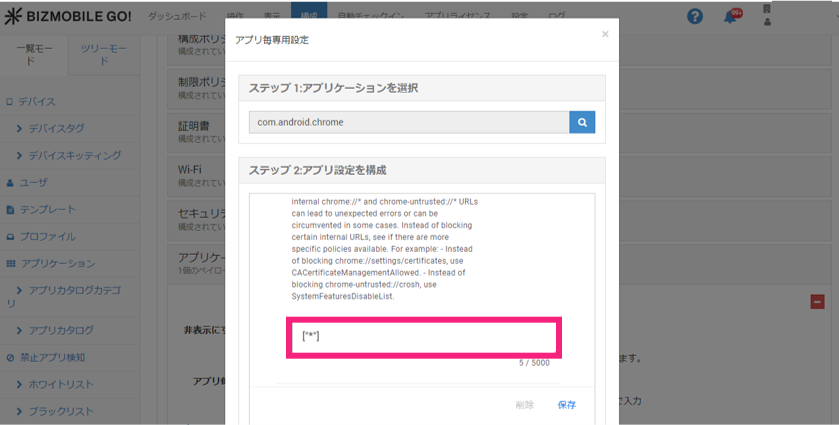
-
Next, find the
Allow access to a list of URLsitem and clickConfigure.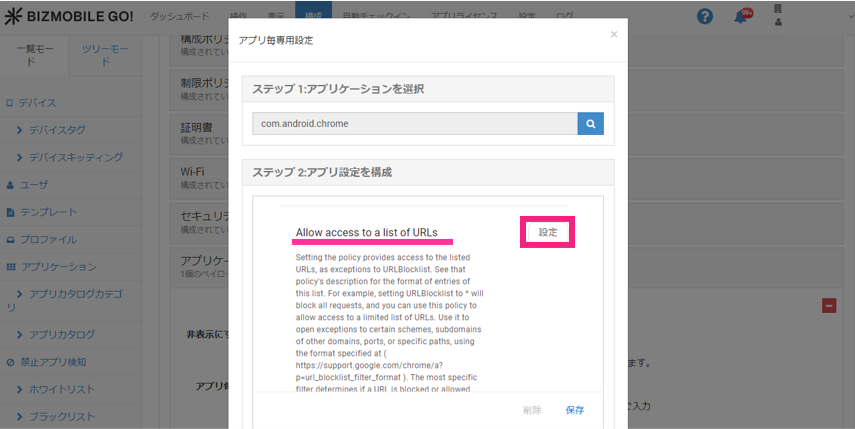
-
The button changes to
Configured, and an input field appears below the item. Copy and enter the following setting value.(Sample setting)
To allow the following two sites
Site 1 https://bizmobile.co.jp/
Site 2 https://www.example.com/Setting value
["bizmobile.co.jp","example.com"]Note: Enter all characters in half-width. Include the [](brackets) as well.
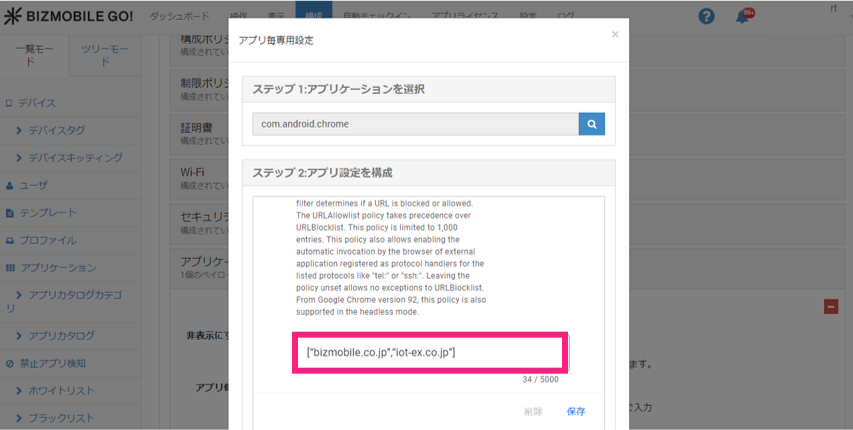
-
To register the allowed sites as bookmarks, find the
Managed Bookmarksitem and click theConfigurebutton next to it.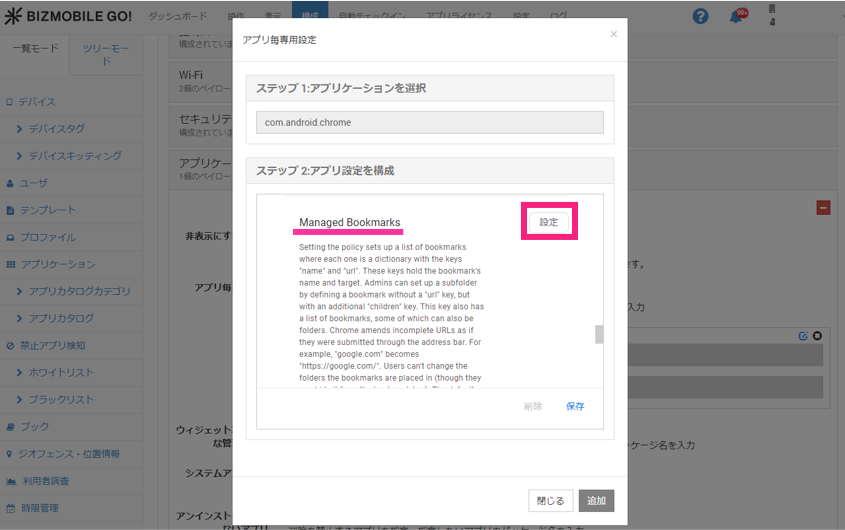
-
The button changes to
Configured, and an input field appears below the item. Copy and enter the following setting value.(Sample setting)
To allow the following two sites and register bookmarks
Bookmark for site 1 BizMobile HP
Bookmark for site 2 Example HPSetting value
[{"url": "bizmobile.co.jp", "name": "BizMobile HP"}, {"url": "example.com", "name": "Example HP"}]Note: Enter all characters in half-width. Include the [](brackets) as well.
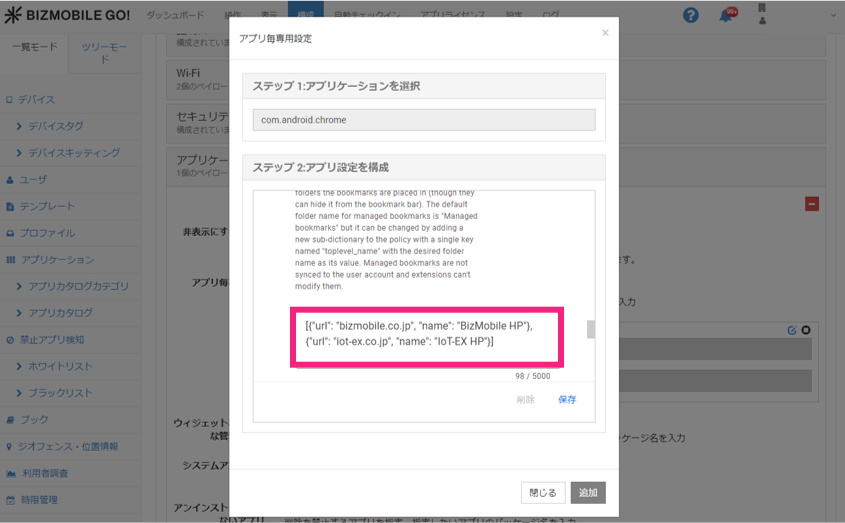
-
Click
Save, and then clickAdd.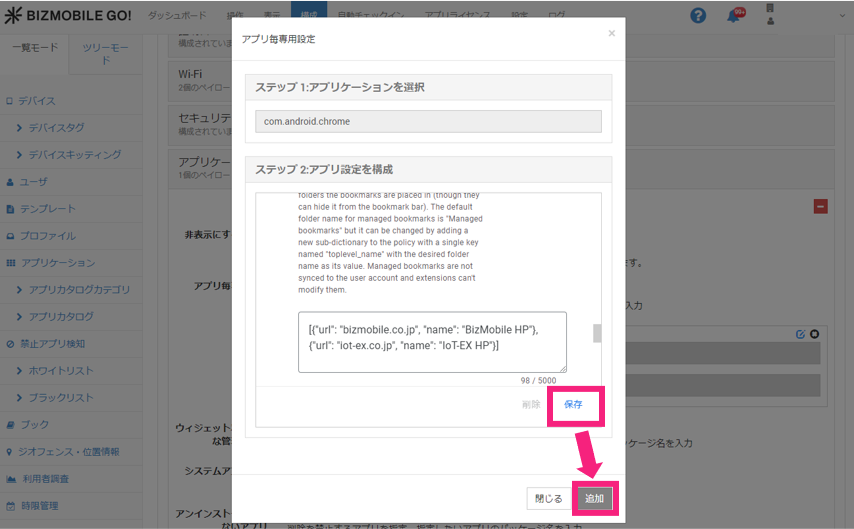
• How it appears on the device when bookmarks are registered
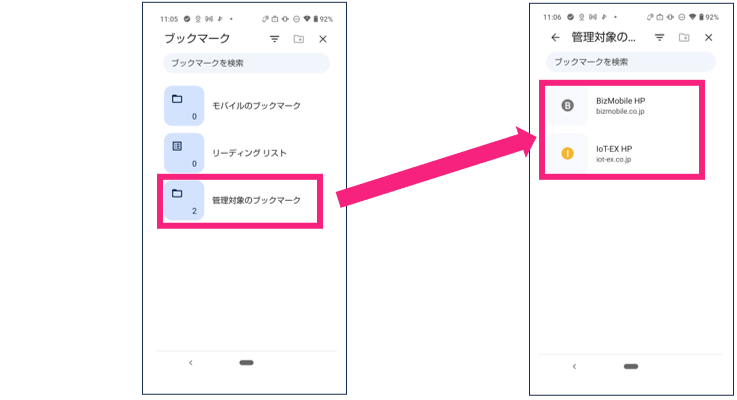
When you open Chrome's Bookmarks, an item named Managed bookmarks is created, and the specified bookmarks are displayed in it.
-
Assign the profile to a template and click
Save.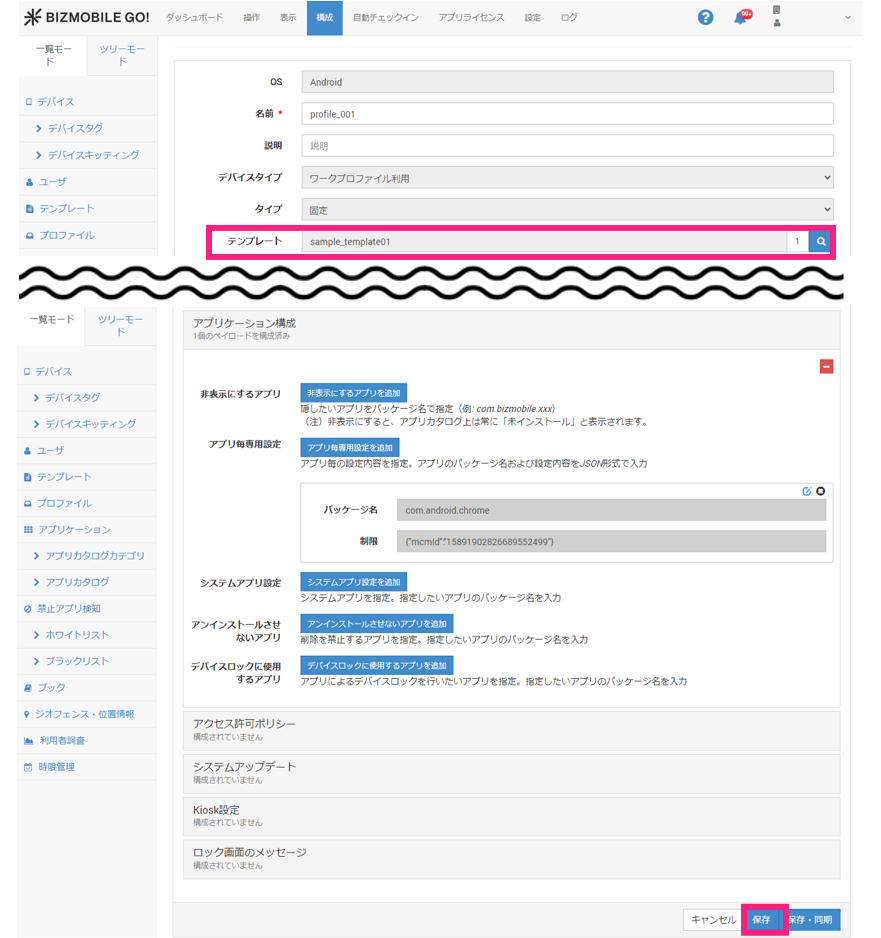
This completes the steps for A. Allow access to only the required websites.
If access control does not take effect
If access control for websites does not take effect even after you have completed all the steps and the device's sync status has changed to Synchronized, try the following.
• Remove Chrome from the template and assign it again.
[FAQ] Website access control is not applied to Chrome on Android
Website access control is not applied to Chrome on Android
• Check whether a User is registered for the device.
[FAQ] EMM is enabled but apps are not distributed
EMM is enabled but apps are not distributed