Remote Control
Remote Control is a feature that lets you view and remotely operate the screen of a managed Android device from the BizMobile Go! admin console.
To use this feature, you must install an in-house app on the managed Android device.
If you only want to view the screen without remote operation, you can use it on Android 5.1 or later.
Distribute the app from a template
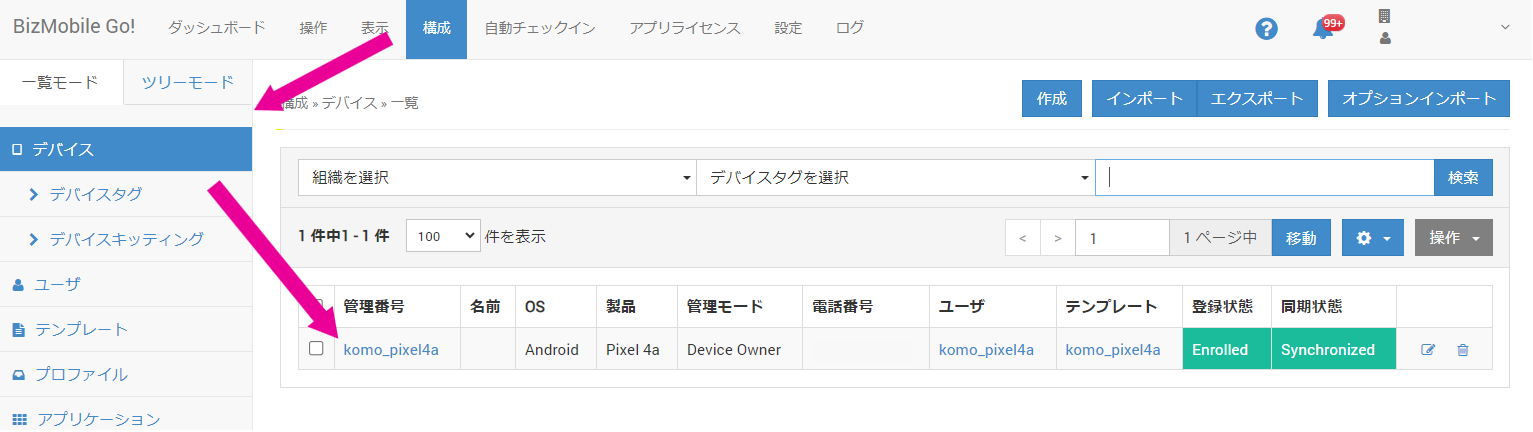
- On the CONFIG → Device list, click the name of the device whose screen you want to share.
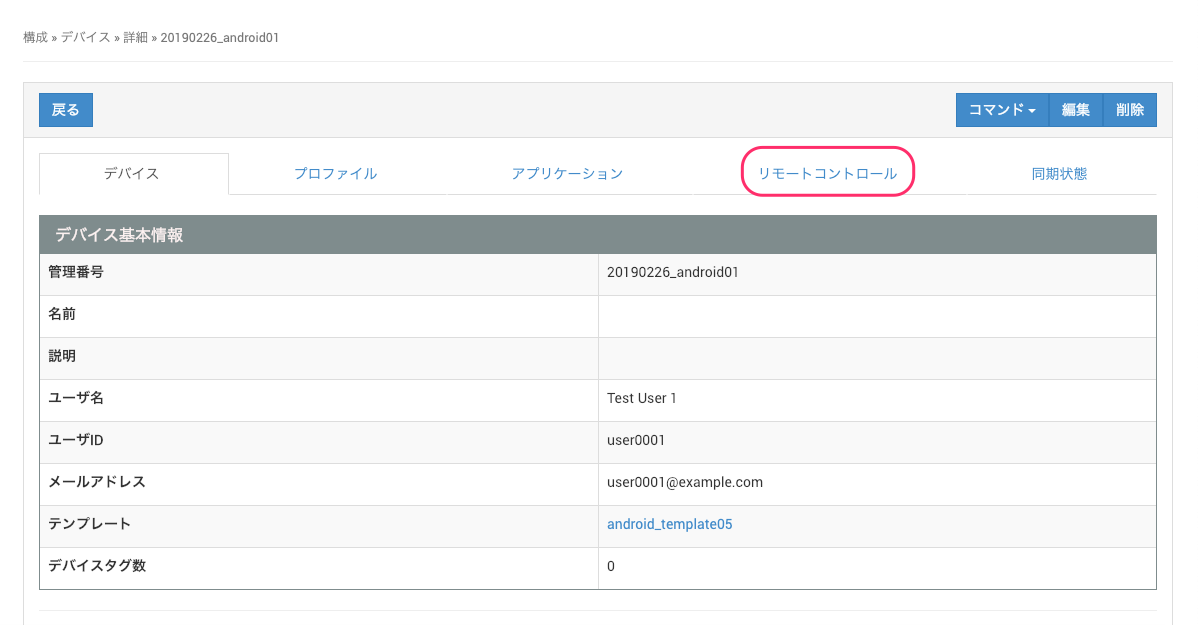
- Click "Remote Control".
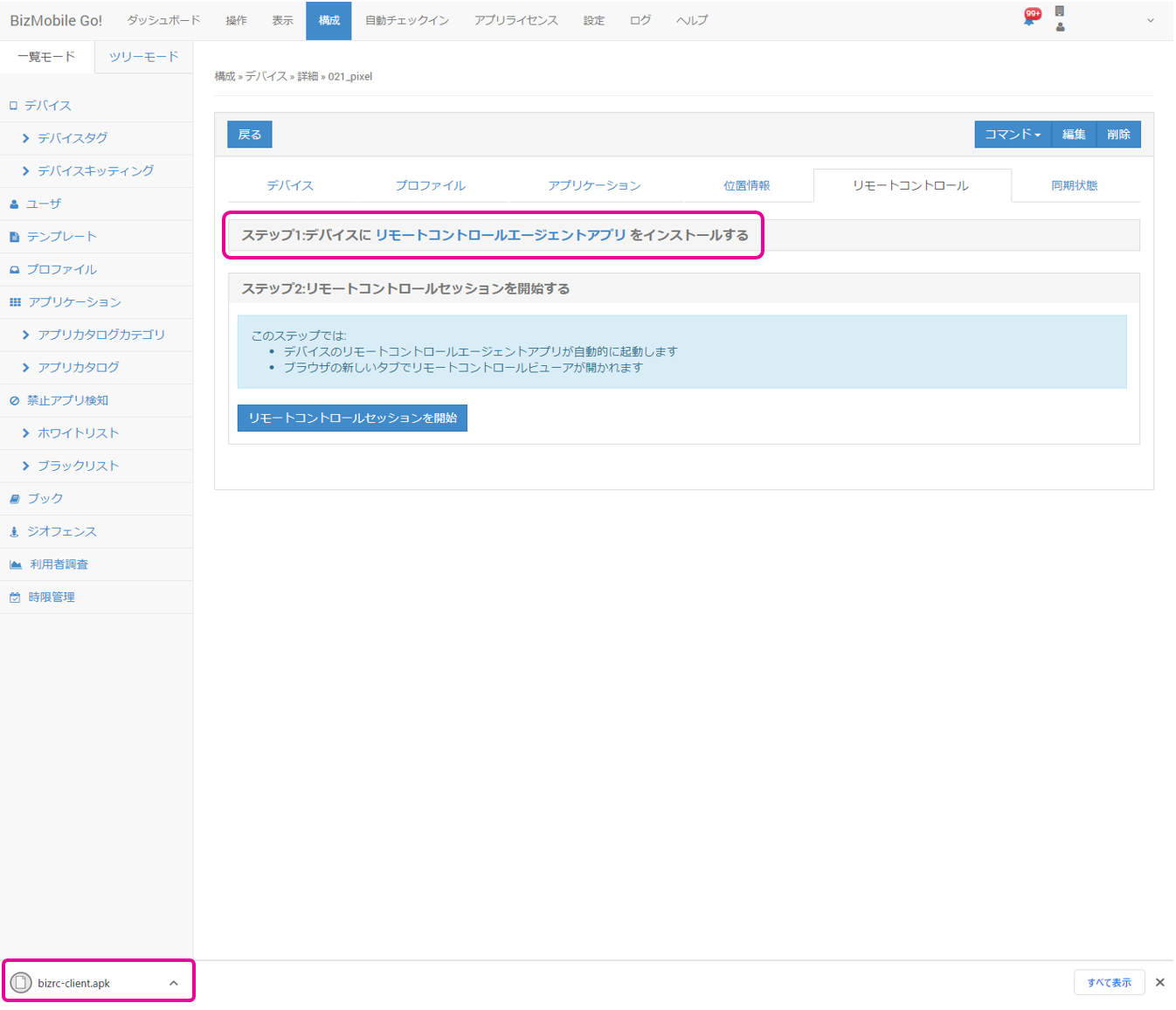
- Click "Step 1: Install the Remote Control agent app on the device" to download the .apk file of the latest Remote Control agent app.
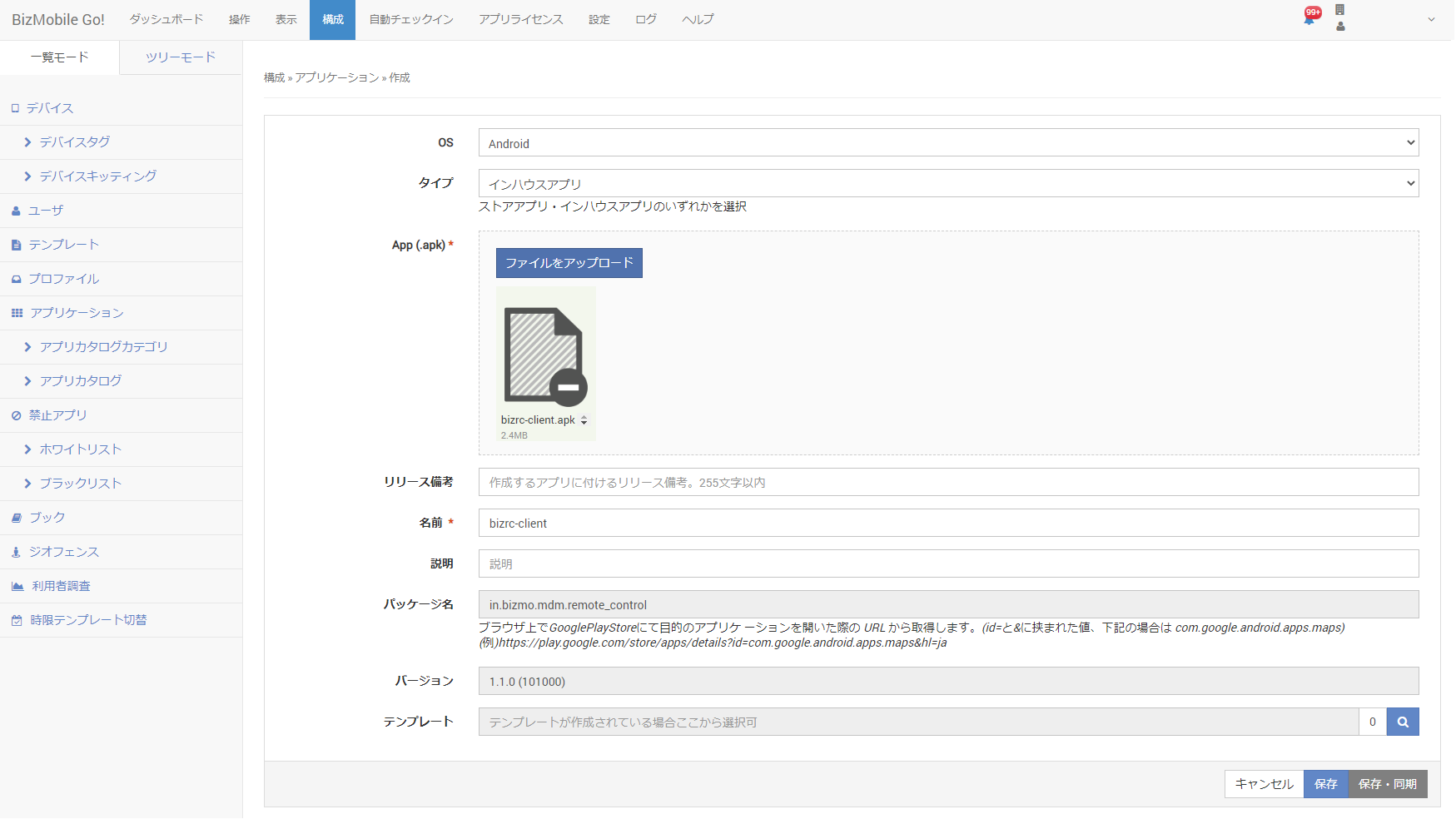
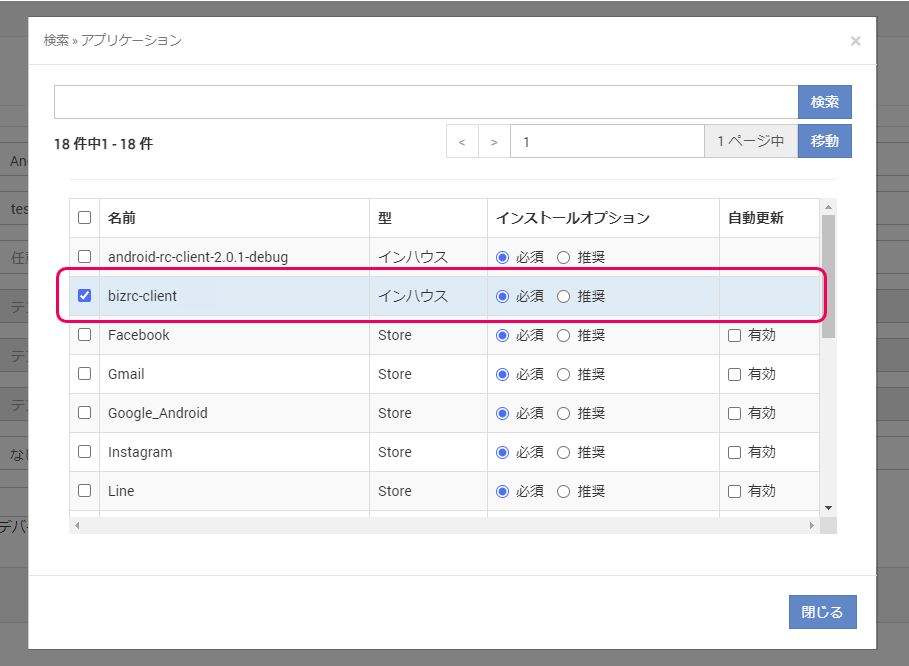
- Register this file in Applications as an in-house app.
- On the template creation screen, register the in-house app you registered in step 4 to any template, and then distribute it to the device to install it.
Activate the app
- Launch the BizGo! Remote Control app installed on the device and configure the required settings.
Set both "Arrow Display" and "Remote Operation" to "Enabled".
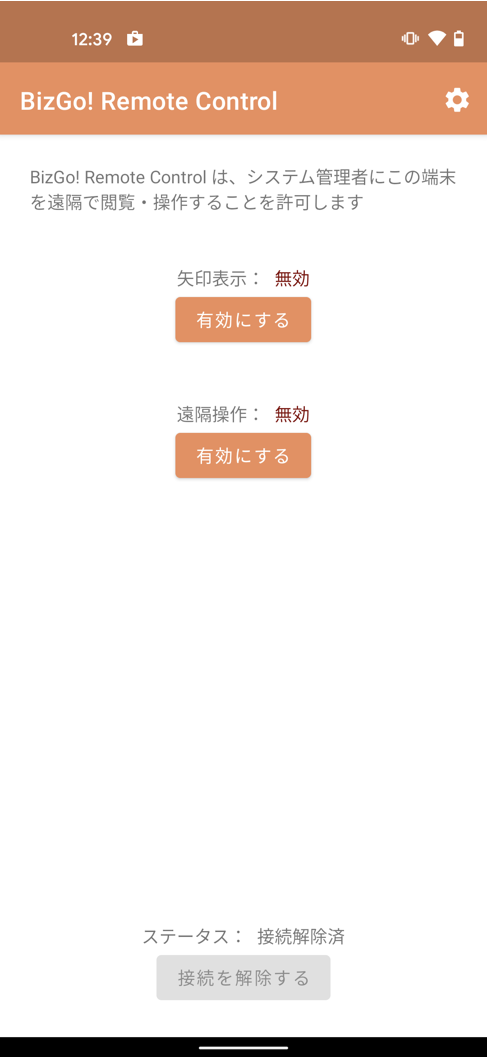
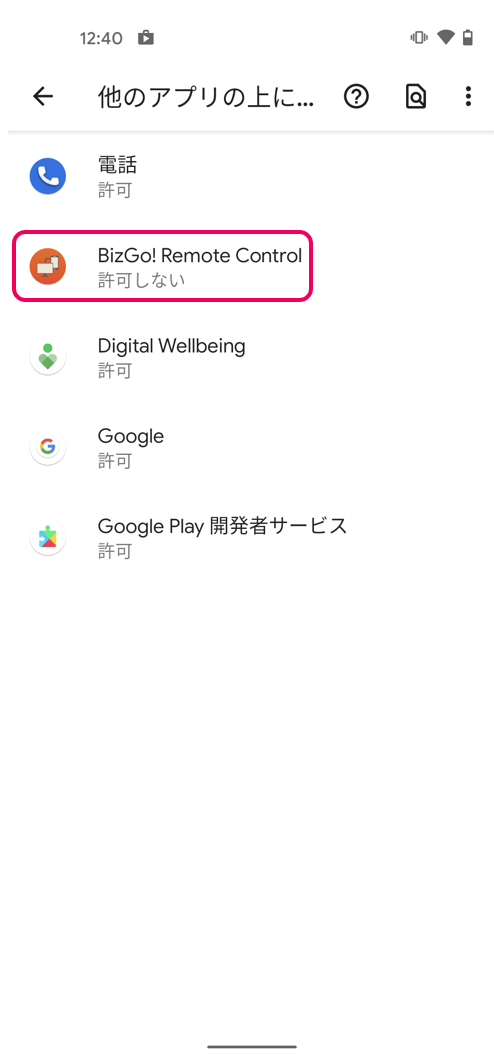
- Tap "Enable" for Arrow Display, and then tap BizGo! Remote Control.
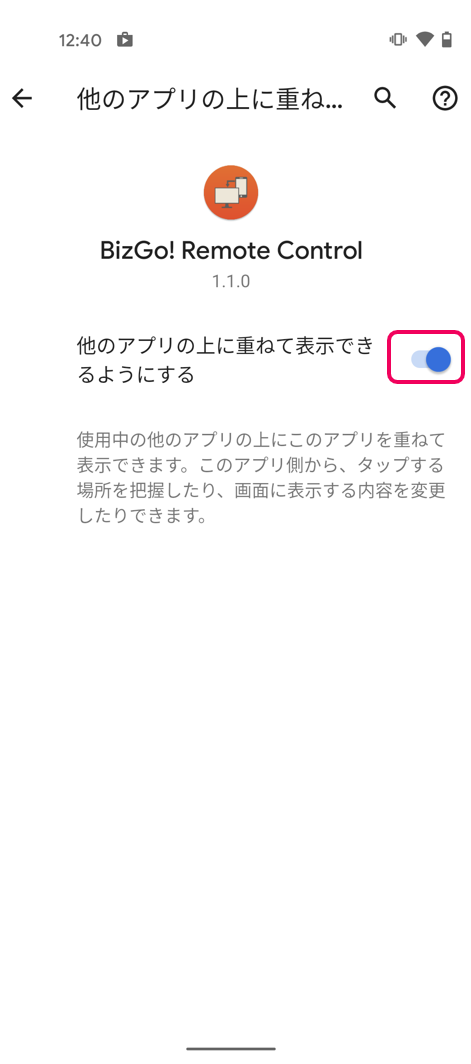
By default, "Allow display over other apps" is set to "Not allowed", so change it to "Allowed".
Note: To share the screen, you must enable "Arrow Display".
Turn it "On".
- On the screen from step 1, tap "Enable" for Remote Operation.
Then tap BizGo! Remote Control.
Note: On devices running Android 7.0 or later, remote operation from a PC is possible.
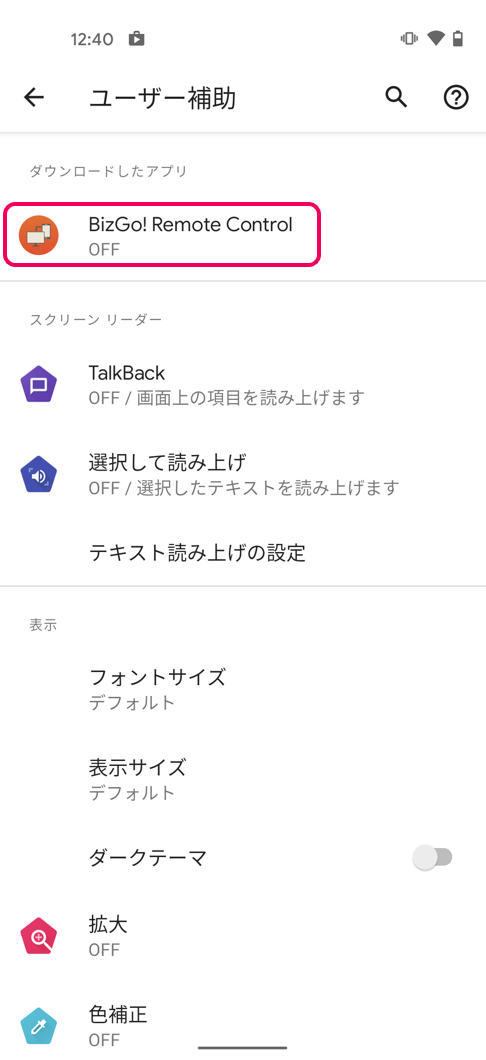
- It is "Off" by default, so turn it "On".
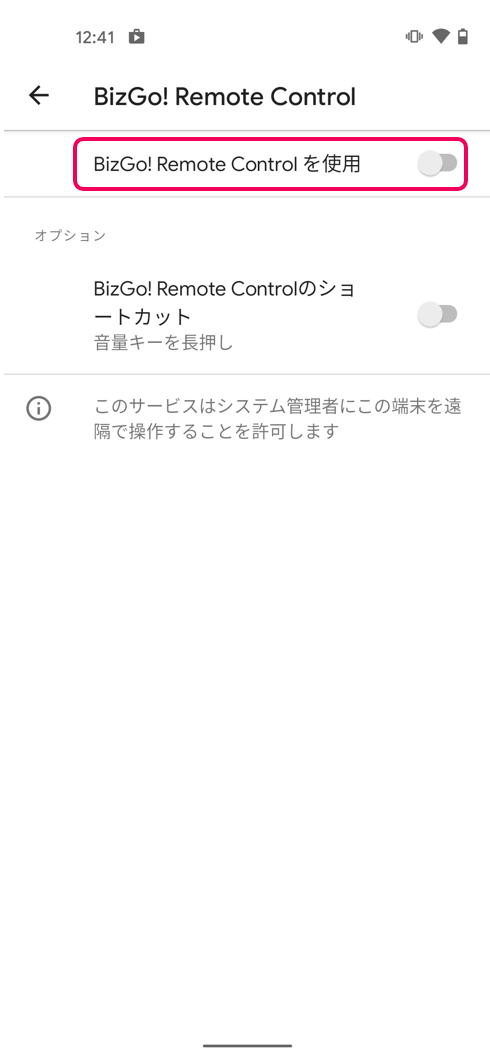
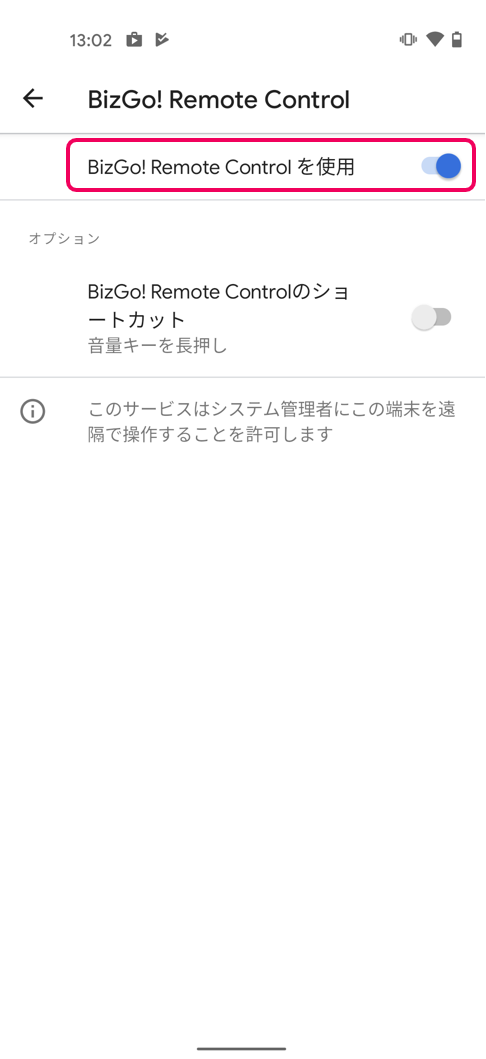
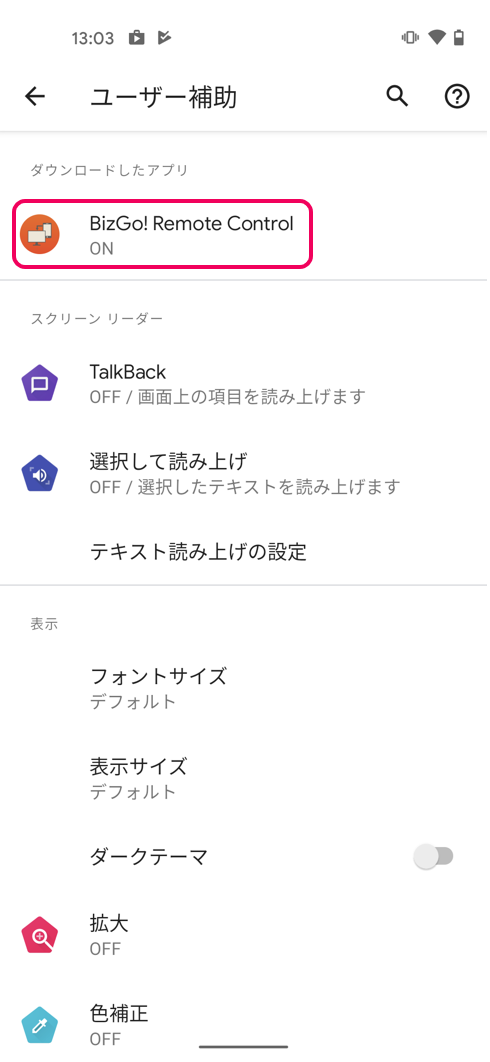
- On the BizGo! Remote Control screen, confirm that both settings are now "Enabled".
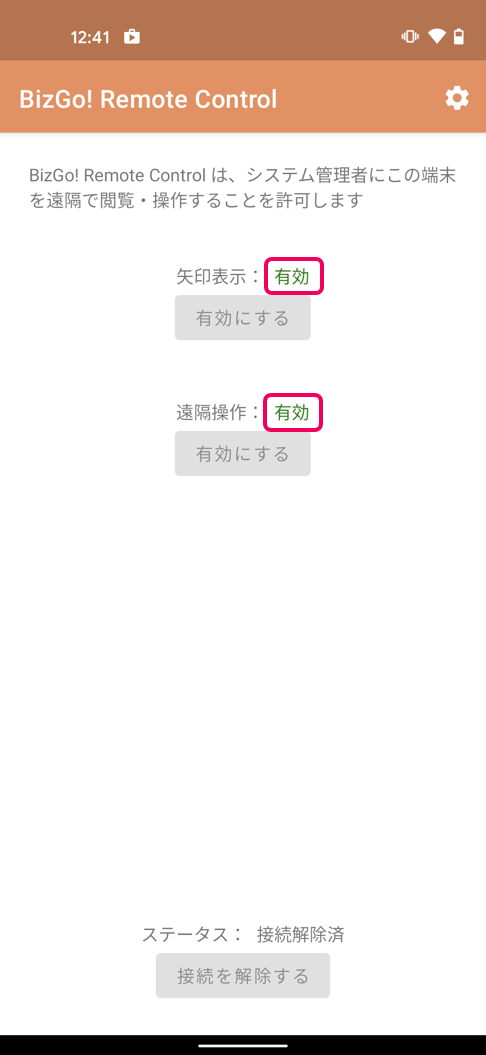
After you finish configuring the device, you can start Remote Control.
How to use Remote Control
| Admin console | Device screen |
(1) Click "Start Remote Control Session".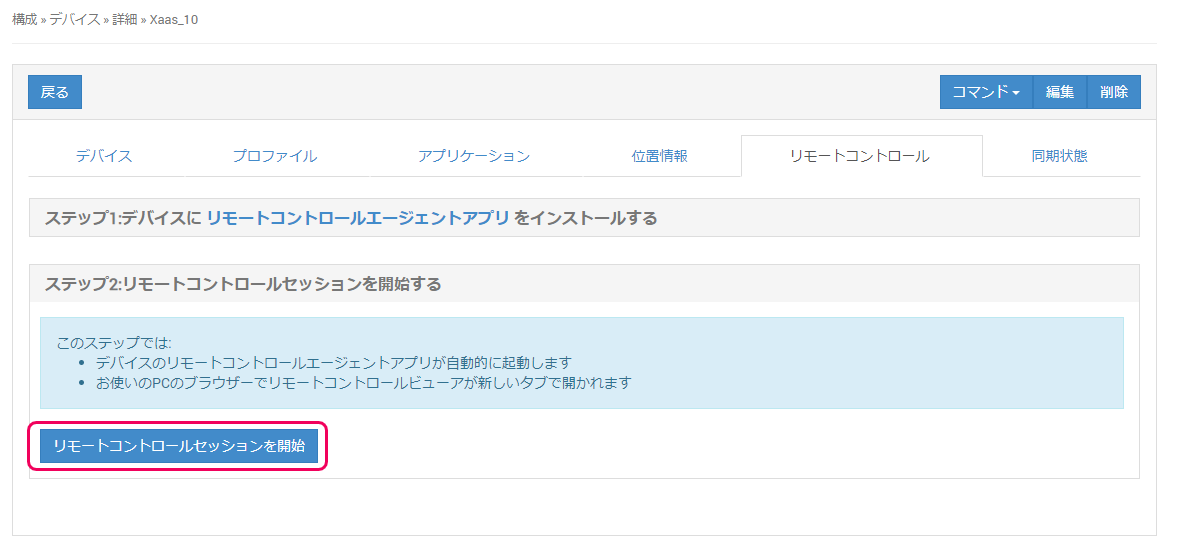 | The application on the device launches automatically and a pop-up asks whether to start screen sharing. Tap "Start now".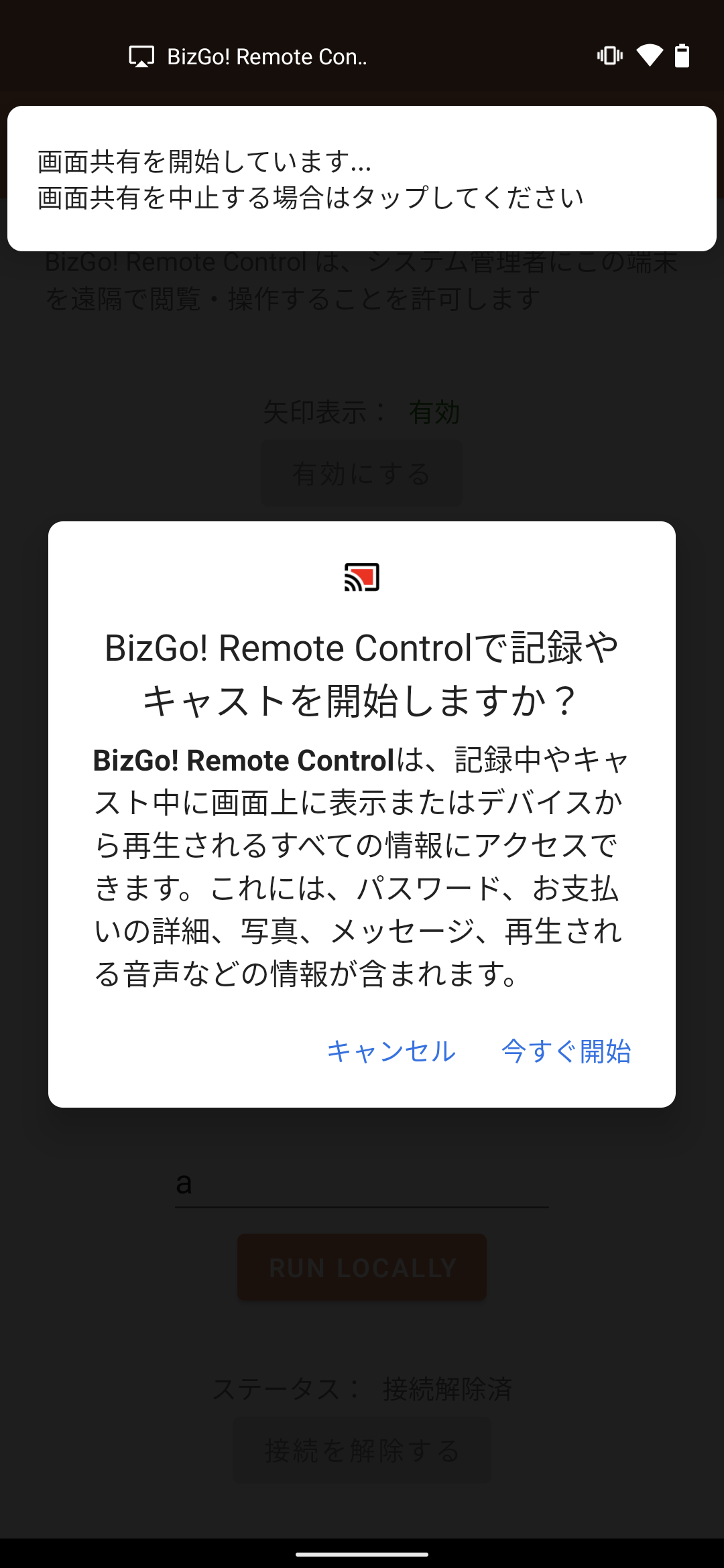 |
| (2) The status changes to "Connected" and the device screen is shared. (3) You can send a message to the device. Enter a message and click "Send". 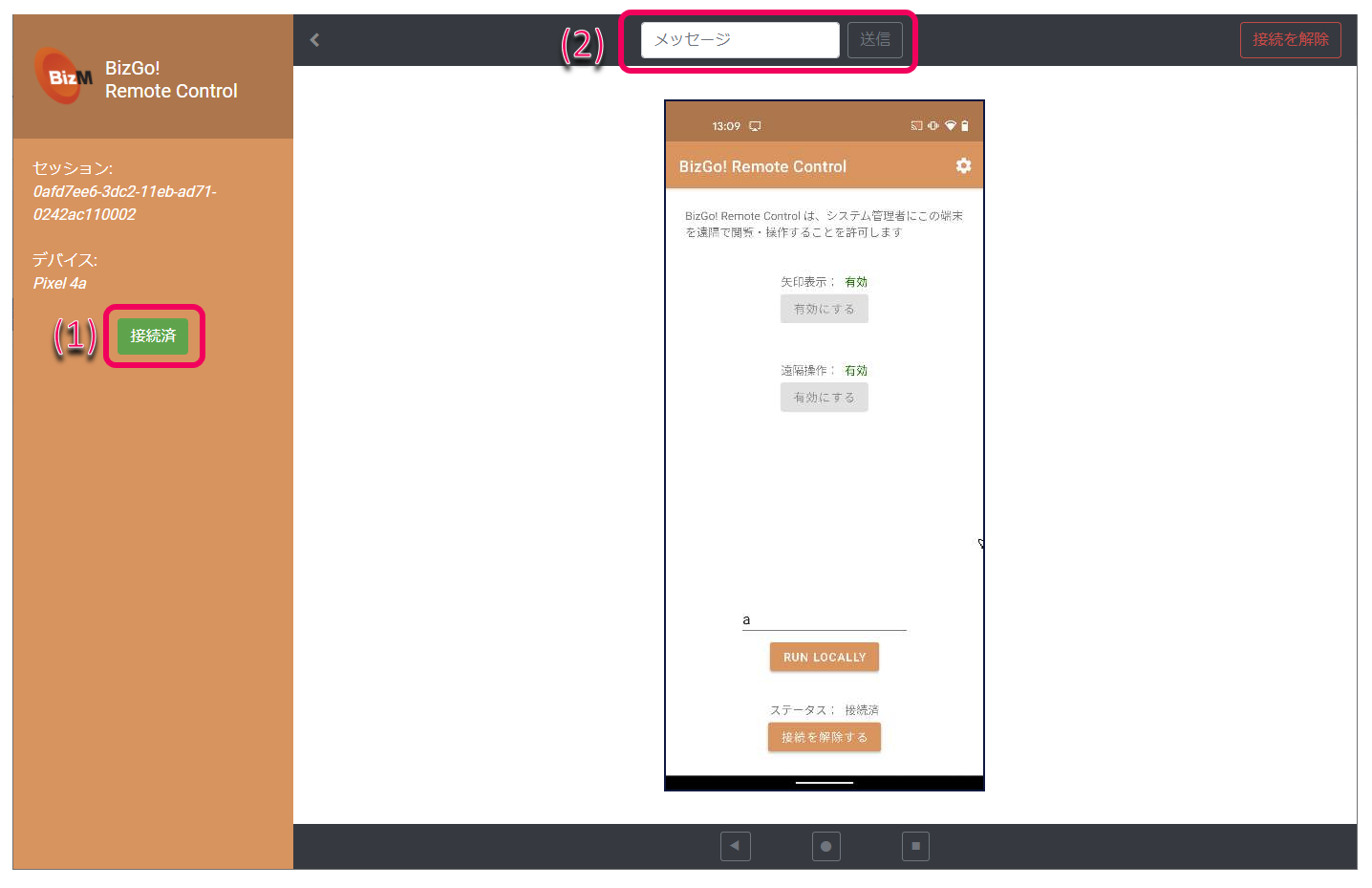 | The message that was sent is displayed.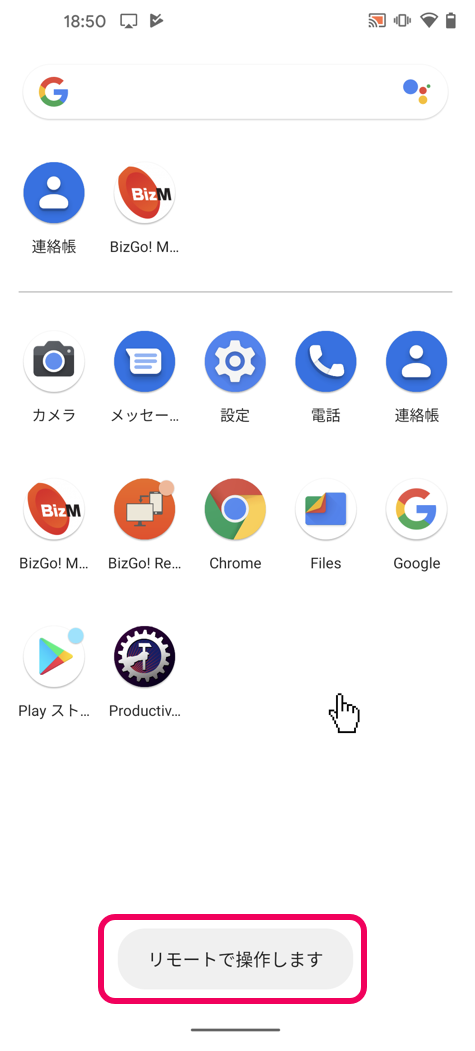 |
(4) To disconnect, click "Disconnect" at the upper right of the screen.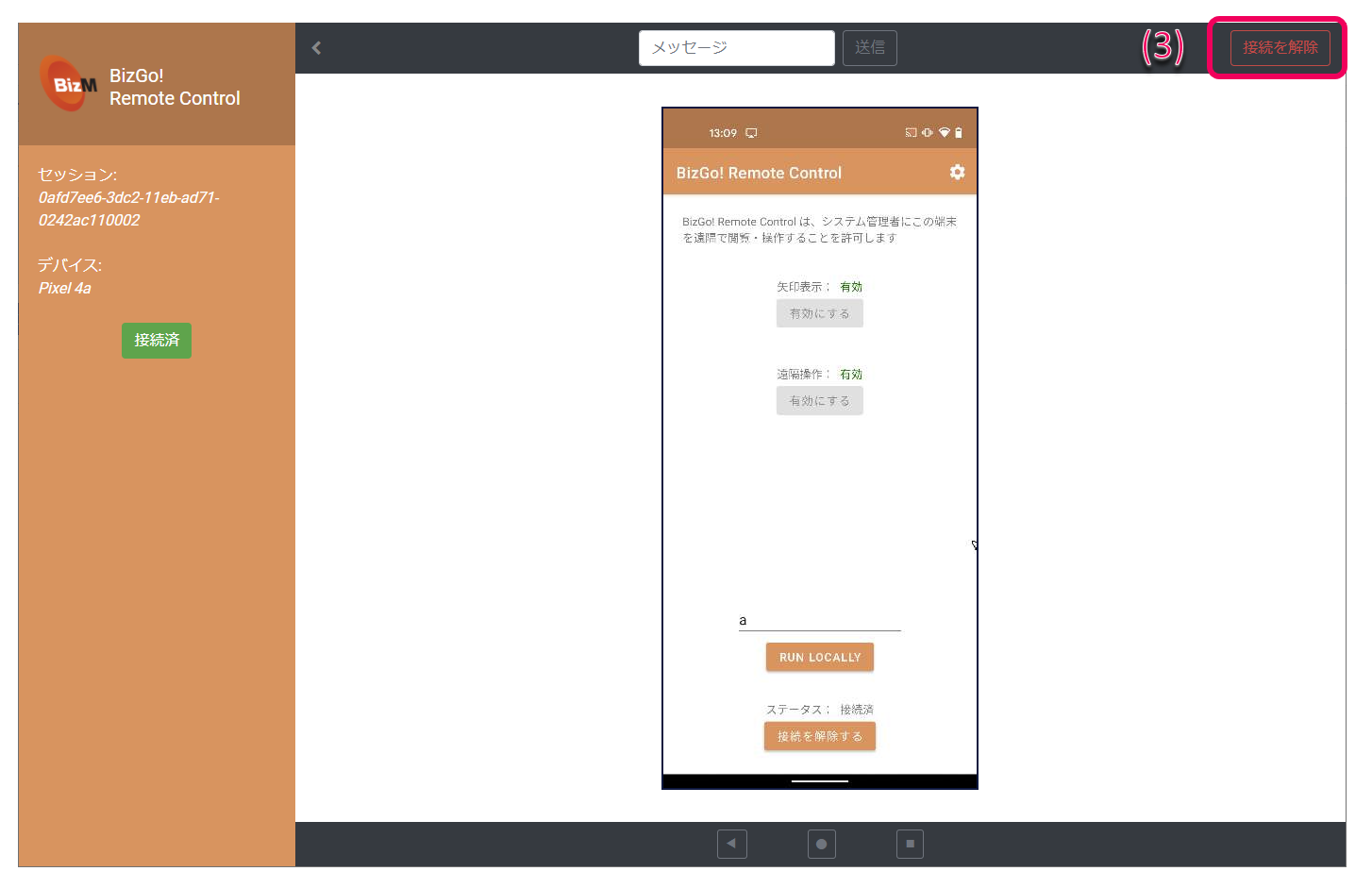 | To end the screen sharing connection from the device, tap "Tap to stop screen sharing".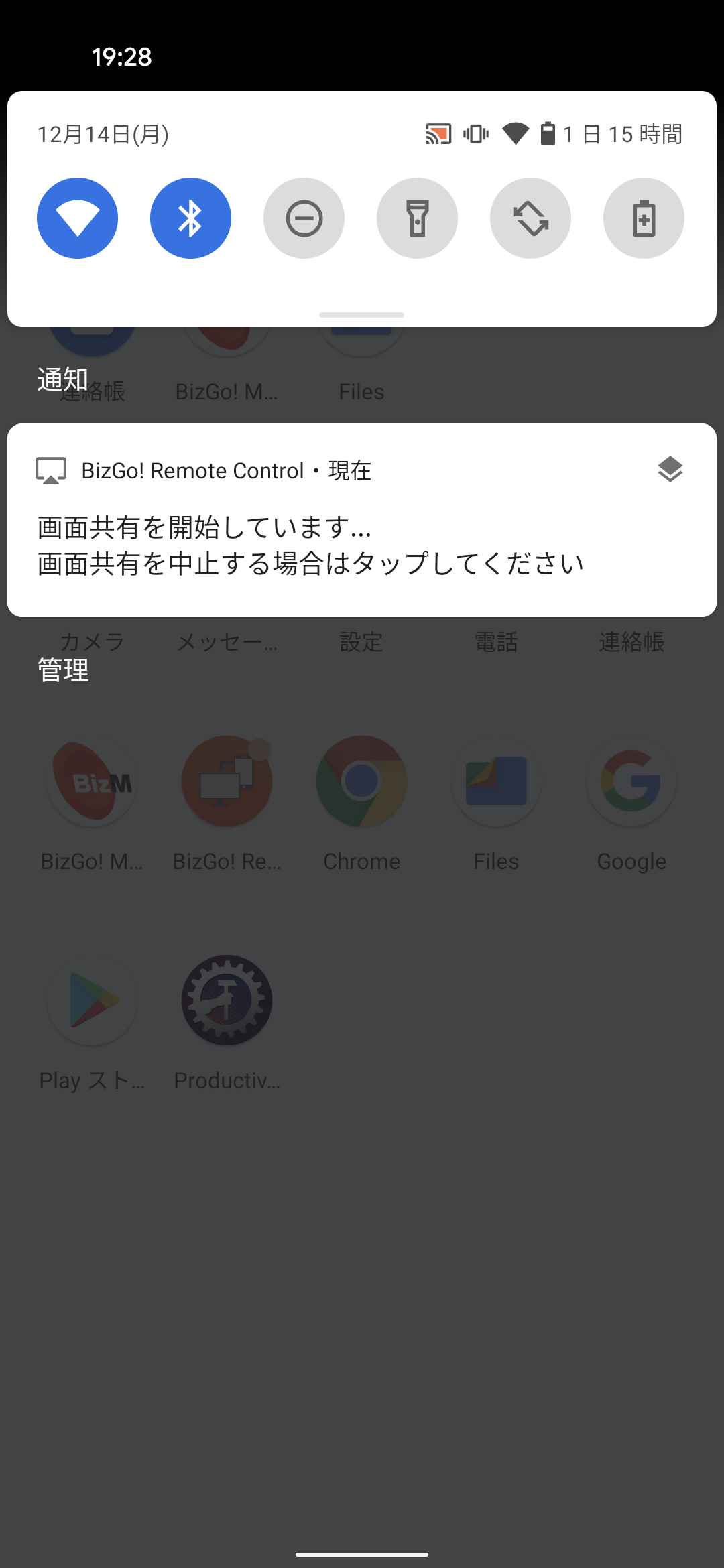 |
(5) Confirm that "Disconnected" is displayed.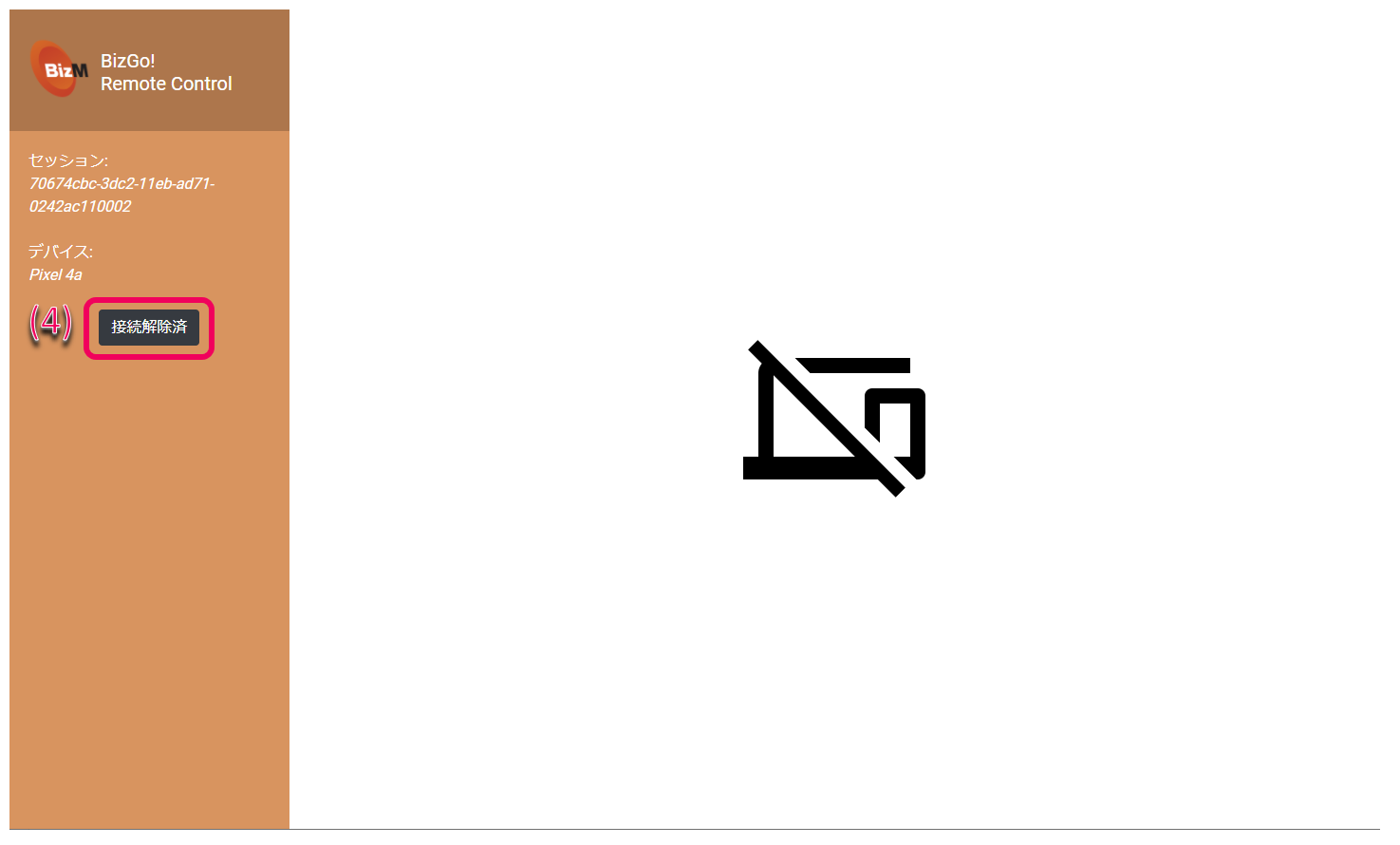 |