Work Time
This service lets users switch their devices between "on duty" and "off duty." You can specify the "work duration" and the "apps used for work."
To use a device for work, the user must sign in to the "BizGo! WorkTime app." Because of this, if any problem occurs, administrators can identify the device from the "operation log" and "location information."
Location information is recorded when Get location when starting/ending work is enabled in the policy.
You can choose one of the following two sign-in methods with Authentication Method in the policy.
User(default): Sign in with user information registered in advance (user ID and password). You can identify each individual user.No User: Sign in without entering a user ID and password. Because you do not need to register users in advance, this is suitable when you want to switch templates easily on shared devices, for example.
What you can do with Work Time
- Sign in (on duty) / sign out (off duty) from the BizGo! WorkTime app
- Extend work hours from the BizGo! WorkTime app
- Specify the authentication method (
User/No User) for each policy
The following shows how the service is used. (When Authentication Method is User)
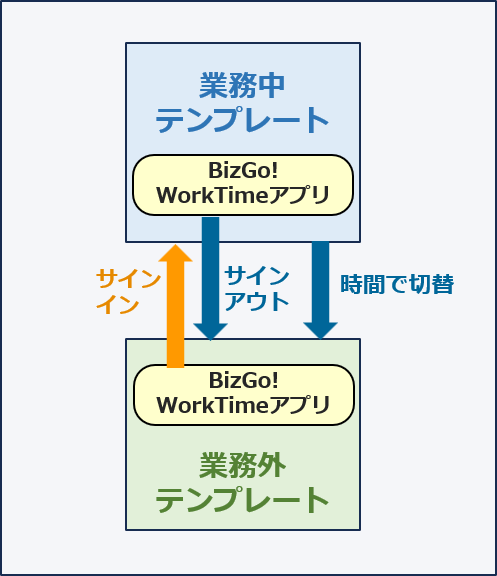
When you sign in to the BizGo! WorkTime app with a user ID and password registered in advance, that user's work hours start and the device switches to the on-duty template.
Prerequisites
To use this feature, you need the following two templates.
- On-duty template
- Off-duty template
To use No User for Authentication Method, you need a supported version of the BizGo! WorkTime app. For details, see Distribute the BizGo! WorkTime App.
How Templates Are Switched
In Work Time, signing in to and signing out of the BizGo! WorkTime app triggers a switch of the template assigned to the device.
The settings actually applied to the device are those of the profile linked to the template that is switched to.
Therefore, you must prepare a combination of template and profile for each of "on duty" and "off duty."
What you need
Create the following two sets and specify them as the "On-Duty Template" and "Off-Duty Template" in the policy.
- On-duty template + the on-duty profile assigned to that template
- Off-duty template + the off-duty profile assigned to that template
How it works during operation
- When you sign in to the app, the device switches to the on-duty template, and the settings of the linked on-duty profile are applied to the device.
- When you sign out of the app, the device switches to the off-duty template, and the settings of the linked off-duty profile are applied to the device. If a work duration is specified, the device also switches when the app signs out automatically after the time has elapsed.
Templates are switched in the same way regardless of Authentication Method. The difference is in the sign-in screen and the app screen shown after signing in.

When Authentication Method is User
- The sign-in screen shows fields for the user ID and password. You must register users in advance.
- The app screen after sign-in shows the user name.
- You can check which user started work from the User list or Events in the admin console.
When Authentication Method is No User
- The sign-in screen shows only the "Start Work" button, with no input fields. You do not need to register users in advance.
- The app screen after sign-in does not show a user name.
- Because templates can be switched without identifying the user, this is suitable for shared devices, for example.
Notes and frequently asked questions
- If you only rename the copied templates and specify them as the on-duty and off-duty templates, the settings are not switched. Assign an on-duty profile to the on-duty template and an off-duty profile to the off-duty template.
- Because the template switches when you sign in or sign out, the "Template" column on the Device screen also changes each time.
- You must register the BizGo! WorkTime app in both the on-duty and off-duty templates. If the app is not included in the off-duty template, you cannot sign in the next time.
Authentication Methodis a per-policy setting. You cannot useUserandNo Usertogether in one policy.Authentication Methodis retrieved when the app starts. If you change it, quit the app on the device and then start it again.
Preparation
To use Work Time, complete all of the following preparation steps.
See this page to distribute the BizGo! WorkTime app.
Define the devices, users, work hours, and templates to apply in a Work Time policy.
See this page to create a policy.See this page to register users.
Note: IfAuthentication Methodin the policy isNo User, this step is not required.After you install the BizGo! WorkTime app, you must set up the app on the device.
See this page to start the app and configure location and notification settings on the device.
Operation
After the app and devices are ready, see this page for how to check user information in the admin console.
See this page for how to check each user's event log in the admin console.
See this page for how to use the BizGo! WorkTime app.
See this page for how to edit or delete a Work Time policy.
See this page for how to edit or delete a Work Time user.