Work Time × Geofence
This service lets users switch their devices between "on duty" and "off duty" only inside the work area specified by a geofence. You can specify the "work area," "work duration," and "apps used for work."
To use a device for work, the user must sign in to the "BizGo! WorkTime app" with user information registered in advance. Because of this, if any problem occurs, administrators can identify the device and user from the "operation log" and "location information."
Location information is recorded when Get location when starting/ending work is enabled in the policy.
What you can do with Work Time × Geofence
- Sign in (on duty) / sign out (off duty) from the BizGo! WorkTime app only inside the geofence area
- Extend work hours from the BizGo! WorkTime app only inside the geofence area
- Define the behavior when the device leaves the area
The control that allows starting and ending work only inside the geofence area applies when Get location when starting/ending work is enabled in the Work Time policy (enabled by default). If you need to start or end work outside the area, such as on an airplane, clear the check box for this setting.
Geofence control applies in the same way when Authentication Method in the policy is No User. On a device assigned a geofence policy that has a geofence set, sign-in is possible only when the device is inside the area.
The following shows how the service is used.
When you sign in to the BizGo! WorkTime app with a user ID and password registered in advance, that user's work hours start and the device switches to the on-duty template.
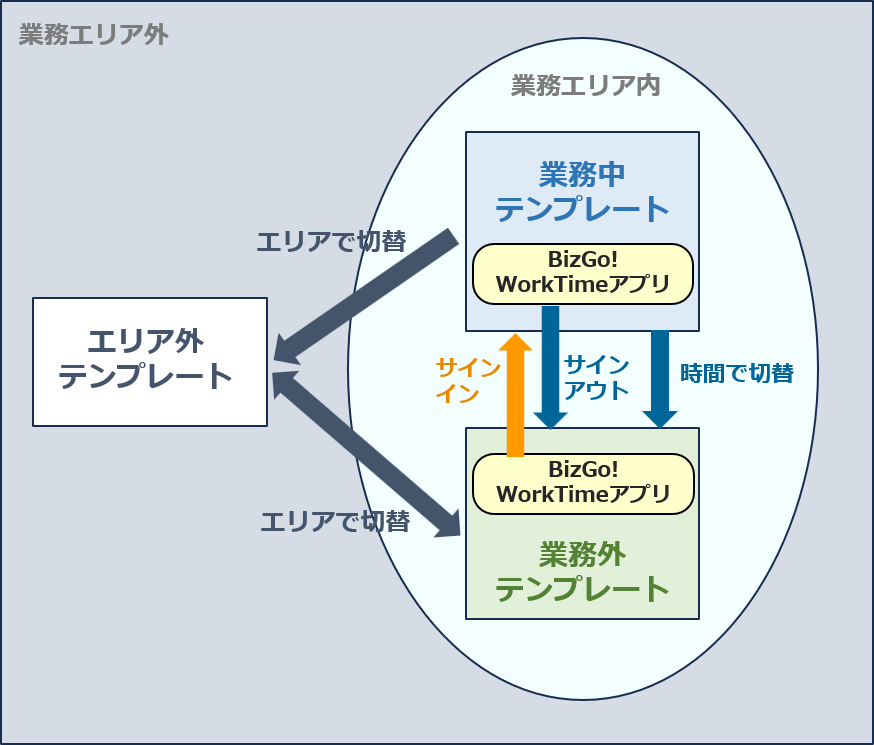
Prerequisites
- Use Geofence v2 together with Work Time.
To use this feature, you need the following three templates.
- On-duty template
- Off-duty template
- Out-of-area template
If the user leaves the area while signed in to the app (during work hours), the device switches to the out-of-area template. To resume work, the user must return to the area, sign out, and sign in again.
Preparation
To use Work Time × Geofence, complete all of the following preparation steps.
Configure the settings in the admin console so that location information can be retrieved.
See this page to create a geofence.
See this page to create a geofence policy.
See this page to distribute the BizGo! WorkTime app.
Define the devices, users, work hours, and templates to apply in a Work Time policy.
See this page to create a policy.
See this page to register users.
After you install the BizGo! Air app, you must set up the app on the device.
See this page to start the app and configure location and notification settings on the device.
After you install the BizGo! WorkTime app, you must set up the app on the device.
See this page to start the app and configure location and notification settings on the device.
Operation
After the app and devices are ready, see this page for how to check user information in the admin console.
See this page for how to check each user's event log in the admin console.
See this page for how to use the BizGo! WorkTime app.
See this page for how to edit or delete a Work Time policy.
See this page for how to edit or delete a Work Time user.