Prepare for Device Enrollment
Once BizMobile Go! is ready, check the information that device users need to enroll their devices, and pass it on to them.
You can also use the enrollment email feature to send an email containing the enrollment information to the device, or use the enrollment QR code feature.
 Check enrollment information one device at a time
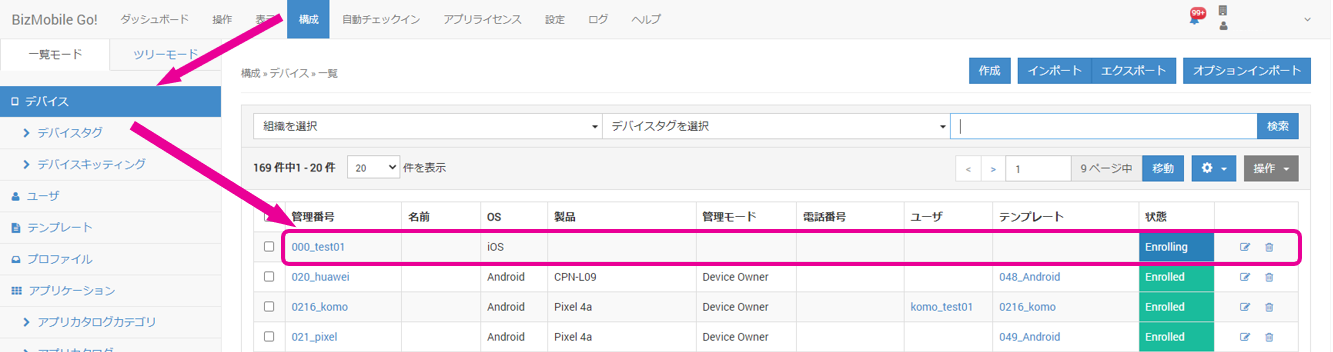
- On the CONFIG → Device screen, click the device to enroll.
- In the Enrollment Restrictions section of the device details, check the Key and Code.
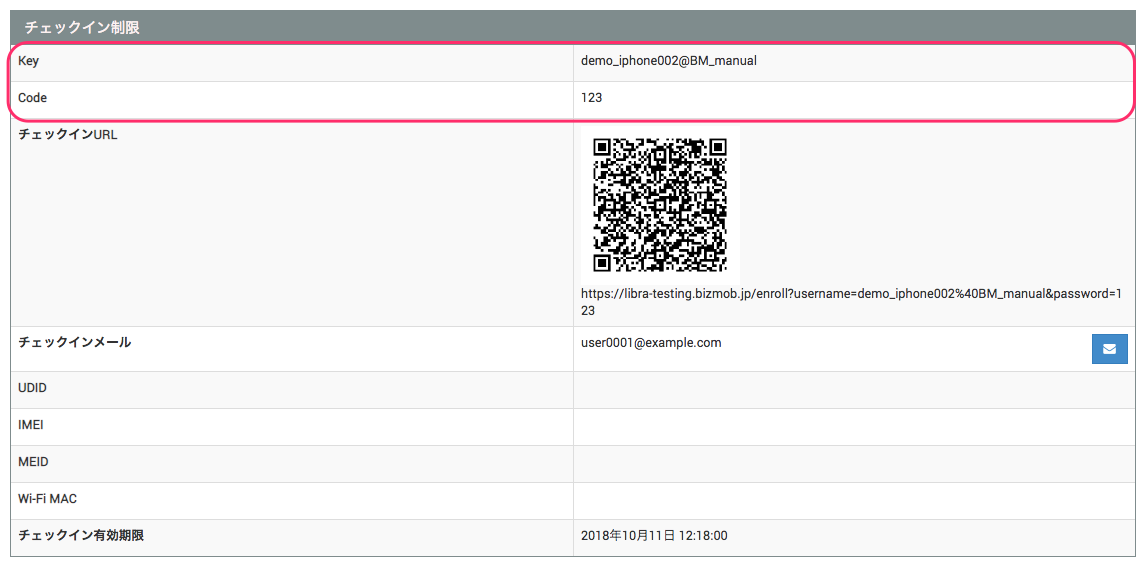
- Give the Key and Code to the device user.
Check enrollment information for multiple devices at once
- On the CONFIG → Device screen, click [Export].
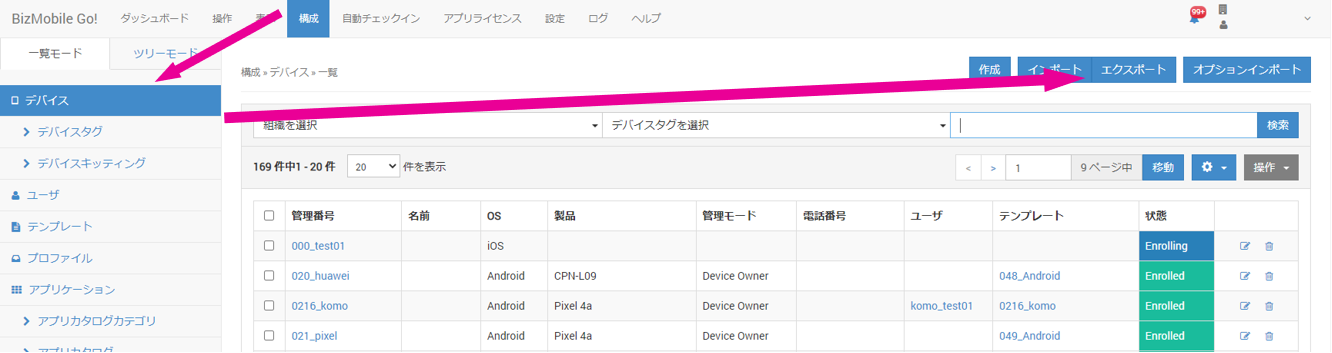
- From the "Select data to export" drop-down menu, select "Registration code" and click [Export].

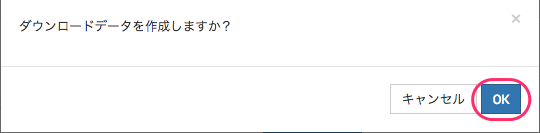
- On the "Do you want to create the download data?" message screen, click [OK].
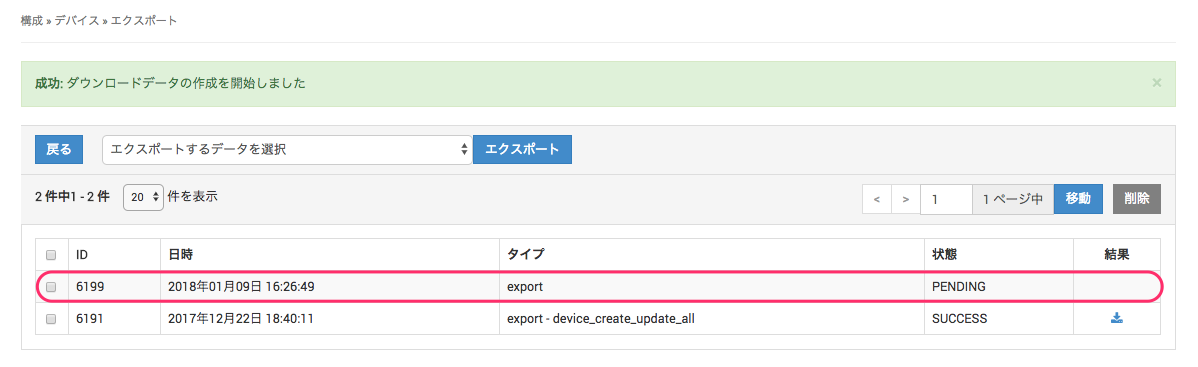
- In the export history at the bottom of the screen, the export you just requested appears with "Status = PENDING". Wait a moment, and then click the browser's refresh button.
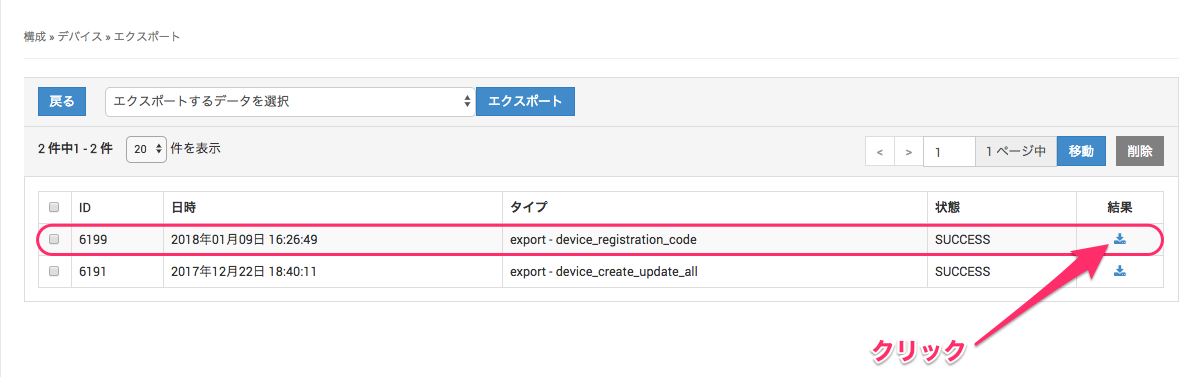
- When the download data is ready, the "Status" changes to SUCCESS after you refresh the browser. Click the icon displayed in "Result" to download the CSV file. (If the status remains PENDING, wait a moment and refresh the browser again.)
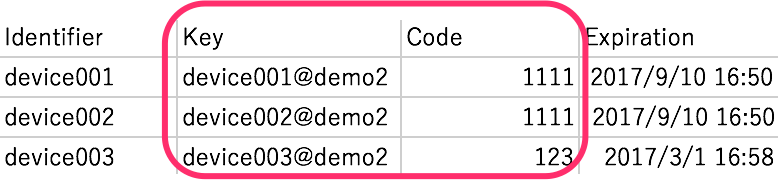
- The downloaded CSV file contains the Key and Code of each device. Give the Key and Code to the user of each device.
If "Enrollment Email" information was entered when the device was created, an email containing the enrollment information is sent from the admin console to the device user.
The enrollment email is sent when you enter an email address and save or update the device information. If necessary, you can resend it as follows.
- On the CONFIG → Device screen, in the list, click the device you want to send the enrollment email to.
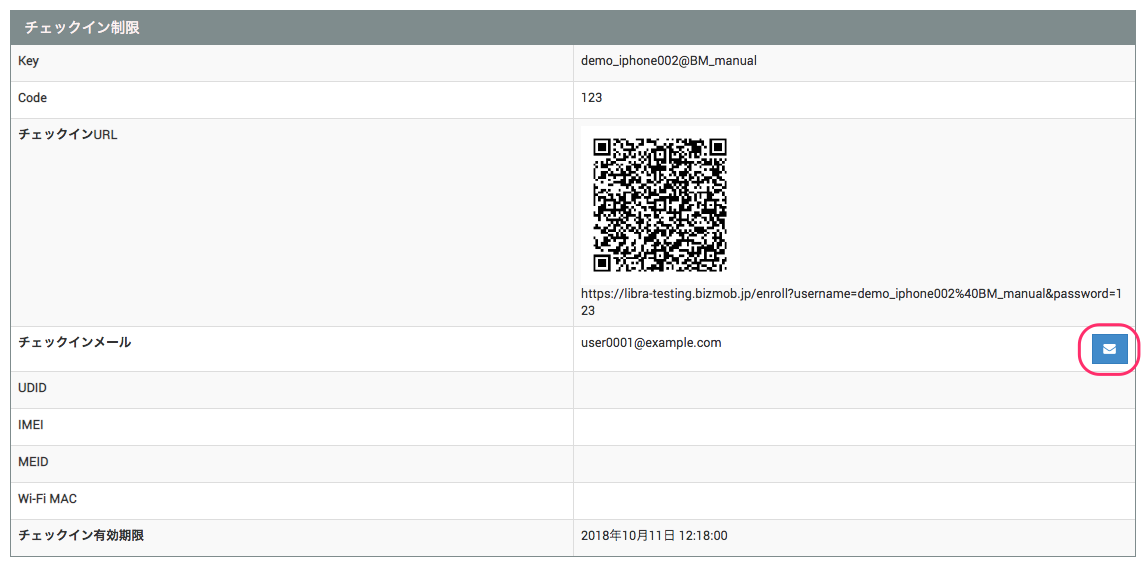
- Click the email icon in the "Enrollment Email" field on the detail screen (if no email address is entered, this icon is disabled).
- When sending is complete, the following screen appears. Click [OK].

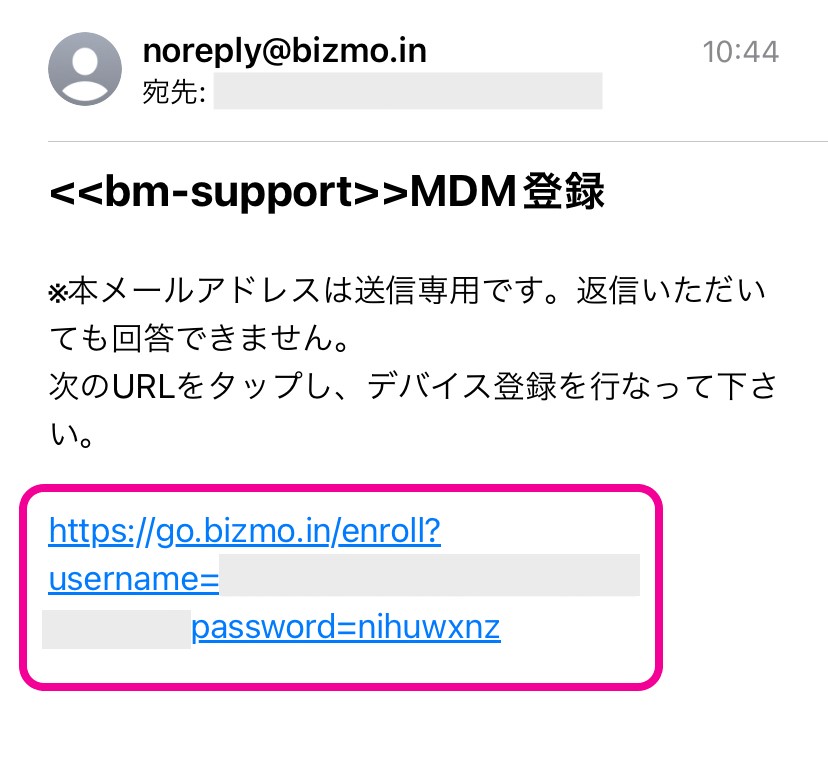
On the device, the user receives an email containing the enrollment URL information, as shown below. Clicking the link in the email body opens the enrollment site.
If "Enrollment Phone Number" information was entered when the device was created, an SMS containing the enrollment information is sent from the admin console to the device user.
The enrollment SMS is sent when you enter a mobile phone number and save or update the device information. If necessary, you can resend it as follows.
Note: This is an optional service. If you want to use it, contact BIZMOBILE.
-
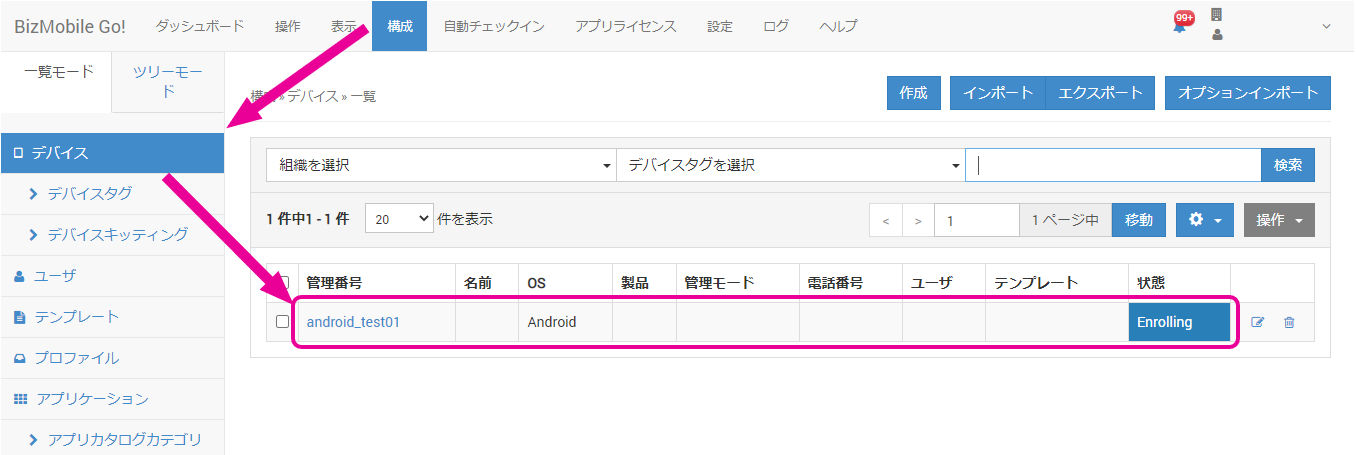
On the CONFIG → Device screen, in the list, click the device you want to send the enrollment email to.
-
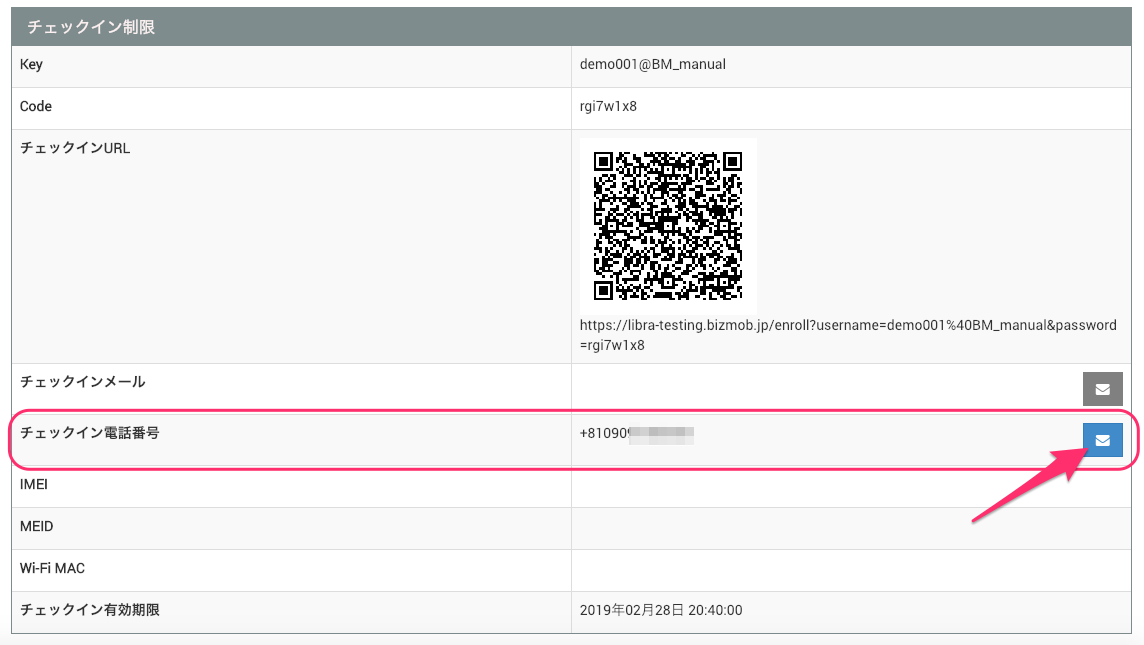
Click the email icon in the "Enrollment Phone Number" field on the detail screen (if no phone number is entered, this icon is disabled).
-
When sending is complete, the following screen appears. Click [OK].

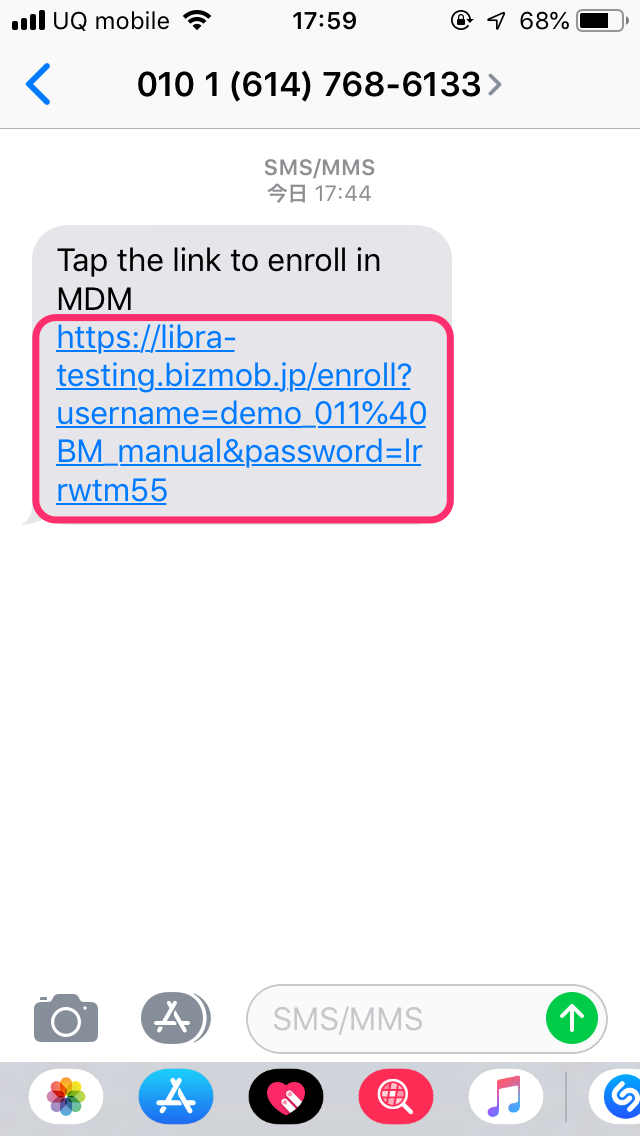
On the device, the user receives an SMS containing the enrollment URL information, as shown below. Clicking the link in the email body opens the enrollment site.
iOSAndroid macOS
You can use a QR code to easily register a device with BizMobile Go!.
This feature makes it easy to register devices with BizMobile Go!.
Note: This applies only to devices whose registration status is "Waiting for enrollment". This feature cannot be used with ADE devices.
Preparation:
You need a QR code reader app or similar.
Note: On iOS 11 and later, the standard camera can read QR codes, so you do not need to download a QR code reader app.
To use the standard camera, go to "Settings", select "Camera", and turn ON the "Scan QR Codes" item.
-
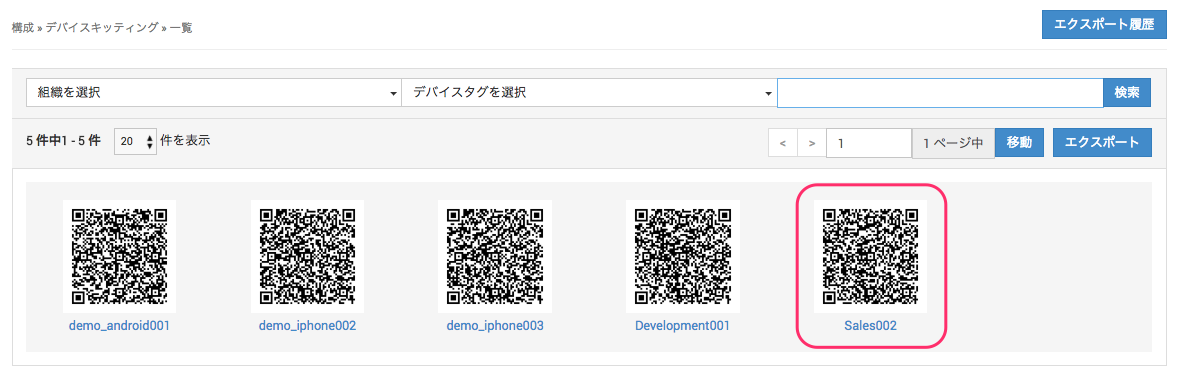
Open the CONFIG → Device Kitting screen.
A list of QR codes for devices waiting for enrollment is displayed. Scan the QR code of the device you want to register.
You can also click the "Export" button to download the QR codes as a PDF and share them.
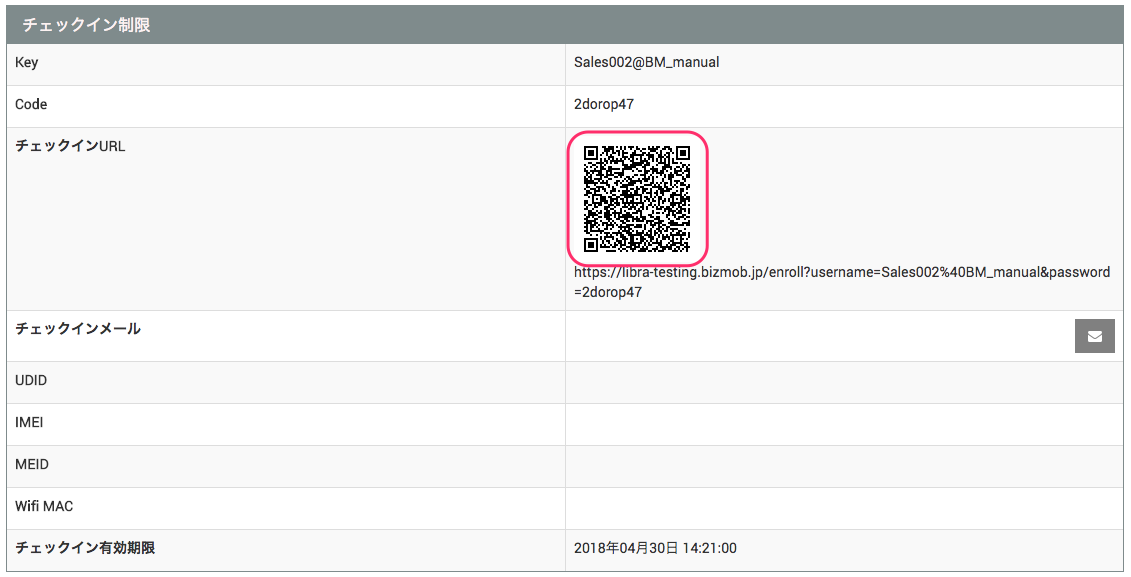
Alternatively, from CONFIG → Device, click the identifier of the target device to open the device details.
Scan the enrollment URL QR code shown under "Enrollment Restrictions".
-
After the QR code is read, click the displayed URL to open the enrollment site. For the device enrollment procedure, see Perform Device Enrollment.