Perform Device Enrollment
Device users enroll their devices by following the instructions from the device administrator. When this task is complete, the device comes under BizMobile Go! management.
When entering the enrollment information on the device
After you receive the information required for enrollment from the device administrator, enter the following URL in the device's standard browser to access the enrollment site. The standard browser for each OS is as follows.
Note: Use the standard browser for enrollment. Enrollment may fail if you use a browser other than the standard browser.
- iOS, macOS: Safari
- Android: The device's standard browser. This differs by model, so check the device's user manual or similar documentation.
- Windows: Microsoft Edge
Enrollment site URL
https://go.bizmo.in (Tokyo)
https://as-go.bizmo.in (Singapore)
- The text in parentheses is the region you selected when you applied for the service.
When enrolling from an enrollment email
Tap the link in the email you received to open the enrollment page.
After that, follow the steps from "2. On the enrollment screen, tap [Enroll]." in "Enrollment procedure for iOS devices", or in "Enrollment procedure for Android devices" for Android devices.
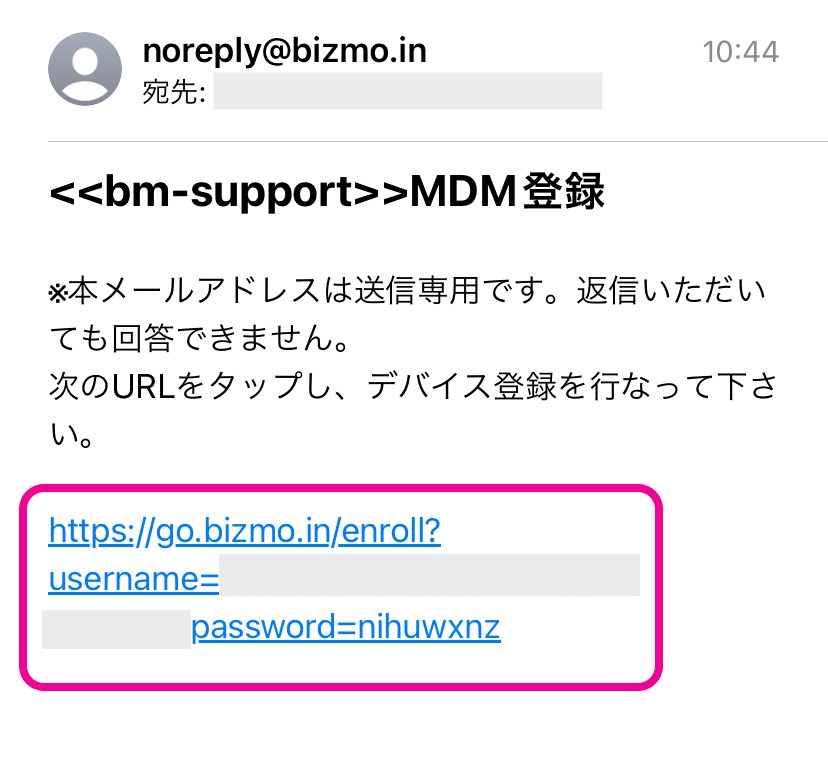
If tapping the email hyperlink launches a browser but tapping the [Enroll] button does not take you any further, a browser other than the OS standard browser may have been launched.
In particular, if a third-party browser is installed and set as the default browser, it opens automatically when you use the enrollment email, and enrollment may not complete correctly.
In this case, launch the standard browser and enter the URL given in the email directly.
When enrolling an ADE device
If you use ADE, see Enroll an ADE (formerly DEP) device.
For the enrollment procedure for each OS, see the following.