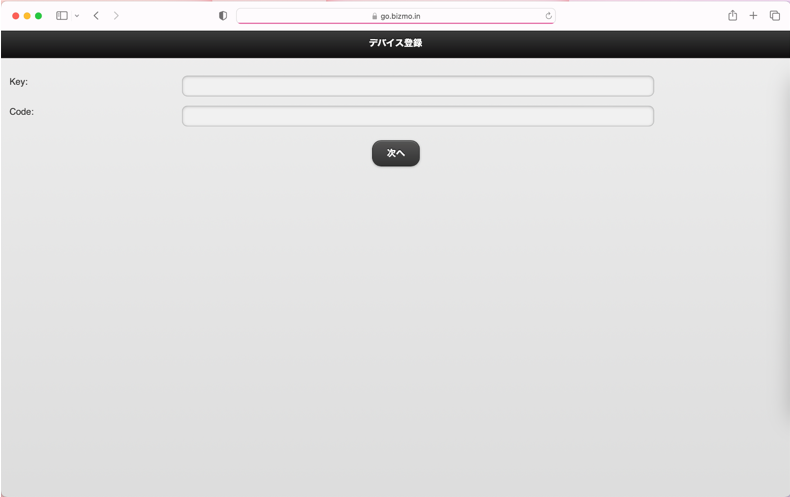
Launch the device's standard browser (Safari) and enter the enrollment site URL.
https://go.bizmo.in (Tokyo) or
https://as-go.bizmo.in (Singapore)
| 
|
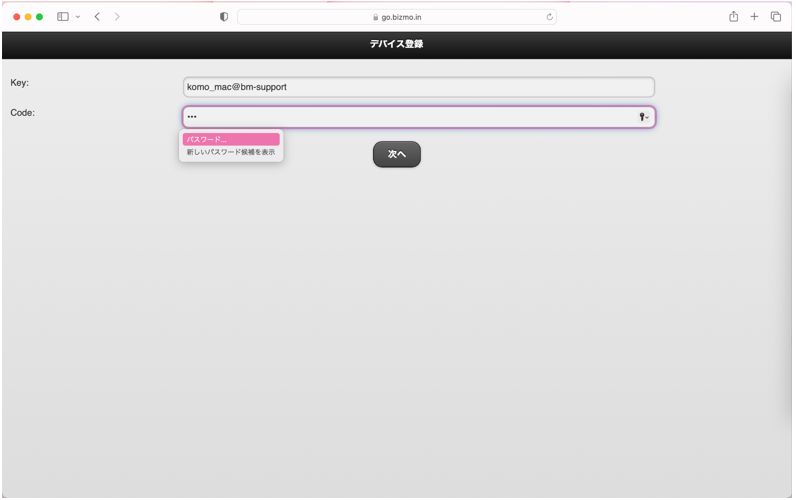
- On the device registration screen, enter "Key = (enrollment key)" and "Code = (enrollment code)", and click the [Next] button.
| 
|
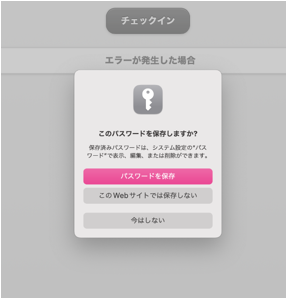
- If "Would you like to save the password?" is displayed, click [Not Now].
| 
|
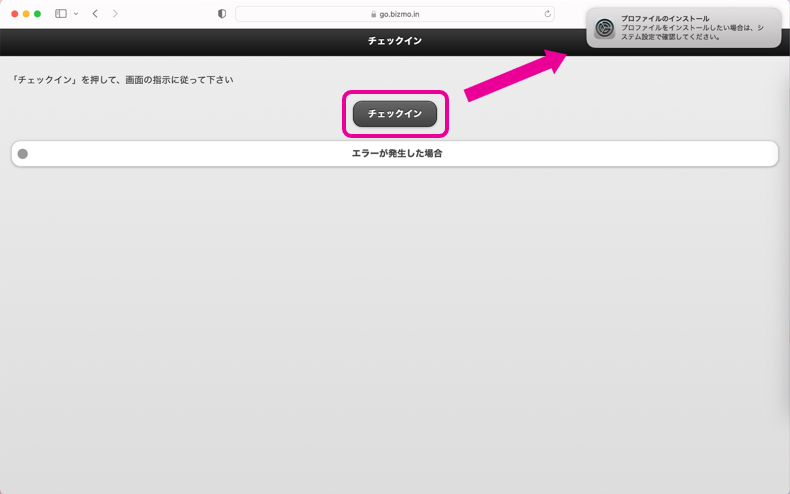
- Click "Enroll". When "Install Profile" is displayed, follow the pop-up instructions to open "System Settings".
| 
|
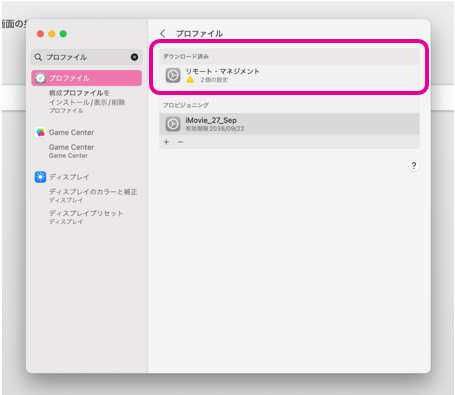
- From "Profiles", select "Remote Management".
| 
|
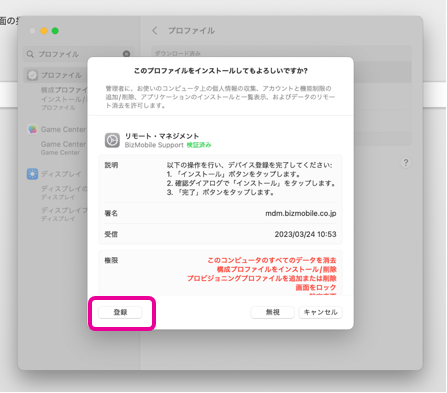
- Click "Enroll".
| 
|
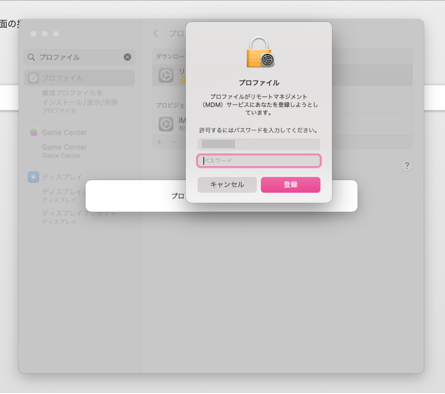
- Enter the account name and password that you use to sign in to the Mac, and click "Enroll".
| 
|
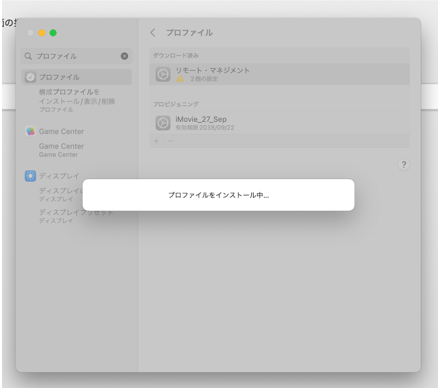
- Wait for the profile to be installed.
| 
|
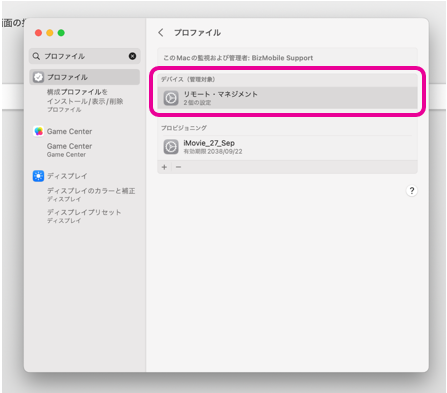
- If you can see "Remote Management" under "Profiles", as shown in the figure, enrollment is complete.
| 
|