Invite Users to VPP
Inviting users is required when you use distribution by User, in which app licenses are assigned to and managed by Apple Accounts (Apple IDs). Inviting a user is the first step in associating an Apple Account with VPP.
- User invitations can be used in units where VPP features are enabled
- The
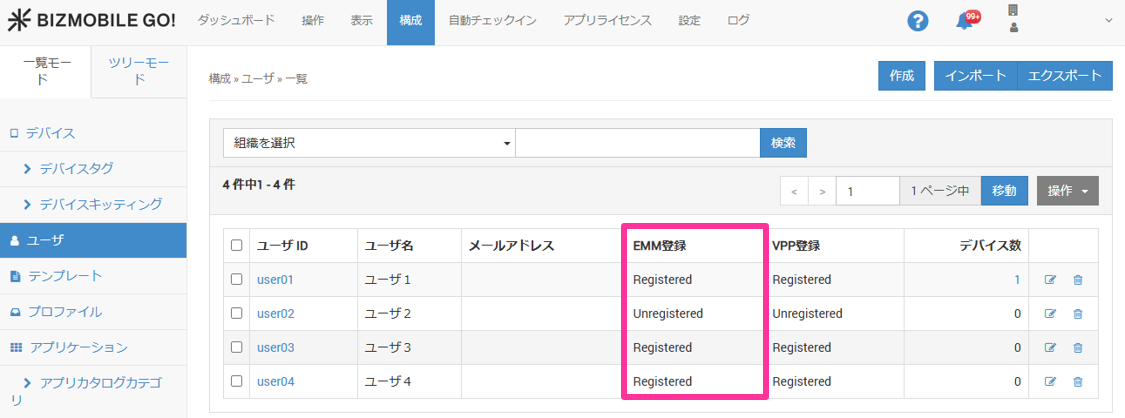
VPP Registrationstatus of the BizMobile Go! user must already be "Registered"
After you send a VPP invitation, when the invited user accepts it, the association with VPP is complete, and you can assign licenses to the user (Apple Account) in BizMobile Go!.
Inviting users is not required when you use distribution by Device, in which VPP licenses are assigned to devices (Differences between Device and User)
How to invite users to VPP
There are two ways to invite users.
A) Administrator invites users to VPP and accepts on their behalf
B) Administrator invites users to VPP and users accept on their devices
A. Administrator invites users to VPP and accepts on their behalf
For company-owned devices that meet the following conditions, you can assign app licenses without disclosing the Apple Account (Apple ID) and password to the device user, and apps can be purchased on the device.
The invitation and acceptance can be completed entirely on the administrator's PC.
- The administrator manages all Apple Accounts
- Before distributing devices to users, the administrator sets the Apple Account and password on each device
Obtain (export) the user information and invitation URLs required for VPP invitations by following the steps below.
You do not have to register Apple Accounts for BizMobile Go! users in advance of the export.
1. Obtain the VPP invitation URLs
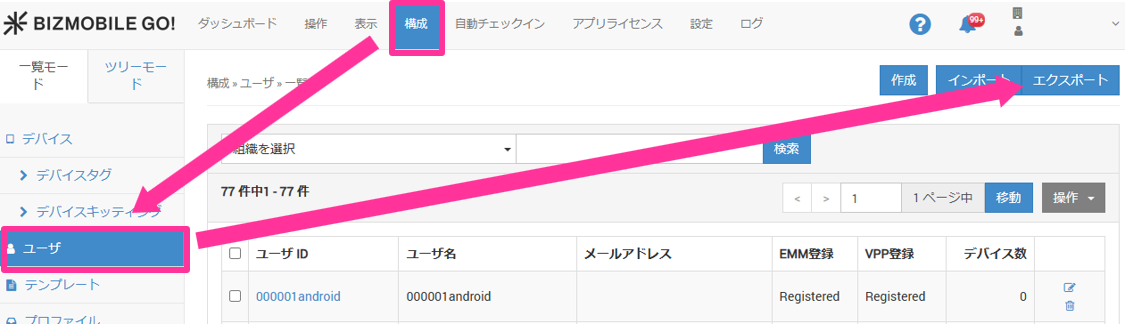
- Click CONFIG → User → [Export].
- From the
Select data to exportpull-down menu, selectVPP Invitationand click [Export].

- On the
Do you want to create the download data?message screen, click [OK].

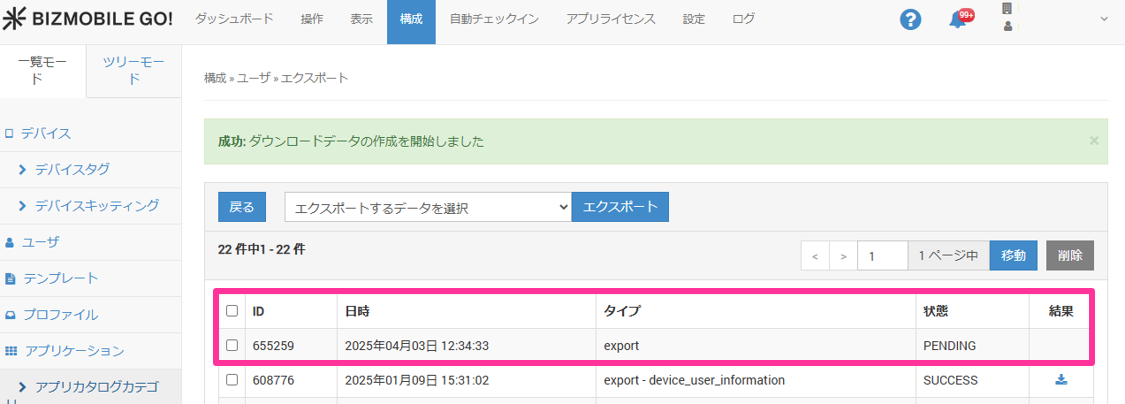
- The export data being created is added to the export list with
Statusdisplayed asPENDING. Wait a moment and then click the browser's refresh button.
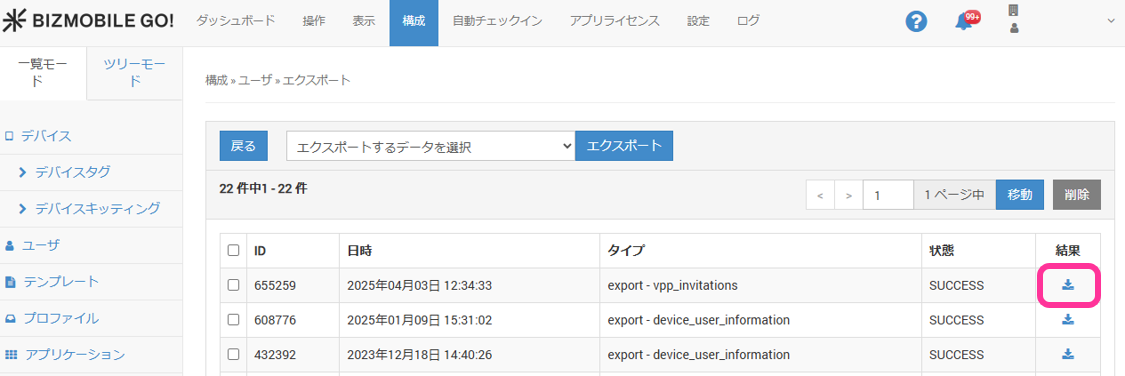
- When the export data is created,
Statuschanges toSUCCESS, and you can download it as a CSV file with the download icon below the result.
(If the status remains PENDING, wait a moment and refresh the browser again.)
You can also check previously exported information.
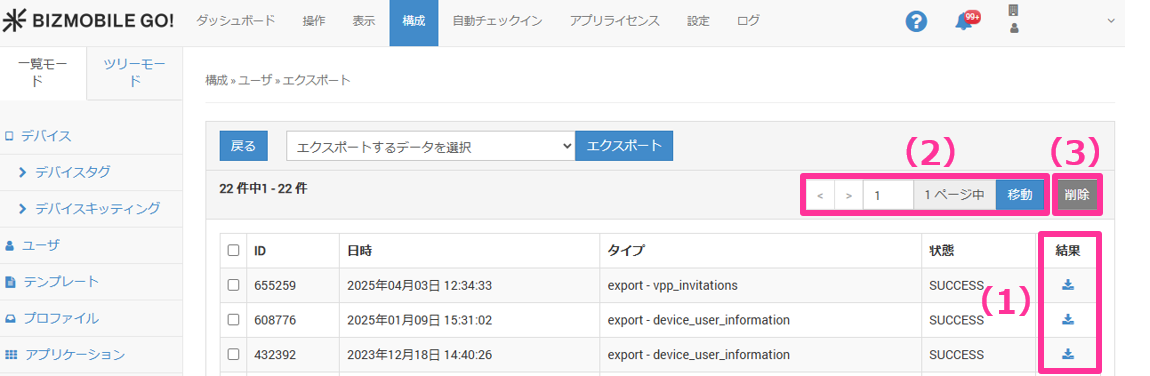
(1) You can download past export data again
(2) If the export data spans multiple pages, you can move between pages
(3) You can use the checkboxes to delete export data that is no longer needed
2. Send and accept the VPP invitations
Complete the following steps for each user you want to invite.
- Open a browser on the administrator's PC and paste the invitation URL (
InviteURL) from the downloaded file. iTunes opens and the sign-in screen appears.
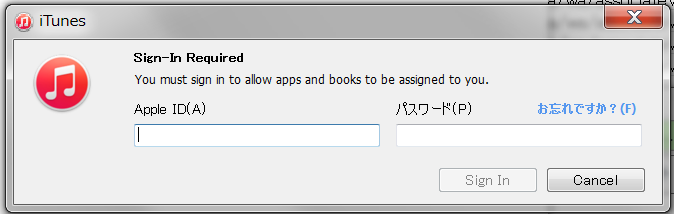
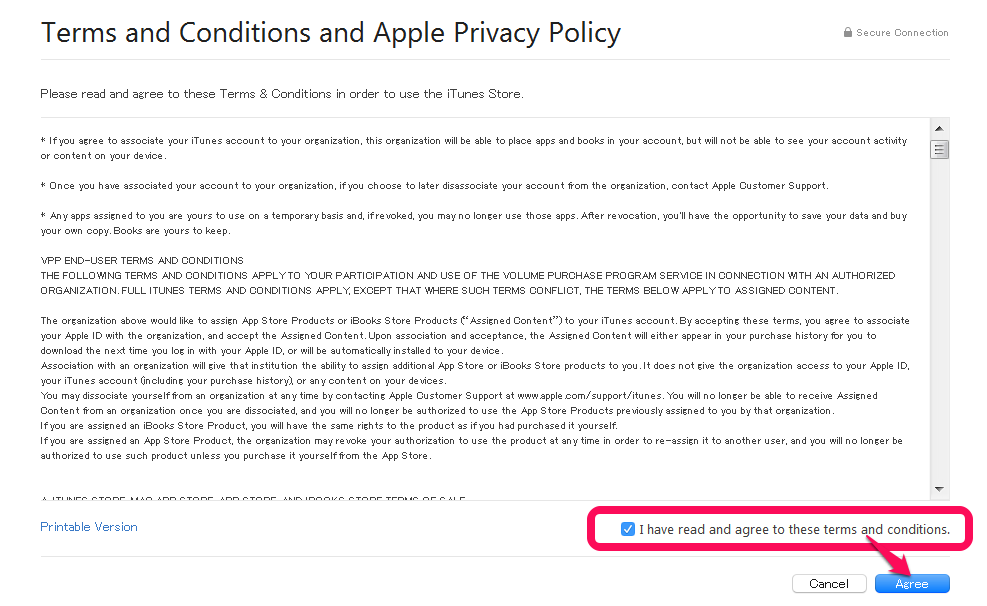
- On the sign-in screen, sign in with the Apple ID of the user you are inviting. The
Terms and Conditions and Apple Privacy Policyscreen opens. SelectI have read and agree to these term,s and conditionsand click [Agree].
- When the
Allow Assignmentscreen appears, the invitation and acceptance of the user (Apple ID) you entered are complete.

B. Administrator invites users to VPP and users accept on their devices
The admin console sends an invitation email to the device user, and the association with VPP is complete when the device user accepts the invitation on the device.
You send the invitation when you create a user in the admin console or when you upload a user information CSV file.
- A VPP invitation email is sent to the email address registered for the BizMobile Go! user
- The device user accepts the invitation on a device where they are signed in with an Apple Account
With this method, the Apple Account and password signed in on the device are not disclosed to the administrator.
Also, because the device user manages the Apple Account, the administrator does not need to prepare it in advance.
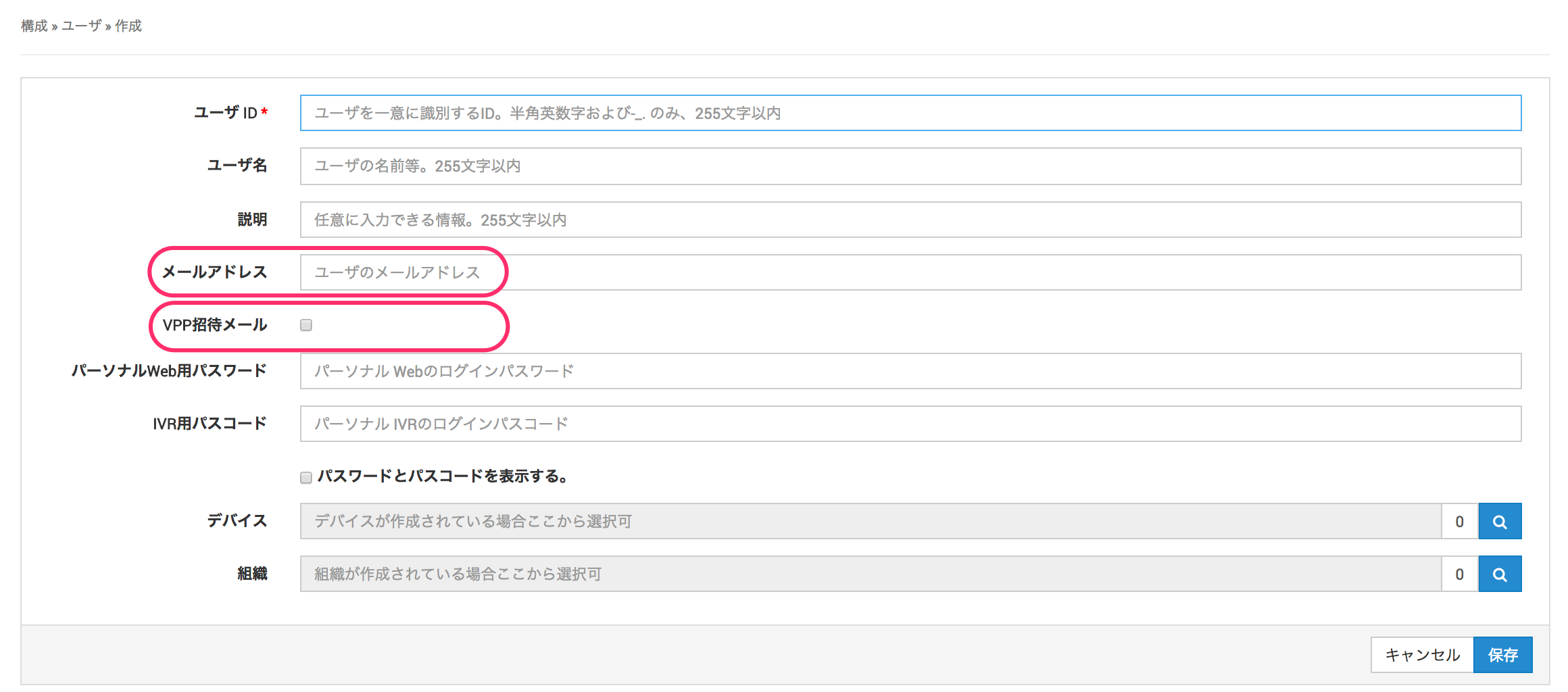
Set a VPP invitation on the Create User screen
You can set a VPP invitation on the screen only when you create a user. To invite a user who has already been created to VPP, follow the procedure in Set VPP invitations with a CSV file below.
| Item | Description |
|---|---|
| Email Address | Enter the email address to send the VPP invitation email to (required if you use the VPP invitation email). Use together with the VPP Invitation Email setting. |
| VPP Invitation Email | Select this checkbox to send the VPP invitation email to the address entered in the Email Address field.Use together with the Email Address setting. |
When you Save the user being created, the VPP invitation email is sent.
Set VPP invitations with a CSV file
You can use this when creating and updating users.
CSV sample (create and update users)
UserName,Name,EmailAddress,UserDescription,SendVPPInvitationEmail,Organizations
user1_id,,user1@sample.co.jp,,1,
Description of the sample
• UserName: Required (user ID)
• Name: Optional (omitted in the sample)
• EmailAddress: Required (email address)
• UserDescription: Optional (omitted in the sample)
• SendVPPInvitationEmail: Required 1
• Organizations: Optional (omitted in the sample)
| Header item name | Meaning |
|---|---|
| EmailAddress | Specify the email address to send the VPP invitation email to (required if you use the VPP invitation email). Use together with the SendVPPInvitationEmail setting. |
| SendVPPInvitationEmail | To send the VPP invitation email to the address specified in the EmailAddress field, specify 1 for this item.Use together with the EmailAddress setting. |
When the user information CSV upload is complete, the VPP invitation email is sent.
Example of the invitation email sent to users
When the administrator sends a VPP invitation email, the device user receives an email like the following.
The user completes the acceptance by following the URL in the email on the device.
Note: This email address is send-only. We cannot respond to replies. Tap the following URL to accept the VPP invitation.
https://buy.itunes.apple.com/WebObjects/MZFinance.woa/wa/associateVPPUserWithITSAccount?inviteCode.........
Manage invited users
You can resend the VPP invitation email to users as needed. You can also retire users who have moved or left the company to remove them from VPP management and reclaim the app licenses assigned to them.
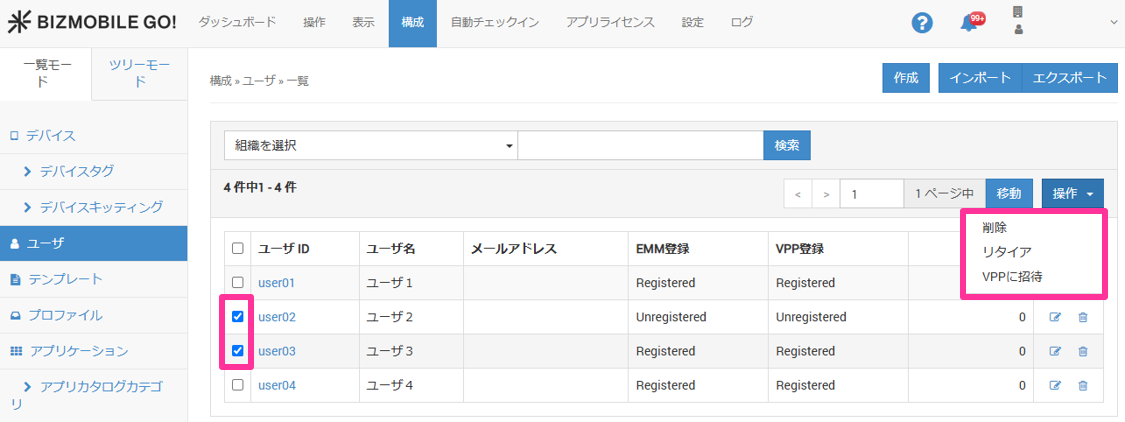
Operation buttons
| Operation | Description |
|---|---|
| Delete | Select users and click this button to delete the selected users. |
| Retire | Select users and click this button to withdraw the selected users from VPP. The licenses in use are reclaimed, but once a user becomes Retired, the same user cannot be invited to VPP again, and you must re-create the user. |
| Invite to VPP | Select users and click this button to send the VPP invitation email. The targets are users whose VPP Registration is Registered or Unregistered. |
Status transitions until the user invitation to VPP is complete
From user creation until the VPP invitation is accepted, the VPP registration state of the user is managed with the following statuses.
| User state | User invitation status | |
| State transition (1) → (4) | (1) VPP invitation not sent Immediately after the user is created, and the user is not yet registered with the Apple VPP service (or the VPP settings of the unit have not been configured) | Unregistered |
| (2) VPP invitation sent, VPP acceptance not done User registration with the Apple VPP service is complete, and the user can be invited to VPP or accept the invitation after being invited | Registered | |
| (3) VPP invitation and VPP acceptance complete The VPP invitation has been accepted and VPP apps can be used | Associated | |
| (4) User withdrawn (retired) from VPP. The user registration is removed from VPP, and the app licenses assigned to the user are reclaimed (the user cannot be invited to VPP again, and you must re-create the user) | Retired |