Enable VPP Features
To enable the VPP features in BizMobile Go!, upload the token obtained from the Apple site by following the procedure below.
Notes
A VPP token has an expiration date and must be renewed once a year. If it expires (the VPP token becomes invalid), the VPP features can no longer be used. You can renew the token at any time, so we recommend renewing it before it expires. For the renewal procedure, see Renew the VPP Token.
Enable VPP features
Note: If you are using a Windows PC, use Google Chrome or Microsoft Edge for this procedure.
Steps
| Step | Screen |
|---|---|
| 1. Sign in to Apple Business (https://business.apple.com/login). | 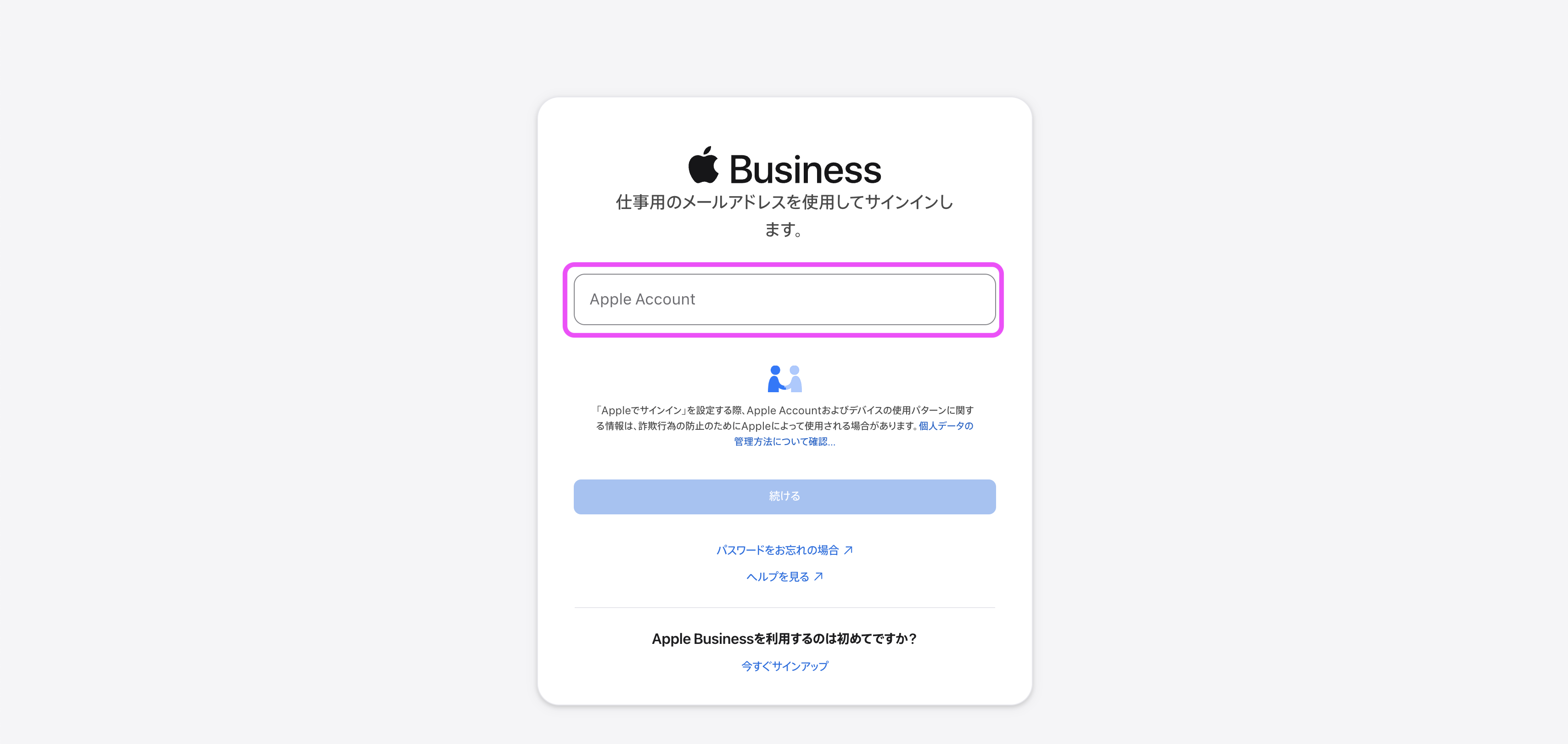 |
2. Click the organization name at the upper right of the screen → Settings. | 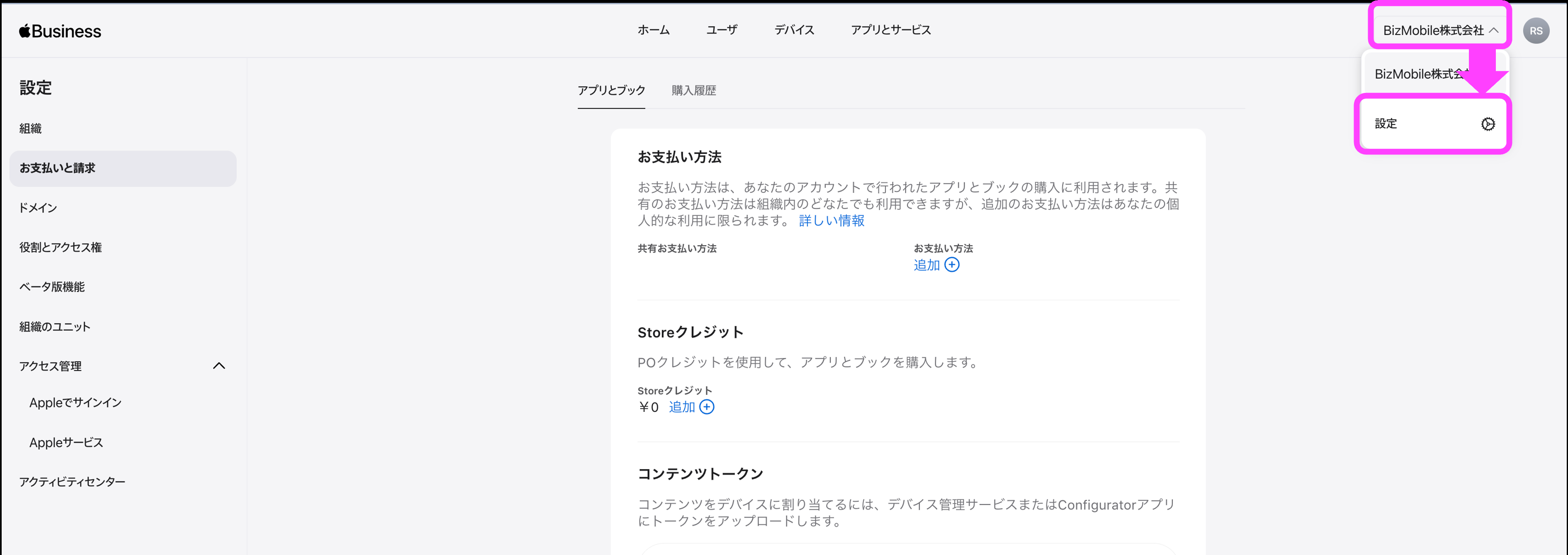 |
3. Click Payments & Billing, and then download and save the content token of the organizational unit that you will link to the BizMobile Go! unit.If no content token appears, create a new organizational unit as described in Create an Organizational Unit.Note: If you create multiple organizational units, always manage them so that each BizMobile Go! unit is linked to exactly one location. | 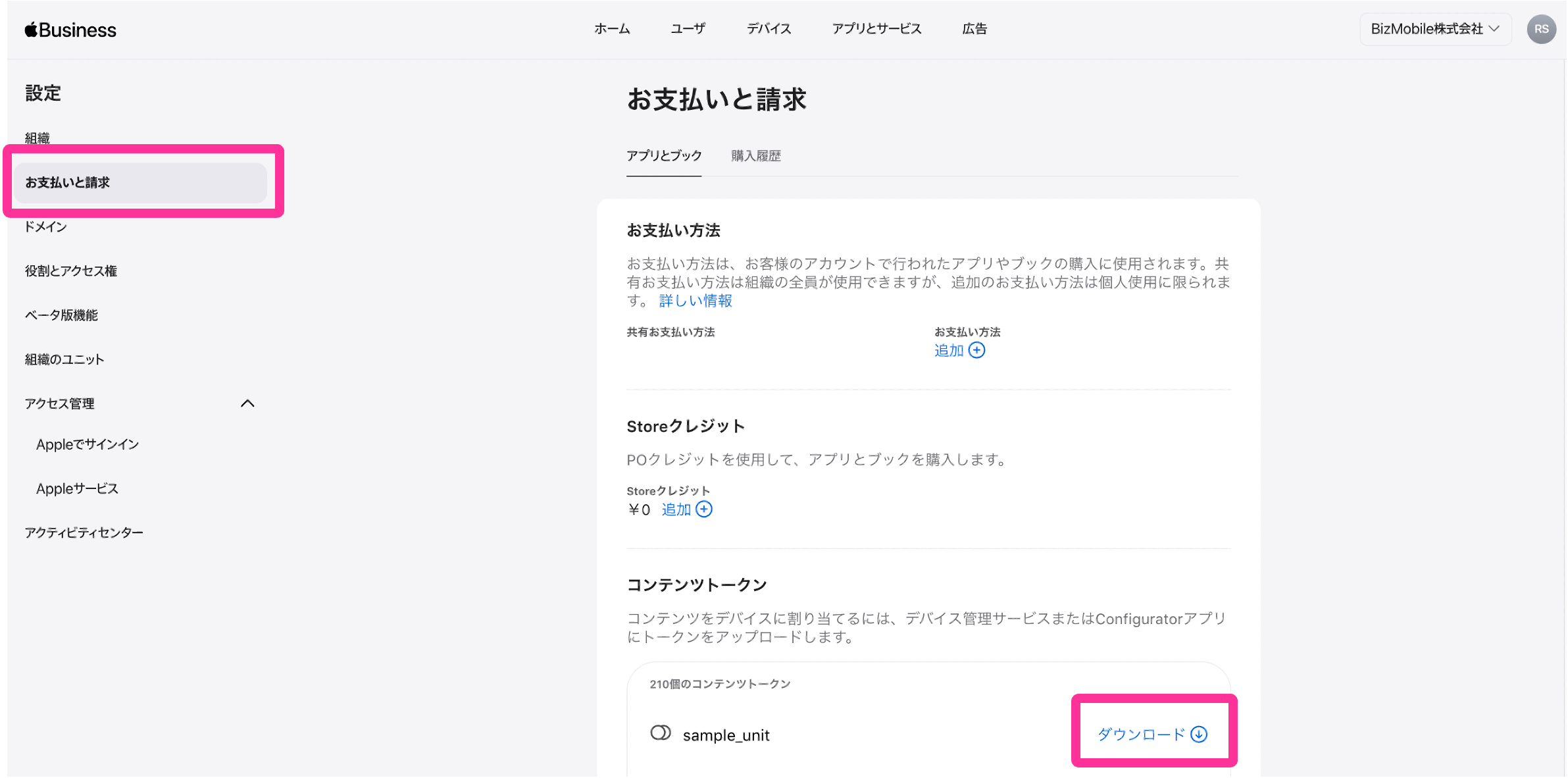 |
| 4. In the BizMobile Go! admin console, click SETTING → Unit Detail → Apple → Apple VPP Token. |  |
5. Upload the content token (file extension .vpptoken) that you downloaded in step 3. (Step 2: Upload VPP Token)Drag and drop the file onto the CLICK HERE OR DROP FILE HERE area, or click the area and select the file from the file selection screen. | 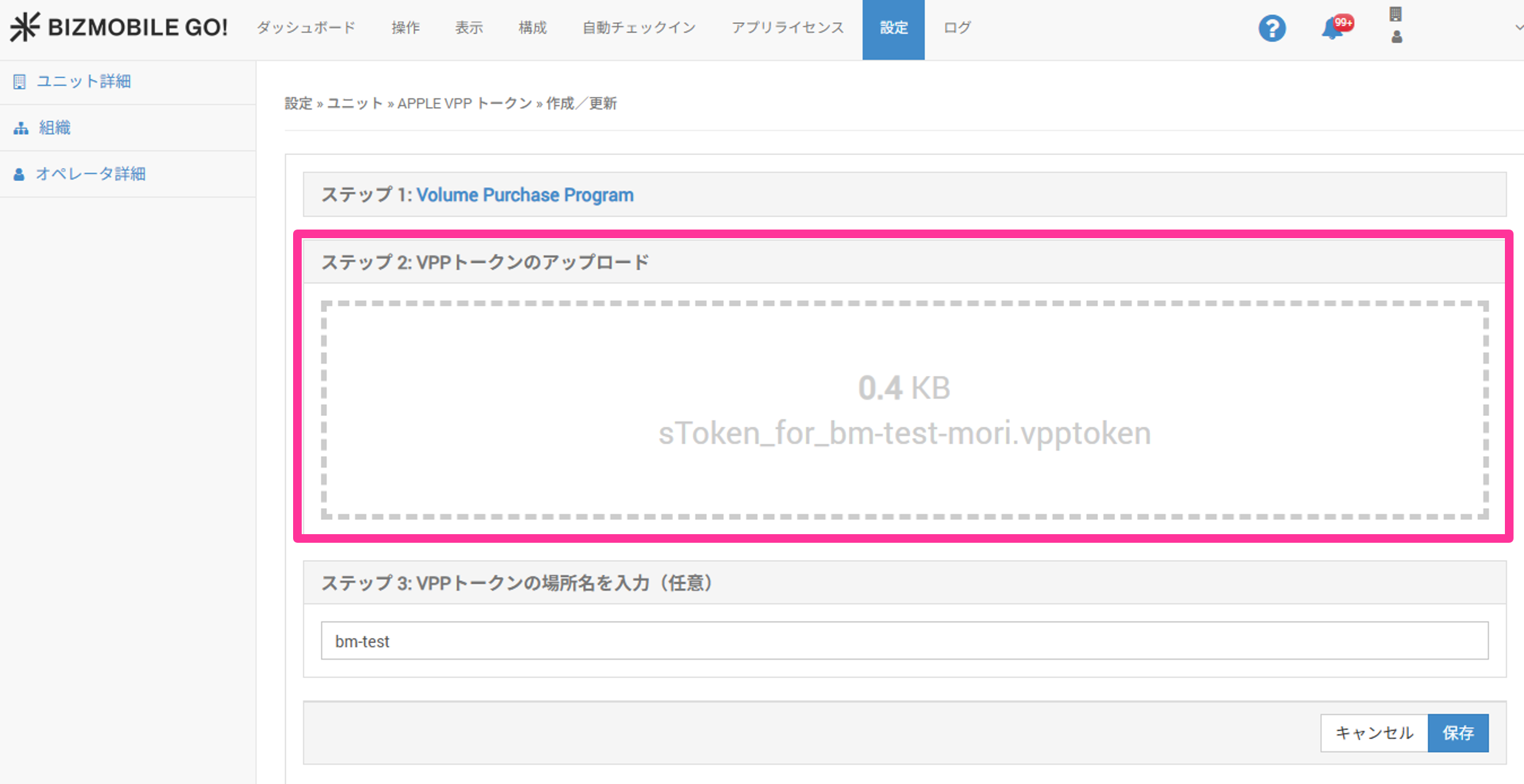 |
| 6. If you have multiple organizational units, you can enter which organizational unit's content token you uploaded. (Step 3: Enter VPP Token Location (Optional)) After entering it, click [Save]. | 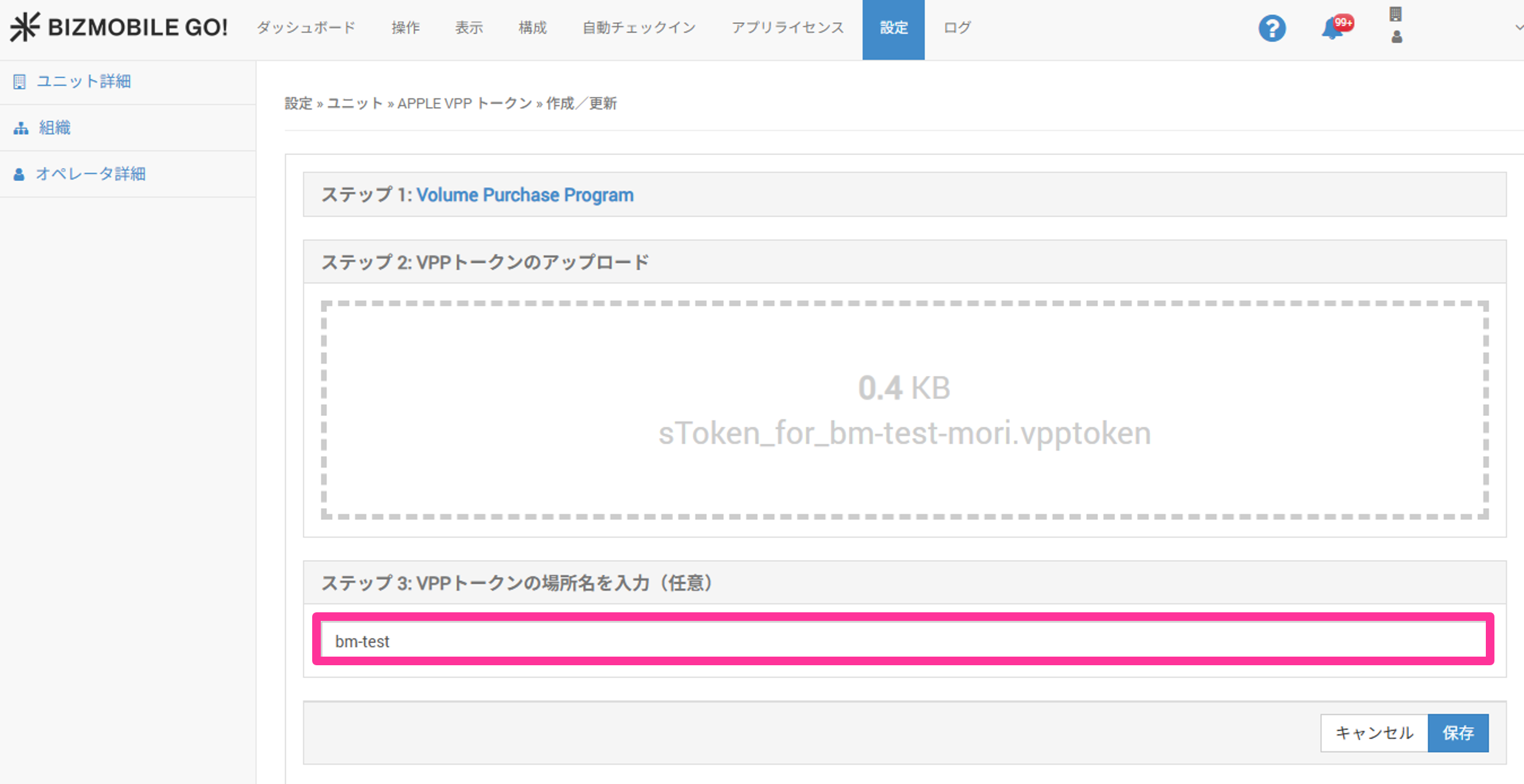 |
7. If the registration succeeded, Last sync at: appears under App Licenses → VPP. If it does not appear, log out of the admin console, log in again, and check again. | 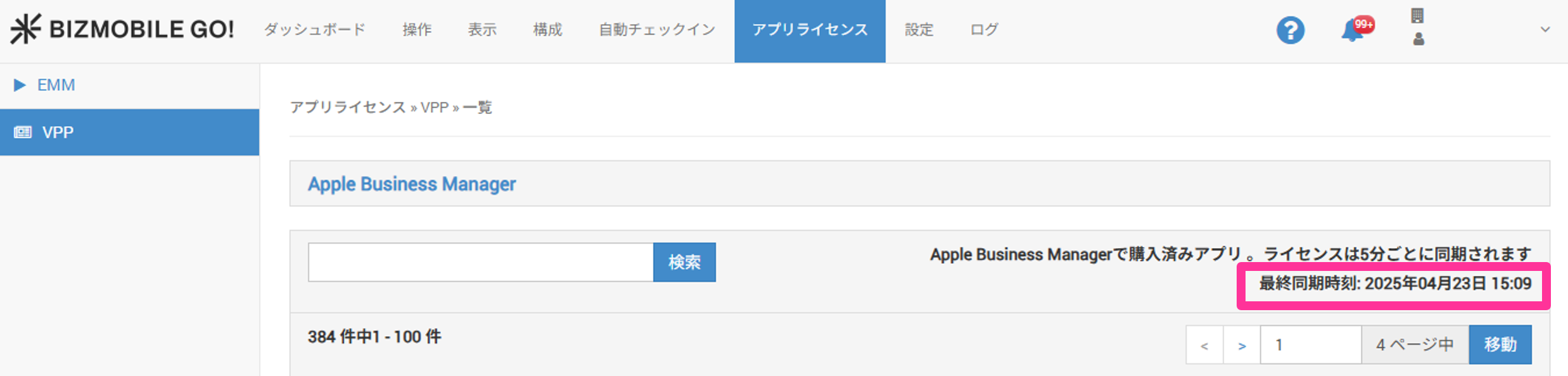 |