Purchase and Distribute VPP Apps
Sign in to Apple Business (formerly Apple Business Manager) and add apps to the library of your organizational unit.
After you purchase an app, specify the template that distributes the app and how its licenses are managed, and register the app in the template. The app can then be installed on devices.
On macOS devices, you can install Mac-only apps that are available on the Mac App Store.
If the device has Apple silicon, you can also install iOS apps that are available on the Mac App Store.
Purchase VPP Apps in Apple Business
If you use a Windows PC, use Google Chrome or Microsoft Edge for this task.
| Step | Screenshot |
|---|---|
1. Sign in to Apple Business (https://business.apple.com/login) with an account that has the Content Manager role. | 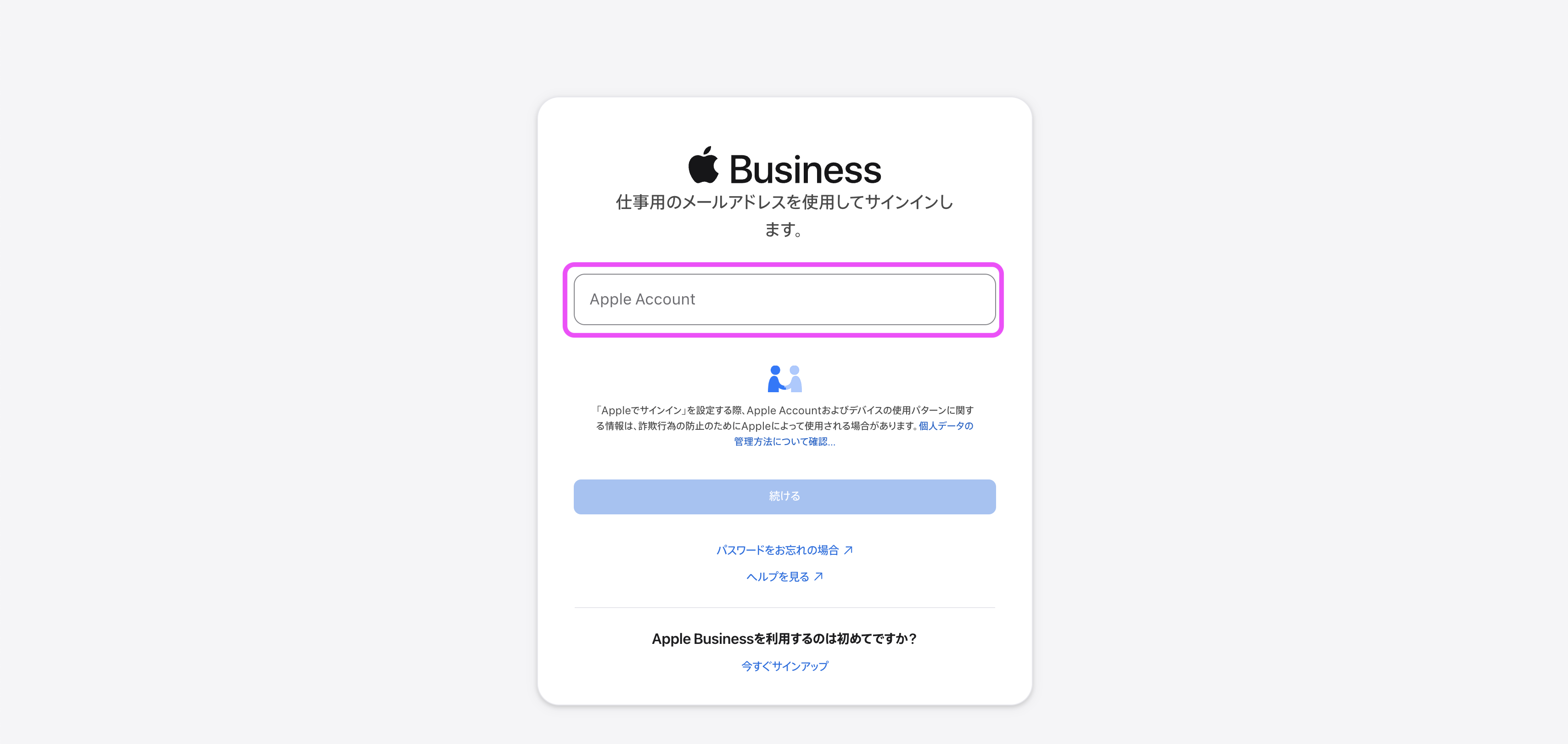 |
2. Click Apps & Services → Apps and Books → App Store. | 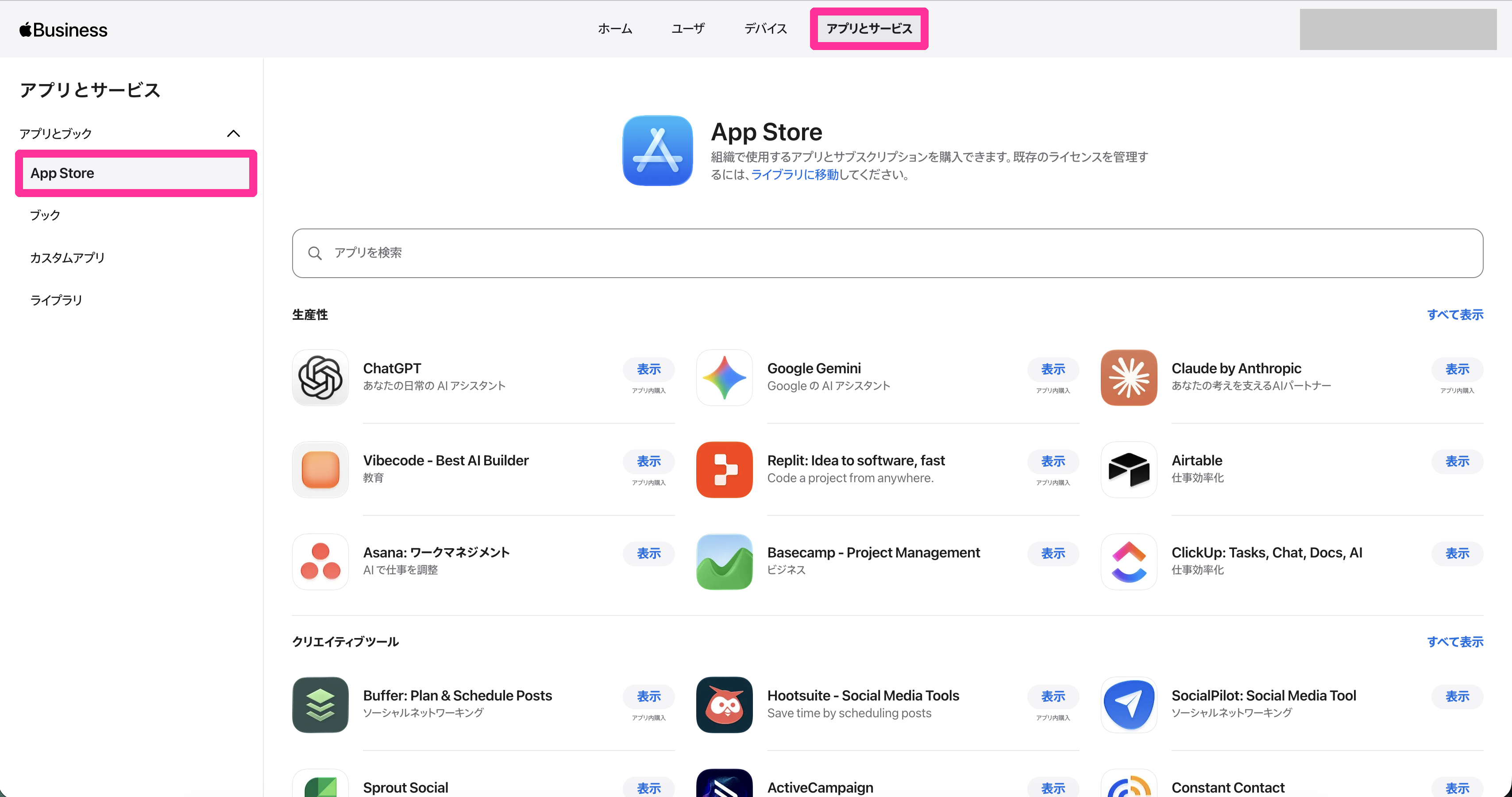 |
3. Enter the app name or a keyword in the search box to search for the app, and click View for the target app. | 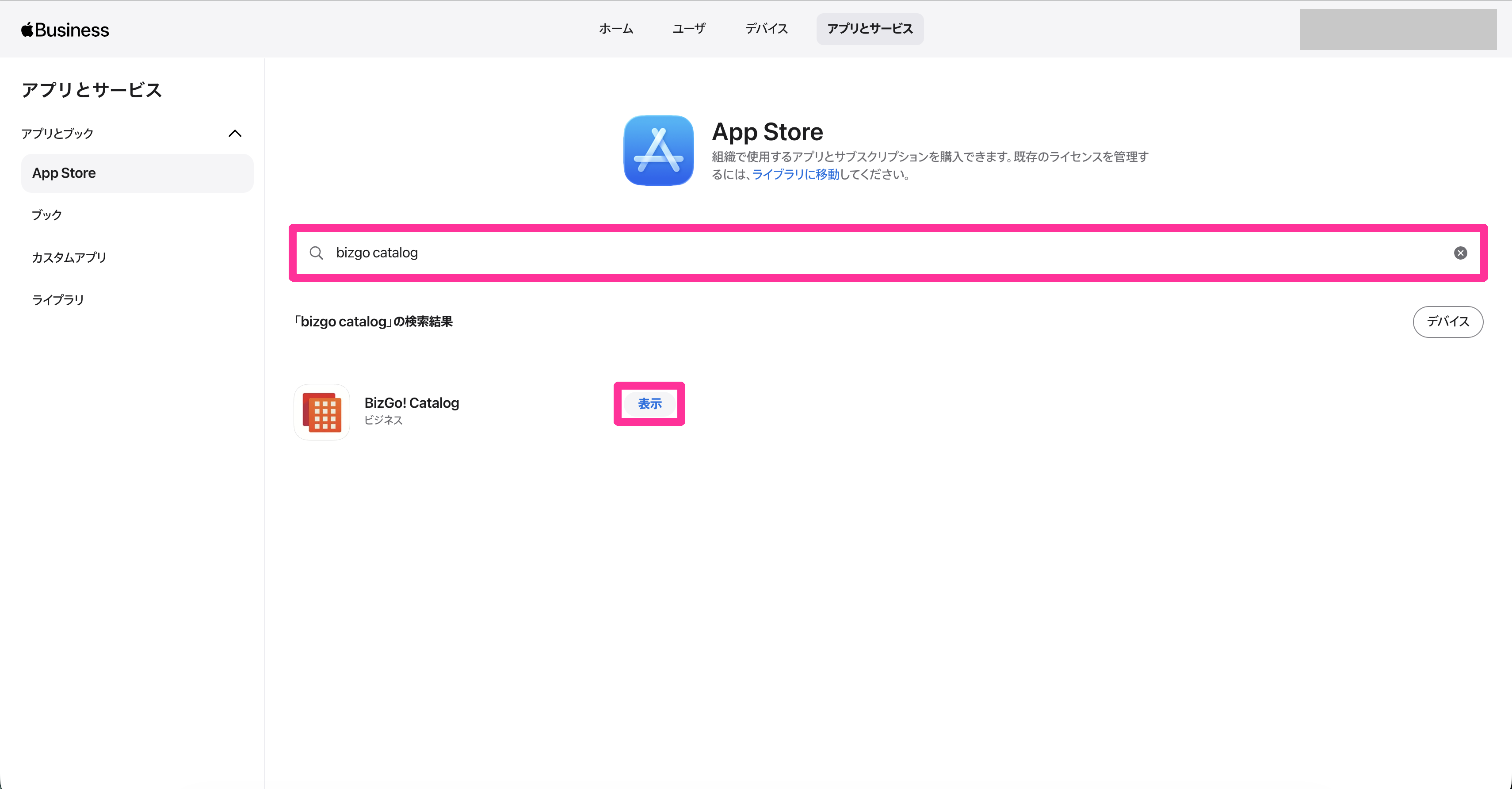 |
4. On the app details screen, click Add.Note: For an app that has already been added to the library, Manage appears instead of Add. | 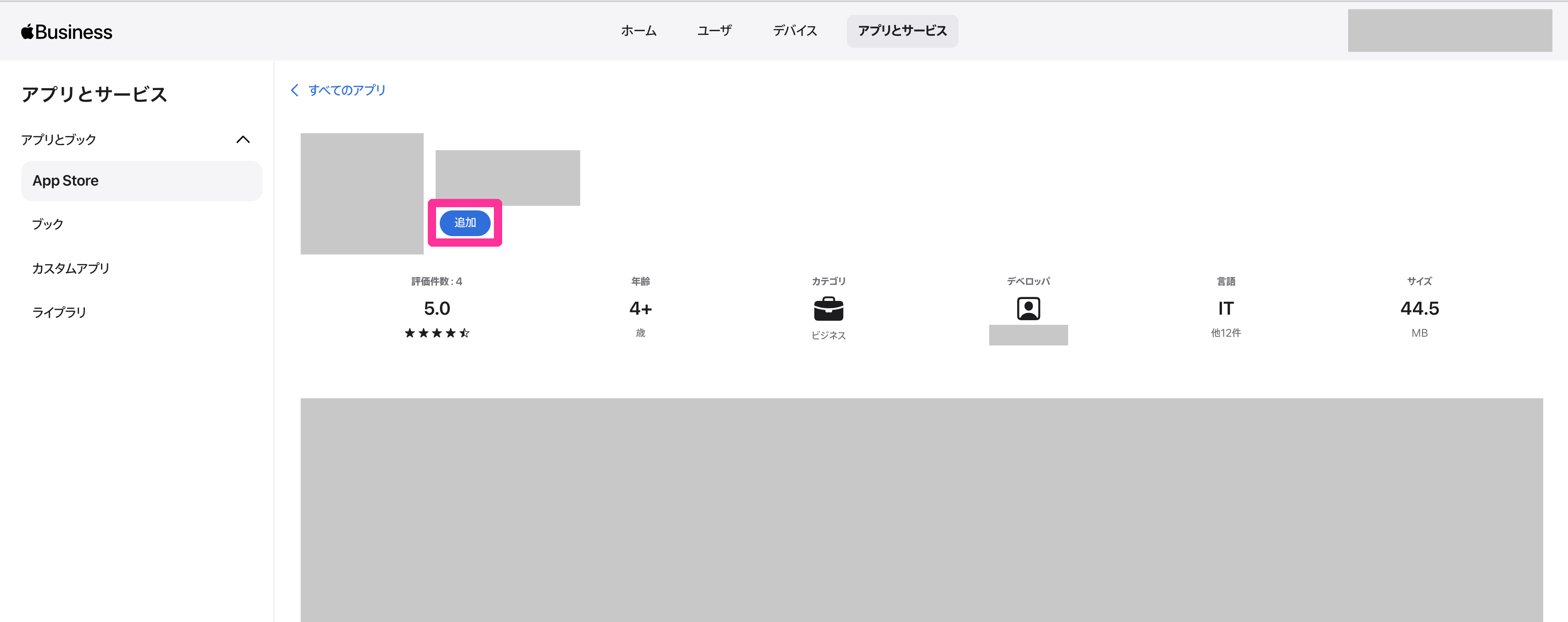 |
Note: For a paid app, the Purchase App Licenses screen appears instead of steps 5 to 7, and you must enter the number of licenses to purchase.Select Managed Licenses for License Type, and select an organizational unit. Enter the number of licenses to purchase in Total Licenses Needed, click Confirm, and complete the purchase by following the on-screen instructions.Note: Managed Licenses are licenses that your organization owns and that can be reassigned to users or devices. | 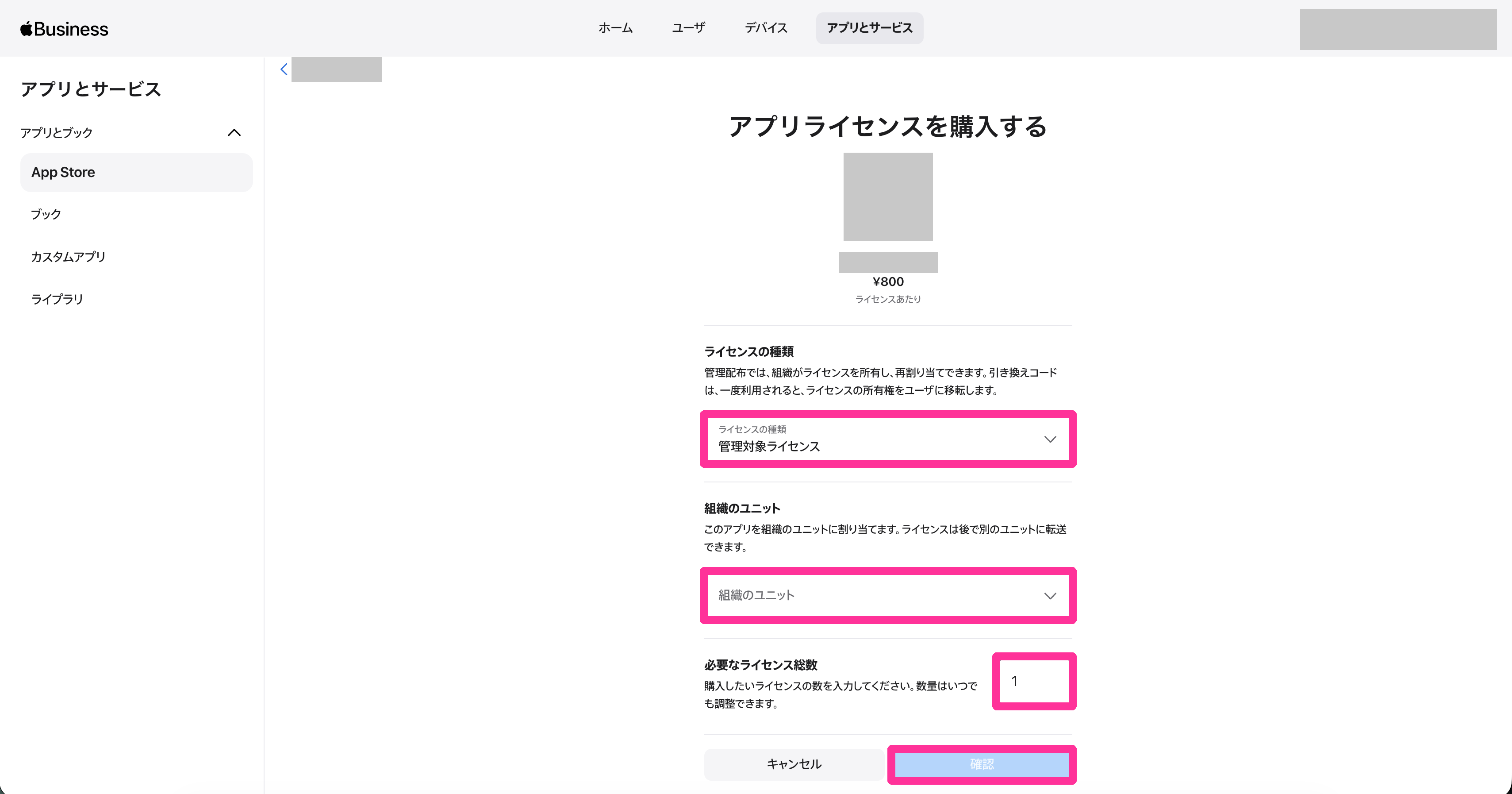 |
5. On the Add to Library screen, click the organizational unit drop-down list, select the organizational units that will use the app, and click Add.Note: You can select multiple organizational units. You can also enter part of a name in the search box to narrow down the list. | 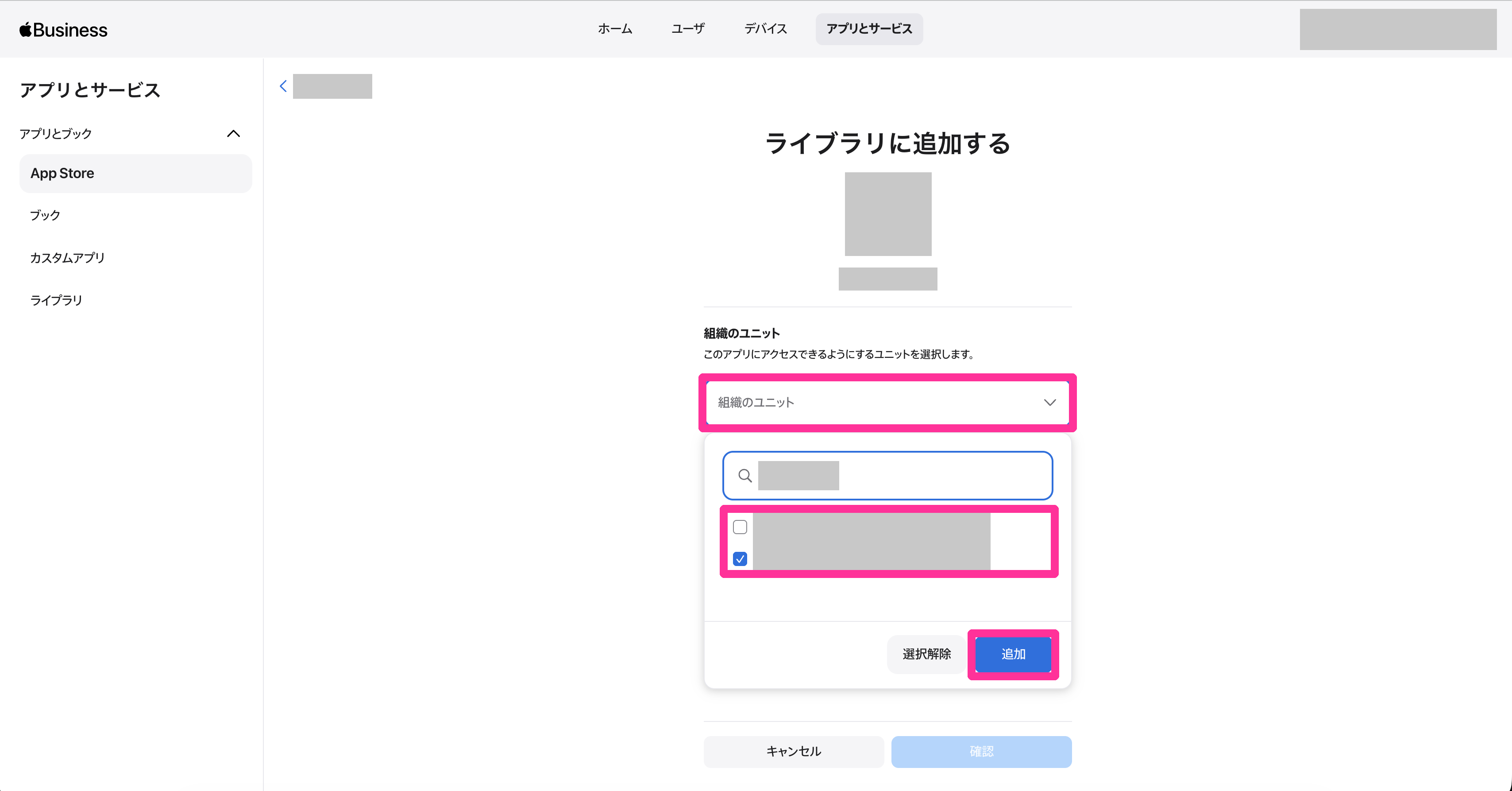 |
6. Confirm that the selected organizational units appear, and click Confirm. | 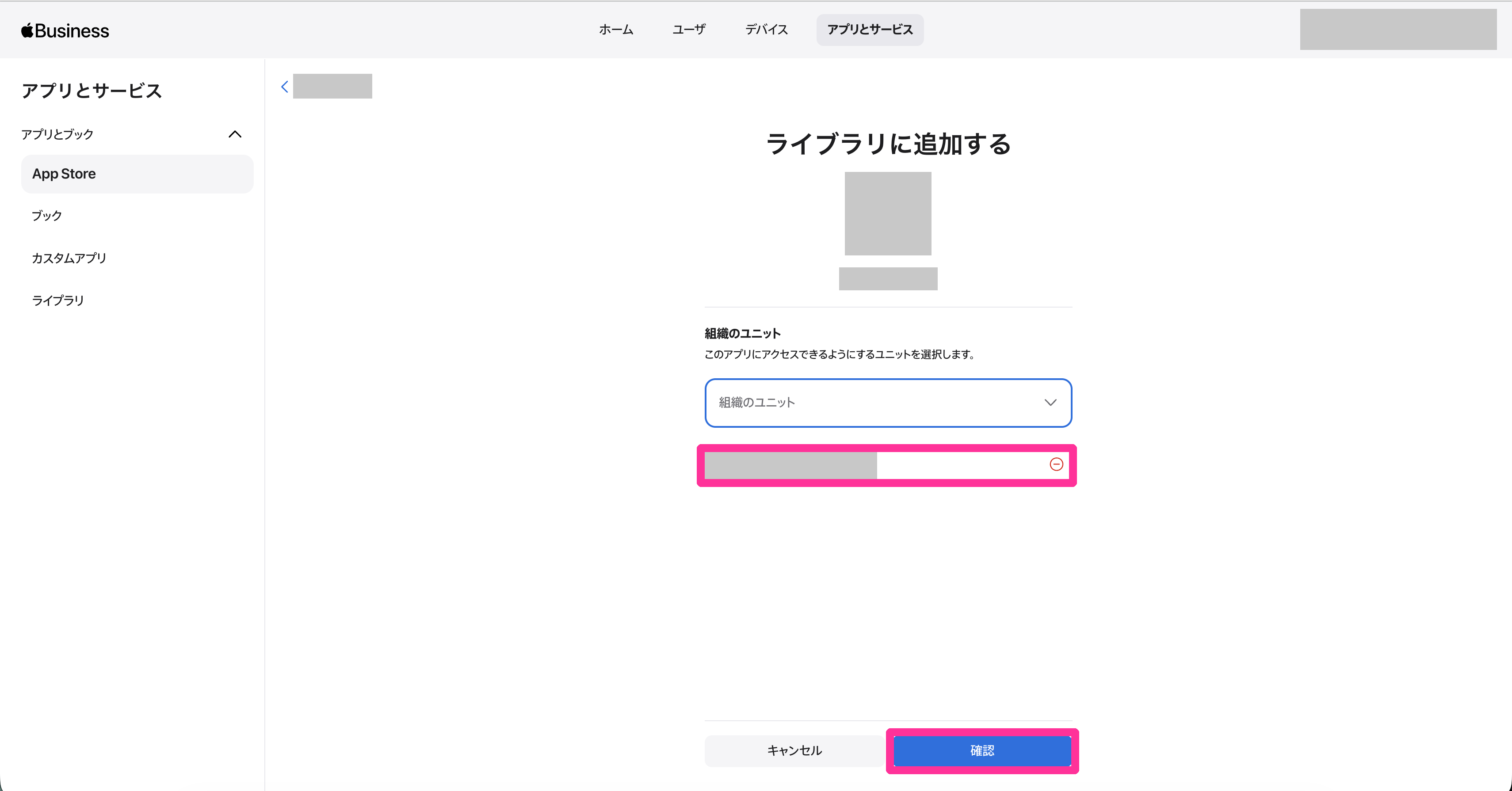 |
7. On the confirmation screen, check the organizational units and click Add to Library. | 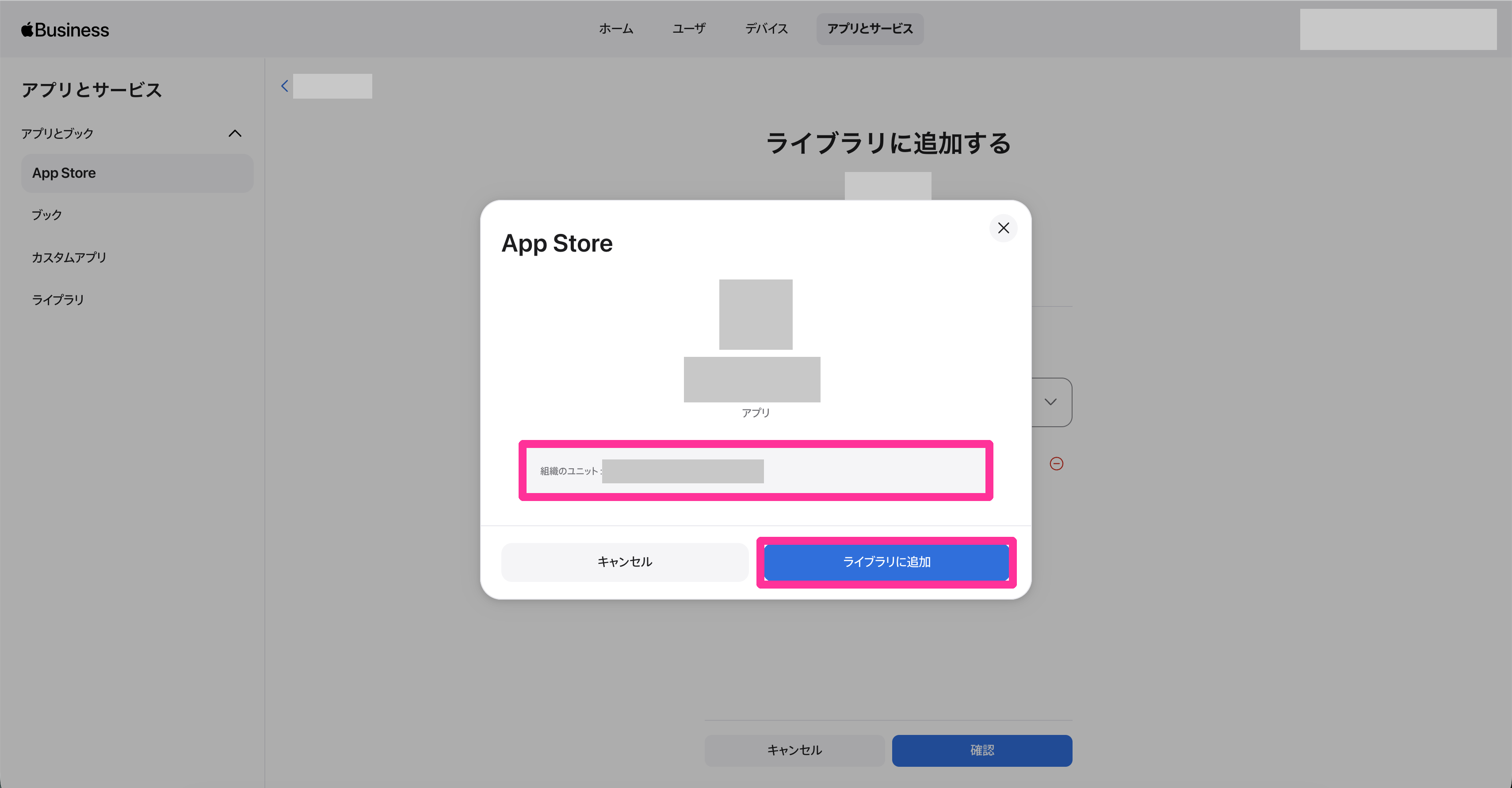 |
| 8. The app you added appears under APP LICENSES > VPP in the admin console and can be distributed to devices. You can also check the number of available licenses and the number of licenses in use. Note: Licenses are synchronized every 5 minutes. After you add the app to the library in Apple Business, wait for a while until it appears in the admin console. | 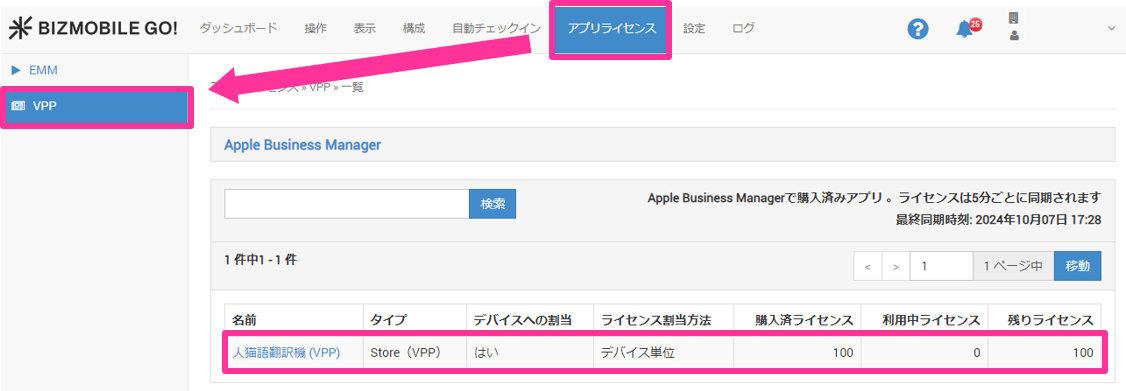 |
For a free app that you added to the library in Apple Business, the number of licenses is displayed as 2147483647 under APP LICENSES > VPP in the admin console.
This display is planned to be improved in the future.
Check and Transfer the Number of Licenses in Apple Business
You check the number of licenses for each organizational unit and transfer licenses between organizational units in the Library in Apple Business.
| Step | Screenshot |
|---|---|
1. Click Apps & Services → Apps and Books → Library, and select the target app.Note: You can also display this screen by opening the app details screen in the App Store and clicking Manage Licenses. | 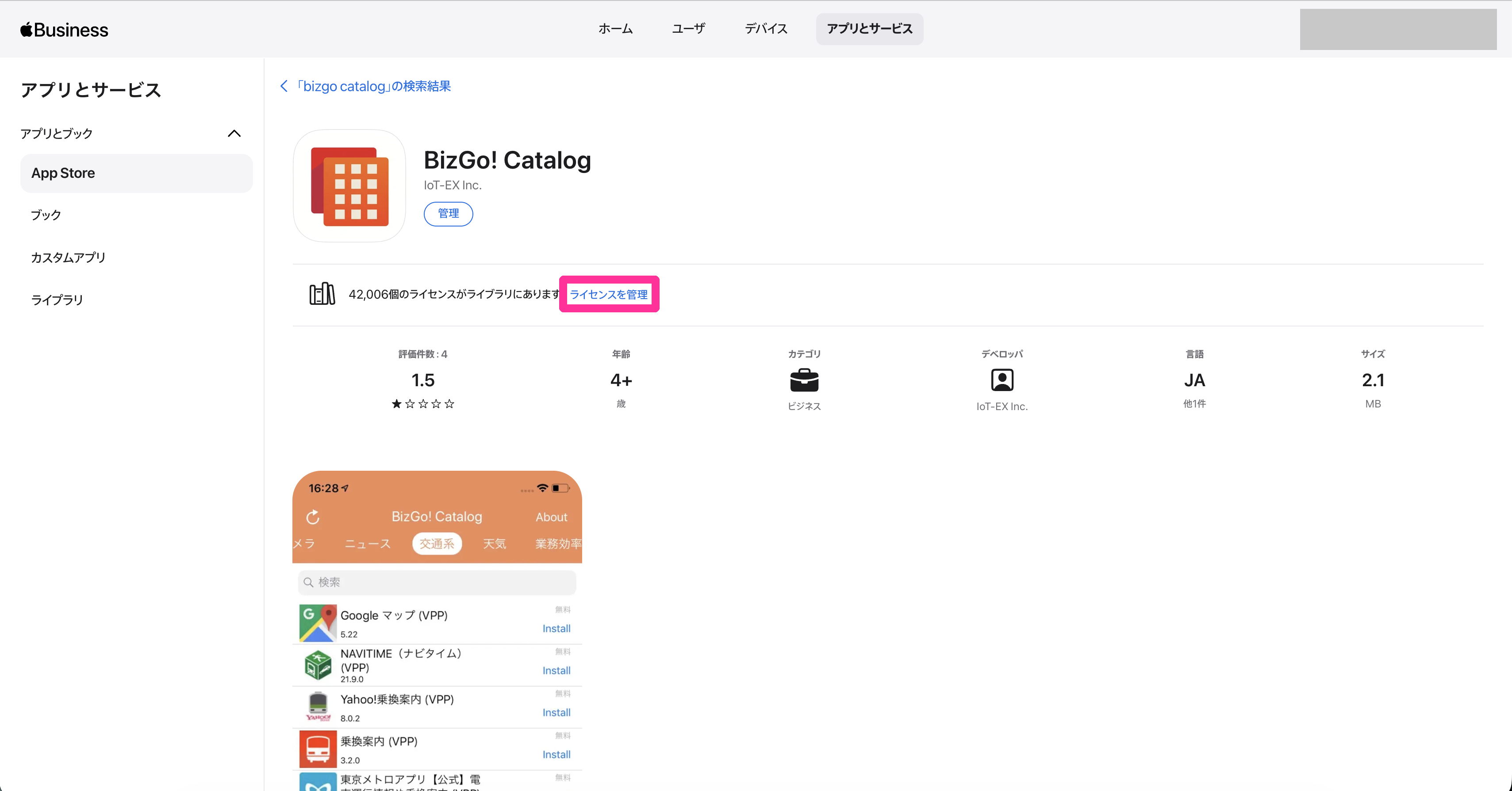 |
2. The organizational unit column shows the organizational units that can access this app.The Licenses column shows the Total, In Use, and Available number of licenses for each organizational unit. | 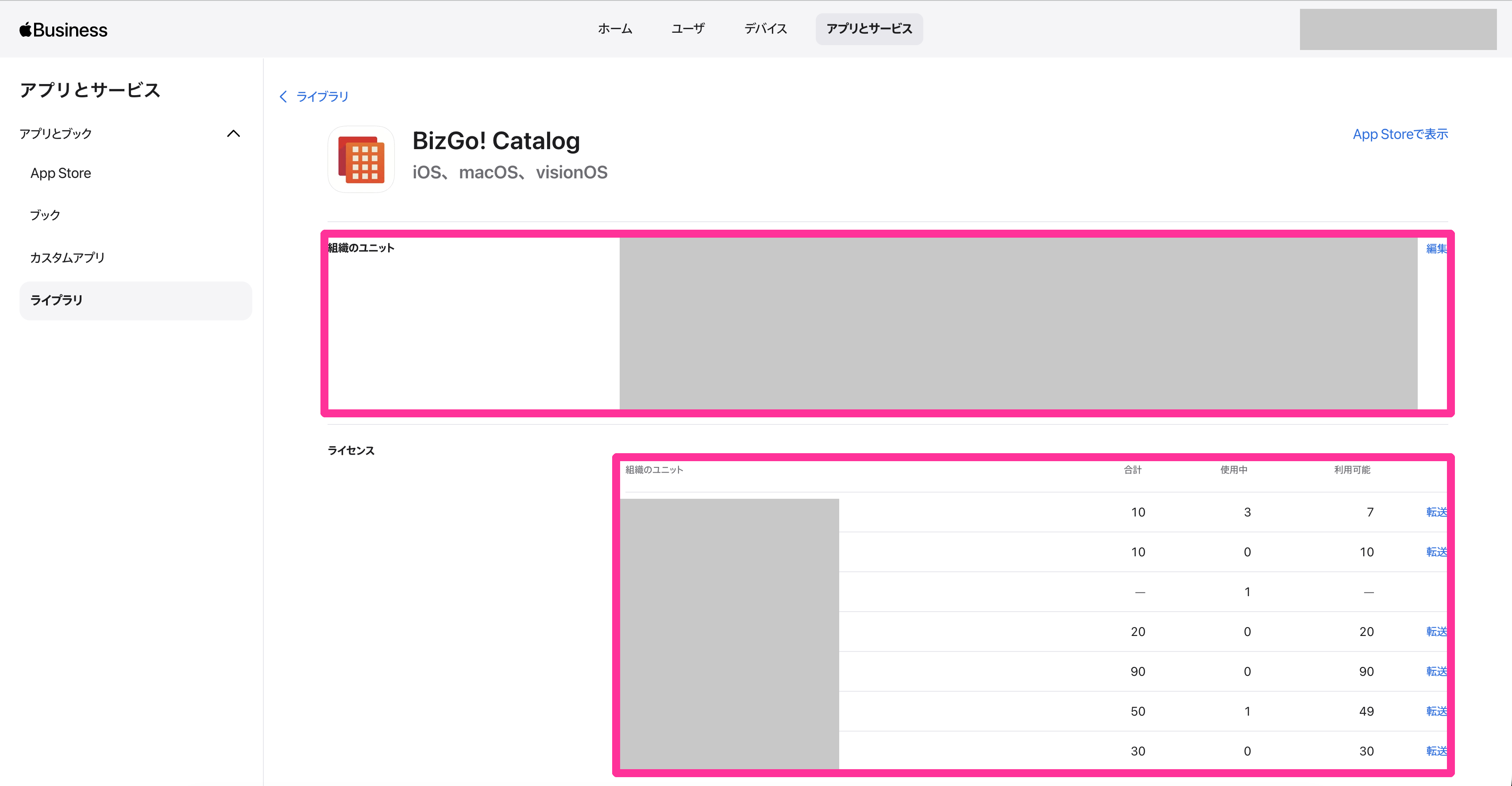 |
3. To transfer licenses to another organizational unit, click Transfer for the source organizational unit.Select an organizational unit in Transfer To, enter the number of licenses to transfer, and click Transfer.Note: Only licenses that are not assigned to devices ( Available licenses) can be transferred.Note: If you click Additional organizational unit, you can transfer licenses to multiple organizational units at the same time. | 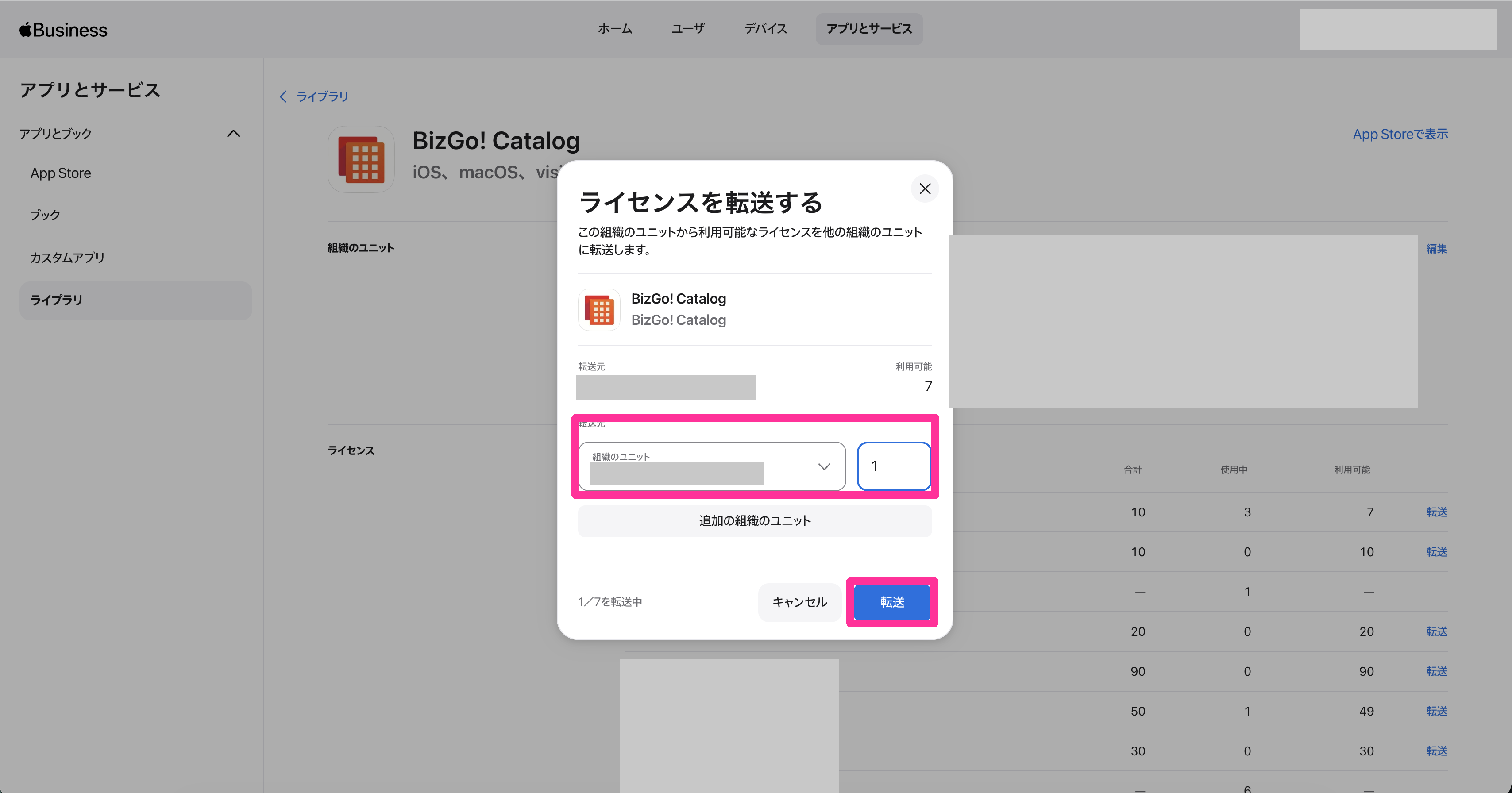 |
Assign Purchased VPP Apps to a Template
Distribute VPP Apps per Device
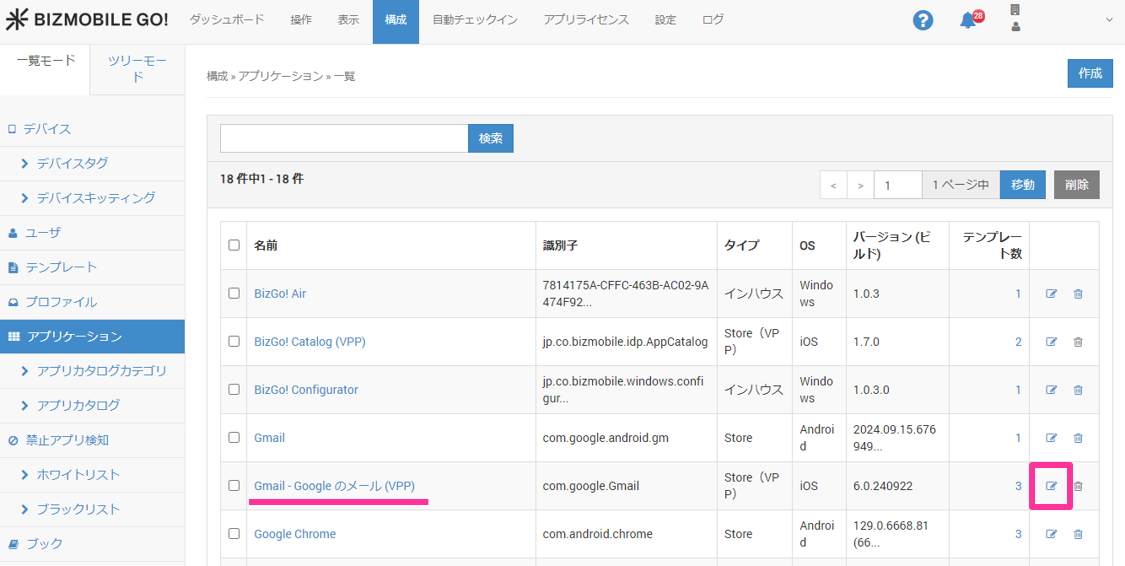
- Under [CONFIG] → [Application], click the [Edit] icon of the VPP app to distribute.
- Configure the settings in the table below, and click [Save].
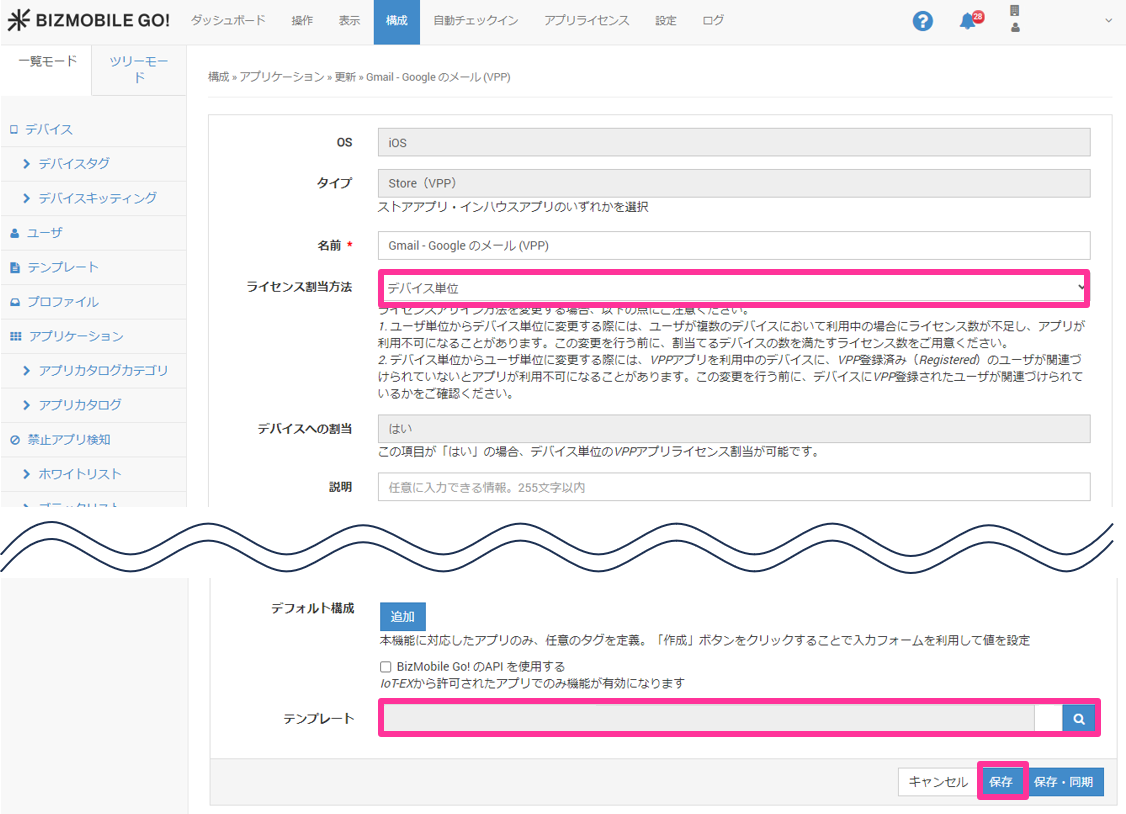
Assignment Method | Select
[Caution] Assignment Method: When you change from per user to per device, one license is granted per device. If a user is associated with multiple managed devices, the number of licenses may be insufficient and the VPP app may not be distributed. |
Template | Select the template that distributes the VPP app. |
-
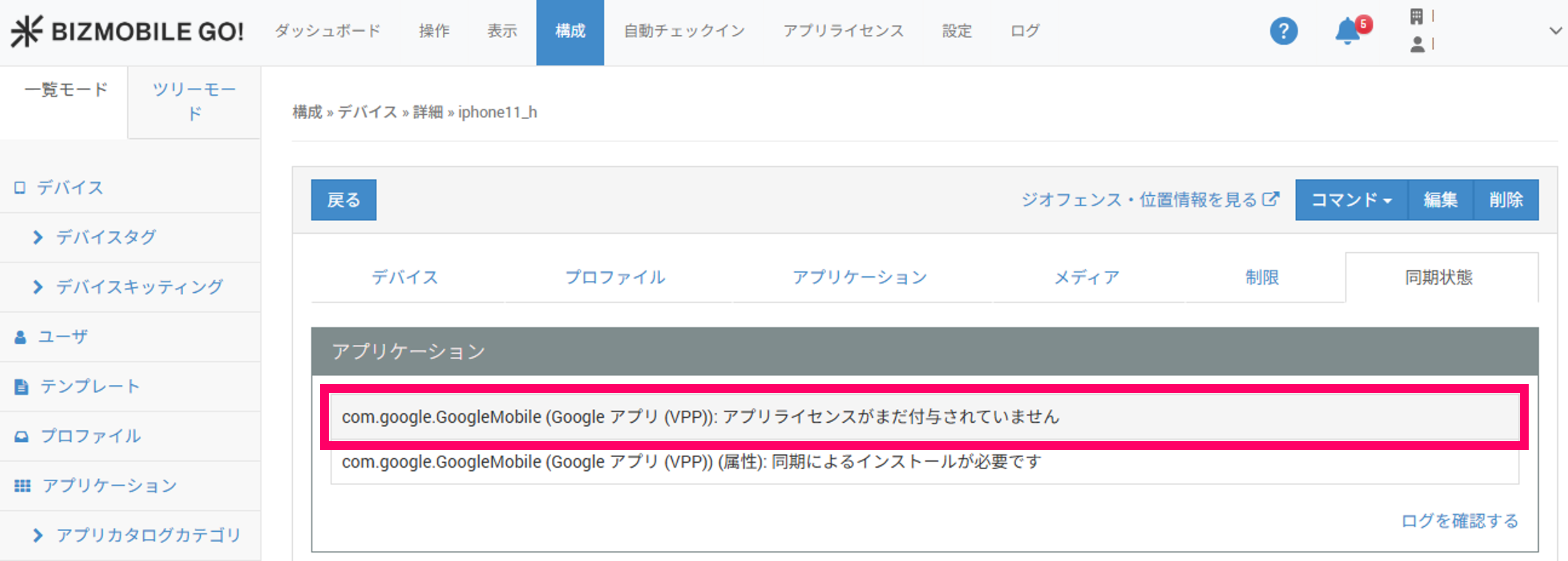
Wait up to about 5 minutes for the VPP synchronization to complete.
Until VPP synchronization runs,Sync Statusshows the messageApp license has not been granted yet.
-
Run
Sync.
When VPP synchronization is complete, theSync Statusmessage changes toInstallation by sync is required.
-
Under [CONFIG] → [Application], click the [Edit] icon of the VPP app to distribute.
-
Configure the settings in the table below, and click [Save].
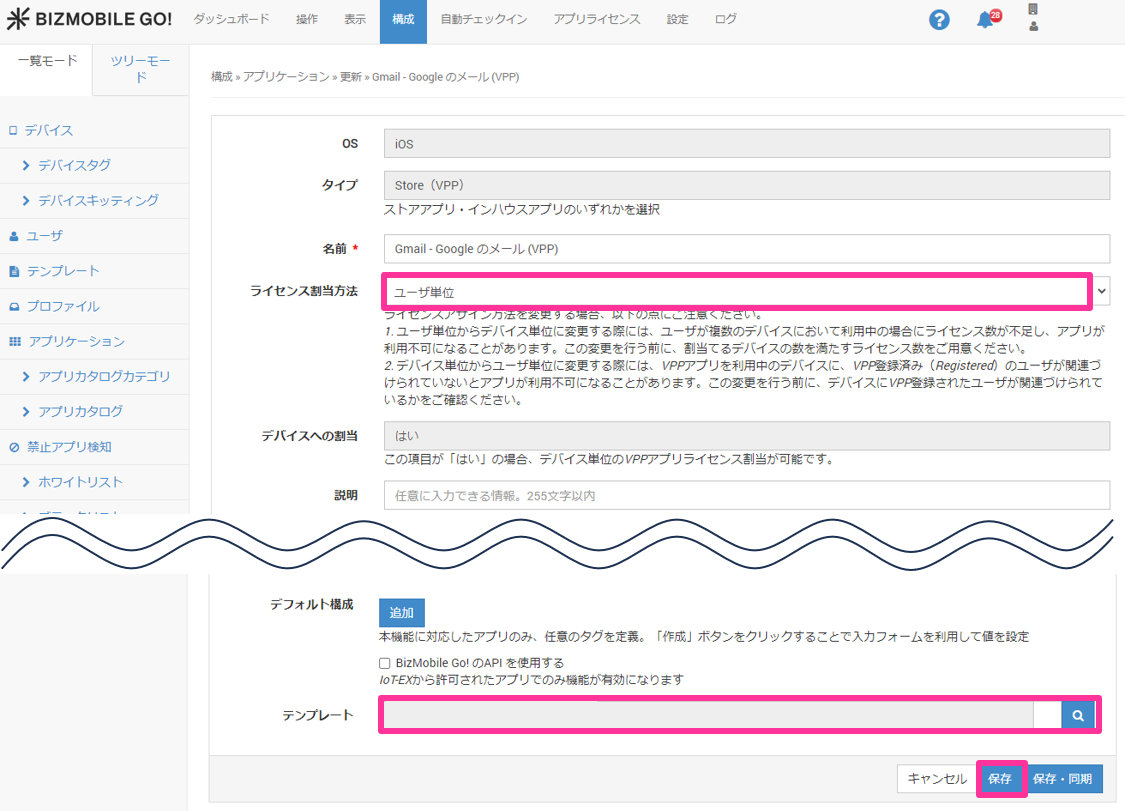
Assignment Method | Select
|
Template | Select the template that distributes the VPP app. |
- Wait up to about 5 minutes for the VPP synchronization to complete.
Until VPP synchronization runs,Sync Statusshows the messageApp license has not been granted yet.
- Run
Sync.
When VPP synchronization is complete, theSync Statusmessage changes toInstallation by sync is required.
VPP App License Screen
Apps purchased on the Apple VPP site (hereafter, VPP apps) are listed on the App Licenses screen of BizMobile Go!. To display the App Licenses screen, click [APP LICENSES] in the top menu and then [VPP].
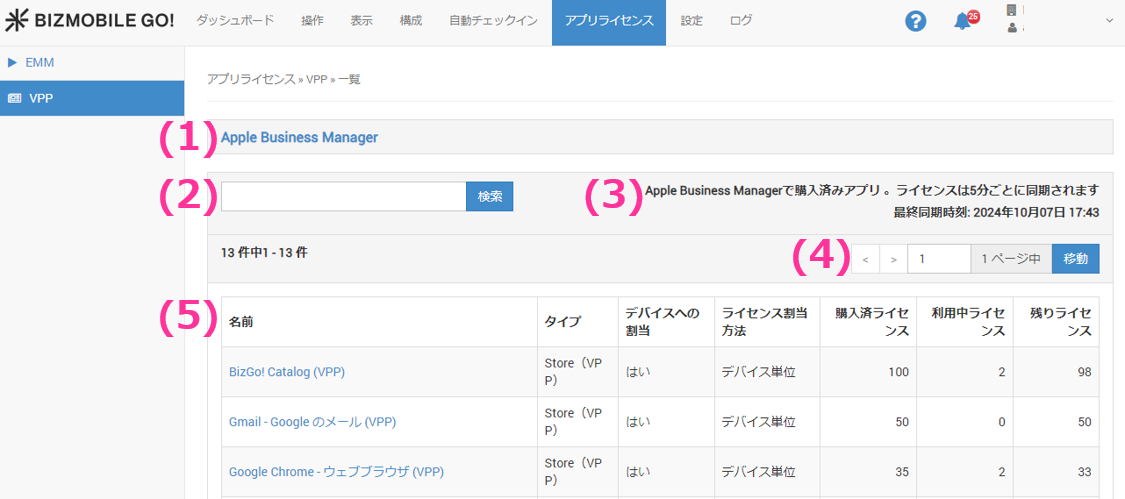
(1) Click Apple Business Manager to go to the Apple Business Manager sign-in screen.
(2) Search function: You can search by app name.
(3) Last sync at: The time when the license information purchased on the Apple VPP site and the information on the app list screen were last synchronized. This runs automatically every 5 minutes. It takes some time (depending on the number of licenses) for the information to be fully synchronized.
(4) Page navigation: If the list screen spans multiple pages, page navigation appears. You can click a page to select it, or enter a page number directly to move to it.
(5) VPP app list screen: A list of apps that reflects the license information purchased on the Apple VPP site.
| Name | The app name is displayed. |
| Type |
|
Assign to Device |
|
Assignment Method | The license assignment method specified in the app settings is displayed. |
Purchased Licenses | The number of licenses purchased on the Apple VPP site is displayed. |
Licenses in Use | Licenses in use are calculated and displayed as the number of users who meet the following condition. |
Remaining Licenses | The number of purchased licenses minus the number of licenses in use is displayed. |