Renew the VPP Token
Overview
The VPP token must be renewed once a year. You can renew it at any time.
Device management is affected when the token expires, so we recommend renewing it before it expires.
For the specific renewal steps, see "Work in Apple Business (formerly Apple Business Manager)" in the second half of this page.
Requirements for Renewal
Always renew the VPP token with the token of the same "organizational unit" (formerly called "location") that you are currently using.
The VPP token is linked to the licenses of the apps installed on devices.
Therefore, if you renew with the token of a different "organizational unit", you can no longer manage (update or delete) the apps installed on devices.
You can check the organizational unit to renew in VPP Token Location under [SETTING] > [Unit Detail] > [Apple] (tab) in the admin console. Check it before you start the renewal.

Impact When the Token Expires
When the VPP token expires (VPP token invalidation), a message like the following appears on the dashboard and on the VPP screen of App Licenses.

In addition, the following events occur and affect device management.
- Communication between the VPP server and the BizMobile Go! server is no longer possible
- App licenses cannot be assigned or reclaimed
- The status of app licenses cannot be managed
Apps that are already installed on devices are not affected and can continue to be used on the devices.
In this case, you can resolve the issue by renewing the VPP token with the following steps.
Cases Where the Token Becomes Invalid for Reasons Other Than Expiration
Even within the validity period of the VPP token, the token may become invalid in the following cases, resulting in the same state as described in "Impact When the Token Expires".
When You Mistakenly Register the Token in Another MDM Environment
A single VPP token cannot be used in multiple MDM environments at the same time.
Therefore, even within the validity period, if you register the same token in another MDM environment, the token on the BizMobile Go! side becomes invalid.
In this case, the issue may be resolved by renewing the VPP token with the following steps.
When You Mistakenly Register the Token of a Different "Organizational Unit"
If you create a new "organizational unit" and renew the VPP token, or renew with the token of a different organizational unit, the following effects occur.
- Apps purchased with the old VPP token cannot be updated
- You can no longer manage (update or delete) the apps already installed on devices
- App licenses can be assigned and reclaimed only for the licenses of the newly registered organizational unit
To resolve this state, you must register again with the token of the organizational unit that you were originally using. Always check the VPP Token Location before renewing.
When You Change the Password of the Apple Account
Apple's documentation states that a content token (VPP token) may become invalid even within its validity period. One example of such a condition is a password change for the account that downloaded the token.
If you changed the password of that account in Apple Business Manager, the token may have become invalid, so renew it.
In every case, see "Work in Apple Business (formerly Apple Business Manager)" for the renewal steps.
For details, see Apple's support document "Manage content tokens in Apple Business Manager".
Work in Apple Business (formerly Apple Business Manager)
If you use a Windows PC, use Google Chrome or Microsoft Edge for this task.
Steps
| Step | Screenshot |
|---|---|
1. Click SETTING > Unit Detail > Apple (tab), and check the renewal target in VPP Token Location. | 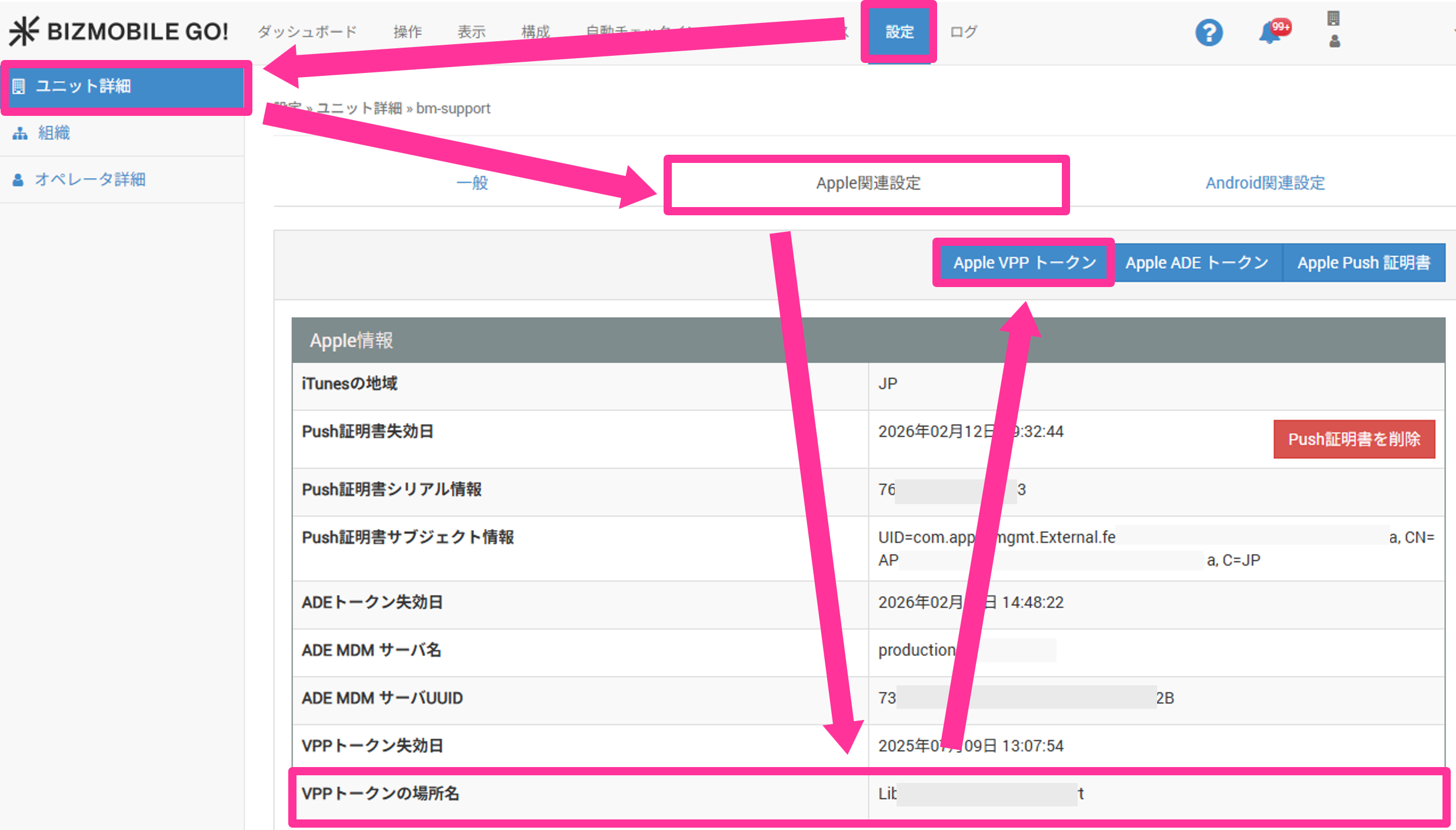 |
| 2. Sign in to Apple Business (https://business.apple.com/login). | 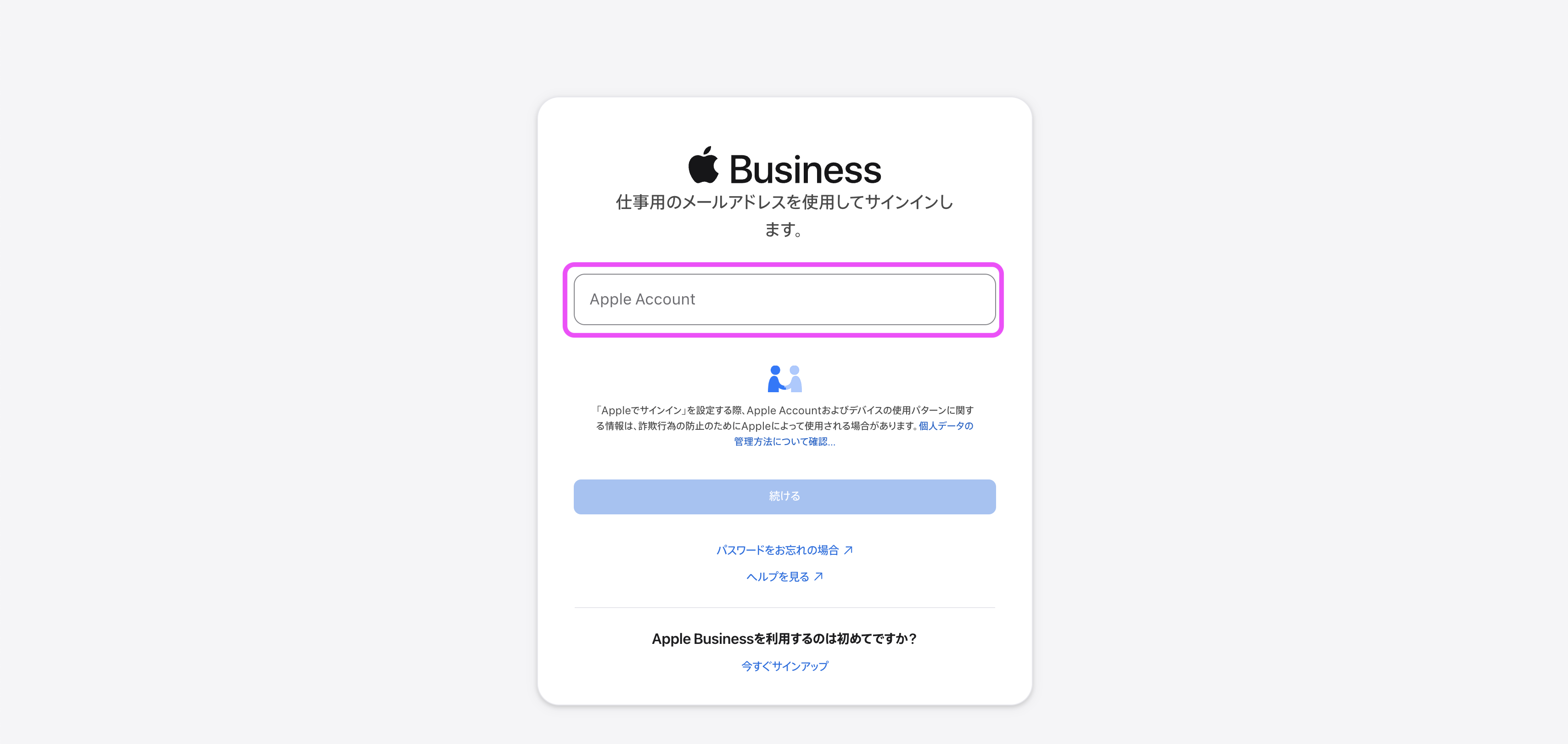 |
3. Click the organization name at the upper right of the screen, and then click Settings. | 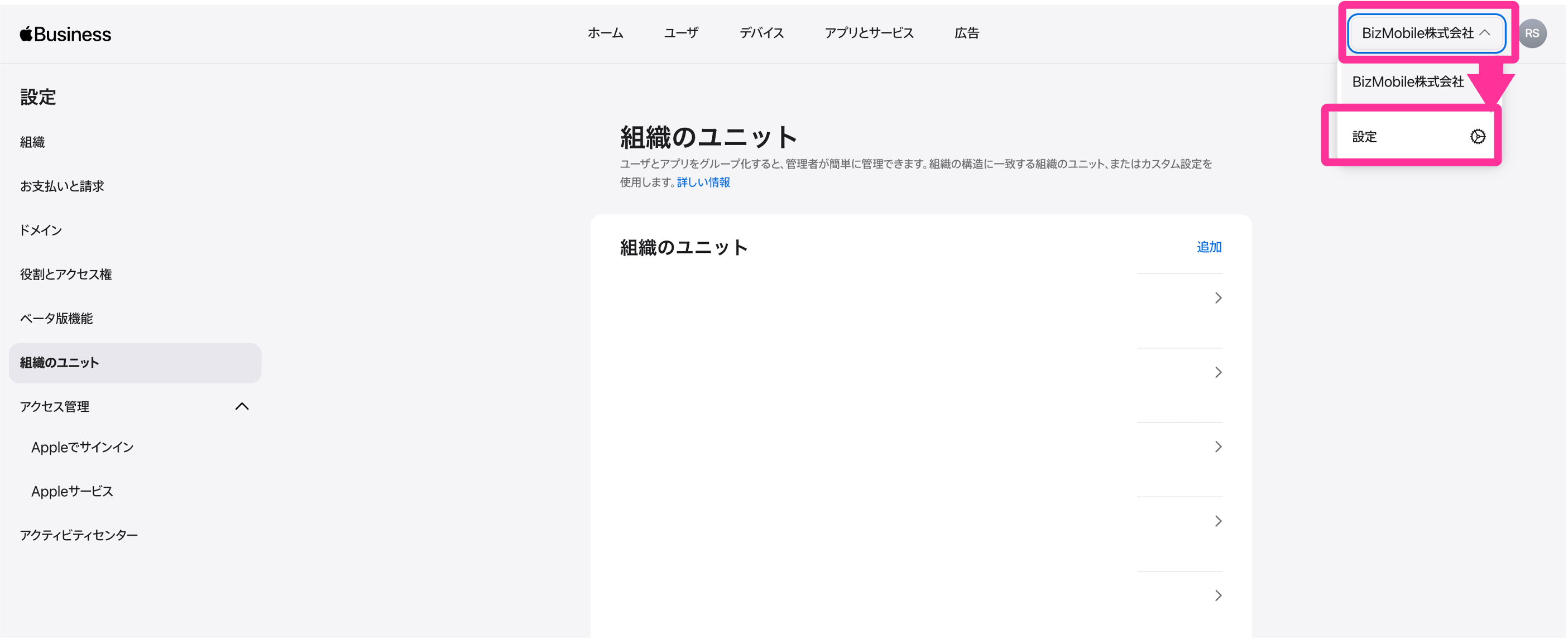 |
4. On the Payments & Billing page, download and save the server token of the organizational unit to renew.The renewal target is the VPP Token Location you checked in step 1. | 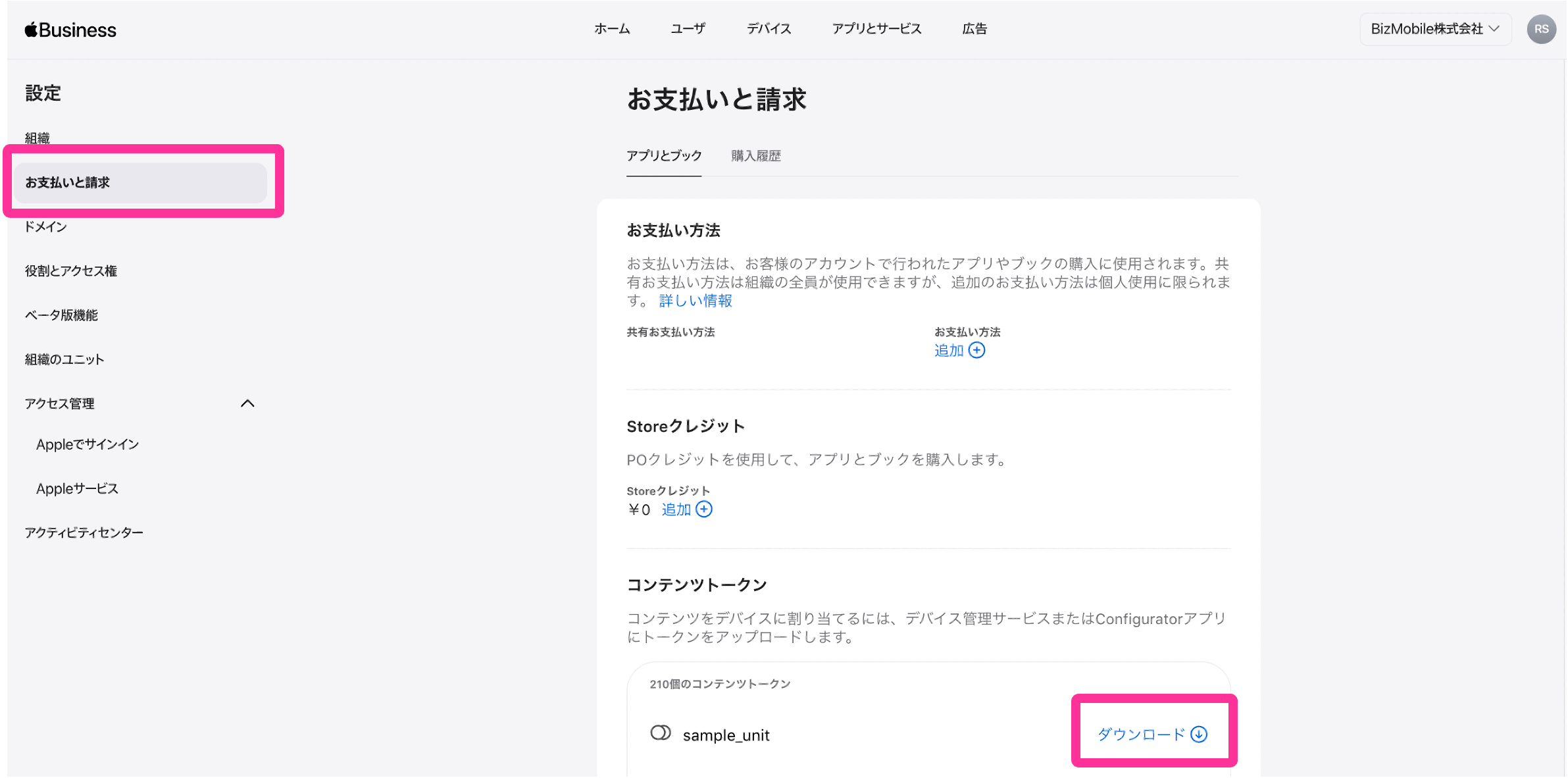 |
| 5. Return to the admin console and upload the content token downloaded in step 4. (Step 2: Upload VPP Token) Drag and drop the file onto the CLICK HERE OR DROP FILE HERE area, or click the area and select the file from the file selection screen. | 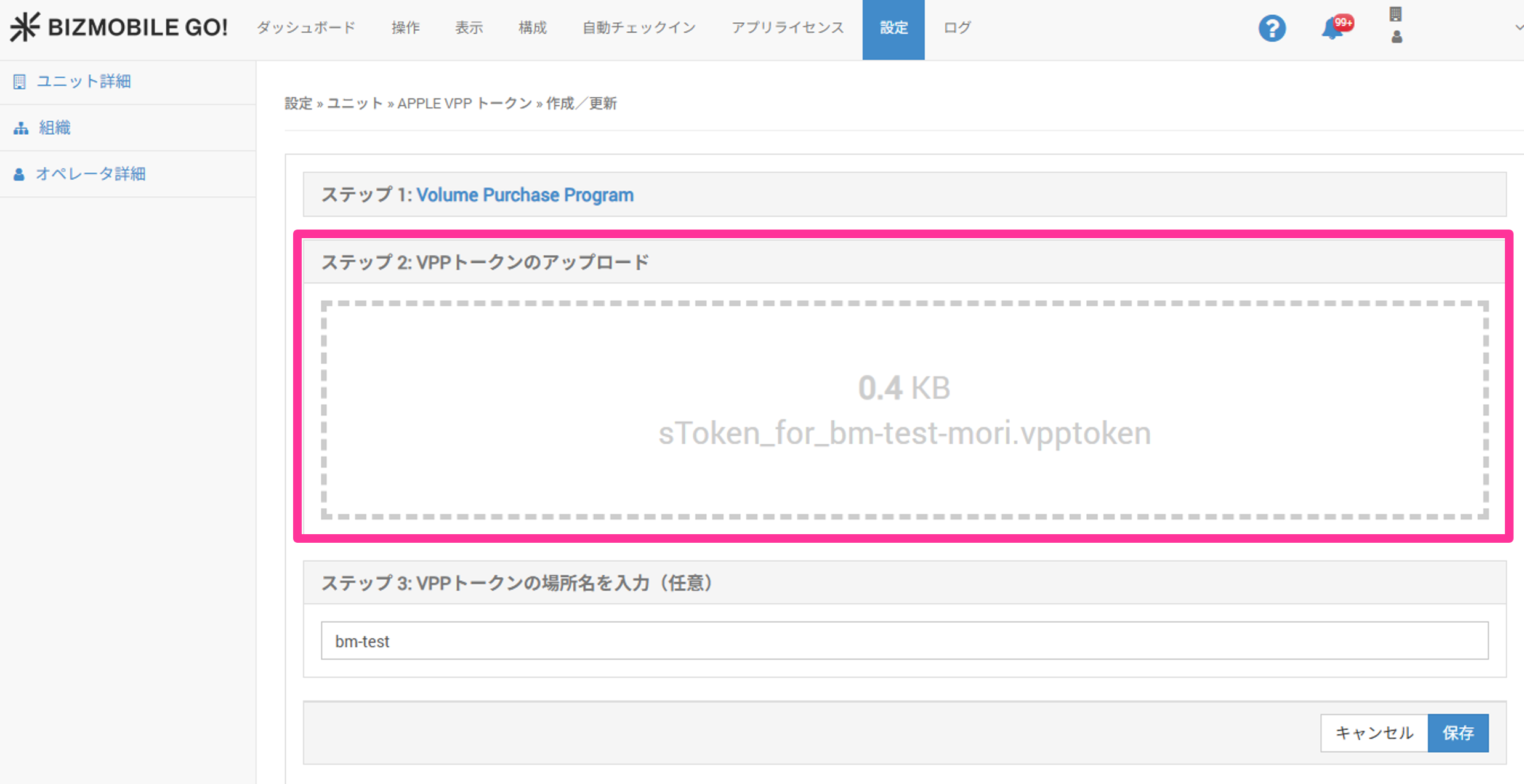 |
| 6. After registration is complete, the new VPP token expiration date is reflected at the first VPP license synchronization (synchronized every 5 minutes). | 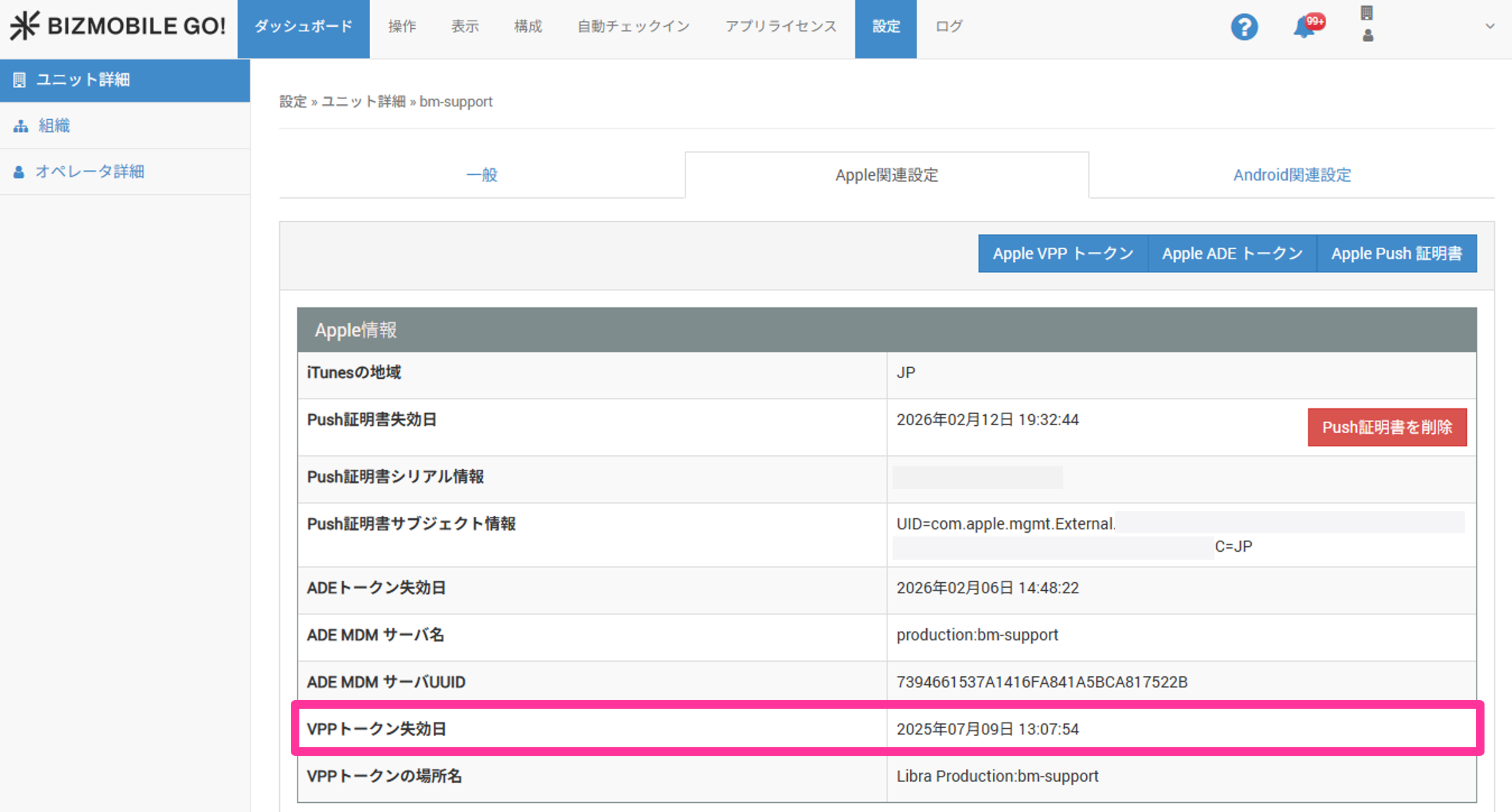 |