Initial Registration of the Apple Push Certificate
To manage Apple devices, you must register a new Apple Push certificate once, at the very beginning.
This page describes the initial registration, which you perform only once. For the annual renewal in the following years, always follow the renewal procedure instead of registering a new certificate.
For the annual renewal of the certificate, see → Renew the Apple Push Certificate
Note: If you are using a Windows PC, use Google Chrome or Microsoft Edge for this procedure.
One Apple ID is required to register the Apple Push certificate.
The Apple Push certificate must be renewed every year.
The Apple ID used for registration is required for the renewal. To avoid losing the Apple ID, use an Apple ID managed by your organization, not a personally owned Apple ID.
If you use Apple Business (formerly Apple Business Manager), you can also use the Apple ID registered with Apple Business.
If you do not use Apple Business, we recommend creating a new Apple ID for the Apple Push certificate.
You can create an Apple ID on the Apple ID website.
-
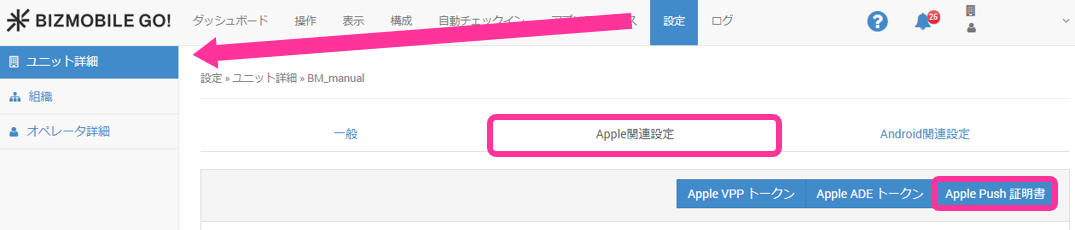
Click SETTING → Unit Detail → Apple → Apple Push Certificate.
-
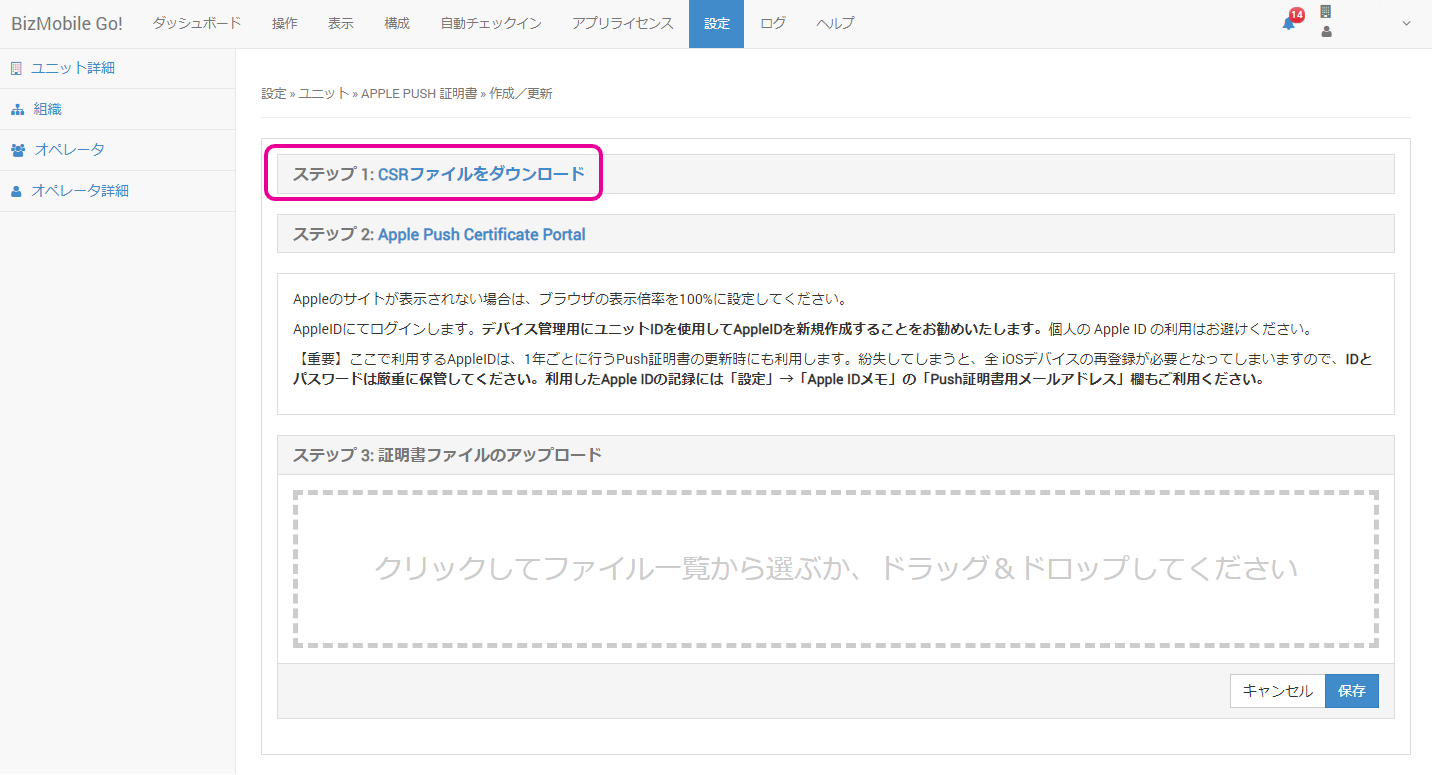
Click
Step 1: Download CSR Fileto download the CSR file.
You will upload the downloaded xxxxxxx.csr (the file name differs with each download) to the Apple site later.
-
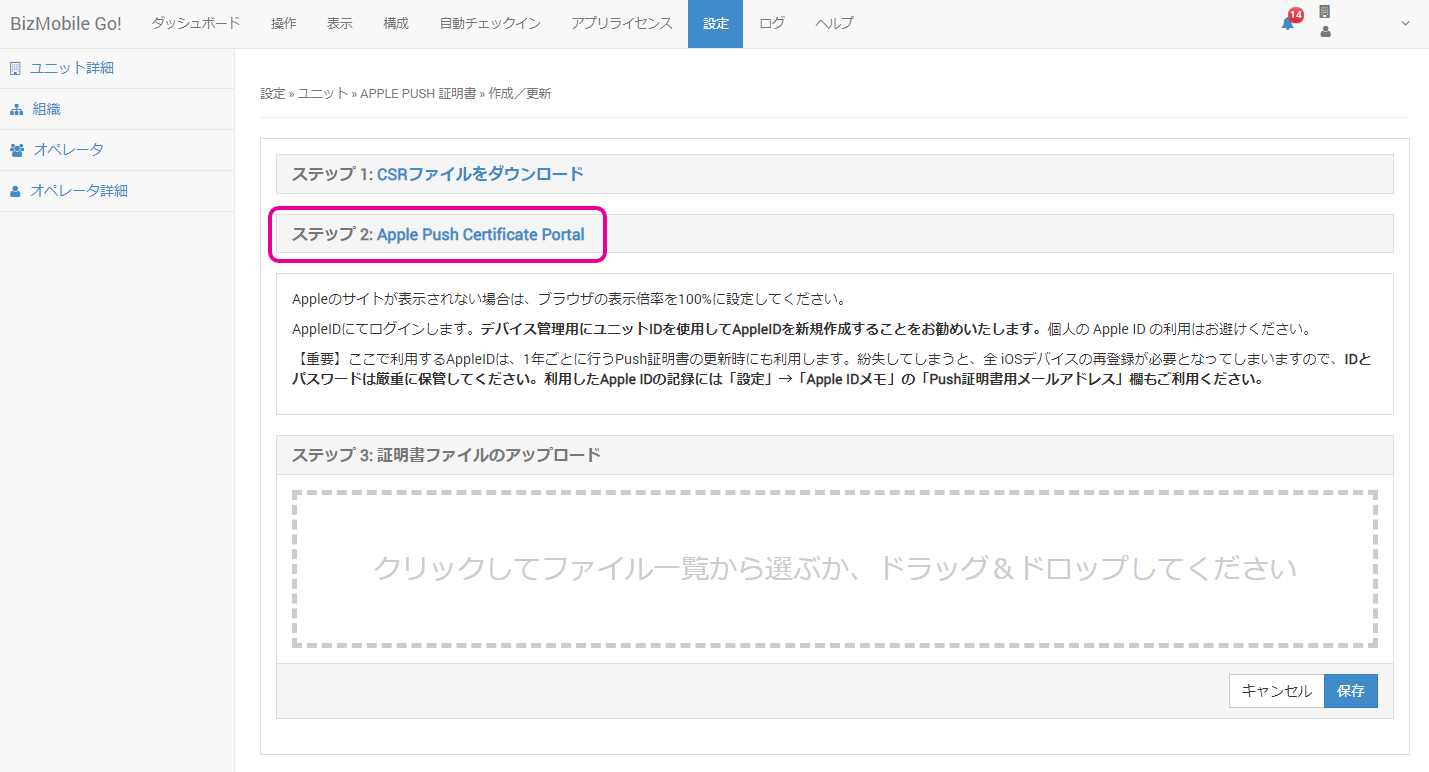
Click
Step 2: Apple Push Certificate Portal.
-
The Apple site
Apple Push Certificates Portalopens in a separate browser tab (or a separate window, depending on your settings).- If the Apple site is not displayed, set the browser zoom level to 100%.
- If the browser's translation feature is enabled, the site may not work correctly. Note: The Apple Push Certificates Portal is an English site. If it is displayed in Japanese, the translation feature may be enabled.
- The Apple ID you created is always required when you renew the Apple Push certificate one year later. The Push certificate is valid for one year and must be renewed every year. If the Push certificate expires without being renewed, all management features for Apple devices, including emergency lock and wipe, become unavailable (for how to renew, see Renew the Apple Push Certificate).
Keep the Apple ID and password you created in a safe place. To help you avoid losing your Apple ID, BizMobile Go! has an
Apple ID Notefield, described later on this page.
If you cannot find the Apple ID when you renew one year later, you may have no choice but to re-enroll all devices, so we recommend recording it in the note field.
Note: If you lose the Apple ID, you can no longer renew the Push certificate, and recovery requires a new Push certificate. When you issue a new Push certificate, you must associate it with the managed devices again, which means re-enrolling every Apple device, with operations required on each one.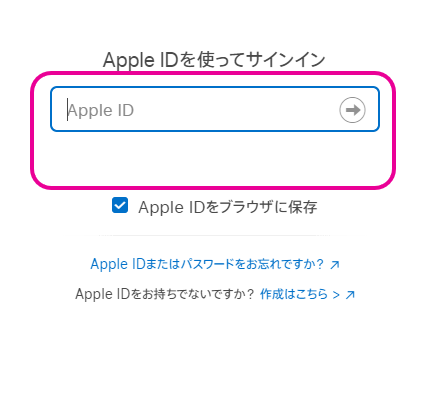
-
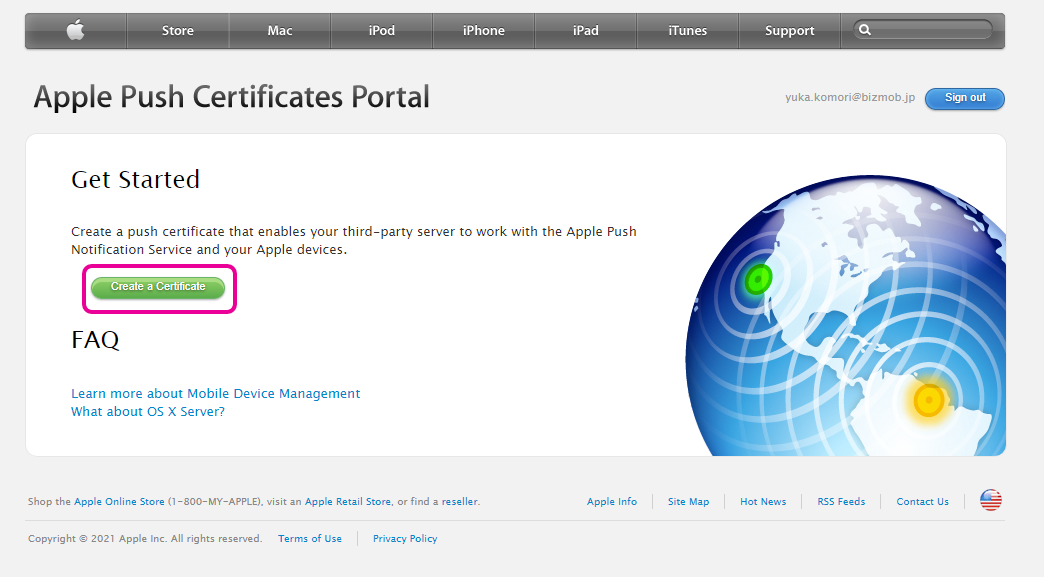
After you sign in successfully, click Create a Certificate.
-
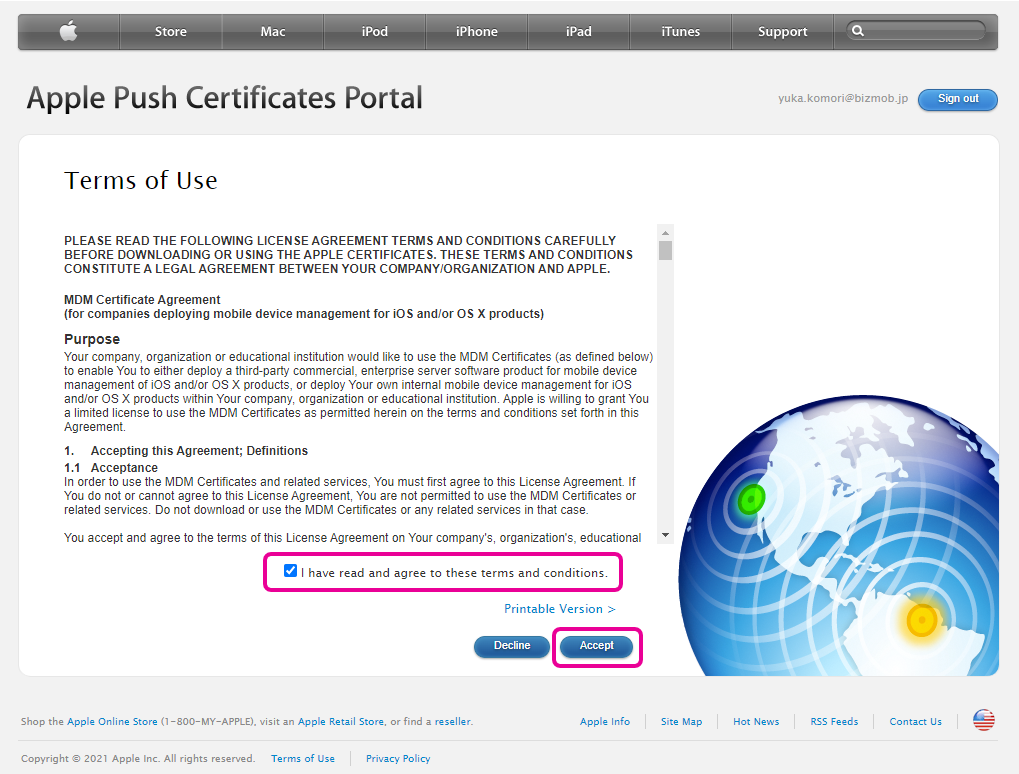
When this screen appears, select
I have read and agree to these terms and conditions., and then click Accept.
-
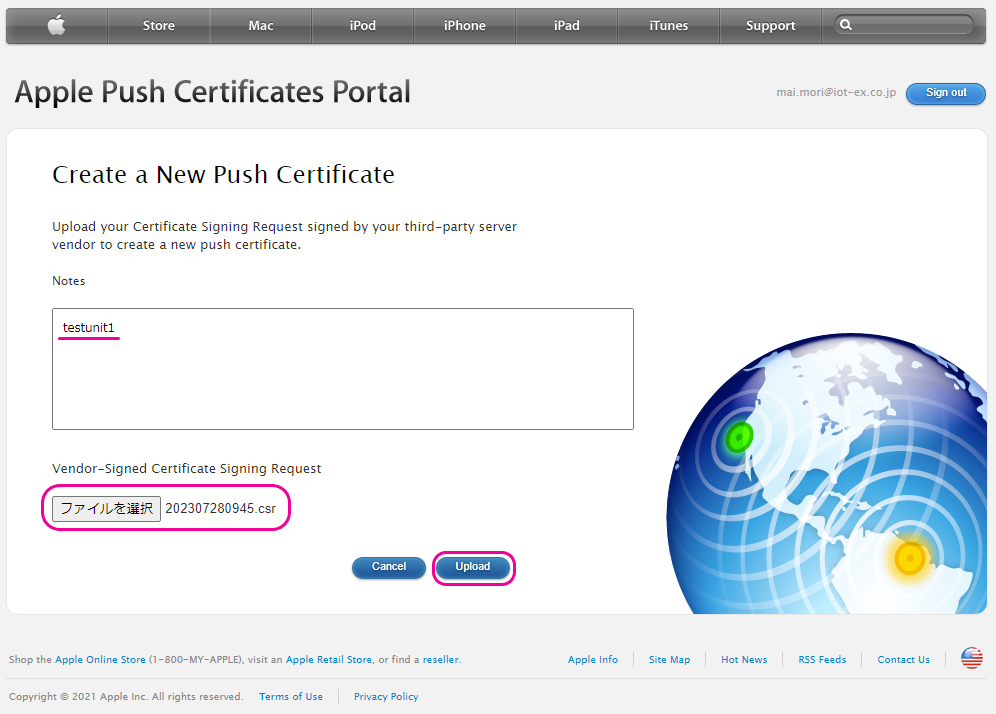
Enter the unit ID in the Notes field, specify the certificate file
xxxxxxx.csrthat you downloaded in step 1, and
click Upload.
\*The unit ID is theUnitshown when you click the upper-right corner of the admin console.
-
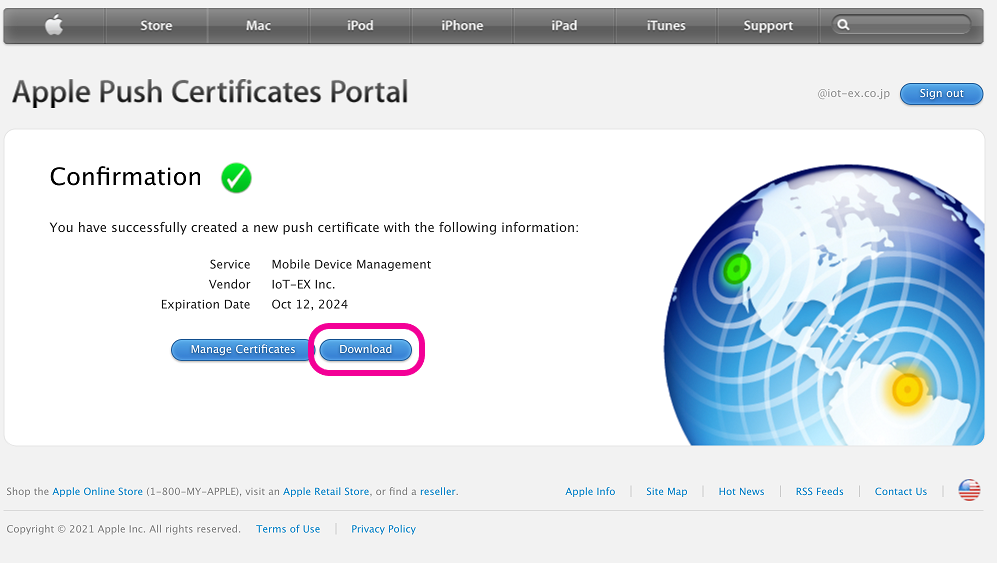
When the upload succeeds and the screen changes, click Download. After the download completes, click Sign out, and then close the tab (or window, depending on your settings) that shows this site.
-
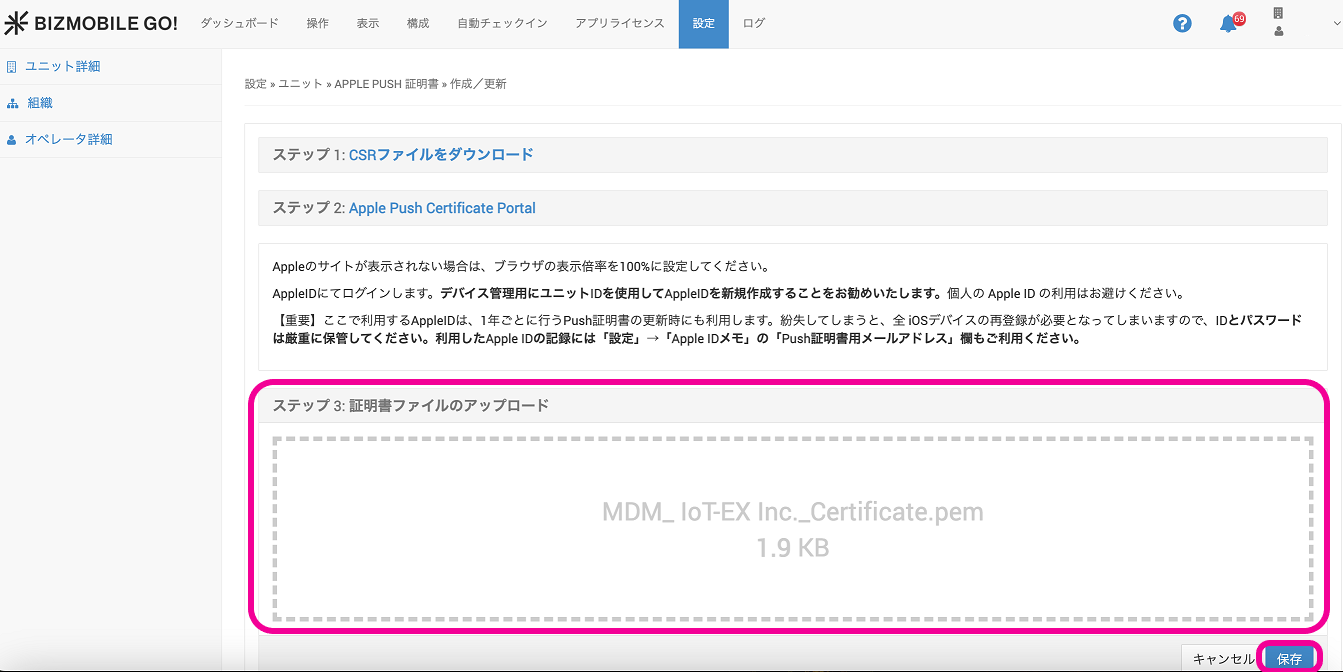
In
Step 3: Upload Certificate File, upload the downloaded fileMDM\_ IoT-EX,Inc.\_Certificate.pem.
In theCLICK HERE OR DROP FILE HEREarea, either click it and select the file, or drag and drop the file onto it, and then click Save.
-
When the message
Certificate renewal is complete. Push Key: External.xxxxxx….is displayed, the registration of the Apple Push certificate is complete.

-
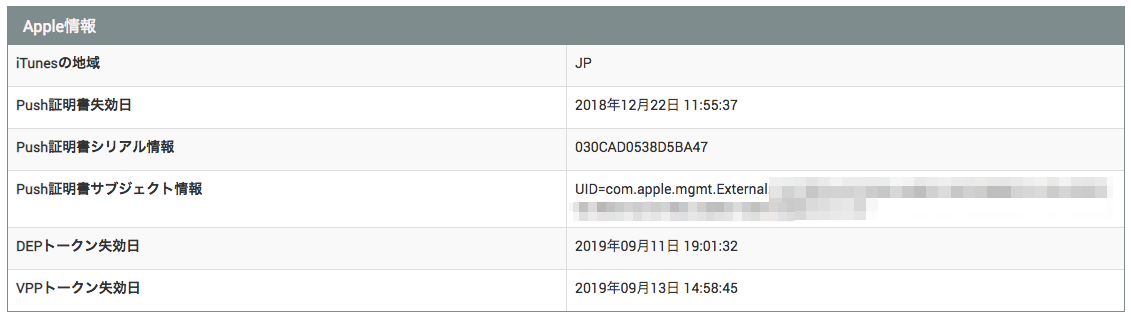
The registered certificate information is displayed in the
Apple Informationfield on SETTING → Unit Detail →Appletab. This completes the acquisition and registration of the Apple Push certificate.
-
Note: The Apple Push certificate must be renewed every year. The Apple ID used above is required for renewal, so we recommend recording it so that you do not forget it.
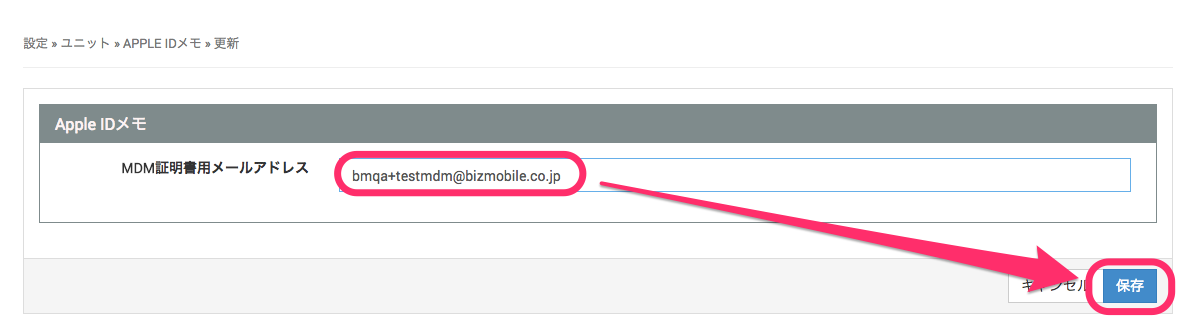
On SETTING → Unit Detail →Appletab, click Edit Apple ID Note in theApple ID Notefield.
Enter the Apple ID used to register the Apple Push certificate in theEmail Address for Apple Push Certificatefield, and click theSavebutton.
-
If the Apple Push certificate expires, you can no longer manage devices. Therefore, we recommend configuring alarm emails so that a notification email is sent to the specified email address when an alarm related to the Apple Push certificate occurs.
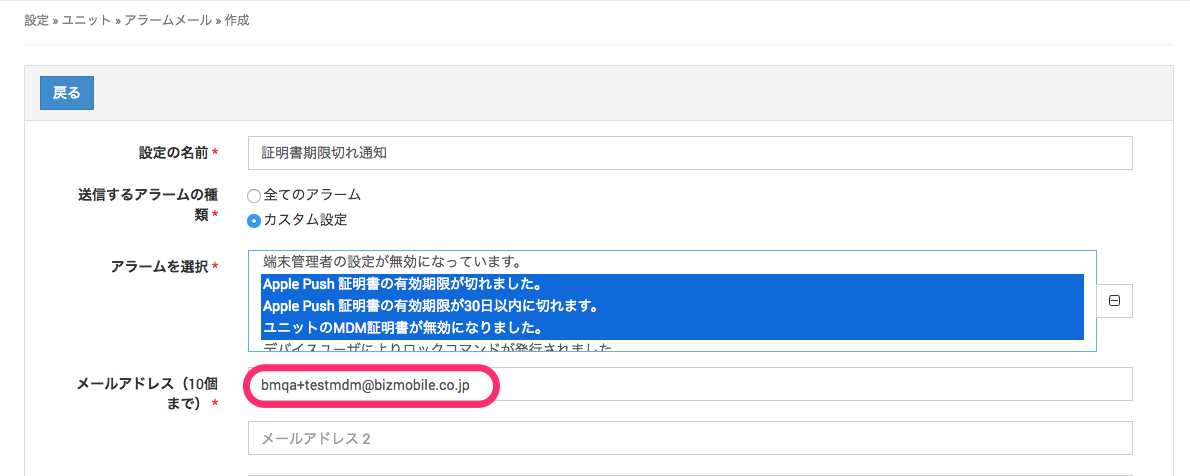
On SETTING → Unit Detail →Generaltab, click Create in theAlarm Emailfield.
Select Custom as the type of alarms to send, and then select the following alarms. (To select multiple alarms, click while holding the Ctrl key (the cmd key on a Mac).)
- The Apple Push certificate has expired
- The Apple Push certificate will expire in 30 days
- The Apple Push certificate will expire in 7 days
- The Apple Push certificate is invalid
Enter the email address to receive the alarm notifications, and click the Save button.
A notification is sent to the specified email address when the Apple Push certificate needs to be renewed.
This completes the settings for the Apple Push certificate.