Operator Detail
The Operator Detail menu is displayed only when you log in with Unit Admin permissions.
From this menu, you can open the Operator Management screen to manage the unit's operators, for example to add or delete them.
You can add up to 30 IDs per unit.
The operator IDs you can create here are limited to the Unit~ permissions among the operator permissions.
Operators at the organization level (Organization~) require a change on our side. Create a new operator ID by following the Create an operator ID procedure, and then tell us the new ID and the organization-level access permission you want to grant.
After that, follow the admin console procedure in Restrict Operator Access by Organization.
Create an operator ID
- Log in with Unit Admin permissions, and then click SETTING > Operator Detail > [Operator Management].
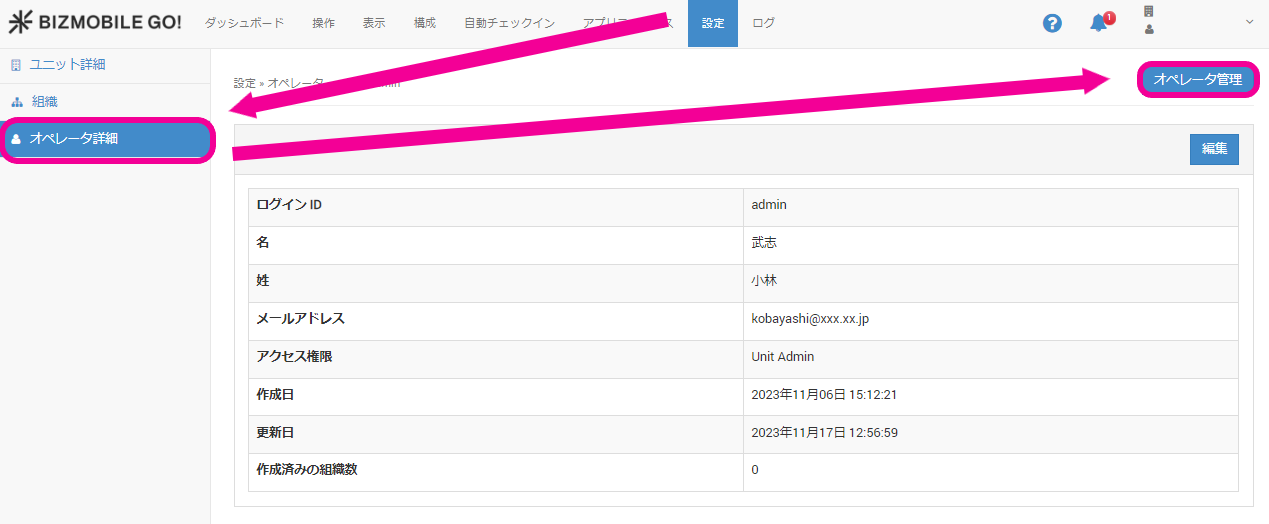
- The
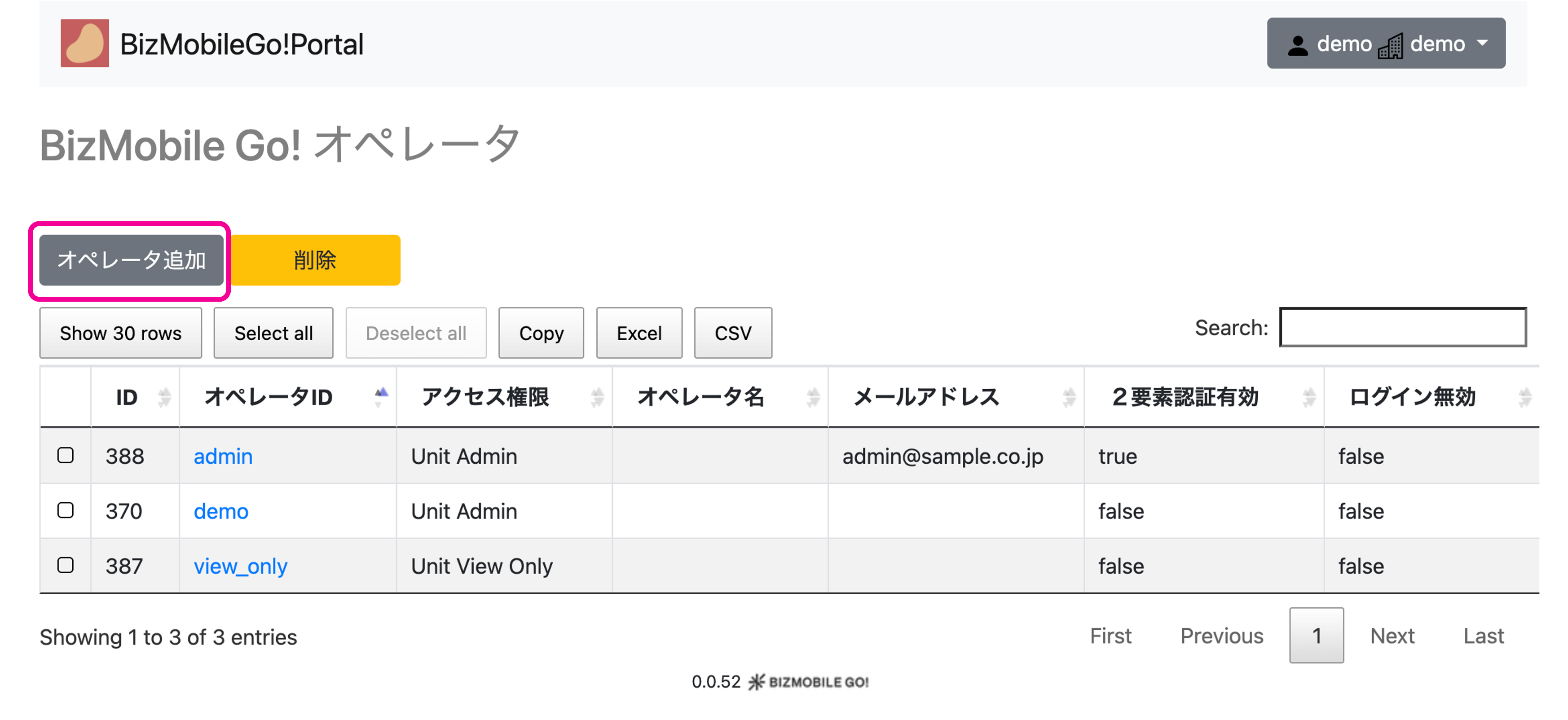
BizMobile Go! Operatorportal site opens.
Select [Add Operator].
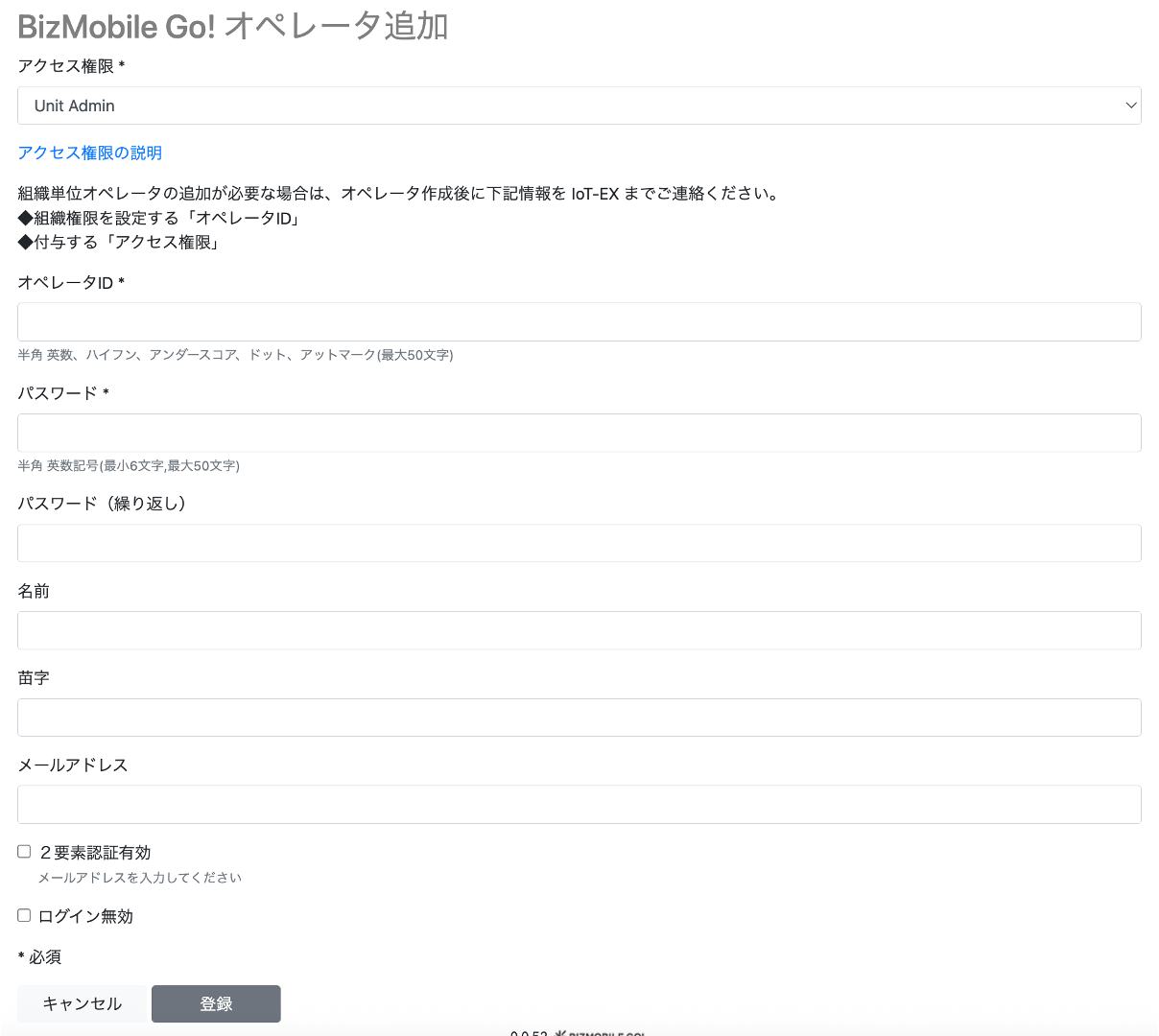
- On the page that opens, enter the required items and click [Register].
Input items (items marked with ★ are required)
| Item | Description |
|---|---|
| Access Permission★ | Select the permission to grant from the drop-down list. For details on each permission, see Description of access permissions. |
| Operator ID★ | Enter any operator ID. You can use alphanumeric characters, hyphens, underscores, periods, and at signs (up to 50 characters). |
| Password★ | Enter any password of at least 6 characters. You can use alphanumeric characters and symbols (up to 50 characters). |
| Password (Repeat) | Enter the same password again. |
| First Name | Enter the first name of the person who uses the operator ID. |
| Last Name | Enter the last name of the person who uses the operator ID. |
| Email Address | Enter an email address. This is required if you enable two-factor authentication. |
| Two-Factor Authentication Enabled | If enabled, the operator must enter a 6-digit authentication code sent from noreply@bizmo.in when logging in to the admin console.The authentication code is sent to the operator's email address and is valid for 3 minutes. |
 4. When the message
 Added and the registered operator ID appear, the operator ID has been created.
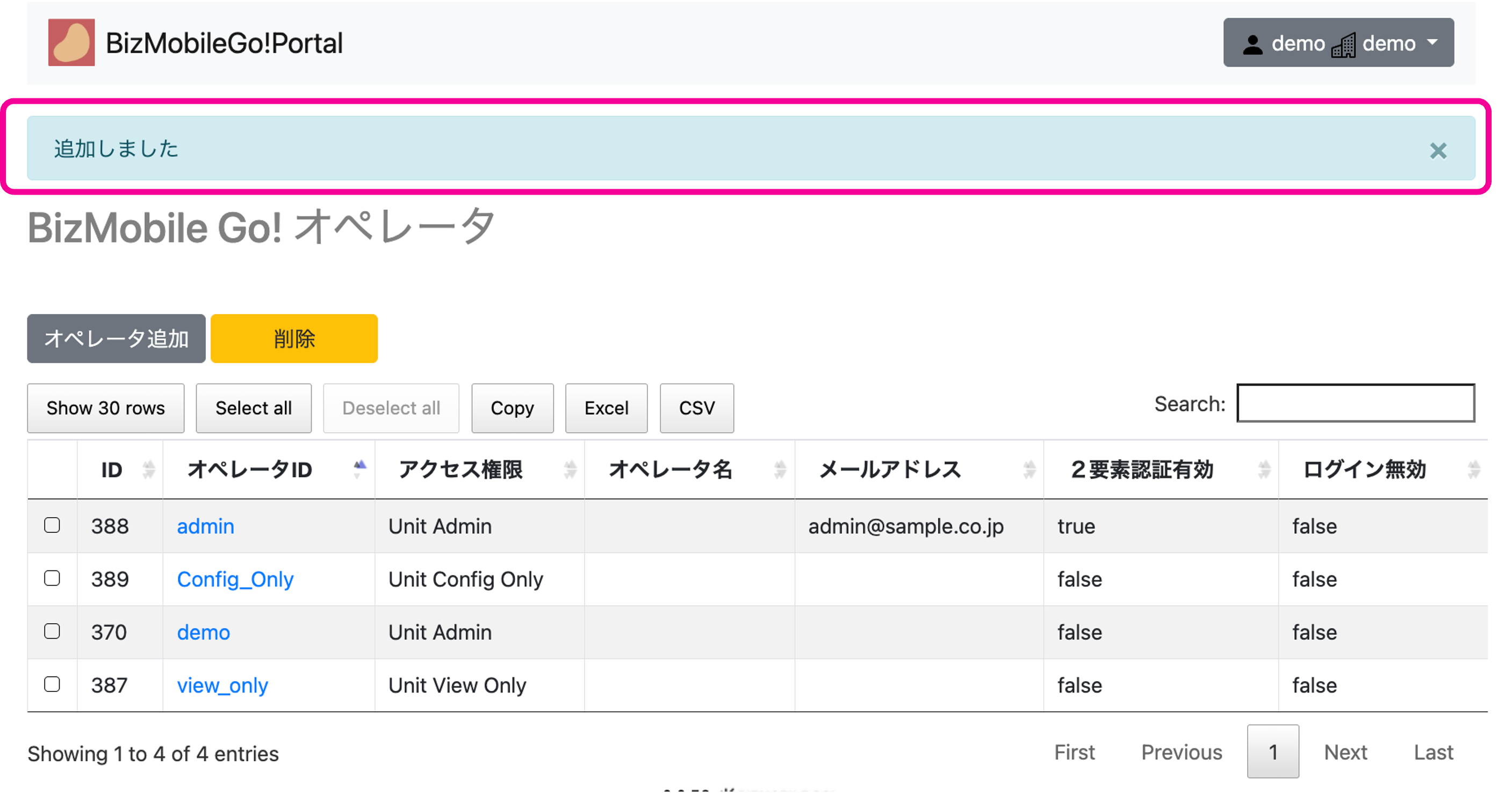
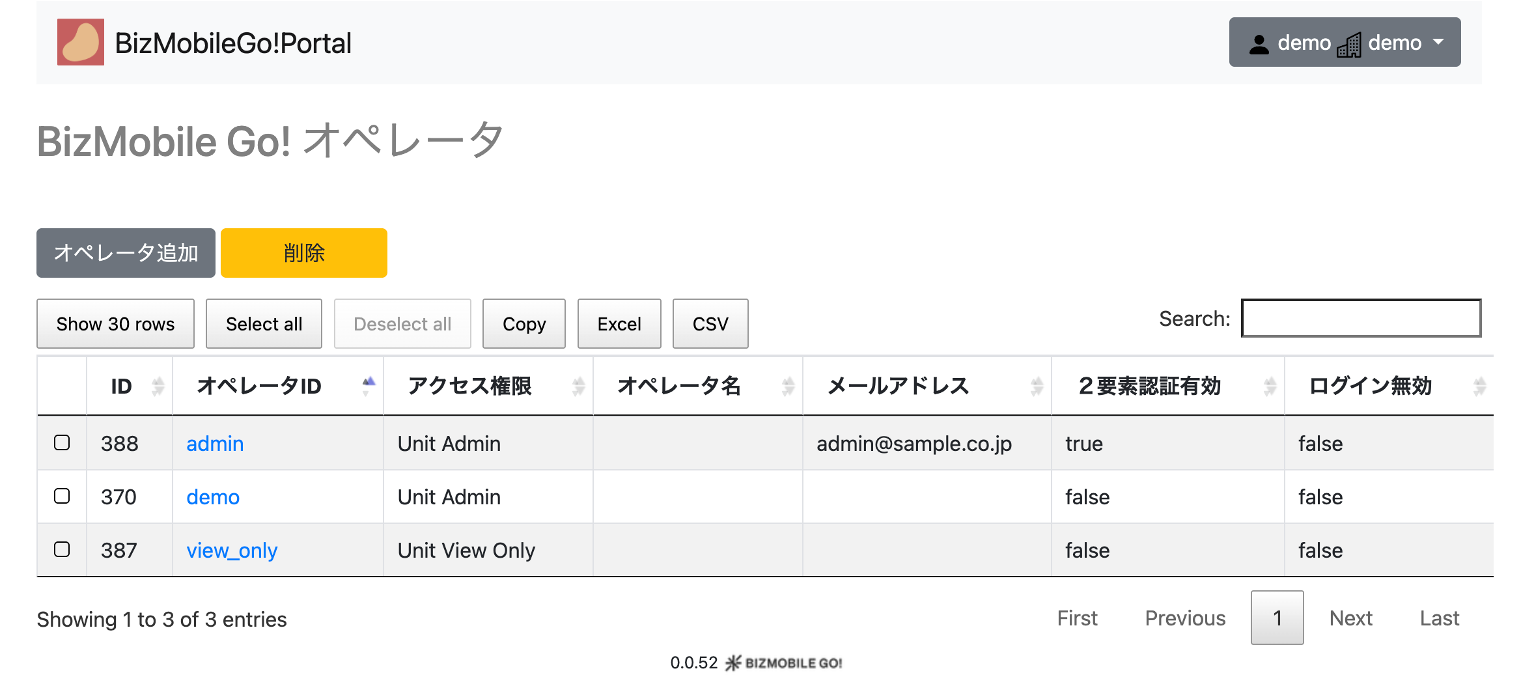
Edit an operator ID
- Select the operator ID you want to edit.
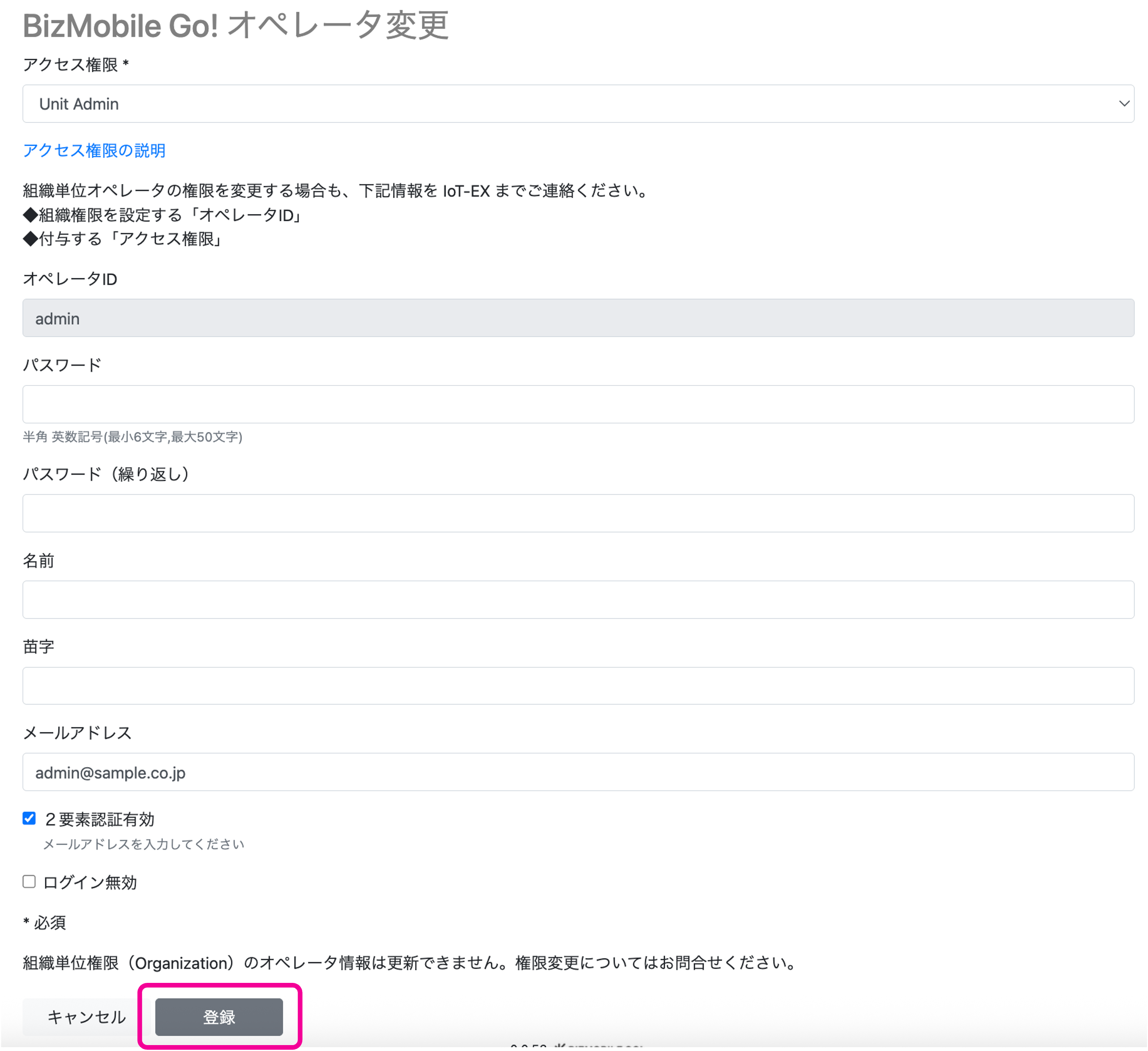
- The edit page opens. Edit the information and click [Register].
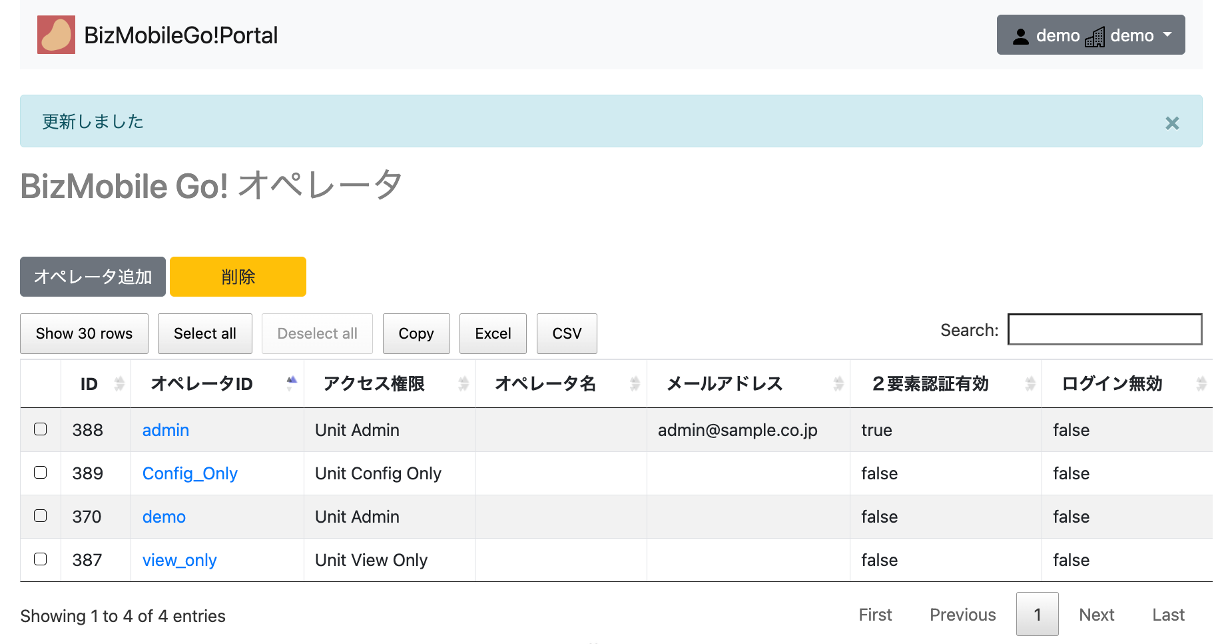
- When the
Updatedpage appears, the update is complete.
Delete an operator ID
- Select the checkbox for the operator ID you want to delete.
Click [Delete].
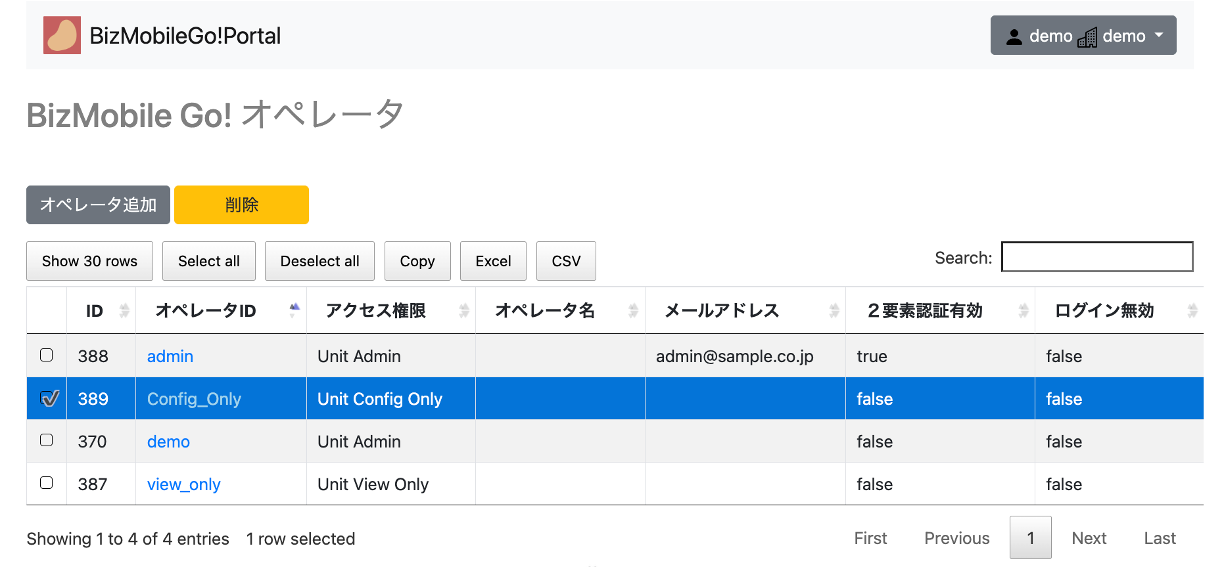
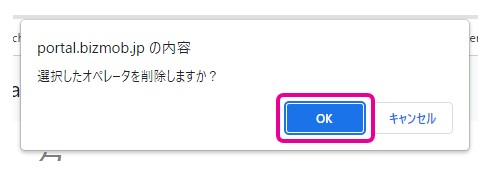
- When the confirmation message appears, click [OK] to delete the operator ID.
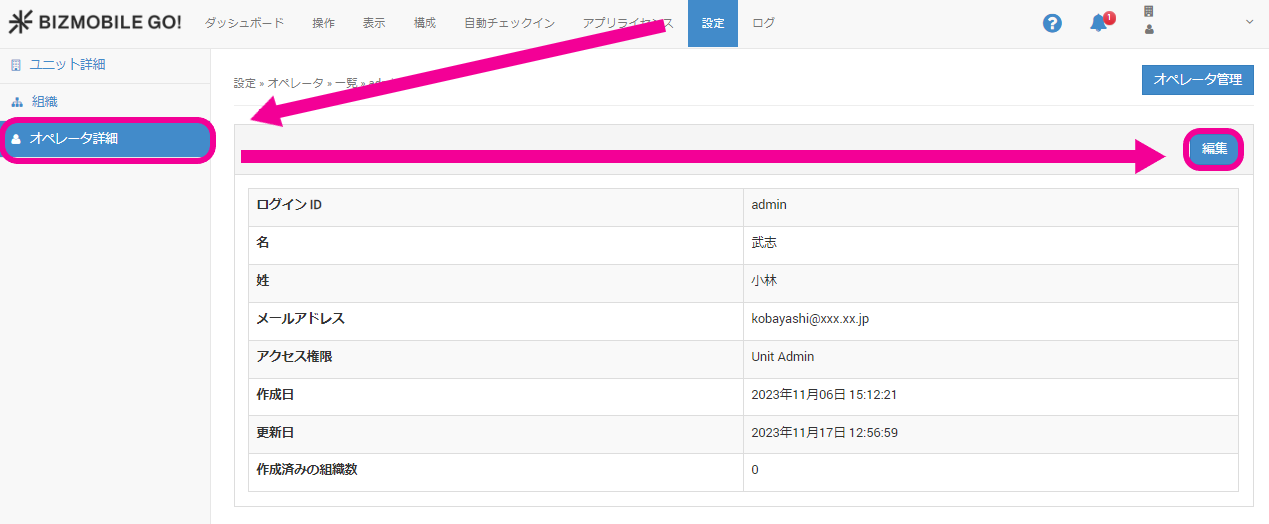
Edit the logged-in operator's information
You can edit the information about the operator who is currently logged in.
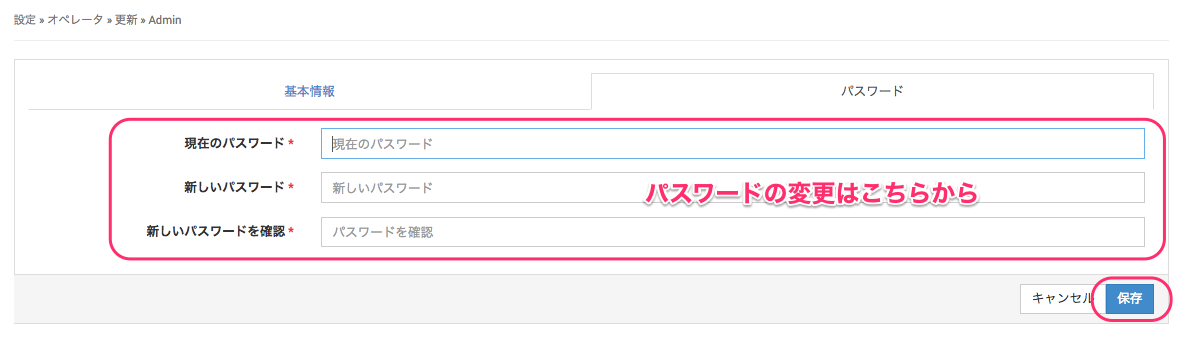
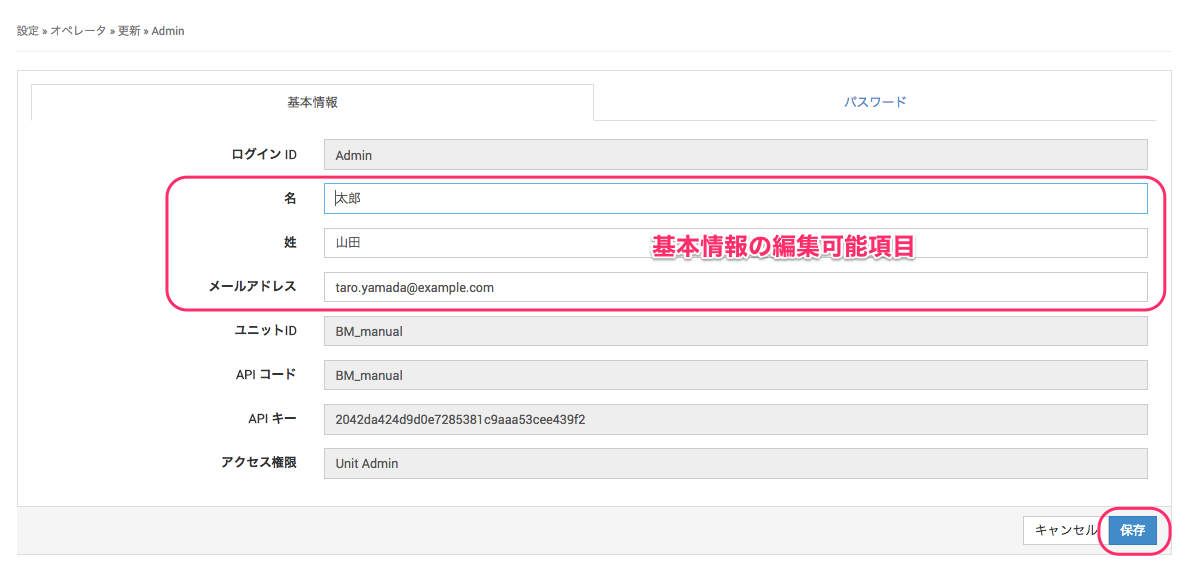
On the edit screen, you can change basic information such as the name and email address, and the login password.
Basic information change screen
Password change screen