Renew the Apple Push Certificate
The Apple Push Certificate, which is required for managing Apple devices, is valid for one year.
If the Push certificate expires (Push certificate revoked), the MDM server can no longer send push notifications to managed devices, so no commands can be run on them.
Renew the certificate before it expires. You can renew it at any time.
When the Alarm screen shows The unit's Apple Push Certificate will expire in 30 days., renew the certificate as soon as possible (within 30 days).
If you are using a Windows PC, use Google Chrome or Microsoft Edge for this procedure.
If you have no choice but to delete the Push certificate, for example because you forgot the Apple ID or password used for it and can no longer manage it, you must then register a new Push certificate with a new Apple ID and re-register (re-enroll) all Apple devices. Think carefully before deleting a Push certificate.
-
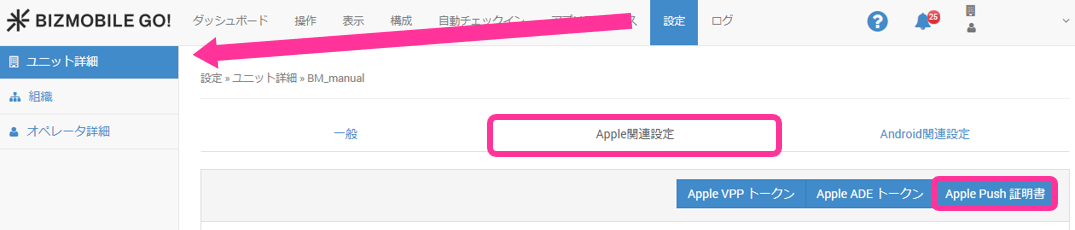
Click SETTING → Unit Detail →
Appletab → [Apple Push Certificate].
-
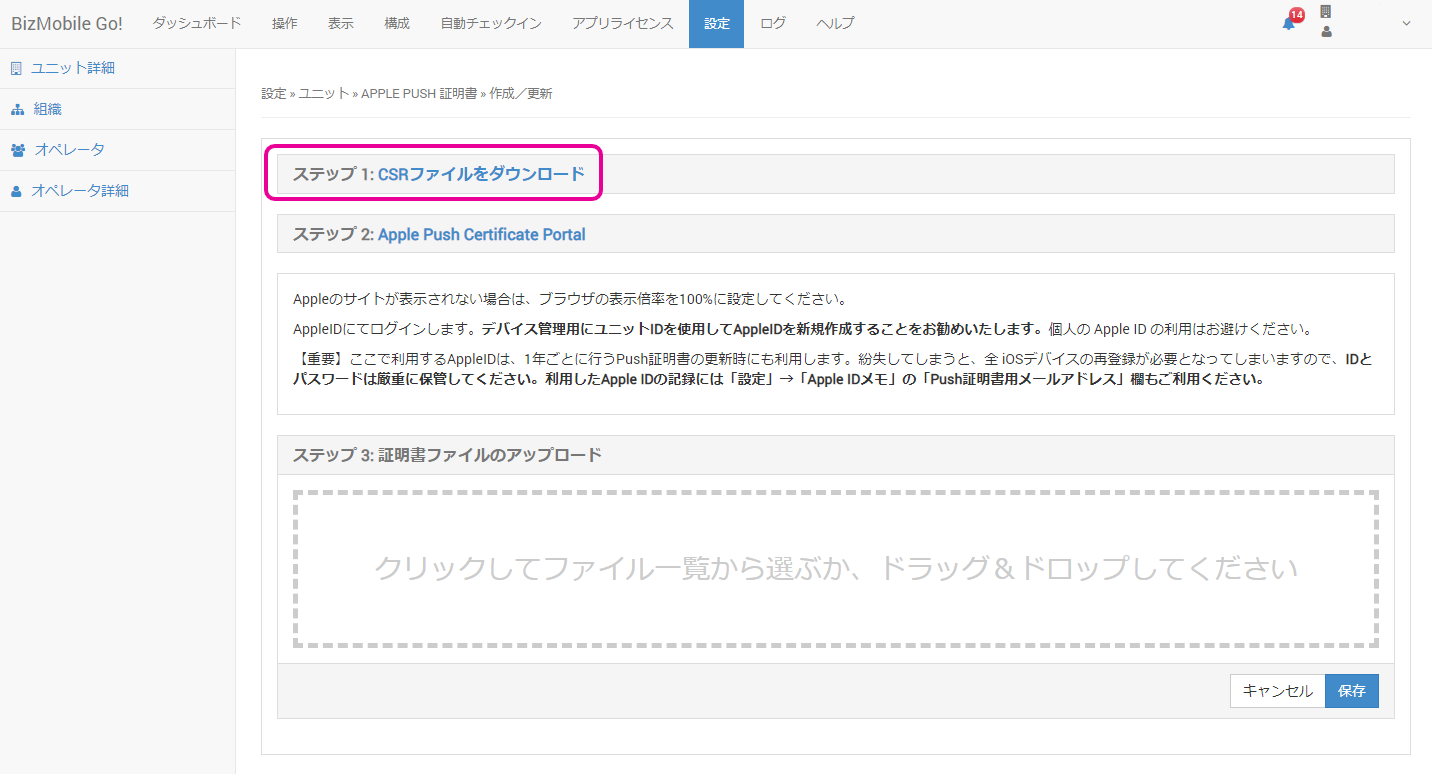
Click
Step 1: Download Certificateto download a CSR file. You will upload the downloaded xxxxxxx.csr (the file name differs with each download) to the Apple site later.
-
Click
Step 2: Apple Push Certificate Portal.
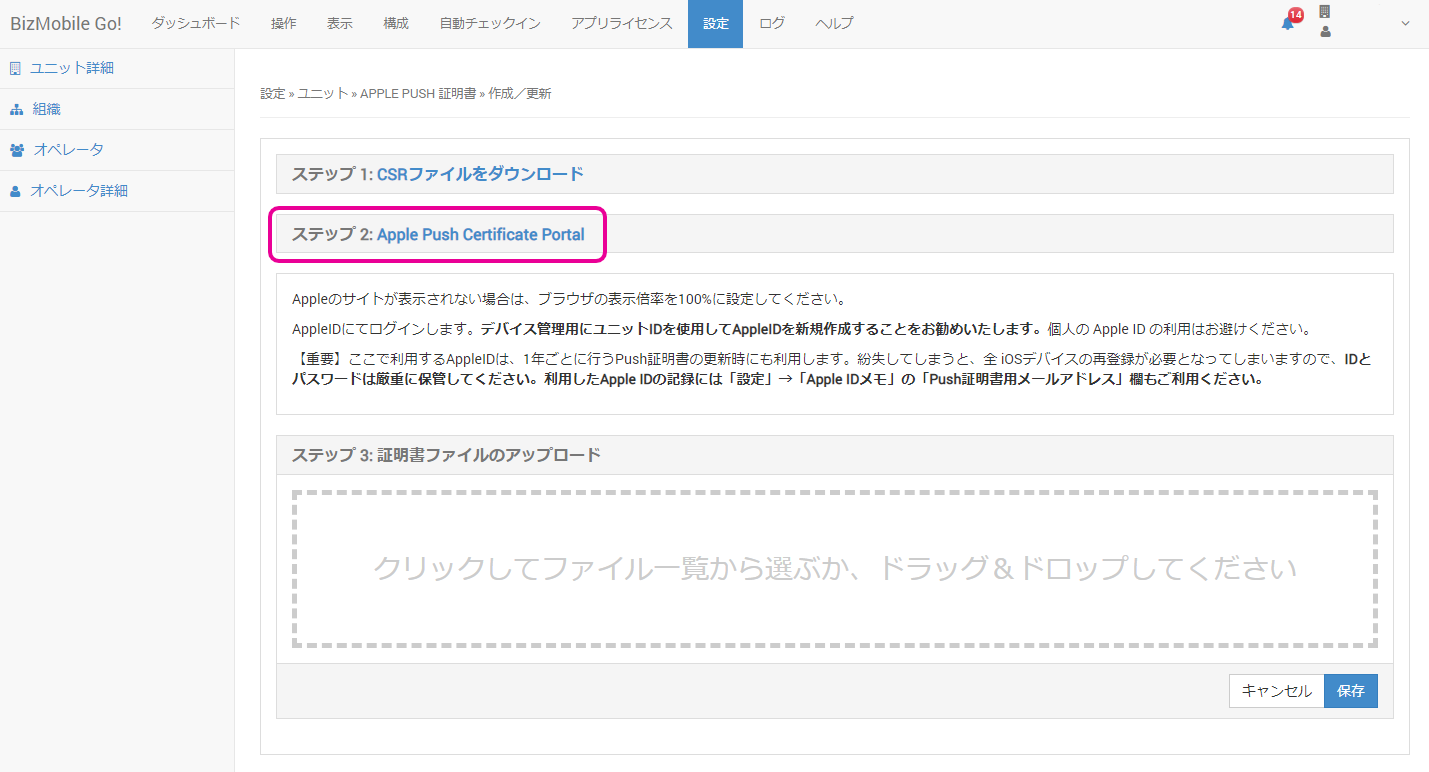
The Apple siteApple Push Certificates Portalopens in a separate browser tab (or a separate window, depending on your settings).- If the Apple site does not appear, set the browser zoom level to 100%.
- If the browser's translation feature is enabled, the site may not work correctly.
Note: The Apple Push Certificates Portal is an English site. If it is displayed in Japanese, the translation feature may be enabled.
Note: Sign in with the same Apple ID that you used in Obtain and Register the Apple Push Certificate.
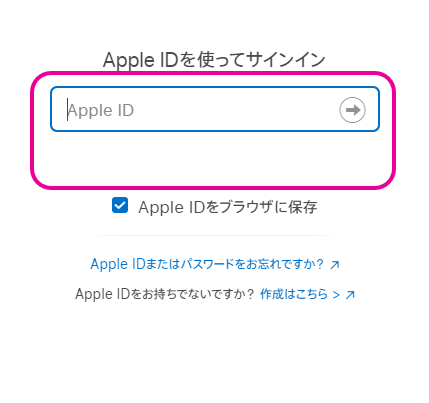
After you sign in, click [Renew] under Actions.
Note: Be careful not to select [Revoke], which invalidates the certificate.
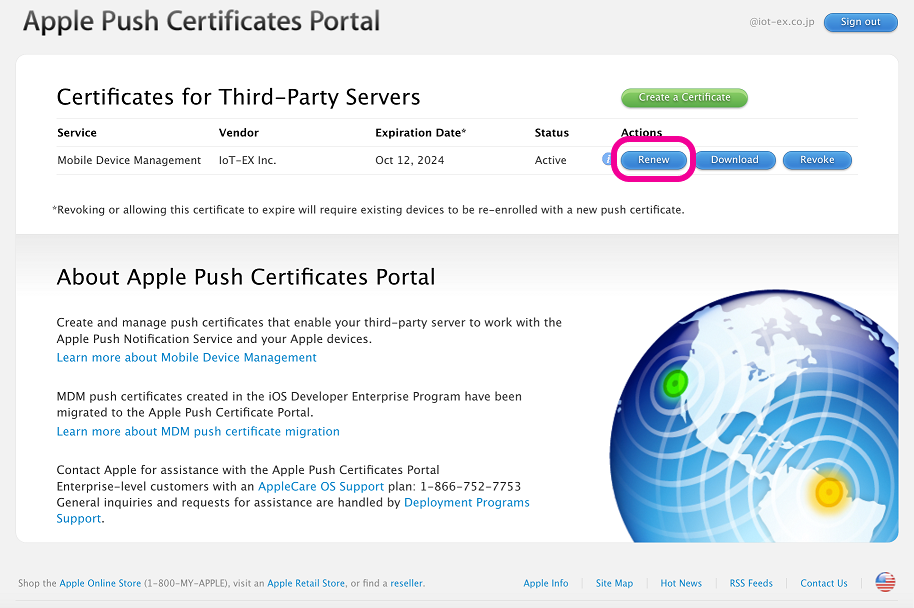
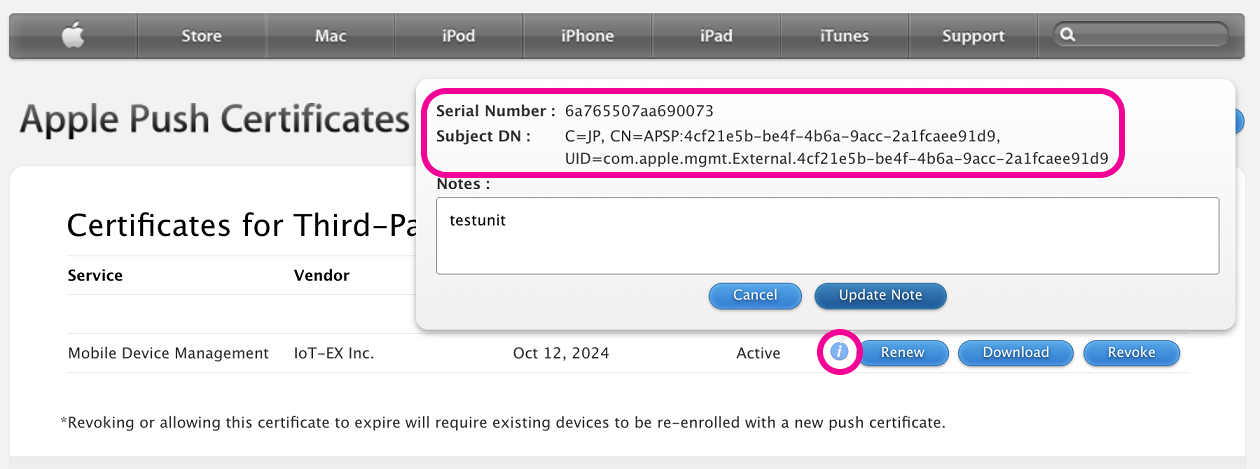
Click the Information button next to [Renew] to view the certificate information.
If multiple certificates exist, confirm that the displayed information matches the information shown in the admin console (Push certificate serial and Push certificate subject).
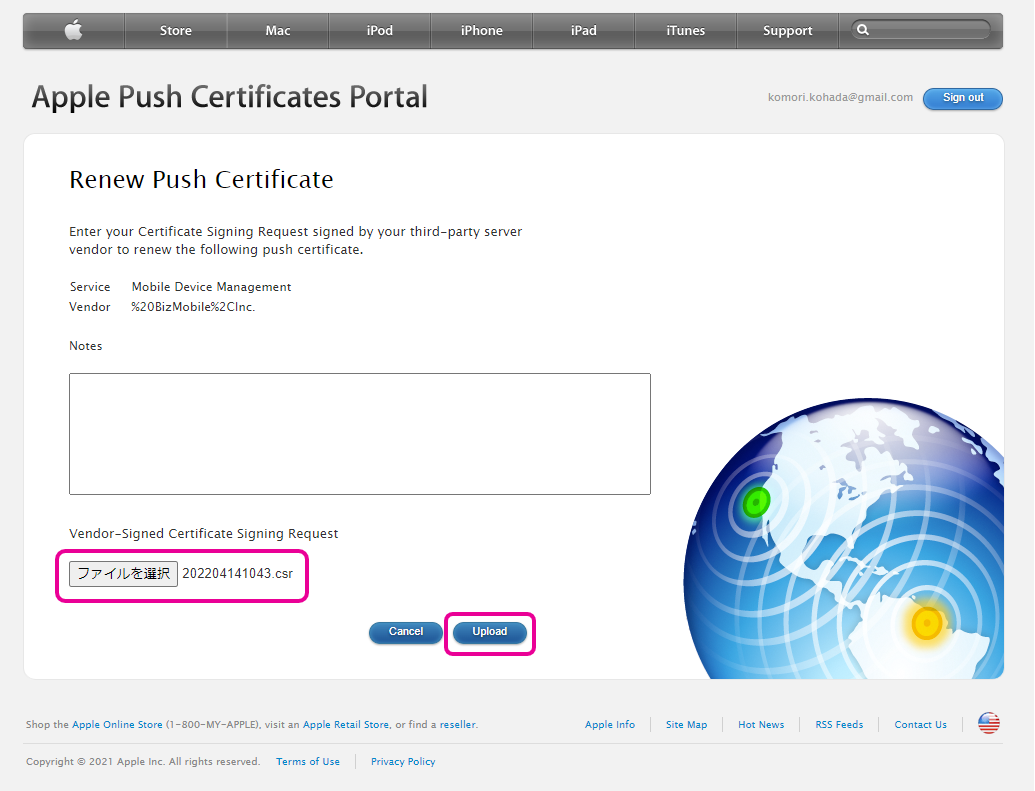
Click [Upload].
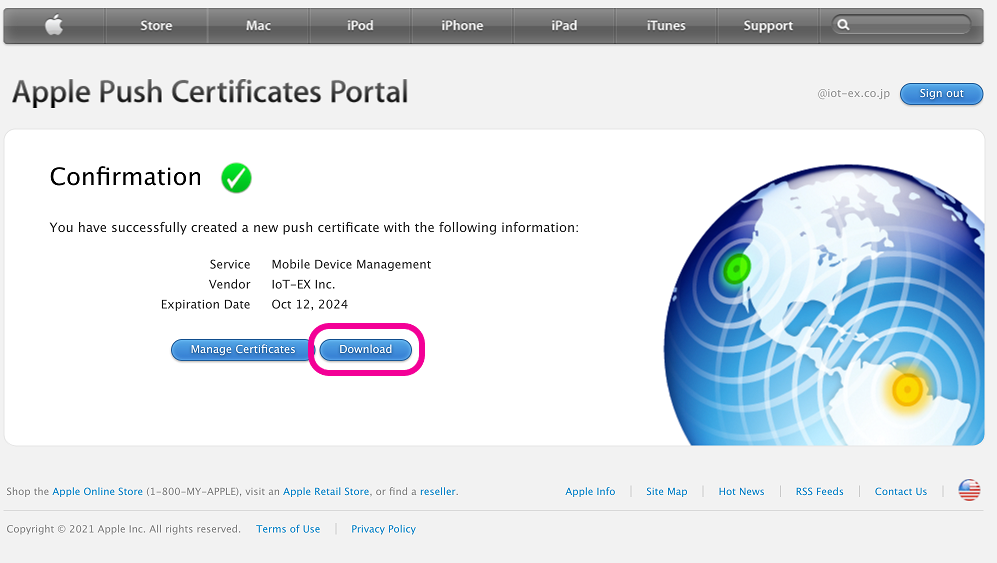
After the upload succeeds and the screen changes, click [Download]. When the download is complete, click [Sign out] and close the site.
-
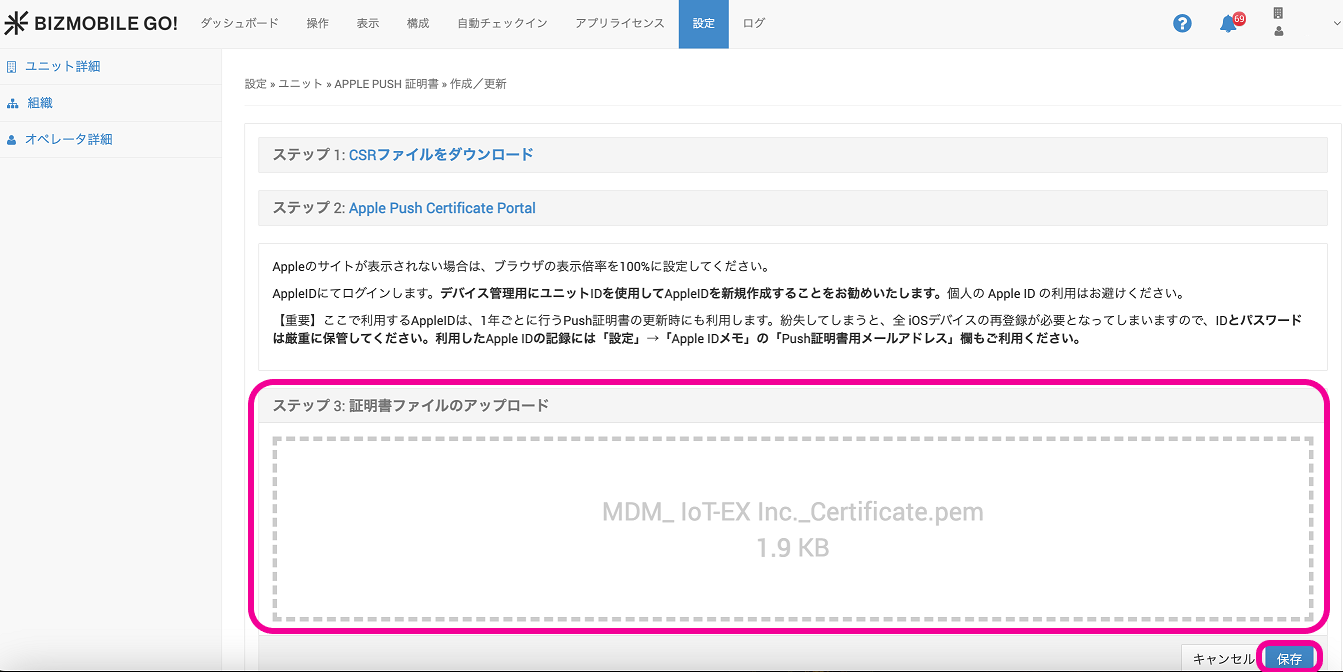
At
Step 3: Upload Certificate File, upload the downloaded fileMDM_IoT-EX,Inc._Certificate.pem. Either drag and drop the file onto theCLICK HERE OR DROP FILE HEREarea, or click the area and select the file, and then click [Save].
When the message
Certificate renewal is complete. Push Key: External.xxxxxx….appears, the MDM certificate registration is complete.

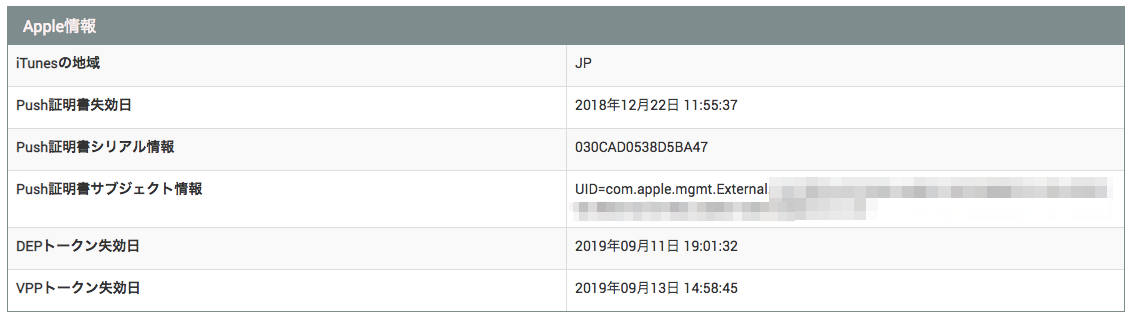
The renewed certificate information is displayed in theApple Informationfield at SETTING → Unit Detail. The Apple Push Certificate has now been obtained and registered.
**
If the Apple Push Certificate renewal does not work...
**
If a message such asThe Apple Push Certificate cannot be renewed because the certificate subject does not match the one registered in this unit.appears, or if a message like the following appears on the Apple site and the Push certificate cannot be renewed, an incorrect Push certificate was selected, for one of the following three reasons.
・Message displayed on the Apple site: "Invalid Certificate Signing Request The Certificate Signing Request you entered appears to be invalid. Make sure that request file uploaded is in the correct format and not empty."a. Whether you are using the correct Apple ID
You must sign in to theApple Push Certificates Portalwith the same Apple ID that you used to create the certificate in Obtain and Register the Apple Push Certificate when you started managing Apple devices.
If you use the wrong Apple ID, a completely different (incorrect) Push certificate is displayed after you sign in to the Apple Push Certificate site. If you do not notice this and try to renew or download that certificate, the operation fails.
If only one valid Push certificate is visible on the Apple Push Certificate site and the renewal fails, the Apple ID is wrong. Sign in with the correct Apple ID.b. Whether you are renewing the correct certificate (multiple certificates displayed)
If multiple certificates are displayed after you sign in with the Apple ID, you must identify the correct one among them. Even if you manage multiple certificates, only one is correct.
To identify which of the displayed certificates is currently in use and should be renewed, follow "How to check the subject information" below.
The certificate whosePush certificate subject informationmatches in both the admin console and the Apple Push Certificate site is the one to renew.If you cannot find a certificate whose
Push certificate subject informationmatches, the Apple ID is wrong. Sign in with the correct Apple ID.How to check the subject information:
After signing in to the Apple Push Certificates Portal, click the [Certificate Info] button
In the admin console, see theApple Informationfield at SETTING → Unit Detail

c. Whether you are uploading the correct file (files mixed up)
If multiple CSR files or certificates (including past ones) are saved in the Downloads folder or any other folder, you may select and upload the wrong file, which causes an error. When you upload a file, make sure that you have not selected an old file by mistake.