Configure profile settings for the custom browser
Use the custom browser
-
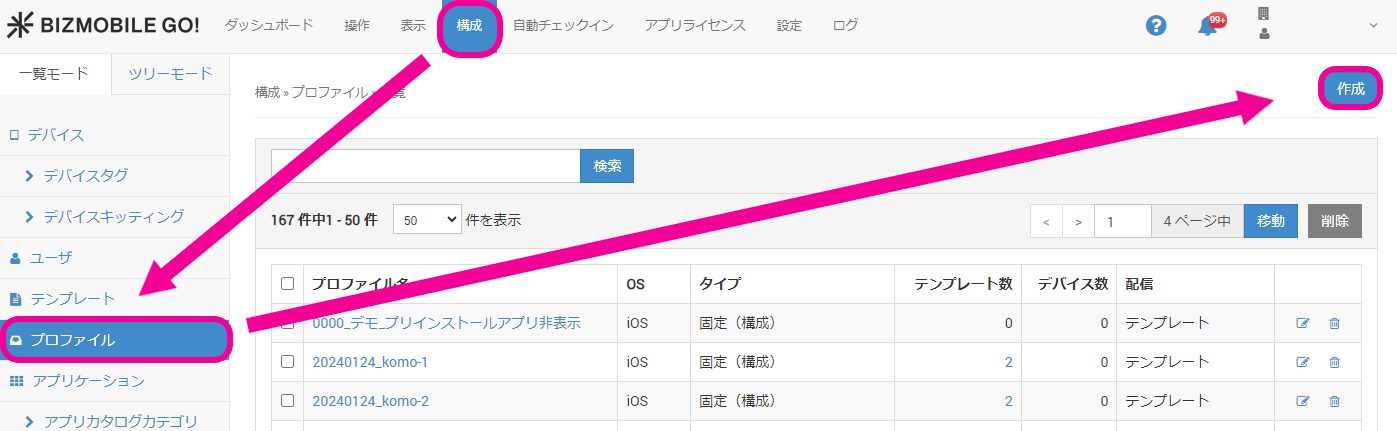
On the CONFIG → Profile screen, click [Create].
-
Select
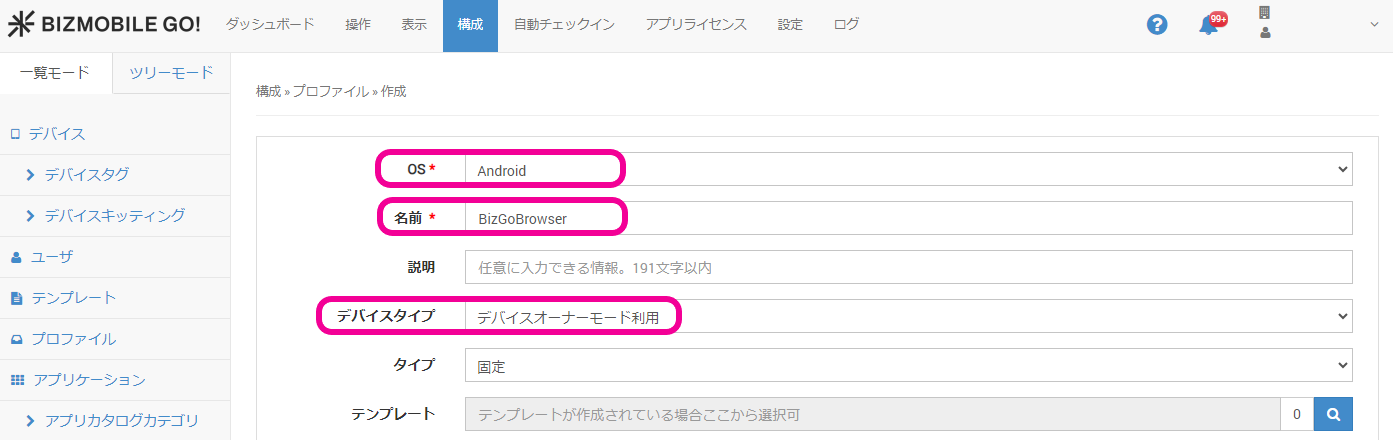
Androidfor OS, enter a profile name inName, and selectUse Device Owner Modefor Device Type.
-
Click
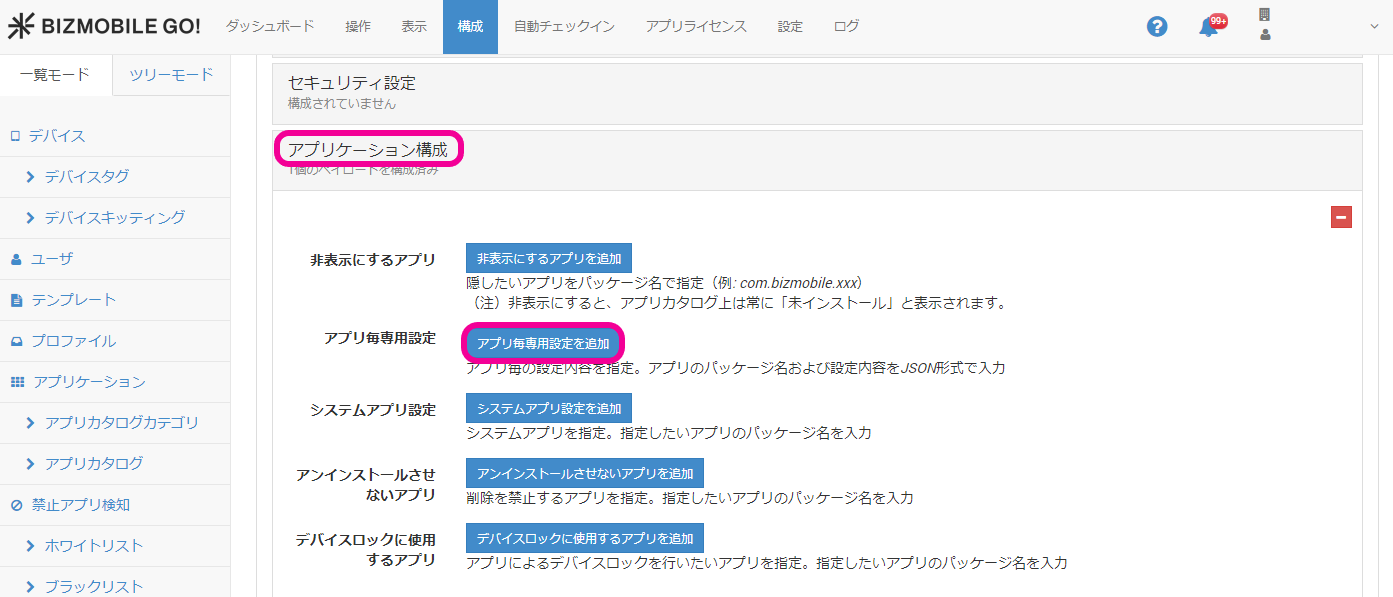
Application Configuration, and then clickAdd Per App Settingsunder [Per App Settings].
-
In
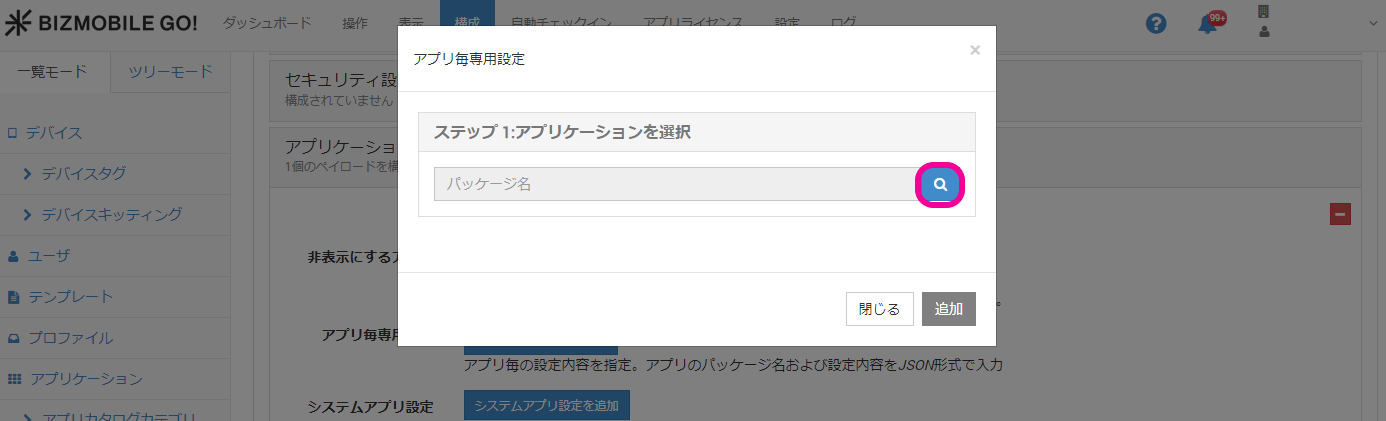
Step 1: Select Application, click the magnifying glass icon.
-
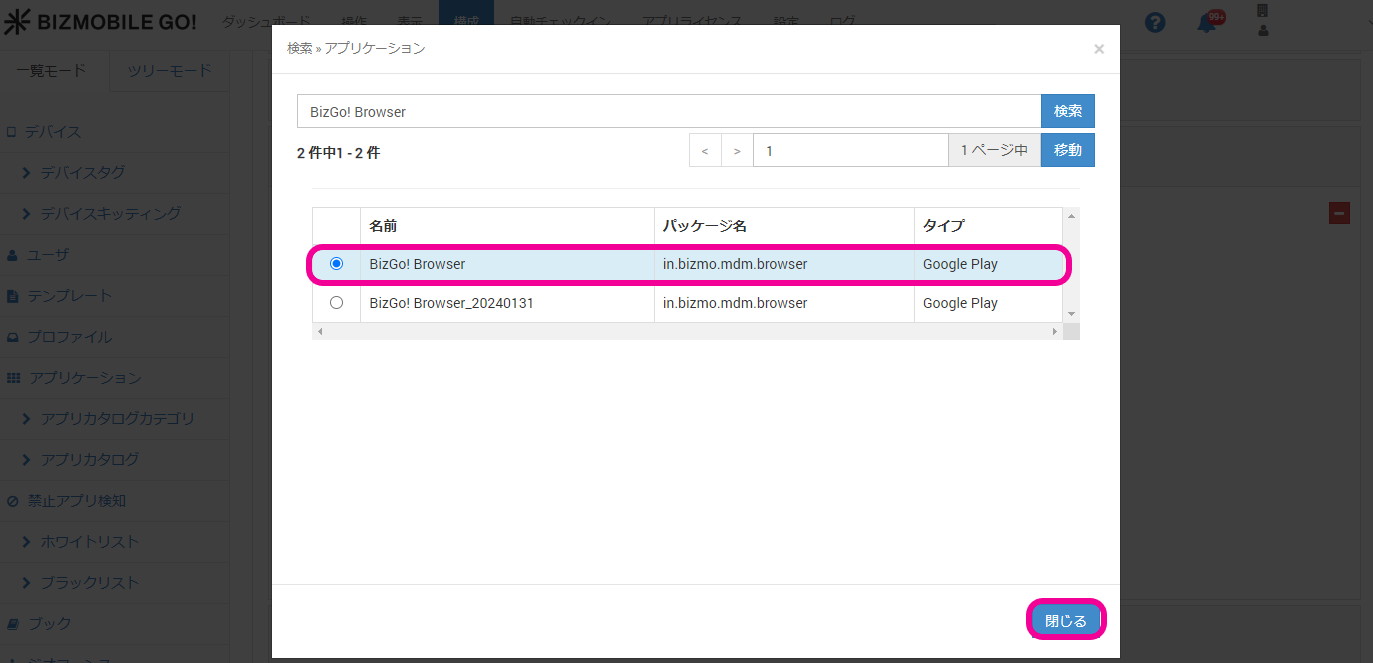
Select the BizGo! Browser app from the app list, and then click
Close.
-
In
Step 2: Configure App Settings, enter a setting name and the required setting items, clickSave, and then clickAdd.
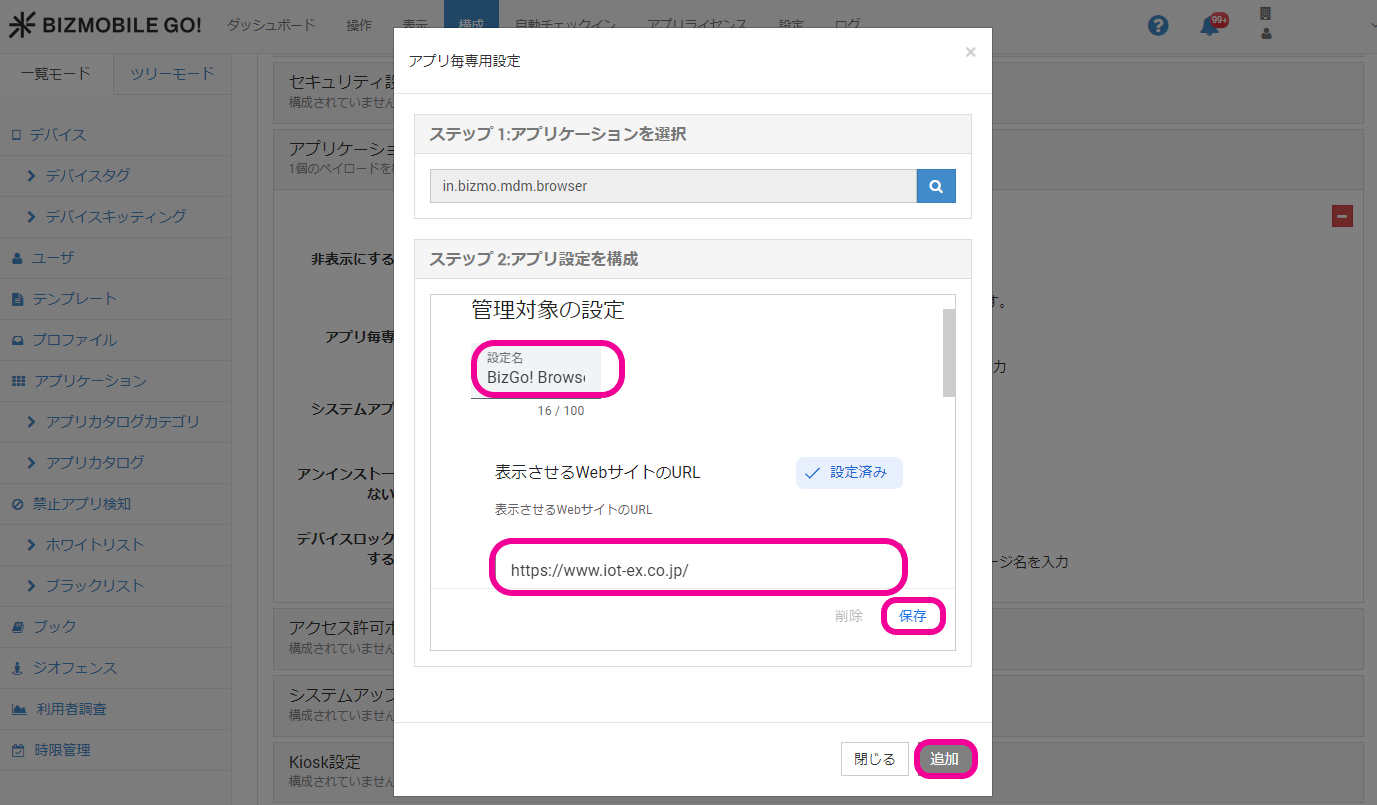
- Per App Settings items for the BizGo! Browser app
Example Purpose URL of the website to display https://bizmobile.co.jp/ Display only a specific URL Screen orientation unspecified (not specified)
portrait
landscapeLock the screen orientation PIN code to unlock the screen abcd1234 Set only when using Device Lock
For details, see Use the device lock featureTime until automatic reload 300 (seconds) Specify the time until the page is automatically reloaded when there is no operation
Maximum value: 86400Stop automatic reload while the camera is in use OFF Stop automatic page reload while the camera app is in use Disable BackoperationOFF Disable moving to the previous page with the device's Backbutton or a swipe gesture -
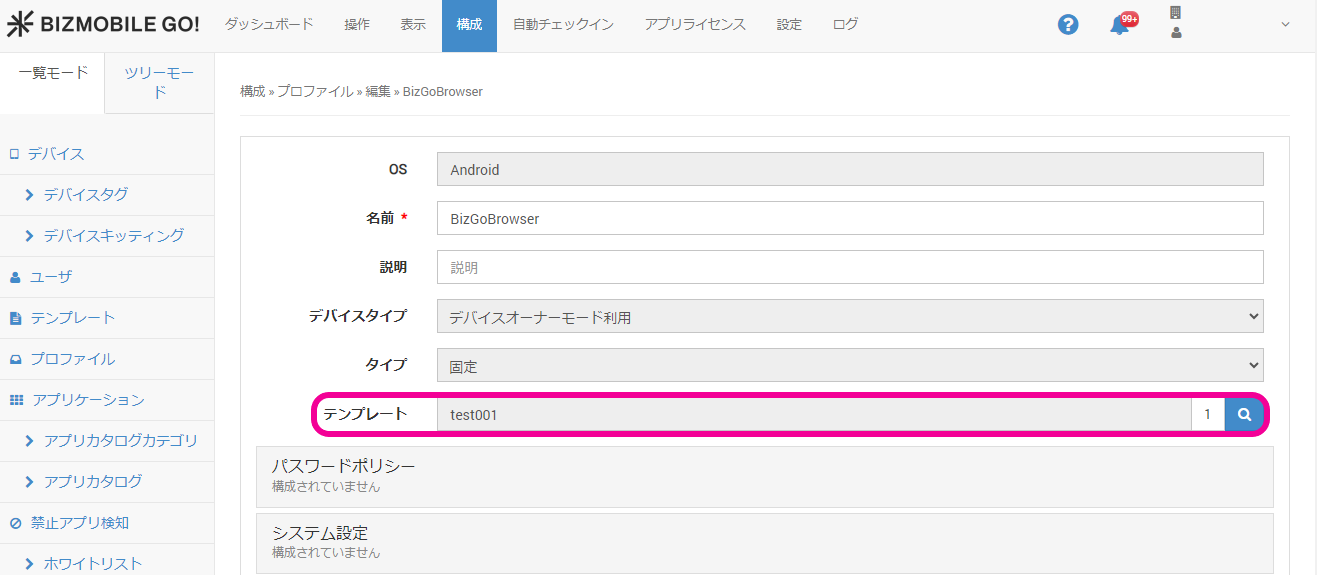
Assign the template in which BizGo! Browser is configured, and then click
Sync.
Use the device lock feature
The device lock feature prevents the use of apps other than BizGo! Browser.
You can also temporarily use other apps by entering the PIN code specified in the profile in BizGo! Browser.
- On the CONFIG → Profile screen, click [Create].
- Select
Androidfor OS, enter a profile name inName, and selectUse Device Owner Modefor Device Type.
- Click
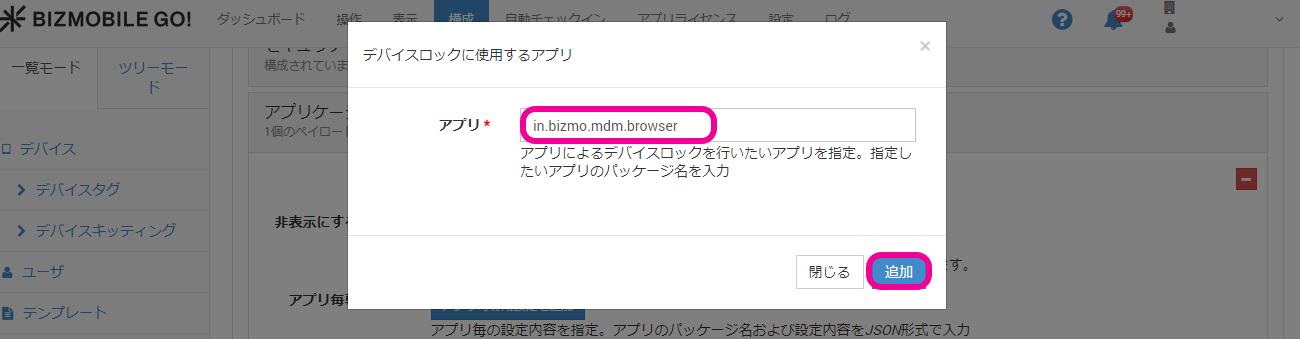
Application Configuration, and then clickAdd Allowed Lock Task Mode Applicationsunder [Allowed Lock Task Mode Applications].
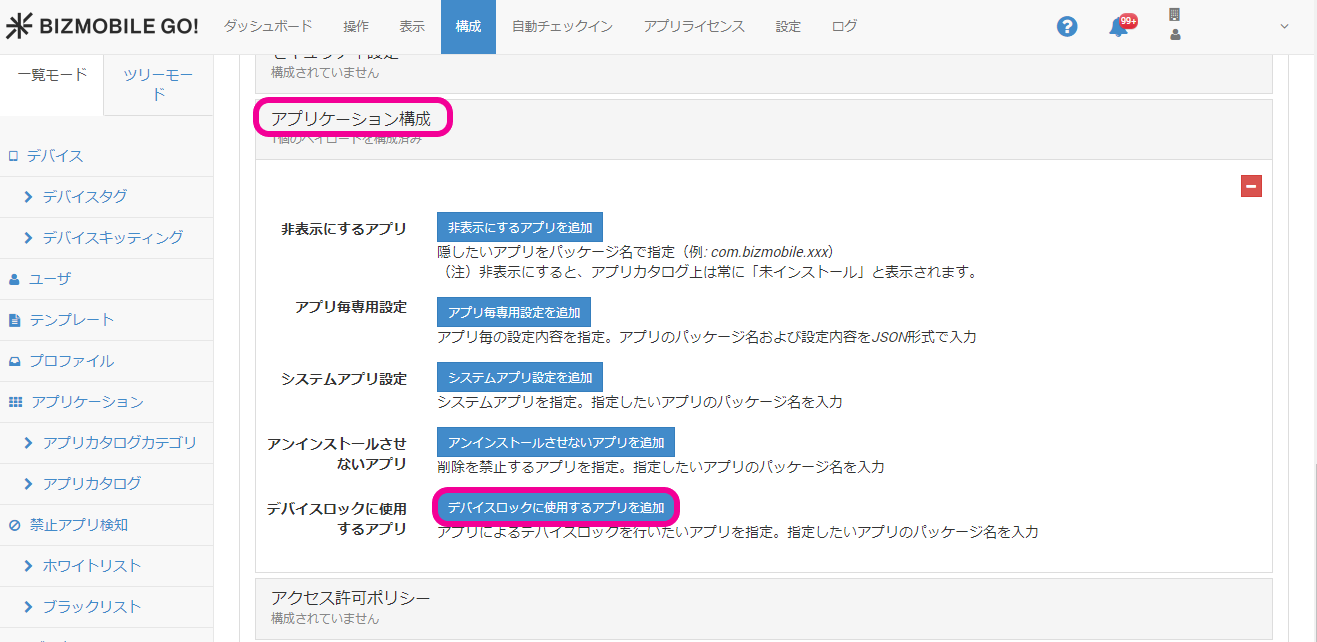
- Enter the BizGo! Browser package name
in.bizmo.mdm.browser, and then clickAdd.
- Assign the template in which BizGo! Browser is configured, and then click
Sync.
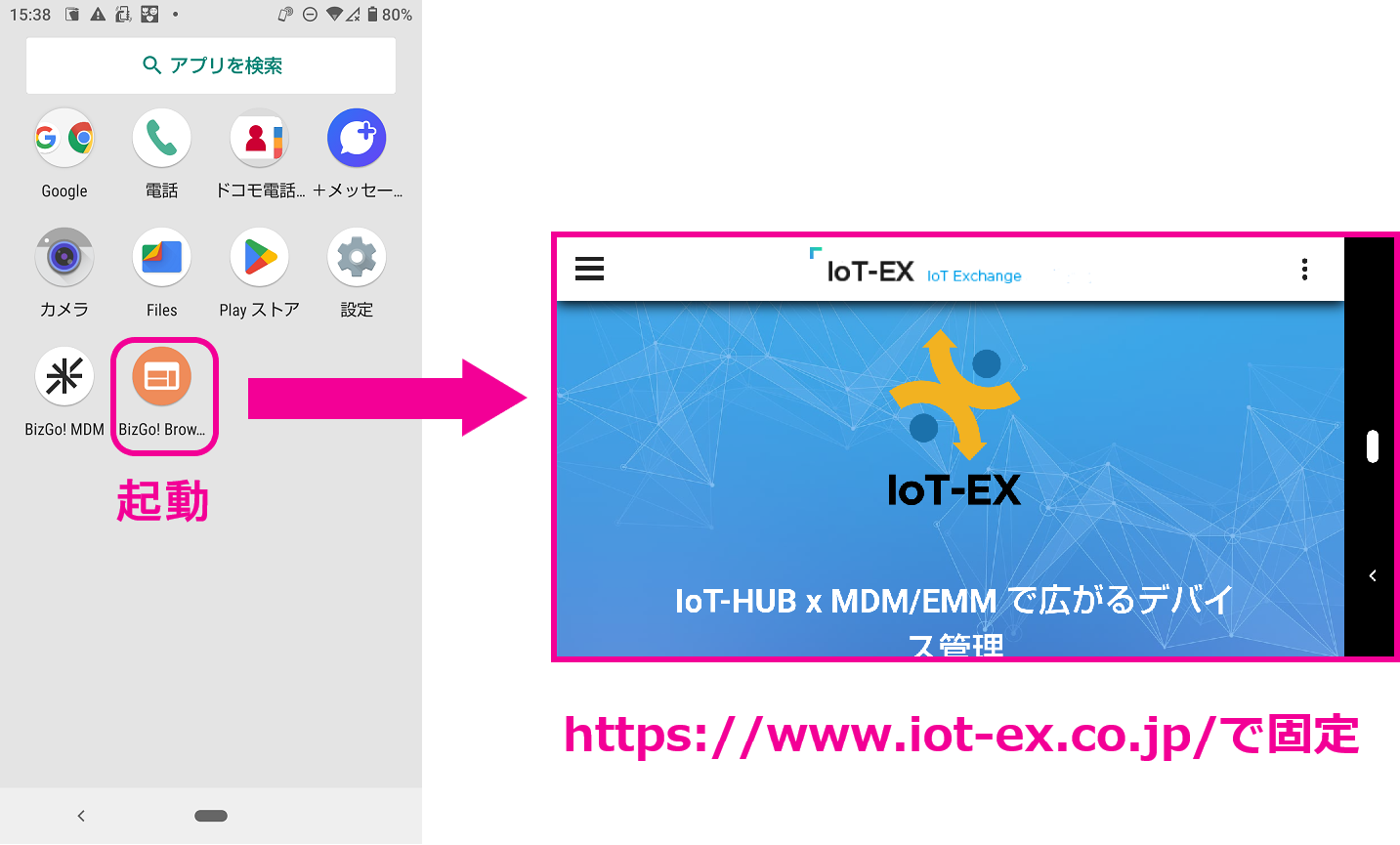
- After the sync is complete, launch the BizGo! Browser app distributed to the device. The screen is locked to the URL specified in the profile.
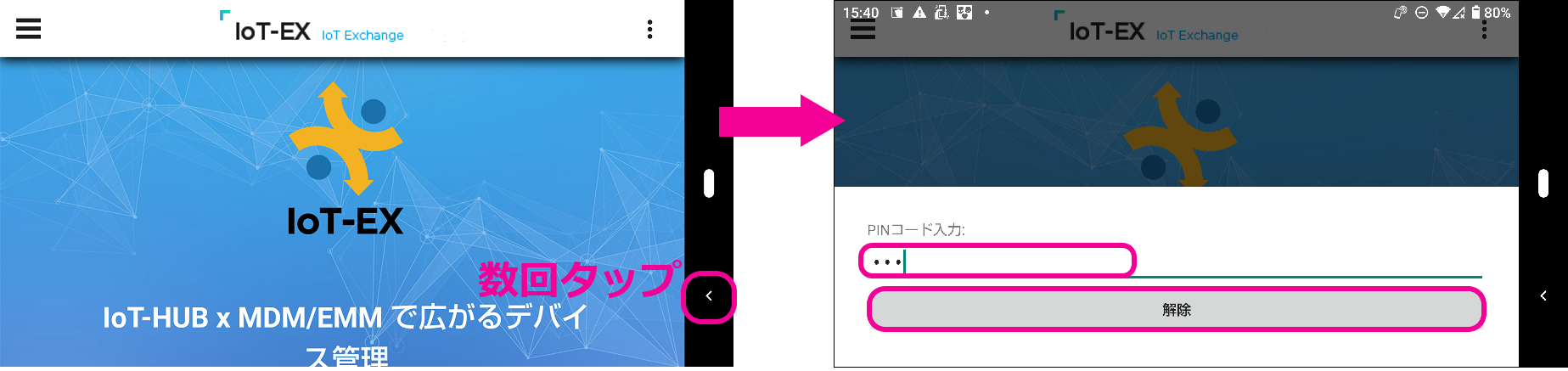
- To use other apps on the device, tap the
Backbutton at the lower left of the device several times, or swipe from the left edge of the screen to the right several times.
When the passcode entry screen appears, enter the PIN code to unlock the screen that you registered in Per App Settings.
Add runtime permissions
With the Permission Request Policy, you can hide the permission pop-ups that appear when using the BizGo! Browser app.
For example, a web meeting requires permission to use the Camera and Microphone. You can grant these permissions in advance.
- On the CONFIG → Profile screen, click [Create].
- Select
Androidfor OS, enter a profile name inName, and selectUse Device Owner Modefor Device Type.
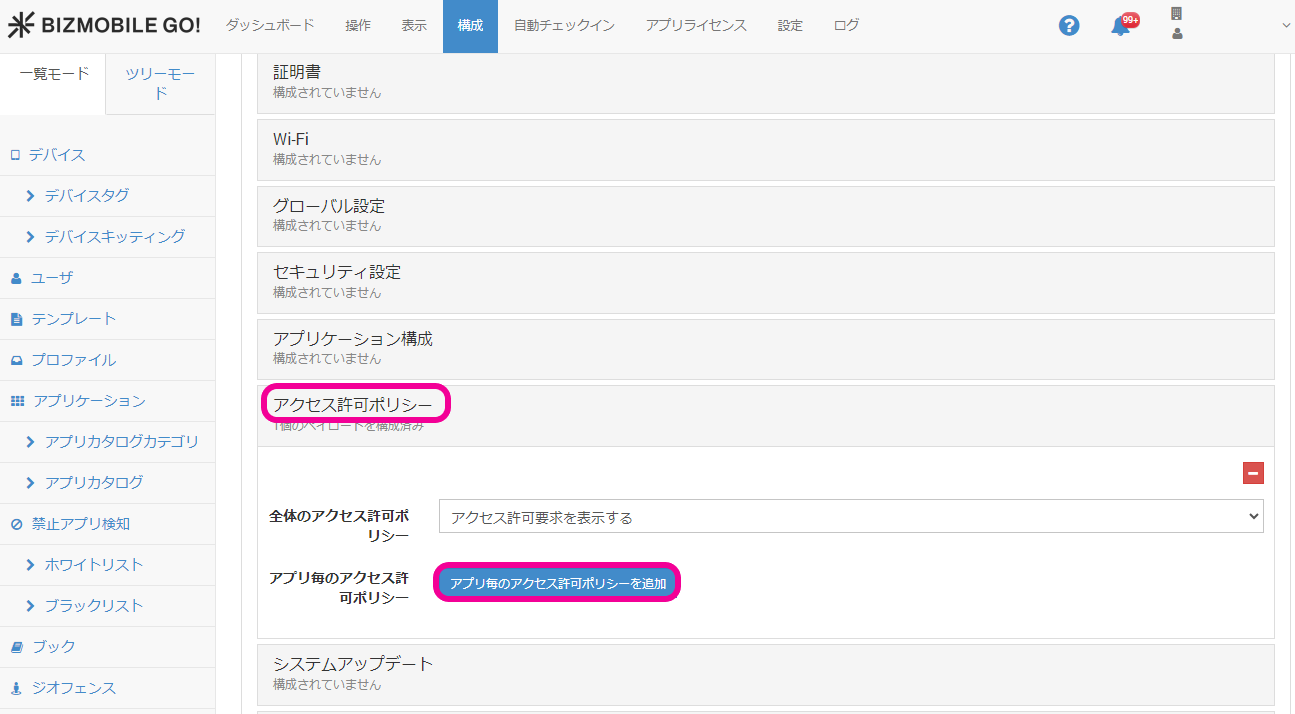
- Click
Permission Request Policy, and then click [Per App Runtime Permission Policy].
- In
Step 1: Select Application, click the magnifying glass icon.
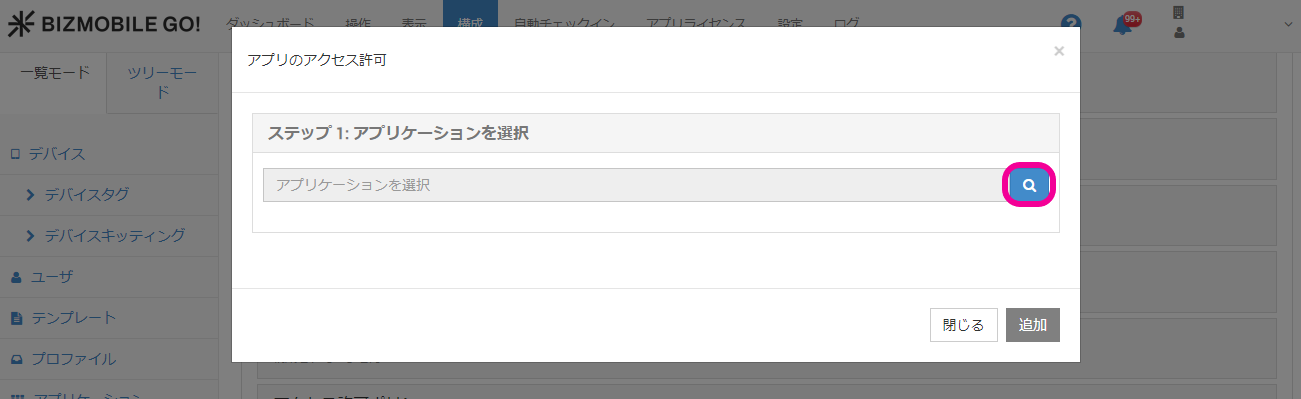
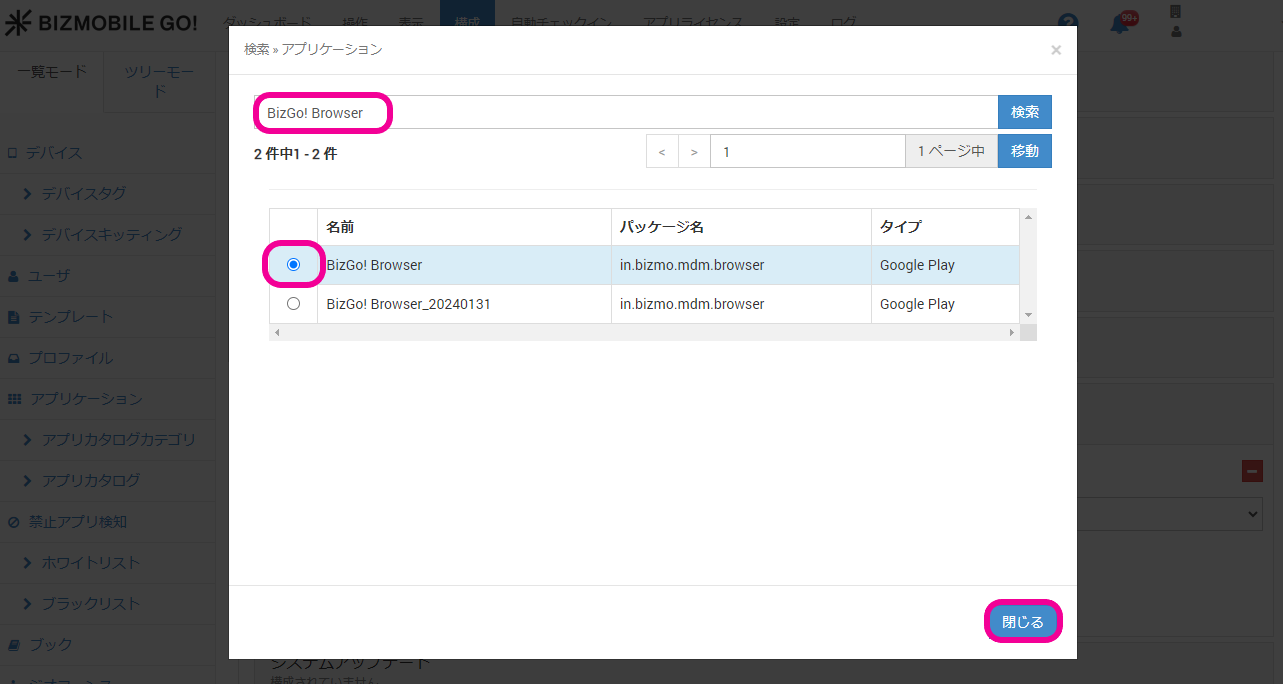
- Search for the BizGo! Browser app, select the check box for the displayed app, and then click
Close.
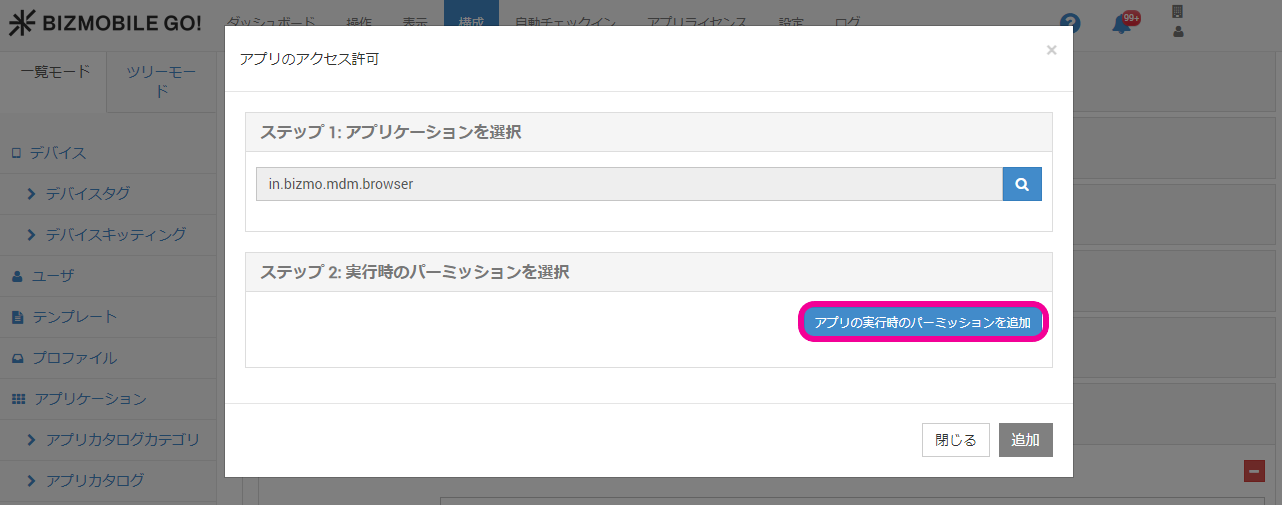
- In
Step 2: Select Runtime Permissions, clickAdd Runtime Permission.
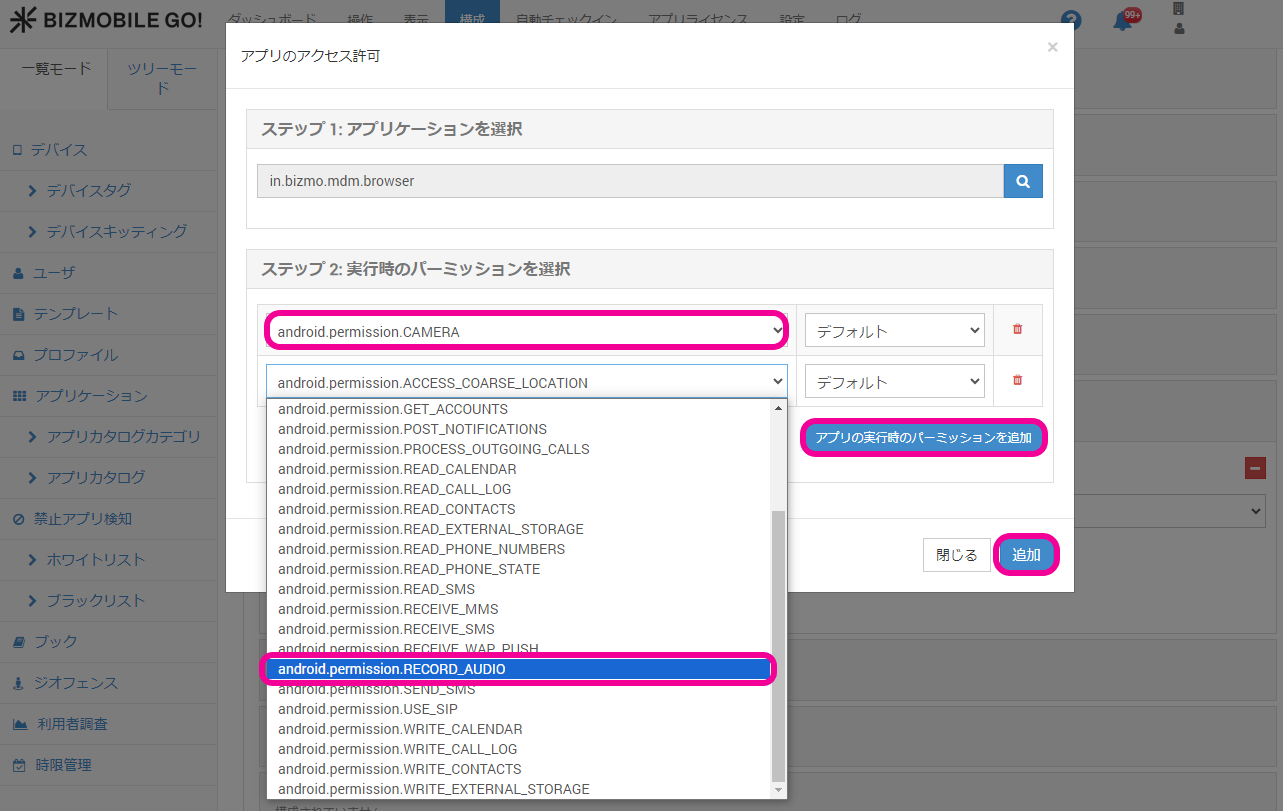
- Select the permissions you want to grant. In this example, add the two permissions mentioned above:
CAMERAandRECORD_AUDIO.
To set multiple permissions, clickAdd Runtime Permissionand configure each one.
After registering all the required settings, clickAdd.
- Assign the template to which BizGo! Browser is assigned, and then click
Sync.
Example of Per App Settings when using the previous BizGo! Browser (in-house app version)
{"orientation":"landscape","pin":"123","url":"https://bizmobile.co.jp/","max_idle_time":180,"disable_idle_refresh_when_camera_in_use":true}
Configuration details
"orientation":"landscape"Lock the screen in landscape orientation"pin":"123"Specify the passcode for switching to normal device use"url":"https://bizmobile.co.jp/"URL to display"max_idle_time":180Time (in seconds) without user operation before the URL is reloaded. Maximum value: 86400"disable_idle_refresh_when_camera_in_use":trueStop automatic reload while the camera is in use