Work Profile settings and enrollment
Work Profile is a feature that separates the space on a managed device into the User Profile for personal data and settings and the Work Profile for work data and settings.
The work applications distributed by the administrator appear on the Android device.
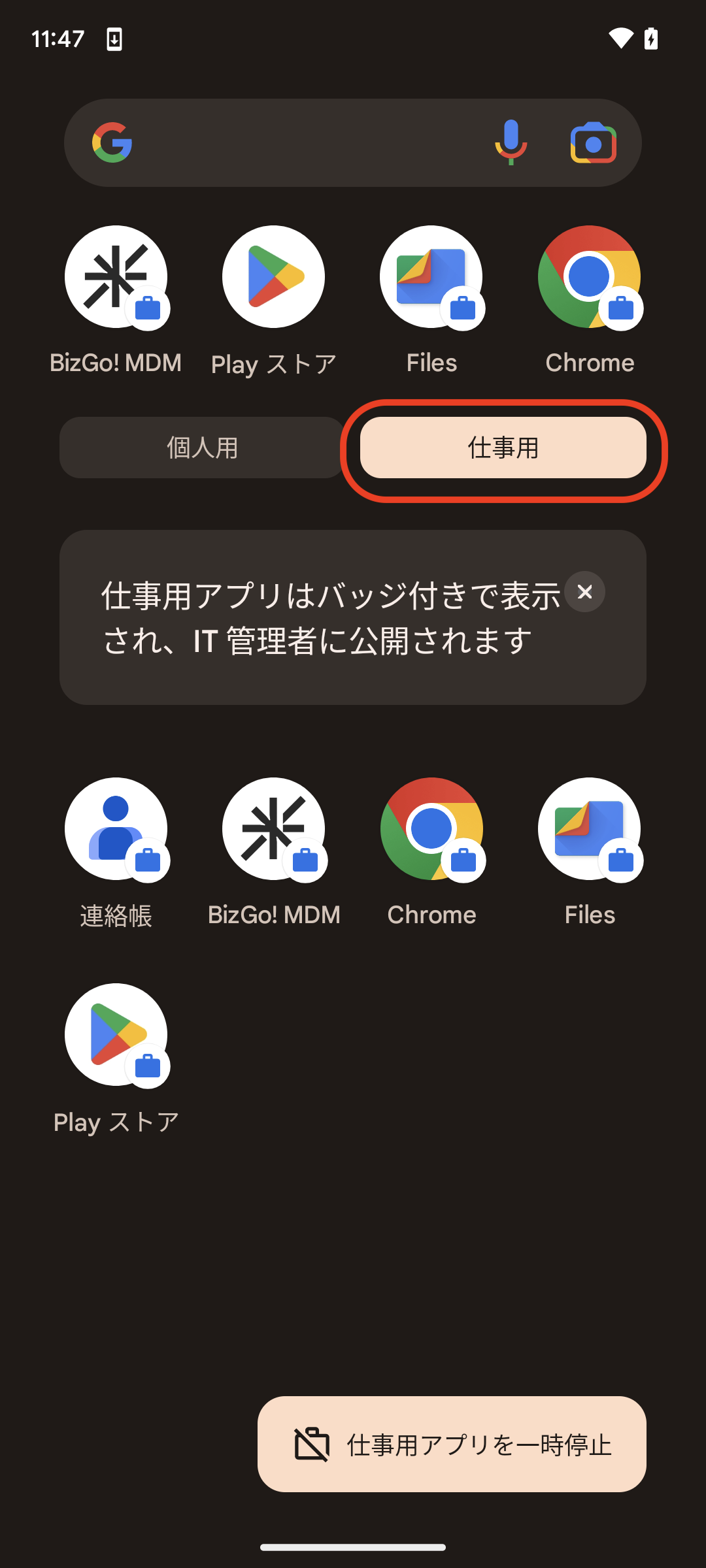
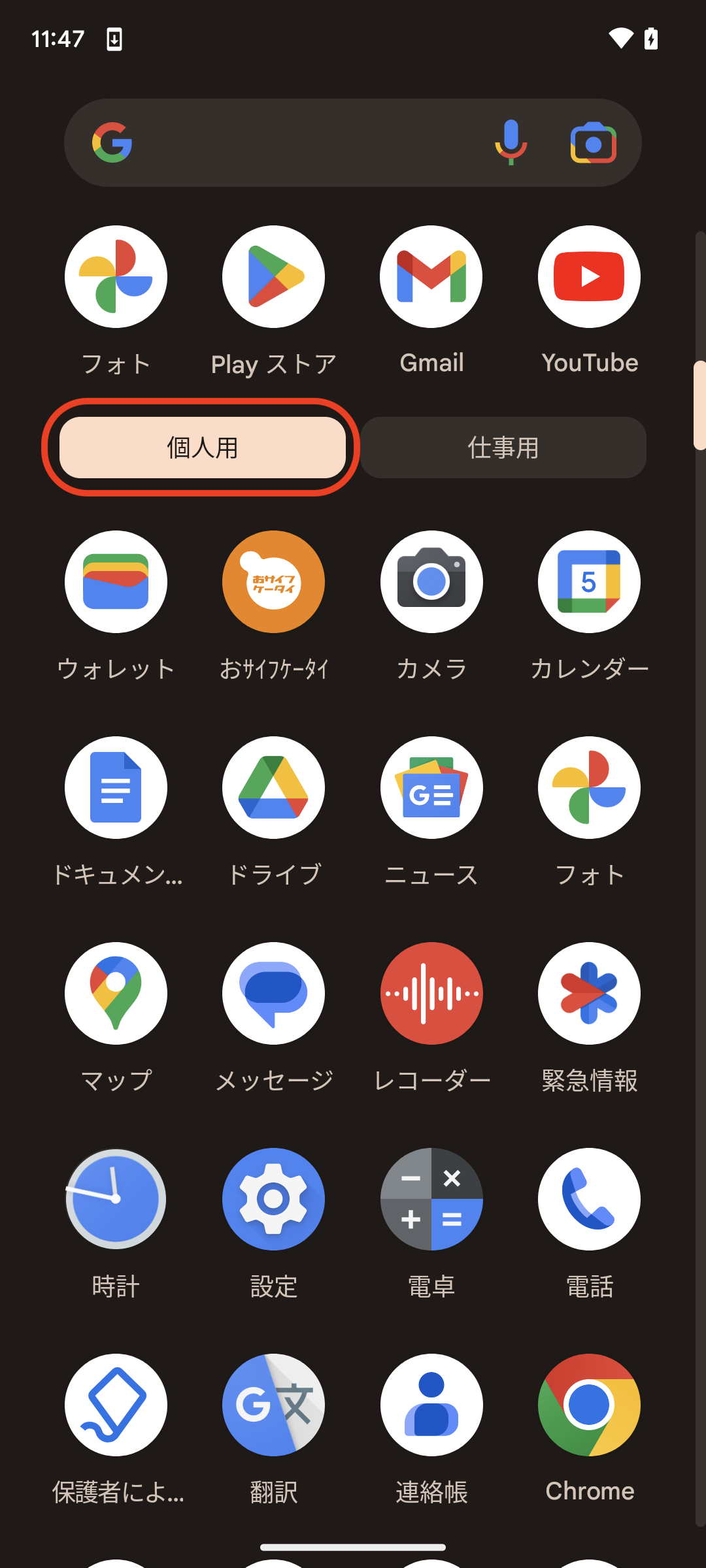
Administrators can manage only the work applications. They can apply feature restrictions only to the applications in the Work Profile, and, for example when a managed device is lost, erase only the applications and data in the Work Profile. Work applications are marked with a briefcase icon. You can also use the same application as two independent applications, one for work and one for personal use.
With Work Profile, BizMobile Go! lets you manage devices with work and personal use kept separate when you introduce BYOD (Bring Your Own Device: using personal devices for work). To use Work Profile, you must set up the Work Profile on the device during enrollment.
Enroll using Chrome, the default browser. Enrollment may fail in other browsers. (The default browser may differ by model, so check the device's user manual or similar documentation.)
If BizGo!MDM requires an update to Google Play services. appears on the device, update Google Play services from the device.
Work Profile setup steps
The screens are from a Nexus 5X. Displays may differ depending on the model, OS, and agent app version.
| Step | Description | Screen |
|---|---|---|
| 1 | Open the device's default browser and enter the enrollment site URL. Tokyo: https://go.bizmo.in Singapore: https://as-go.bizmo.in Select the region you chose when you applied for the service. | |
| 2 | Enter the "Key" and "Code" of the device information you created, and tap Next. | 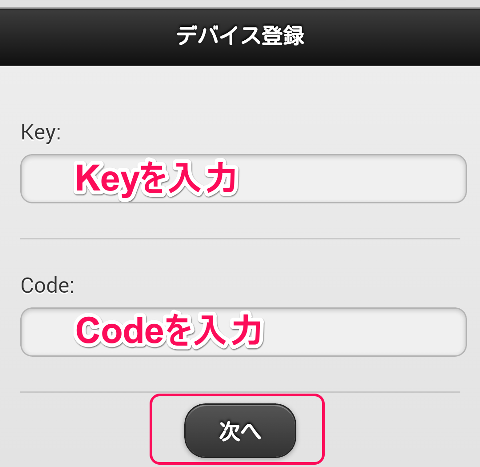 |
| 3 | Tap Install. | 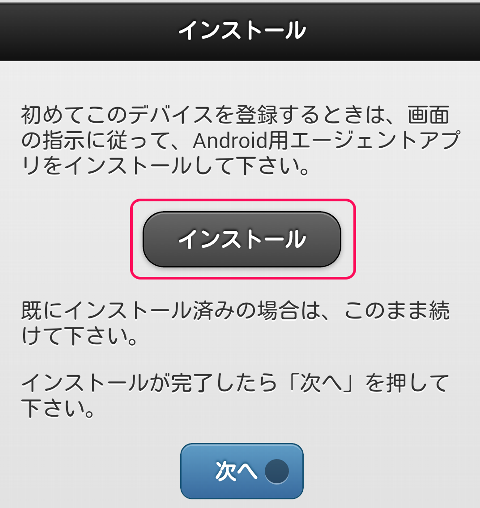 |
| 4 | Tap Install. | 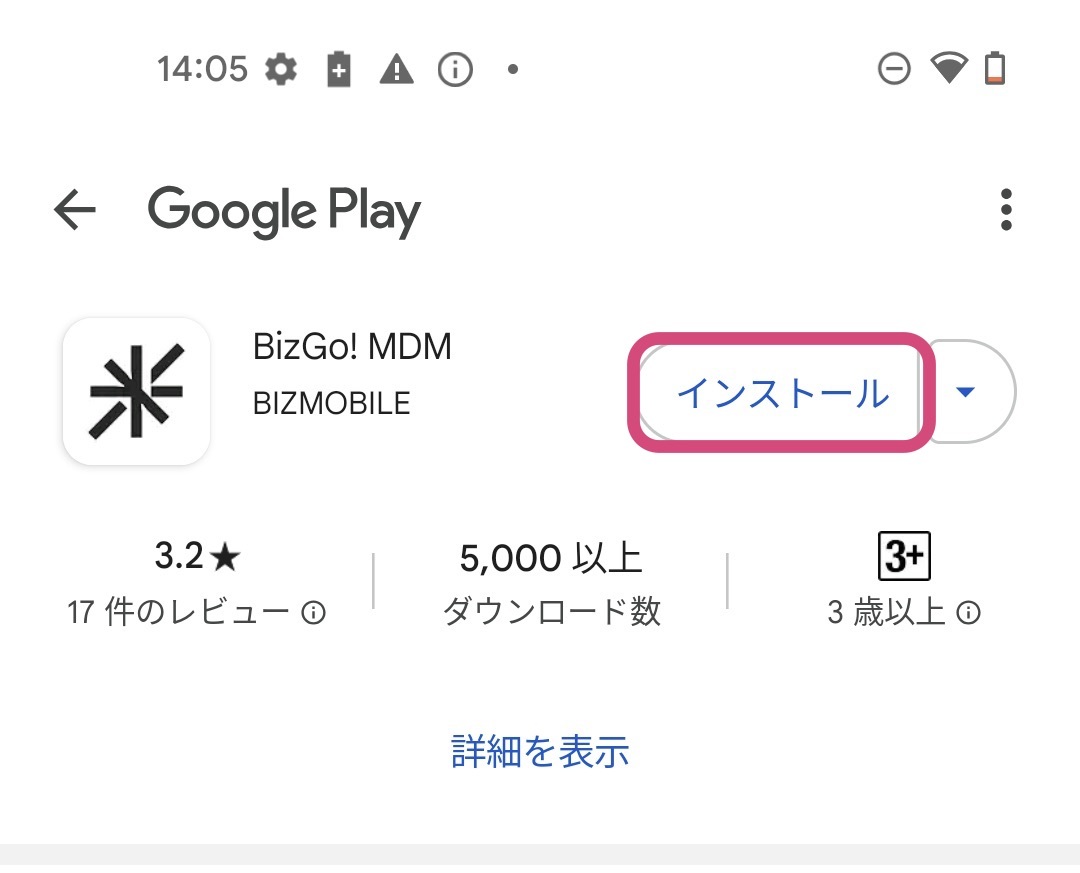 |
| 5 | When the installation is complete, close the Google Play Store, return to the browser, and tap Next. | 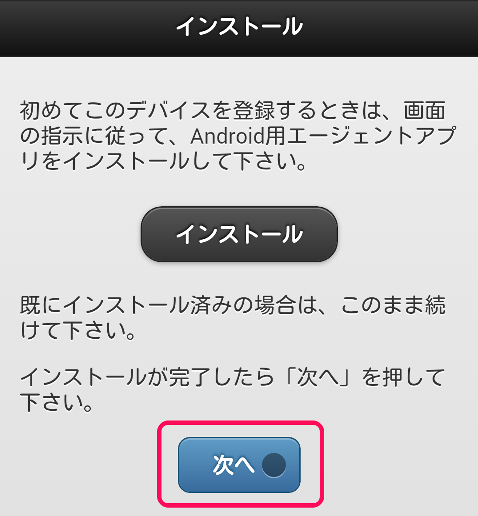 |
| 6 | Tap Enroll. If nothing happens after you tap the [Enroll] button, a browser other than the OS default may be open. In that case, open the default browser and enter the URL directly to access the enrollment screen. | 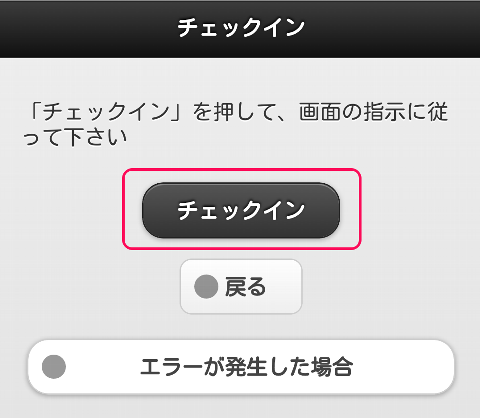 |
| 7 | Select "Accept" and tap "Next". | 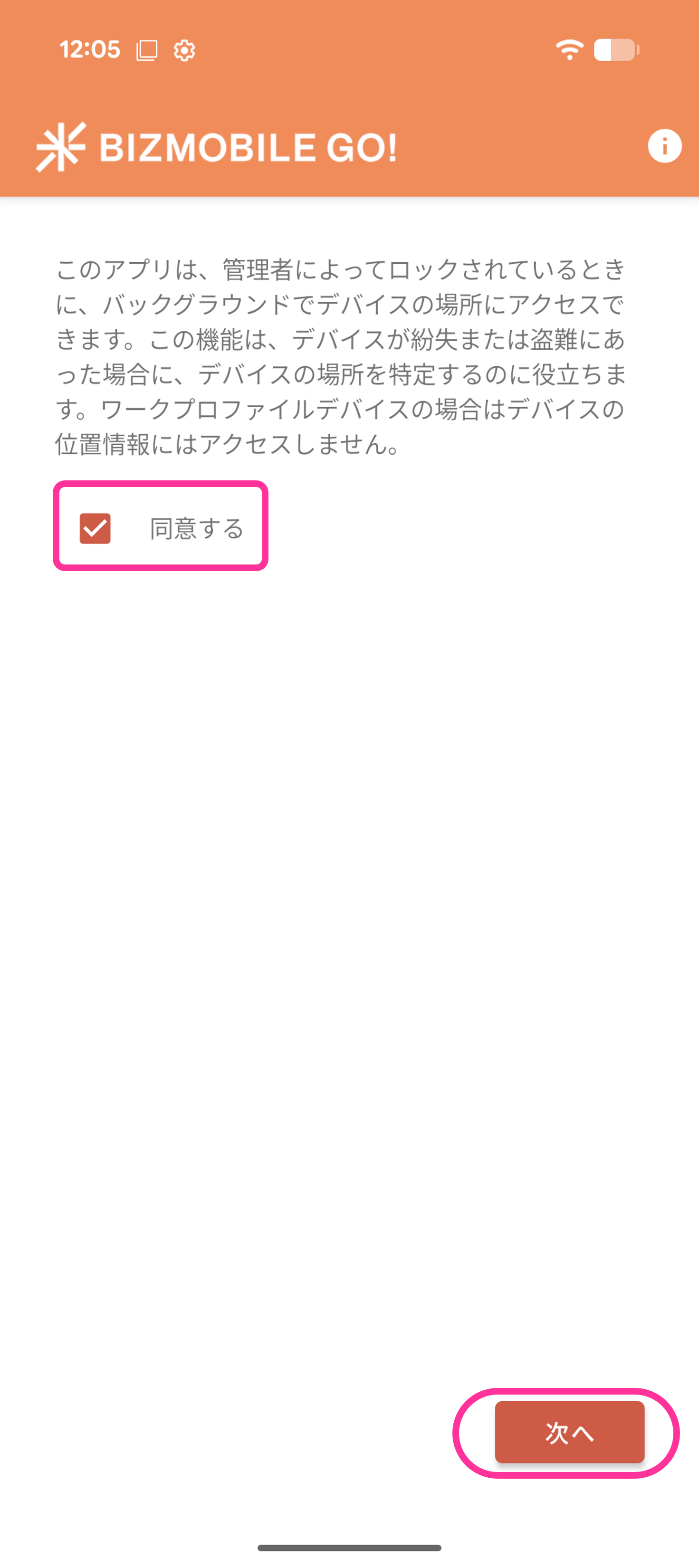 |
| 8 | Tap "Next". | 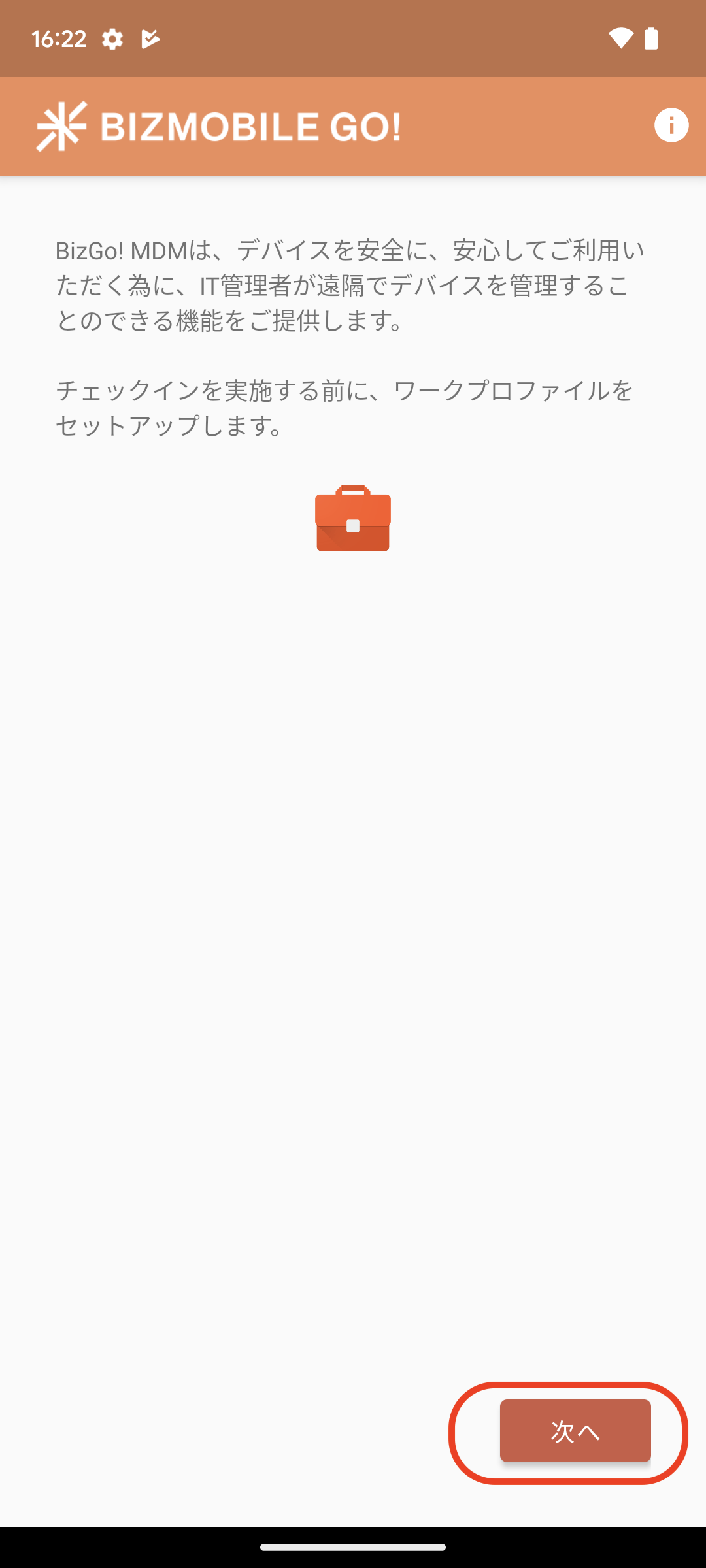 |
| 9 | To set up the work profile on the device, review the terms of use and tap "Accept & continue". | 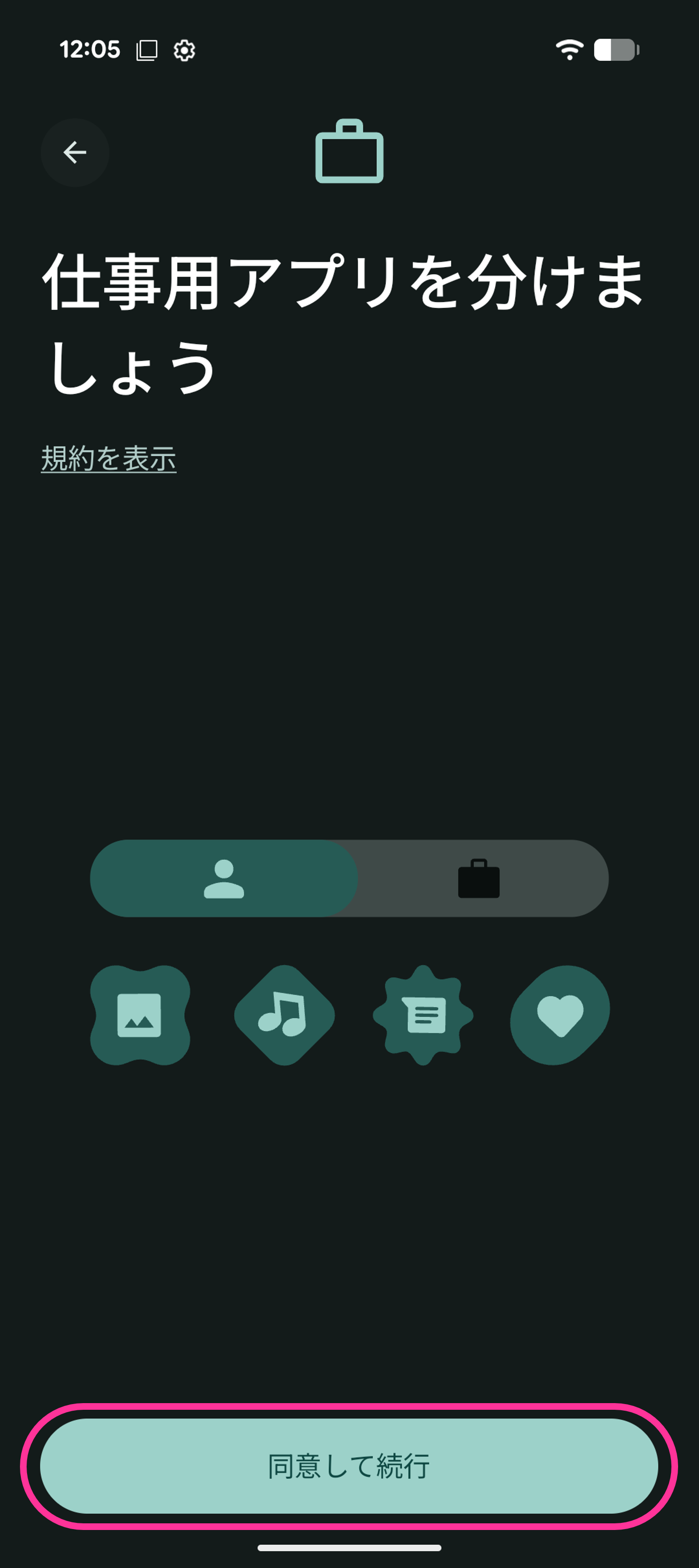 |
| 10 | The work profile is set up. | 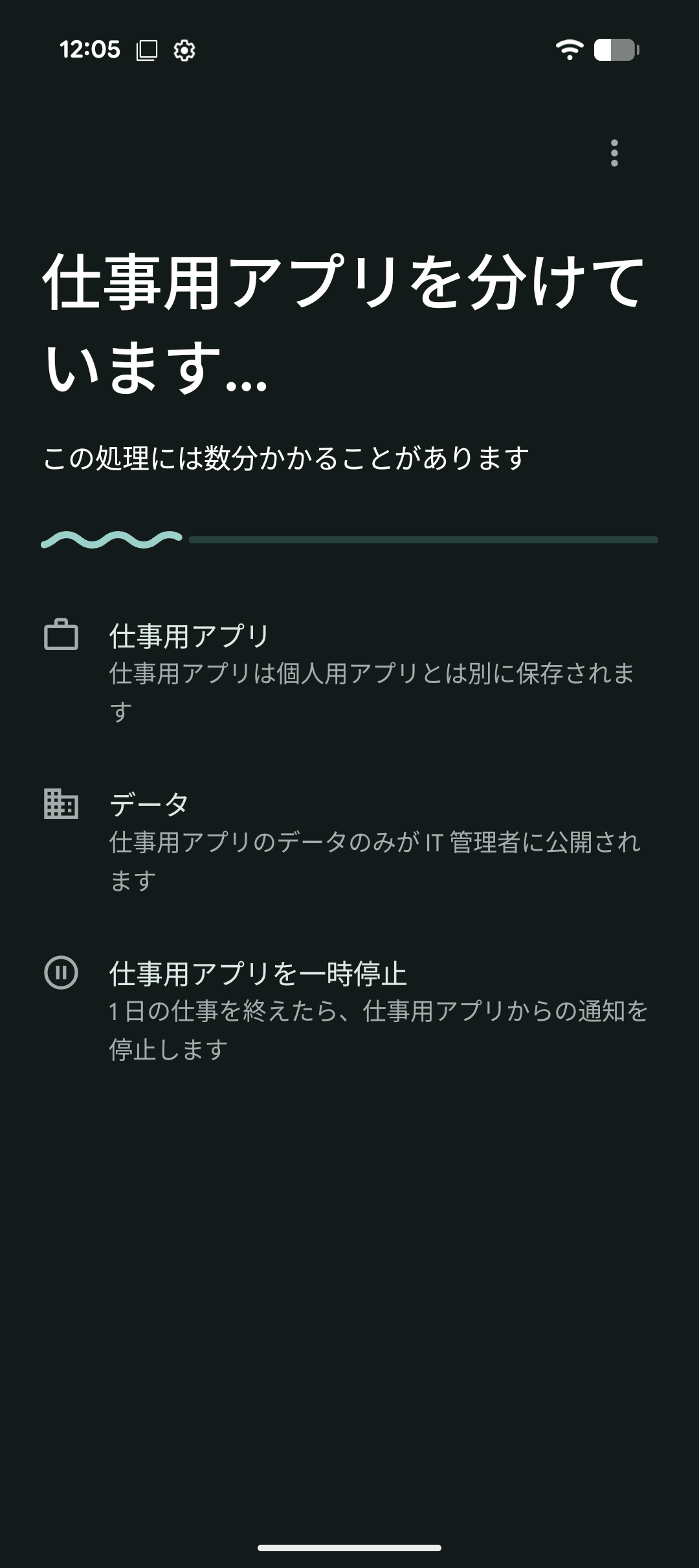 |
| 11 | When setup is complete, tap "Next". | 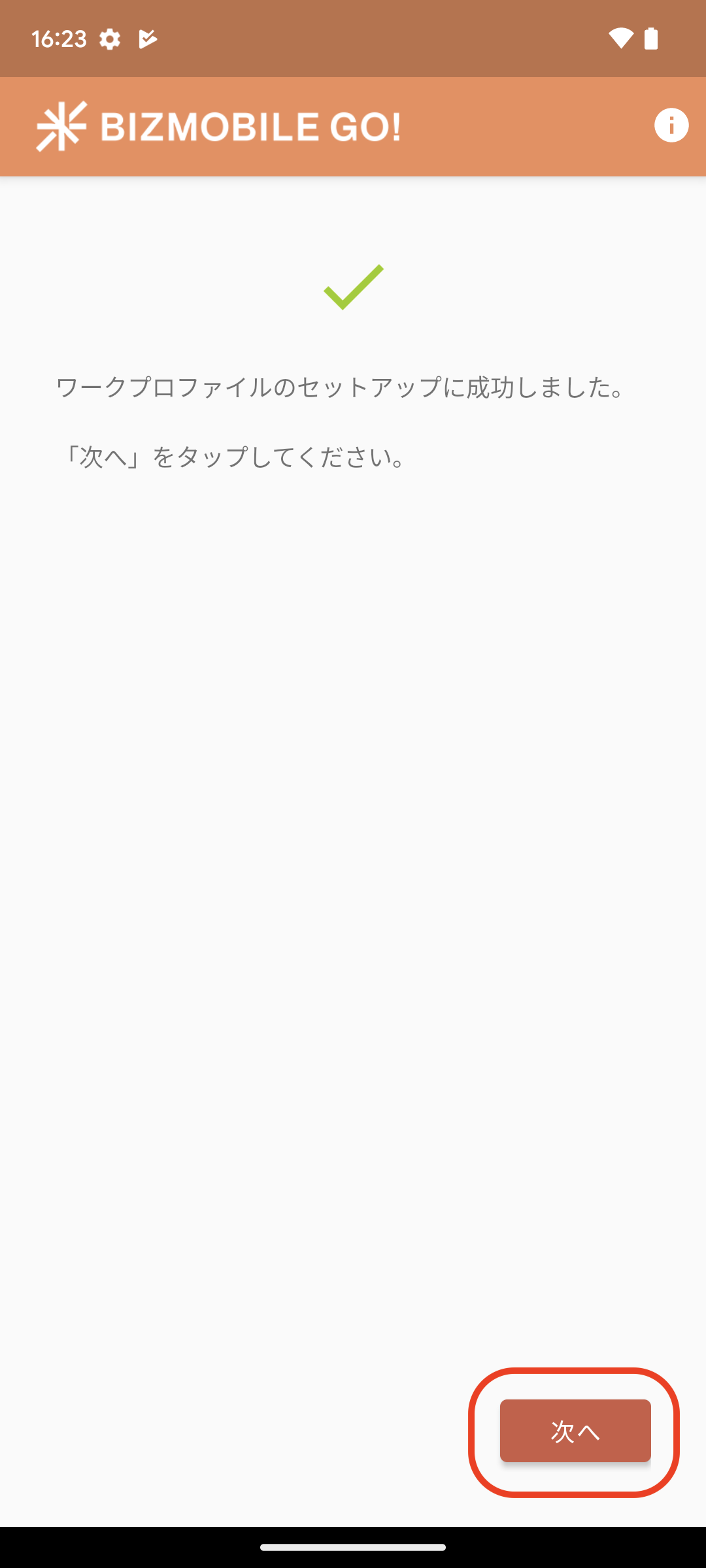 |
| 12 | Enrollment proceeds automatically. | 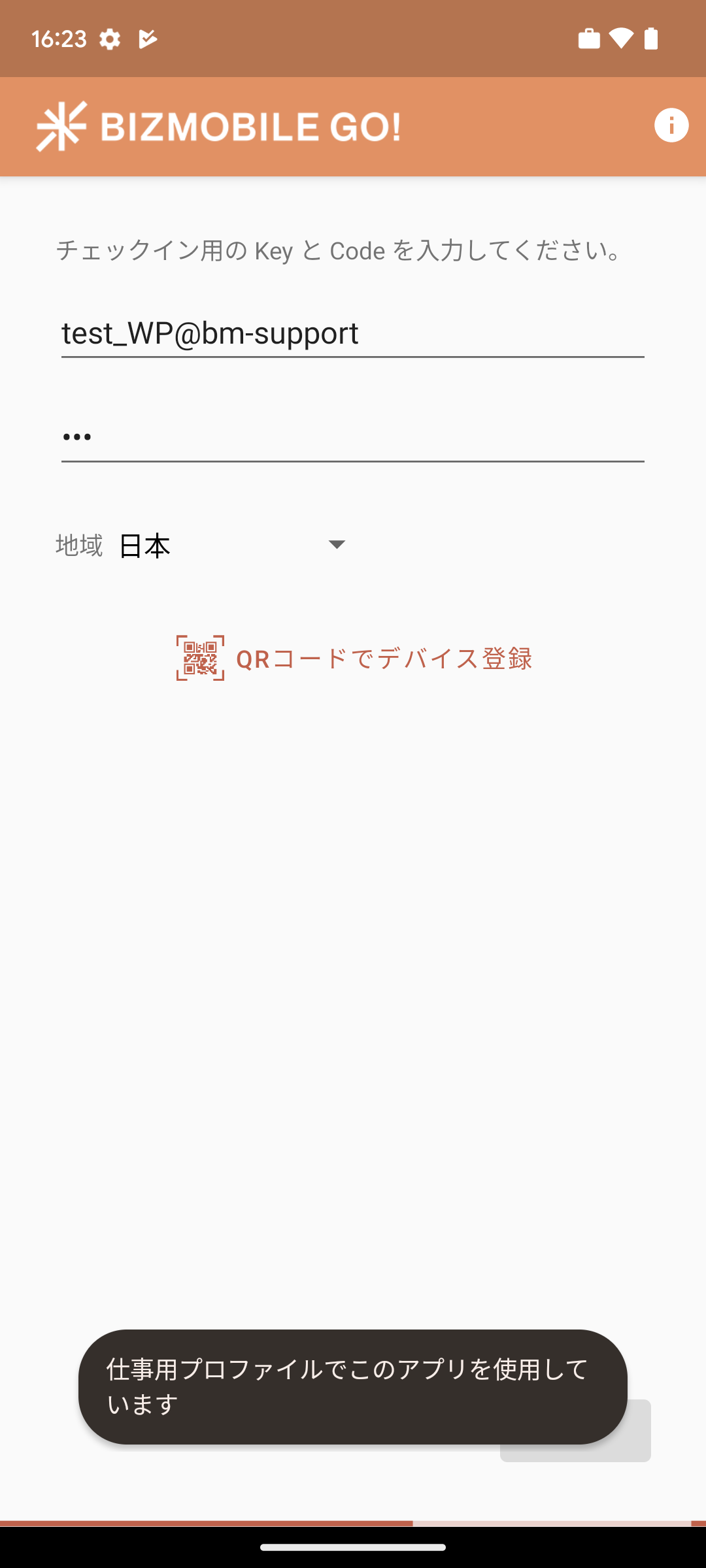 |
| 13 | If "Managed Unit ID: (your unit name)" appears on the screen that opens, enrollment is complete. | 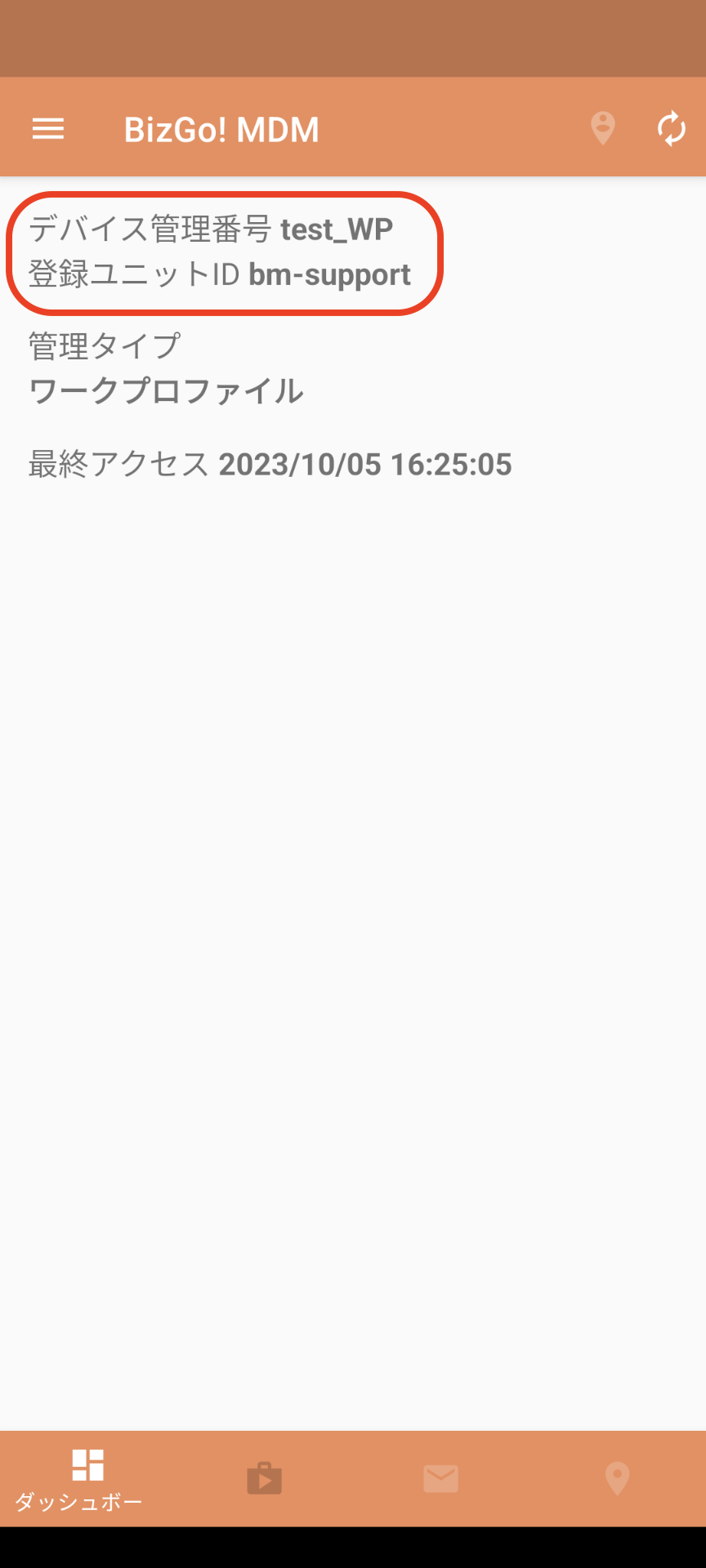 |
| 14 | When you return to the home screen, you can see that the apps in the work area have a briefcase icon. | 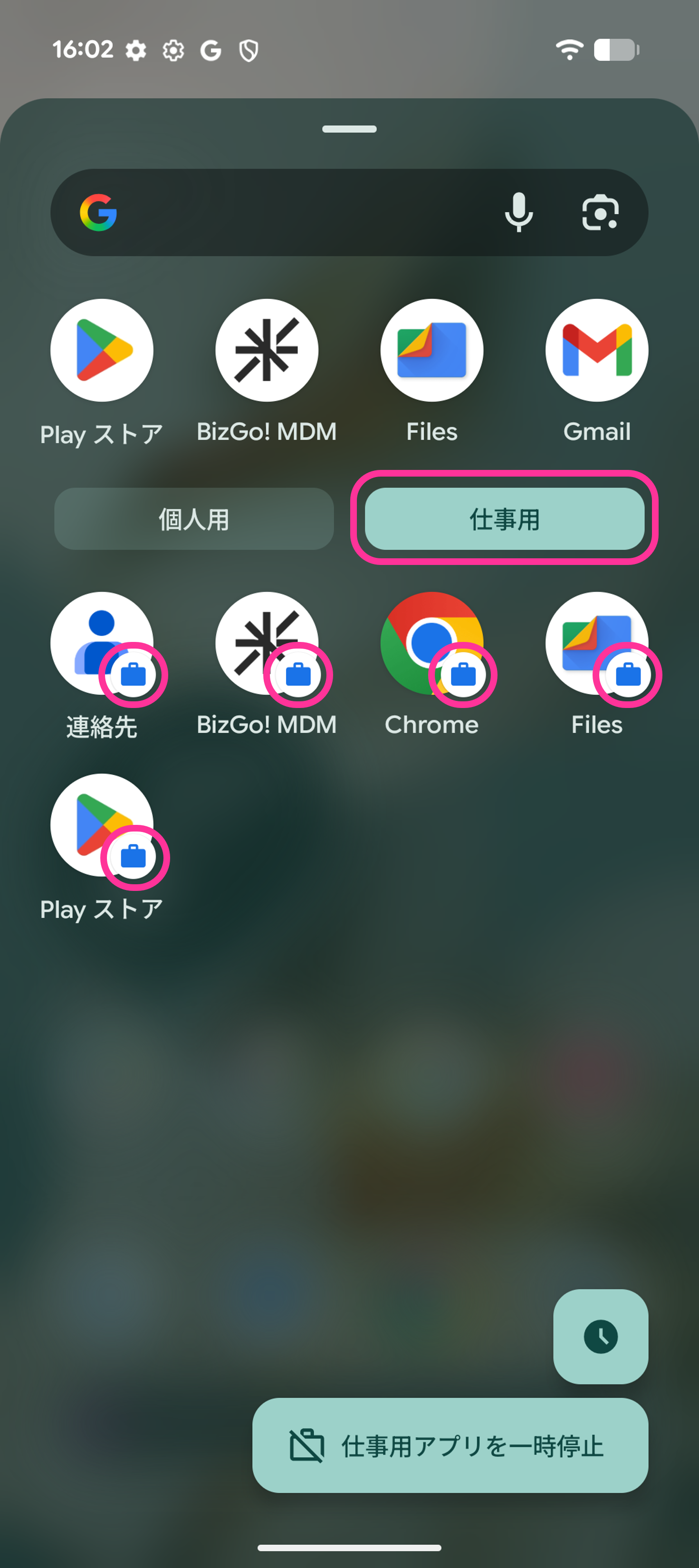 |
| 15 | The BizGo! MDM app in the personal area, which has no briefcase icon, is no longer needed. Tap this app to delete it. | 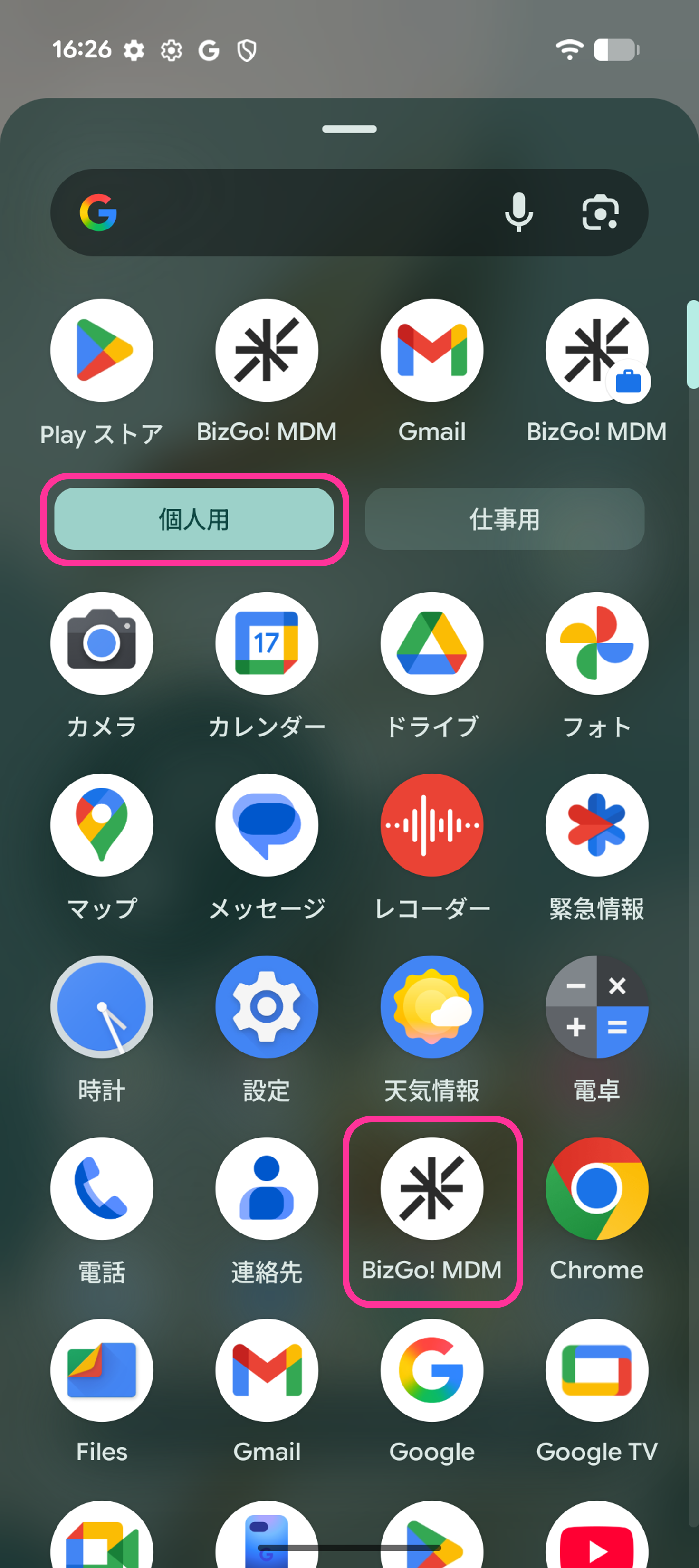 |
| 16 | Tap the trash can icon. | 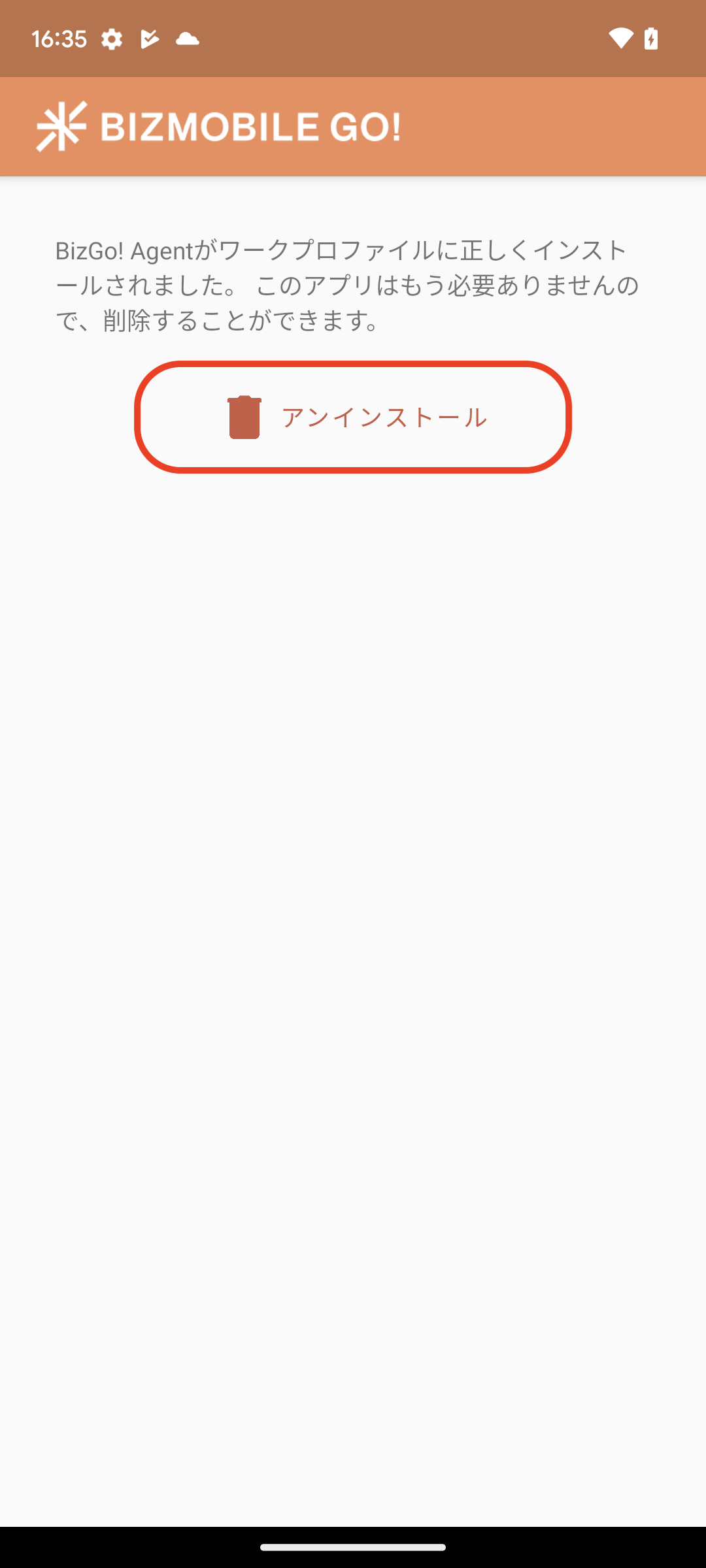 |
| 17 | Tap "OK". | 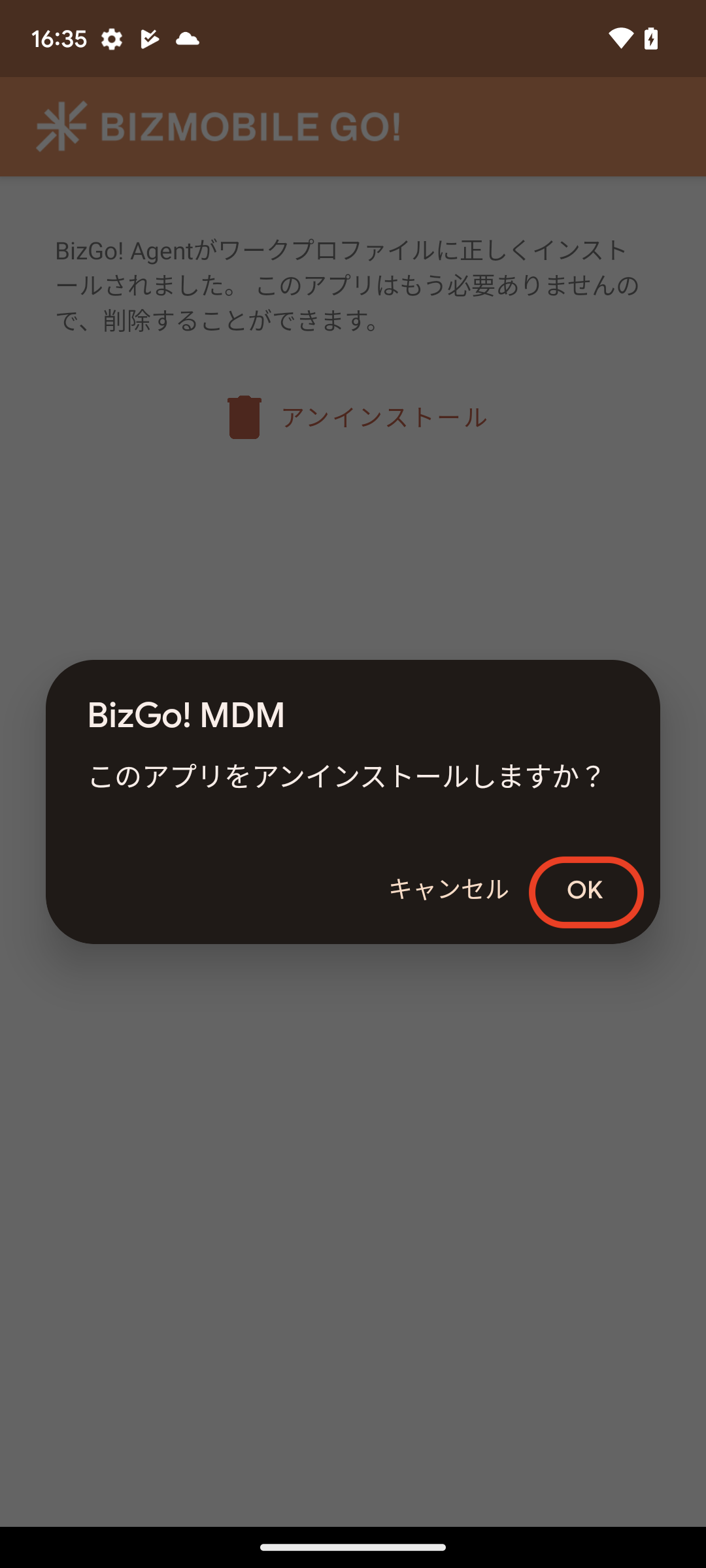 |
Depending on the network conditions of the device setup environment, it may take some time for all the profiles and apps registered in the template to be installed on the device.
Wait at least 5 minutes after enrollment is complete before signing in to the device with a Google Workspace account.
(If you configured EMM using a Google Workspace account, sign in to the device only after the first EMM sync following enrollment is complete.)