Device Integrity Verdict
What is device integrity?
Device integrity is an overall assessment of a device's safety, based on factors such as the integrity of the entire Android system, whether the Android system has been modified, and whether the device is certified by Google.
This lets you check the security and compatibility of a device and assess the safety of the environment in which apps run.
What you can do with device integrity verdicts
In the admin console, you select one of 4 device integrity detection levels in advance.
You can check the verdict result in the device details.
You can check devices that do not meet the specified integrity level on the VIEW → [Device Integrity Alarm] screen and in alarms.
 | High | The device meets all device integrity (safety) requirements |
| Medium | The device meets basic device integrity (safety) requirements | |
| Low | The device meets basic system integrity (safety) requirements but does not meet compatibility requirements | |
| Warning | There is a problem with the device integrity (safety) |
By identifying devices with a verdict of Warning, you can detect rooted devices.
When device integrity is verified
Device integrity is determined based on the information obtained from the device through Sync.
When the verdict completes successfully, the result appears in the device details, with the date and time shown as Last Checked.
The next device integrity verification is performed 1 week after the Last Checked date and time.
Set up device integrity verdicts
-
Click SETTING → [Unit Detail] → [Android] → [Edit Device Integrity Policy].
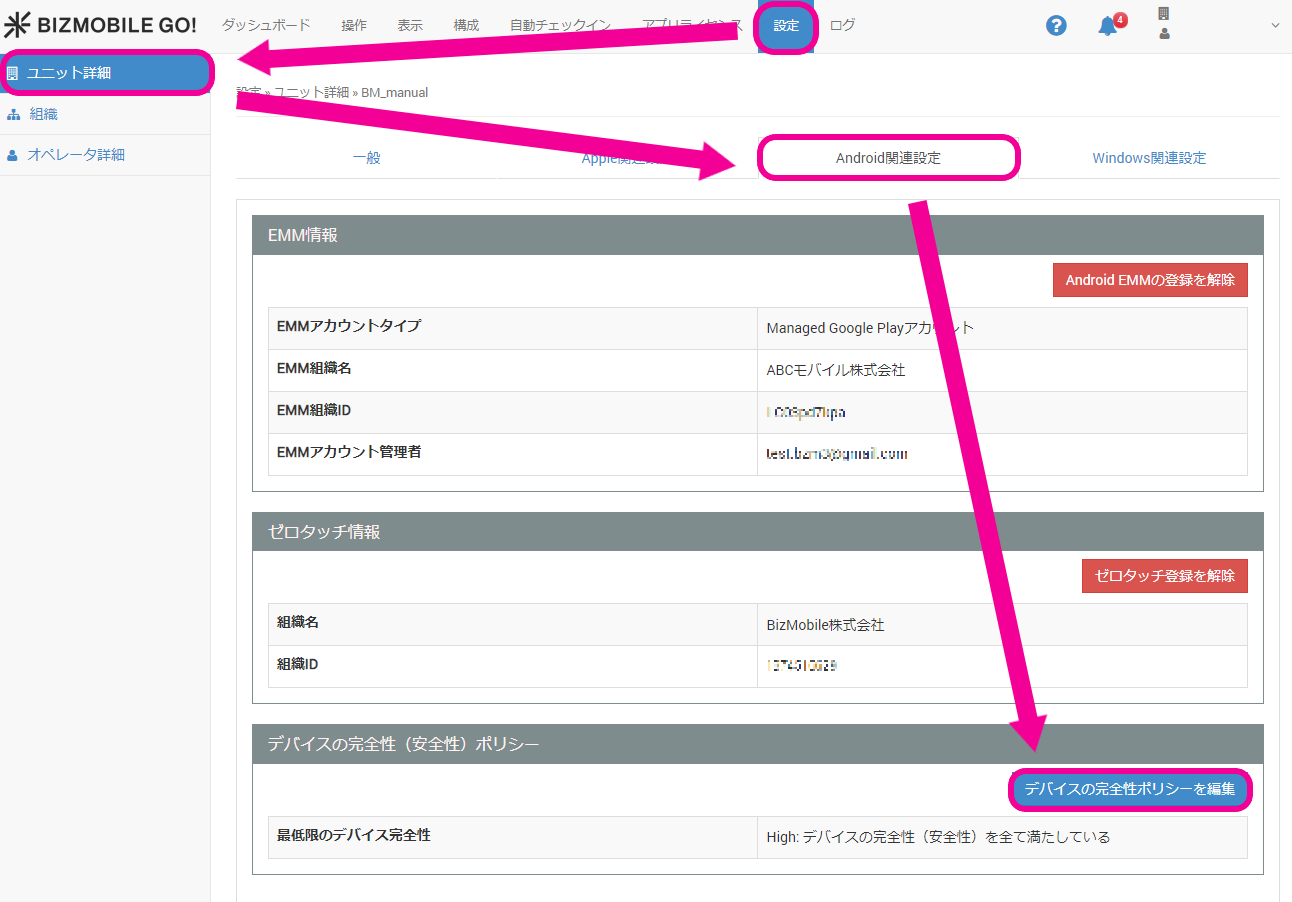
-
Select
Minimum Device Integrityfrom the following 4 levels and click [Save].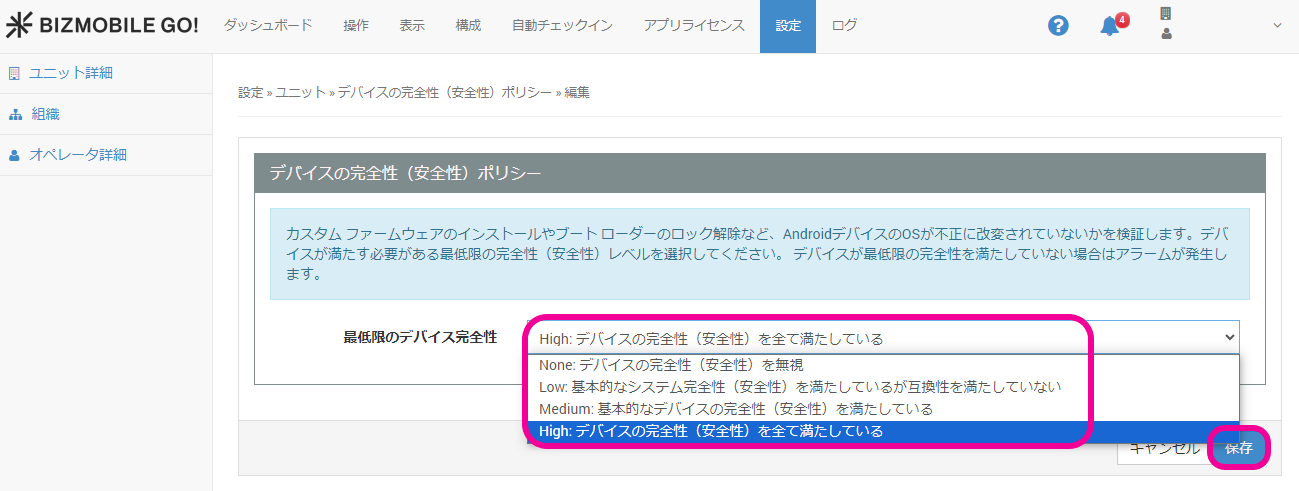
Device integrity levels
| Integrity level | System integrity (*1) | Google Play services running (*2) | Android compatibility (*3) | Strong guarantee of |
| High | OK | OK | OK | OK |
| Medium | OK | OK | OK | - |
| Low | OK | NG | NG | - |
| Warning | NG | NG | NG | - |
| *1 System integrity | |
| OK | The device and the APIs available on it are consistent as a whole |
| NG | Tampering such as a rooted device, emulator, virtual device, or API hooking has been detected |
*2 Google Play services running | |
| OK | Approved |
| NG | Not approved, or possibly not approved |
| *3 Android compatibility | |
| OK | The system has not been modified and has passed Google compatibility certification |
| NG | • The bootloader is unlocked. • A custom system image (custom ROM) is installed. • The manufacturer has not applied for Google compatibility certification, or has not passed it. • A system image built directly from Android Open Source Program source files is installed. • A system image distributed through a beta or developer preview program is installed. |
| *4 Strong guarantee of system integrity | |
| OK | There is a strong guarantee of system integrity (such as hardware-backed boot integrity guarantee) |
Alarms from device integrity verdicts
If any device does not meet the integrity level specified in [Device Integrity (Safety) Policy], the following alarm is displayed in the log.
There is a problem with the device integrity (safety) or compatibility
Device integrity display information
When the device integrity verdict completes successfully, a result like the following is displayed in Device Integrity in the device details.
| Device Integrity | Medium: Meets basic device integrity (safety) requirements Last Checked: October 25, 2023 18:52:47 (the next check is performed 1 week after the last check) |
For a description of the device integrity levels, see the table in Set up device integrity verdicts.
If the device integrity verdict could not be determined, one of the following messages is displayed.
| The device or the BizGo! MDM agent does not support this feature. | The device or the BizGo! MDM agent app does not support this feature. If the version of the BizGo! MDM agent app is older than 3.4.9, update it to the latest version and then check the next verdict result. |
| Requesting the integrity verdict from Google. | No integrity verdict result has been received yet. |
| The verdict result is not up to date because the device did not respond. | The integrity verdict could not be determined because the device did not respond. If the device does not respond, the Last Access date and time displayed in CONFIG > Device > Detail in the admin console is not updated. See this FAQ and take action on the device. |
| The integrity verdict could not be determined. Check the log. | The integrity verdict could not be determined for some reason. Click Check Log and check whether the cause is displayed. If a device log with an error code appears, take action as described below. |
If at least one verdict has completed successfully and the device does not respond at the next verification, the previous verdict result remains displayed as follows.
| Device Integrity | Medium: Meets basic device integrity (safety) requirements The verdict result is not up to date because the device did not respond. |
Error codes and how to resolve them
If the integrity verdict does not complete successfully, information starting with FetchIntegrityToken: like the following may be displayed in the log. Hover over the log or export it to check the content.
FetchIntegrityToken: j3.b: -9: Standard Integrity API error (-9): Binding to the service in the Play Store has failed. This can be due to having an old Play Store version installed on the device. Ask the user to update Play Store. (https://developer.android.com/google/play/integrity/reference/com/google/android/play/core/integrity/model/StandardIntegrityErrorCode.html#<span >CANNOT_BIND_TO_SERVICE</span>).
The uppercase part shown in red (CANNOT_BIND_TO_SERVICE) is the error code returned from the device. If the table below contains a matching error code, take the action described.
| Error code | How to resolve |
| CANNOT_BIND_TO_SERVICE | Update the Google Play Store installed on the device. |
| PLAY_SERVICES_VERSION_OUTDATED | Update Google Play services installed on the device. |