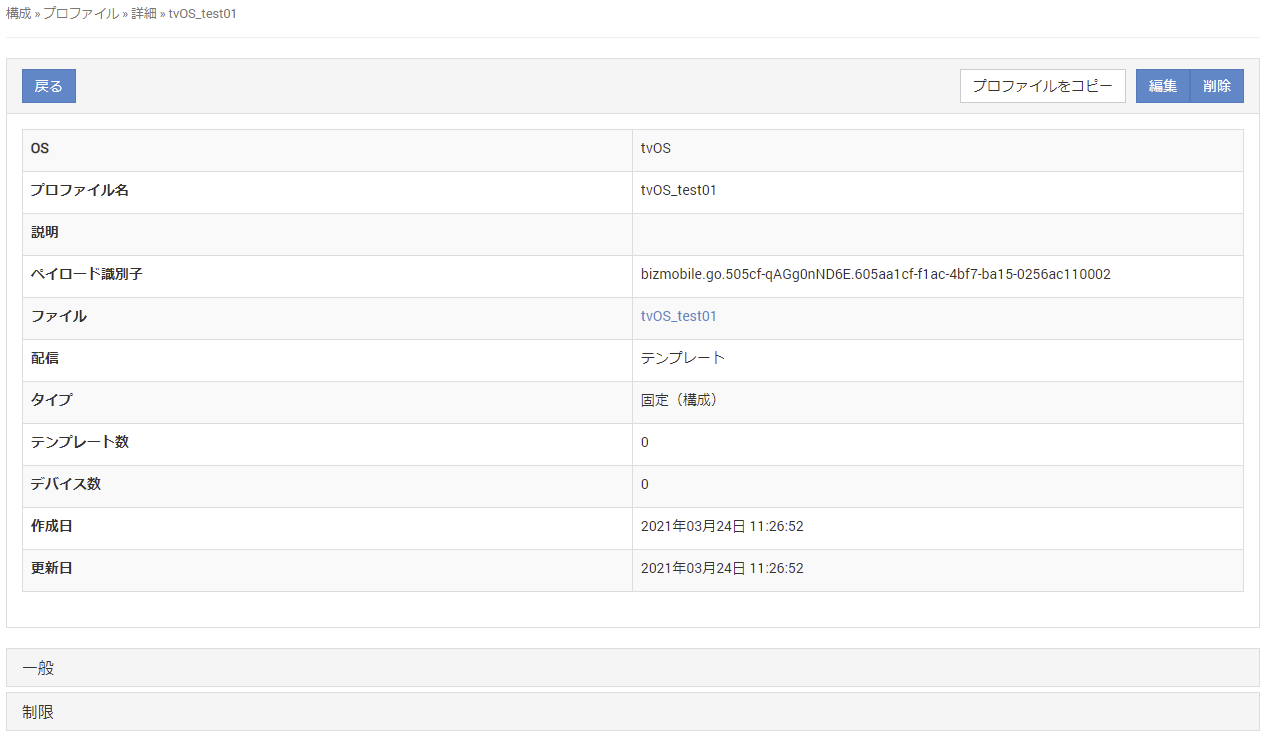
Profiles for tvOS
- On the CONFIG → Profile screen, click Create.
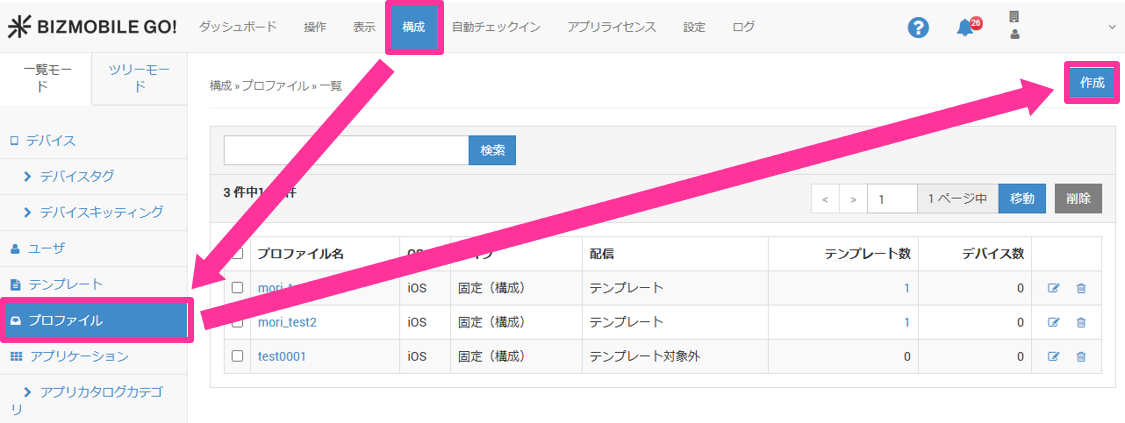
- Enter the required information on the profile information screen.
Input items (items marked with ★ are required)
OS★ | Select tvOS. |
Description | You can enter information about the device. |
Distribution | Select |
Type | Select |
Template | (Only when you select Select the template to which this profile is applied. After you create a template, you can select it here. If you have not created a template yet, leave this item blank (you can also select the profile from the template screen when you create the template). |
Device | (Only when you select Select the device to which this profile is applied. After you create a device, you can select it here. If you have not created a device yet, leave this item blank (you can also select the profile from the device screen after you create the device). |
- Configure the profile.
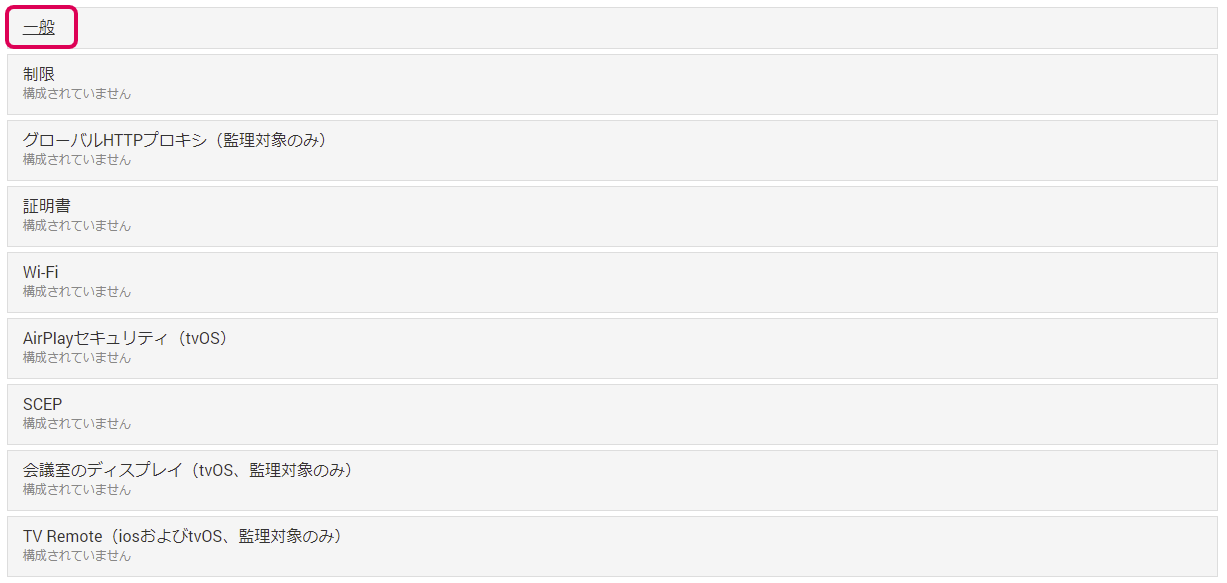
First, click theGeneralpayload to open it. Here, you set information such as the name of the profile.
Input items (items marked with ★ are required)
Name★ | Set the profile name. The profile name you set here is displayed in the profile list. The default name is |
Identifier | A fixed value randomly generated by the system. Operators cannot change it. |
Organization | Set the name of the organization that operates this profile. The organization name you set here is displayed on the managed devices to which this profile is applied. |
Description | Enter an overview of this profile. |
Consent Message | Specify the consent message displayed on the device when the profile is installed manually on the device. |
Security | Specify whether device users can manually remove the profile distributed to the managed device. The available options are as follows.
|
Authentication Password★ | (Required only when you select Set the password required to remove the profile on the managed device. |
Automatically Remove Profile | Specify when the profile distributed to the managed device is removed automatically. The available options are as follows.
|
Removal Date★ | (Required only when you select Specify the last date that the profile remains on the managed device. The profile is removed automatically after the specified date has passed. |
Removal Period★ | (Required only when you select Specify the last date and time that the profile remains on the managed device. The profile is removed automatically after the specified date and time have passed. |
Next, configure the profile menus you want to set. Click each profile menu to open it, and then click [Configure].
The settings are displayed.
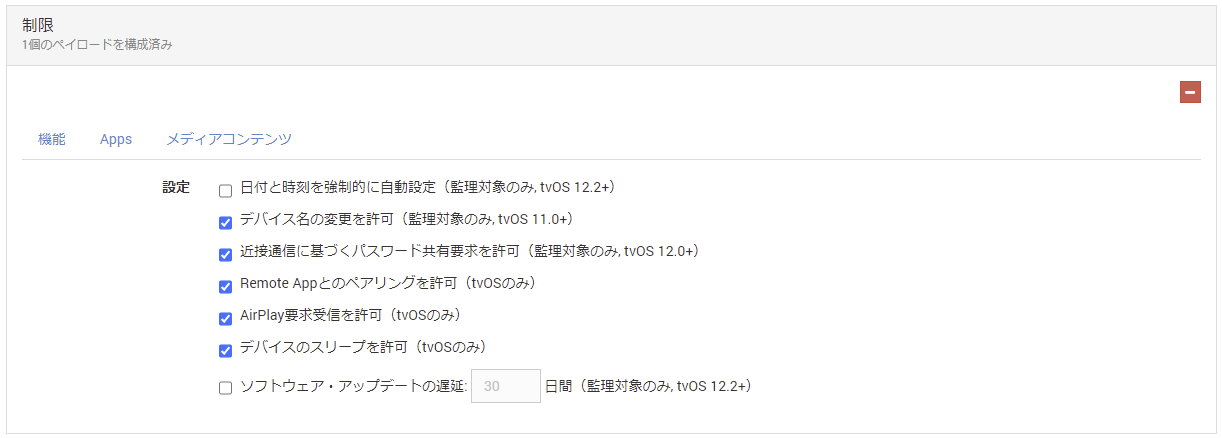
For details on tvOS profiles, see tvOS Profile Details.
- Click Cancel to discard your entries, or click Save to save them.
When the profile is created, a message like the following appears at the top of the screen.

The profile name is a link. Click it to go to the profile details page.