Profiles for Shared iPad
There are three types of profiles for Shared iPad.
The profile types Shared iPad - User and Shared iPad - Guest specify the mode in which the iPad is used. Which one you need depends on whether the iPad is used only by specific users or by an unspecified number of users.
You need at least one of the two, and you can also use both.
| Shared iPad - Device | A profile that defines the basic settings common to all users who sign in. |
| Shared iPad - User | A profile that defines the usage environment for users who sign in with a Managed Apple Account. This profile is required for user mode, in which users sign in with a Managed Apple Account. |
| Shared iPad - Guest | A profile that defines the usage environment for users who sign in to guest mode. This profile is required to use guest mode. |
Create a Shared iPad - Device profile
Create the basic profile that defines the settings common to all users who sign in.
Because it includes settings that users need to sign in to the iPad, this profile is installed on the device before any user signs in.
-
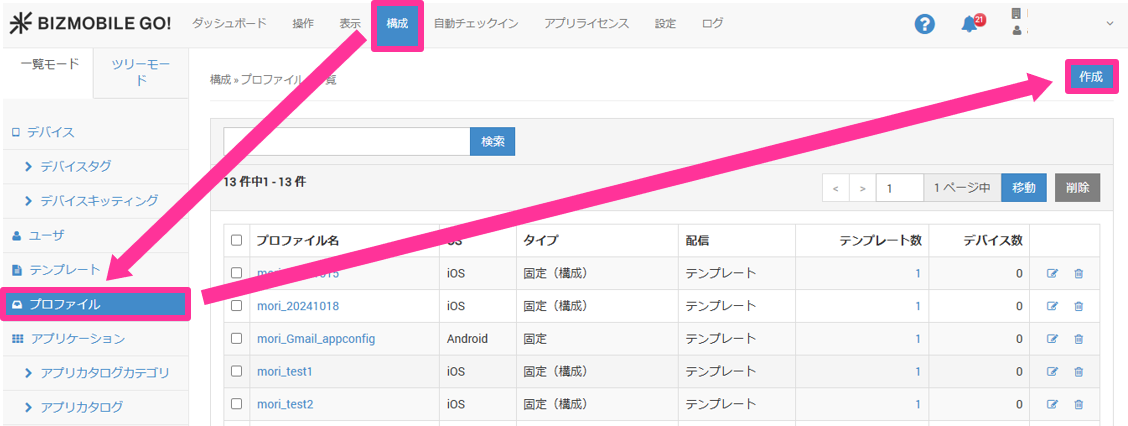
On the CONFIG > Profile screen, click
Create.
-
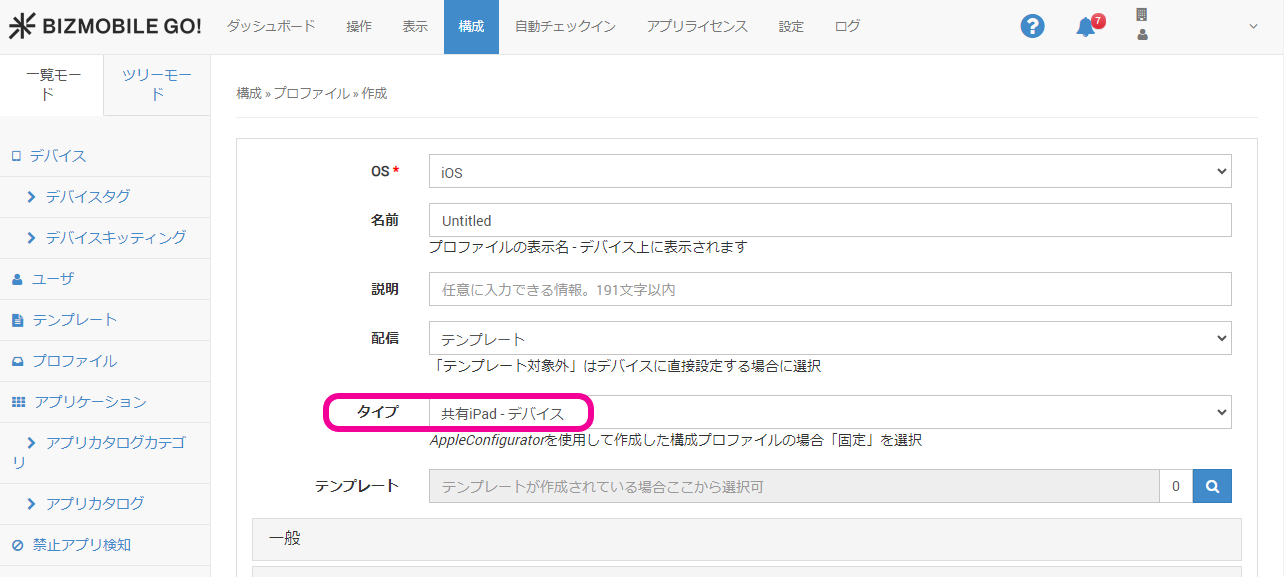
Enter the required information on the screen that appears.
Input fields (* indicates a required field)OS*
Select iOS.
Name* Set the profile name. The profile name you set here is displayed in the profile list. The default name is Untitled.Description
You can enter information about the device.
Distribution
Select
Template.Type
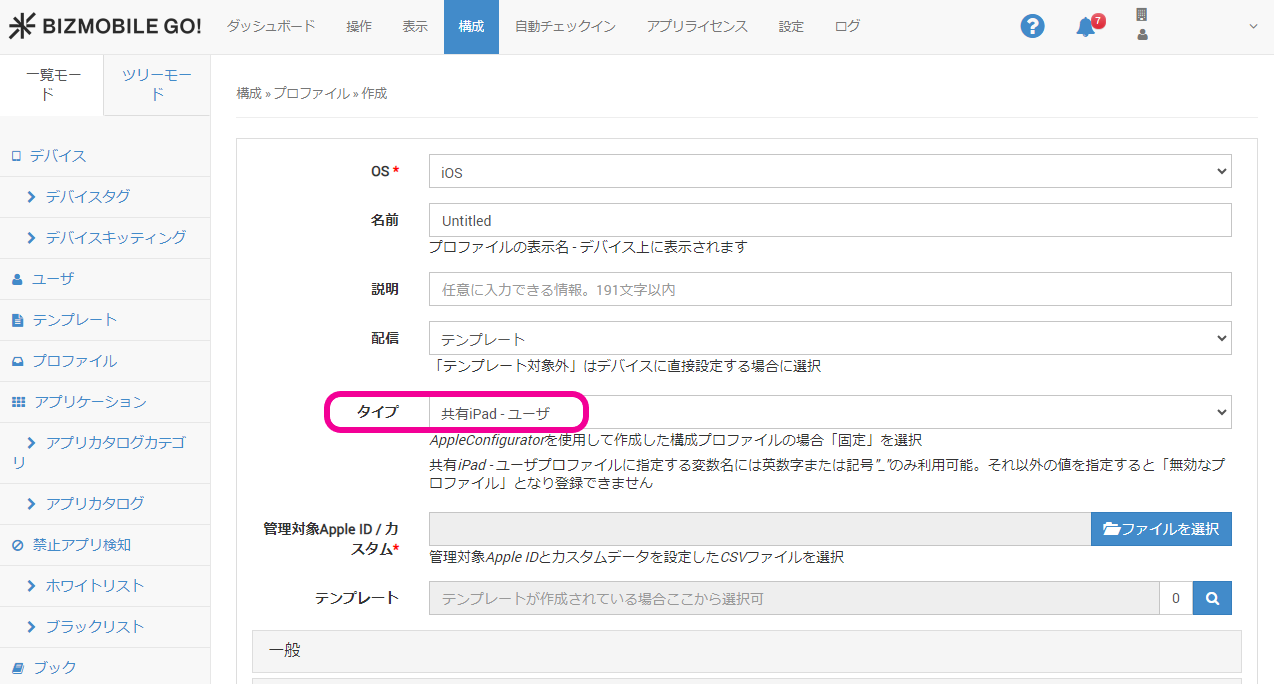
Select the target type.
Template
Select the template to which this profile is applied. After you create a template, you can select it here. If you have not created a template yet, leave this field blank (you can also select the profile from the template screen when you create the template).
-
Select
Shared iPad-Devicefor Type.
-
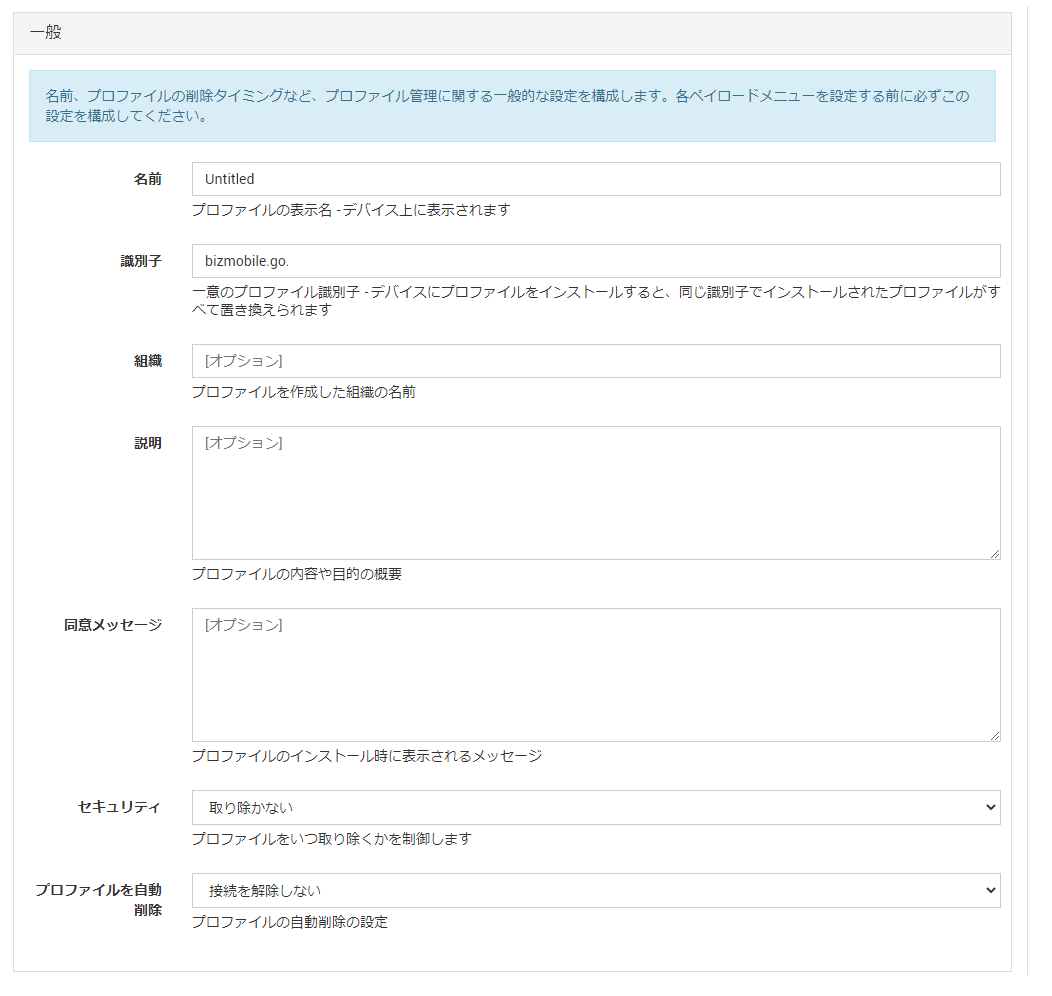
Configure the
Generalitems.
-
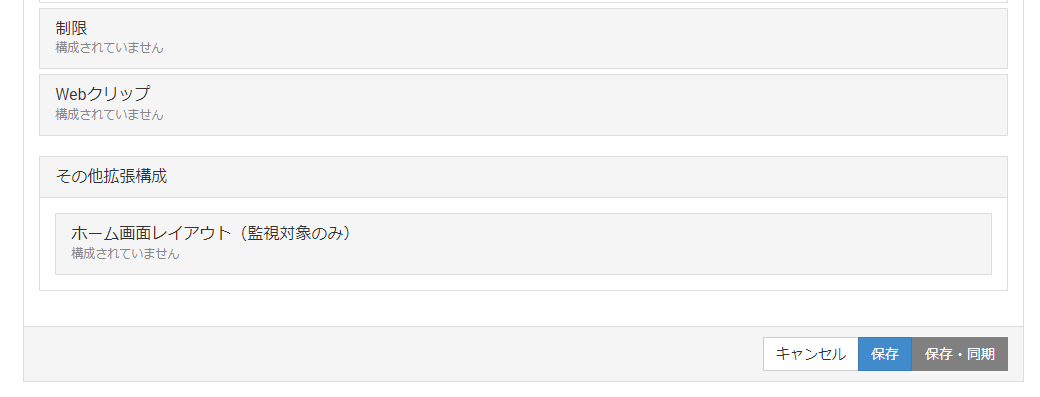
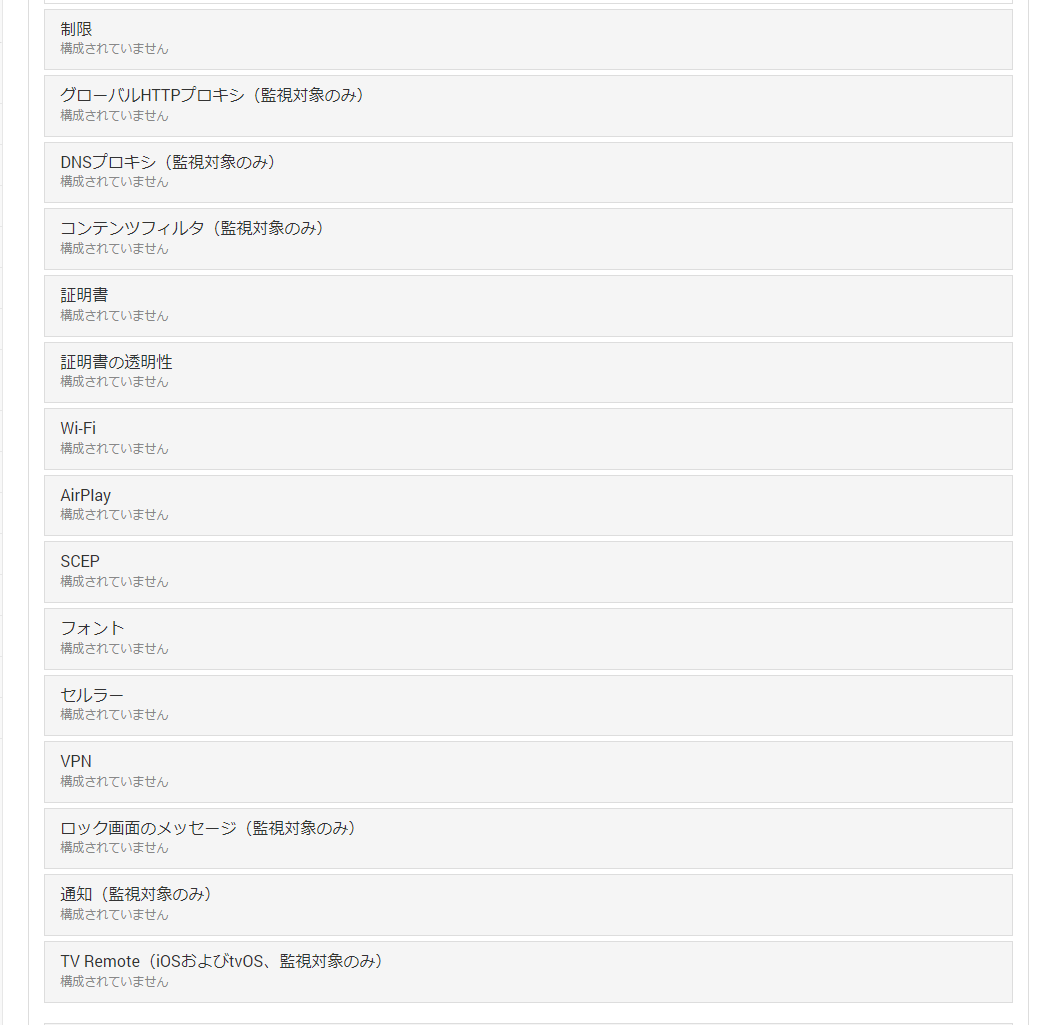
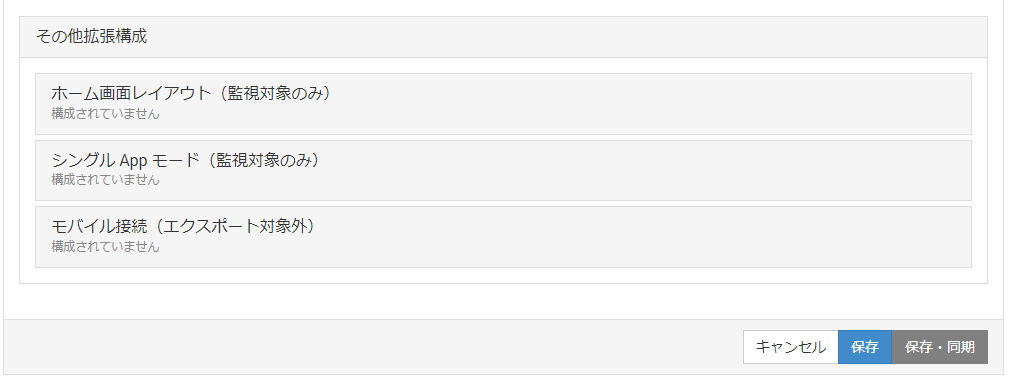
The device profile provides the following payloads and other extended settings. Configure the necessary items and click
Save.
For details on the configurable items, see Details of the device common profile.
Create a Shared iPad - User profile
Create a user profile that defines the usage environment for users who sign in with a Managed Apple Account.
This profile is required for user mode, in which users sign in with a Managed Apple Account.
The profile consists of the usage environment settings and the user (Managed Apple Account) information assigned by a CSV file.
When a user signs in with a Managed Apple Account assigned by the CSV file, the profile is installed on the device and the iPad's usage environment is configured.
Note: If the iPad is used by an unspecified number of users, create a guest mode profile.
-
On the CONFIG > Profile screen, click
Create.
-
Enter the required information on the screen that appears.
Input fields (* indicates a required field)OS*
Select iOS.
Name* Set the profile name. The profile name you set here is displayed in the profile list. The default name is Untitled.Description
You can enter information about the device.
Distribution
Select
Template.Type
Select the target type.
Managed Apple Account / Custom*
This item is displayed when you select
Shared iPad-User. Register the Managed Apple Accounts that serve as the device login IDs.
Register Managed Apple Accounts in a CSV file. In the CSV file, entermanaged_useras the header andManaged Apple Account (including the part after @)as the value.
To distribute data individually for each Managed Apple Account, specify a CSV file that contains custom data.Template
Select the template to which this profile is applied. After you create a template, you can select it here. If you have not created a template yet, leave this field blank (you can also select the profile from the template screen when you create the template).
-
Select
Shared iPad-Userfor Type. In the file field ofManaged Apple Account / Custom, select the CSV file that contains the Managed Apple Accounts.
managed_user
user0001@appleid.testcompany
user0002@appleid.testcompany
user0003@appleid.testcompany
- Configure the
Generalitems.
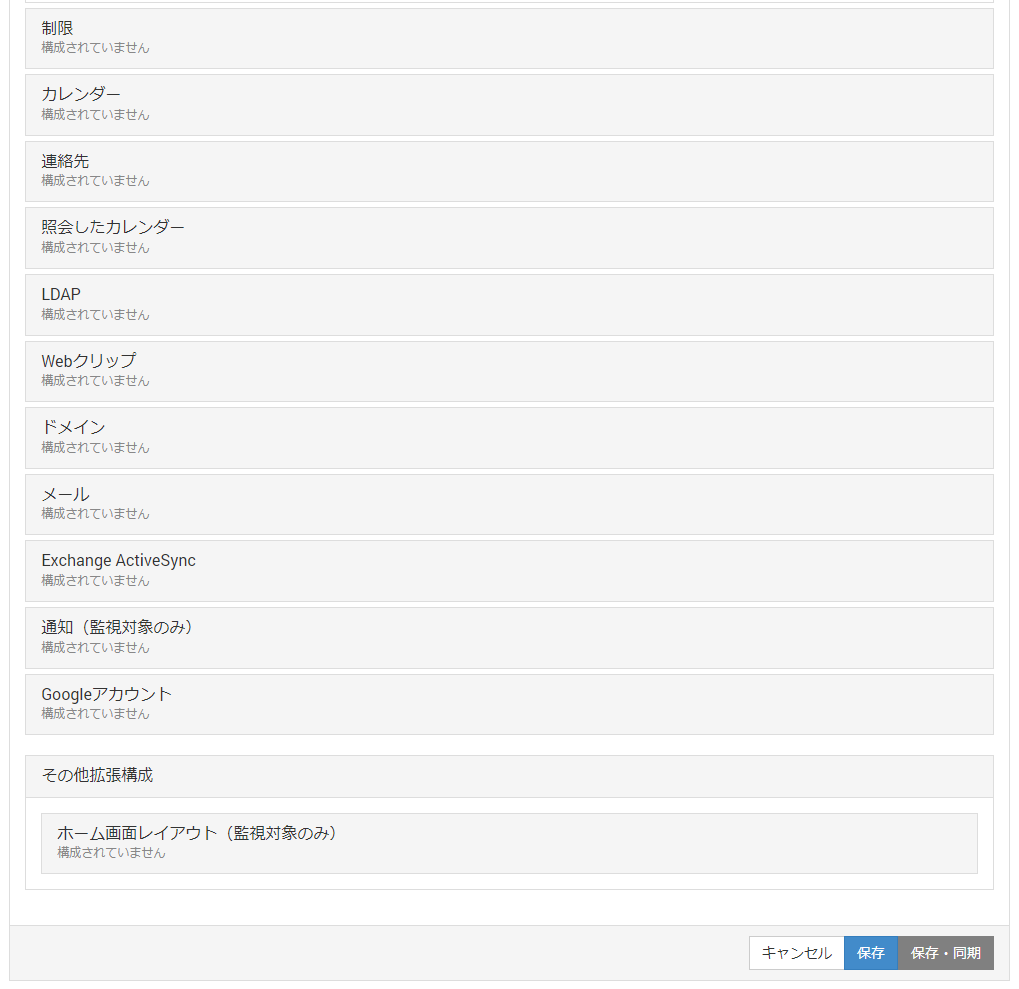
- The user profile provides the following payloads and other extended settings. Configure the necessary items and click
Save.
For details on the configurable items, see Details of the user mode profile.
Use custom data to set individual values for each Managed Apple Account
-
Click the profile menu where you want to set individual values for each Managed Apple Account to expand it, and then click Configure.

-
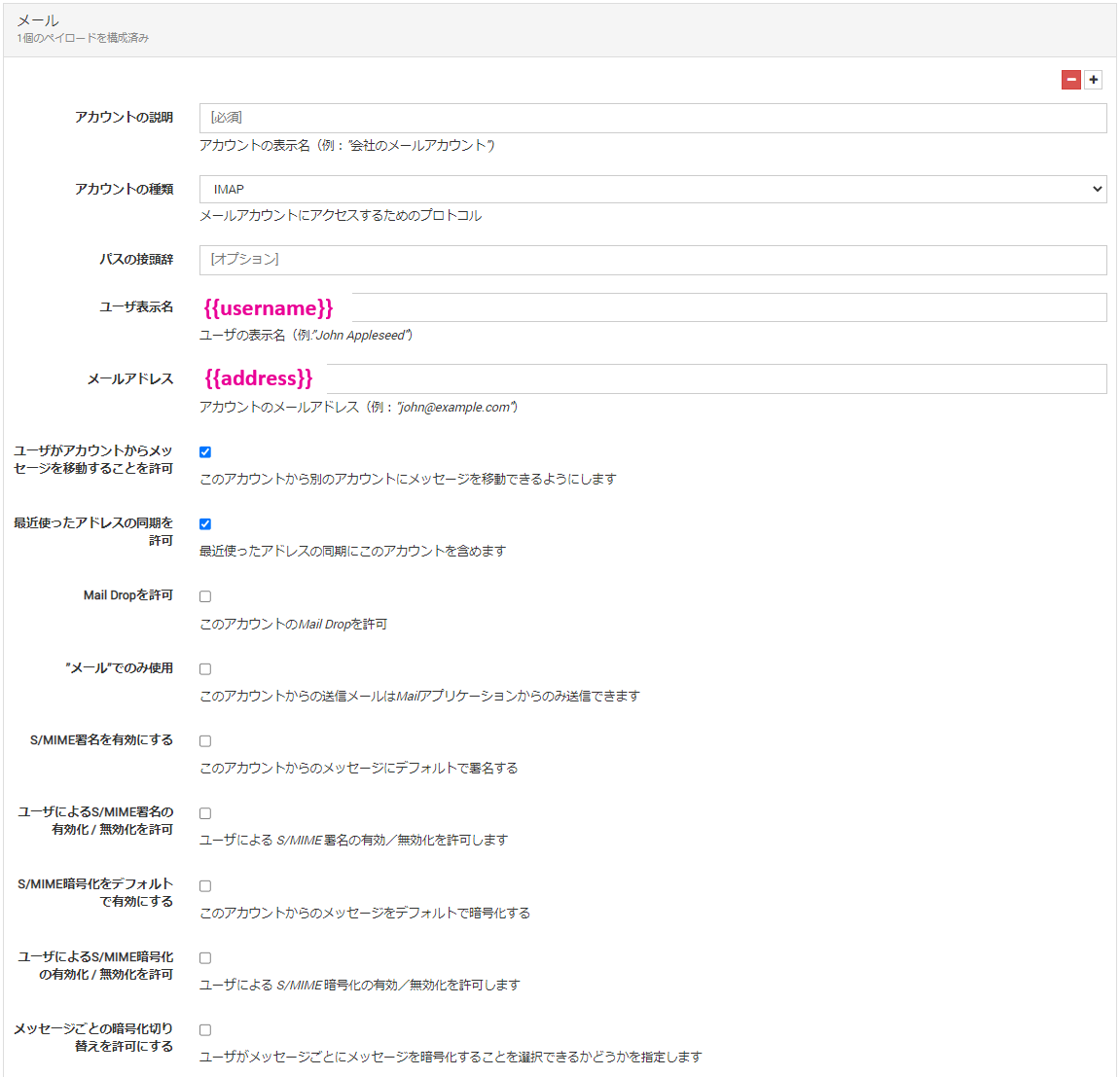
Enclose each item you want to set individually in
{{and}}, and give it an easy-to-understand name.
Here, the user display name item is named{{username}}and the email address item is named{{address}}.
-
In the first row of the CSV file, enter managed_user and the strings enclosed in
{{and}}(address,username) as the header. From the second row onward, enter the values you want to set individually.
managed_user,address,username
user0001@appleid.testcompany.com,user0001@example.com,user0001
user0002@appleid.testcompany.com,user0002@example.com,user0002
- In the file field of
Managed Apple Account / Custom, select the CSV file you created.
Create a Shared iPad - Guest profile
Create a profile that defines the usage environment in guest mode.
This profile is required to use guest mode.
When a user signs in to guest mode, the profile is installed on the device and the iPad's usage environment is configured.
Note: If the iPad is used only by specific users, create a user mode profile.
-
On the CONFIG > Profile screen, click
Create.
-
Enter the required information on the screen that appears.
Input fields (* indicates a required field)OS*
Select iOS.
Name* Set the profile name. The profile name you set here is displayed in the profile list. The default name is Untitled.Description
You can enter information about the device.
Distribution
Select
Template.Type
Select the target type.
Template
Select the template to which this profile is applied. After you create a template, you can select it here. If you have not created a template yet, leave this field blank (you can also select the profile from the template screen when you create the template).
-
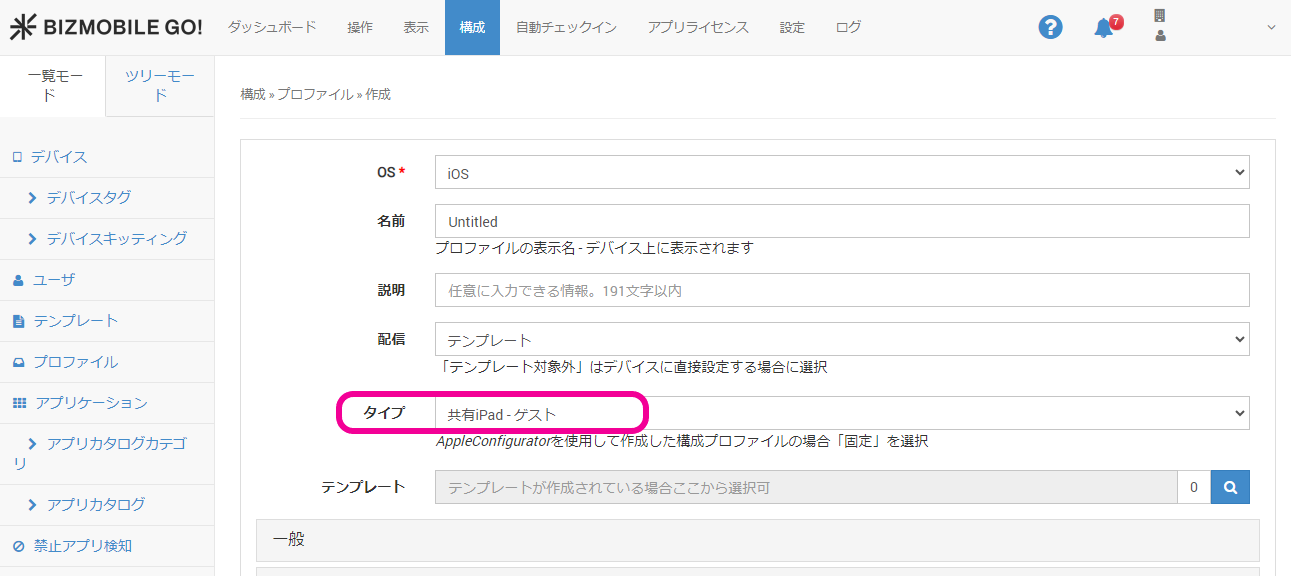
Select
Shared iPad-Guestfor Type.
-
Configure the
Generalitems.
-
The guest profile provides the following payloads and other extended settings. Configure the necessary items and click
Save.
For details on the configurable items, see Details of the guest mode profile.