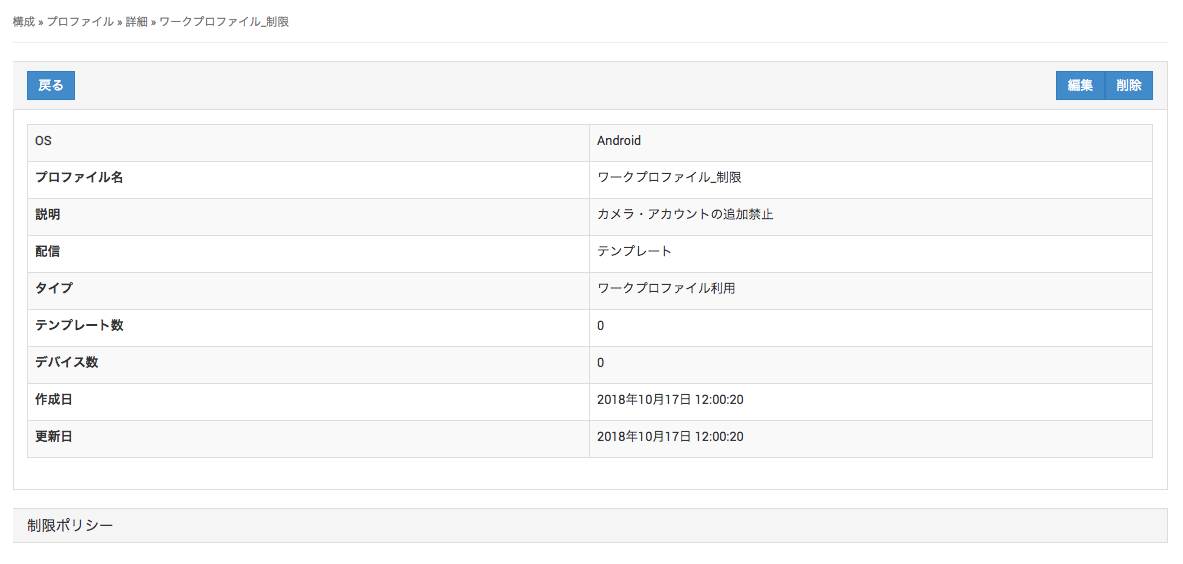
Profiles for Android
The features available in Android profiles differ depending on the Android version.
If EMM is disabled, you cannot use the following features.
- Silent installation/uninstallation of Google Play Store apps
- Password policy settings for the work profile (work area)
Per App Settingsin the application configuration
To use the EMM features, you must meet the following conditions.
- BizGo! MDM agent app Ver. 2.0 or later is installed on the device.
- The EMM feature is enabled in the BizMobile Go! admin console. (To enable the EMM feature, see Enable Android EMM.)
Android profile types
The following four profile types are available for Android devices. (Note: Some profile types may not be available depending on the device.) Check the features you want to use, and then select the profile type.
| Profile type | Details |
|---|---|
| Work Profile | A setting that divides the device into a personal area ( To apply a work profile to a device, you must first set the device up as a work profile and then enroll it. For details on the settings that take effect, see the (Android) Profile Setting Types and Details page. |
Device Owner | A setting that treats the entire device as being for business use and places the device under company supervision. Enabling this setting allows you to manage the device more extensively. To apply a device owner profile to a device, you must first set the device up as a device owner and then enroll it. For details on the settings that take effect, see the (Android) Profile Setting Types and Details page. |
Create a Profile for Android
Steps
-
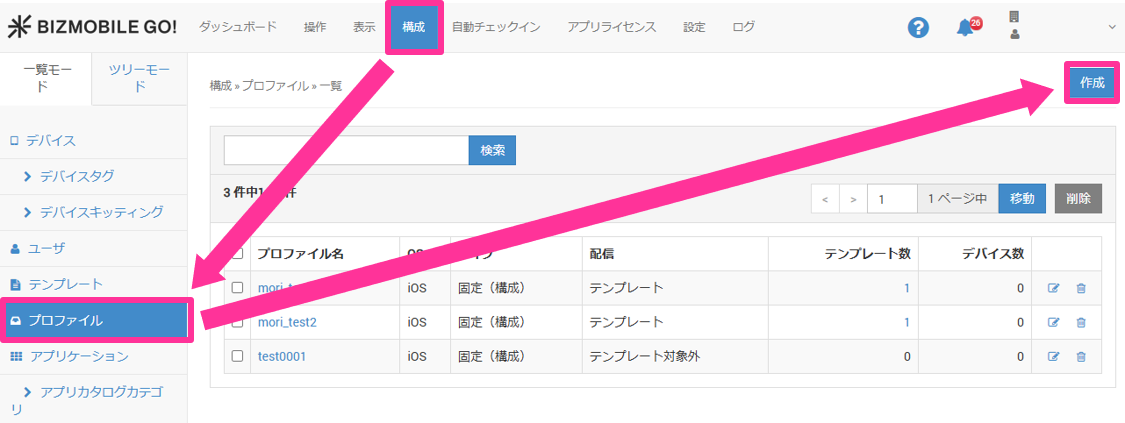
On the CONFIG → Profile screen, click Create.
-
Enter the required information on the profile information screen.
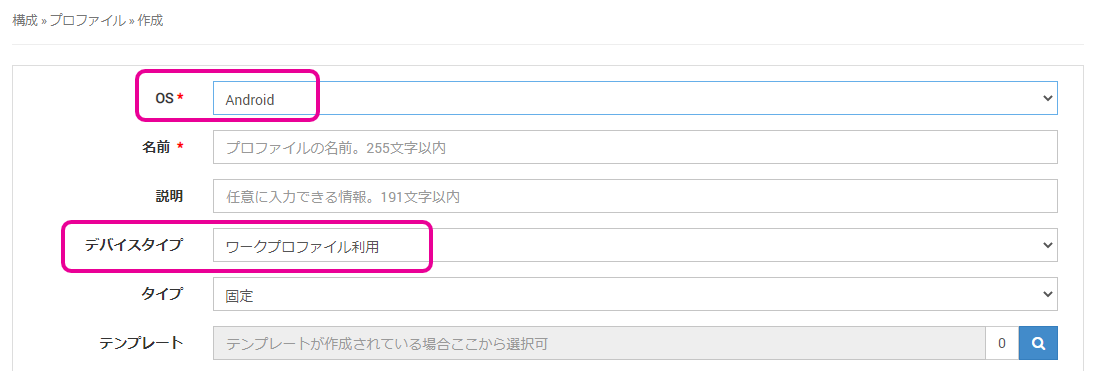
Input Items (items marked with ★ are required)
Version |
|
|---|---|
OS★ | Select Android |
Name★ | Enter a name for the profile |
Description | Enter a description of the profile |
Type | Select the type of profile
|
Template | Select the template to which this profile is applied. After you create a template, you can select it here. If you have not created a template yet, leave this item blank (you can also select the profile from the template screen when you create the template) |
For details on the profile setting items, see (Android) Profile Setting Types and Details.
- Click Cancel to discard your entries, or click Save to save them.
When the profile is created, a message like the following appears at the top of the screen.

The profile name is a link. Click it to go to the profile details page.