Import Zero-touch Devices from the Zero-touch Portal into BizMobile Go!
To enroll devices registered in the zero-touch portal in BizMobile Go!, assign them to BizMobile Go! in the zero-touch portal.
If automatic import of zero-touch devices with the default configuration is already set up, you do not need to do this.
Skip this procedure and go to the next page, Create Management Information for Devices to Enroll (Zero-touch).
Import Zero-touch Devices Manually
-
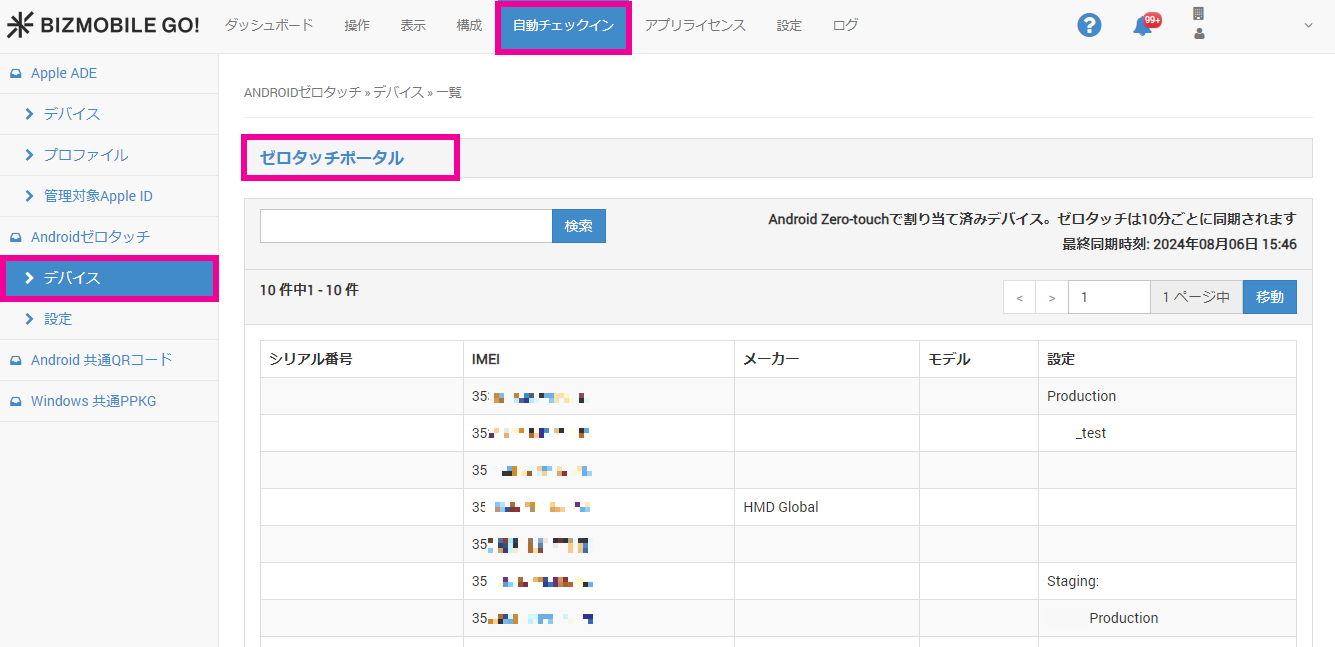
Click
Zero-touch Portalin AUTO ENROLLMENT > Device (Android Zero-touch).
-
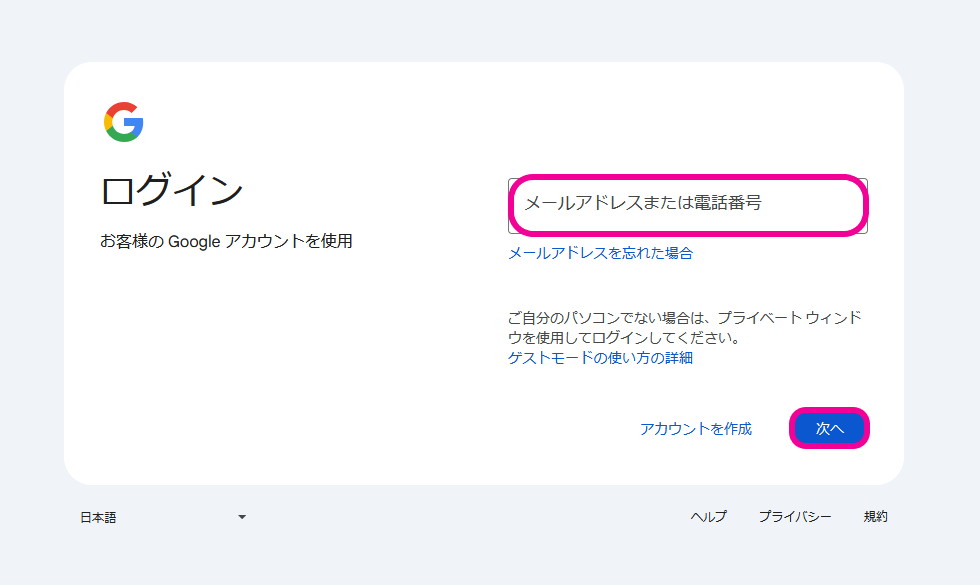
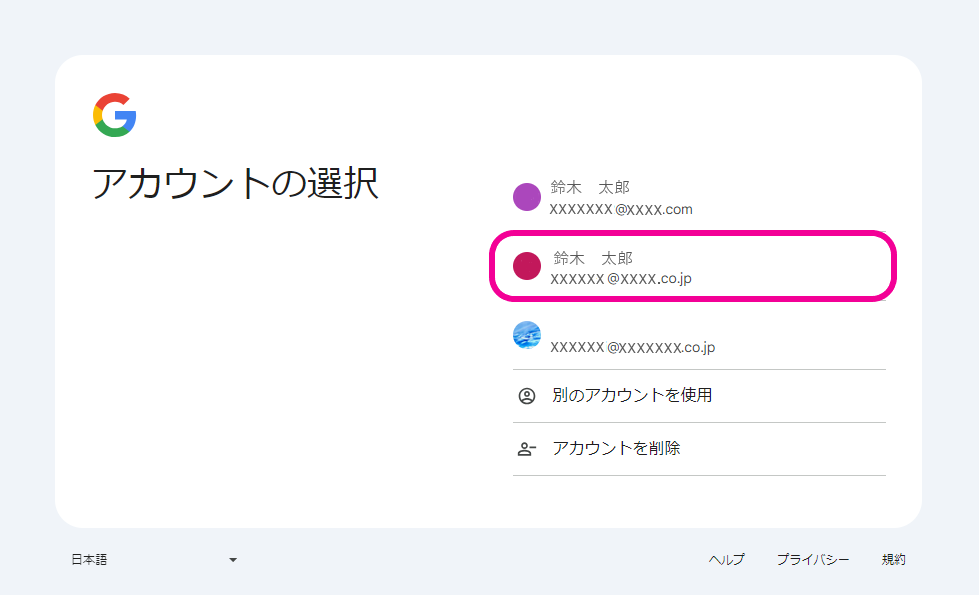
On the Google sign-in screen, enter or select your zero-touch portal account to sign in.
-
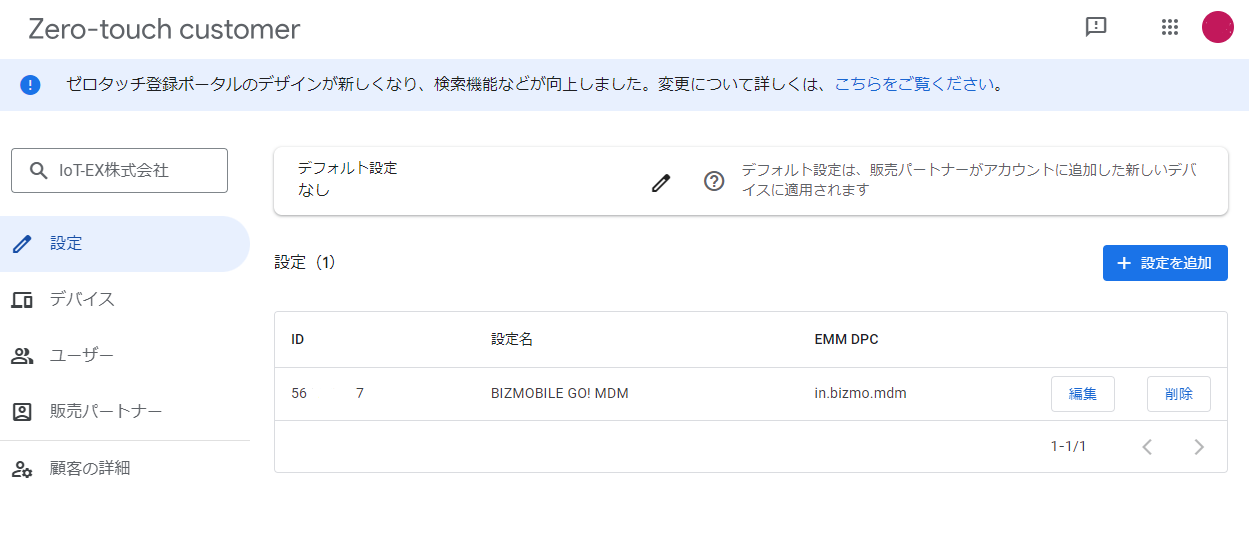
The zero-touch portal appears.
-
Click
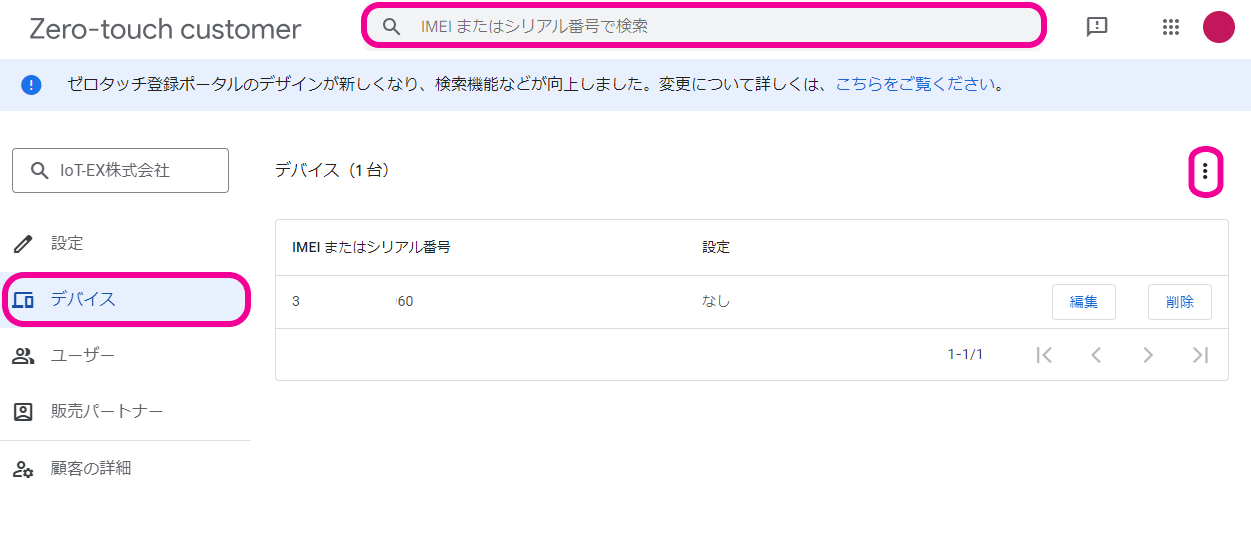
Devicesin the left menu, and search by serial number or IMEI for the device to assign to BizMobile Go!.
You can also configure devices in bulk with a CSV file from .
.
-
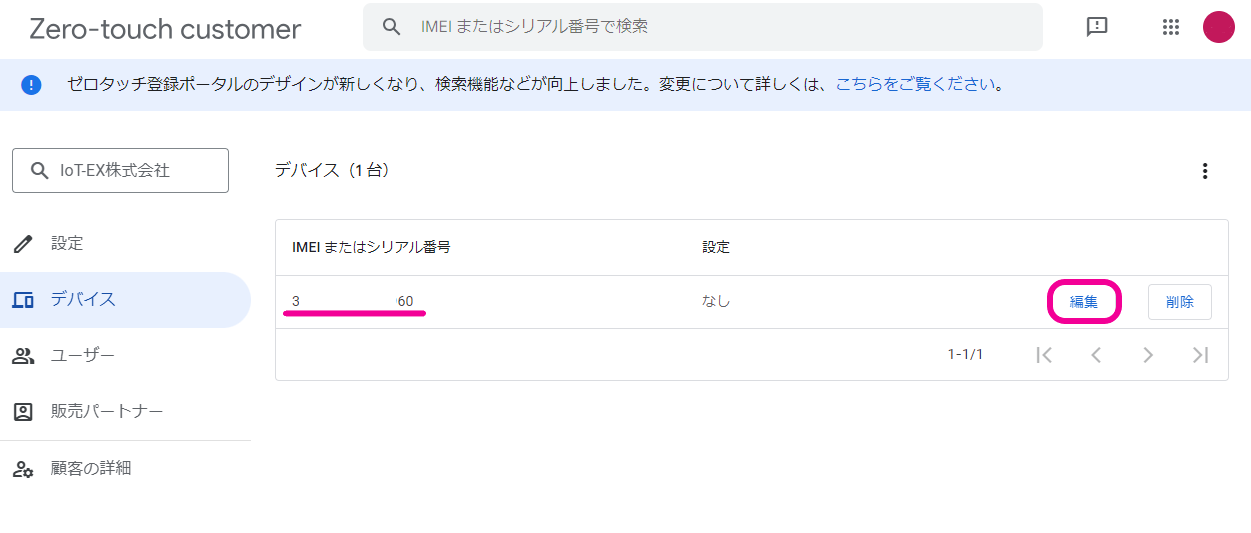
Click
Editfor the target device.
-
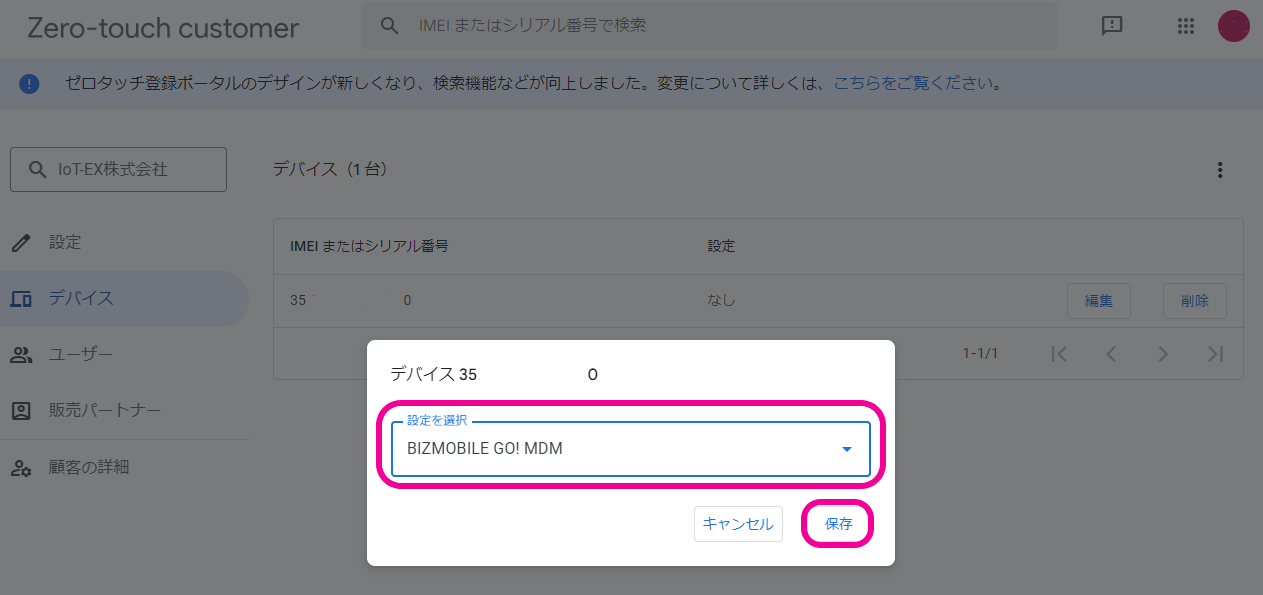
Select a configuration from the pull-down menu and click
Save.
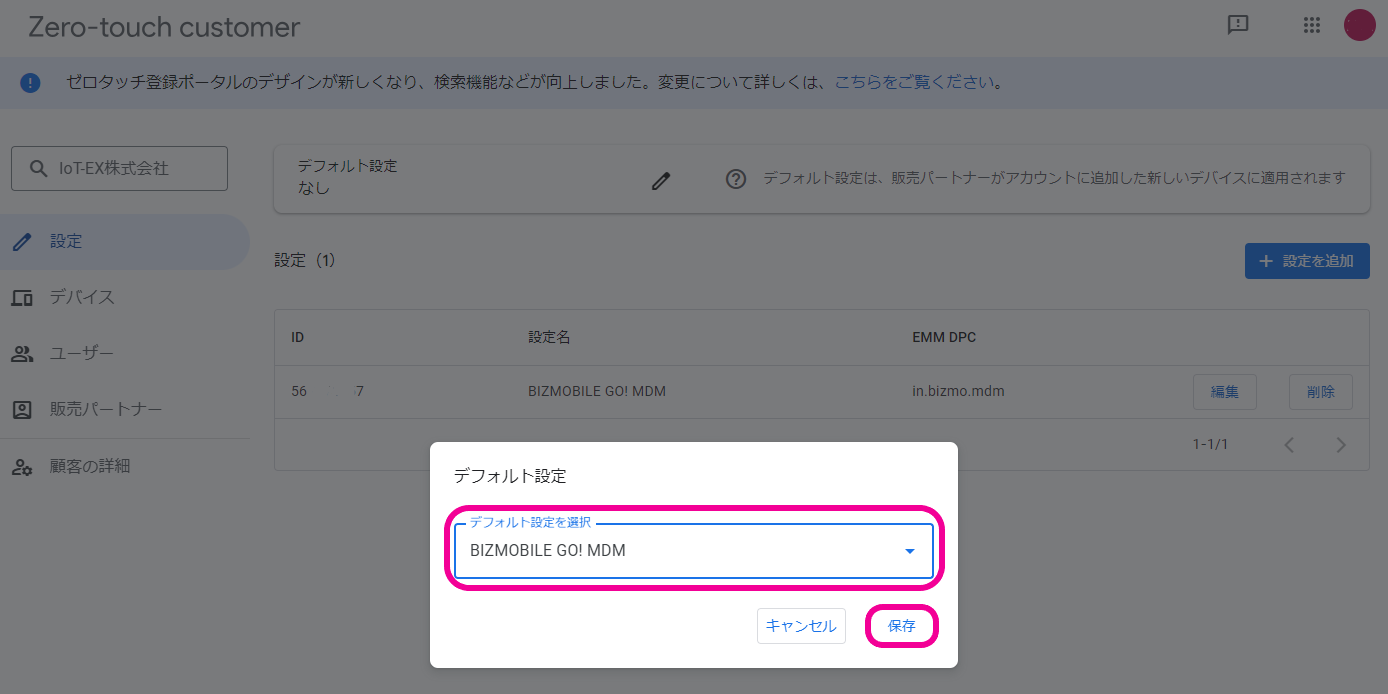
If you set up Automatic Import of Zero-touch Devices with the Default Configuration below, zero-touch devices added in the future no longer need to be imported manually.
Automatic Import of Zero-touch Devices with the Default Configuration
-
Click
Configurationsin the left menu, and click for the default configuration.
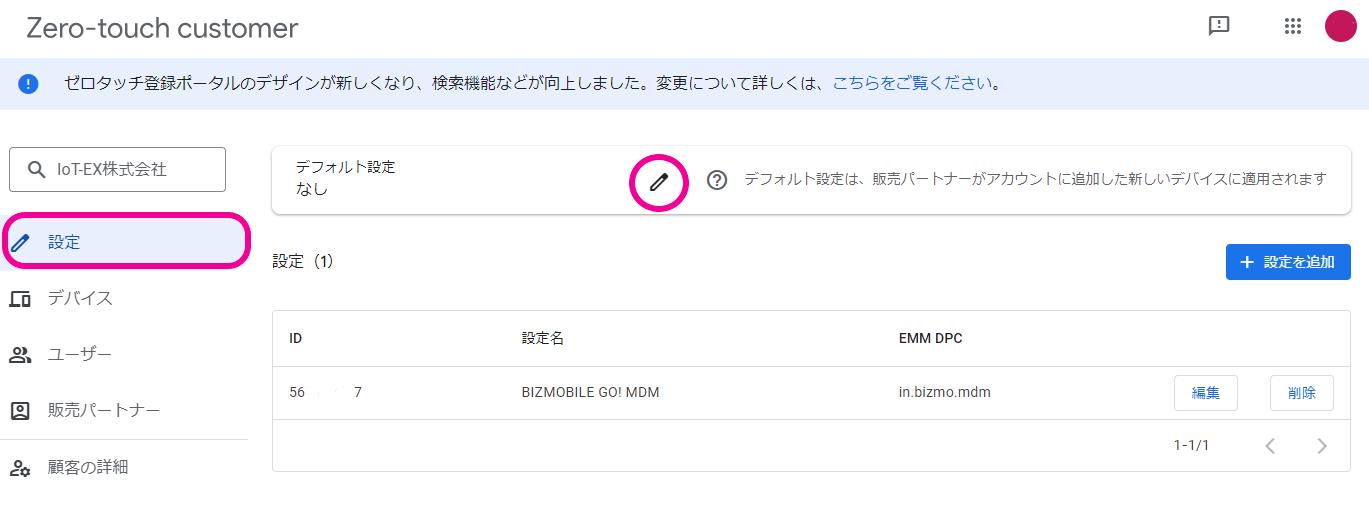
-
Select the default configuration from the pull-down menu and click
Save.