Zero-touch device enrollment
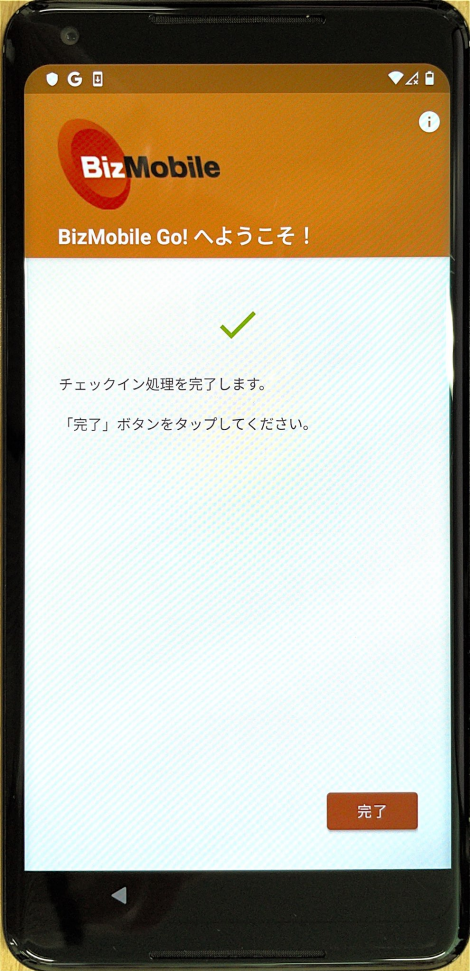
The final step in making a device manageable is to enroll it. When enrollment is complete, registration with BizMobile Go! is finished and you can manage the device.
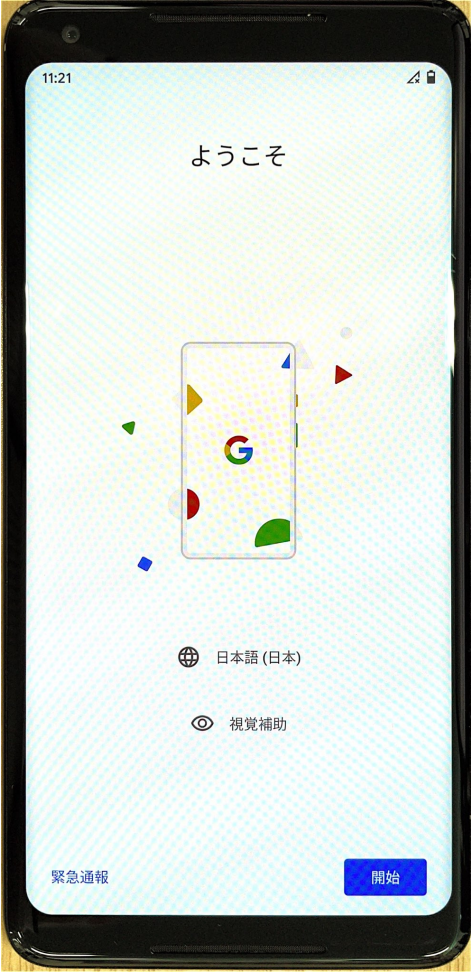
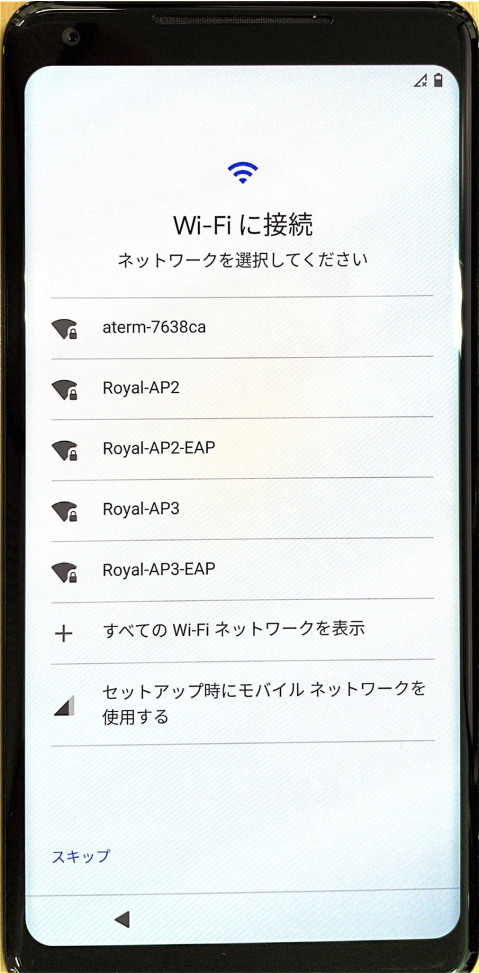
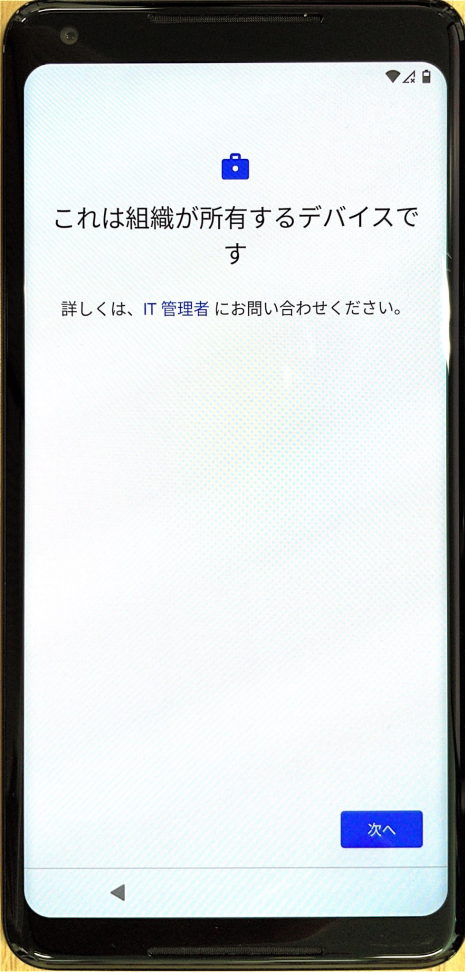
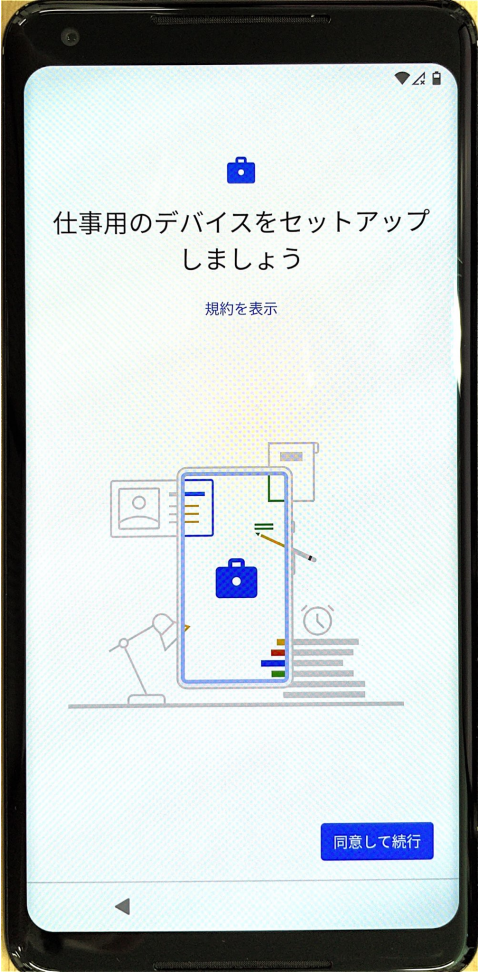
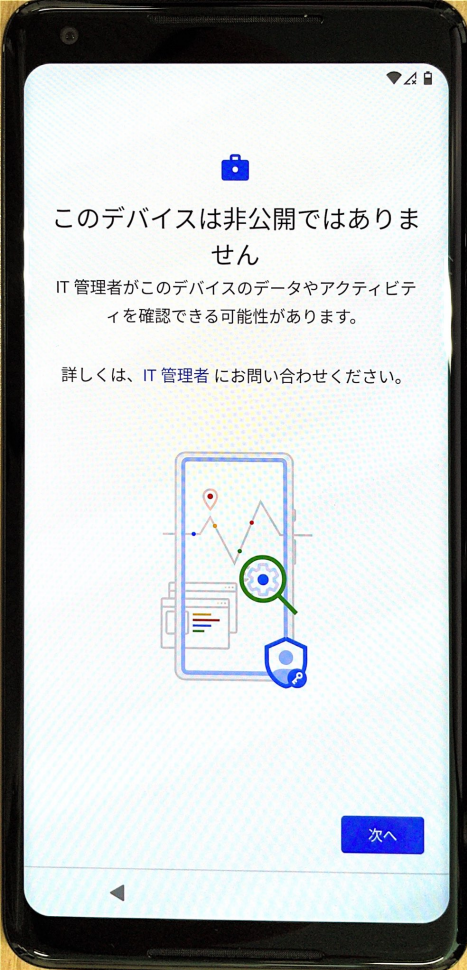
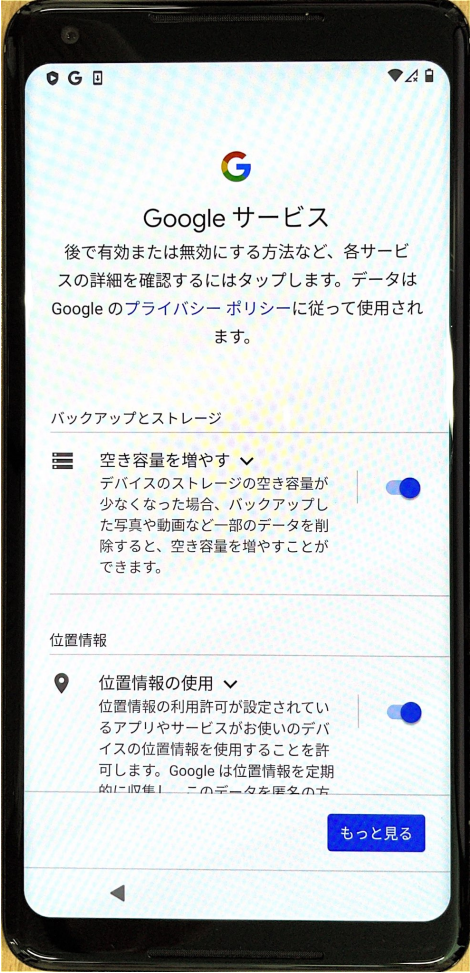
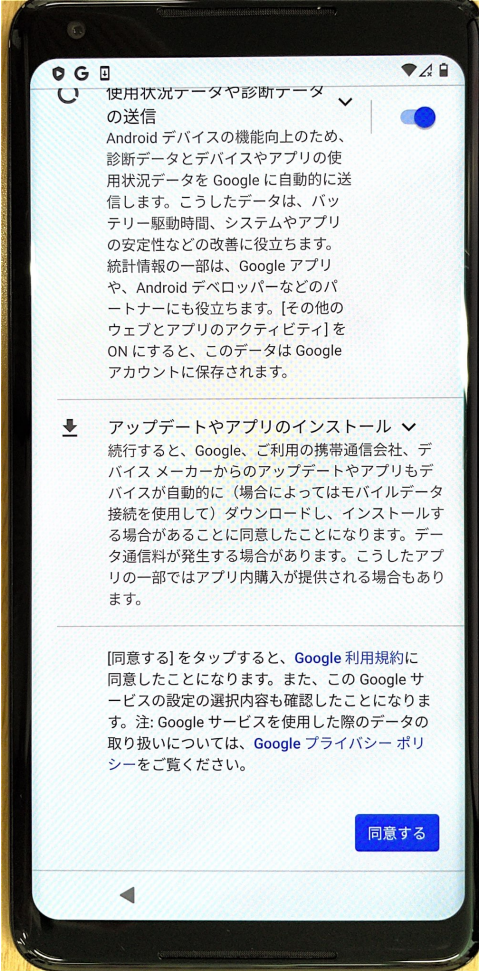
To register a device with MDM, simply erase it and then follow the on-screen instructions to make it ready for use (activation). Device Owner setup and enrollment in BizMobile Go! then complete automatically.
When enrollment is complete, registration with BizMobile Go! is finished, and the profiles, apps, and other items registered in the device's template are distributed to the device, completing device setup (kitting) automatically.
|
|
|
|
|
|
|
|
|
|
|
|
|
|
|
|
|
|
|
|
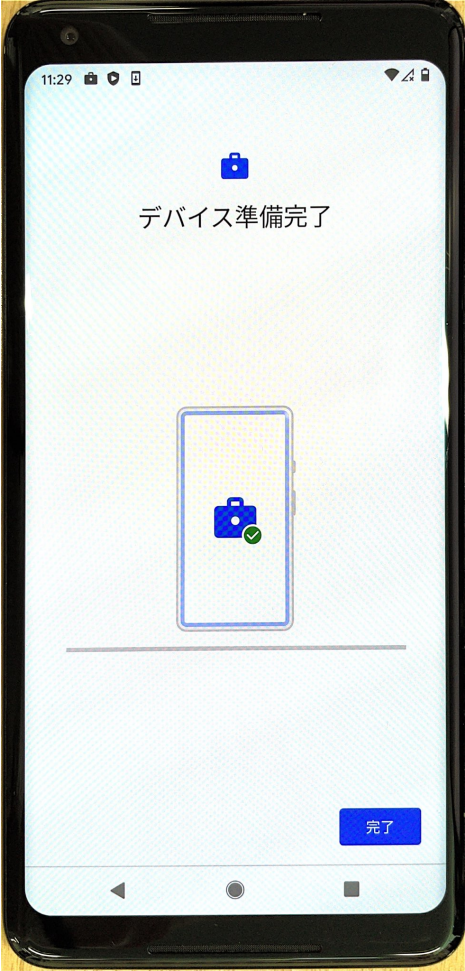
Depending on the network conditions of the device setup environment, it may take some time for all the profiles, apps, and other items registered in the template to be installed on the device.
Sign in to the device with a Google Workspace account at least 5 minutes after enrollment is complete.
(If you configured EMM settings with a Google Workspace account, you must sign in to the device after the first EMM sync following enrollment has finished.)