Create Auto-Enrollment Devices and Associate Them with Apple ADE (formerly DEP) or Android Zero-touch Devices
DEP has been renamed ADE (Automated Device Enrollment).
Create the device information for managing devices in BizMobile Go!, and associate it with the Apple ADE devices or Android zero-touch devices that you previously imported into BizMobile Go!.
Enrollment becomes possible when the BizMobile Go! device information you create is associated one-to-one with an imported device by using its serial number or IMEI.
If you have already created the device information in BizMobile Go!, open the existing device information in edit mode and set only ADE Enrollment★ or Zero-touch Information★ described on this page.
Only devices waiting to enroll (Enrolling) can be edited. Devices that have already enrolled or have been unregistered cannot be edited.
To create multiple devices at once by importing a CSV file, see Create Device Information Using a CSV File (With ADE).
Steps to create device information
- Click Create on the CONFIG → Device screen.
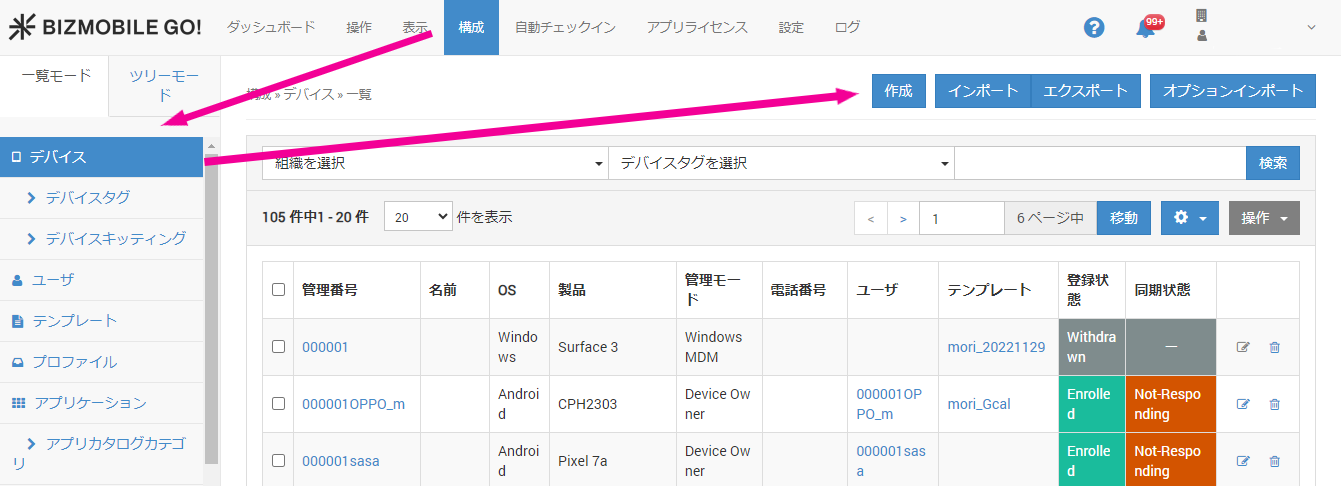
- Enter the required information on the device information input screen that appears.
Input fields (★ indicates a required field)
| Basic Device Information | |
|---|---|
| OS★ | Select from iOS, Android, and macOS. Some settings differ depending on the OS you select. |
| Identifier★ | An identifier that uniquely identifies the device |
| Name | A nickname or similar name for the device |
| Description | Any information you want to enter |
| User | If users have been created, you can select one here |
| Template | If templates have been created, you can select one here |
| Device Tag | If device tags have been created, you can select one here |
Enrollment Restrictions
| iOS / iPadOS | macOS | tvOS | Android | ||
|---|---|---|---|---|---|
| Enrollment Expiration Date | Yes | Yes | Yes | Yes | Select the enrollment deadline. The default is one week from today. On the SETTING screen, you can also configure the unit so that the expiration date is not checked. |
Non-MDM-Managed App Information
| iOS / iPadOS | macOS | tvOS | Android | ||
|---|---|---|---|---|---|
| Non-MDM-Managed App Information | Yes | Yes | Yes | For units created on or before December 18, 2024, this setting specifies, for all devices, whether to collect information about apps not distributed from BizMobile Go! (unmanaged apps). (Old setting) For units created after December 18, 2024, only supervised devices are covered by this setting. Information about unmanaged apps is not collected from unsupervised devices regardless of this setting. (New setting) If you want to change from the old setting to the new setting, contact support.
|
Location Option (must be requested separately)
| iOS / iPadOS | macOS | tvOS | Android | ||
|---|---|---|---|---|---|
| Fetch Location | Yes | Yes | Turn this ON to collect location information from the managed device | ||
| Share Location with Administrator | Yes | Yes | Select whether to share the collected location information of the managed device with administrators (that is, display it on the admin console), in addition to showing it on the device. |
Apple ADE
| ADE Enrollment★ | iOS / iPadOS | macOS | tvOS |
|---|---|---|---|
| Enroll using ADE | ON | ON | ON |
| ADE Enrollment Method | Specify Serial | Specify Serial | Specify Serial |
| Serial Number | Enter the device serial number. Note 1 | Enter the device serial number. Note 1 | Enter the device serial number. Note 1 |

Note 1. You can copy the serial number of an imported device from the auto enrollment screen and paste it here.
You can also check it by exporting the device list from Apple Business (formerly ABM) as a CSV file.
Android Zero-touch
| Zero-touch Information★ | Android |
|---|---|
| Enroll using zero-touch | ON |
| Serial Number | Enter one of the following: ・Wi-Fi model devices: Serial number Note 2 ・SIM model devices: IMEI Note 3 |
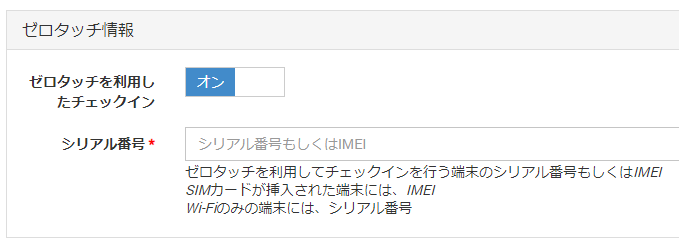
Note 2. You can copy the serial number of an imported device from the auto enrollment screen and paste it here.
You can also check it by exporting the device list from the Android zero-touch portal as a CSV file.
Note 3. On SIM model devices, entering the serial number causes an error at enrollment. Enter the IMEI.
Approved SIM Cards
| iOS / iPadOS | macOS | tvOS | Android | ||
|---|---|---|---|---|---|
| Approved SIM Cards | Yes | Yes | Register the ICCID of the SIM card approved for use on the device. You can register up to five. |
- Enter the required items and click Save.
The process is complete whenCreatedis displayed.

The device name is a link. Click it to go to the device details page.