iOS device enrollment procedure (without ADE)
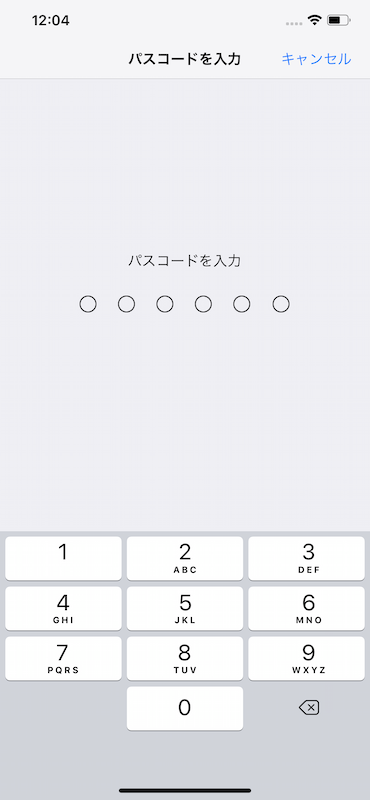
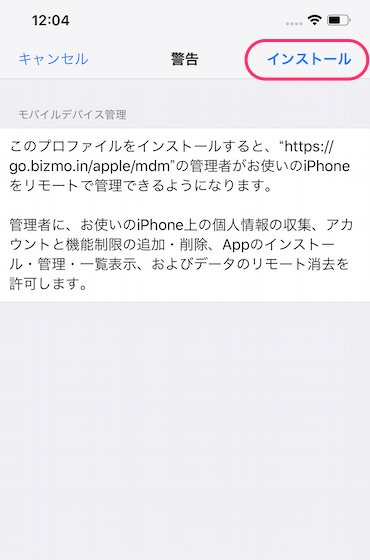
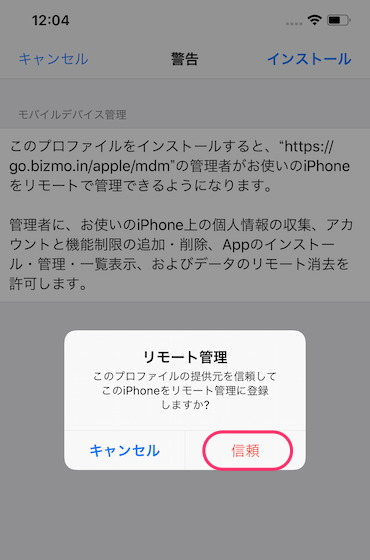
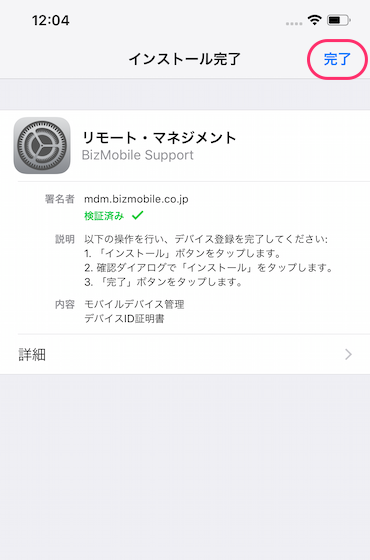
The final step in making a device manageable is to enroll it. When enrollment is complete, registration with BizMobile Go! is finished and you can manage the device.
When enrollment is complete, registration with BizMobile Go! is finished, and the profiles, apps, and other items registered in the device's template are distributed to the device, completing device setup (kitting) automatically.
This is the enrollment procedure for when you do not use ADE (for the procedure with ADE, see Enroll ADE (formerly DEP) Devices).
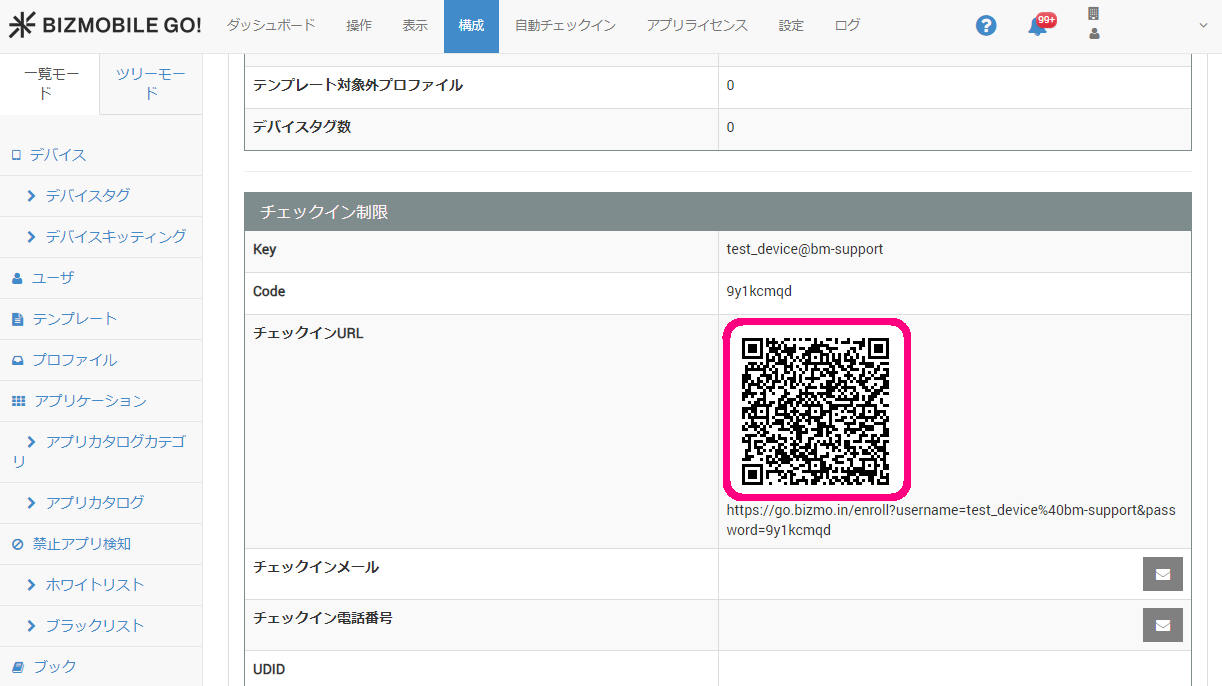
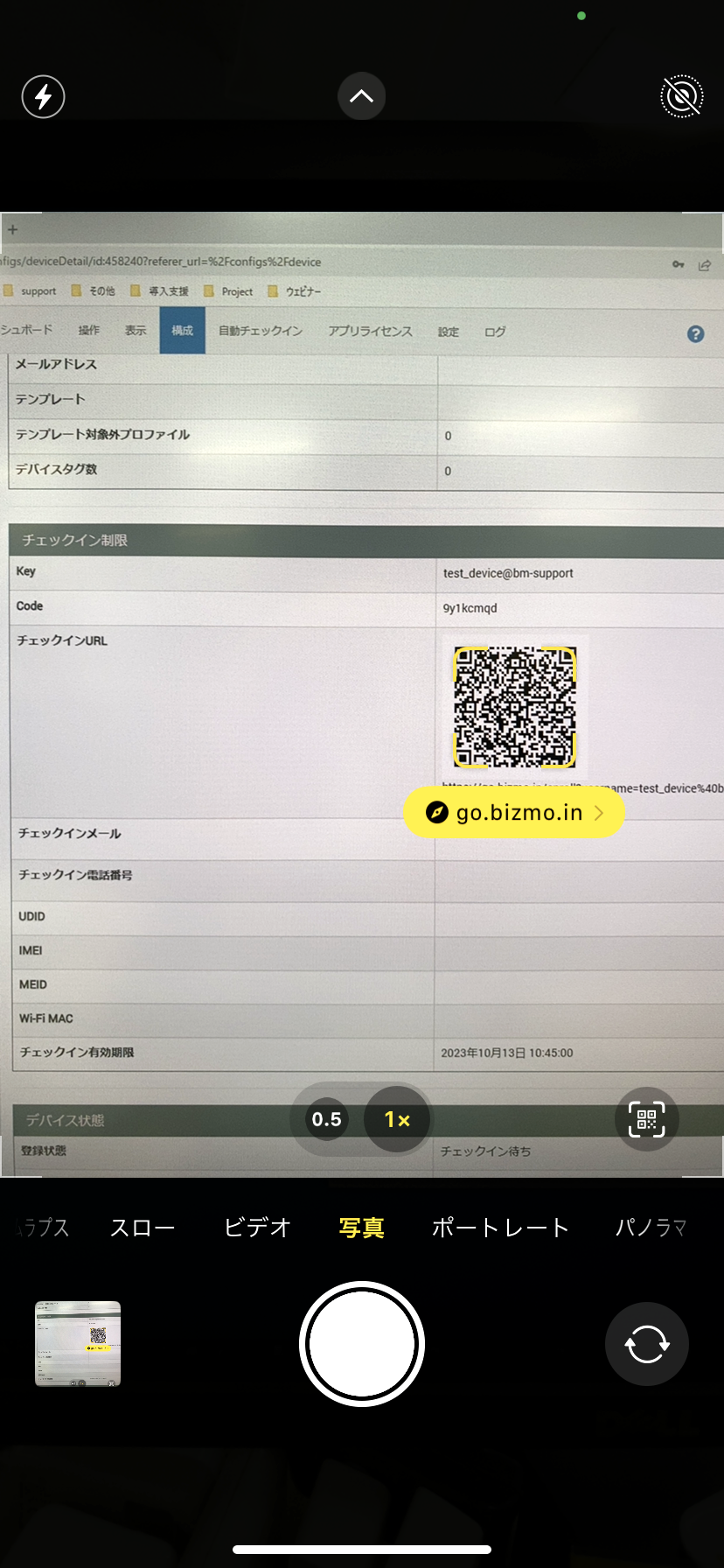
Because of changes to Apple's specifications, the enrollment method differs depending on the device's OS version. Check the OS version of the device you are enrolling, and then enroll it in Safari, the standard browser, by following the procedure for that version below.
Enrollment may fail in browsers other than Safari.
Even if you do not use ADE, if you can erase the device, you can set the device to Supervised by using a Mac or iPhone with the Apple Configurator app installed. Setting the device to Supervised lets you manage the device to the fullest extent. For how to set a device to Supervised, see Set a device to Supervised using Apple Configurator.
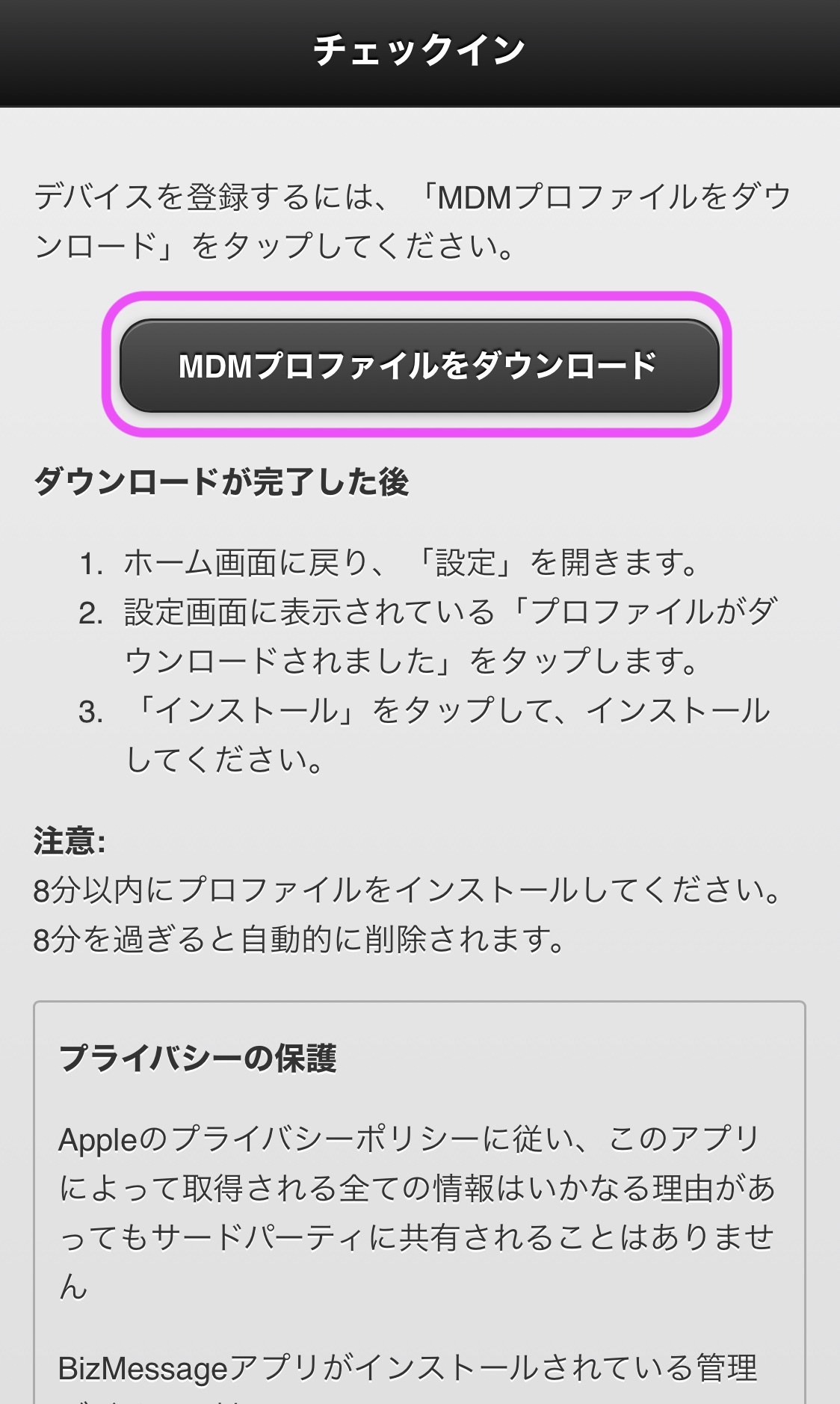
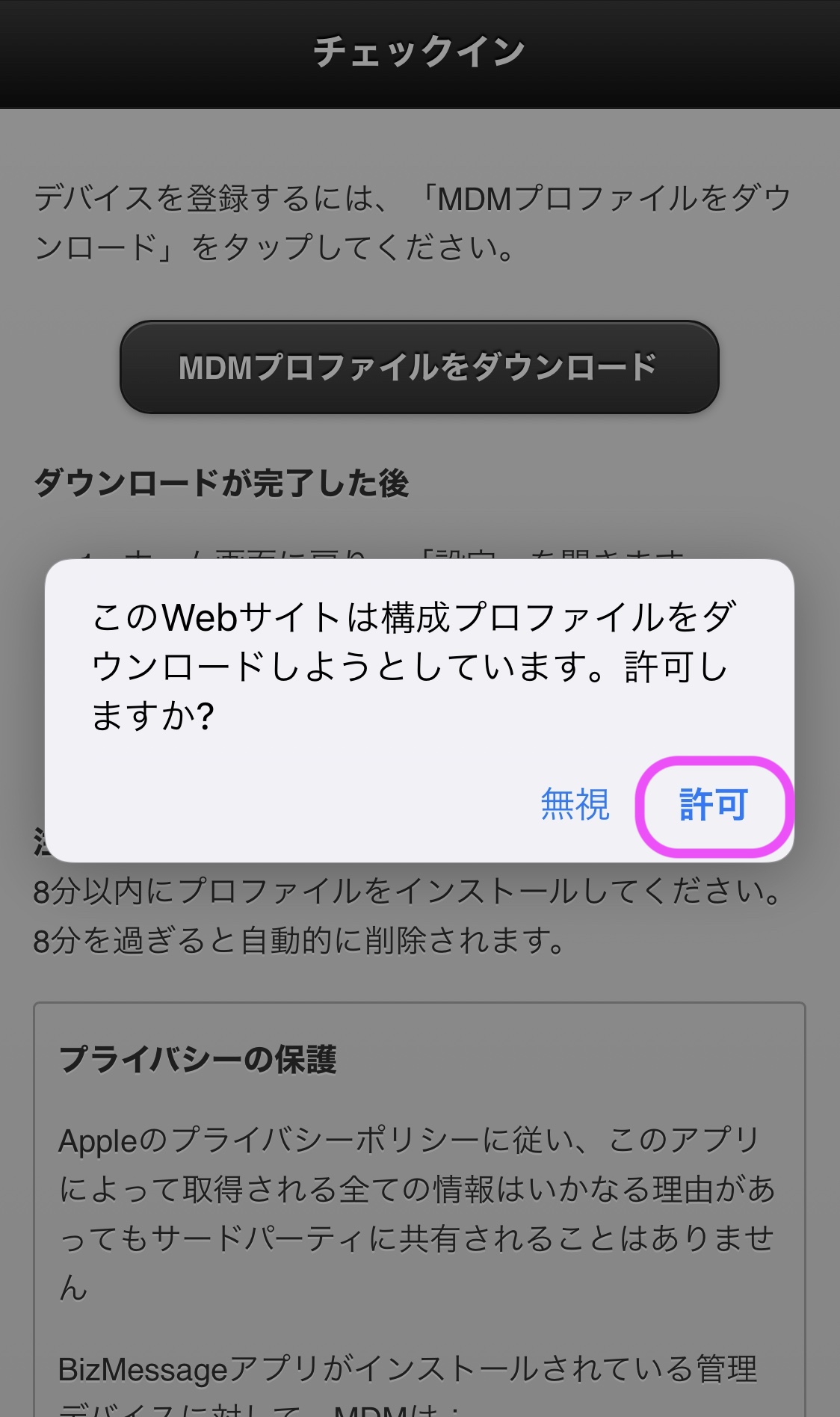
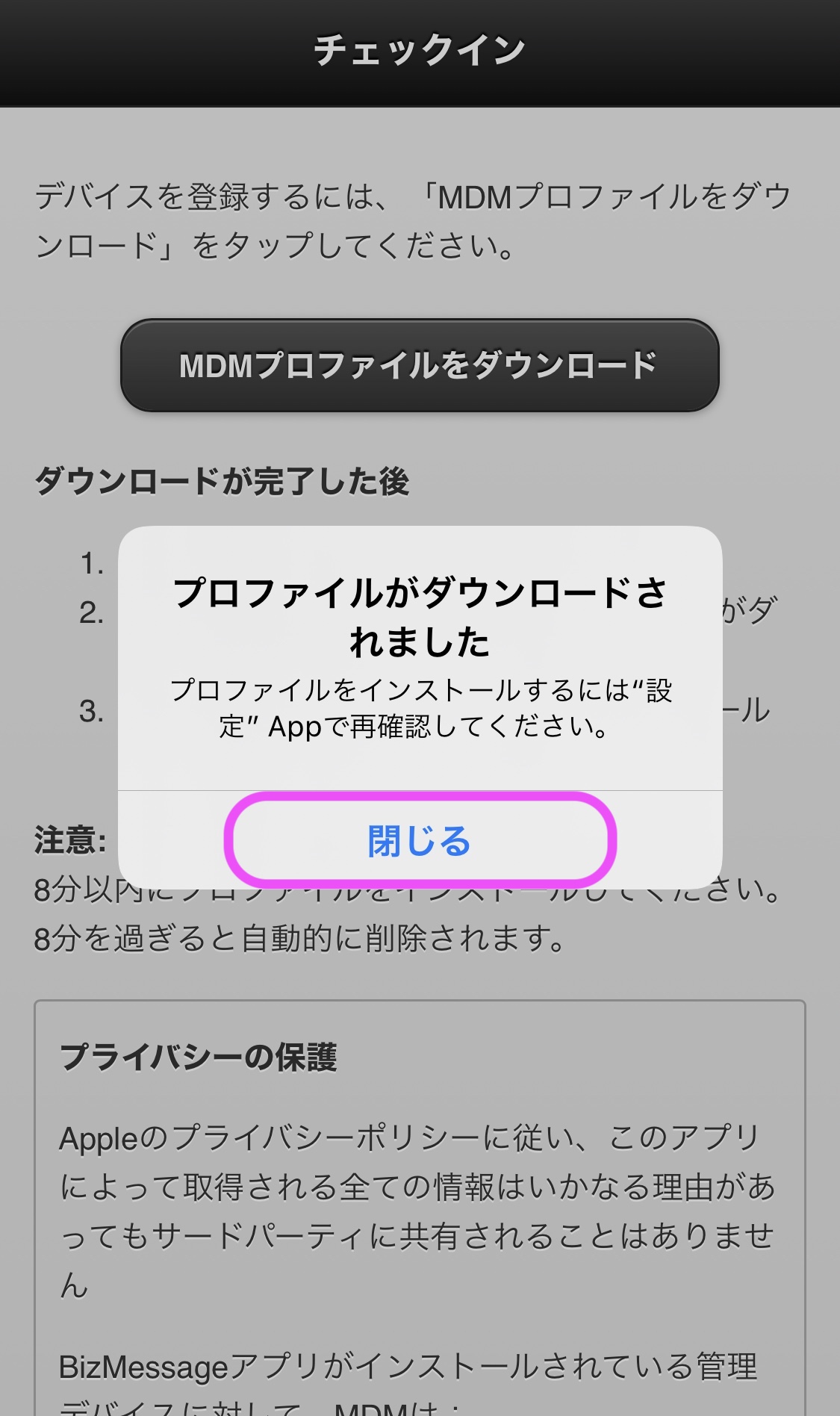
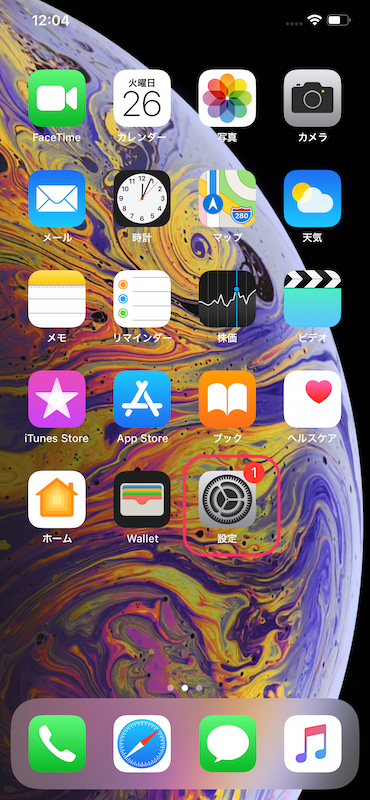
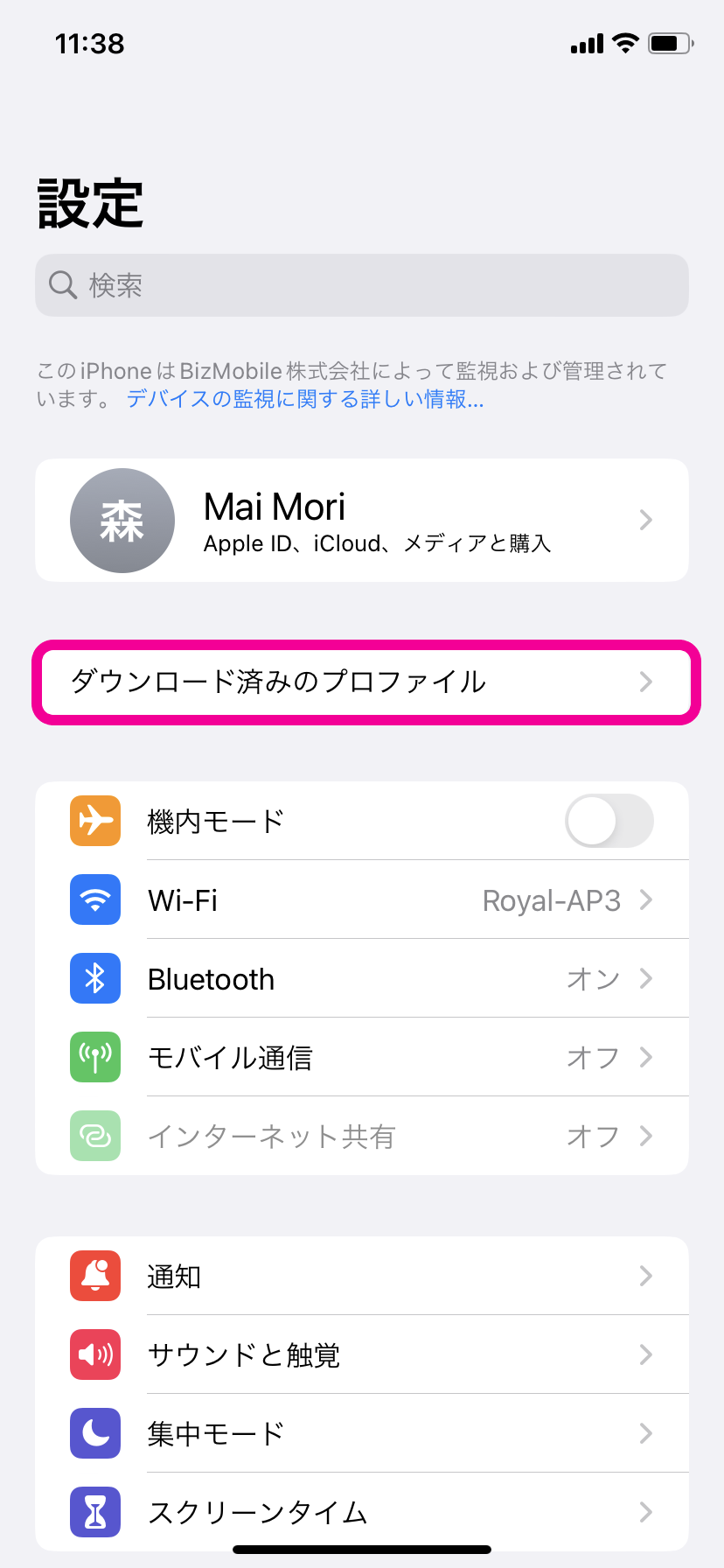
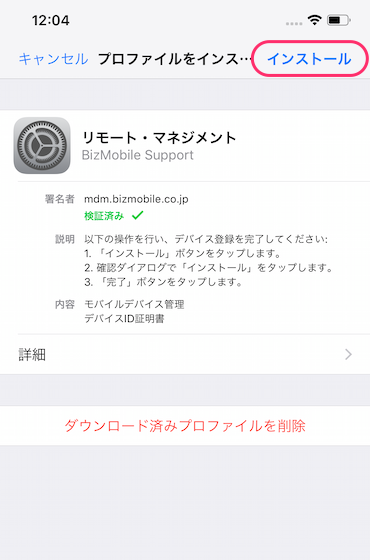
Note: Up to OS version 12.1.4, following the required steps in Safari automatically launched the Settings app, and you could finish installing the "MDM profile" (that is, complete enrollment). From OS version 12.2, Safari only downloads the "MDM profile". To complete enrollment, you must manually open the Settings app and continue installing the "MDM profile".
- iOS 12.2 or later
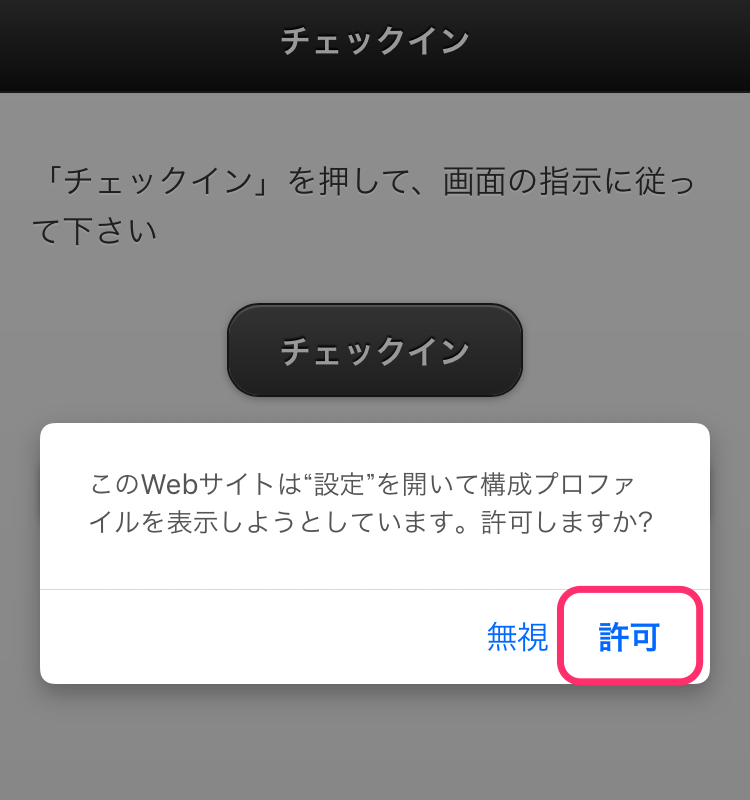
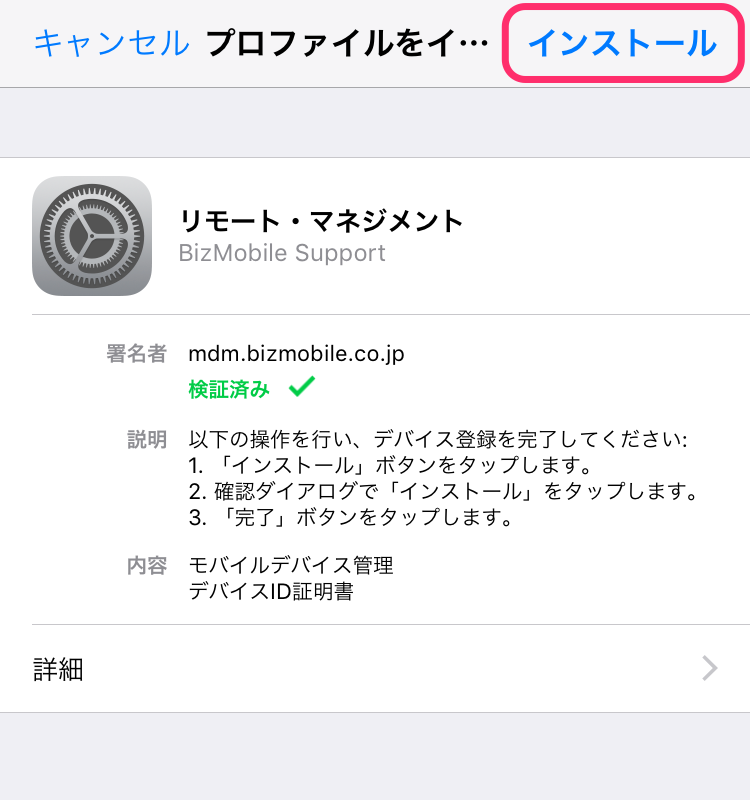
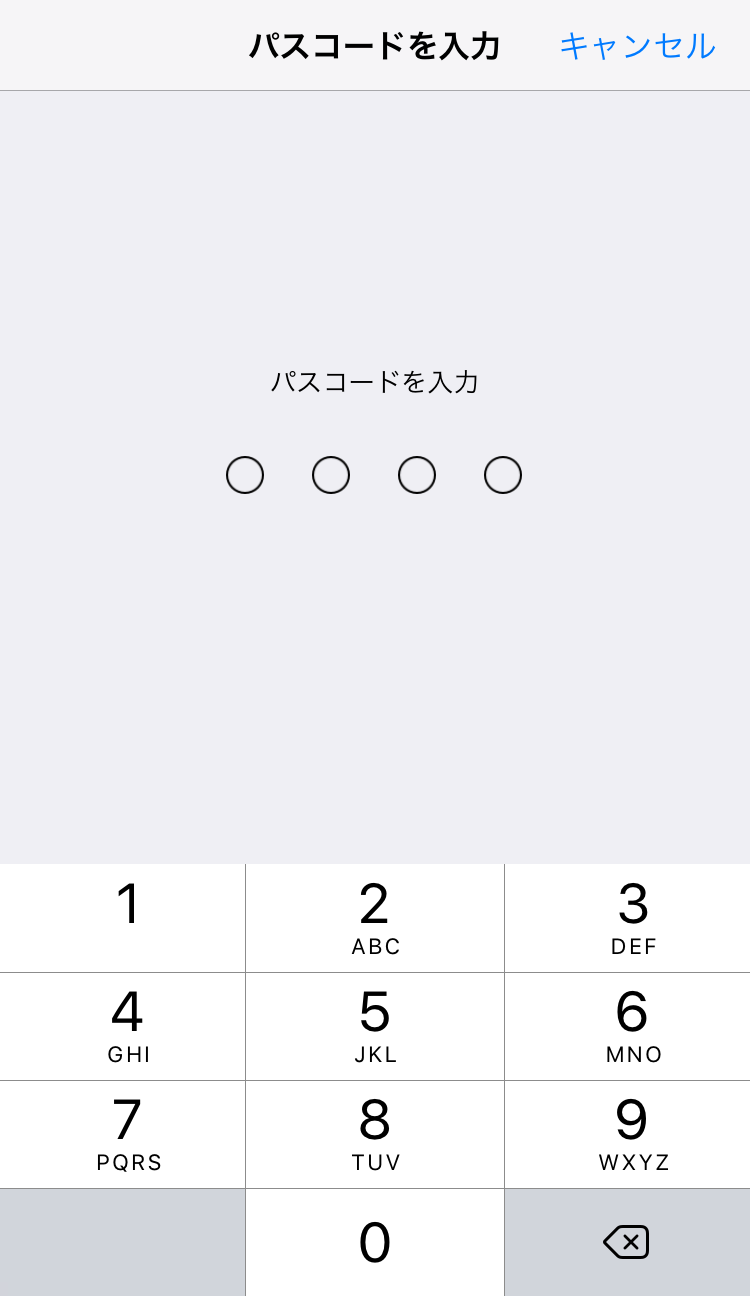
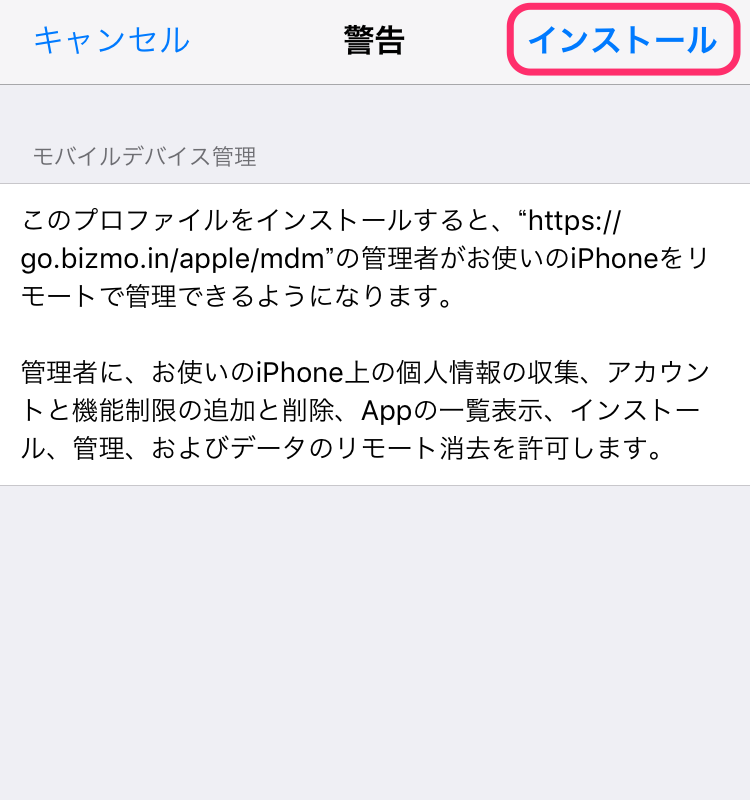
- iOS 12.1 or earlier
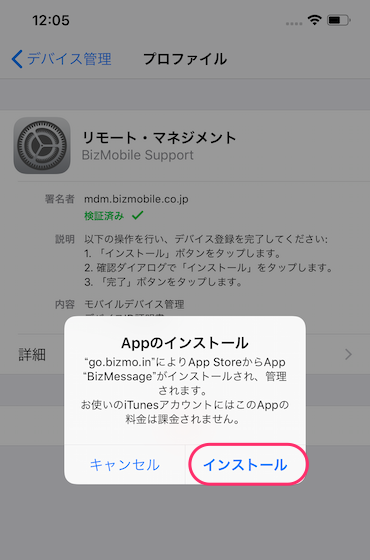
The screens are an example of an iPhone 11 running iOS 16.6.
The display may differ depending on the model and OS version.
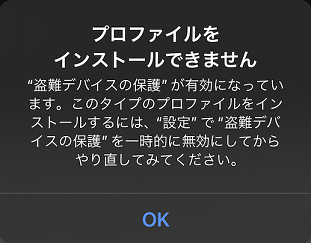
As a behavior specific to iOS / iPadOS 17.3 devices, you may be unable to enroll because of the Stolen Device Protection feature.
Stolen Device Protection may be ON in the following cases:
Find Myis ON (signed in with an Apple ID)Face IDis set up
To work around this, either update to iOS / iPadOS 17.4 or later before enrollment, or, if Stolen Device Protection is ON under Settings → Face ID & Passcode → Stolen Device Protection, turn the feature OFF temporarily beforehand.
Turning the feature OFF may require a one-hour wait and re-authentication with Face ID because of Stolen Device Protection.
Description of Stolen Device Protection on the Apple site
https://support.apple.com/en-us/HT212510
|  |
|  |
|  |
|  |
|  |
|  |
|  |
|  |
|  |
|  |
|  |
|  |
|  |
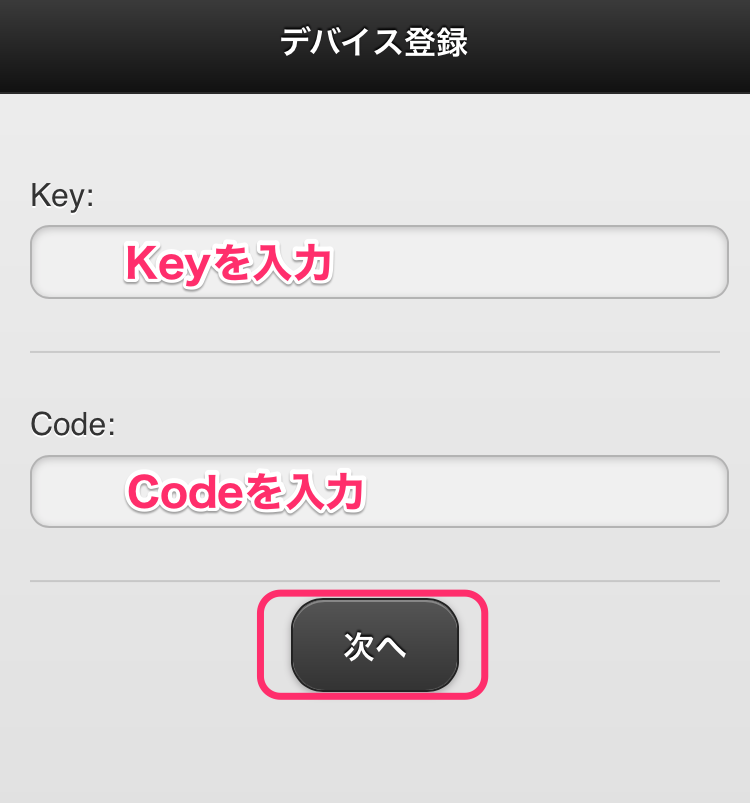
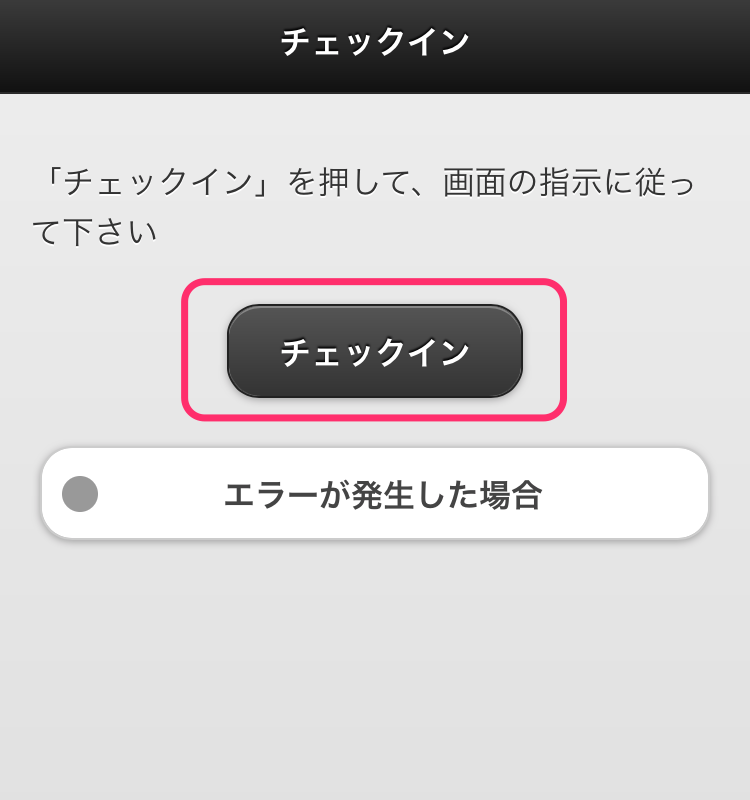
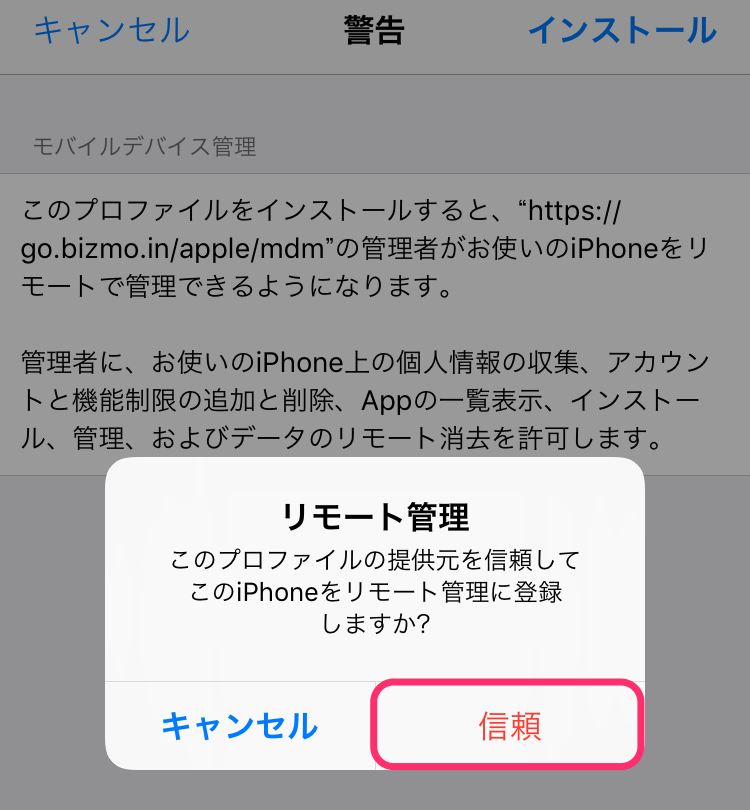
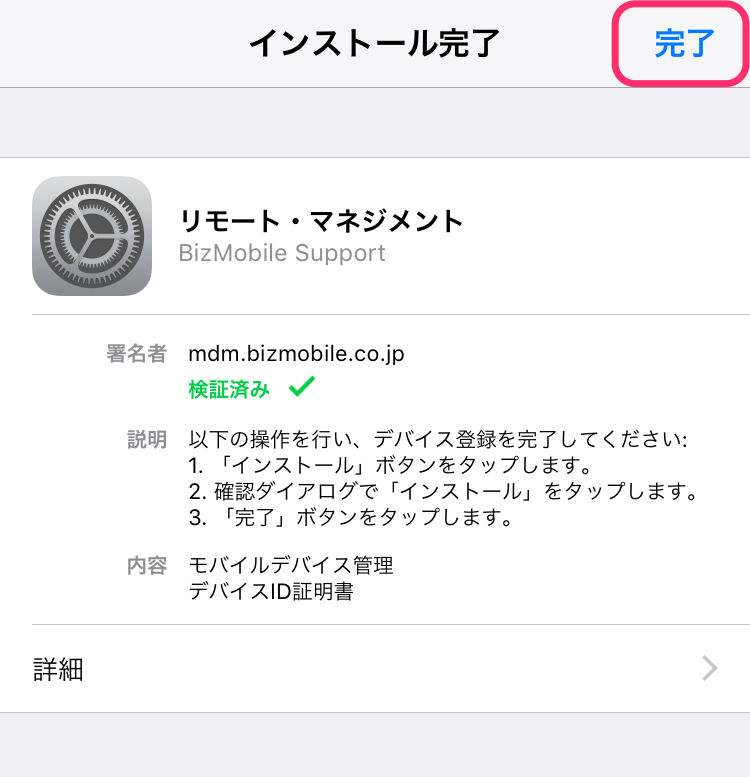
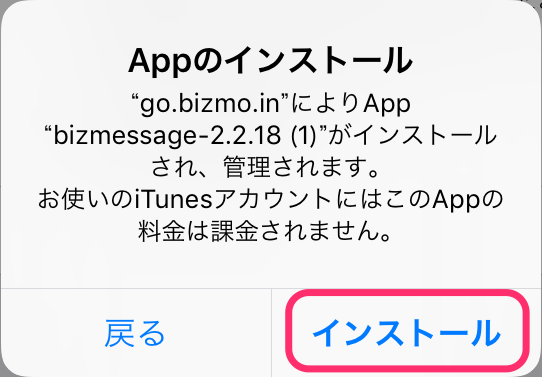
The screens are an example of an iPhone 7 running iOS 10.3.3.
The display may differ depending on the model and OS version.
| |
|  |
|  |
|  |
|  |
|  |
|  |
|  |
|  |
|  |
Depending on the network conditions of the device setup environment, it may take some time for all the profiles, apps, and other items registered in the template to be installed on the device.