Enroll ADE (formerly DEP) Devices
DEP has been renamed ADE (Automated Device Enrollment).
The final step to make a device manageable is to enroll it from the device. When enrollment is complete, the device is registered in BizMobile Go! and can be managed.
For an ADE device, enrollment is completed simply by erasing the device and then following the on-screen instructions to make it ready for use (activation).
When enrollment is complete, the device is registered in BizMobile Go!, and the profiles, apps, and other items registered in the same template as the device are distributed to it, so device setup (kitting) is completed automatically.
If you restore from an iCloud backup at the same time as you re-enroll a device, enrollment may fail because of the Stolen Device Protection feature, which is specific to devices running iOS / iPadOS 17.3.
Stolen Device Protection may be turned on in the following cases:
• Find My is ON (signed in with an Apple ID)
• Face ID is set up
Description of Stolen Device Protection on the Apple site
https://support.apple.com/en-us/HT212510
Steps to enroll an ADE device
iOS / iPadOS
- iOS 26 or later
- iOS 18 or earlier
-
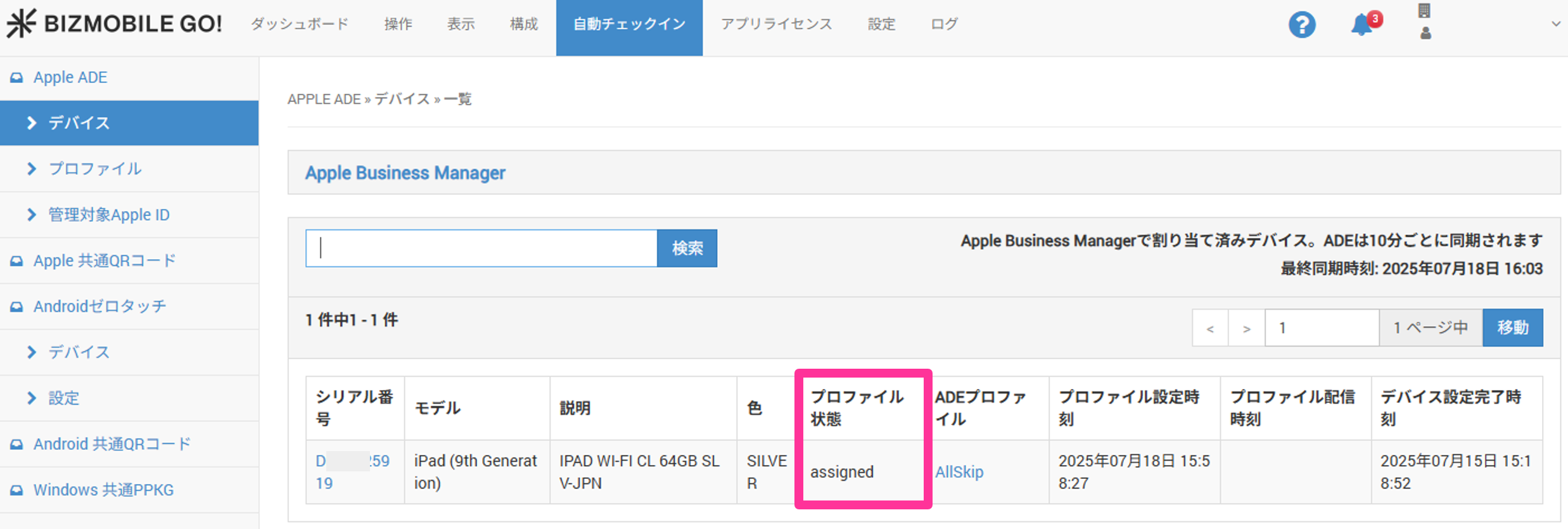
Confirm that the device is ready for enrollment.
The device is ready when the ADE device (serial number) has been linked to an ADE profile.
Check the link status inProfile Statuson theAUTO ENROLLMENTscreen.
• [AUTO ENROLLMENT] → [ADE Device] → [Device] → [Profile Status]
Profile Status:
• assigned, pushed: Ready
You can proceed to the enrollment steps below.
• assigning: Not ready
Wait up to about 10 minutes for the next ADE sync, and then check the status again.
• Other: Individual check required
Check the progress of linking the ADE device to the ADE profile in Profile Status.
After you check it and take any required action, check the status again.
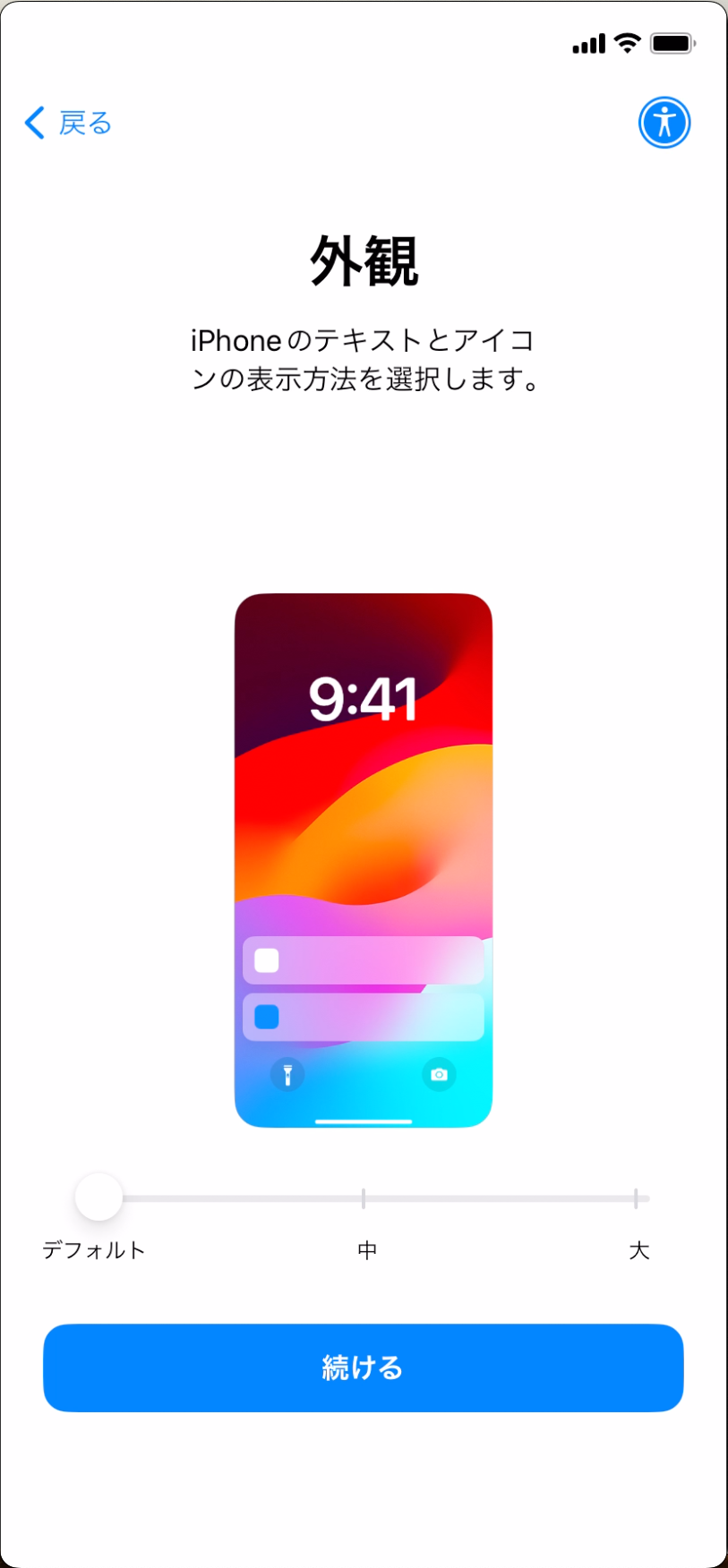
 2. Turn on the device. If the device has already completed initial setup, reset it to its factory settings.
3. Select a language and region.
4. Select an appearance and tap
2. Turn on the device. If the device has already completed initial setup, reset it to its factory settings.
3. Select a language and region.
4. Select an appearance and tap Continue.
-
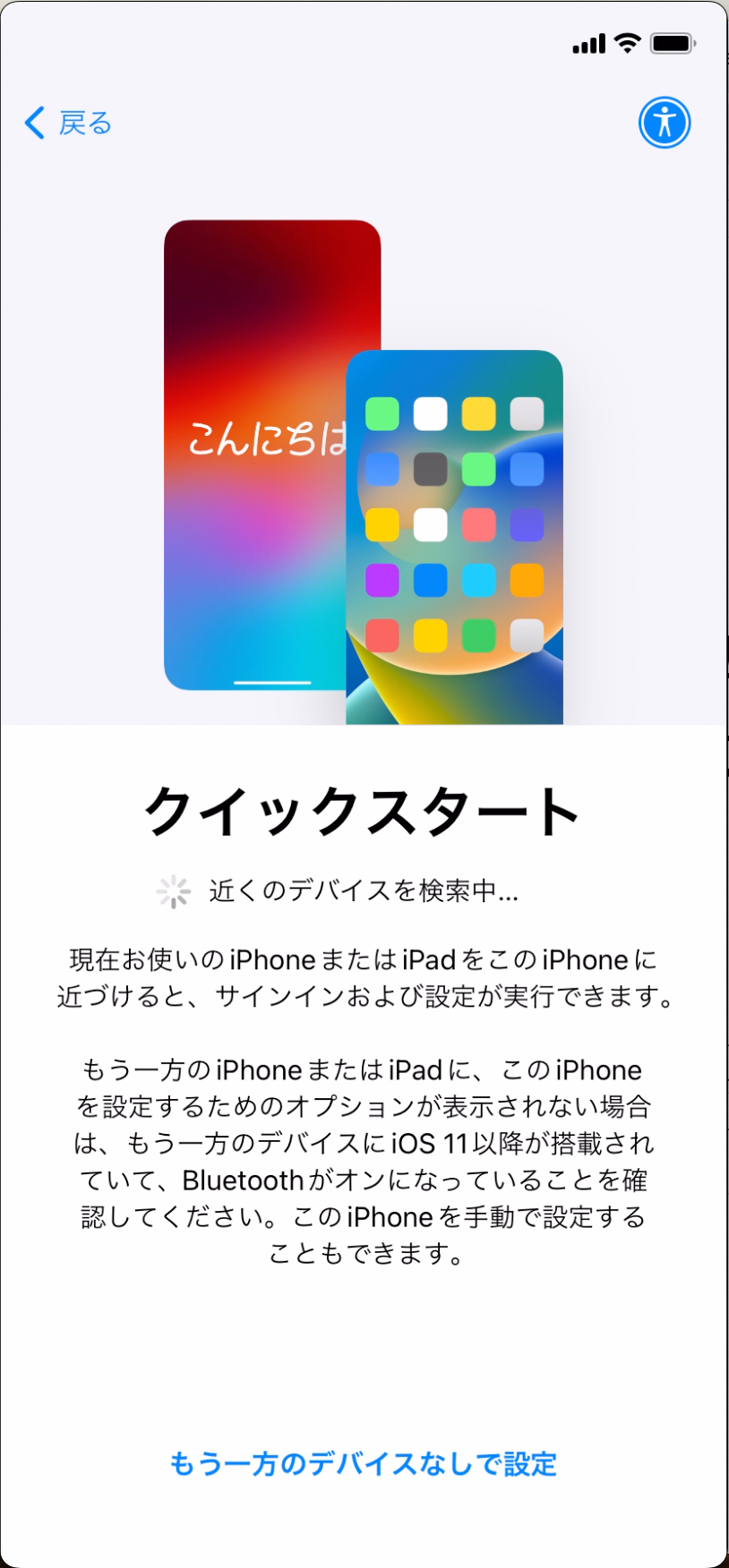
When the
Quick Startscreen appears, tapSet Up Without Another Deviceto proceed.
-
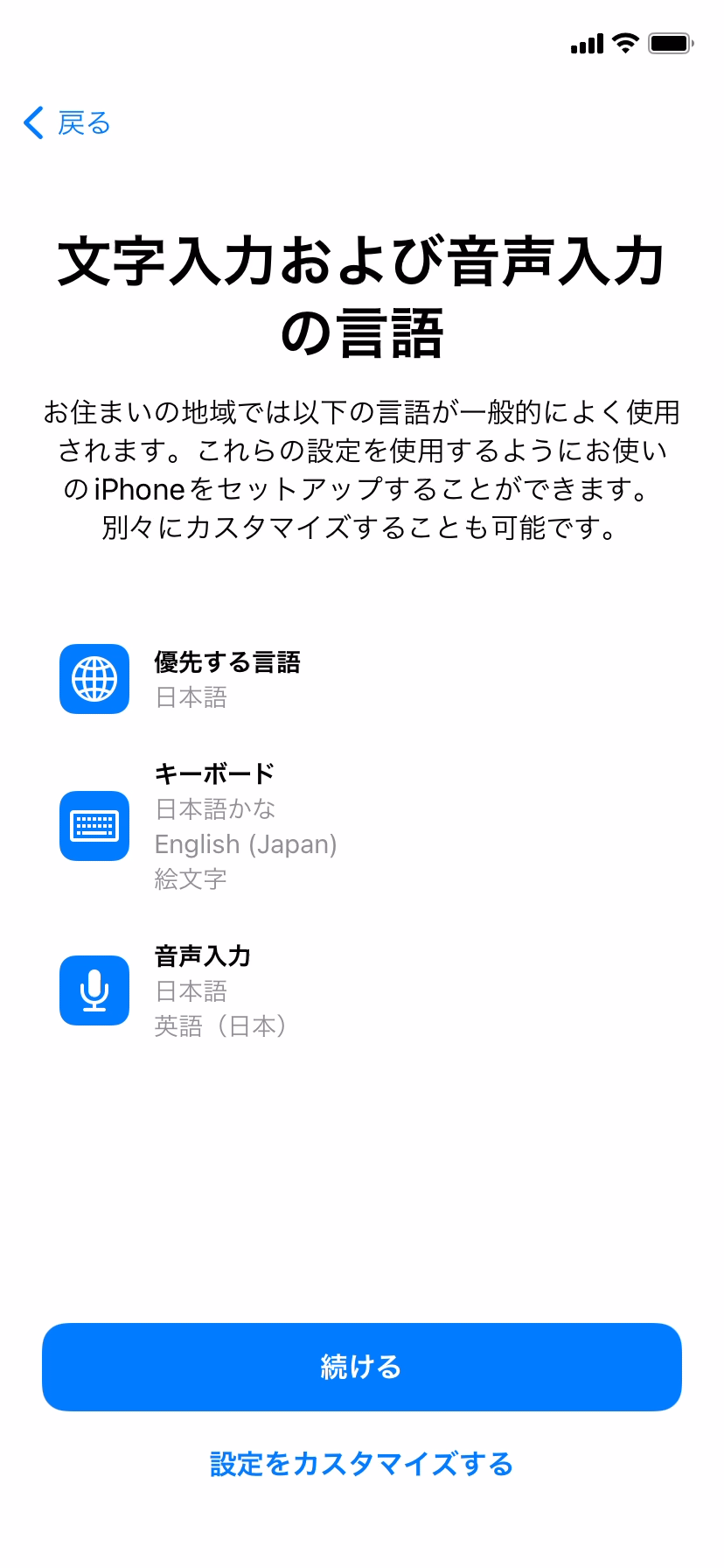
On the
Languages for Typing and Dictationscreen, selectContinueto proceed.
-
Configure the Wi-Fi settings.
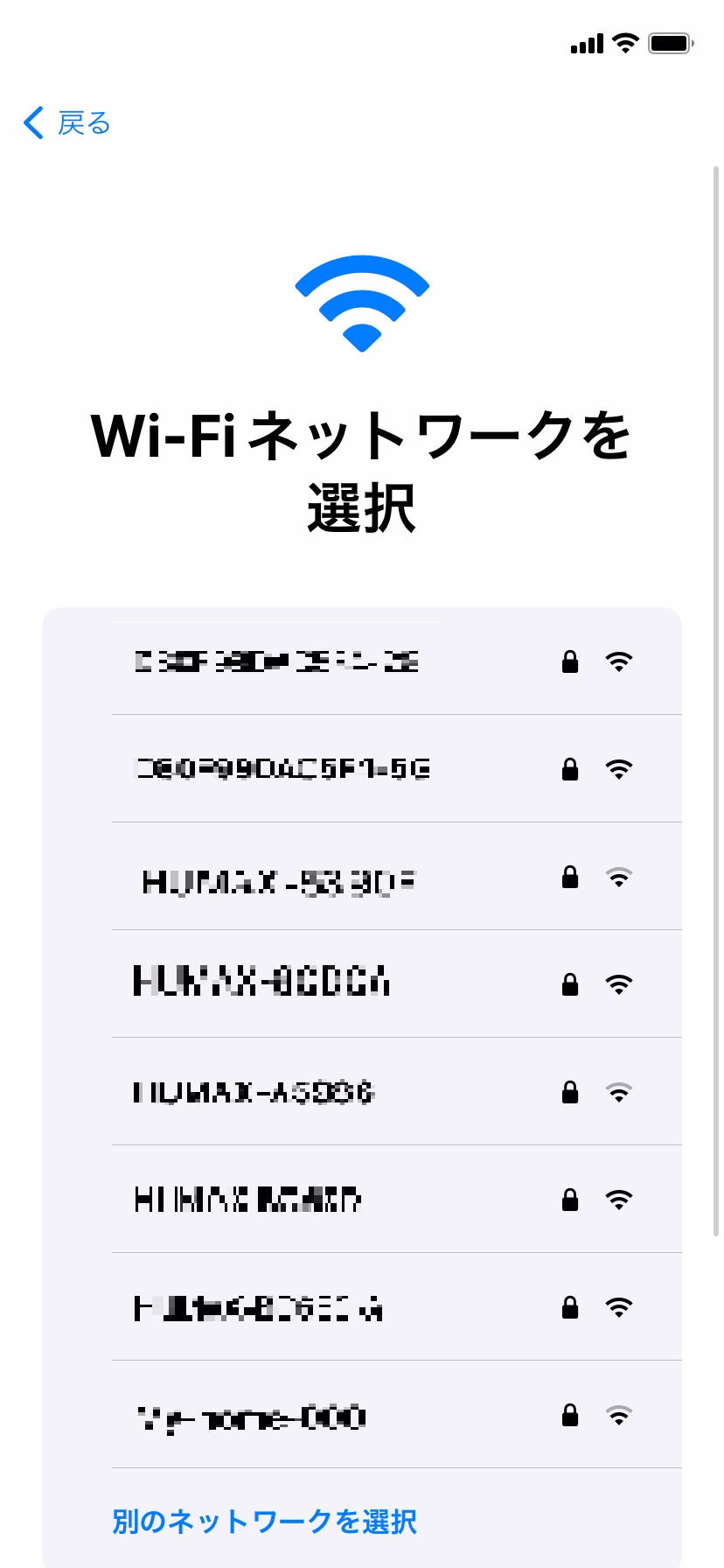
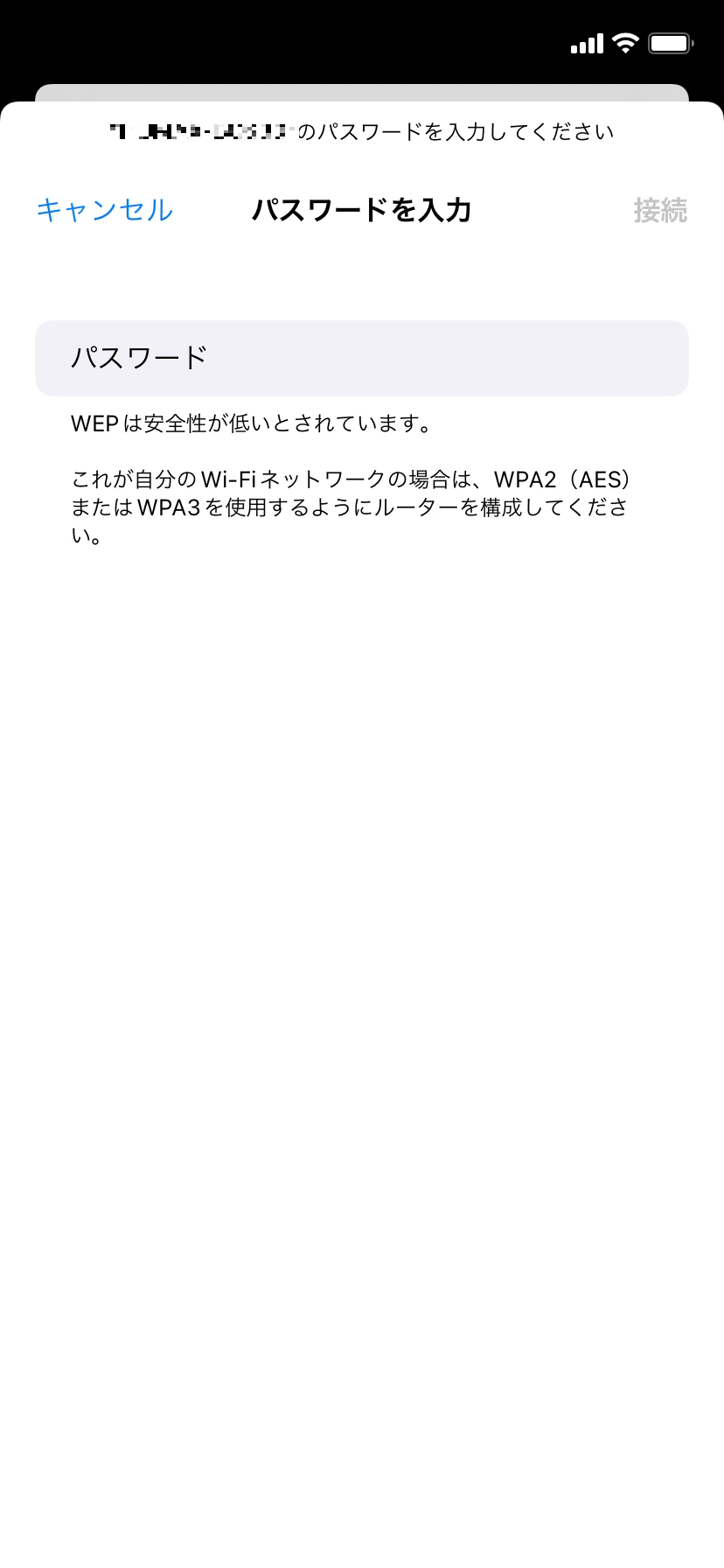
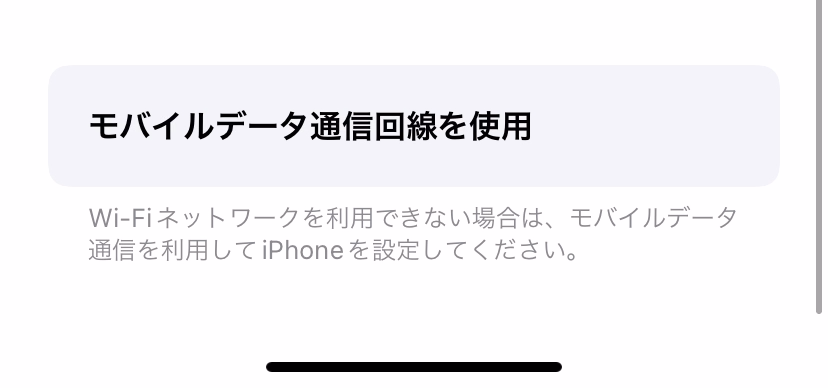
If there is no Wi-Fi environment and the device is a Cellular model with an active SIM card inserted, scroll down on the Wi-Fi settings screen and tap [Use Cellular Connection].
-
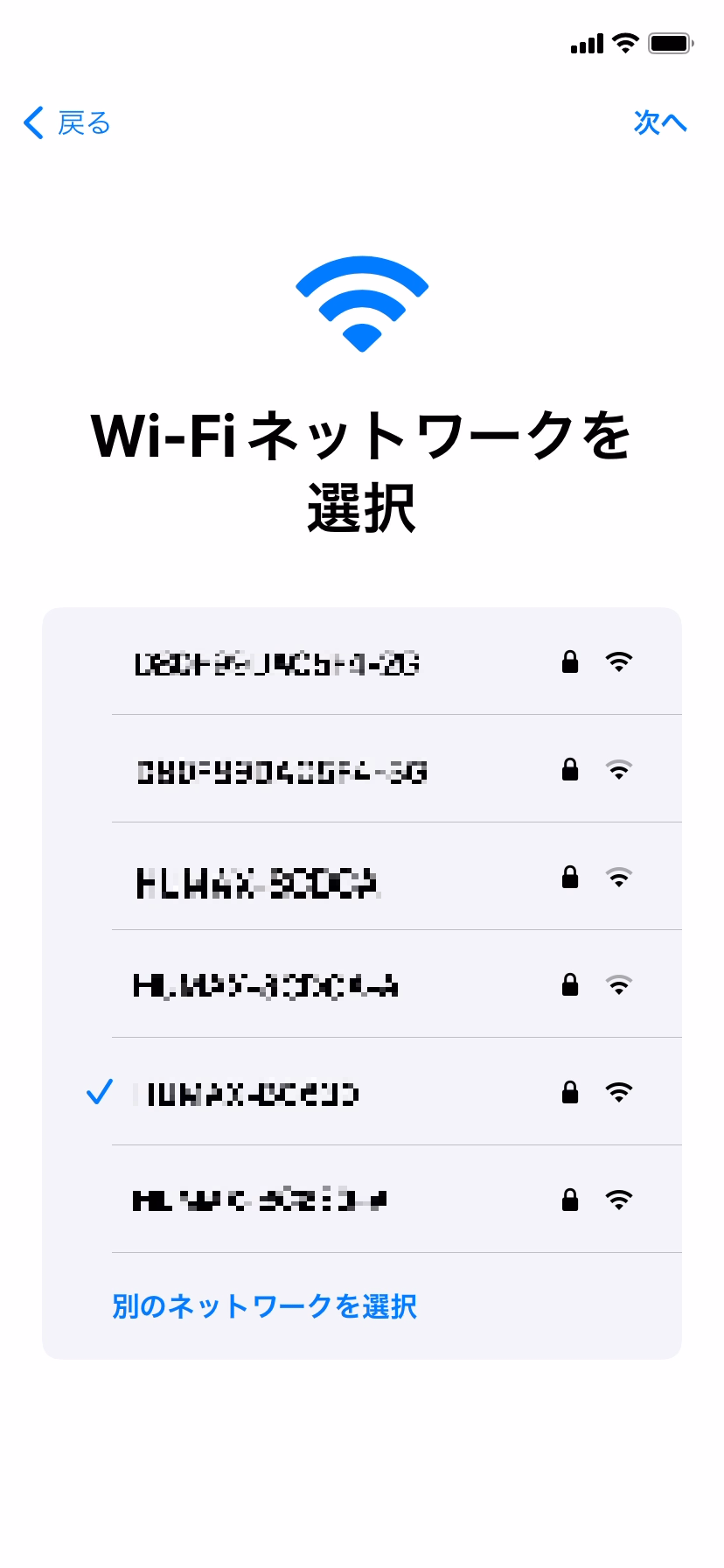
When the settings are complete, select
Next.
-
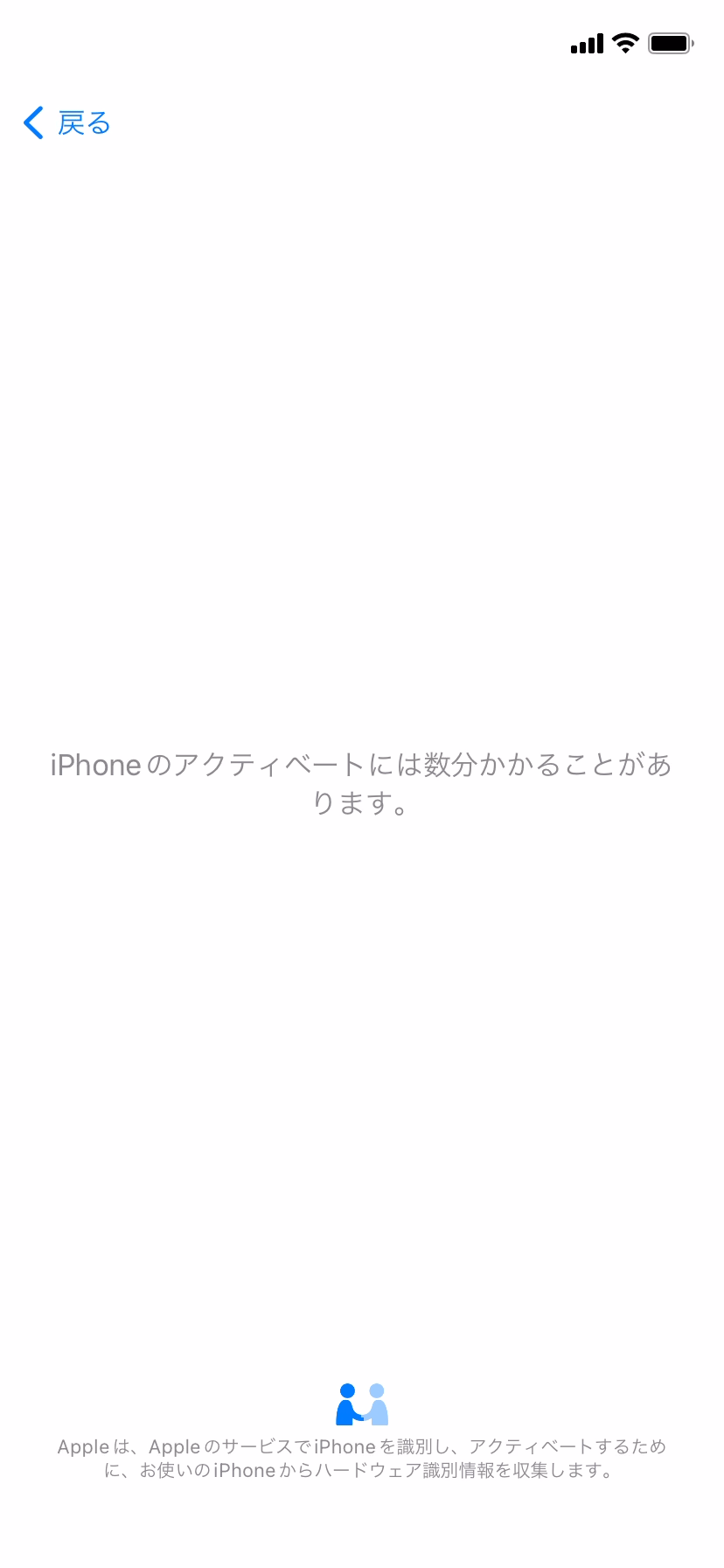
Device activation starts.
-
When the
Remote Managementscreen appears, selectEnroll This iPhone.
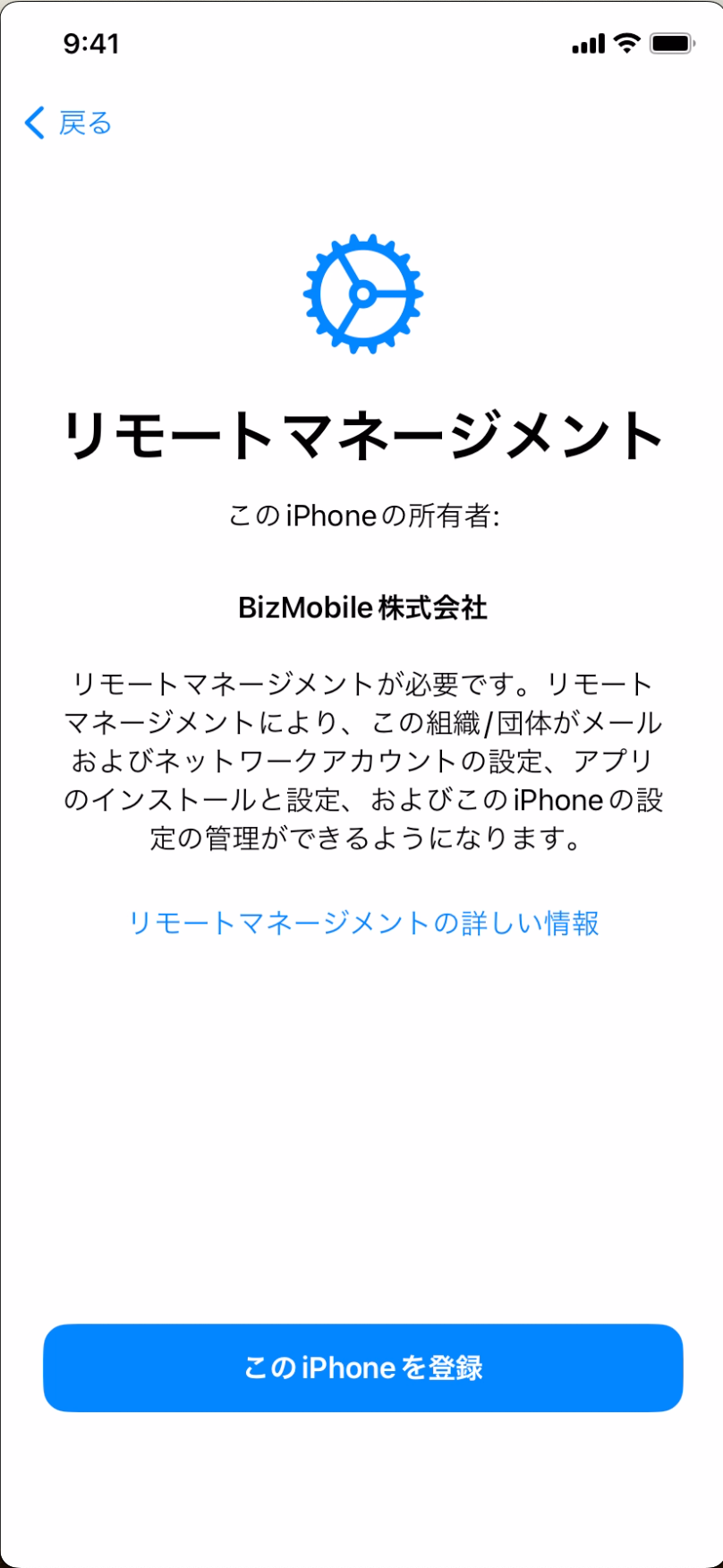
If the Remote Management screen does not appear:
The ADE profile may not have been linked to the ADE device when activation started.
Complete activation once, reset the device from the Settings app, and then repeat the enrollment steps from the beginning.
Due to Apple specifications, Leave Remote Management or Remove iPhone (or iPad) from Organization is displayed for 30 days after a device is registered in Apple Business (formerly Apple Business Manager) using Apple Configurator. This display and the corresponding action cannot be restricted.
If you select Leave Remote Management or Remove iPhone (or iPad) from Organization, automatic enrollment (MDM registration) in BizMobile Go! is not performed and normal activation takes place. In addition, the device is removed from Apple Business, so you must register the device in Apple Business again (make it an ADE device) and activate it again after erasing the device.
-
Configuration installation starts.
Wait until the installation completes and the screen changes.

-
Initial device setup starts.
Settings specified asSkip itemsin the ADE profile are skipped and not displayed. -
When all settings are finished, device setup (kitting) and enrollment in BizMobile Go! are complete.
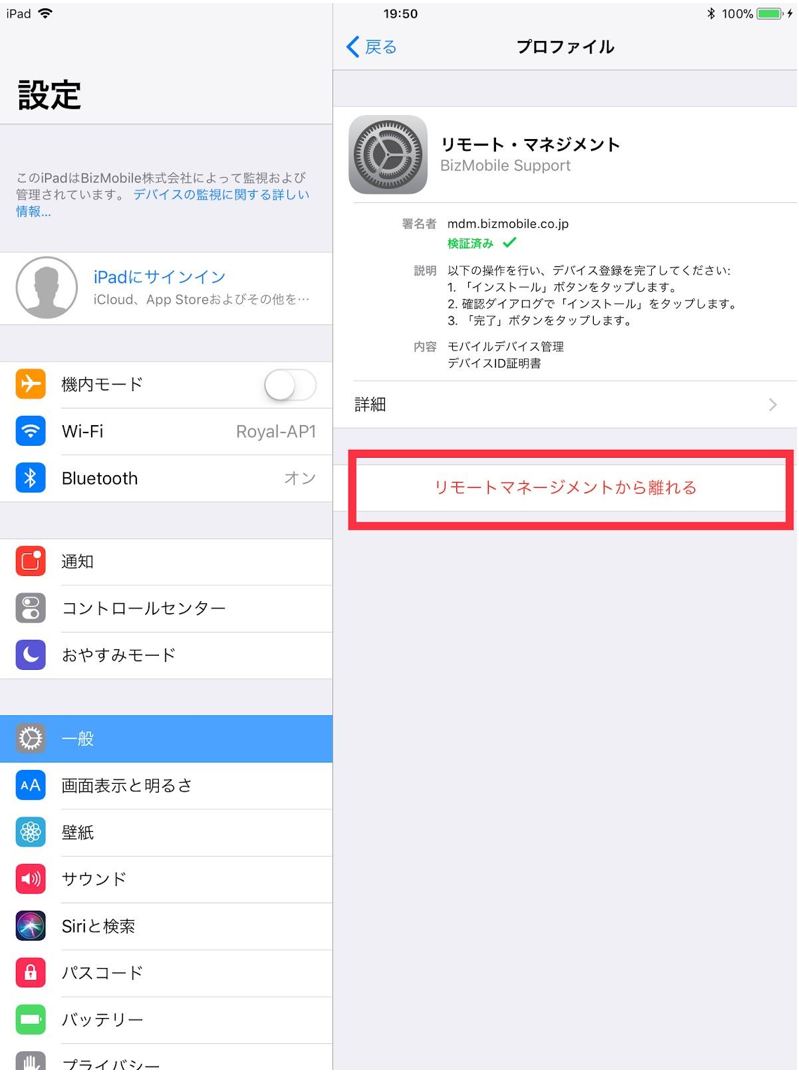
For an ADE device registered in Apple Business using Apple Configurator, for 30 days after registration, the Leave Remote Management button is displayed in the MDM profile shown in the Settings app after enrollment, which lets the user remove the device from MDM management on the device itself. This display and behavior, which are due to Apple specifications, cannot be prohibited.
For an ADE device registered in Apple Business using Apple Configurator, for 30 days after registration, This iPhone (or iPad) is remotely managed is displayed on the lock screen. (iPhone (or iPad) varies by device type, such as iPhone or iPad.)
-
Confirm that the device is ready for enrollment.
The device is ready when the ADE device (serial number) has been linked to an ADE profile.
Check the link status inProfile Statuson theAUTO ENROLLMENTscreen.
• [AUTO ENROLLMENT] → [ADE Device] → [Device] → [Profile Status]Profile Status:
• assigned, pushed: Ready
You can proceed to the enrollment steps below.
• assigning: Not ready
Wait up to about 10 minutes for the next ADE sync, and then check the status again.
• Other: Individual check required
Check the progress of linking the ADE device to the ADE profile in Profile Status.
After you check it and take any required action, check the status again. -
Turn on the device. If the device has already completed initial setup, reset it to its factory settings.
-
Select a language and region.
-
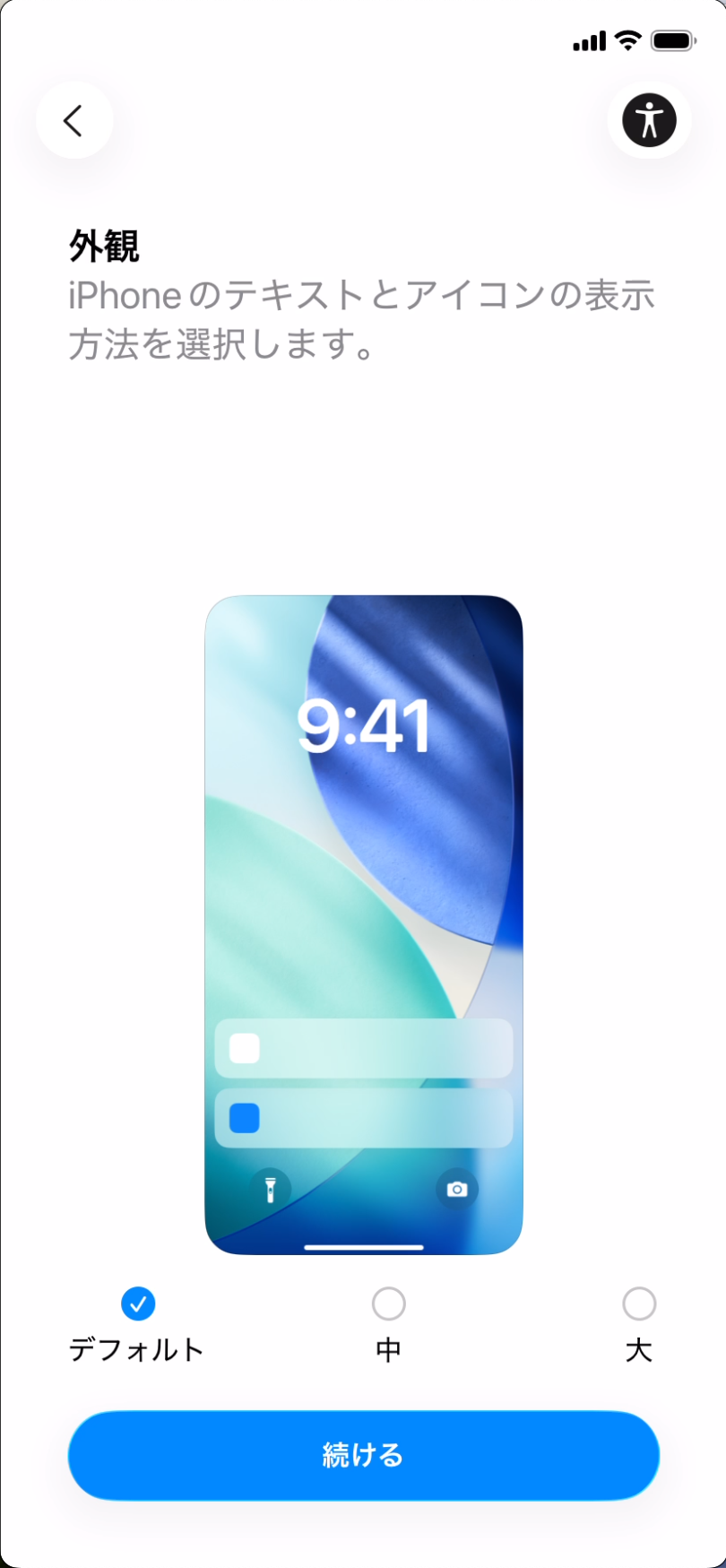
Select an appearance and tap
Continue.
-
When the
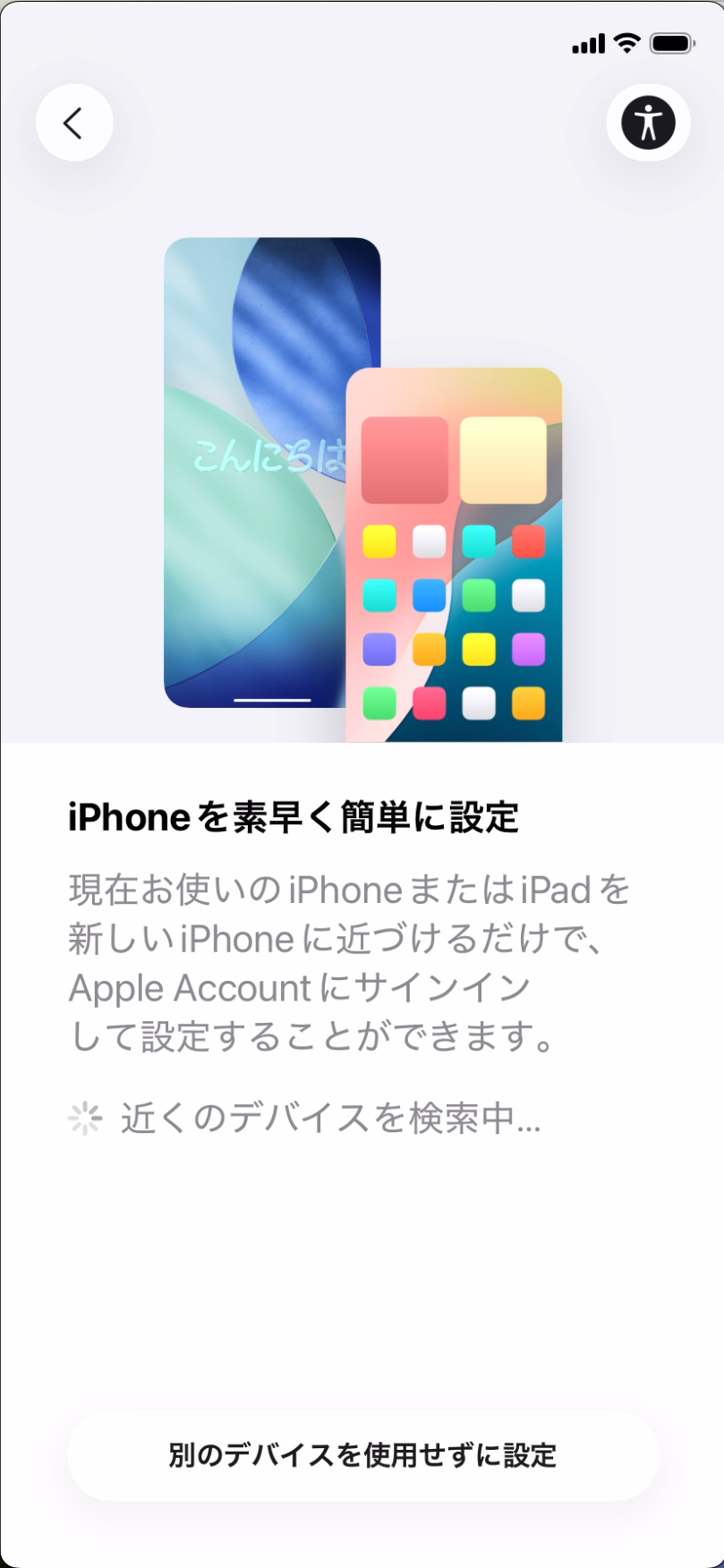
Quickly Set Up Your New iPhonescreen appears, tapSet Up Without Another Deviceto proceed.
-
On the
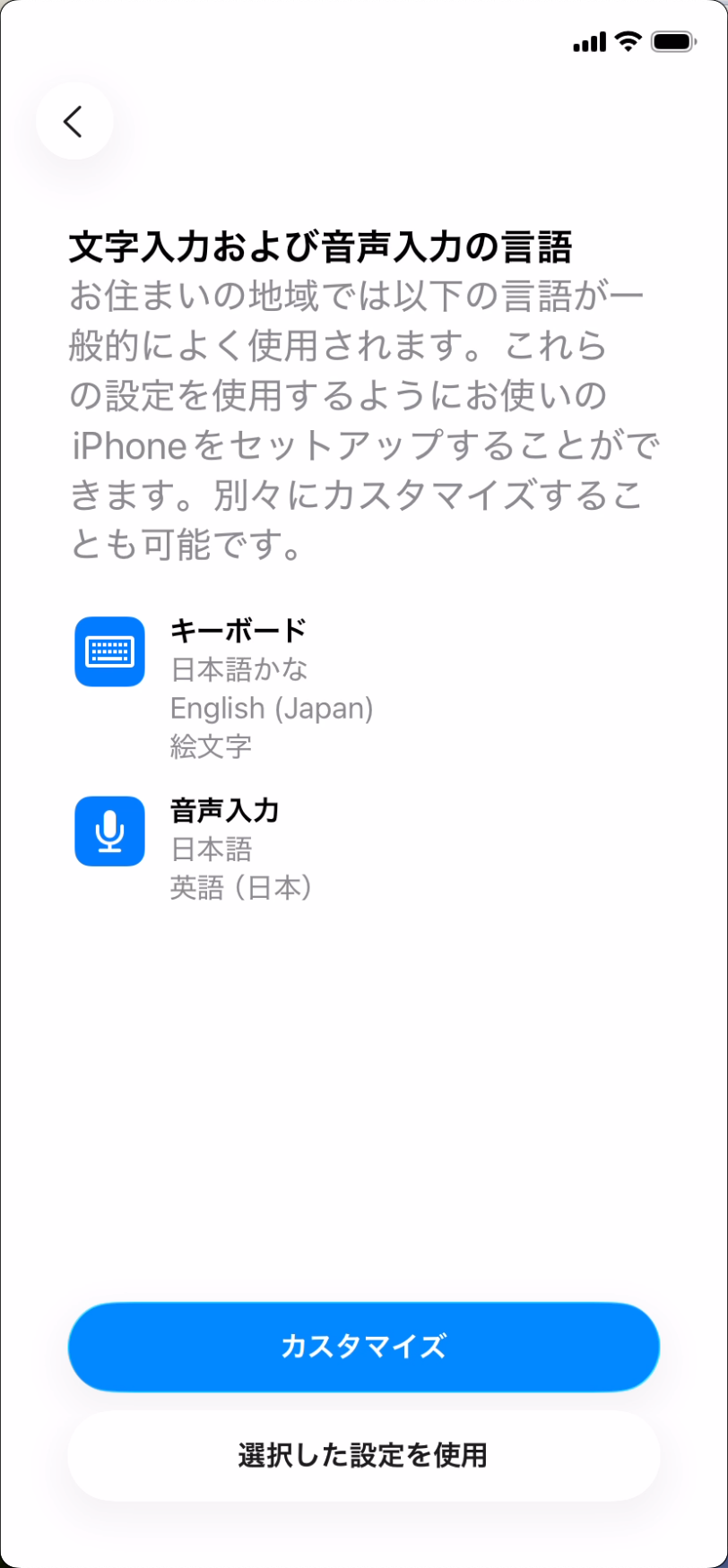
Languages for Typing and Dictationscreen, selectUse Selected Settingsto proceed.
-
Configure the Wi-Fi settings.
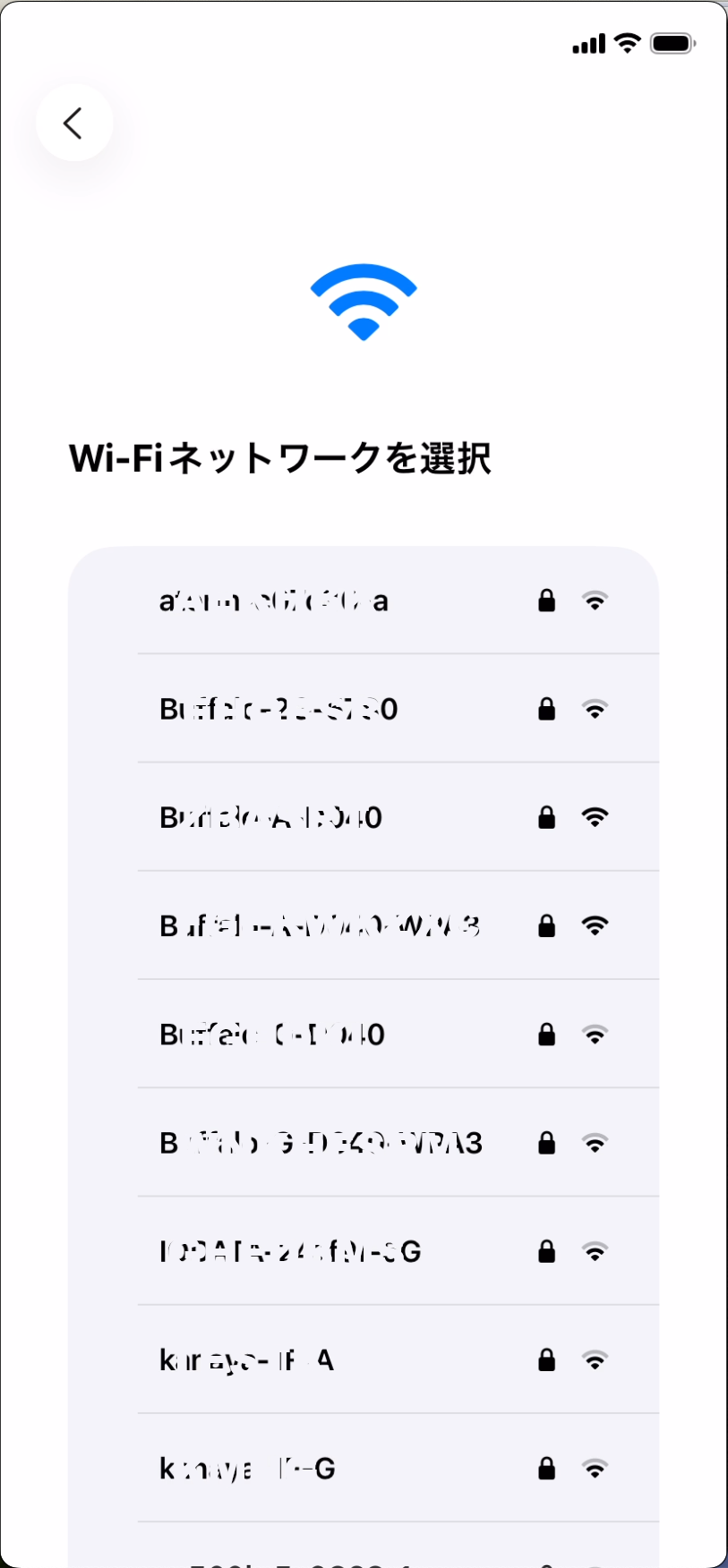
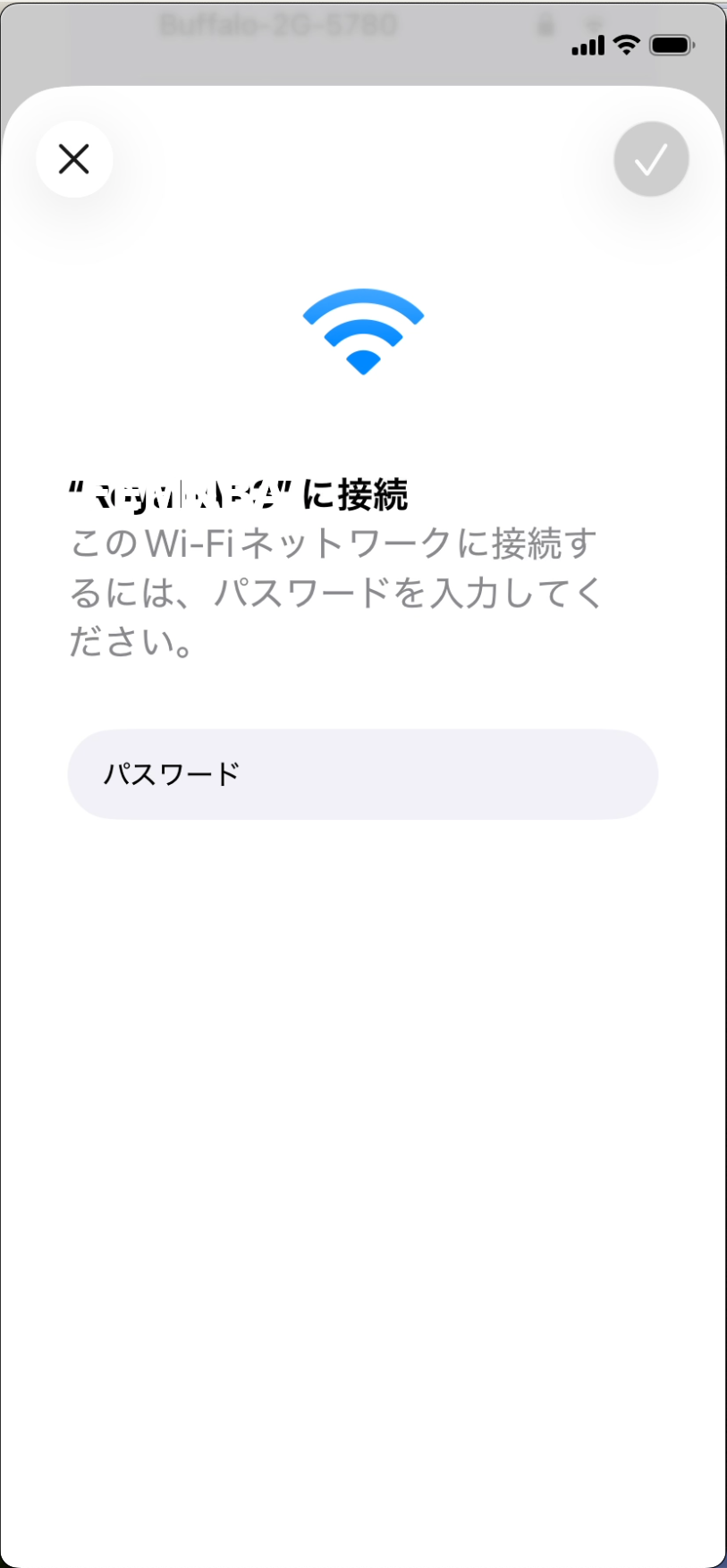
If there is no Wi-Fi environment and the device is a Cellular model with an active SIM card inserted, scroll down on the Wi-Fi settings screen and tap [Use Cellular Connection].
-
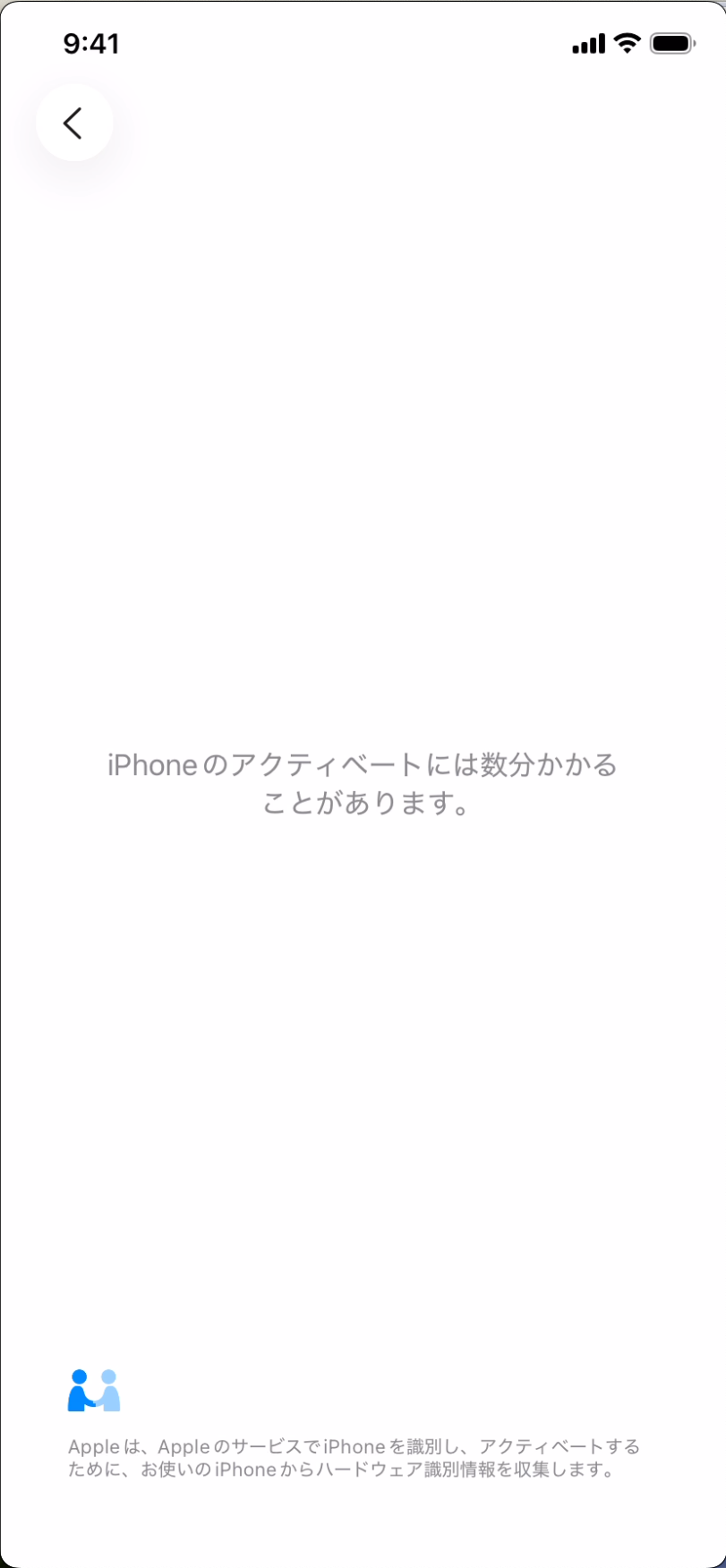
Device activation starts.
-
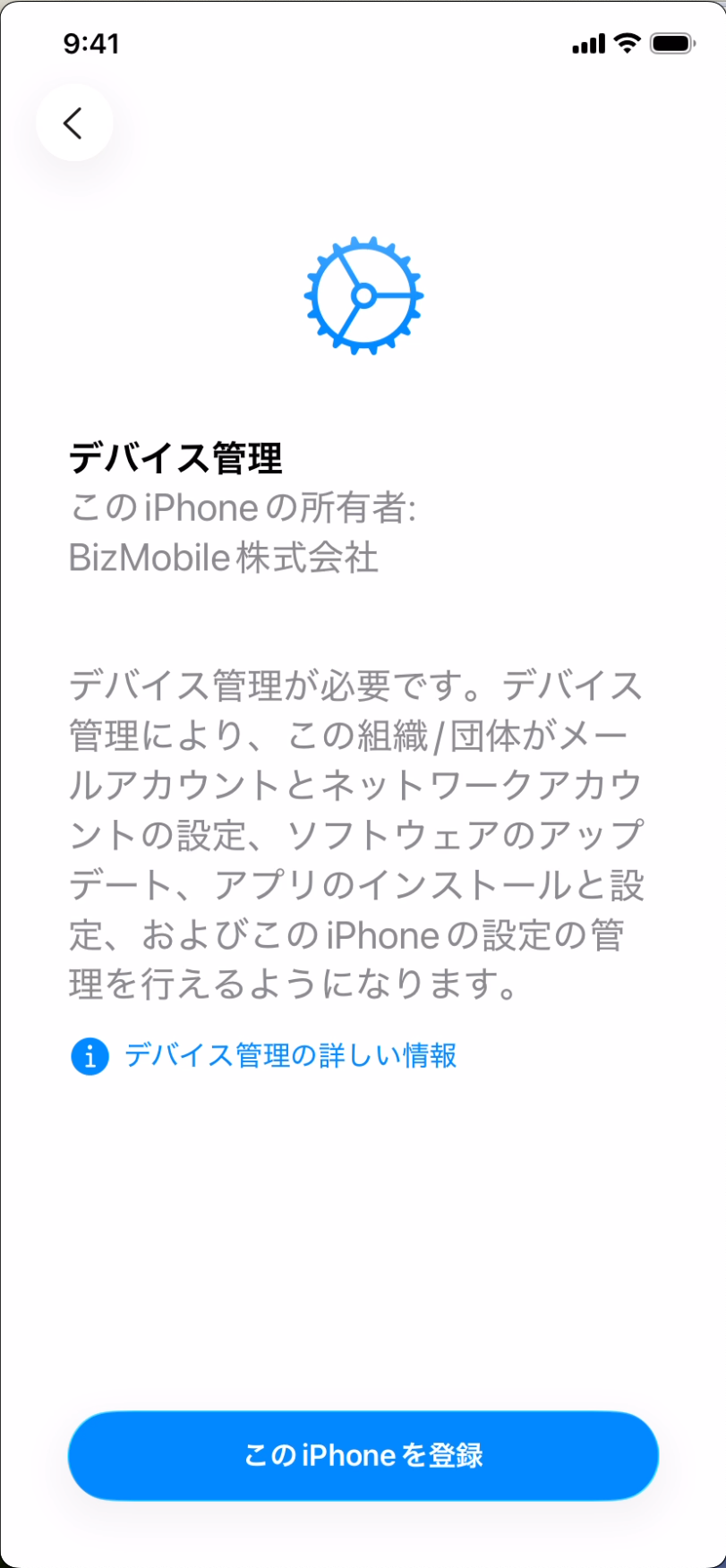
When the
Device Managementscreen appears, selectEnroll This iPhone.
If the Remote Management screen does not appear:
The ADE profile may not have been linked to the ADE device when activation started.
Complete activation once, reset the device from the Settings app, and then repeat the enrollment steps from the beginning.
Due to Apple specifications, Leave Remote Management or Remove iPhone (or iPad) from Organization is displayed for 30 days after a device is registered in Apple Business using Apple Configurator. This display and the corresponding action cannot be restricted.
If you select Leave Remote Management or Remove iPhone (or iPad) from Organization, automatic enrollment (MDM registration) in BizMobile Go! is not performed and normal activation takes place. In addition, the device is removed from Apple Business, so you must register the device in Apple Business again (make it an ADE device) and activate it again after erasing the device. (iPhone (or iPad) varies by device type, such as iPhone or iPad.)
-
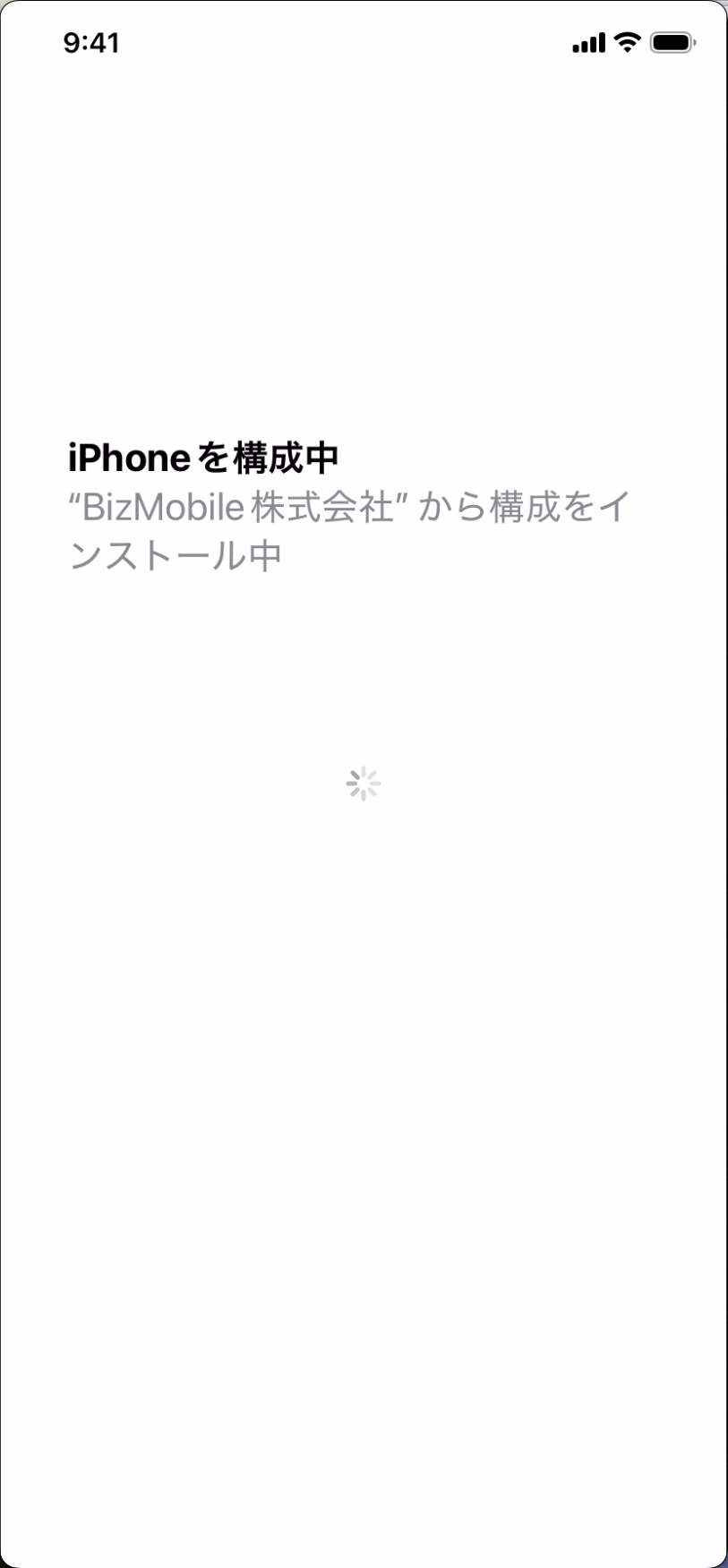
Configuration installation starts.
Wait until the installation completes and the screen changes.
-
Initial device setup starts.
Settings specified asSkip itemsin the ADE profile are skipped and not displayed. -
When all settings are finished, device setup (kitting) and enrollment in BizMobile Go! are complete.
macOS
-
Turn on the device. If the device has already completed initial setup, reset it to its factory settings.
-
Select a language and region.
-
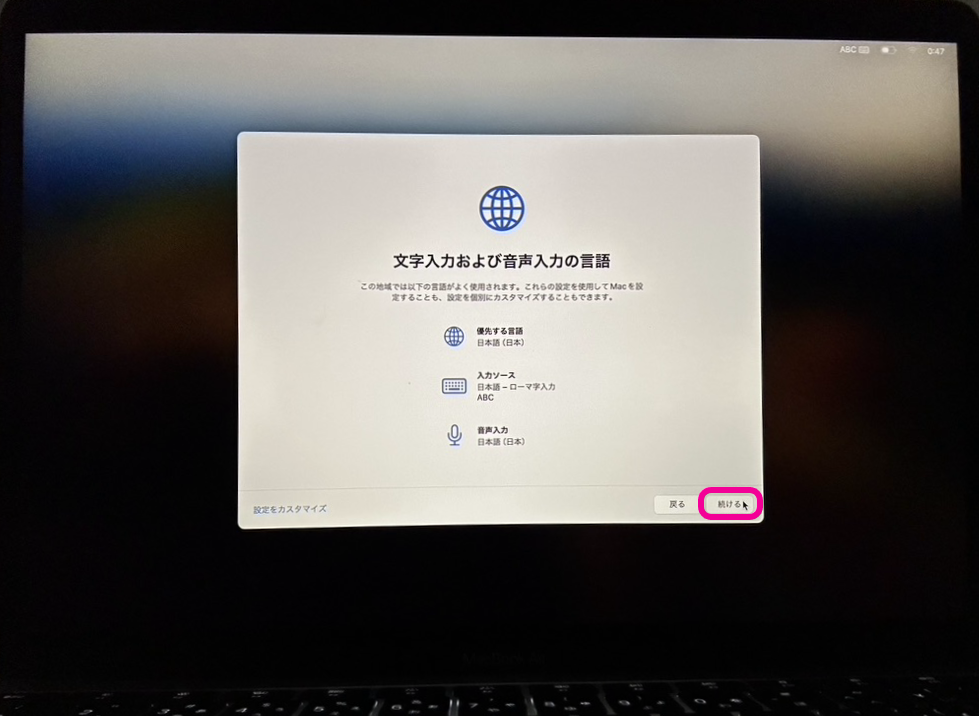
On the
Languages for Typing and Dictationscreen, clickContinueto proceed.
-
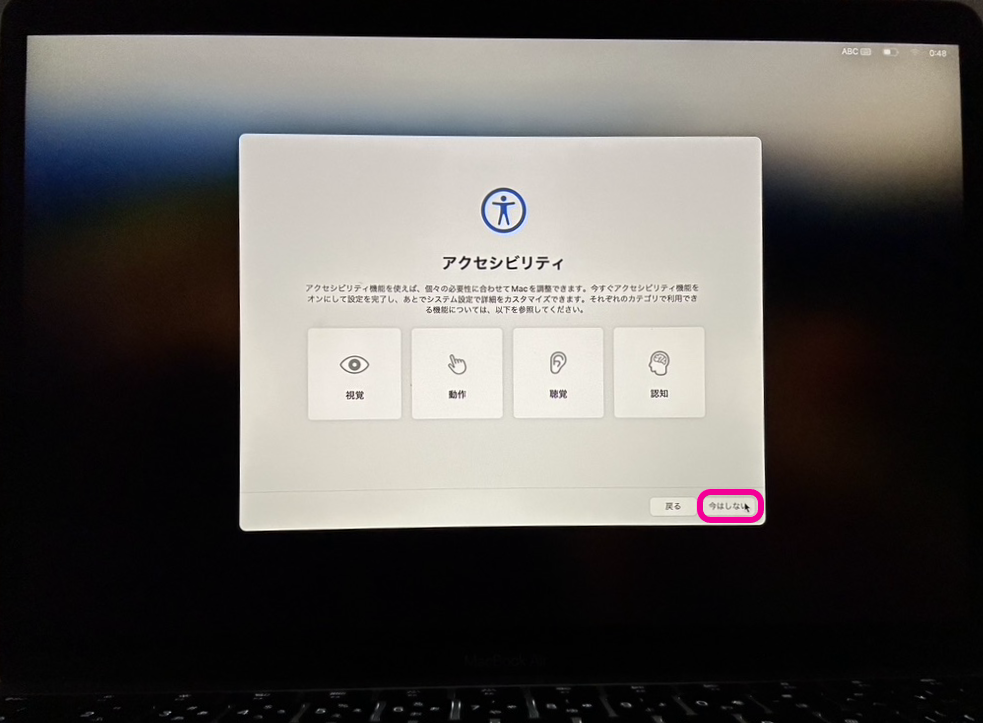
On the
Accessibilityscreen, clickNot Nowto proceed.
-
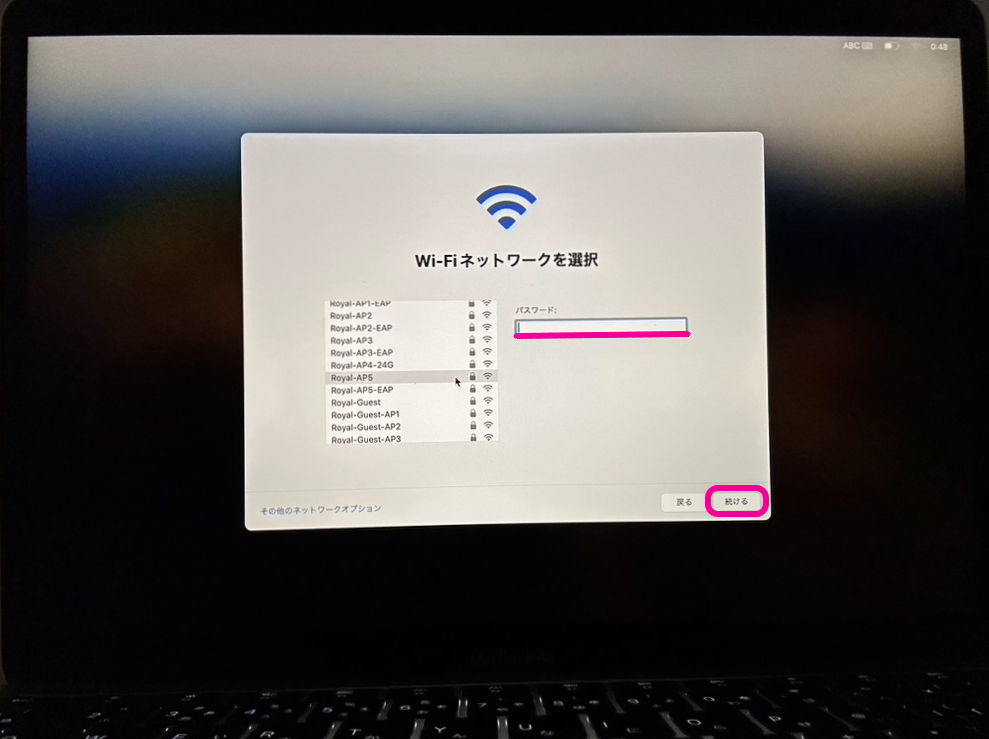
Configure the Wi-Fi settings, and click
Continuewhen finished.
Note: If the device is connected to the network by wire, this screen is not displayed.
-
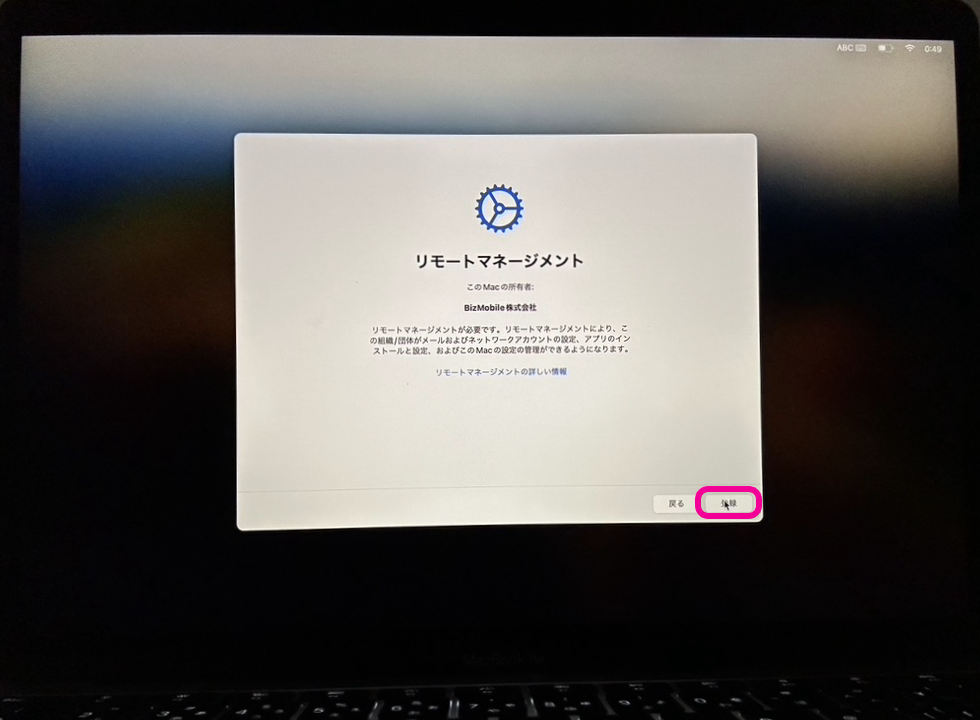
When activation starts and the
Remote Managementscreen appears, clickEnroll.
-
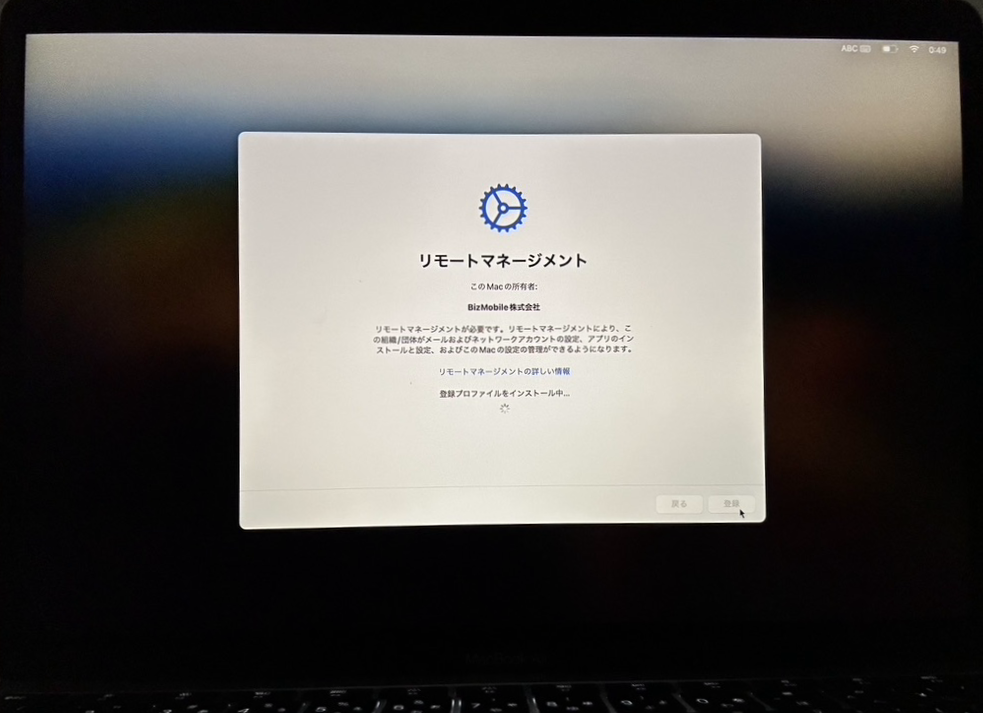
Installation of the enrollment profile starts.
Wait until the installation completes and the screen changes.
 warning
If the Remote Management screen does not appear:
The ADE profile may not have been linked to the ADE device when activation started.
Complete activation once, reset the device from the Settings app, and then repeat the enrollment steps from the beginning.warningDue to Apple specifications,
Leave Remote Managementis displayed for 30 days after a device is registered in Apple Business using Apple Configurator. This display and the corresponding action cannot be prohibited.
If you delete the profile, automatic enrollment (MDM registration) in BizMobile Go! is not performed and normal activation takes place. In addition, the device is removed from Apple Business, so you must register the device in Apple Business again (make it an ADE device) and activate it again after erasing the device. -
Initial device setup starts.
Settings specified asSkip itemsin the ADE profile are skipped and not displayed. -
On the
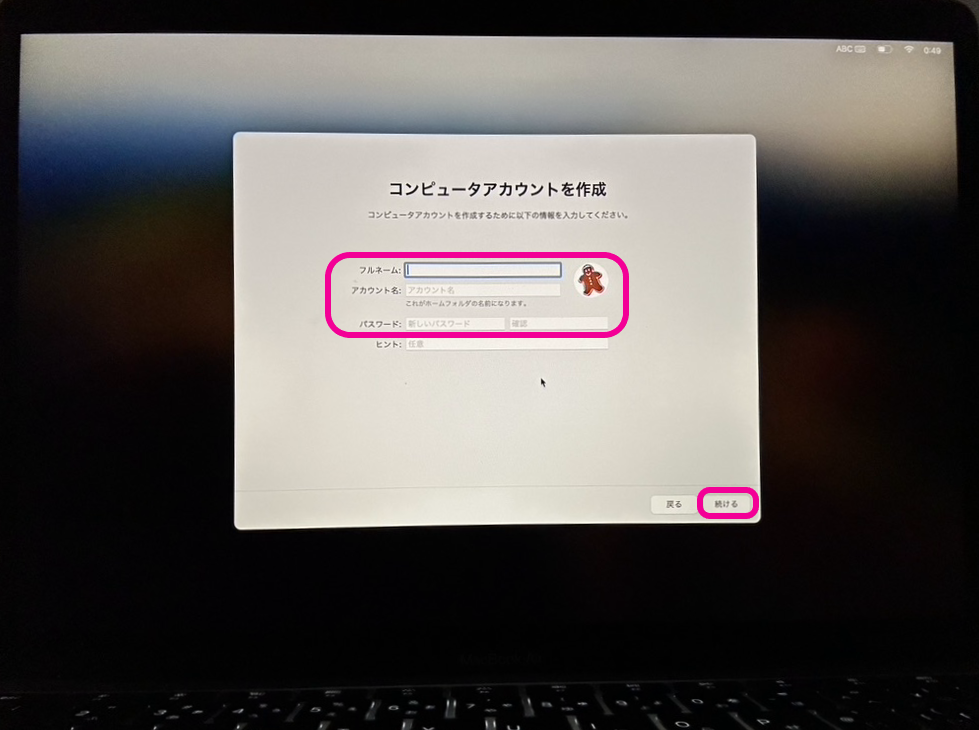
Create a Computer Accountscreen, enterFull name,Account name, andPassword, and clickContinue.
-
Screens are displayed according to the ADE profile settings.
Settings specified asSkip itemsare skipped and not displayed. -
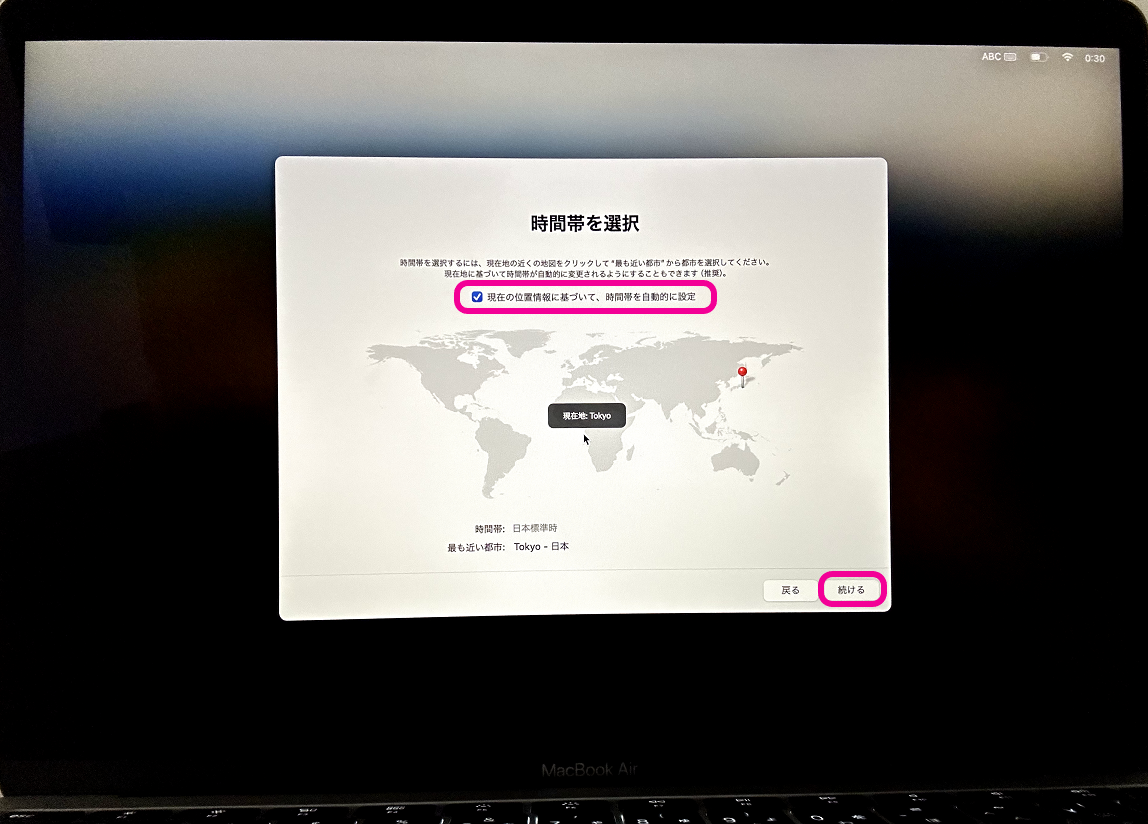
If the
Select Your Time Zonescreen appears, selectSet time zone automatically using your current locationand wait a moment.
When your current location is displayed, clickContinue.
-
When all settings are finished, device setup (kitting) and enrollment in BizMobile Go! are complete.

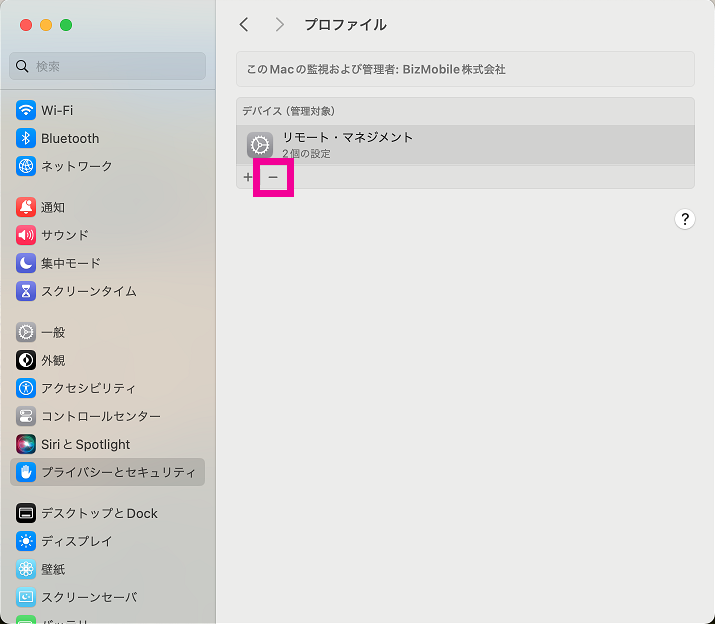
For an ADE device registered in Apple Business using Apple Configurator, for 30 days after registration, the − (minus) button is displayed in the MDM profile shown in the Settings app after enrollment, which lets the user remove the device from MDM management on the device itself. This display and behavior, which are due to Apple specifications, cannot be prohibited.
Depending on the network conditions of the device setup environment, it may take some time for all of the profiles, apps, and other items registered in the template to be installed on the device.
If enrollment fails, the following causes are possible:
- The serial number of the device itself does not match the serial number registered in the device information.
- The enrollment expiration date has passed.
- A problem inside the device or on the network.
For 1) and 2), confirm and register the correct information, and then try enrolling again.
For 3), going back to the previous screen and repeating the operation may resolve the problem, but in some cases you cannot go back to the previous screen and must force a factory reset.