Create and Edit Organization Information
This page describes how to create organization information and change organization names and hierarchy.
Create organization information
- Click SETTING → Organization.
- Click the icon below to open the organization information input screen.
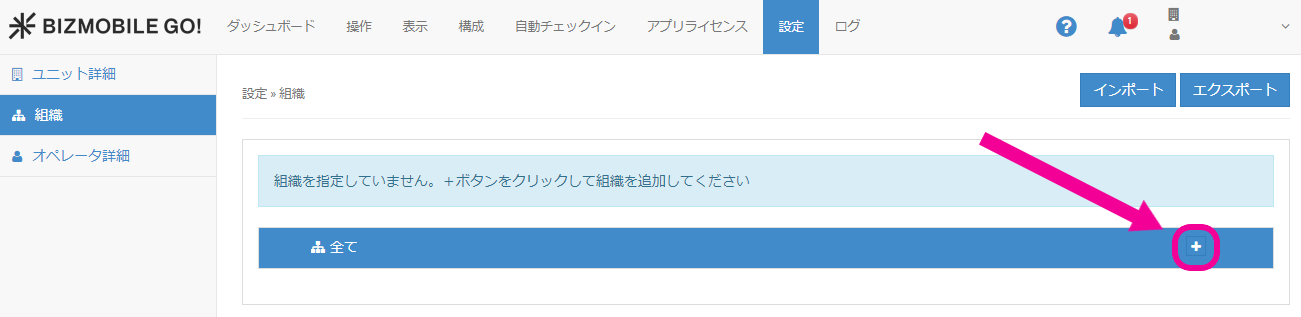
- On the organization information input screen, enter the required information and save it.
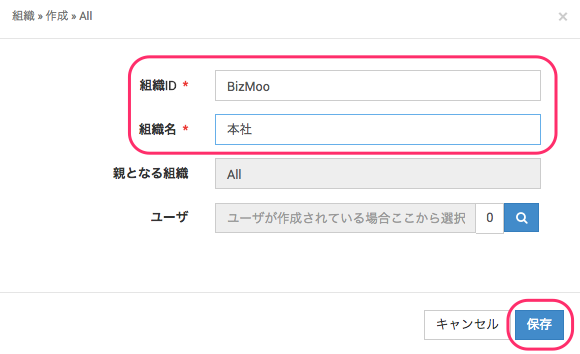
Input items (items marked with ★ are required)
| Organization Information | Description |
|---|---|
| Organization ID★ | An ID that uniquely identifies the organization Examples: BizMobile, sales01, group01 |
| Organization Name★ | The name of the organization (the name displayed in the admin console) Examples: Headquarters, Sales Department, Group 1 |
| Parent Organization | Shows the parent organization Example: To divide departments within the Headquarters organization: (Parent) organization: Headquarters; (child) organizations under it: Sales Department, Development Department |
| User | If users have been created, select the users you want to assign to this organization |
- The organization has been added. Add more organizations as needed.
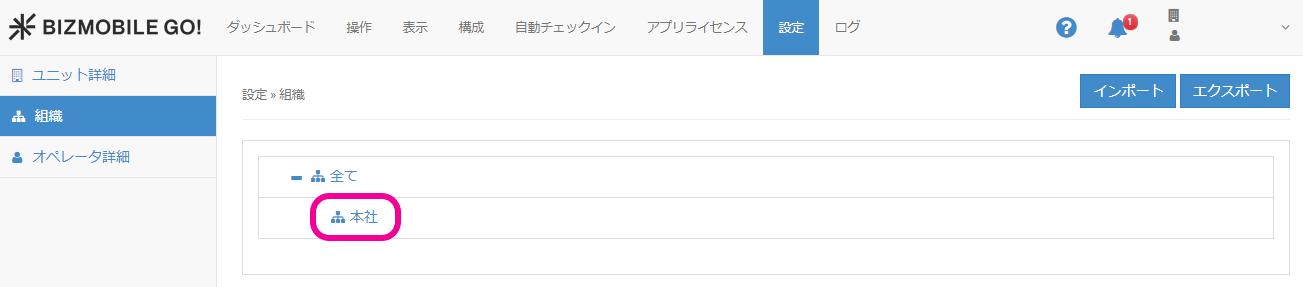
- Add a (child) organization under the
Headquartersorganization you added above.

Click the icon, enter the required information on the organization information input screen that opens, and save.
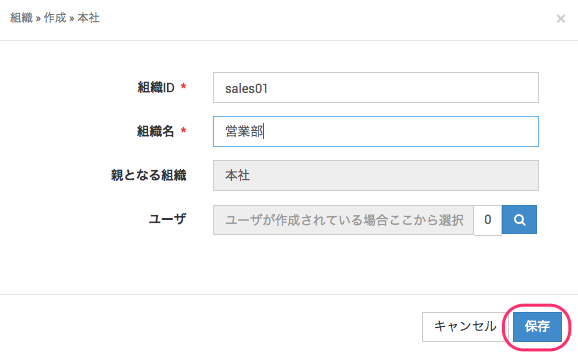
- The (child) organization has been added. Add more organizations as needed.
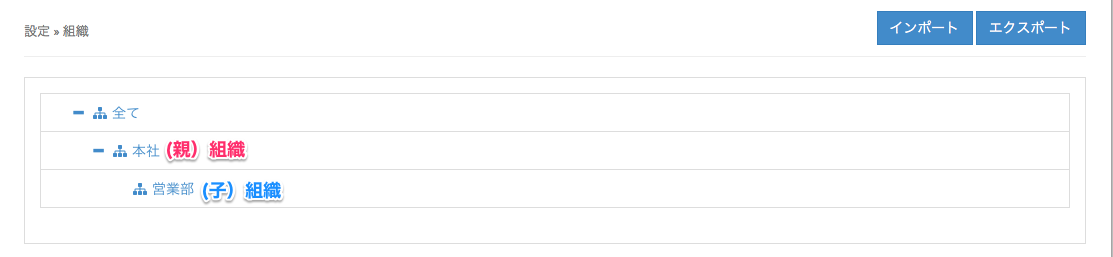
To add a (child) organization underSales Department, repeat the procedure from step 5.
Edit organization information
Click the organization you want to work with, and then click the appropriate icon from the following list.
| Icon | |
|---|---|
| Creates an organization. You can specify the organization ID (required), organization name (required), parent organization, and users who belong to it. |
| Selects the operators who belong to the organization. Note: Use this only when you restrict operator access by organization. |
| Views organization information. Shows the organization ID, organization name, parent organization, and number of users who belong to it. |
| Edits organization information. You can specify the organization ID (required), organization name (required), parent organization, and users who belong to it. |
| Deletes organization information. However, you cannot delete it in the following cases.
|
| Changes the hierarchy and order of organizations. To change the hierarchy of an organization, click To change the order of organizations, click |


